
1 Introduction
[hide]
Pyth4PI runs Python scripts written for Siril (the free astronomical image processing program) on PixInsight images, and opens the possibility to write scripts in Python that will run on PixInsight. The Siril scripts run as they are: nothing needs to be ported, converted or edited.
A Siril script does not reach into Siril's code. It talks to Siril through a Python package, sirilpy: it asks for the image that is loaded, works on the pixels in Python, and hands the result back. Pyth4PI answers those same requests in Siril's place. To the script, PixInsight is Siril: the image it finds loaded is the PixInsight image we applied the process to, and the image it hands back replaces it.
That gives us three things:
- The scripts that already exist: stretches, denoisers and sharpeners built on machine-learning models, star tools, gradient removal, annotation and analysis tools. Siril's own scripts repository is one click away in Pyth4PI (see 4.4), and the list says of each script whether Pyth4PI can run it (see 4.3).
- Python for our own pixel work: a script of a few lines, with numpy, scipy, OpenCV or a model of our own, becomes a PixInsight process that can be applied to an image, kept as a process icon and undone. Such a script can also run PixInsight's own processes, with the parameters it gives them or from a process icon (see 8).
- PixInsight's way of working, kept: a run is one step in the image's history, undone in one go, and the script with its arguments is a process instance like any other.
- Pre-processing scripts are not run: The preprocessing tools are at the heart of every astrophotography processing software. Being able to run Siril scripts that adjust an image in ways not currently offered by PixInsight is a win for everyone. But calibrating our data in PixInsight with Siril's preprocessing tools makes no sense, and it would also go against the philosophy of the PixInsight team. If we want to calibrate our data with Siril's preprocessing tools, we are better off by doing it in Siril directly. I would ask then... but why not just use PixInsight?
For that and other reasons, not every Siril script can run in PixInsight with Pyth4PI. A script that works on pixels and metadata runs. A script that drives Siril itself, calibrating, registering and stacking through Siril's own commands, needs Siril. The list in the window says of each script whether it runs (see 4.3).
As a measure: in October 2026 Siril's scripts repository holds 86 scripts. Pyth4PI grades 66 of them Supported, 1 Partial and 5 Unsupported; 6 more serve Siril itself and have no use in PixInsight, and 8 are preprocessing scripts, which Pyth4PI does not run. So 77% of the scripts run as they are. Leaving out the 8 preprocessing scripts, which calibrate, register and stack (PixInsight's own tools are the ones to use for that!), a whopping 85% of all Siril scripts are supported by Pyth4PI, and leaving out as well the 6 that only Siril has a use for, 92%. The list in the window shows the grade of every script, and Check for updates brings the scripts published since (see 4.3 and 4.4).
Pyth4PI does not include Python, sirilpy or any script. It uses a Python that is already on the computer, and installs sirilpy from Siril's own public repository into an environment of its own (see 2.3).
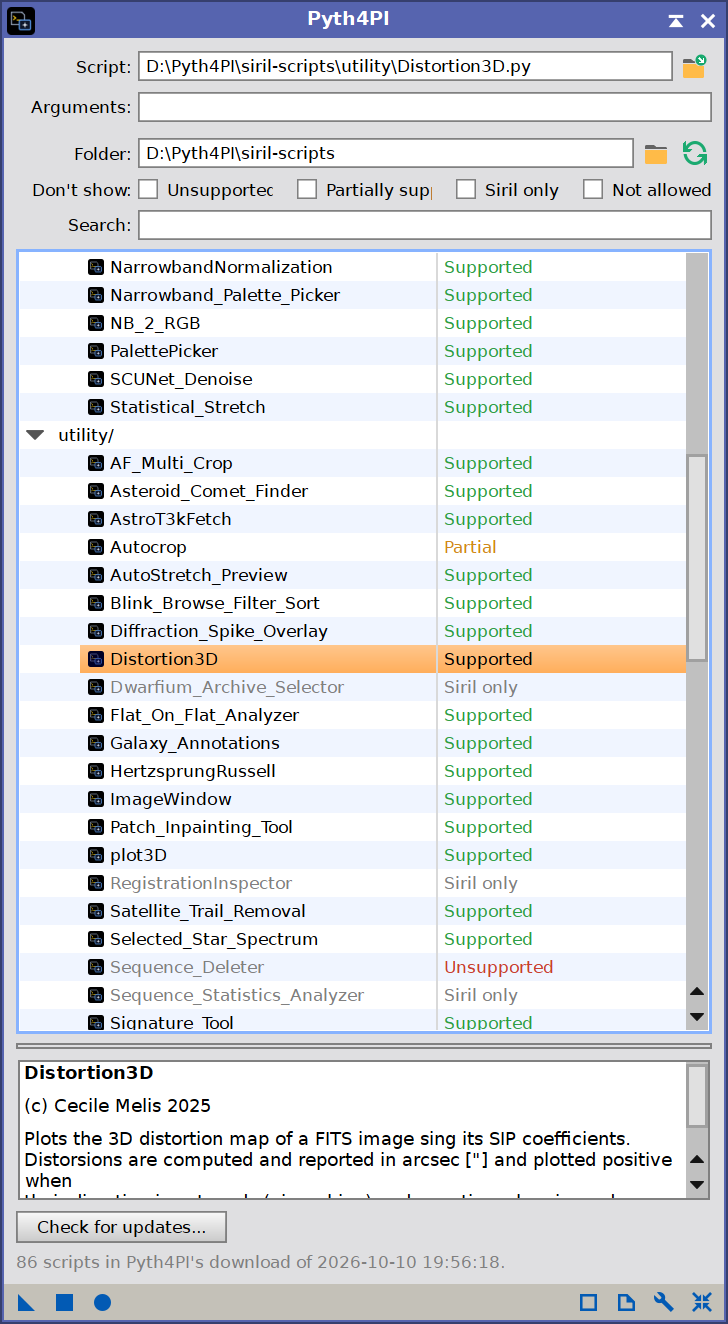
The Pyth4PI window:
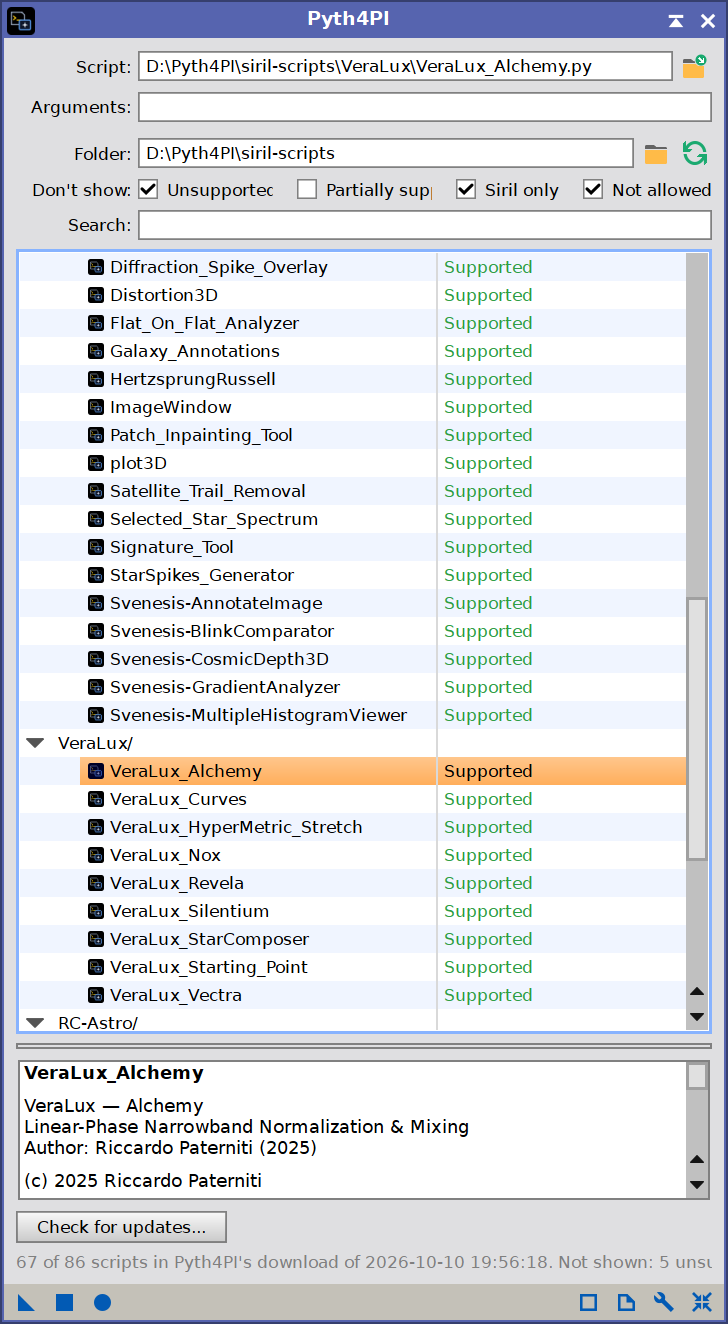
The scripts of a folder with their grades, the chosen script, and what it says of itself in the box under the list. Unsupported scripts are hidden here.
This document has two parts. Chapters 1 to 7 are for running existing scripts: setting up, the window, a run, and what is good to know. Chapters 8 and 9 are for those who would like to write Python scripts that work in PixInsight and Siril, or just in PixInsight: how to write them, what works, what doesn't, how to access PixInsight's processes from a PixInsight-only Python script, and exactly what a script finds when PixInsight answers in Siril's place.
2 Setup and Installation
[hide]
The only official distribution of Pyth4PI is through DSC Hub, our free PixInsight process for installing and updating everything Deep Sky Colors makes. One address covers every one of our processes:
https://repo.deepskycolors.com/
Adding that repository to PixInsight installs DSC Hub, and PixInsight handles that installation itself, with our Developer and Repository certificates verified before it completes. We then open PROCESS > DeepSkyColors > DSCHub, select Pyth4PI in the list, and click Download and install.
DSC Hub checks every download against a catalog that is digitally signed, and refuses anything whose checksum does not match. PixInsight then verifies the module's own signature every time it loads it, so a module altered after we published it is refused.
Keep that repository in the list. DSC Hub tells us at startup when an update for Pyth4PI is waiting, and installs it in a couple of clicks.
2.1 Launching Pyth4PI
In Process Explorer or via the PROCESS menu, Pyth4PI is listed under the DeepSkyColors category as Pyth4PI. Double-clicking it opens the Pyth4PI window (see 4).
The control bar of the window carries the usual buttons of a PixInsight process:
- The drag triangle: dragging it onto an image runs the script on that image. Dragging it to the workspace makes a process icon that holds the script and its arguments (see 5.4).
- Apply (the square): runs the script on the active image.
- Apply Global (the circle): runs the script with no image (see 5.2).
- The documentation button, which opens this page.
- The wrench: it opens the Preferences window, which also leads to the license dialog (see 4.5 and 2.2).
- Reset: empties the script and its arguments.
2.2 Licensing
Pyth4PI is licensed software with a 30-day trial, which starts the first time the module runs. While the trial lasts, everything works and the Process Console says how many days remain whenever the window is opened.
When the trial ends, Pyth4PI stops until a license is registered. The window does not open: a window says that the trial has ended and offers Get my license, which opens the purchase page, and OK, which opens the registration dialog. A script kept as a process icon does not run either, whether it is executed from the icon, from a Process Container or from a PixInsight script: the run stops with a message that says how to register. Nothing is deleted: every icon, the Python environment and every script are exactly as they were, and registering brings them all back at once.
To register during the trial, we click the wrench on the window's control bar, then License and version information..., then Click here to register. After the trial, OK in the window above leads straight to the registration dialog. It asks for the Email address used when purchasing and the Registration key, the code received with the license. Its status line asks for both until enough of the key is present, then says Valid key. Click Register to activate. when the key and the address agree, and Key does not match this email address. when they do not. The license information window shows the version, and either the days remaining in the trial or the address the module is licensed to.
The license is read again every time the window is opened and every time a script starts, so registering takes effect at once, with no restart.
The license is for Pyth4PI. The scripts it runs belong to their authors, under licenses of their own (see 6).
2.3 The Python environment
Pyth4PI Before the environment is set up:
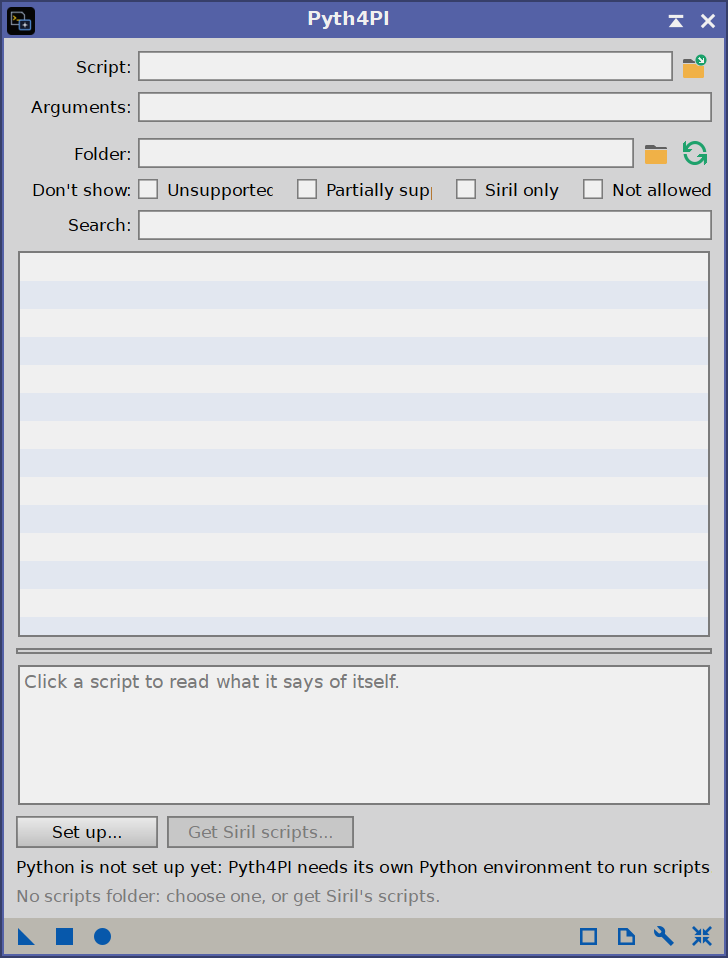
A new installation: Set up makes the Python environment, and Get Siril scripts waits for it. The line and the Set up button disappear once the environment is ready.
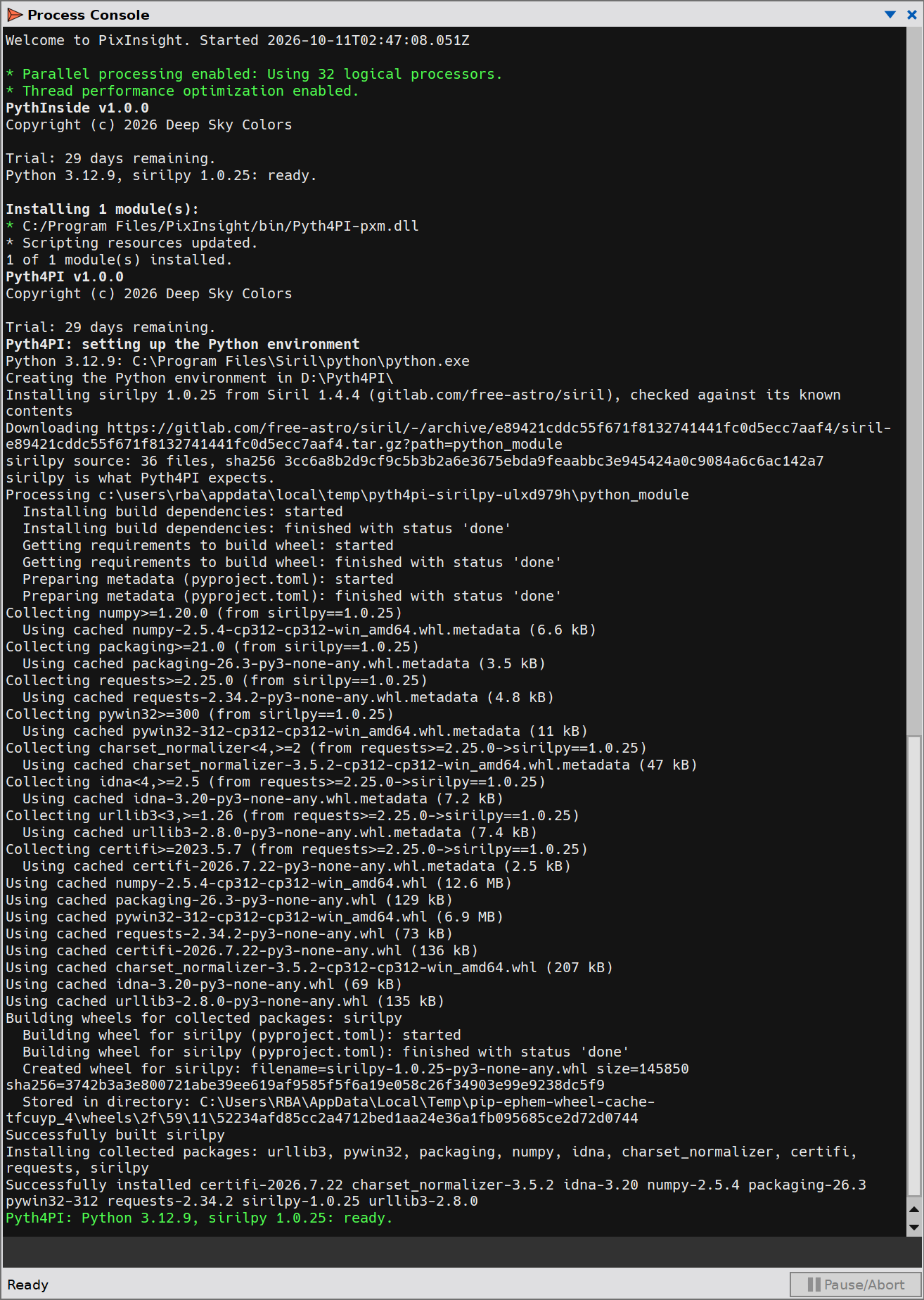
Scripts run in a Python environment that belongs to Pyth4PI alone. It is made once. Until it is, the window shows a line saying that Python is not set up yet, with a Set up... button beside it. We click it, and the Process Console shows what happens:
- A Python is found. Pyth4PI looks for the interpreter named in the preferences, if there is one; then for the Python that Siril installs, when Siril is on the computer, because that is the Python the scripts are written against; then for a python.org or system installation. It needs Python 3.9 or newer, with the
venvandensurepipmodules. - The environment is made, a Python virtual environment in Pyth4PI's own folder (see 6). No other Python on the computer is changed, and Siril's own environment is never touched.
- sirilpy is installed in it, version 1.0.25, the one Siril 1.4.4 ships. It is downloaded from Siril's public source repository, together with the packages it needs (numpy and a few small ones), so this step needs an Internet connection.
When the environment is ready the line and its button disappear from the window. The version of Python and of sirilpy in use are shown in the preferences (see 4.5), and written to the Process Console the first time the window is opened in a session.
The environment starts with sirilpy and little else. Scripts bring in what they need by themselves, the first time they run (see 2.4).
When no usable Python is found, the console says so and what was tried. Installing Siril, or Python from python.org, and clicking Set up again is all it takes; or we name an interpreter in the preferences.
Which Python. Python 3.9 is the oldest that works, and it is the one macOS has by itself. Siril's scripts are written for newer ones, 3.10 at least and 3.12 in Siril's own installation: on 3.9 most scripts run, a few do not start at all, and packages come in old versions. Set up says so on the console when 3.9 is all it finds. Python 3.12 from python.org is the one to install.
Making the environment again. An environment keeps the Python it was made with, so a Python installed afterwards changes nothing by itself. Pyth4PI notices two cases: the environment was made with a Python older than 3.10 and a newer one is on the computer now, or the Python named in the preferences is of another version than the environment's. The line above the status then says which Python the environment has and which one was found, with a Rebuild... button, and Repair in the preferences asks the same question. Rebuilding empties the environment and makes it again, keeping what is not the environment's when it is in the same folder, the scripts Pyth4PI downloaded and what scripts keep there: sirilpy is installed at once, and the packages our scripts had installed are installed again by each script, the next time it runs. Models, settings and the scripts themselves are not touched. A newer Python is not by itself a reason: an environment made with 3.11 is left alone when 3.12 appears, because nothing would be gained for what rebuilding costs.
2.4 What a script downloads the first time it runs
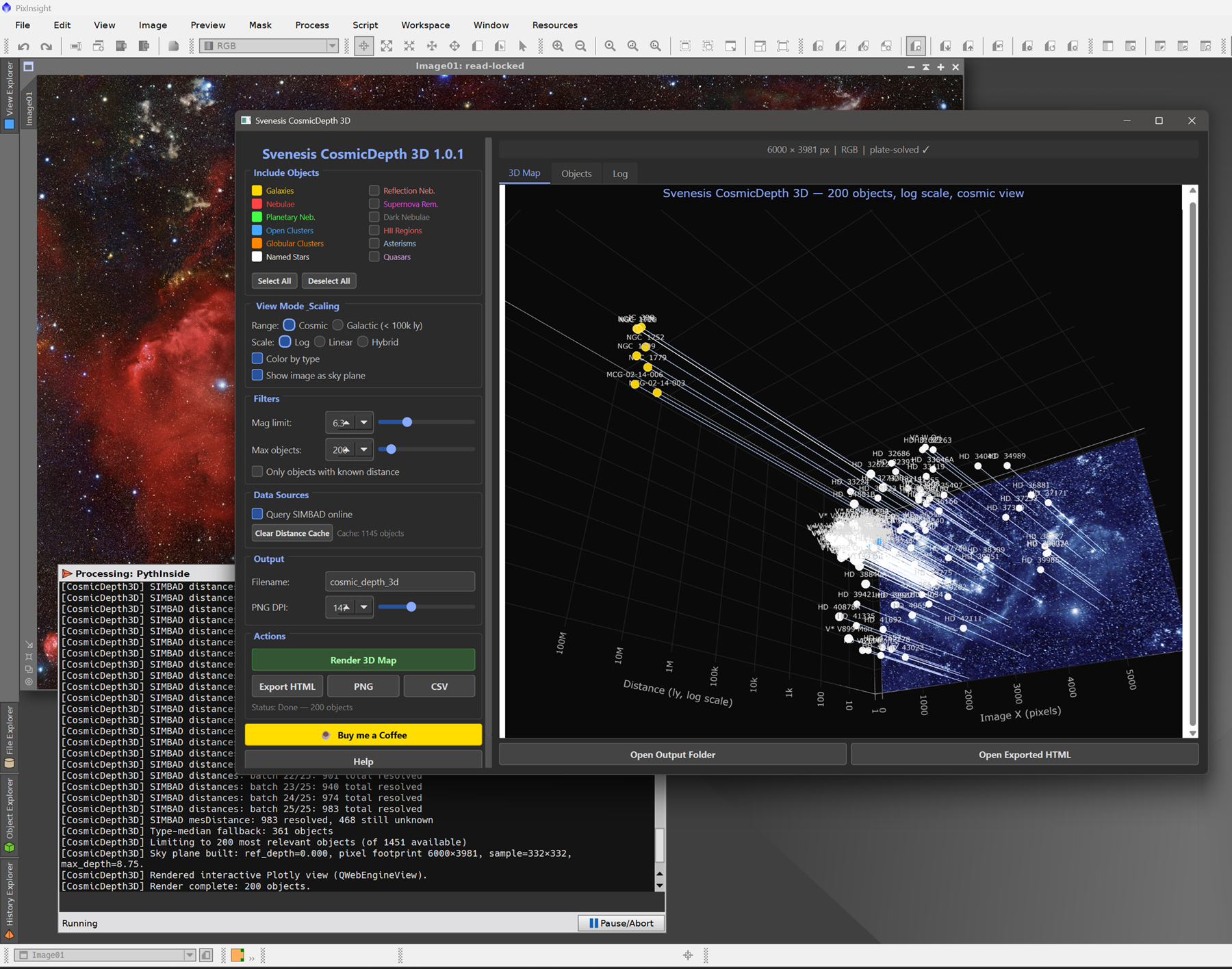
Running a script for the first time can start a number of downloads. This is normal, and it is the script's own doing: the same downloads happen when the script is first run in Siril. Pyth4PI shows them on the Process Console as they happen. They are of three kinds:
- Python packages. A script installs the packages it is written with: a window toolkit, numerical and imaging libraries, and for scripts built on machine learning a runtime such as PyTorch or ONNX Runtime. They go into Pyth4PI's environment. A window toolkit takes a moment; a machine-learning runtime is large, and can take several minutes and a good deal of disk space.
- Model files. A script built on a machine-learning model needs the model itself, a large file that comes from where its author publishes it: AberrationRemover, SCUNet_Denoise and the SyQon scripts work this way, among others. Each script does it in its own way: one downloads the model the first time it is needed, another has a button for it in its own window, or a choice of models, and another opens its author's page, where the model is obtained with an account.
- Programs of their own. A few scripts are front ends for a program we install ourselves, and some of those programs are sold by their makers: the Cosmic Clarity scripts, StarNet, the RC-Astro scripts and GraXpert-AI are of this kind. Such a script asks where its program is, or says that it is missing.
All of this happens once. Packages stay in the environment, and models stay in the folder where scripts keep their data, so the next run of the script starts at once. That folder is Siril's own when Siril is on the computer: a model downloaded under Siril is found by Pyth4PI, and one downloaded under Pyth4PI is found by Siril (see 6).
A first run that fails right after installing often needs only a second run. A script installs its packages and goes on to use them in the same run, and now and then that does not work: one package replaces another that the script had already loaded, and the two no longer match. The console then shows the installations, all of them successful, followed by an error from inside one of the packages, not from the script. Nothing is broken: the packages are in place, and the second run loads them as they are. A machine-learning script on a computer without an NVIDIA card is the usual case, because it first installs one version of its runtime and then the one its graphics support needs. This too is the script's doing, and happens the same way in Siril.
Machine-learning scripts and the graphics card. PyTorch and ONNX Runtime come in several builds: for NVIDIA cards, for other cards, for the processor alone. Which one ends up in the environment decides whether a script computes on the graphics card, and it depends on how each script installs it, and so on which script was run first. With the wrong build a script runs far slower than the computer allows, or stops and says that it could not run its model on this hardware. The remedy is Siril's own GPU_Manager script, in the core folder of Siril's scripts: it shows what graphics hardware the computer has and installs the builds of PyTorch and ONNX Runtime that fit it, into Pyth4PI's environment. Scripts that stop this way name it in their message. Running it once in a new environment, before the first machine-learning script, avoids the matter.
A script graded Supported can still stop for want of its model. Supported means that Pyth4PI answers everything the script asks of Siril (see 4.3). It does not mean that the script's own downloads succeed: an author's server can be unreachable for a while, a connection can drop in the middle of a large file, a model can be withdrawn. A script then says, on the console or in its window, that its model is missing or could not be downloaded. That is not a fault of Pyth4PI, and it is not to be reported as "it says Supported and does not work": the script would stop at the same point in Siril. The remedy is the script's own: run it again when the server answers, or follow its author's instructions for placing the model by hand.
3 A first run
[hide]
From a new installation to a script applied to an image, in five steps:
Open Pyth4PI from
PROCESS > DeepSkyColors > Pyth4PI.Click Set up... and wait for the console to say that the environment is ready (see 2.3).
Click Get Siril scripts... The current scripts of Siril's repository are downloaded and listed, in folders, each with its grade. When Siril is installed and has downloaded its scripts already, the list shows those from the start.
Choose a script marked Supported by clicking it: Statistical_Stretch, in the processing folder, is a good first one on a linear image. Its path appears in the Script box.
Click Apply, the square on the control bar, with the image active; or double-click the script in the list. The first time, the script installs the packages it needs, which the console shows, and that can take a few minutes (see 2.4). Then its own window opens.
We work in the script's window as we would in Siril. When the script has applied its result and its window is closed, the run ends: the PixInsight image shows the result, and its history has one new step, Pyth4PI, which Undo takes back.
4 The Pyth4PI window
[hide]
The window says which script runs and with which arguments, and lists the scripts of a folder to choose from. From top to bottom: the Script and Arguments rows, the Folder row, the filters, the list, what the chosen script says of itself, the Get Siril scripts button and the status line.
4.1 Script and Arguments
- Script: the Python file to run. Clicking a script in the list writes it here; the button at the end of the row chooses any
.pyfile, from any folder; a path can also be typed. A script chosen with the button or typed is not graded: any file can be run. - Arguments: what would be typed after the script's name on a command line. Most scripts take none and open a window of their own. A script that has a command-line mode runs in it when arguments are given, without a window (see 5.4).
These two are the parameters of the process: they are what a process icon keeps, and what Reset empties.
4.2 The scripts folder and its list
The Folder row names the folder whose scripts are listed. Its first button chooses a folder, and the second lists the folder again, after scripts were added or changed. A folder can also be typed. With no folder chosen, the list shows Siril's own copy of its scripts repository when Siril has downloaded it, and otherwise the copy Pyth4PI downloaded (see 4.4).
The list shows the Python files of the folder and of its subfolders, two levels deep, which is how Siril's repository is laid out. A subfolder is a row ending in / with its scripts under it. Files and folders whose names start with a dot or an underscore are left out.
- Clicking a script chooses it: its path goes to the Script box, and what it says of itself is shown under the list.
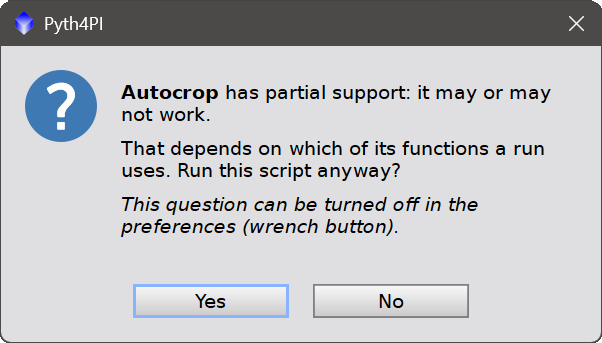
- Double-clicking a script chooses it and runs it on the active image, as Apply does. A script marked Partial asks first (see 4.3).
- Hovering a script shows its full path and its grade.
The box under the list shows what the chosen script says of itself: the heading of its file, where authors write what the script is, who made it and which version it is. The license text, the list of changes and the contact lines are left out, so that what the script does comes first. Authors write these headings each in their own way, and a script whose heading says nothing has nothing to show. The divider between the list and this box can be dragged, to give either of them more room: the list keeps at least six rows, and the box at least four lines.
The row Don't show, above the list, filters it:
- Unsupported: leaves out the scripts that cannot run in PixInsight.
- Partially supported: leaves out the scripts that run in part.
- Siril only: leaves out the scripts that serve Siril itself.
- Not allowed: leaves out the preprocessing scripts.
Under that row, the Search box finds a script by a part of its name, or of its folder: the list keeps only the scripts that have what is typed, as it is typed. With several words, it keeps the scripts that have them all. Emptying the box brings every script back.
The filters are remembered; the search is not. The status line, at the bottom of the window, says how many scripts the folder has, which copy it is (Siril's, or Pyth4PI's download and when it was made), and how many scripts each filter leaves out.
4.3 The grades of the list
The last column of the list says whether a script runs in PixInsight. For most scripts the grade is read from the script's source: which requests it makes to Siril and which Siril commands it sends, compared with what Pyth4PI answers. Nothing is run to find out, so the whole list is graded in a moment.
- Supported: everything the script asks for is there. A script that also has a mode for Siril sequences is Supported when it works on a single image too; its tooltip says that the sequence mode does not run.
- Partial: somewhere, the script uses something Pyth4PI does not have. It may or may not work: what is missing may be in a mode we never use, or it may be the heart of the script: the source cannot say which path a run takes. A Partial script is chosen with a click like any other. Running it from the list, with a double click, asks first; the question is asked once per script in a session, and can be turned off in the preferences.
- Unsupported: the script works through Siril commands that Pyth4PI does not have, or on sequences only. Its row is gray and cannot be chosen.
Two grades are said of the script itself, whatever its source asks for:
- Siril only: the script serves Siril and has no use in PixInsight. It installs the catalogs Siril reads, starts Siril's scripts and functions, sums up Siril's log, fills Siril's folders or inspects a Siril sequence. Pyth4PI knows these scripts by their names in Siril's repository. Its row is gray and cannot be chosen.
- Not allowed: a preprocessing script, which is a script kept in a folder named
preprocessing, as Siril's repository keeps them. Pyth4PI does not run preprocessing scripts: calibration, registration and integration are done with PixInsight's own tools. Its row is gray and cannot be chosen.
The grade is a reading of the source, not a test. A Supported script can still stop for reasons of its own: a package that does not install, a model it cannot download, a program of its own that it expects to find (see 2.4). The Process Console shows what the script says when that happens.
The grade is about what a script asks for, not about what it does. Supported means that Pyth4PI can answer the script. It does not mean that anyone has read the script, tested it or vouches for it: Pyth4PI does not review scripts, and a grade is not a recommendation. Whether to run a script is decided as for any program: by where it comes from (see 6).
Partial, Unsupported and Siril only guard the list only. A script written into the Script box, or chosen with its button, runs whatever it would be graded. Not allowed is kept everywhere: a preprocessing script is not run from the Script box, from a process icon or from a container either, and a box says so.
4.4 Get Siril scripts, and Check for updates
Get Siril scripts... downloads the current contents of Siril's scripts repository, gitlab.com/free-astro/siril-scripts, into Pyth4PI's own folder, and lists it. It needs the Python environment and an Internet connection, and the Process Console shows the download. Until the environment is set up the button is disabled, with the Set up button beside it: Python is what does the download.
Once the list shows the copy Pyth4PI downloaded, the same button reads Check for updates... It asks the repository whether anything has changed since our scripts were downloaded, which is one small request:
- Nothing has changed: nothing is downloaded, and a message says that the scripts are up to date, with the date of the repository's last change.
- Something has changed: the scripts are downloaded again, and a message says what is different: how many scripts were updated, how many are new and how many were removed, with their names. The list is graded again.
After Check for updates:
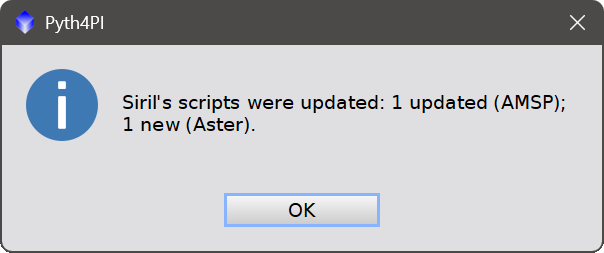
The repository had changed: the scripts were downloaded again, and the message says what is different, here one script updated and one new.
The copy we have is replaced only once the new one has been downloaded and unpacked completely, so a download that fails leaves the scripts as they were.
Up to date is not the same as complete. When nothing has changed in the repository but some of its files are no longer in the folder, because we deleted scripts we did not want, the message names them and asks whether to download them again. Answering No leaves the folder as we made it, and the question comes back at the next check. Answering Yes brings back those files and only those: nothing else in the folder is changed.
All of this is about Pyth4PI's own copy of the scripts. Siril's own copy of the repository, which is what the list shows at first on a computer where Siril has downloaded it, is never touched: it is Siril that updates it. While the list shows Siril's copy, or any other folder, the button reads Get Siril scripts and brings Pyth4PI's own copy, current as of that moment, into the list. Siril's copy is still there: the Folder row goes back to it.
The scripts are not part of Pyth4PI. They are downloaded from their authors' repository, and they stay theirs (see 6).
4.5 Preferences
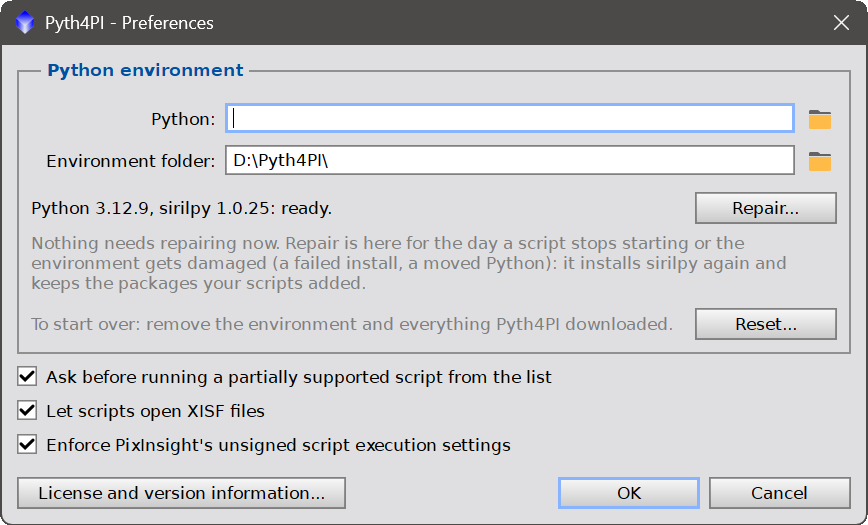
The wrench on the control bar opens the preferences. They belong to this computer, not to the process: a process icon keeps the script and its arguments, never where Python is.
Python environment
- Python: the interpreter the environment is made from. Empty, Pyth4PI finds one (see 2.3). An interpreter named here is checked when OK is clicked, and one that cannot be used is refused with the reason. A change takes effect when the environment is set up again.
- Environment folder: where the environment is. Empty, it is in Pyth4PI's own folder (see 6). With machine-learning packages an environment grows to gigabytes, so this is the place to send it to another disk. A folder named here is then where Pyth4PI keeps the rest of what it makes too: the scripts it downloads, its own helper files, and what scripts keep in Pyth4PI's place on a computer with no Siril (their settings and the models they download) go in that same folder, beside the environment's own files. What was kept elsewhere before is moved there when the folder is changed, and the console says so; to another disk, models can take a while to move.
- The status line shows the versions of Python and of sirilpy in the environment, and that it is ready.
- Repair...: installs sirilpy again, and makes the environment again when it is gone, or, on our say, when it was made with a Python that is no longer the one to use (see 2.3). The packages our scripts installed stay as they are. Nothing needs repairing in normal use: the button is there for the day a script stops starting, an installation was interrupted, or the Python the environment was made from was moved or removed. Until the environment exists, the same button reads Set up... and makes it.
- Reset...: starts over. It removes everything Pyth4PI made on this computer: the Python environment, with every package scripts installed in it, the scripts Pyth4PI downloaded, and Pyth4PI's own helper files. It asks first, with the list of the folders it will remove, and No is the answer it takes by default. Nothing of Siril's is touched: not its scripts, not its own Python, and not the models that scripts keep in Siril's folder, which both programs share. The license and the preferences stay as they are. An environment folder that is not a Python environment, or that lies inside Siril's folders, is left alone, and the question says so. Afterwards Pyth4PI is as on the day it was installed: Set up makes the environment again, and scripts install their packages again the first time they run.
Other settings
- Ask before running a partially supported script from the list: on, double-clicking a script marked Partial asks first (see 4.3). Off, such scripts run like any other.
- Let scripts open XISF files: on, scripts that read FITS files themselves list XISF files in their own file dialogs and can open them (see 5.6). Off, such scripts take the files they were written for.
- Enforce PixInsight's unsigned script execution settings: PixInsight has a setting of its own for scripts that carry no signature, Allow execution of unsigned scripts, in the Security section of its global preferences. A Python script carries no PixInsight signature. On, which is how Pyth4PI starts, Pyth4PI keeps to that setting: while PixInsight does not run unsigned scripts, Pyth4PI runs none either, and a box says so and what to do when we try. Off, Pyth4PI runs scripts whatever PixInsight's setting is.
- License and version information...: opens the license window (see 2.2).
5 Running a script
[hide]
A run starts the script in the Python environment and plays Siril for it until the script's process ends. One script runs at a time.
5.1 On an image
Apply, a double click in the list, the drag triangle dropped on an image, or a process icon dropped on it: each runs the script on that image. The image is the one the script finds loaded, as if Siril had opened it.
Images and previews. Applied to a preview, the script gets the preview's pixels as its image and its result goes to the preview. That is the way to try a script, and above all a slow one, on a part of the image before running it on all of it. A preview keeps the size, the channels and the sample format of its image, so a script that changes the size of the image or its number of channels is refused on a preview, with a message that says to apply it to the image. Keywords are the image's: a script's changes to them are left out on a preview, and the console says so. The plate solution and the mask are taken at the preview's place in the image.
One step of the history. However many times the script hands an image back, the run is one step, named Pyth4PI, and Undo takes all of it back: pixels, size, color space and keywords.
Through the mask. When the image has a mask and it is enabled, what the script hands back goes through it, as with any PixInsight process: where the mask is white the script's pixel, where it is black the pixel the image had when the run started, and in between a mix. An inverted mask works inverted. The console says that the mask is being applied. A mask fits an image of its own size only: when the script changes the size of the image or its number of channels, the result is written as it is, and the console says that the mask was not applied.
5.2 With no image
Apply Global runs the script with no image: asked, Pyth4PI answers that none is loaded. That is the way to run a script that needs none, such as a tool that fetches data or one that opens files itself.
When such a script loads a file as its image, or makes a new image, the image goes to a new PixInsight window, which is shown when the run ends.
5.3 While it runs
A script runs in a process of its own, with its own window when it has one. PixInsight keeps answering, but the run is a process in execution, and the image it runs on is held for it until it ends.
- The Process Console is the script's log. What Siril would write in its log is written there, in the colors the script asks for. What the script prints is there too, the installation of packages included, and what it writes to its error stream is in red.
- Progress is reported as lines on the console.
- Message boxes. A box the script wants answered before it goes on is shown by PixInsight, titled with the script's name. A box that is only information is written to the console instead.
- The image is shown when the run ends. The PixInsight view is not redrawn while the script is running, even when it has already handed a result back. Scripts with a window usually have a preview of their own.
- What a script draws over the image is shown in a window of Pyth4PI's own, with the image as the script has it at that moment: the areas it outlines, and the points of the sky it marks on a plate solved image. When a script asks us to draw an area, it is drawn in that window: press the mouse button, go around the area, and let go. The window closes with the script.
- The run lasts as long as the script's process. A script with a window keeps the run going until its window is closed.
5.4 Process icons, containers and arguments
A Pyth4PI process instance is a script and its arguments. Dragging the triangle to the workspace keeps both as a process icon, which can be applied to any image, placed in a Process Container, or executed from a PixInsight script:
var P = new Pyth4PI;
P.scriptPath = "C:/scripts/Statistical_Stretch.py";
P.scriptArguments = "-median 0.25";
P.executeOn( ImageWindow.activeWindow.mainView );
Arguments make unattended runs possible. Run from Siril's command line, a script is told so, and those that have a command-line mode then take their settings from the arguments and open no window. Pyth4PI tells the script the same whenever the Arguments box is not empty. A script with no such mode ignores the arguments and opens its window as usual.
The icon keeps the path of the script, not the script. On another computer the script has to be at the same path, and the Python environment has to be set up there.
5.5 Stopping and failing
- Stopping: closing the script's window ends a run the normal way. A run can also be stopped from PixInsight, with the abort button of the Process Console or the Esc key: the script and every program it started are ended, and PixInsight puts the image back as it was.
- A script that fails without having changed the image makes the process fail: the console shows what the script said, and the image has no new step.
- A script that fails after it changed the image leaves the step in the history, with a warning on the console, so that Undo is ours to use.
- A request Pyth4PI does not answer is refused with an error the script can handle, and named on the console, once per request. A Siril command Pyth4PI does not have is answered as a command that does not exist, and named the same way.
- Without the environment, a run stops at once with a message that says to set it up.
5.6 XISF files
Siril scripts are written for FITS files, and our images are XISF files. A script that asks Pyth4PI for a file gets an XISF file like any other, because it is PixInsight that reads it.
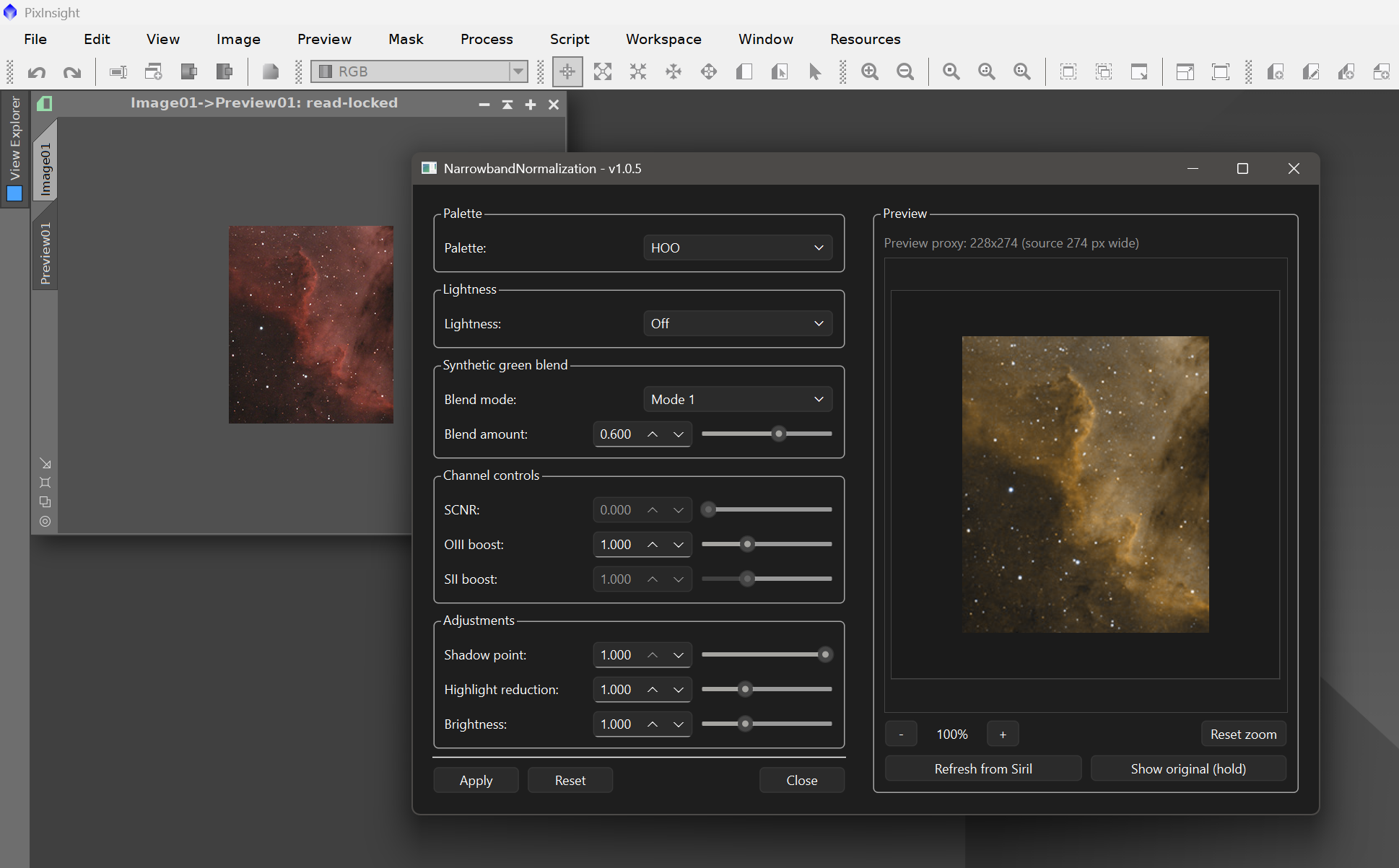
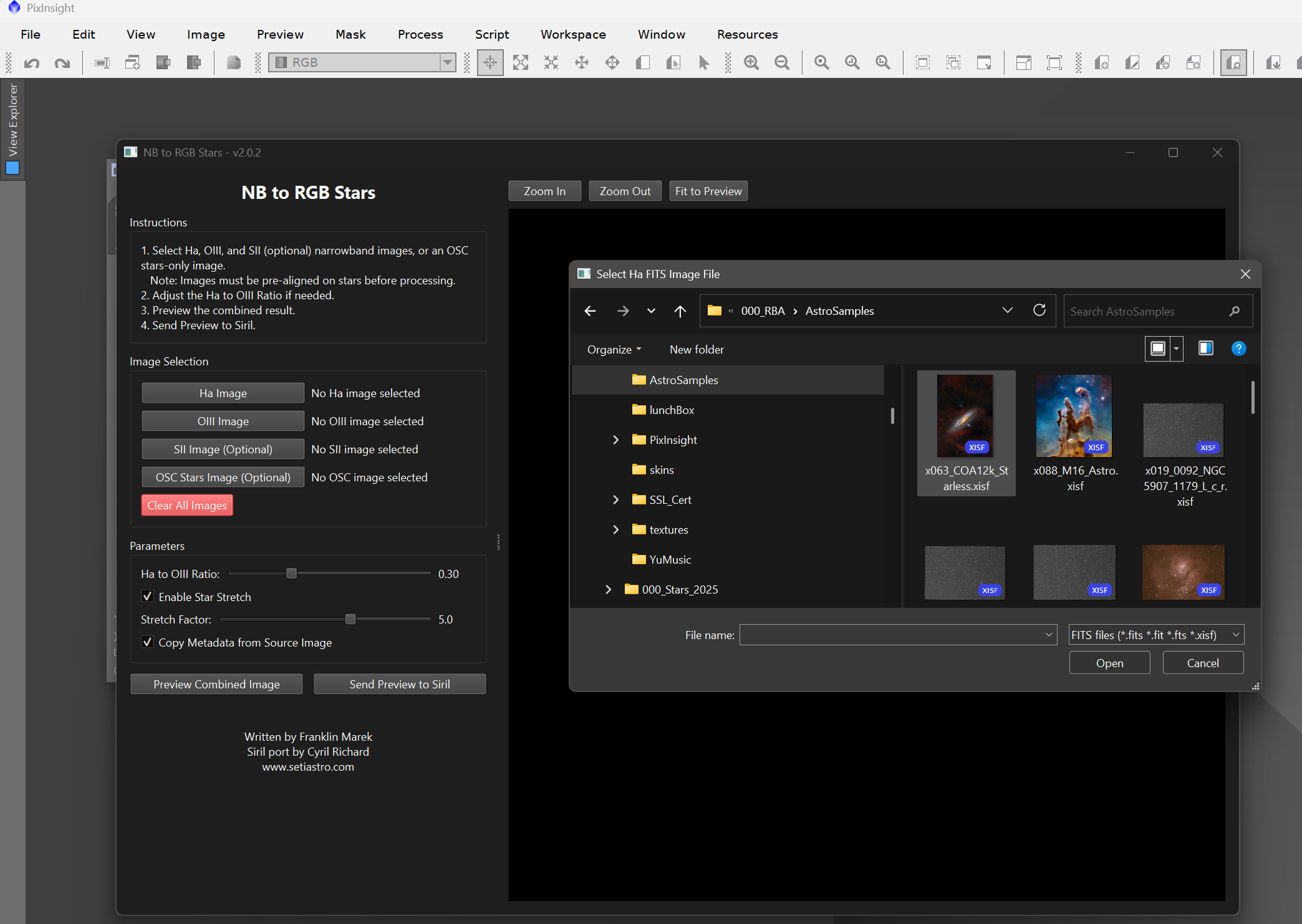
Many scripts do not ask, though. They open FITS files themselves, with the astropy library, from a file dialog of their own that lists FITS files only: NB_2_RGB, which asks for one file per channel, is one of them. Pyth4PI never sees those files, so by themselves such scripts cannot take an XISF. With Let scripts open XISF files on in the preferences, which it is unless we turn it off (see 4.5), they can:
- The script's file dialog lists XISF files beside the FITS files, wherever its filter lists FITS files.
- PixInsight reads the XISF for the script. When the script opens an
.xisffile with astropy, the file goes to PixInsight, and the script receives its pixels and its keywords exactly as if it had opened a FITS file. The Process Console names each file read this way. Every other file goes to astropy as usual.
Neither the script nor the Python environment is changed for this: it lasts for the run, and only in runs started by Pyth4PI.
It checks itself at the start of every run. astropy is a library that changes over time, so before doing anything Pyth4PI verifies that astropy's file functions are the ones it knows, and that a test image passed through them comes back as it went in. When something is different, XISF support is turned off for that run, a line on the console says so and why, and the script runs as it would without it. When astropy is newer than the versions Pyth4PI was tested with and the checks pass, XISF support stays on and the console notes it.
What it does not do:
- Other libraries. It works for scripts that read files with astropy. A script that reads its files with another library takes what that library takes.
- Writing. Scripts do not write XISF files. What a script produces comes back as the PixInsight image, which we save in any format, or as the FITS or TIFF files the script writes.
6 Where everything is stored, and whose the scripts are
[hide]
Pyth4PI keeps what it makes in one folder of its own, in the part of our user folder that stays on this computer. On Windows:
%LOCALAPPDATA%\DeepSkyColors\Pyth4PI
venv: the Python environment, unless the preferences send it elsewhere. Deleting it is harmless: Set up makes it again, and scripts install their packages again when they next run.siril-scripts: the scripts downloaded with Get Siril scripts, with a small text file that says where they came from, when, and which change of the repository they are. That last line is what Check for updates compares.hook: one small Python file, the one that lets scripts open XISF files (see 5.6). Pyth4PI writes it again whenever it is missing.pyth4pi-lib: one small Python file too, the module scripts import to run PixInsight processes (see 8.2). It is written again whenever it is missing.configanddata: the settings and the downloads of scripts, on a computer with no Siril. With Siril installed, scripts use Siril's own folder for both,%LOCALAPPDATA%\siril, so that both programs share them.
That is how things are when the preferences name no Environment folder. When they name one, that folder holds the environment itself, with no venv folder around it, and siril-scripts, hook, pyth4pi-lib, config and data are in it too: whoever chose a place for the environment chose it for all of it.
Reset, in the preferences, removes all of these folders, and the environment wherever the preferences have put it (see 4.5). On a computer with no Siril that includes data, and so the models scripts downloaded there.
The preferences, the filters of the list and the scripts folder are kept in PixInsight's own settings. A process icon keeps the script's path and its arguments, and nothing else.
Coming from PythInside
Pyth4PI was first released under the name PythInside. On a computer that had PythInside, Pyth4PI takes over what that one kept, so that nothing is set up twice:
- The license and the trial. A license registered for PythInside is Pyth4PI's license, and a trial started then goes on from the day it started.
- The preferences are read as they were, the filters of the list and the scripts folder with them.
- The folder. The folder PythInside made,
DeepSkyColors\PythInside, is used as it is and keeps its name: the environment in it, with every package the scripts installed, is not built again. Only a computer that never had PythInside gets a folder namedPyth4PI. - Our own scripts. A script written with
import pythinsideruns as it did: that name still gives the same module (see 8.2).
What does not come along is the name of the process. PythInside and Pyth4PI are two modules for PixInsight, and a process icon saved from PythInside belongs to PythInside. Once Pyth4PI is installed, PythInside is uninstalled, and such an icon is made again from the Pyth4PI window, with the same script and the same arguments.
Whose the scripts are
Pyth4PI ships with no script, no Python and no sirilpy. Each is fetched from where its authors publish it, onto our own computer:
- The scripts belong to their authors. Each says its license at the top of its file; in Siril's repository most are under the GNU General Public License, some under the MIT license, and a few under terms of their own. Some scripts drive programs or models that have terms of their own, and that we install or buy ourselves.
- sirilpy is part of Siril, a free program by the free-astro team, under the GNU General Public License. Set up downloads it from Siril's own repository and checks it against the checksum of that release, which Pyth4PI knows: a download that is not exactly the sirilpy of that release is not installed.
- Python and the packages scripts install come from their own projects, under their own licenses.
A script is a program, and it runs with our own rights on this computer: it can read and write our files and use the network, in PixInsight exactly as in Siril. We run scripts from sources we trust.
7 Usage tips
[hide]
- Read the console. Everything a script says is there: what it is doing, what it installs, and why it stopped. When a script does not behave, the console is the first place to look, and the names it gives are the ones to search for.
- Let the first run take its time. A script that installs a machine-learning runtime and downloads its model can spend several minutes on it, once, exactly as it would in Siril. The console shows that it is working, and the second run starts at once.
- Run GPU_Manager once, before the machine-learning scripts. It is in the
corefolder, and gives the environment the PyTorch and ONNX Runtime that fit the graphics card, which the scripts then find in place (see 2.4). - When the first run fails after installing, run it again. If the console shows packages installed and then an error from inside one of them, the second run usually starts as it should (see 2.4).
- When a script says its model is missing, look at the script. The message is the script's, and so is the download: trying again later, or placing the model as its author says, is what solves it (see 2.4).
- Try a script on a preview first. A denoiser or a sharpener built on a large model can take minutes on a full frame. On a preview it takes seconds, and shows what the settings do where it matters.
- Use a mask to say where a script acts. Any script that keeps the size of the image works through the image's mask: a sharpener on the nebula only, a noise reduction on the background only, with the masks we already make in PixInsight.
- Try a Partial script on a copy. What it lacks may be in a mode we do not use, and then the script is as good as Supported; a duplicate of the image is the place to find out.
- Hide what cannot run. With Unsupported, Siril only and Not allowed checked in the filters, the list is the scripts we can use.
- Find a script by typing. A few letters of its name in the Search box are enough to have it alone in the list.
- Keep a script with its arguments as an icon. A stretch with the settings we like, a denoiser at the strength we use: each is an icon to drop on an image, and a step for a Process Container.
- Pick XISF files straight from a script's dialog. A script that asks for its input files, one per channel for instance, lists our
.xisffiles beside the FITS ones, so nothing has to be exported first. When a script does not list them, saving a FITS copy from PixInsight is the way. - Solve the image first for scripts that annotate. Tools that draw catalogs or measure positions ask for the plate solution, and say that the image is not plate solved when it has none.
- Mind the size of the environment. Machine-learning packages are large. The Environment folder in the preferences can be on any disk; after changing it, Set up makes the environment there.
- Check for updates now and then. Authors fix and improve their scripts, and new ones appear. Check for updates costs nothing when there is nothing new, and says what changed when there is.
For those who write scripts
Everything up to here is for running scripts, and is all that running them takes. The two chapters that follow are for those who want to write Python scripts, for PixInsight, for Siril or for both. Chapter 8 is how to write one. Chapter 9 is the reference: what a script finds, request by request and command by command, when PixInsight answers in Siril's place.
8 Writing our own scripts
[hide]
A Python script of our own is a PixInsight process the moment it is saved. It works on the pixels with whatever Python offers, it can run PixInsight's own processes, and it can do both.
8.1 A script that works on the pixels
Anything written for sirilpy runs in Pyth4PI. This script applies a contrast curve to the image:
import numpy as np
import sirilpy as s

siril = s.SirilInterface()
siril.connect()

with siril.image_lock():
    img = siril.get_image_pixeldata()          # (h, w) or (3, h, w)
    if img.dtype == np.uint16:
        img = img.astype(np.float32) / 65535.0
    out = img * img * (3 - 2 * img)            # the pixel work, in numpy
    siril.undo_save_state("My S-curve")
    siril.set_image_pixeldata(out.astype(np.float32))

siril.log("Done", color=s.LogColor.GREEN)
We save it as a .py file with the editor of our choice, choose it with the button of the Script row, and apply it to an image. The same file runs in Siril, unchanged.
What is worth knowing when writing one:
- The image is a numpy array, with the channel first:
(height, width)for a grayscale image and(3, height, width)for a color one. It is 32-bit floating point in the range 0 to 1, or 16-bit integers for a 16-bit image. It is handed back in either of those two types. - Rows run from the bottom up, as in Siril. Work that does not care about direction needs nothing; work that does can use
np.flipud. - Writing needs the lock.
set_image_pixeldatais accepted only insidewith siril.image_lock():, andundo_save_stategoes before it. That is sirilpy's rule, and Pyth4PI keeps it. - Packages install themselves.
s.ensure_installed("scipy", "opencv-python")at the top of a script installs what is missing into Pyth4PI's environment the first time, and does nothing after that. - A window is optional. A script with none runs, writes and ends, which is what a process icon in a container wants. A script that wants sliders and a preview can make its window with PyQt6 or tkinter; the run lasts until the window is closed.
- Arguments are the script's parameters. What is written in the Arguments box reaches the script as its command line (
sys.argv,argparse), and is kept in the process icon. Two icons of the same script with different arguments are two different tools. - Everything in chapter 9 is available: keywords, the plate solution, the stars, files, the selection. That chapter is the reference: it says how each request is answered.
- Keep our own scripts in a folder of their own, and choose it in the Folder row when working on them. The list grades them like any other, which is a quick check that a script asks only for what is there.
- The speed is Python's. Handing the image over and back is fast whatever its size. The work itself is as fast as numpy, or the library used, makes it.
The reference for sirilpy is part of Siril's online documentation. Pyth4PI answers the requests of sirilpy 1.0.25; a script written for a newer sirilpy may ask for something that is not there.
8.2 Running PixInsight processes from a script
A script can run PixInsight's processes on the image it works on. Pyth4PI gives every script a small Python module for it, pyth4pi:
import pyth4pi as pi

pi.run("SCNR", amount=0.8, protectionMethod=pi.enum("AverageNeutral"))
This is Pyth4PI's own. Siril does not have it, so a script that imports pyth4pi is a script for PixInsight: in Siril the import fails, which says so plainly. The module was called pythinside when Pyth4PI was, and a script that imports it under that name gets the same module. A script needs nothing else to use it; sirilpy is only needed when the script also reads or writes the pixels itself.
There are three ways to say which process:
- By its name and its parameters:
pi.run("PixelMath", expression="$T*0.5", rescale=False). The parameters that are not given keep the values the process starts with. A number, a text,TrueandFalseare written as in Python; an element of an enumeration ispi.enum("AverageNeutral"); a table is a list of rows. - By a process icon:
pi.run_icon("Denoise")runs the icon of that name on the workspace, as it is set up. This is the one that asks nothing of us: the process is set up in its own window, with PixInsight's own controls, and kept as an icon. The script only says when it runs. - By its instance source:
pi.run_source("var P = new SCNR; P.amount = 0.80;")takes what PixInsight writes as the source code of a process instance. That text can be copied from PixInsight and pasted into a script as it is, tables included. It is also where the names of the parameters of a process, and of the elements of its enumerations, are found.
What happens when a script runs a process:
- It runs on the image of the run, or on the preview when Pyth4PI was applied to a preview. A process that is global by nature runs as a global process. The call returns
"view"or"global"to say which. - The script waits until the process has finished, and the console shows what the process says, as always.
- It is part of the script's run. The history of the image shows one step, Pyth4PI, however many processes the script ran, and one Undo takes everything back.
- The mask applies to each process, as it does to what the script itself writes (see 5.1). A process that changes the size of the image is not masked, and the console says so.
- The pixels the script read before are those of the image as it was. After a process, the script reads the image again to see what the process left.
- A process that does not run raises
pi.ProcessError, with the reason as its text: there is no process of that name, there is no icon of that name, the process cannot be run on this image, or it did not complete. The script catches it, or ends there.
try:
    pi.run_icon("Denoise")
except pi.ProcessError as problem:
    print("The denoise step did not run:", problem)
A few lines of Python that call pi.run_icon for each icon of a sequence, with a decision between two of them, are a workflow of our own: the processes are set up in PixInsight, and the script says when each one runs.
Two things it is not:
- It is not a way to run JavaScript. A source is read as one process instance and its parameters, and anything else in it is refused. PixInsight's JavaScript runtime remains the way to script PixInsight itself.
- It does not reach other images. A process runs on the image of the run. A process that makes a new image, as PixelMath can, makes it in PixInsight, where we find it; the script does not get it.
8.3 Examples
Four short scripts come with Pyth4PI, in the folder src/scripts/Pyth4PI of the PixInsight installation. Each one is a starting point: the text at its top says what it does, and the box under the list shows that text when the script is chosen. The names below open the files.
- Hello_Process: the shortest script that runs a process. It takes the green cast out of a color image with SCNR, with the amount written in the Arguments box.
- Neutral_Background: Python measures and PixInsight processes. The script finds the median of each channel with numpy and has PixelMath bring the three to the same value.
- Run_Icons: runs the process icons named in the Arguments box, one after another, and stops at the first that does not run. A sequence of processes set up in PixInsight and applied in one step.
- Sharpen_Slider: a tool with a window of its own. Two sliders and a button that runs UnsharpMask with what they say.
To see them in the list, choose that folder with the button of the Folder row.
9 What a script finds in PixInsight
[hide]
Pyth4PI speaks the language of sirilpy 1.0.25, and says it is Siril 1.4.4 to a script that asks which Siril it needs. This chapter says how each thing a script can ask for is answered. It is the reference for writing scripts, and for whoever wants to know exactly why a script is graded as it is.
9.1 The image
- Reading. A 16-bit integer image is handed over as 16-bit integers, the type Siril calls WORD. Every other image, 32-bit and 64-bit floating point or 8-bit and 32-bit integer, is handed over as 32-bit floating point in the range 0 to 1. One or three channels are handed over; an alpha channel is not.
- Rows. Siril keeps the rows of an image from the bottom up, and scripts expect them so. Pyth4PI turns the rows over when it hands the image out and again when it takes it back, so an image is never left upside down, and a script that draws it shows it the right way up.
- Parts and previews. A script can ask for a rectangle of the image only, and for an 8-bit stretched copy to show in its window.
- Writing. The image a script hands back replaces ours. Its size and its number of channels can be different. Floating point data makes the image 32-bit floating point when it was an integer image, as Siril does, and values outside 0 to 1 are kept. 16-bit data leaves a floating point image as it is, and makes an 8-bit or 32-bit integer image 16-bit.
- Statistics. Mean, median, standard deviation, average deviation, MAD, minimum and maximum, of each channel of the image and of a rectangle of it.
- History. A script saves an undo state before it writes; Pyth4PI writes its label to the console, and the run as a whole is the step PixInsight undoes. Siril's own
undorequest does nothing here.
9.2 Keywords, plate solution and stars
- FITS keywords. The script reads the image's FITS keywords, as header text or as Siril's own list of the usual ones (object, filter, exposure, pixel size and so on). It can replace the header, and set or delete a keyword. The header a script reads also has what the header of a FITS file would have and PixInsight keeps elsewhere: the size of the image and, when the image is plate solved, the WCS keywords of its solution. They are there for the script to read, and are left out of what it writes back.
- Plate solution. Pixel to sky and sky to pixel conversions use PixInsight's astrometric solution of the image. Siril's coordinates for a script, from the top left corner and downward, are PixInsight's own image coordinates. An image with no solution is reported as not plate solved.
- Stars. PixInsight's star detector finds the stars, and each one is fitted with a Gaussian for its position, amplitude, background, size along both axes (FWHM) and angle. A script gets them as Siril's star list, on the green channel of a color image unless it says otherwise, and Siril's
findstarcommand can also write them to a file in Siril's format. Magnitudes are relative, from the measured flux, and no photometry is made. - A star in a rectangle. A script can ask for the fit of the star in the selection, or in a rectangle it gives.
9.3 Files
Scripts read and write image files through PixInsight's own file formats, so any format PixInsight reads can be loaded.
- Loading a file as data, without changing the image: the script gets its pixels, header and statistics.
- Analysing a file without loading it, which is what tools that sort or compare frames ask for: its size, filter, date and kind of frame, an estimate of its noise, and the number of its stars with their mean FWHM and roundness. The stars are measured by PixInsight, so the figures are not the ones Siril would give for the same frame.
- Loading a file as the image (Siril's
load): the file's pixels and keywords replace ours, as part of the run's history step. So does its plate solution, when the file has one: the properties of an XISF file, or the WCS keywords of a FITS file. A file with no solution leaves the image the one it had. - Saving the image (
save, andsavetif,savetif8,savetif32,savepng,savejpg): the image as it is at that moment is written to a file. A name with no extension gets.fit, or the extension of the command. The plate solution goes with it: as WCS keywords in the header, and in an XISF file also as the properties PixInsight reads it from, distortions included. A FITS file has only the keywords, which say the linear part of a solution. - Saving an array the script made, with a header, to a file. In an XISF file, the WCS keywords of that header are written as a plate solution too.
A file name with no folder is taken in the working folder: the folder of the image's file, or our home folder when the image has no file. Siril's cd command changes it for the rest of the run. An image with no file is given the name of its view, so that scripts which name their temporary files after the image have a name to use.
An XISF file is loaded like any other, in either of the two ways above. Scripts that open their files themselves are another matter, which has its own section (see 5.6).
9.4 Siril commands
Besides its requests, a script can send Siril a command, as text. These are the commands Pyth4PI carries out:
requires | answers yes to any Siril version up to 1.4.4. |
cd | changes the working folder. |
load | replaces the image with a file's. Without an extension, the usual ones are tried. |
save, savetif, savetif8, savetif32, savepng, savejpg | write the image to a file. |
new | replaces the image with a black one of a given width, height and number of channels. |
pm | Siril's PixelMath: evaluates an expression for every pixel and makes the result the image, in 32-bit floating point. $T is the loaded image and $name$ an image file, found in the working folder with or without its extension, or by its full path; up to ten files, all of one size. The operators and functions are Siril's (~, iif, mtf, min, max, pow and the rest), and so are the functions of a whole image, taken channel by channel: med, mean, min, max, sdev, adev, mad, bwmv, noise, width, height. -rescale, alone or with a low and a high value, rescales the result. The figure noise gives is an estimate of the same kind as Siril's and close to it, not the same. |
split | writes the three channels of a color image as three files; with -hsl or -hsv, its hue, saturation and lightness or value. -lab is refused. |
rgbcomp | makes a color image file of three one-channel files, named composed_rgb or as -out= says. The loaded image is not touched. The form with a luminance image (-lum=) is refused. |
crop | cuts the image to a rectangle: x and y of its top left corner, then its width and its height; without them, to the selection. PixInsight's Crop process does it, and Pyth4PI carries the plate solution over to the cropped image, which Crop alone does not: a linear solution stays linear, and one with distortions is fitted again. A preview cannot be cropped. |
show | marks a point of the sky on a plate solved image, by its right ascension and declination, with a name before or after them. A number is degrees; anything else is hours (degrees, for the declination), minutes and seconds. -list= marks the points of a CSV file with the columns ra, dec and, if they have names, name; -clear removes the marks. They are drawn in Pyth4PI's window over the image (see 9.5). |
update_key | sets a FITS keyword, with a comment if one is given; with -delete, removes it. |
findstar | finds the stars; -out= writes Siril's star list file, -layer= chooses the channel, -maxstars= limits their number. |
clearstar | empties the star list. |
setfindstar | is accepted; PixInsight's detector keeps its own settings. |
icc_assign, icc_remove, visu, stat | are accepted and do nothing: color management and the display stay ours. |
Every other command is answered as a command that does not exist, and named on the console. That includes the rest of Siril's processing commands: stretches, StarNet and the whole of preprocessing.
9.5 Display, messages and folders
- The display is ours. A script can set Siril's screen stretch, its sliders, the zoom and the pan. Pyth4PI remembers what it sets and answers it back when asked, and changes nothing on the screen.
- The selection. A script can set a selection rectangle and read it back. When it reads one and has set none, a script running on an image gets the rectangle of the preview we are looking at, if we are looking at one.
- Overlays. PixInsight's image windows take no drawing from a module, so what a script draws over Siril's image is drawn in a window of Pyth4PI's own, over a picture of the image as the script has it: made smaller when the image is large, and stretched for the screen when it is linear. The window opens when the script has a polygon or a marked point to show, follows the image as the script changes it, and closes when the script ends. The polygons are kept and given back when asked, as before.
overlay_draw_polygonanswers at once, as in Siril; the polygon is among the others once we have drawn it in the window, in the coordinates of the image. - Log, progress and message boxes go to the Process Console and to PixInsight's own boxes (see 5.3).
- Siril's folders. Scripts keep their settings and the models they download in Siril's own folders. When Siril is on the computer, Pyth4PI points scripts to those same folders, so a model downloaded under Siril is found here and the other way round, and a script's settings are the same in both. Without Siril, they go to Pyth4PI's own folder (see 6).
- Siril's settings. A script that asks for one of Siril's own settings gets a sensible answer for the few that scripts use, such as
.fitfor the file extension. One of them is Siril's theme, which scripts read to dress their own windows dark or light: the answer follows the theme PixInsight is wearing when PI ThemeStudio has applied one, and is light otherwise, as PixInsight's own colors are.
9.6 What is not there
- Sequences. PixInsight has nothing like Siril's sequences. A script is always told that no sequence is loaded, and the requests and commands that work on sequences fail.
- Siril's processing. Most commands that make Siril process the image, and above all calibration, registration and stacking, are not carried out (see 9.4).
- Other images. A script sees the one image it runs on. Other open images are out of its reach. Files on disk are not: it can load them. PixInsight's processes are not either, for a script written for Pyth4PI (see 8.2).
- A few requests: plots drawn by Siril, a yes or no question in a box, Siril's own log, Siril's dialogs, background samples read back, and the image's ICC profile.
These are what make a script Partial or Unsupported in the list (see 4.3).