1 Introduction
[hide]
DeepSharp is a sharpening toolbox: seven methods behind one interface, each on its own tab, sharing one Output control and one measured point spread function where the method needs it. Section 4 describes them all.
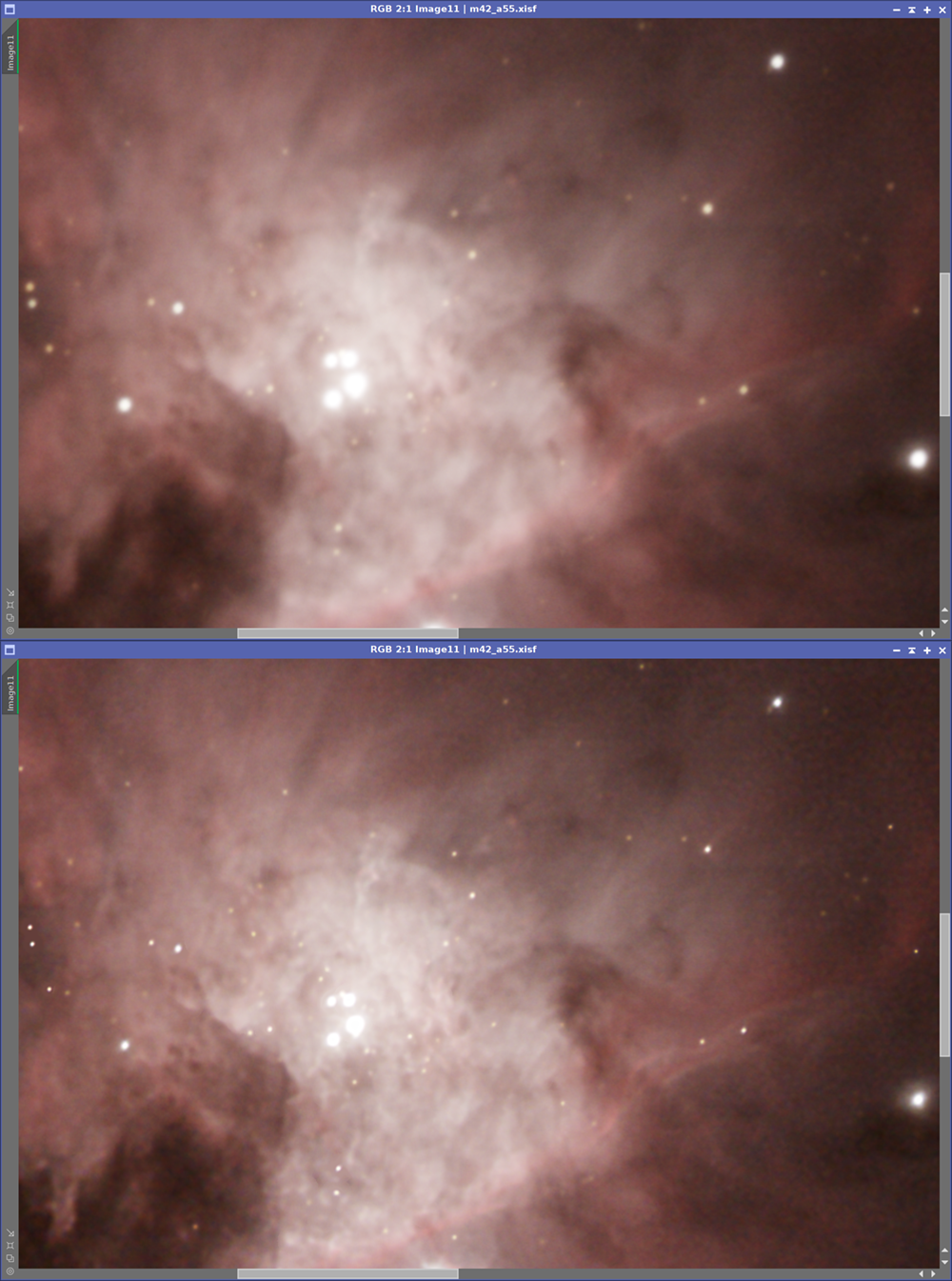
Sharpening with a neural network is one of the most popular approaches in astrophotography today, and AI Model is our contribution to it. It restores detail that the optics, the atmosphere and the tracking have spread out, by inverting the blur the way a deconvolution does, with a trained network doing the inversion - and it does not sharpen blindly: it measures the point spread function of our own image first, across the whole frame, and tells the network region by region what blur is actually there. The model is ethically sourced, trained only on public-domain space-telescope science data and on procedurally generated scenes.
It is one method of seven, and not always the right one. Deconvolution inverts the same measured blur the classical way, with Richardson-Lucy, and works where a network will not be trusted. The next four do not try to undo the blur at all; they redistribute the detail that is already in the image - by size (Multiscale), by whether a pixel is structure or grain (Texture), by direction (Flow), or without overshooting an edge (Clarity) - and unlike the first two they work on stretched images as well as linear ones. Filaments does not sharpen: it finds long thin structure and can hand us a mask of it.
Section 4 documents all seven, and section 6 suggests which to reach for.
2 Setup and Installation
[hide]
The only official distribution of DeepSharp is via a PixInsight repository. This is the safest way to install a module or script, as the installation is handled by PixInsight itself, which will fetch the module directly and safely from our PixInsight repository at
https://repo.deepskycolors.com/DeepSharp/
Make sure the trailing / is part of the URL. Also, be sure to keep our repository URL in our list of PixInsight repositories to receive timely updates.
By distributing DeepSharp only via our PixInsight repository, installation comes with the guarantee of our Developer and Repository certificates, verified by PixInsight itself from the moment it connects to our repository, until it validates and completes installation of the DeepSharp module.
If we ever want to be sure that we have the latest version available to us, we go to PixInsight's RESOURCES menu, select Updates, then Manage Repositories to make sure our repository is still there, then RESOURCES > Updates > Check for Updates.
2.1 Launching DeepSharp
DeepSharp is a standard PixInsight process: we set its parameters on the process dialog and apply it to a view. To launch it:
- Open the linear image we want to sharpen.
- In Process Explorer or via the PROCESS menu, locate DeepSharp under any of the DeepSkyColors, Deconvolution, or Sharpening categories.
- The DeepSharp interface opens.
- Set the parameters, then apply the process to the target view (drag the triangle onto the image, or drag the instance onto the view).
DeepSharp works in place: it modifies the view it is applied to, and PixInsight's history lets us undo it like any other process. A progress dialog is shown while it runs, and canceling it leaves the image unchanged. Grayscale and color images are both supported, in any sample format; a color image is processed channel by channel, with the PSF measured once from the average of its channels, so all channels are treated alike.
We can also apply DeepSharp to a preview. Keep in mind that the PSF is measured from the stars inside whatever DeepSharp is applied to, so a very small preview may not contain enough stars to measure it (see 4 How DeepSharp works).
A short report is printed to the Process Console: the two amounts, the measured PSF and the target it is taken to, any regions left unchanged, and the processing time.
2.2 The AI model
DeepSharp's neural network is a separate model file, dsh_sharp.onnx, installed with the module at:
<PixInsight installation>/lib/DeepSharp/dsh_sharp.onnx
DeepSharp looks for the model in that one location only. The top of the DeepSharp interface reports whether it was found: AI model: Ready. when it is available (hovering over the line shows the file it was loaded from), or AI model unavailable - see Console for the expected path. when it is not. In that case the Process Console states the exact path expected. We copy the model file there and restart PixInsight.
On PixInsight 1.9.5 and later, the network runs through PixInsight's own ONNX runtime, which ships with NVIDIA CUDA support: on a machine with a CUDA capable NVIDIA GPU and a current display driver DeepSharp runs the network on the GPU, which is much faster, and on the CPU everywhere else. PixInsight 1.9.4 ships no ONNX runtime on Windows, so there DeepSharp brings its own, installed with the module in lib/DeepSharp/: it runs the network on any Direct3D 12 capable GPU through DirectML (NVIDIA, AMD or Intel, including integrated graphics), and on the CPU when there is none. On Linux and macOS, PixInsight 1.9.4 also ships its own ONNX runtime, and DeepSharp uses it. No setup is needed either way. The progress window states whether the GPU or the CPU is running the network, and the Process Console also names the provider: CUDA, DirectML or CPU.
The DeepSharp AI model (the file dsh_sharp.onnx and everything it contains) is licensed for use only by DeepSharp, running within PixInsight. It may not be copied, extracted, converted or redistributed, and it may not be used, in whole or in part, to train, fine-tune, distill or benchmark any other machine learning model. Images processed by DeepSharp may not be used as training data for other machine learning models either.
2.3 Licensing
DeepSharp runs on a trial-then-registered licensing model. During the 30-day trial, the tool is fully functional with no feature restrictions. When the trial expires, DeepSharp displays a notice when its interface is opened, and the process no longer runs until a valid license key is entered (see 3.3 Registration and licensing). This applies however the process is run: from its interface, from a process icon, from a Process Container or from a script. No internet connection is needed: keys are validated offline.
Use of the AI model is further restricted as described in 2.2 The AI model.
3 The DeepSharp Interface
[hide]
The interface is a row of tabs, one per method, with Output above them because it applies to all of them. The tab that is showing is the method that runs, and an instance remembers which one it was on.
Every tab's own controls are described with its method in 4. What belongs to the interface rather than to any one method is Output, and the AI model's status line.
Output: where the result goes. Replace target, the default, writes over the target image as a single undoable step and keeps its identifier and its astrometric solution. New window leaves the target untouched and opens a new window named after it with the method's own suffix - _sharp, _deconvolved, _multiscale, _texture, _flow, _clarity, _filaments_enhanced - carrying the astrometric solution across if the target had one. Convenient for comparing two settings, or two methods, side by side.
The AI model status line sits inside the AI Model tab, since it means nothing on the others. It reports whether the model and its runtime were found; 2.2 covers what to do when they were not.
The DeepSharp Interface:
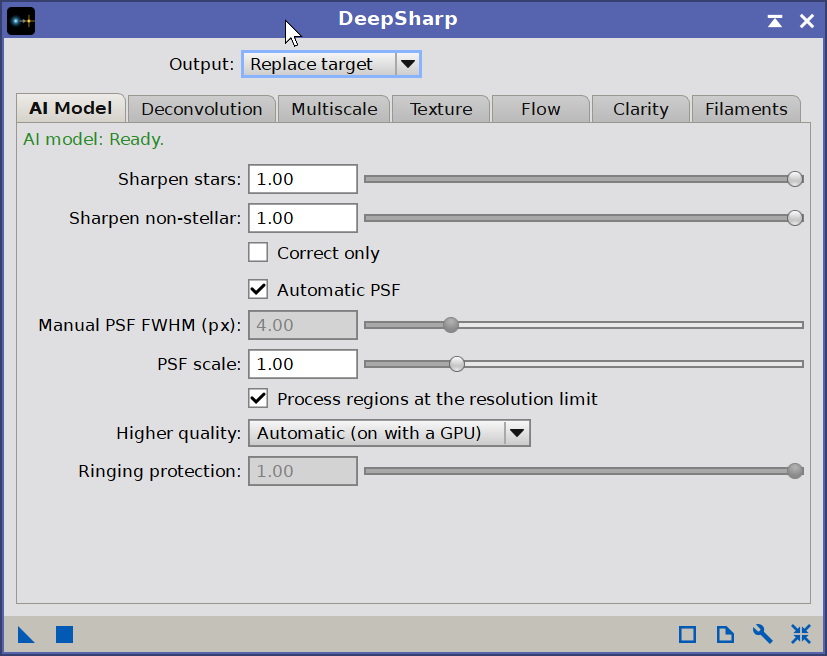
The AI model status line, Output, Sharpen stars, Sharpen non-stellar, Correct only, Automatic PSF, PSF scale, the resolution limit option, Higher quality and Manual PSF FWHM.
3.1 Registration and licensing
The Preferences button (the wrench icon on the process interface bar) opens the DeepSharp license information dialog. This dialog reports the current license state:
- Licensed: shows the email the module is licensed to.
- Trial: shows the number of trial days remaining.
- Expired: prompts us to register to keep using the tool.
When the module is not yet licensed, the dialog shows a Click here to register link, and a Get your license link that opens the DeepSharp page on our website. Clicking Click here to register opens the registration dialog, where we enter our email address and license key. The fields are validated as we type, and the Register button enables only once a valid email and key pair is entered. After a successful registration the information dialog refreshes in place to the licensed to state.
When the trial has expired, opening DeepSharp shows the trial-expired notice instead of the interface. OK opens the registration dialog, Get my license opens the DeepSharp page on our website, and Cancel closes the notice without opening DeepSharp.
4 The methods
[hide]
DeepSharp is a toolbox. Each tab is a different way of making an image sharper, with its own controls, and the tab that is showing is the method that runs. Output sits above the tabs and applies to all of them.
Two of them recover detail: they start from the point spread function measured from the image's own stars and undo it. The rest redistribute what is already there, and the last one does not sharpen at all - it finds structure and can hand us a mask.
| Method | What it does | Data |
|---|---|---|
| AI Model | inverts the measured PSF with a trained network | linear |
| Deconvolution | inverts the measured PSF with Richardson-Lucy | linear |
| Multiscale | a gain per detail size | either |
| Texture | sharpens and denoises in one pass | either |
| Flow | sharpens across structure, not along it | either |
| Clarity | detail that cannot overshoot an edge | either |
| Filaments | finds long thin structure; enhances it or outputs a mask | either |
4.1 AI Model
A trained network inverts the blur, told region by region what that blur actually is by the PSF field measured from the image's own stars. Linear data, before any stretch. How it works is in 5.
Stars and everything else are controlled separately. Both amounts run from 0 to 1 and default to 0.90: at 0 that part of the image is left unchanged, at 1 it is sharpened down to the sharpest PSF the network was trained to produce, and values in between take the PSF proportionally part of the way.
Both amounts run from 0 to 1 and default to 0.90. At 0 the corresponding part of the image is left unchanged; at 1 it is sharpened fully, down to the sharpest PSF the network was trained to produce (see 5). Values in between take the PSF proportionally part of the way.
Sharpen stars: the amount applied to the stars DeepSharp detects in the image.
Sharpen non-stellar: the amount applied to everything else: nebulosity, galaxies, dust, and stars too faint to be detected.
The two amounts are independent, and either one may be the higher. A common choice is to hold the stars back while sharpening the structure, but the opposite is just as valid. When both are 0, the image is left unchanged and the console says so.
When the stars and the rest of the image disagree about what counts as a star, DeepSharp gives the benefit of the doubt to the stars: small knots in a nebula or bright points in a galaxy can be treated as stars. Broad, smooth peaks such as the core of a galaxy are treated as non-stellar.
Higher quality: processes every tile eight times, flipped and rotated, and averages the results, so the network's orientation-dependent errors largely cancel. On held-out frames it recovers about 2.3% more of the real blur and was better in every case tested, so it is not a trade-off - but what it costs depends entirely on where the network runs. On a GPU, about a third more time; on the CPU, six to eight times more, which took a 10-megapixel frame from 82 seconds to over ten minutes. Automatic, the default, therefore uses it on a GPU session and skips it on the CPU; On and Off override that, and On is honoured on the CPU too if you are willing to wait. The console names the provider in use, and reports how the setting was resolved.
Correct only: fixes PSF aberrations without sharpening. Elongated, comatic or astigmatic stars are made rounder at their measured size, including stars that are already at the resolution limit. Only the stars change: nebulosity, galaxies and the background are left exactly as they were. While it is checked, both sharpening amounts and Manual PSF FWHM are disabled: Correct only always measures the stars, because every star is restored to its own measured size.
Automatic PSF: enabled by default. DeepSharp measures the point spread function across the frame from the image's own stars, and fits a smooth field to those measurements, so regions with few stars inherit the measurement of their neighbors. This is the recommended mode: it follows the real PSF of the frame, including its variation toward the corners and the elongation of the stars.
Manual PSF FWHM (px): a uniform, round PSF of this FWHM, in pixels, used everywhere in the frame when Automatic PSF is disabled. The range is 1.20 to 16.00, and the default is 3.00. The control is available only while Automatic PSF is unchecked. We use it when the automatic measurement is not possible or not reliable, for example on star-poor images, and we know the PSF of our data.
PSF scale: multiplies the measured PSF, tile by tile, so the way the PSF varies across the frame is kept. The range is 0.25 to 4.00, and the default is 1.00, which uses the measurement as it stands. Above 1 we ask for more sharpening than the stars justify, below 1 for less. The control is available only while Automatic PSF is checked, and the Process Console reports the measured PSF, the scale and the result.
Past about 2.00 the stars stop getting smaller and begin to gain flux instead, which is structure added around them rather than a star restored. On one of our test frames the faint stars reached 0.54 of their original size at 2.00 and came back to 0.67 at 4.00, with their flux up by half. The scale is left open because an image we know well, or a starless image, may still be worth pushing: beyond 2.00 we are applying an effect, and we judge it by eye.
Process regions at the resolution limit: unchecked by default. DeepSharp leaves regions whose stars are already at the resolution limit exactly as they are, because the measurement there cannot tell a 0.8 px star from a 1.4 px one (see 5). With this option checked those regions are sharpened anyway, and the console reports how many tiles were involved. We expect amplified noise where there was nothing to gain, and we use it when we know the frame better than the measurement does. The option is available only while Automatic PSF is checked.
A manual PSF is used as given: DeepSharp does not check it against the stars. Values below about 1.6 px describe stars that are already very close to what the pixels can resolve, and sharpening such data further tends to over-process it. 1.20 is the minimum the control accepts; since the network now aims at 1.0 px, even that asks for a small reduction, and the amount taper (see 5) keeps the request modest there.
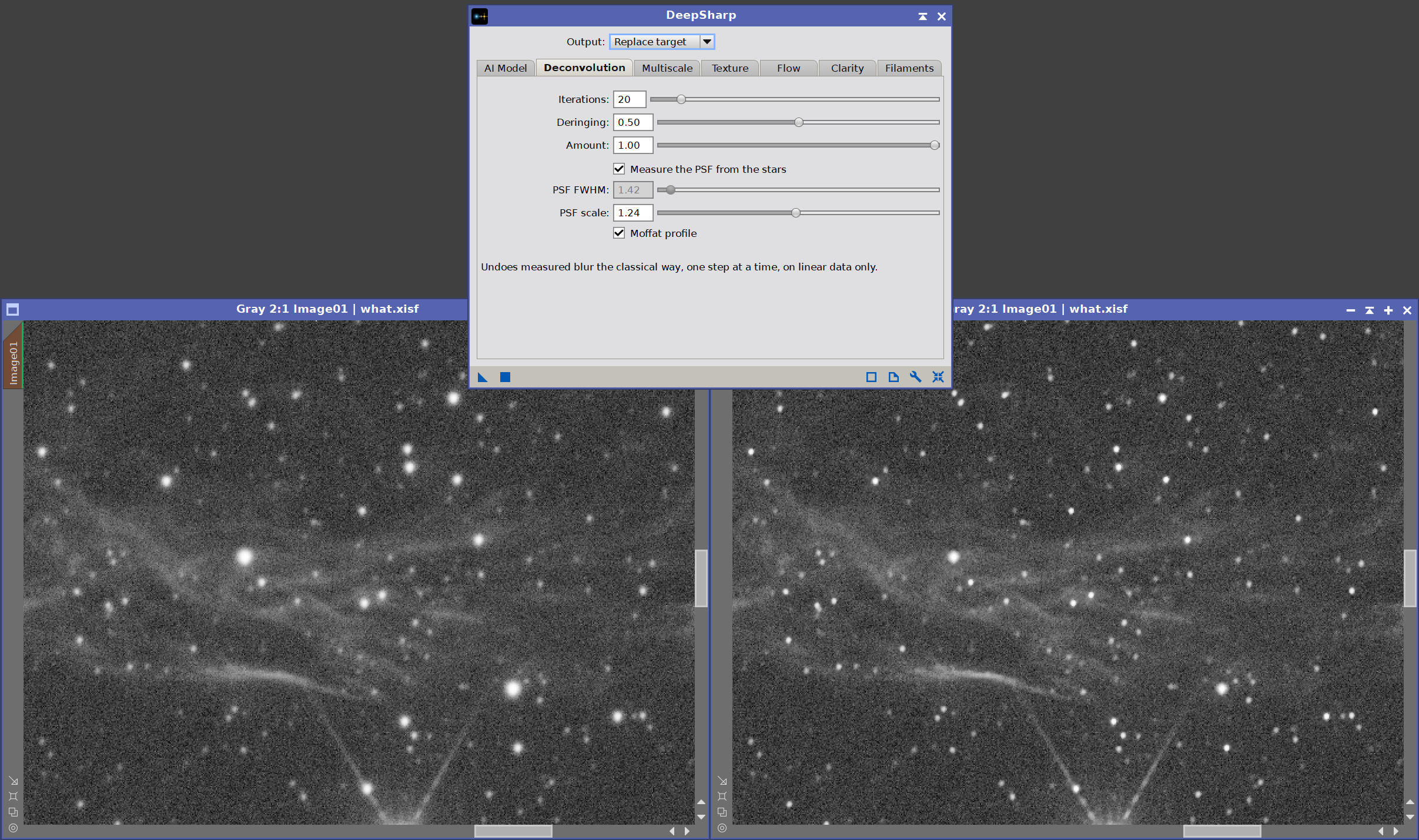
4.2 Deconvolution
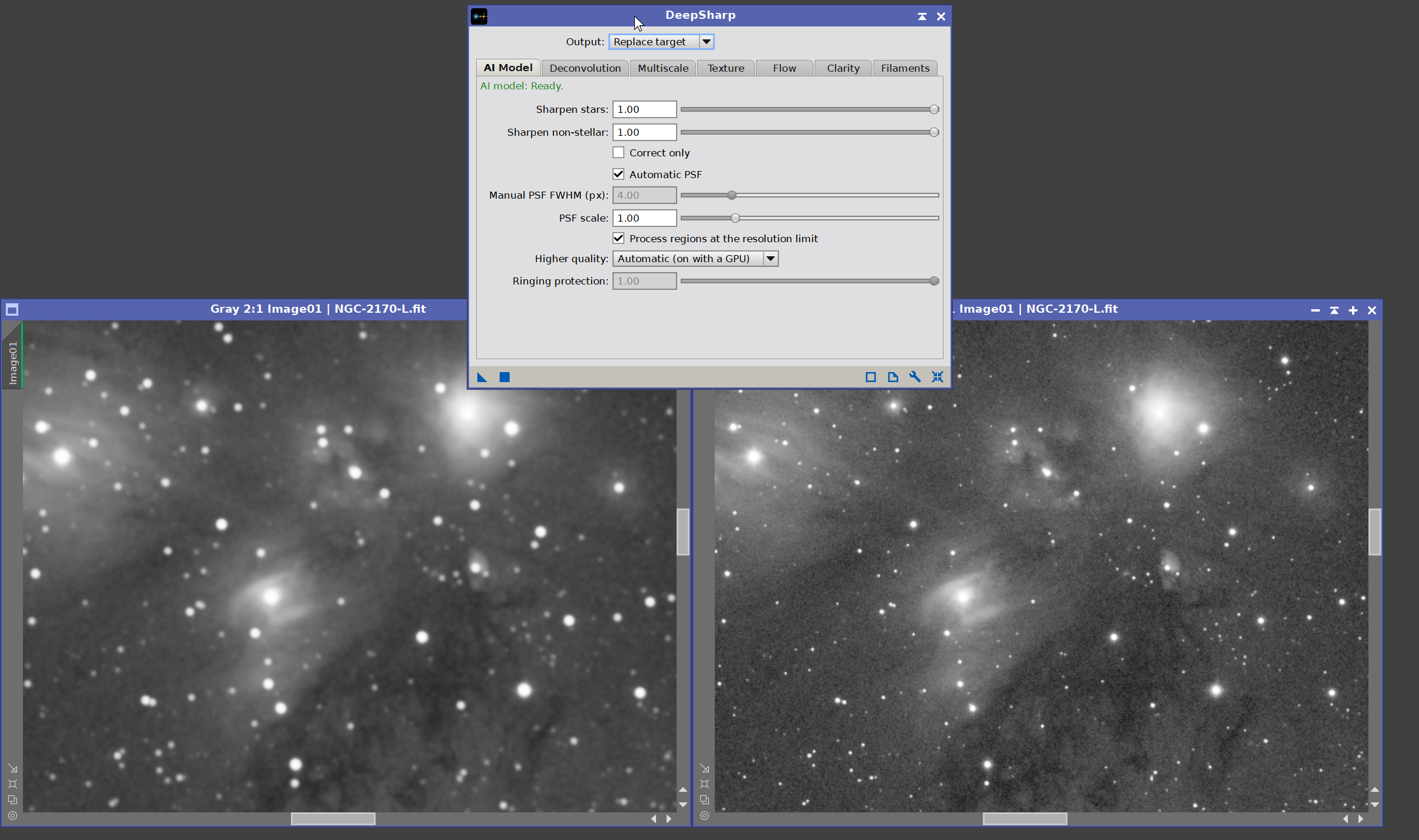
The classical counterpart of AI Model, and the only other method here that recovers detail rather than redistributing it. It starts from the same measured PSF field and inverts it with Richardson-Lucy: the image is processed in tiles with the local PSF, so a frame that is soft in the corners is treated as such. Linear data - the method assumes photon counts, and a stretched frame is no longer counting photons.
Several figures below come from the same test, referred to here as the round trip: a real linear frame whose stars measured 1.8 px was blurred with a Gaussian to 4.3 px and then deconvolved back. Because the frame before the blur is kept, the result can be compared against the truth rather than judged by eye - both how much of the lost resolution came back, and how far every pixel ended up from where it started.
Iterations: the control that decides the result. There is no converged answer: every step sharpens a little more and the estimate eventually starts inventing detail. On the round trip, 20 iterations recovered 60% of the lost resolution, 60 recovered 87%, and 120 recovered all of it with the lowest error against the original; by 200 the error was rising again. A frame that was never artificially blurred has far less to recover and needs far fewer. Start low, look at the stars, raise it.
Deringing: keeps the estimate from falling below the darkest value its own neighborhood had. The artifact that makes people give up on deconvolution is the dark moat around a bright star, where the light moved into the core was taken from the ring just outside; a moat is a value below anything the data had there, so this forbids it. The hold is on the dark side only - the bright side is where the sharpening is. It costs nothing measurable: on the round trip it improved both the star sizes and the error against the original.
Amount: how much of the result replaces the original.
Measure the PSF from the stars: uses the same field AI Model does. With it off we give one PSF FWHM for the whole frame; with it on, PSF scale multiplies the measurement while keeping its variation. A frame with no measurable stars is refused rather than guessed at.
Moffat profile: what shape the PSF is taken to have. A Moffat has the wings a real star has and a Gaussian does not, and deconvolving with a Gaussian when the data has wings leaves those wings as a soft halo. On the round trip a Moffat PSF came out ahead of a Gaussian one - even though the blur that had been applied there was itself Gaussian, which is the case least favourable to it.
4.3 Multiscale
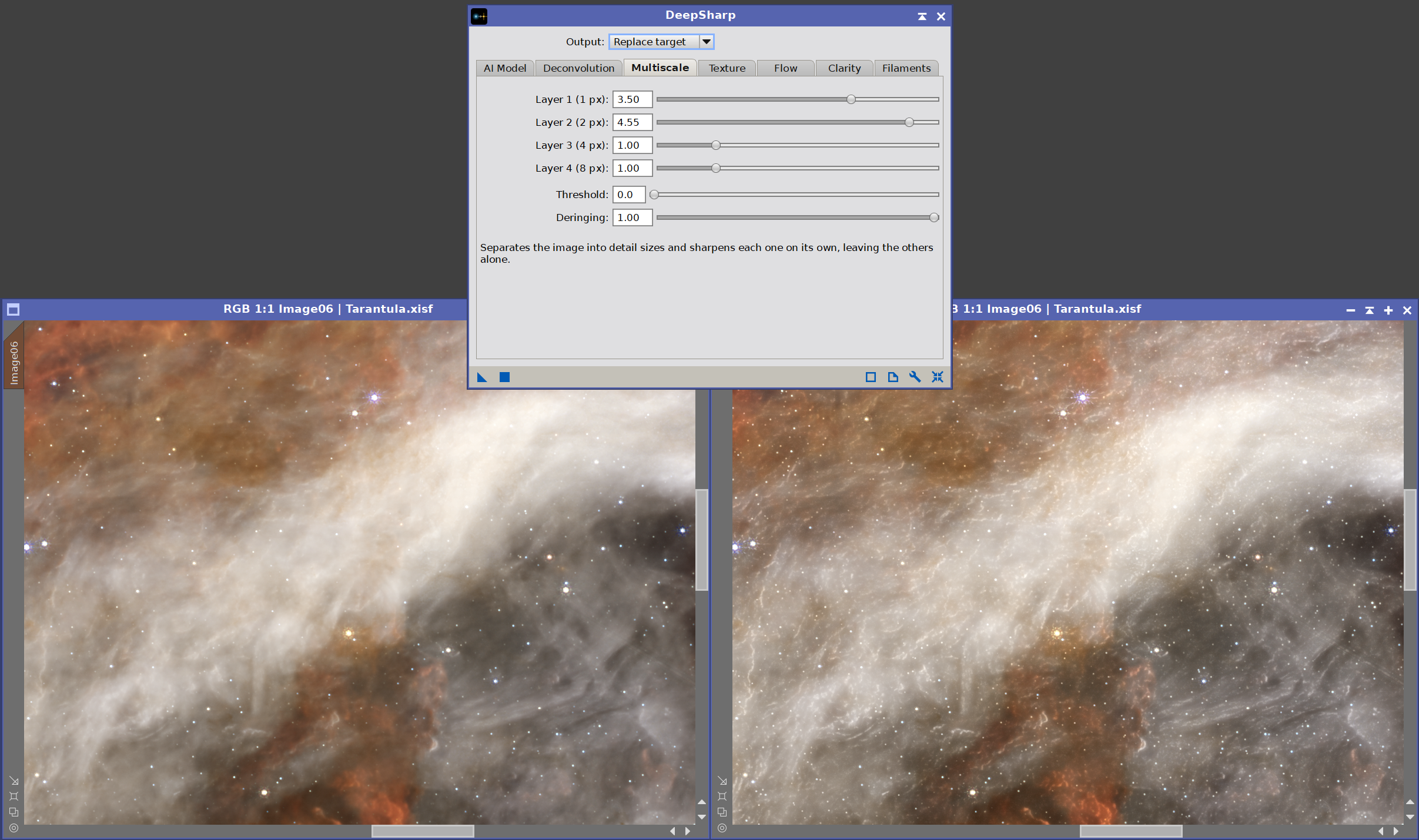
The least exotic tool here and the one most people reach for. The image is split into layers, each holding the detail at about one size - 1, 2, 4 and 8 pixels - plus a coarse residual holding everything broader. Giving a layer a gain sharpens that size and no other. The coarse residual is never touched: it carries the image's brightness, not its detail.
Layer 1 to Layer 4: the gain of each size. 1 leaves a layer exactly as it is, 0 removes it, above 1 sharpens. Layer 1 is mostly noise and star cores on an astronomical frame; layer 2 is usually the most useful on a well-sampled image; layer 4 reads as local contrast rather than as sharpening.
Threshold: how many of a layer's own noise sigmas a detail must clear before it is sharpened at all. This is what separates this from an ordinary wavelet sharpen: each layer's noise is measured from its own coefficients, so the setting means the same thing on every layer and every image. At 0 the gains apply to the noise as well.
Deringing: how much of the gain is withheld from whatever would go darker. Just outside a bright star the detail at every size is negative - that is simply what a bright core looks like from outside - so a gain applied evenly deepens that ring as surely as it lifts the core, and the star ends up wearing a black collar. At 1 a gain may brighten but never deepen. It does not apply to a layer turned down: removing a layer is meant to work both ways.
4.4 Texture
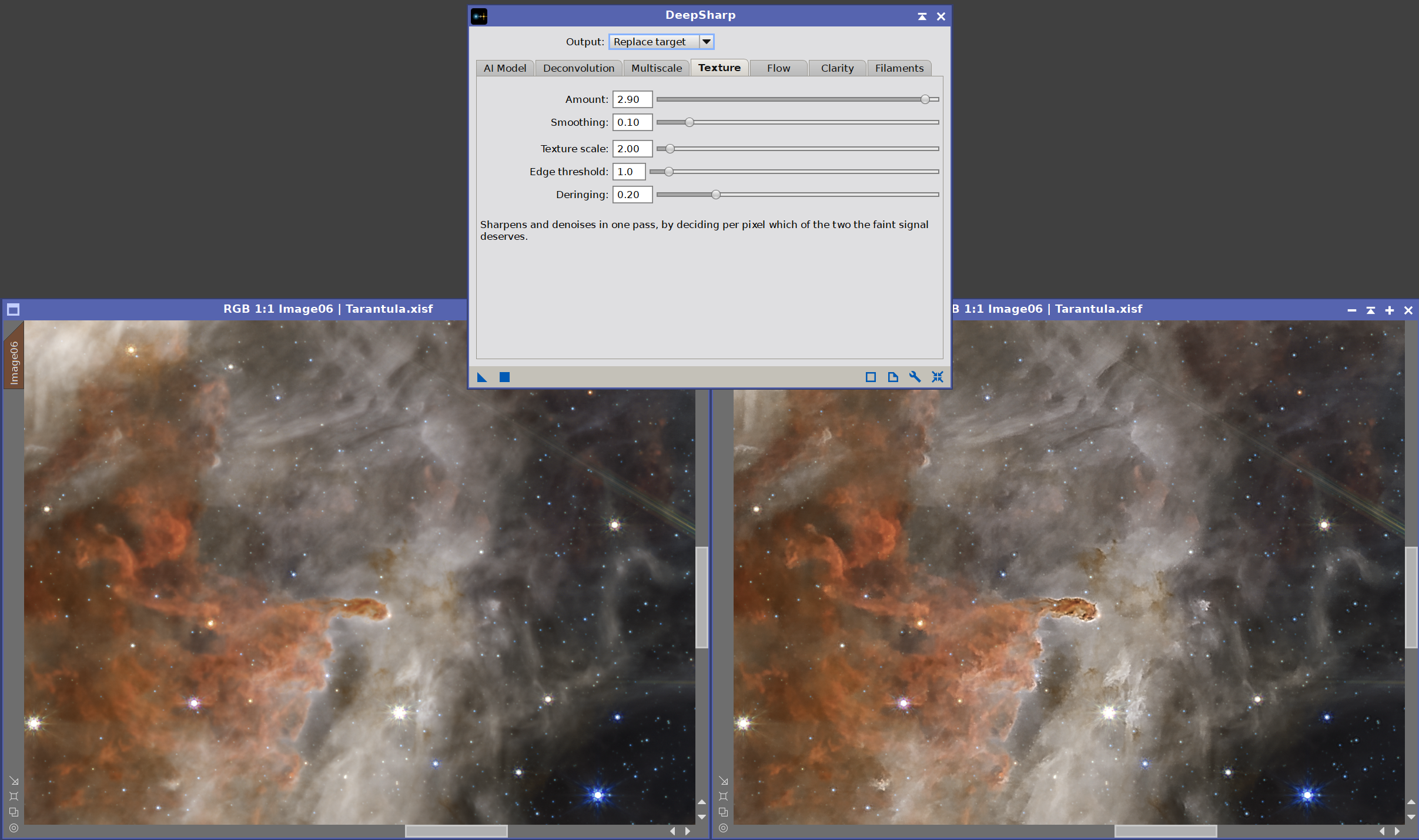
Sharpens and denoises in one pass, by deciding per pixel which of the two the faint signal deserves.
A copy of the image is denoised and subtracted, and what is left - the residual - is what the denoiser was unsure about: noise, and the faint texture that sits below the threshold with it. Every other method has to leave that texture alone, because lifting it lifts the grain too. This one puts it back amplified where the denoised copy shows real structure and reduced where it is flat, so the same pass adds texture to a filament and quiets the sky beside it.
The denoiser is rolling guidance, which removes everything below a size and leaves what is larger exactly where it was. It separates by size alone, it cannot ring, and it errs by removing too little rather than by inventing anything.
Amount: how much the residual is lifted where there is structure.
Smoothing: how much it is reduced where there is none. 0 puts the sky back exactly as it was; 1 replaces it with the denoised copy. Since the weight is continuous there is no boundary between the smoothed sky and the sharpened structure.
Texture scale: the size below which something counts as texture rather than structure.
Edge threshold: how many noise sigmas of contrast an edge needs before the denoiser keeps it. Higher values put more into the residual and make both controls above stronger.
Deringing: as in Multiscale.
4.5 Flow
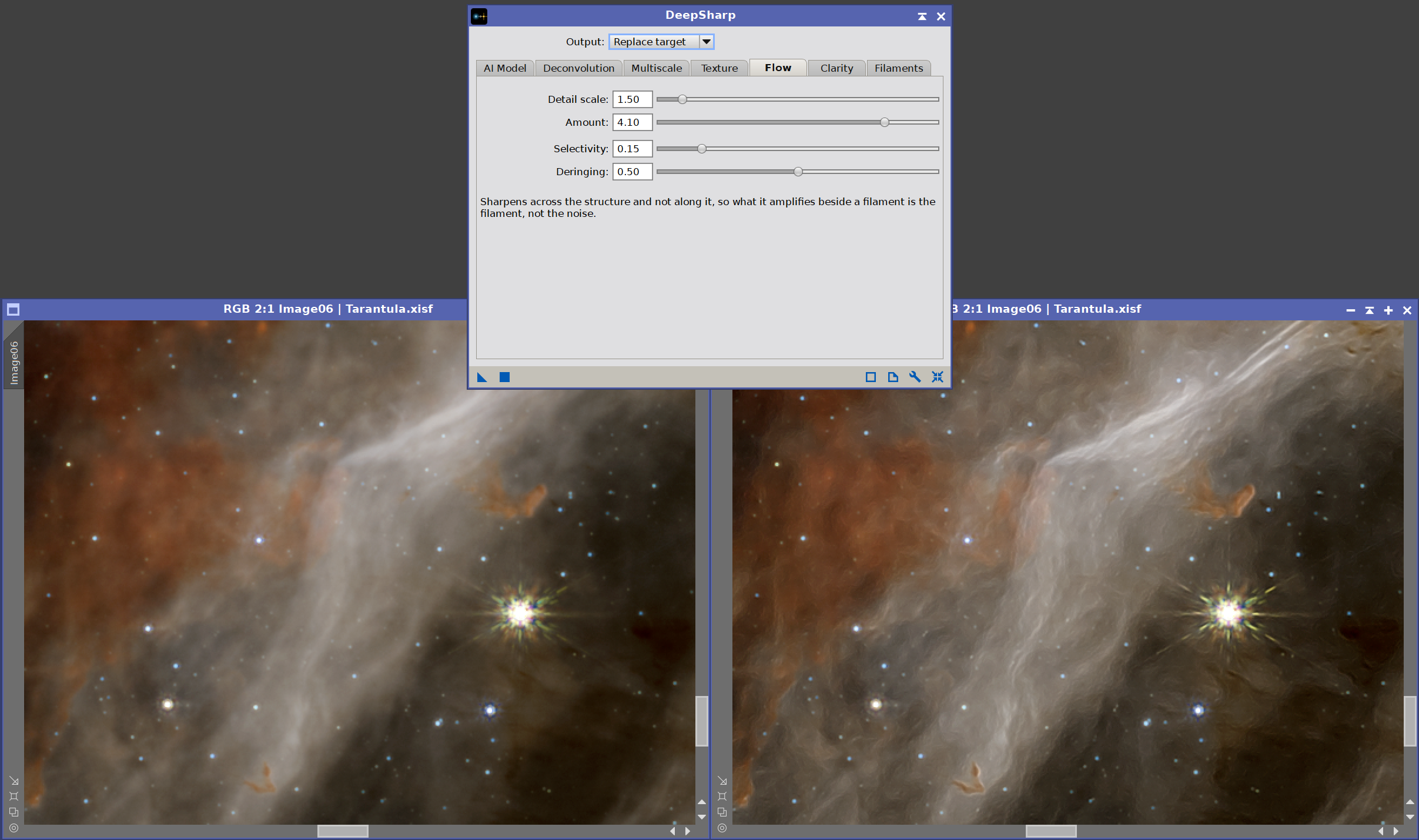
The only method here that asks which way the structure runs. Every other one amplifies the same in every direction, which is why they all have a deringing control: a gain that lifts a ridge lifts the noise beside it. This one finds the direction of the structure at every pixel and sharpens across it only - along a filament, where there was nothing to add, nothing is added.
It is not an edge steepener. It does not push an edge toward a step or flatten the gradation on either side; it amplifies the detail that is already there, in one direction.
Detail scale: the size of the detail that is sharpened, in pixels. It also sets how far the direction is averaged.
Amount: how much is added back. It can be pushed further than an ordinary sharpening before it looks wrong, because nothing is being added along the structure.
Selectivity: how clearly a direction must win before a neighborhood is sharpened at all, and the control that keeps the sky quiet. Noise has no direction - its gradient points everywhere and averages away - so it is left alone, while a filament, an edge or a dust lane all score high. Measured on a Veil frame at an amount of 2: at 0.5 the empty sky came out with its noise unchanged; at 0 it rose by about a seventh. A round star has no direction either, so stars are left alone unless selectivity is near 0.
Deringing: as in Multiscale.
4.6 Clarity
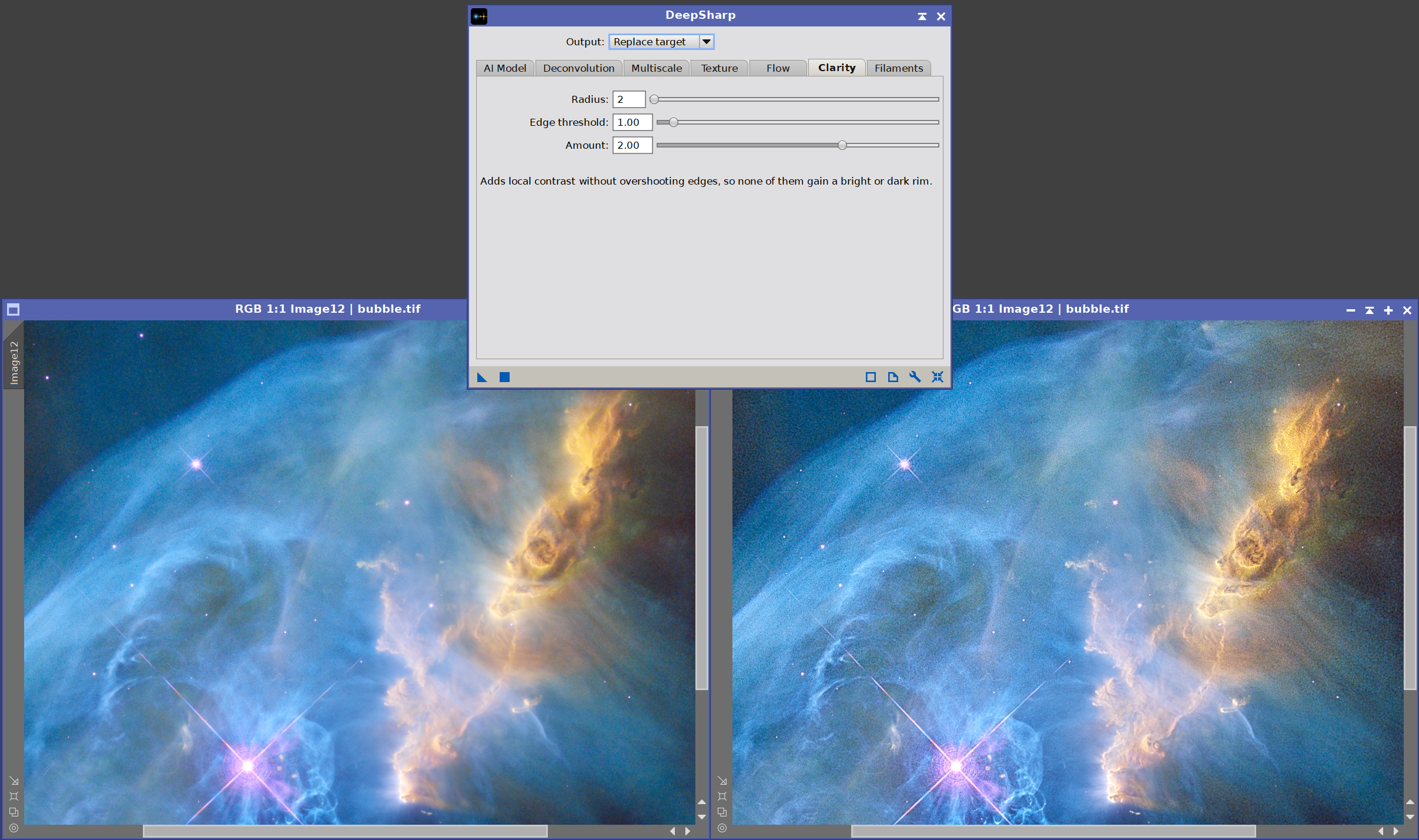
Local contrast that cannot overshoot an edge. An unsharp mask subtracts a blurred copy, and a blur crosses edges, so beside a bright edge it subtracts too little on one side and too much on the other: that pair of bright and dark rims is its characteristic artifact. This fits a local linear model in every neighborhood instead, and a linear function of an edge cannot leave the edge's own range of values, so no rim can form.
Not to be confused with the optical halo a bright star can show, which is real light in the image and is not what this is about.
Measured against an unsharp mask of the same radius and amount, in the ring around the brightest pixels of a Veil frame: this filter changed them by +0.001 sigma on average, the unsharp mask by -1.05 with a worst case of -44.
Radius: the size of the neighborhood. Everything finer becomes the detail that is added back; everything coarser is left alone. Small radii bring out texture in nebulosity; large radii lift whole structures.
Edge threshold: how many noise sigmas count as a real edge. Variation below this is treated as flat and is not amplified.
Amount: how much of the detail layer is added back.
4.7 Filaments
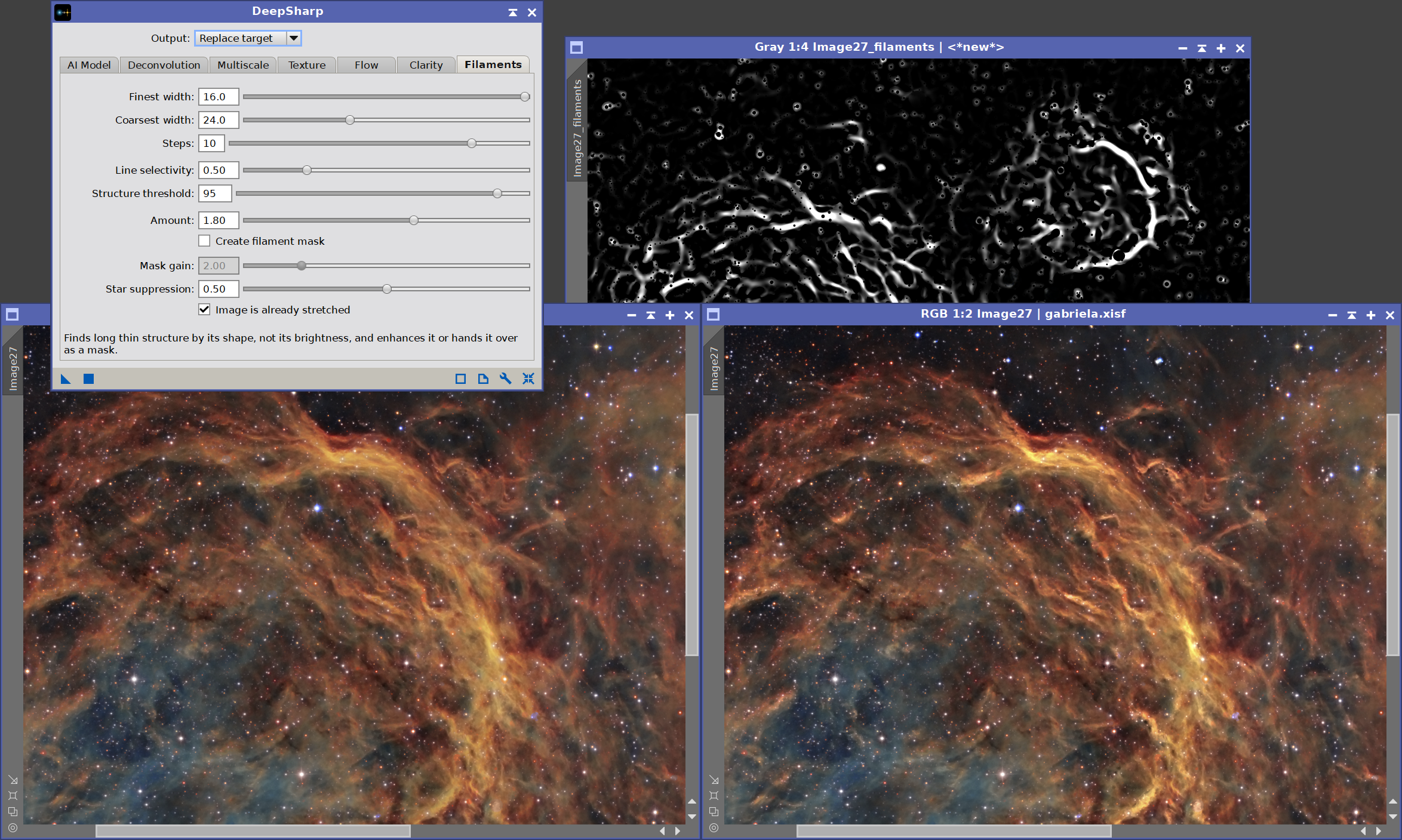
Not a sharpener: a detector. It finds long thin structure at several widths at once - the Frangi vesselness filter, built to find blood vessels in angiograms - and either enhances what it finds or hands us the response itself as a mask. That mask selects by shape, so a faint filament and a bright one are selected alike, which is the part no luminance mask can do.
Check Image is already stretched on stretched data. The filter stretches a working copy internally so that faint filaments can compete with bright cores. Applied to an image that has already been stretched, that second stretch crushes the brightest structures and amplifies the faint sky instead, and the mask comes back blank exactly where the brightest nebulosity is. The option exists for this, and on stretched data it is not optional.
Finest and coarsest width, Steps: the range of filament widths to look for, in pixels, and how many sizes are tried between them. A dust lane is a few pixels across; a nebular strand or a tidal stream is tens, which is what the coarsest width has to reach - set it too low and the filter finds the edges of the structure rather than the structure. A response is kept only where it survives two consecutive widths, which is what leaves out the knots and the noise that look filamentary at one width alone.
Line selectivity: how line-like a structure has to be. Low values accept only clean filaments; high values let rounder things through.
Structure threshold: the percentile of the frame's own curvature taken as the bar a structure must clear. Raise it if blank sky responds; lower it if faint filaments are missed.
Amount: how much contrast is added along the filaments that were found. 0 with a mask requested produces the mask and leaves the image alone.
Create filament mask: puts the response in a new grayscale window.
Mask gain: brightens the mask. The response is a number between 0 and 1 whose level means nothing from one frame to the next, so the strongest filaments found are brought to near white before the mask is made; this multiplies from there and clips at white. It affects the mask only. Raising it lifts the sky faster than the nebula, so reach for the widths and the threshold first.
Star suppression: how firmly structure belonging to stars is kept out. A star's core is a blob and is rejected already, but its halo is a genuine curved ridge and reads as a filament - which is why the filter appears to like stars. The area cleared around each star is sized to that star and feathered, so a bloated bright star clears a wide region and a faint one almost none; a star that stands well clear of its surroundings clears its halo outright, which is what keeps white rings out of the mask. Lower it where filaments run close to stars and we would rather keep them. On a star-rich field this control can remove a large part of the mask, so it is worth comparing 0 and 1 before deciding.
5 How AI Model works
[hide]
Knowing what DeepSharp does with our image makes its console report, and its occasional decision not to act, easy to read.
Measuring the PSF. With Automatic PSF, DeepSharp detects the stars, measures the size and shape of each one, and fits a smooth field across the frame. The measurement is taken on stars of middle brightness: bright stars measure wider than the true PSF because of their wings and near-saturated cores, and very faint stars are dominated by noise. For this reason the PSF DeepSharp reports is usually smaller than the FWHM DynamicPSF gives for the same image, which fits bright stars. The two figures are measured differently and are not comparable.
The target. The network is asked to take the local PSF toward a target size. At amount 1 the target is 1.0 px, the sharpest PSF the network was trained to produce; smaller amounts stop proportionally short of it. DeepSharp never asks for a PSF larger than the one measured, so it never blurs.
Regions already at the limit. Below a measured FWHM of 1.6 px, the stars are too small for their size to be measured reliably, and there is essentially no blur left to remove. With Automatic PSF, DeepSharp processes the frame in tiles and leaves any tile below that size exactly unchanged. The console reports how many tiles were left unchanged, or that the whole image was already at the resolution limit. On frames whose stars are sharper in the center than in the corners, this means the corners are sharpened and the center is not. Correct only does not use this rule: it rounds stars of any size.
Just above the limit, DeepSharp asks for less than you set. Until the measured PSF is comfortably clear of the resolution limit, the measurement is still unreliable - it cannot separate 1.7 px from 1.9 to the last tenth - and asking for a full correction there makes the network chase a target it cannot reach, which it answers by driving the star cores up rather than pulling the stars in. So DeepSharp tapers the amount: full strength from about 3 px, roughly four fifths at 2.4, three fifths from 2 to 2.1, and a fifth at 1.7 px and below, sliding between. The figures come from measurement on held-out frames, where at 1.7 px a full correction scores WORSE than leaving the image alone, while a fifth of it recovers most of the real blur. The console says how many tiles were involved. It applies to whatever PSF the network is finally given, so Manual PSF FWHM and PSF scale both move the band with them.
Too few stars. If fewer than 12 stars can be measured, the PSF cannot be measured, and DeepSharp leaves the image unchanged rather than guessing. Manual PSF FWHM is the way forward when we know the PSF of our data.
Noise that looks like stars. A real PSF has the same shape at every brightness. When many faint detections are elongated in a way the bright stars are not, which is typical of walking noise or hot-pixel trails, DeepSharp still processes the image but warns that the measured PSF may be unreliable.
Stars and non-stellar detail. The network runs once, at the higher of the two amounts. Where the stars are, the result is blended back toward the original according to Sharpen stars; everywhere else, according to Sharpen non-stellar. The stars are found with a detection that errs on the side of the stars, so faint and tiny stars are included, and broad peaks such as galaxy cores are not.
Stars keep their footing. Sharpening subtracts a little too much immediately around a star. Where the star's wing is only a little above the sky, that subtraction crosses it, and the star is left standing in a shallow dark pit, which a stretch then makes obvious. DeepSharp lifts those pixels back: within three times the local PSF of a detected star, no pixel is left below the sky that star stands on, nor below what it was in the source image. Only pixels that would have been dug out are touched, so the sharpening of the star itself is unchanged.
How Correct only works. DeepSharp finds the stars, then checks each group of faint detections against the shape of the stars: detections that do not share the stars' elongation are nebula structure, not stars, and are left alone; the console reports how many. The network then rounds every star using the measured PSF, and the brightest stars are each rounded using their own measured shape, because bright stars often differ from their neighbors. Rounding tends to make small stars slightly smaller, so DeepSharp restores each brightness group to its original size with a round blur, which cannot add elongation back. The console lists each group with its roundness before and after, its size and its flux; size and flux stay essentially unchanged.
Noise. The network is trained to pass the background noise through untouched: DeepSharp sharpens, it does not denoise, and it does not amplify the noise either.
6 Which method, and when
[hide]
Seven methods is a lot of choice. Two questions narrow it almost at once: is the image linear, and what do we want sharper.
6.1 Linear data, before any stretch
This is where the two methods that recover detail belong, and where they are worth more than anything else in the toolbox. Both start from the same measured PSF field, so both need stars to measure.
AI Model first, at the defaults. Leave Automatic PSF checked, apply, and read the console: the PSF it measured, the target it took it to, and whether any regions were left alone. Then judge, undo, adjust. Sharpen stars and Sharpen non-stellar are independent - holding the stars back while lifting the structure is the common choice, and the opposite is just as valid.
Deconvolution when we would rather not hand the frame to a network, when the frame is badly blurred, or simply to compare: it is the classical answer to the same question. Raise Iterations until the stars stop improving, and leave Deringing on.
Correct only, inside AI Model, for a frame whose stars are elongated or comatic but not soft. It rounds them at their measured size and leaves everything else exactly as it was.
Apply one of them once. If the result is too mild, raising the amounts gives a cleaner result than a second pass.
6.2 Stretched data
AI Model and Deconvolution are out: both assume a linear frame, and on a stretched one they work on what the stretch did rather than on the light. The remaining five do not care, and this is where most sharpening actually happens.
Flow is the safest strong sharpening on a noisy image. It sharpens across structure and not along it, and its Selectivity leaves anything without a direction - sky, grain - untouched.
Multiscale when we know which size of detail we want: 1 and 2 px for texture and small stars, 4 and 8 px for structure. Keep the Threshold up on noisy data.
Texture when the image is noisy and we want both things at once: it lifts faint texture where there is structure and quiets the sky where there is not, in one pass.
Clarity for presence rather than detail, and whenever an edge must not be given a rim - it cannot produce one.
Remember Image is already stretched on the Filaments tab. It is not optional there: without it the mask comes back blank exactly where the brightest nebulosity is.
6.3 By what we want sharper
| We want | Reach for |
|---|---|
| Stars tighter, or rounder | AI Model (its own star amount, or Correct only); Deconvolution |
| Nebular structure, linear frame | AI Model with the star amount held down |
| Filaments, lanes, tidal streams | Flow; or Filaments for a mask to apply anything else through |
| Fine texture on a noisy image | Texture |
| One size of detail and no other | Multiscale |
| Presence, with no risk of edge rims | Clarity |
| A mask that selects by shape | Filaments, with Create filament mask |
The methods combine. A common pattern is to recover first and shape afterwards: AI Model or Deconvolution on the linear frame, then - after the stretch - Flow or Texture for the structure, and a Filaments mask if we want any of it applied selectively. Output: New window makes comparing two of them a matter of looking at both.
Finally, save the instance as a process icon once a combination works: it carries the method and all of its settings.
7 Usage tips and tricks
[hide]
The first few concern AI Model and Deconvolution, the two that measure the image before acting on it and so have the most ways to be misread; the rest belong to the other five. Each method's own controls are described in 4.
Linear data for the two that recover detail. AI Model is trained on linear data and Deconvolution assumes photon counts: apply either before any stretch. The other five work on linear or stretched images alike.
Apply it once. The console reports the PSF DeepSharp measured and the target it took it to. If the result is too mild, raising the amounts gives a cleaner result than applying the process a second time.
A soft frame may sharpen less than the amount suggests. If the console reports that tiles were sharpened more gently than the stated amount, those tiles sit just above the resolution limit, where a full correction does more harm than good (see 4). Raising Sharpen will not override it, by design. If you are confident the frame is softer than the measurement says, raise PSF scale instead: that moves the whole request, the band with it, and the taper stops applying.
Do not compare the PSF figure with DynamicPSF. DeepSharp measures stars of middle brightness, DynamicPSF usually fits brighter ones, so DeepSharp's figure reads smaller. Both are correct for what they measure.
Star-poor images. If DeepSharp reports too few measurable stars and leaves the image unchanged, disable Automatic PSF and set Manual PSF FWHM to the PSF of our data.
Manual PSF below 1.6 px. Sharpening data that is already this sharp tends to over-process it. If the result looks harsh, raise the manual FWHM or lower the amounts.
A warning about faint detections. When the console warns that many faint detections do not share the shape of the stars, the measured PSF may be unreliable: noise and fine nebula texture both produce that signature. Check the result closely, or use Manual PSF FWHM.
Filaments: a narrow band of widths finds more and invents less. Bringing Finest width close to Coarsest width - or setting both to the same number - holds the filter to one structure size, which tends to highlight real nebula filaments, and leave stars and sky debris mostly unaffected. Use Create filament mask to visualize whether filaments have been properly isolated.
Filaments: with the two widths equal, set Steps to 1. The ladder then has a single rung and six rungs produce the same mask, pixel for pixel, for six times the work - four seconds against one on an 18-megapixel frame.
Filaments: the widths before the gain. Mask gain lifts the sky faster than it lifts the nebula, and the response is already brought to near white before the mask is made. If the mask is thin, the widths and Structure threshold are what to move; the gain is for the last touch.
Multiscale: one layer at a time. Every gain at 1 leaves the image exactly as it was, so raise a single layer, look, and put it back. That is the quickest way to learn which scale carries the detail we are after - and on most images it is one or two layers, not all of them.
Texture and Clarity are the two to reach for after a stretch. Deconvolution and AI Model want linear data; these two do not care. Texture puts back fine detail without touching the edges that frame it, and Clarity works on the large-scale contrast that a stretch flattens. Running them in that order, fine first, keeps each one's effect legible.
Flow for anything with a direction. Dust lanes, spiral arms, jets and tails sharpen along their own direction and are left alone across it, so raising Selectivity concentrates the work on what is coherent and leaves round and shapeless things as they are. It is the gentlest of the seven on noise, for the same reason.
A mask from one method, a correction from another. Filaments with Amount at 0 and Create filament mask ticked changes nothing and leaves the mask in a new window. Apply it to the view and run Texture, Clarity or Multiscale through it when only the structure should be touched.
Small knots count as stars. In a nebula or galaxy, small bright knots may be treated as stars, so they follow Sharpen stars. This is by design: when in doubt, the stars get their own amount.