
1 Introduction
[hide]
DeepStarMask builds a star mask — an image that is bright where the stars are and dark everywhere else — so we can protect or isolate stars while we process the rest of the frame.
It gets there by detecting the stars against everything else. DeepStarMask produces a starless estimate of our image and subtracts it. What is left is star light alone: cores, halos and diffraction spikes, with every pixel carrying exactly as much mask as it carries starlight. The mask is built from that residual, pixel by pixel. Nothing has to decide where one star ends and the next begins before the mask exists, which is what makes the result move smoothly and predictably as we turn the controls.
Two engines can produce the starless estimate: a trained AI model, which handles crowded fields, wide halos and spikes without being told anything about them, or a parametric multiscale detection that we drive ourselves and that needs no model file at all. The AI model is ethically sourced: it is trained only on the author's own images and on material explicitly released to the public domain or under CC0, so it respects intellectual property by design.
Because the residual contains stars and nothing else, DeepStarMask can then measure the individual stars in it and act on them. We can keep only stars within a range of size or of brightness, keep only the saturated ones, set how far down each star's own profile the mask reaches, or grow every star by a margin proportional to itself. And when a particular star needs different treatment, we can click it in the live preview: take it out of the mask, put it back in, give it its own growth and feather, or create a mask where nothing was detected at all. Those hand edits are stored with the process, so a saved icon reproduces them.
The result can be a classic single-channel grayscale mask or a per-channel color (RGB) mask, where each channel is built from its own star residual — so a star that is brighter or wider in one channel is masked accordingly there. Grayscale is the default.
Everything is tuned through the Dynamic Live Preview: a dedicated window that can show the mask applied to our image, the mask in isolation, or the image alone, with zoom up to 32x and panning. The preview is computed at full resolution, so what we see is what applying the process produces — there is no approximation to second-guess.
A star mask over the Tarantula —

The mask overlaid on the image in the Dynamic Live Preview. The AI model covers the bright giant together with its diffraction spikes, and resolves the cluster star by star rather than treating it as one bright patch. Each star carries as much mask as it carries light.
2 Setup and Installation
[hide]
The only official distribution of DeepStarMask is via a PixInsight repository. This is the safest way to install a module or script, as the installation is handled by PixInsight itself, which will fetch the module directly and safely from our PixInsight repository at
https://repo.deepskycolors.com/DeepStarMask/
Make sure the trailing / is part of the URL. Also, be sure to keep our repository URL in our list of PixInsight repositories to receive timely updates.
By distributing DeepStarMask only via our PixInsight repository, installation comes with the guarantee of our Developer and Repository certificates, verified by PixInsight itself from the moment it connects to our repository, until it validates and completes installation of the DeepStarMask module.
If we ever want to be sure that we have the latest version available to us, we go to PixInsight's RESOURCES menu, select Updates, then Manage Repositories to make sure our repository is still there, then RESOURCES > Updates > Check for Updates.
2.1 Launching DeepStarMask
DeepStarMask is a standard PixInsight process — we set its parameters on the process dialog and apply it to a view. To launch it:
- Open the image we want a star mask for.
- In Process Explorer or via the PROCESS menu, locate DeepStarMask under any of the DeepSkyColors, Mask, or StarMask categories.
- The DeepStarMask interface opens.
- Tune the parameters, ideally with the Dynamic Live Preview open. Then, apply the process to the target view (drag the triangle onto the image, or drag the instance onto the view).
Applying the process creates a new mask image named <view>_stars — single-channel by default, or a three-channel RGB mask when Mask type is set to Color (see 3.2). A short report is printed to the Process Console: which engine detected the stars, how many stars were found, how many of them were saturated, how many ended up in the mask, and the final mask coverage.
We can also apply DeepStarMask to a preview rather than to the whole view. The mask window then covers that region alone, and it is computed exactly as the same region of a whole-image run would be — DeepStarMask works on the preview's surroundings as well, so nothing changes at the edges. This is the fast way to try settings on a large frame.
2.2 Licensing
DeepStarMask runs on a trial-then-registered licensing model. During the trial period, the tool is fully functional with no feature restrictions. When the trial expires, DeepStarMask will display a notice at startup and will not open until a valid registration key is entered (see 3.5 Registration and licensing). No internet connection is needed: keys are validated offline.
3 The DeepStarMask Interface
[hide]
The panel is organized into three collapsible groups — Star detection (how the stars are pulled out of the image), Mask synthesis (how that star light becomes mask coverage), and Dynamic Live Preview (the interactive preview).
What costs time, and what does not. Detecting the stars is the expensive step, and it is done once: the two controls in the Star detection group re-run it, everything in Mask synthesis works on the result and refreshes almost instantly. This is worth knowing when a frame is large — we settle the engine first, then shape the mask freely.
A note on responsiveness. While we drag a slider, the preview does not recompute on every intermediate value — it refreshes once, when we release the mouse, so dragging stays smooth. Typed values and the spin arrows refresh immediately.

3.1 Star detection
This group decides how the stars are pulled out of the image. Everything downstream works on the result, so this is where we start.
Detection chooses the engine:
AI model: a trained neural network, run through PixInsight's own ONNX runtime. It handles crowded fields, wide halos and diffraction spikes without being told anything about them, and it is the recommended choice. If the runtime or the model file is not present, DeepStarMask falls back to the parametric engine and says so in the console.
Parametric: a multiscale median detection we drive ourselves. Stars are outliers against their neighborhood and vanish under a median cascade, while nebulosity survives it. No model file and no external dependency, fully deterministic, and the two controls below are ours to set. It can leave slight residues around the largest halos and sharp nebular knots, which is the price of not using a trained model.
Ethically sourced, and respectful of intellectual property. DeepStarMask's AI model is trained exclusively on images the author owns, together with images explicitly released into the public domain or under a CC0 dedication. No copyrighted or third-party work was used in its training. The model is ethically sourced by design, so the results we produce with it carry no such baggage.
The two controls below apply to the parametric engine, and are greyed out while the AI model is selected:
Largest star: how large a structure may still be treated as a star, given as a scale: the reach is roughly 2 to the power of this value, in pixels, so 7 is about 128 px and 9 about 512 px. We raise it when big or bloated stars are being left out of the mask, and lower it when nebulosity starts being detected as though it were stars.
Noise scales: how many of the finest scales are excluded from the star signal. Each step removes one more level of the smallest detail, which is where sensor noise lives. At 0 everything is kept, down to single pixels — the most complete masks, and the most noise. We raise it if grain is being masked as if it were tiny stars, remembering that genuine 1–2 px stars go with it.
Both of these change the detection itself, so moving them recomputes it. The controls in Mask synthesis do not.
3.2 Mask synthesis
This group turns the detected star light into mask coverage. Every control here works on the detection we already have, so the preview refreshes almost instantly as we move them.
Mask type selects how many channels the mask has:
Grayscale: a single-channel mask built from the luminance of the star light. The same coverage applies to every channel of the target. This is the classic star mask and the right choice for most work.
Color: a three-channel RGB mask, where each channel is built from that channel's own star residual. A star that is brighter or wider in one channel gets a wider mask there, which lets a downstream process act per channel — useful for selective star-color or halo work. It requires an RGB target; on a mono image it falls back to grayscale.
The next two controls set the mask's footprint — how much of each star it covers:
Threshold: how far above the noise, in sigma, star light must rise to enter the mask at all. Lower keeps fainter light, down into the noise floor; higher keeps only the bright cores. It moves the footprint and nothing else: pixels that stay keep their own brightness.
Coverage: how much of each star the mask covers, measured down that star's own profile. Coverage is proportional, so a faint star keeps as much of its glow as a brilliant one, instead of the bright stars getting sprawling masks while the faint ones barely clear their cores. At 1 we get the full extent that survived Threshold; lowering it gives progressively tighter masks, down to 0, the peak pixels alone.
The following controls select which stars are masked. Each acts on whole stars: the star light is segmented by peaks, so two stars that touch are still two stars, and a cluster is never mistaken for one giant object.
Smallest star and Largest star: keep only stars whose size falls between these bounds, in pixels across (the diameter of a disk with the star's masked area, spikes and halo included). 0 and the slider maximum mean no bound. Use them to mask only the dominant stars, or only the small ones.
Faintest star and Brightest star: the same idea by brightness, using each star's peak in the detected star light on a 0 to 1 scale. 0 and 1 mean no bound.
Brightest/saturated stars only: restrict the mask to the blown stars and the few brightest ones, with their halos and spikes. A star qualifies when its own peak sits at the data ceiling and its core is flat there, which is what a clipped star physically looks like; this is measured on our original pixel values, never on the screen stretch. In practice a handful of very bright but not-quite-clipped stars come along too, hence the name. If our data was rescaled so that it no longer reaches full scale, nothing in it is clipped and the mask will be empty.
The last group shapes what is left:
Consolidate: raises faint parts of the mask to full strength, but only where they are broad, never where they are a thin edge. Its use is crowded regions, where the stars are detected individually but the unresolved glow between them is not, leaving a sprinkle of dots rather than solid coverage. The number is a thickness in pixels: faint areas thicker than it are raised, thin rims are left alone. It is a thickness and not a reach, so an area 100 px wide needs a value near 10. It can only change the brightness of pixels that are already masked, so it never adds a pixel, never joins two stars and never moves an edge. 0 turns it off.
Growth: grows every star's footprint outward with a true circular dilation, so grown stars stay round. The menu beside it decides what the number means: Pixels applies the same fixed margin to every star, while % of star makes the margin proportional to each star's own radius, so the giants gain much more room than the small ones. The label changes with the mode, so the units are always visible.
Feather: softens the mask edges with a smooth, isotropic blur of this radius, in pixels, for a gentle falloff into the sky.
Intensity: the brightness of the mask, as a linear gain, with 1 neutral and 2 the default. The AI residual is a gentle thing — it carries the star light and no more — so a mask built from it usually wants a lift, and the range runs to 10 for the cases that want a large one. Raising it saturates the brightest star peaks first, then progressively brings halos and fainter stars toward full protection. Values near the noise floor stay near the noise floor, so faint non-star residue is not inflated along with the stars. Lowering it dims the whole mask proportionally.
3.3 Editing individual stars
Sliders act on every star at once. When one particular star needs different treatment, we edit it by hand, directly in the Dynamic Live Preview. Its toolbar carries a group of DeepStarMask buttons for this:
Pick stars: a toggle. While it is active, clicking a star in the preview selects it and a blue ring marks it. Selecting changes nothing by itself; the buttons below act on the selection. The click has a deliberately tight reach, so the star we select is the one under the cursor. Panning still works with the scrollbars, the mouse wheel, and by dragging with the right mouse button. Pick stars and Mask brush want the same click, so turning one on turns the other off.
Selected star settings: opens a small dialog with Growth and Feather for that star alone. Each can either follow the global slider or override it, and the per-star range is twice the global one, because a single object may need far more room than the whole frame should get. The values are kept when we select another star, and come back for editing when we select this one again.
When the selected star already carries an edit, the dialog also offers Remove edit, which forgets it and puts that star back under the global sliders. This is how an edit is undone long after it was made: select the star, open the dialog, remove. The button is absent when the star has no edit, so it never offers to remove nothing. For a star the detector never found, the edit is the only reason there is a mask there, so removing it removes the mask.
One star, its own settings —
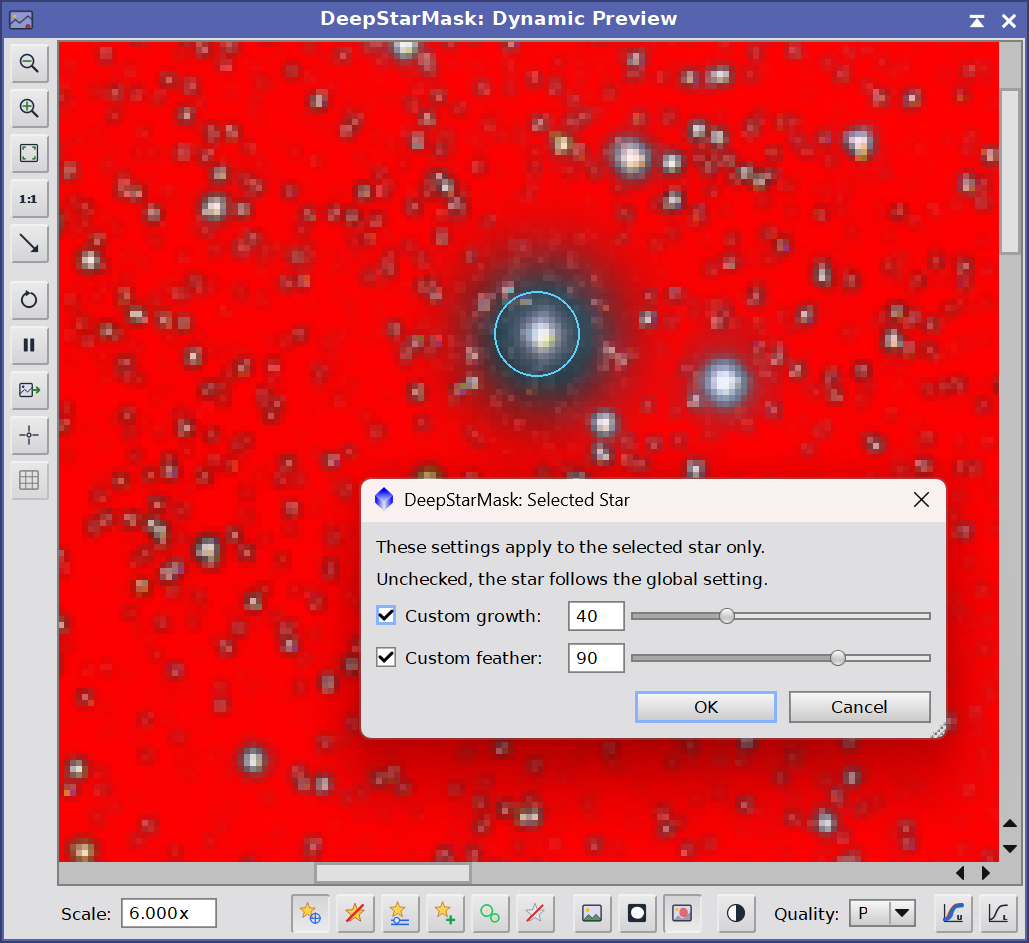
A blue ring marks the star picked in the preview, and the dialog gives that star alone its own Growth and Feather. Each is checked to override the global slider or left unchecked to follow it — here a bright star is being given a much wider, much softer margin than the rest of the frame should get.
Mask brush: a toggle, and the general way to correct a mask by hand. While it is active, dragging takes mask away and Ctrl-dragging puts mask back, in soft-edged dabs laid along the stroke. It needs no idea of where an object begins or ends, which is what makes it work on shapes nothing can select for us: a galaxy taken for a star, a satellite trail, the edge of a bright nebula, or a gap that should have been masked and was not. A ring under the pointer shows what a dab will cover, and each dab keeps the settings it was painted with. The brush needs Resolution set to Full resolution, since it paints at the image's own scale; it is unavailable while the display is fitted, though strokes already made are still shown.
Undo last edit: takes back the most recent manual edit. A stroke goes back whole, however many dabs it took.
Right-click this button for the full list of edits, newest first. It offers two different things, and the difference matters:
Undo to here drops the selected edit and everything made after it, in a single rebuild. This is repeated undo without repeated waiting.
Delete this one takes out only the selected edit and leaves every later one standing. This is how a stroke or a star edit made a while ago is corrected without losing the work that came after it.
Deleting from the middle is safe: a star edit is independent of its neighbors, and a brush dab only ever acts on what lies under it, so the remaining edits replay exactly as they did before.
Show modified stars: a toggle that rings every star we have changed by hand in green, so we can see at a glance which ones are no longer following the sliders.
Clear picks: forgets every manual edit and returns the mask to what the sliders alone produce.
The mask brush —
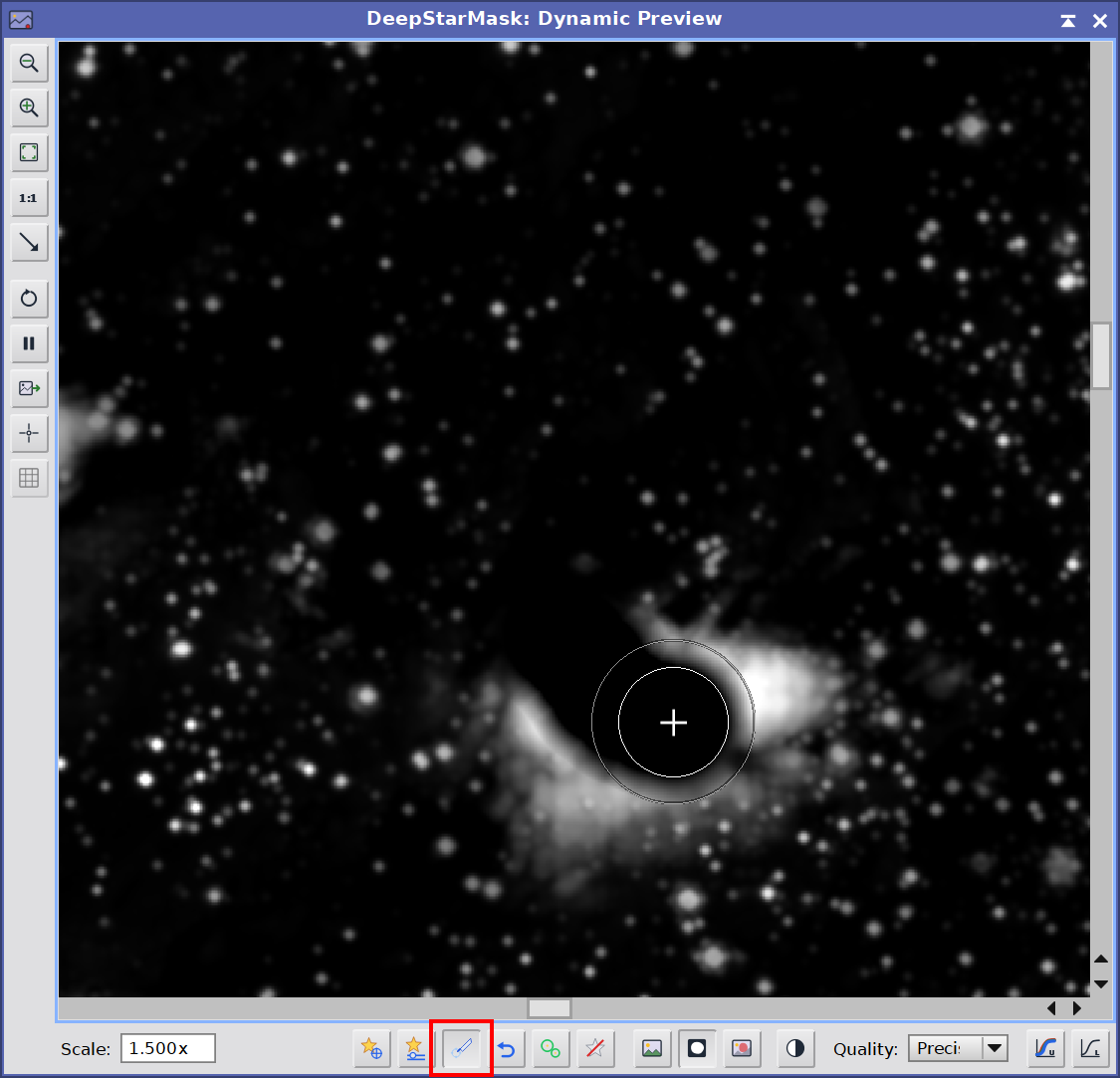
A ring under the pointer shows exactly what a dab will cover: the inner circle is the part cleared outright, the outer one where it fades out. Here a knot of nebulosity that the detection had masked is being taken out of the mask, which no slider could do without also affecting real stars elsewhere.
The brush has three settings of its own, in the Dynamic Live Preview group:
Brush size: the radius of a single dab, in pixels.
Brush softness: how far a dab fades out beyond that radius. 0 gives a hard edge; larger values thin or build the mask gradually instead of cutting it, which is what keeps a painted area from showing a border against the mask around it.
Brush opacity: how strongly a single dab acts, as a percentage. 100 clears or fills in one pass. Lower values act only partly, so passing over an area again builds the effect up — the way to thin a mask gradually, or to feel our way into a shape rather than commit to it in one stroke.
Removing an edit, either way. An edit on a star is best taken off from the image itself — select the star and use Remove edit — because that is where we can see which star it is. Turning on Show modified stars rings every edited star, so the ones that can be removed are visible at a glance. A brush stroke has no star to select, so it is removed from the history list instead, with Delete this one. Both reach the same list of edits; they differ only in how we point at the one we mean.
These edits are stored with the process. They are part of the instance, so saving a process icon preserves them: we can close PixInsight, reopen it, load the icon, apply it to the same image and get the same mask, with every hand edit still there and still editable.
Each image keeps its own. An edit is a pixel position and means nothing on a different image, so DeepStarMask never applies one image's edits to another. It does not throw them away either: when we point the live preview at a different source, the edits on the image we are leaving are set aside and whatever we had left on the image we are moving to comes back. We can move between images freely and find each one as we left it. The console says so at each switch, for example 3 manual edits set aside, 12 restored.
This lasts for the PixInsight session. Loading a process icon starts a new state and clears what was set aside, and closing PixInsight ends it — a saved icon remains the way to keep edits beyond that. A preview counts as its own source, so edits made on a preview and edits made on the whole image are kept separately.
3.4 Dynamic Live Preview
This is the heart of interactive tuning. Instead of guessing and re-applying, we open a dedicated Dynamic Preview window that shows the star mask applied to our image and refreshes as we move any control.
Preview button: opens or closes the Dynamic Preview window. The source image is captured when we open it, and it can be the main view or a preview we have defined on it.
What we see is what we get. The mask is always computed at full resolution: it is exactly the one applying the process produces. Resolution decides only how it is shown to us. Full resolution displays the frame at its own scale, which is the only way to judge a mask on the stars it was built from, and the only way the brush works at the size we set. Fitted to the window shrinks the display instead, which costs far less memory and repaints faster on a very large frame; the mask brush is unavailable there. A large frame opens zoomed out to fit the window, and the zoom controls take us in from there.
Full resolution costs time on a large frame, and the way to get it back is to work on a preview: define one in PixInsight over the most demanding stars and open the live preview on that. DeepStarMask then computes that region plus a margin wide enough to include every star whose light can reach into it, so the region renders exactly as it would in a whole-image run, at a cost that follows the region rather than the frame. This is the recommended way to work on large images.
Because the Dynamic Preview is a genuine image-display engine, and not PixInsight's built-in Real-Time Preview, it can show the mask applied to the image with or without an overlay tint, and we can zoom in up to 32x and move around while we work. The same engine is shared across our Deep Sky Colors tools.
The preview's bottom toolbar. The Dynamic Preview window carries its own toolbar along the bottom. The DeepStarMask buttons described in 3.3 live here, next to the display controls, which change only how the preview is shown and never the mask we apply:
Scale: the zoom field. We type any value from 1.0x to 32.0x (the trailing "x" is optional) and press Enter, or click outside the field, to apply it. This is how we zoom right in to inspect the mask edge around individual stars.
Mask preview modes: three buttons choose what the preview shows — Image only, Mask only (the mask on its own, as a grayscale image), and Mask overlay (the image with the masked pixels tinted red, the most useful view for judging coverage on the actual stars). A fourth button, Invert mask, shows the mask inverted in the preview only. The convenient part is how we switch: clicking the button of the mode we are already in flips back to the mode we came from, and repeated clicks keep toggling between those two, so we can A/B between two views with single clicks instead of hunting across the toolbar.
Quality: how the preview bitmap is resampled for display — Smooth (bilinear, the natural choice for ordinary viewing) or Precise (nearest-neighbor, giving crisp pixel boundaries when we are zoomed in to examine individual mask pixels).
STF: two screen-stretch buttons that auto-stretch the displayed image so a linear frame is not shown almost black. Linked computes a single stretch from the pooled RGB statistics and applies it to all three channels, preserving color balance; Unlinked stretches each channel independently. Clicking whichever button is currently active turns the stretch back off.
The Dynamic Preview's bottom toolbar —

The preview toolbar: the DeepStarMask star-editing buttons, the Scale (zoom) field, the mask display modes (image only / mask only / overlay, plus invert), the Quality resampling menu, and the STF auto-stretch buttons. Everything except the star-editing buttons affects the on-screen preview only.
3.5 Registration and licensing
The Preferences button (the wrench icon on the process interface bar) opens the DeepStarMask license information dialog. This dialog reports the current license state:
- Licensed: shows the email the module is licensed to.
- Trial: shows the number of trial days remaining.
- Expired: prompts us to register to keep using the tool.
When the module is not yet licensed, the dialog shows a "Click here to register" link. Clicking it opens the registration dialog, where we enter our email and license key. The fields are validated as we type, and the Register button enables only once a valid email/key pair is entered. After a successful registration the info dialog refreshes in place to the "licensed to" state — no need to reopen it.
4 Creating a star mask
[hide]
A typical workflow:
Open the image and launch DeepStarMask. For a large frame, define a PixInsight preview over the most demanding stars first. Select the image or that preview, then click the Preview button to open the Dynamic Live Preview, and set its display mode to overlay so we see the mask on the image as we work.
Settle the detection first. Leave Detection on the AI model unless we have a reason not to. With the parametric engine, raise Largest star until the biggest stars are detected, and raise Noise scales only if grain is coming through as tiny stars. This is the one step that costs time, so we get it right before touching anything else.
Set the footprint. Lower Threshold to reach fainter star light, raise it to keep only the bright cores. Then use Coverage to decide how far down each star's own profile the mask reaches — this is the control that shapes how the mask feels across the whole frame.
Narrow it down if we want to. The size and brightness pairs keep only the stars we are after; Brightest/saturated stars only isolates the blown ones. Most masks need none of this, and every one of them defaults to no limit.
Shape the coverage. Use Growth for the margin around each star (in pixels, or proportional to each star), Feather for the softness of that margin, and Intensity for how strongly the mask protects. In crowded regions, a small Consolidate value fills the faint gaps between packed stars.
Fix individual stars by hand if any need it: turn on Pick stars, click a star and give it its own growth and feather, or build one where nothing was detected. For anything that is not a star — a galaxy read as one, a trail, a gap — use the Mask brush (see 3.3).
Apply the process to the view. DeepStarMask creates the
<view>_starsmask image and prints its report to the console. Save the instance as a process icon to reuse the whole recipe later, hand edits included.
How the mask is built (overview). DeepStarMask produces a starless estimate of the image and subtracts it, leaving star light alone. That residual is thresholded into a footprint, and each star in it is measured, so the size, brightness and saturation filters can keep or drop whole stars and Coverage can clip each one against its own peak. Surviving stars are grown with a circular dilation, softened with an isotropic feather and scaled by Intensity, then written into a floating-point image — a single grayscale channel, or three independently detected RGB channels when Mask type is Color — suitable for use anywhere PixInsight accepts a mask. Manual edits are applied last, so a star we picked by hand always wins over what the sliders decided. For a linear image, DeepStarMask applies an automatic screen stretch internally before detecting, computed from the whole image so that a preview region is treated exactly as the whole frame would treat it.

5 Usage tips and tricks
[hide]
Work on a preview. On a large frame, define a PixInsight preview over the hardest stars and open the live preview on it. The region is computed exactly as it would be in a whole-image run, but the cost follows the region, so tuning stays quick.
Detection first, then everything else. Detecting the stars is the expensive step and the one that decides what is available to mask. Once it is right, every other control refreshes almost instantly, so we can move them freely.
Coverage is the control that changes the feel of the mask. Threshold decides what is in the mask at all; Coverage decides how much of each star we keep, proportionally, so faint and brilliant stars are treated alike. If a mask feels too heavy on the bright stars, lower Coverage before touching anything else.
Judge the mask in overlay. Seeing the mask tinted over the image tells us far more than the mask alone, especially around bright stars and nebula edges. Clicking the mode button we are already in flips back to the previous mode, so we can A/B rapidly.
The size and brightness filters work on whole stars. Star light is segmented by peaks, so touching stars are told apart and a cluster is never treated as one giant object. That is what makes "mask only the small stars" behave sensibly in a rich field.
Saturated only, for repairing blown cores. It selects stars whose cores are flat at the data ceiling, measured on our original values. If our data was rescaled below full scale, nothing in it is clipped and the mask comes out empty — that is the honest answer, not a failure.
Crowded cores. Where stars are packed tighter than they can be told apart, the mask can come out as a sprinkle of dots. A small Consolidate value raises the faint area between them without moving any edge; if that is not enough, select the spot and use Selected star settings to build a star there with its own growth.
Growth in percent for mixed fields. When the giants need breathing space but the small stars must stay tight, switch Growth to % of star: the margin then scales with each star instead of applying the same number to all of them.
Intensity saturates from the top down. It is a gain, not a curve, so raising it brings the brightest cores to full protection first and leaves the noise floor where it is. Use it when the mask covers the right pixels but protects them too gently.
Hand edits travel with the process. They are serialized into the instance, so a process icon reproduces the exact mask, including every star we reshaped or built and every brush stroke we painted. Reloading that icon and applying it to the same image gives them back, still editable.
Edits follow their image, not the tool. Within a session we can move the live preview between images and each one keeps its own edits — nothing is lost by looking at something else for a while. Only a saved process icon carries them past the session.
Watch the console. It reports which engine ran, how many stars were found, how many were saturated and how many reached the mask, plus the final coverage — a quick sanity check between settings.