
Create Alpha Channels
Alpha channels made from a mask, any gray image or a single value
Create Alpha Channels gives an image alpha channels: filled with the gray of another image, such as a mask, with the gray of the image itself, or with one value for the whole channel. It is the way from a mask to an alpha channel, for instance to save a PNG or a TIFF with transparency.
1Introduction
An image holds its nominal channels, gray or red, green and blue, and then any alpha channels, which XISF, FITS, TIFF and PNG files can carry. The view shows the nominal channels only: alpha is not drawn as transparency. A mask is another thing, an open image attached to this one. Create Alpha Channels turns a mask, or any gray image, into alpha channels, and Extract Alpha Channels does the reverse.
The channels are added after the ones the image has, or written over them from the first with Replace existing, and more are added when needed. They are filled from an image, which can be a gray image's one channel or the CIE L* of a color image, or with one value, 1 for opaque and 0 for transparent. Each run is a new format of the image in one history step, so Undo takes the channels back.
Create Alpha Channels follows PixInsight's process of the same name by its parameters, and a PixInsight icon of that process opens here. The value of the channels is PixInsight's transparency, which the panel calls Opacity.
2Quick Start
- Open the image and the mask, a gray image of the same size, and choose .
- Leave From an image on and choose the mask under Source image.
- Click Apply. The image now has an alpha channel.
- Save the image in a format that holds it, such as XISF, TIFF or PNG.
3Interface & Parameters
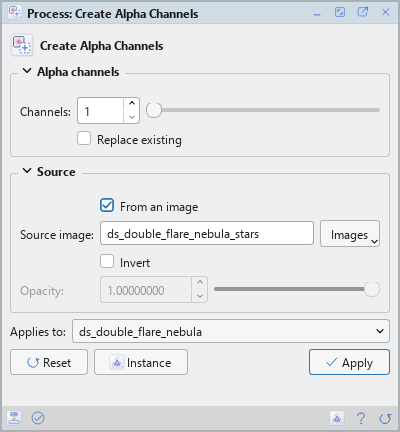
The panel has two sections, Alpha channels and Source, then the image the process applies to, the buttons and the system bar along the bottom.
3.1Alpha Channels
Channels: How many alpha channels to make, from 1 to 64. 1 by default.
Replace existing: Writes over the alpha channels the image has, from the first, adding more when needed. Off by default: the new channels are added after the ones there are.
3.2Source
From an image: Fills the alpha channels with an image's gray: its one channel, or a color image's CIE L*. On by default. Off, the channels get one value, Opacity.
Source image: An open image of the same size, such as a mask or a star image, chosen in a list of the open images. Empty, the default: the image itself. A source of another size is refused.
Invert: Uses the source's gray inverted: white becomes transparent. Off by default.
Opacity: With From an image off: the one value of the alpha channels, from 0 to 1: 1 opaque, 0 transparent. 1 by default.
3.3Apply and Instance
Applies to: The image that gets the alpha channels, chosen in a list of the open images. It shows the image in front, and follows it as we bring other images to the front. Picking another image in the list makes the panel work on that one without bringing it to the front, and Follow Active, the small button that appears beside the list, makes the panel follow the image in front again.
Apply: Adds the alpha channels to the image named in Applies to, as a new format, in one history step that Undo takes back. The channels have the image's sample type.
Instance: Shows the process as the panel has it now, as text: a DSPX process
(.dsproc) or a PixInsight process icon (.xpsm), chosen under Format. Copy puts the text
on the clipboard; Save... saves it as a file and puts it on the Process Shelf.
Reset: Puts every setting back to its default.
The system bar along the bottom has the same commands as small icons: at the left, drag to apply and Apply; at the right, Instance, Help (this page) and Reset.
4Usage Tips and Tricks
A PNG with a transparent background. Make the mask of the subject, create an alpha channel from it, and save the image as a PNG.
Invert to flip the subject and the sky. If the mask is white on the sky and the subject should be opaque, turn on Invert.
A constant channel. With From an image off, Opacity 0.5 makes a half transparent channel for the whole image.
5Related Tools
Extract Alpha Channels: takes the alpha channels out as gray images and masks.
Range Mask: makes a mask from a range of brightness.
Channel Combination: puts gray images together as the nominal channels of a color image.