
Extract Alpha Channels
The alpha channels of an image taken out as gray images, and optionally deleted
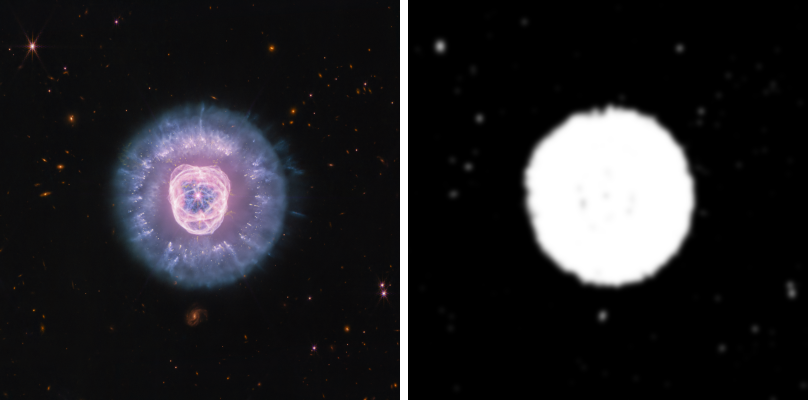
Extract Alpha Channels takes the alpha channels of an image out as gray images of their own, each offered as a mask of the image, and can delete them from the image. It is the way from an alpha channel, such as the transparency of a PNG or a TIFF, to a mask we can attach, edit and use.
1Introduction
An image holds its nominal channels, gray or red, green and blue, and then any alpha channels. XISF, FITS, TIFF and PNG files can carry alpha channels, and the program keeps them through Convert Color, Sample Format and the other processes that do not touch them. The view shows the nominal channels only: alpha is not drawn as transparency.
An alpha channel is not a mask. A mask is another open image attached to this one, and the processes it applies to are
limited by it. Extract Alpha Channels is the bridge between the two: each alpha channel taken out becomes a gray image of
the image's sample type, named after the image with _alpha01, _alpha02 and so on by its number from
1, with the image's keywords and properties, and offered as a mask of the image in one action. Create Alpha Channels does the reverse.
Extract Alpha Channels follows PixInsight's process of the same name by its parameters, and a PixInsight icon of that process opens here.
2Quick Start
- Open the image that has alpha channels and choose .
- Leave Channels on All alpha channels and Extract on.
- Click Apply. A gray image arrives in a new tab for each alpha channel, named
<image>_alpha01and so on. - To use one as the image's mask, with the new image in front choose .
3Interface & Parameters
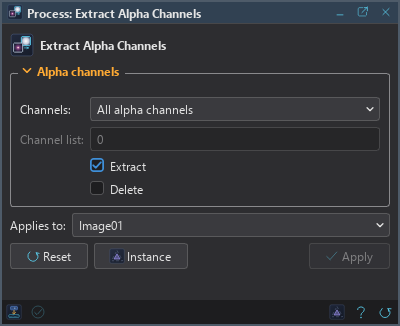
The panel has one section, Alpha channels, then the image the process applies to, the buttons and the system bar along the bottom.
3.1Alpha Channels
Channels: Which alpha channels to take:
- All alpha channels: every one. The default.
- The first alpha channel: the first, the one PNG and TIFF files use for transparency. The program shows no alpha channel as active, and the first stands in for PixInsight's active one.
- Channel list: the ones numbered in the list below.
Channel list: With Channel list: the alpha channels by number, the first being 0, separated by commas or spaces. Numbers the image does not have are skipped. If none of them exists, the run stops.
Extract: Makes each alpha channel a new gray image, offered as a mask of the image. On by default.
Delete: Takes the alpha channels out of the image, in one history step that keeps the old image whole. Off by default.
3.2Apply and Instance
Applies to: The image whose alpha channels are taken, chosen in a list of the open images. It shows the image in front, and follows it as we bring other images to the front. Picking another image in the list makes the panel work on that one without bringing it to the front, and Follow Active, the small button that appears beside the list, makes the panel follow the image in front again.
Apply: Extracts, or deletes, or both. With Extract alone, the image is only read and there is no history step. With Delete, the image takes a new format in one step that Undo takes back. An image without alpha channels cannot run the process, and with neither Extract nor Delete the run says there is nothing to do.
Instance: Shows the process as the panel has it now, as text: a DSPX process
(.dsproc) or a PixInsight process icon (.xpsm), chosen under Format. Copy puts the text
on the clipboard; Save... saves it as a file and puts it on the Process Shelf.
Reset: Puts every setting back to its default.
The system bar along the bottom has the same commands as small icons: at the left, drag to apply and Apply; at the right, Instance, Help (this page) and Reset.
4Usage Tips and Tricks
From a PNG with transparency. Open the PNG, extract its alpha channel and attach it as a mask: the processes we apply then act on the subject alone.
Extract and delete. To move the alpha channel out of an image into a mask in one run, turn on both Extract and Delete.
Saving. A format that cannot hold alpha channels says what was left out when we save. Extract them first if the mask matters.
5Related Tools
Create Alpha Channels: makes alpha channels from a mask, any gray image or a value.
Channel Extraction: takes the nominal channels apart.
Convert Color: converts between gray and color, keeping the alpha channels.