1 Introduction
[hide]
DynamicAstroCrop performs the most common geometric operations on an image — cropping, resampling, and reorientation — while preserving and transforming the astrometric solution of the image. The result keeps a valid WCS instead of losing it.
This matters because PixInsight's standard geometry processes (DynamicCrop, Resample, IntegerResample, Rotation, FastRotation) delete the astrometric solution when they run: they warn that the astrometric metadata will be discarded, and they discard it. On a plate-solved image, that means every downstream tool that needs a WCS — annotation, finding charts, catalog cross-matching — stops working the moment we crop or resize the frame. Re-solving afterwards is possible, but it is slow, it is not always reliable, and it should not be necessary.
DynamicAstroCrop closes that gap. When we crop, resample, or reorient a solved image, it recomputes the astrometric solution for the new geometry and writes it back, so the transformed image is still solved. When the image carries no astrometric solution, the tool simply behaves as a normal crop, resample, or reorientation.
All operations are performed in place, on the active or target image, and are grouped into three tabs: Crop, Resample, and Orient.
2 Setup and Installation
[hide]
The only official distribution of DynamicAstroCrop is through DSC Hub, our free PixInsight process for installing and updating everything Deep Sky Colors makes. One address covers every one of our processes:
https://repo.deepskycolors.com/
Adding that repository to PixInsight installs DSC Hub, and PixInsight handles that installation itself, with our Developer and Repository certificates verified before it completes. We then open PROCESS > DeepSkyColors > DSCHub, select DynamicAstroCrop in the list, and click Download and install.
DSC Hub checks every download against a catalog that is digitally signed, and refuses anything whose checksum does not match. PixInsight then verifies the module's own signature every time it loads it, so a module altered after we published it is refused.
Keep that repository in the list. DSC Hub tells us at startup when an update for DynamicAstroCrop is waiting, and installs it in a couple of clicks. There is nothing else to add: the older per-module repositories are no longer needed, and DSC Hub offers to clear them away.
If you'd rather bypass DSC Hub and add one repository per process, DynamicAstroCrop still has its own: https://repo.deepskycolors.com/DynamicAstroCrop/ DSC Hub will offer to remove it. Do NOT use these individual repositories and DSC Hub at the same time. We would be asked to install the same modules twice, if we do.
2.1 Launching DynamicAstroCrop
Once installed, DynamicAstroCrop appears under the PROCESS > DeepSkyColors, PROCESS > Geometry, and PROCESS > Astrometry menus, and in the Process Explorer under the same categories. As with most dynamic processes, we open its interface and then interact directly with an open image. There is no file list and no batch mode; we work on one open image at a time.
2.2 Licensing
DynamicAstroCrop is free and fully functional. There is no trial period and nothing expires: every feature is available to everyone, forever.
The free version shows a small advertisement banner at the bottom of the interface, usually promoting other Deep Sky Colors tools for PixInsight. The banner is a single clickable image; it never interrupts our work and it makes no attempt to track us. If we click on the banner, DynamicAstroCrop opens our default browser with the direct destination link, without saving nor tracking any information about the click at all.
Registering DynamicAstroCrop removes the banner. To register, we click the wrench (Preferences) button on the process panel, enter the e-mail and license key from our purchase confirmation, and click Register. The banner disappears immediately and stays gone.
3 The DynamicAstroCrop Interface
[hide]
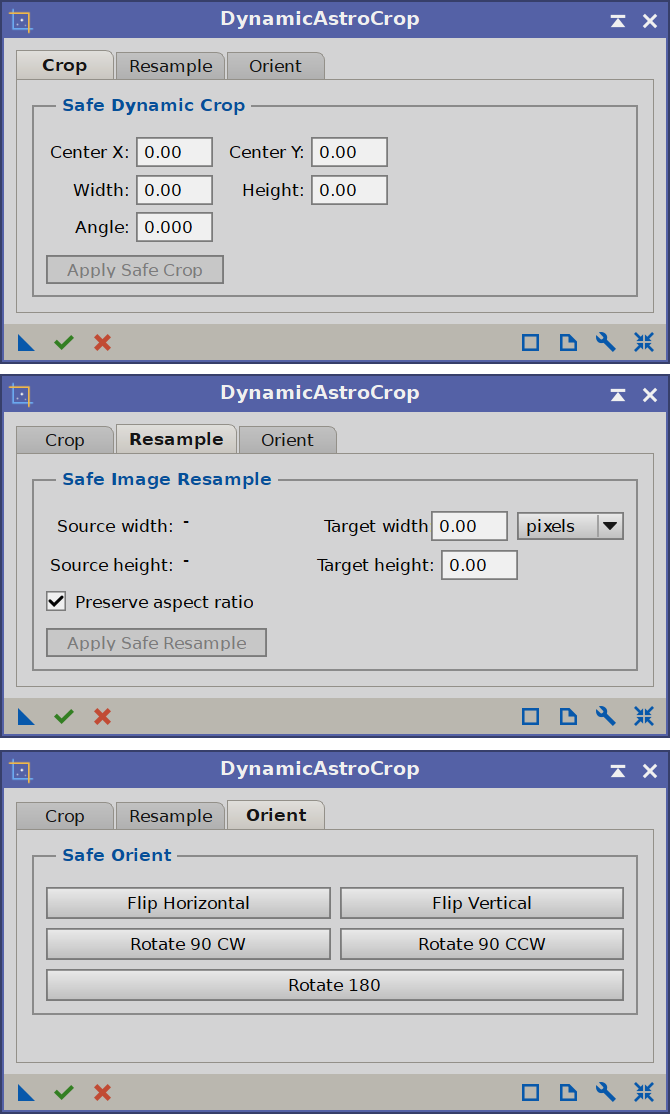
The interface is organized into three tabs, one per operation: Crop, Resample, and Orient. Only one operation is active at a time, and switching tabs resets whatever we were doing on the image, so the tabs never interfere with one another.
3.1 The Crop tab
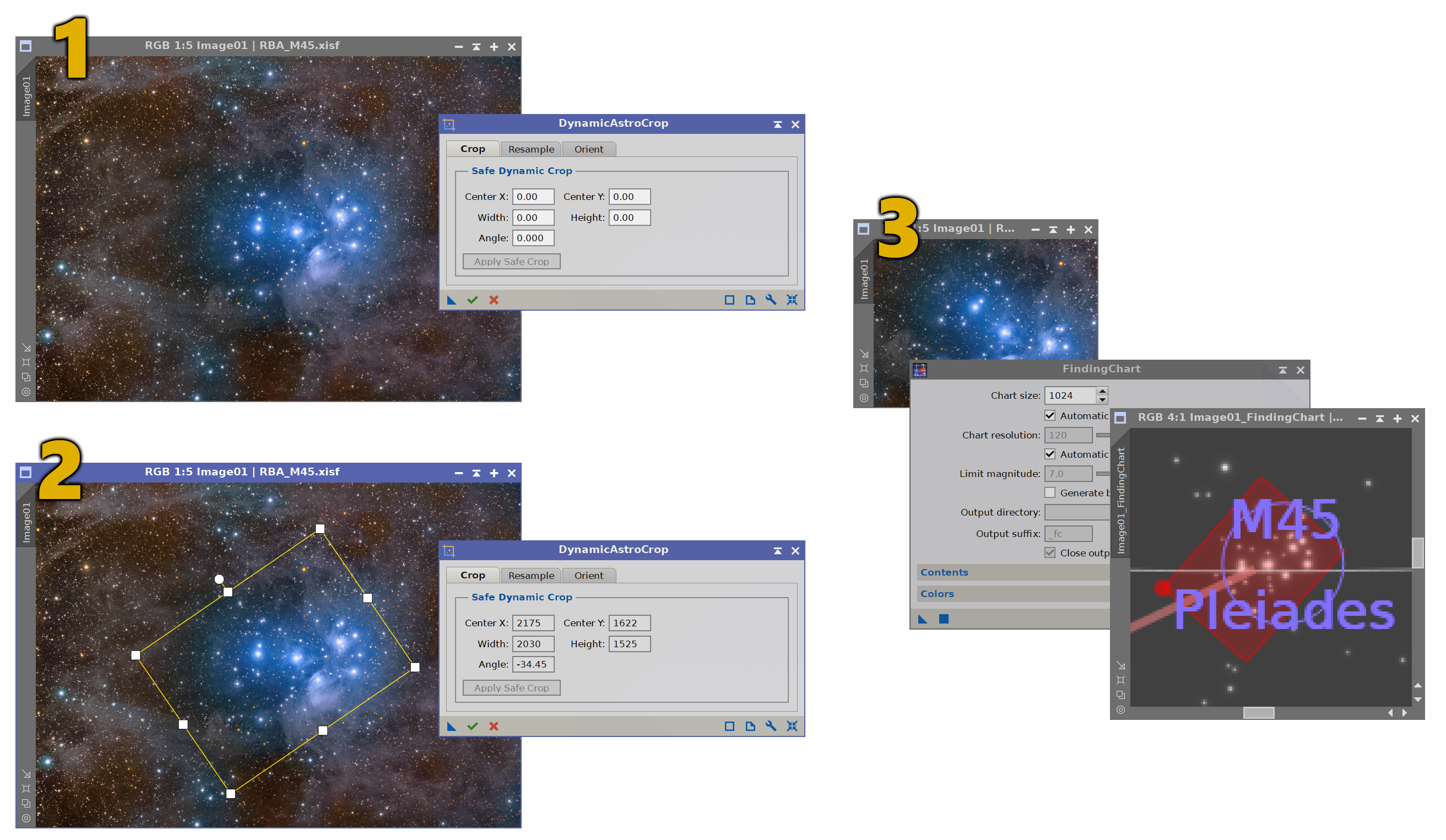
The Crop tab works like a WCS-aware DynamicCrop. We click and drag on the image to rubber-band a crop rectangle, and then we refine it with the handles that appear around it:
- The eight square handles (four corners and four edge midpoints) resize the rectangle. The mouse cursor changes to indicate the action under each handle.
- The interior of the rectangle moves it as a whole.
- The round handle above the top edge rotates the rectangle about its center.
The same rectangle can also be set numerically: Center X, Center Y, Width and Height are given in image pixels, and Angle is the rotation in degrees (counter-clockwise about the center). Typing in these fields updates the on-image rectangle, and dragging on the image updates the fields.
When we are happy with the rectangle we click Apply Safe Crop (or the process's Execute button). If the angle is zero, the crop is a lossless extraction of the selected pixels; a non-zero angle produces a rotated crop, resampled with a high-quality interpolation into an upright image, with the corners that fall outside the source left black. In both cases, if the source image was solved, the solution is transformed to match the cropped frame.
3.2 The Resample tab
The Resample tab scales the whole image to a new size, adjusting the plate scale (arcseconds per pixel) of the astrometric solution accordingly.
We click on the image we want to resample to select it. A rectangle appears, drawn at half the image size and centered on the frame: this rectangle is a size gauge, not a region to crop. Dragging its handles resizes it symmetrically about the center — we only ever control its width and height, never its position — and the Target width and Target height fields track its size. We can also type the target size directly, and the gauge follows.
The target size is expressed in the units chosen next to it: pixels or % (a percentage of the source, whose current width and height are shown to the left). The Source width and Source height labels report the dimensions of the selected image.
With Preserve aspect ratio ticked (the default), the gauge keeps the source proportions, so editing one dimension updates the other. Unticking it lets width and height be set independently. Clicking Apply Safe Resample resamples the image to the target size with a high-quality interpolation and rewrites the scaled solution.
3.3 The Orient tab
The Orient tab reorients the active image with a single click. It offers five buttons: Flip Horizontal, Flip Vertical, Rotate 90 CW, Rotate 90 CCW, and Rotate 180.
These operations are lossless: they rearrange the existing pixels without any interpolation, so image quality is untouched. Because the transformation is an exact whole-pixel remapping, the astrometric solution is transformed exactly as well — there is no fitting error at all. Unlike the Crop and Resample tabs, these buttons do not use an on-image rectangle; they simply act on whichever image is currently active.
4 How the astrometric solution is preserved
[hide]
Every operation reduces to the same idea: each pixel of the output corresponds to a known pixel of the input. A crop shifts and, when rotated, rotates that correspondence; a resample scales it; a flip or a 90-degree rotation swaps and mirrors it. DynamicAstroCrop uses this correspondence to carry the solution across.
Before it modifies the image, the tool reads the source solution. It then samples a dense grid of output pixels, maps each one back to its source pixel, and asks the original solution where that source pixel points on the sky. This gives a grid of (output pixel, sky coordinate) pairs for the new geometry, from which a fresh solution is fitted and written to the image. Because the grid is dense and the fit uses a surface spline, any distortion model present in the original solution is carried over, not flattened.
For the lossless operations on the Orient tab, the correspondence is an exact whole-pixel mapping, so the transformed solution is exact. For rotated crops and for resampling, the pixels themselves are interpolated, and the solution is transformed to match the very same mapping used to resample the pixels, so image and solution always stay consistent. A good way to confirm this is to open the result in the FindingChart process: if the overlay lands cleanly across the whole frame, including the corners, the transformed solution is good.
5 Usage tips and limitations
[hide]
- An unsolved image is handled too. If the source carries no astrometric solution, DynamicAstroCrop still crops, resamples, or reorients it; there is simply no solution to transform.
- Switching tabs starts fresh. Moving to another tab clears the current on-image rectangle. This is deliberate, so a crop rectangle is never mistaken for a resample gauge.
- The Orient operations are lossless; rotated crops and resampling are not. Flips and 90-degree rotations only rearrange pixels. A rotated crop or a resample interpolates the pixels, like any resampling operation, so repeated resampling of the same image will gradually soften it.
- Rotated crops leave black corners. When the crop rectangle is rotated, the parts of the upright output that fall outside the source are filled with black, exactly as expected from a rotated crop.
- Work in place. DynamicAstroCrop modifies the target image directly. As with any in-place operation, we keep the original elsewhere if we need it.