1 Introduction
[hide]
DeepParallax is a sophisticated, highly customizable tool that turns a single 2D image into a variety of 3D representations and animations: an interactive depth map, a stereoscopic side-by-side pair, a red/cyan anaglyph, separate left/right views, looping wigglegram (parallax motion), and immersive 3D flyby's, all from one input image. A floating Dynamic Preview window with several viewing and analysis features follows every adjustment we make, showing the current results live.
DeepParallax includes a large number of features that can be used for general-purpose imagery: it works on everyday photographs, landscapes, portraits, and any subject where a single image is all we have. On top of that, DeepParallax includes many more specific tools designed to deal with the particular and complex case of astroimages: where a flat 2D nebula or galaxy hides a rich structure that the eye reads as depth, where stars (being point sources at infinity) need to be treated specially, and many other subtleties.
Perhaps, DeepParallax's most impressive and one of a kind feature is its ability to produce a 3D representation where each star in the image is placed at a depth proportional to the star's real distance and parallax, again, all starting from a single 2D image.
To pull the stars apart from the scene, DeepParallax includes its own built-in AI star-removal model - no external module required. The model is ethically sourced: it is trained only on the author's own images and material explicitly released to the public domain or under CC0, so it respects intellectual property by design (external StarNet2 and supply-your-own workflows are supported too; see 3.2).
DeepParallax can process, render, and position stars individually. We control the depth map at several different levels: Image depth, Narrowband depth, Color depth, Structure depth, etc. DeepParallax's Flyby Interactive Editor allows us to create immersive 3D flybys on our images in a matter of minutes. And these are just some of the many features DeepParallax offers.
Everything is parameter-driven and instance-serializable, so a recipe that works on one frame can be reused on others; ready-made Presets for Nebula, Narrowband, and Galaxy targets give us sensible starting points. The depth pipeline is cached behind the scenes, so adjusting stereo or animation controls re-renders without recomputing the depth, keeping previews responsive even on large frames.

2 Setup and Installation
[hide]
The only official distribution of DeepParallax is via a PixInsight repository:
https://repo.deepskycolors.com/DeepParallax/
Make sure the trailing / is part of the URL. Also, be sure to keep our repository URL in our list of PixInsight repositories to receive timely updates.
By distributing DeepParallax only via our PixInsight repository, installation comes with the guarantee of our Developer and Repository certificates, verified by PixInsight itself from the moment it connects to our repository, until it validates and completes installation of the DeepParallax module.
If we ever want to be sure that we have the latest version available to us, we go to PixInsight's RESOURCES menu, select Updates, then Manage Repositories to make sure our repository is still there, then RESOURCES > Updates > Check for Updates.
2.1 Launching DeepParallax
DeepParallax is not a script. It is a standard PixInsight process, so it does not hijack PixInsight's entire operation. We can have DeepParallax open and still use PixInsight's other processes, views, scripts, etc. To launch it:
- Open the image we want a 3D version of. Stretched (non-linear) images give the best results, because all depth cues read perceptual brightness; a linear image is mostly black and produces a flat depth map.
- In Process Explorer or via the PROCESS menu, locate DeepParallax under any of the DeepSkyColors or Render categories.
- The DeepParallax interface opens.
- Tune the parameters with the Dynamic Preview on so we see the depth and stereo update as we go, then apply the process to the target view (drag the triangle onto the image, or drag the instance onto the view).
Applying the process never modifies the target image; instead it creates new windows with the result: a <view>_depth grayscale image in depth-map mode, a <view>_sbs in side-by-side mode, a <view>_anaglyph in anaglyph mode, or a pair of <view>_left and <view>_right windows in two-views mode. Videos are handled via Export buttons, not by applying the process. The Export section (see 3.10) writes an animated video file directly to disk.
2.2 Licensing
DeepParallax runs on a trial-then-registered licensing model. During the 30-day trial the tool is fully usable for exploring and creating depth maps, stereo output, and animations, with the following export restrictions:
- All animation exports - GIF, AVI, animated PNG (APNG), and MP4 (parallax-motion and flyby) - are available during the trial, capped at 360p (640 x 360) and carrying a small, semi-transparent "Made with DeepParallax" watermark in one corner. A short confirmation dialog appears before each trial export. Registered users get full-resolution output, at any size, with no watermark.
- The VR 180 stereoscopic export (JPEG, PNG, and MP4 when ffmpeg is configured) is available at full resolution during the trial.
Registering the module removes the watermark and lifts the 360p resolution cap on every animation format (GIF, AVI, APNG, and MP4). When the 30-day trial expires, DeepParallax will display a notice at startup and will not open until a valid registration key is entered (see 3.13 Registration and licensing).
Registration comes in two tiers. DeepParallax Standard removes the watermark and unlocks every export format. DeepParallax Pro adds the Real depth star model (see 3.2 Stars tab) on top of everything Standard includes. During the trial the Real depth model is available to everyone; once the trial ends it requires a Pro license, while the rest of the tool works with either tier. (Users who registered before the two tiers existed are upgraded to Pro automatically.)
3 The DeepParallax Interface
[hide]
The panel opens with a Presets row at the top and a toolbar of previews, Flyby and Load/Save project buttons at the bottom, both visible at all times. Between them, the controls are organized into four tabs, so only one group is on screen at a time and the window stays compact: Stars (how stars are handled), Depth (the Luminance, Narrowband, and Color depth cues that decide what the depth map looks like), Shaping (depth smoothing and the optional depth-painting override), and Parallax (how that depth is turned into a 3D view, plus the parallax-motion parameters). The Dynamic Preview window, the Flyby editor, and registration are separate and are covered at the end of this section.
The depth pipeline is cached behind the scenes: as long as no depth-affecting parameter changes (anything in the Stars, Depth, or Shaping tabs), the depth map is reused. Stereo and animation controls (Parallax amount, Convergence, Max disparity, Anaglyph color, Swap eyes, Frames, Frame rate, Amplitude) only re-render the stereo from the cached depth, so they feel instant even on large images.
The complete DeepParallax Interface (four tabs) in action:
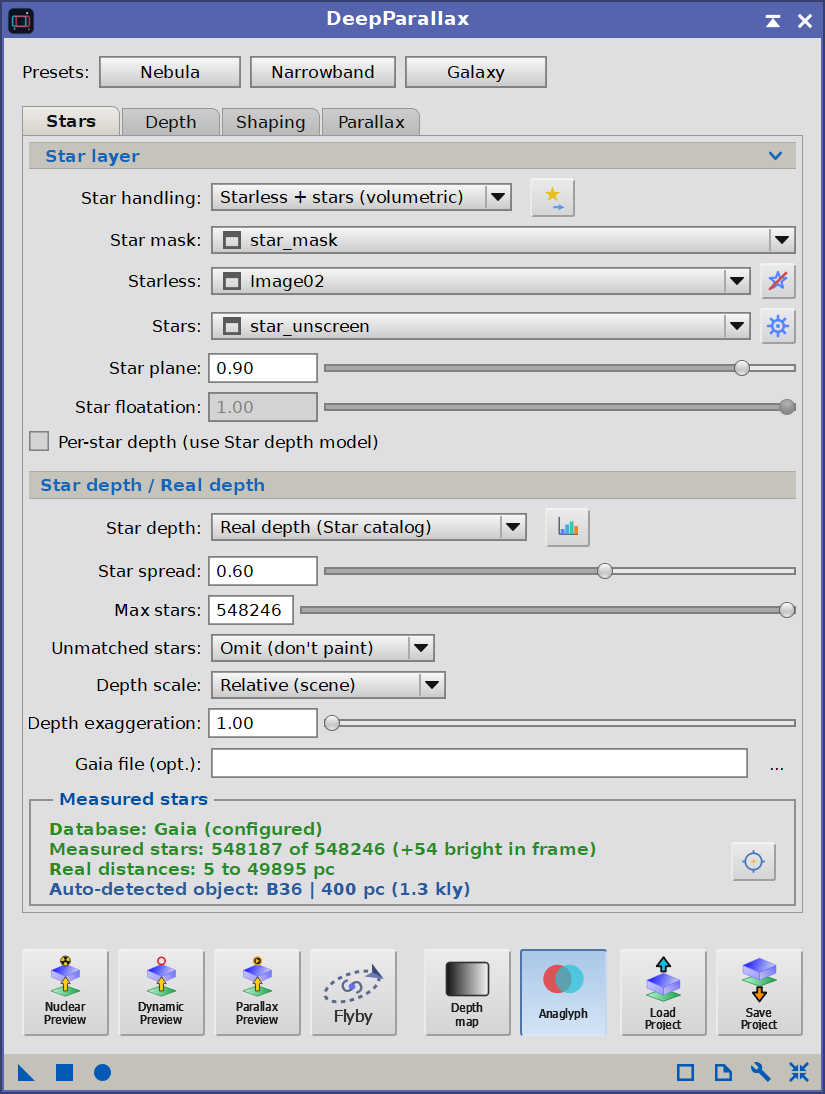
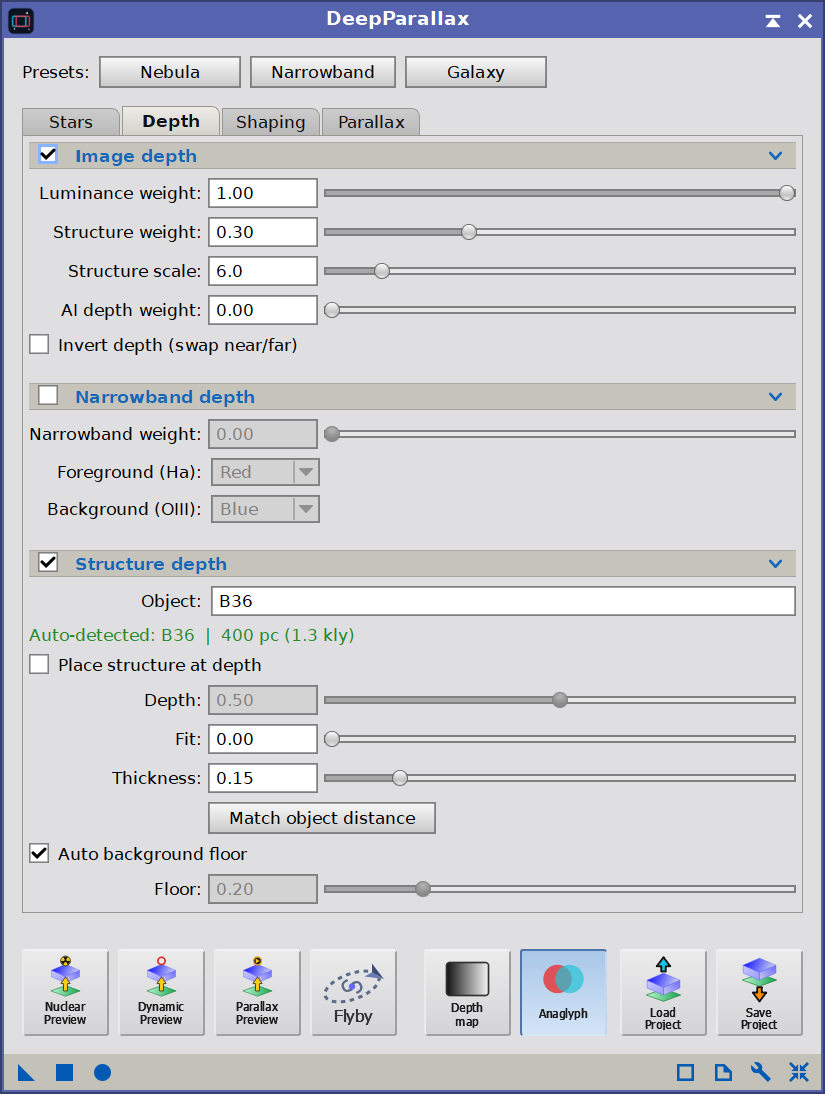
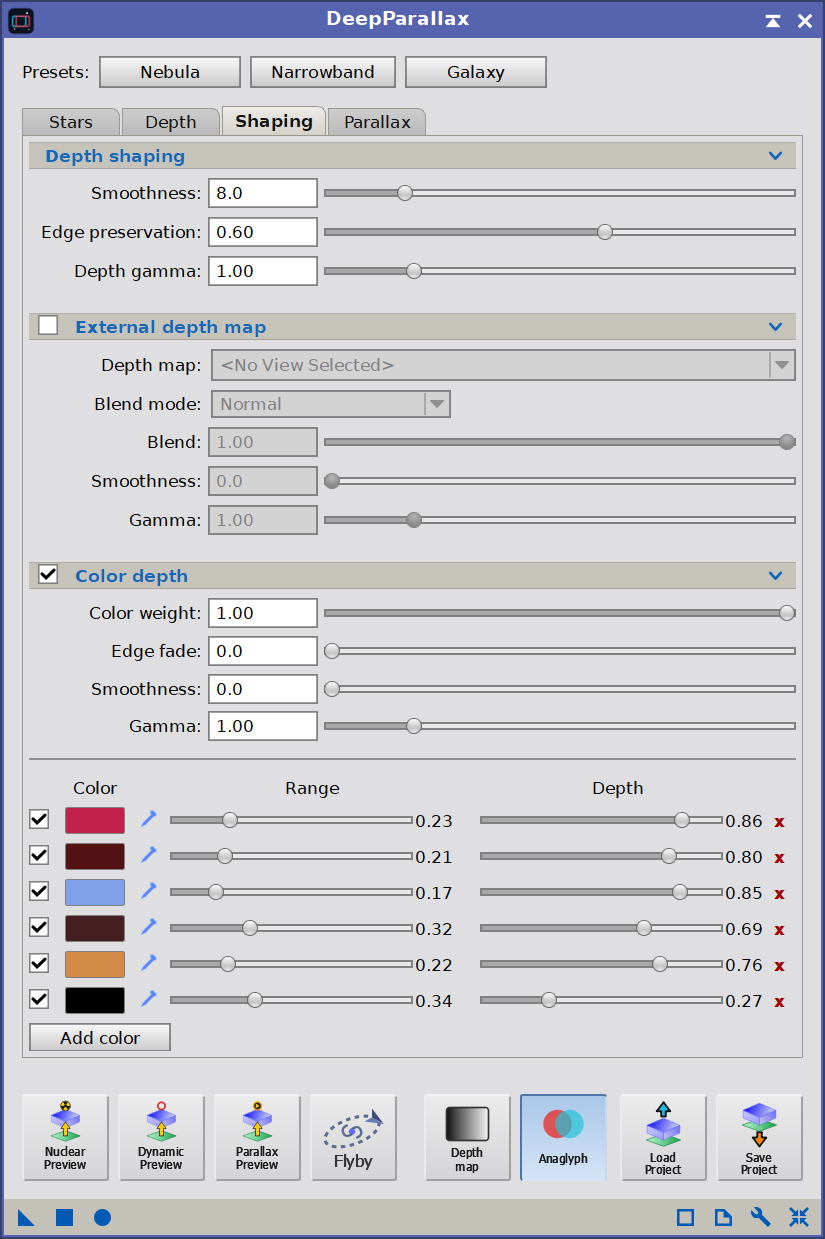
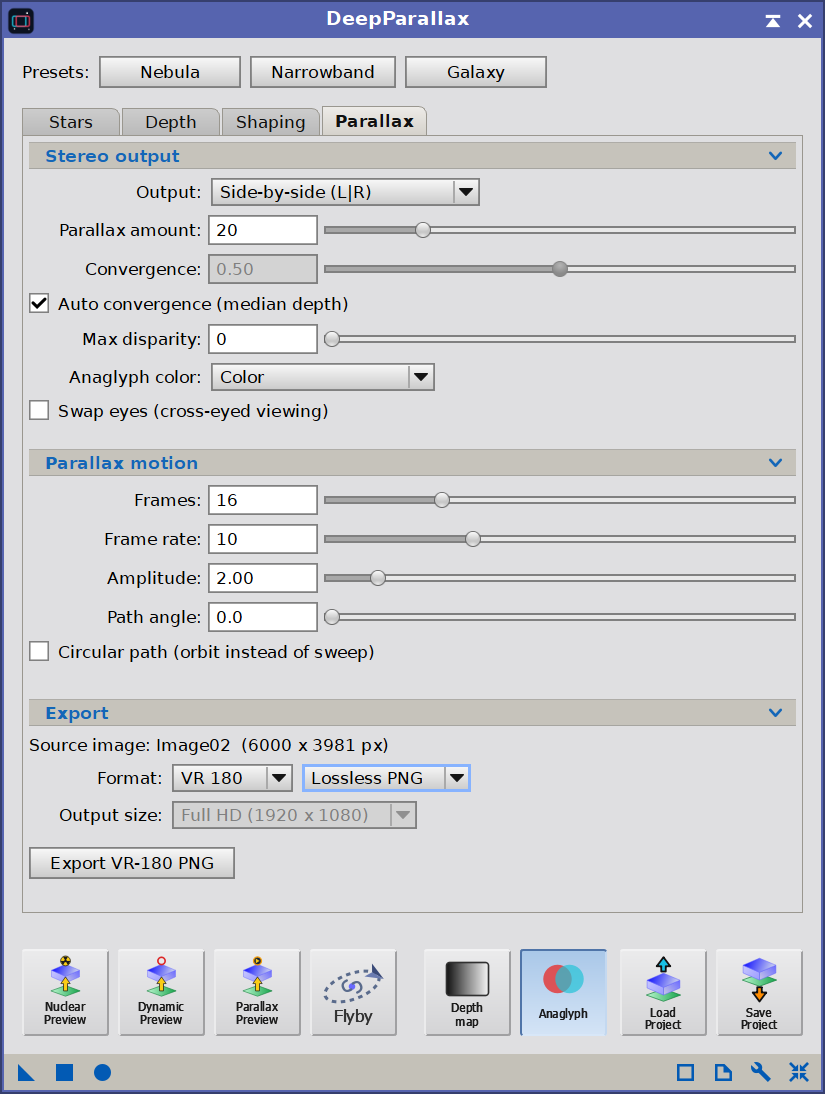
Presets pinned at the top, the four tabs (Stars, Depth, Shaping, Parallax) in the middle showing one group at a time, and the preview and Flyby toolbar pinned at the bottom.
3.1 Presets
The Presets row at the top of the panel is the fastest way to get to a reasonable starting point. Three buttons load workflow-tested values for the most common target types: we pick one, then refine from there using the controls below.
- Nebula: broadband nebula targets. Sets Luminance and Structure weights for a clear, soft depth map, modest smoothing with good edge preservation, and stereo settings that suit large diffuse subjects.
- Narrowband: HOO/SHO and similar palettes. In addition to the broadband cues, it enables the narrowband channel-balance cue with Ha mapped to Red and OIII mapped to Blue.
- Galaxy: galaxies and other compact subjects. Stronger smoothing, slightly heavier shaping, and stereo settings tuned for the more sharply defined structures these images carry.
Applying a preset also switches the depth sections on or off to match what it drives, so its values actually take effect: it enables Image depth (and, for the Narrowband preset, Narrowband depth) and switches the sections it does not use - Color depth, External depth map, and Structure depth - off. The values in a switched-off section are preserved, so re-enabling it later restores them untouched. The output mode, the animation controls, and the optional Star mask and Depth map view selections are left unchanged, so we can stamp a preset over an in-progress scene without losing those choices. From any preset we then adjust the panel below to taste.
3.2 Stars tab
Stars are point sources at effectively infinite distance, but their high brightness fools the depth cues into placing them in the foreground. The result is a depth map peppered with per-star spikes and a stereo pass full of stars that visibly jump from frame to frame in animations. The Star layer group provides the fix, in several flavors selected by Star handling:
- Off: no star layer. The cues see the stars and may spike on them.
- Star mask: an external star mask tells DeepParallax which pixels are stars, and those pixels are floated onto one clean, consistent depth plane. Simple, and needs only a mask.
- AI Star separation (volumetric): the highest-quality star mode, and the recommended one. DeepParallax splits the image into a starless layer and a stars layer, builds the depth from the starless (so the depth model never sees a single star and the relief of the nebula or galaxy stays clean), then composites the stars back as points of light, each placed at its own depth. The starfield gains real volume: in the animation and in VR the near stars drift more than the far ones, instead of moving as one flat pane. The separation is done by DeepParallax's own built-in AI star-removal model by default: nothing else to install, no views to prepare. If you prefer, it can instead be done by the external StarNet2 module, or from a starless + stars pair you supply yourself. All four routes are covered in detail below.
- Synthetic stars: we feed only the starless image, and DeepParallax generates the entire starfield from the Gaia catalog. Each synthetic star gets its real color (from Gaia's BP-RP photometry), its real distance (so the volume is genuine astrometry, exactly as in Real depth), and an apparent-magnitude brightness and size, rendered as a clean glowing point. It is the answer to an image with nice starless structure but poor-quality stars: the structure is kept, the stars are rebuilt. Needs a plate solve and Gaia (see the Real depth model below); the stars themselves are synthetic, but their colors and distances are real. A DeepParallax Pro feature, free during the trial. Described in full under Synthetic stars below.
Star mask mode controls:
- Star mask: a single-channel grayscale view that marks where the stars are. DeepStarMask is the natural partner here, but any mask whose dimensions match the source view will work.
- Star plane: the depth plane (0 to 1) the masked stars are floated to. Higher values float stars forward (closer to the viewer); lower values sit them back into the scene. Around 0.85 to 0.95 is a good starting point: stars feel like a layer just in front of the nebula or galaxy, not lost in it. If we want the stars to surround the main object(s), we would lower this value.
- Star floatation: how strongly stars are pulled toward the Star plane. 0 disables the star layer entirely (the depth map keeps the stars where the cues placed them); 1 places masked stars exactly on the plane regardless of their cue-derived depth. Values between 0.8 and 1.0 give a clean, consistent star layer; lower values blend the masked pixels with the cue-derived depth.
- Per-star depth (use Star depth model): off by default. When ticked, instead of floating every masked star onto the single Star plane, DeepParallax gives each star its own depth, taken from the Star depth model (the same Flat / Brightness / Scattered / Real depth (Star catalog) choices described under AI Star separation mode below). With Real depth, each masked star is placed at its real, measured distance. This brings a volumetric, real-distance starfield to Star mask mode using only the image and a mask, with no starless/stars pair required. The Star floatation slider then acts as the blend strength for those per-star depths, and the Star spread and Real depth sub-controls below become available.
Per-star depth and the mask: a caveat worth understanding. Finding each star's real depth in Star mask mode is the easy part; how good the final render looks is the harder part, and it depends almost entirely on the quality of the star mask. Unlike AI Star separation mode, this mode has no separate stars-only image: the stars stay baked into the single image and are carried by the warp, with the mask deciding which pixels move and by how much. Each star is still placed at its correct depth, but if the mask is loose, ragged, or misses a star's halo or diffraction spikes, the parts it leaves behind do not travel with the star, and the star can render wrong, more as the parallax is stronger. A tight, clean mask (DeepStarMask) keeps any such artifacts small; a rough mask can look noticeably broken. In short: the depth is right, but the rendering is only as good as the mask. For the cleanest possible starfield, AI Star separation mode remains the higher-quality path.
Stars on their own plane:
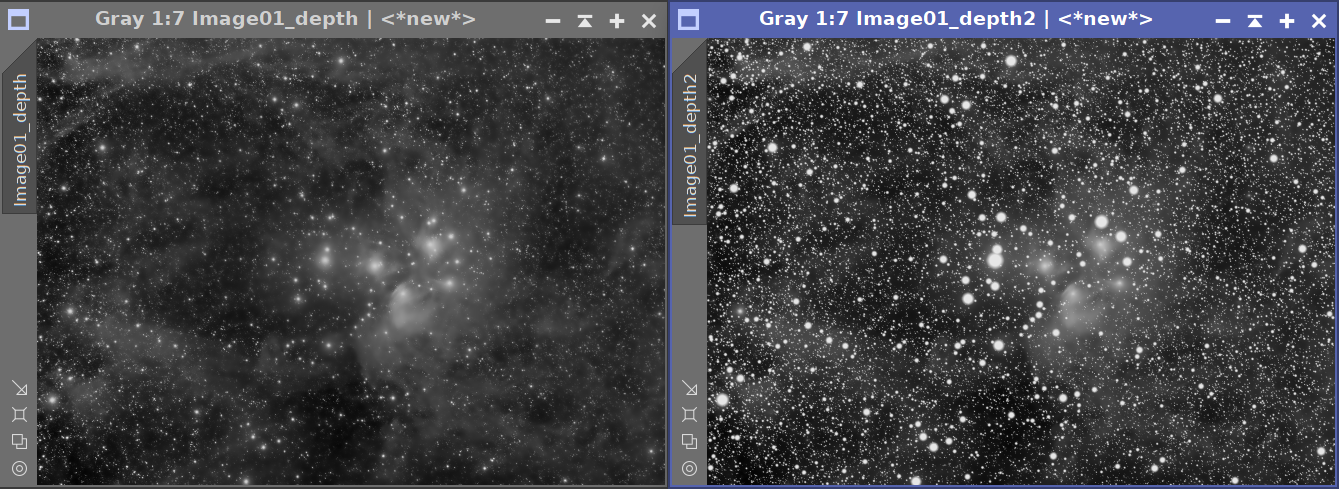
Left: depth map with stars spiking the foreground. Right: with a star mask and floatation, stars sit on one clean plane.
How the two layers are produced: four routes. AI Star separation needs a starless layer and a stars layer. DeepParallax can produce both for you, or you can bring your own:
- Built-in AI model (default, recommended). DeepParallax ships its own trained star-removal model and runs it directly, in memory, on the source image. There is nothing to install and no views to assign: the moment you select AI Star separation, the module separates the stars on its own. The starless and stars layers stay in memory (they are never dumped as extra image windows), and you can inspect either one with the Starless and Stars only preview buttons on the bottom toolbar. This is the default whenever the model is present, which it is in a standard DeepParallax install.
- Built-in classical detector (no AI). A non-AI alternative that separates the stars with a classical detector run directly on the source image - no model, no network, and it works on a plain image. Select Classical detection (no AI) from the engine selector; the Star detection section (first on the Stars tab) tunes it. Like the AI route, the starless and stars live in memory with nothing to assign.
- External StarNet2 module. If you have StarNet2 installed and prefer its separation, DeepParallax can drive it instead. See Producing the inputs with StarNet2 below. The same applies to StarXTerminator's outputs, assigned by hand.
- Supply your own starless + stars. If you already have a starless image and a stars-only image (from any tool, or carried inside a saved project), assign them to the Starless and Stars fields and DeepParallax uses them as-is, with no separation step at all.
Ethically sourced, and respectful of intellectual property. DeepParallax's built-in star-removal model is trained exclusively on images the author owns, together with images explicitly released into the public domain or under a CC0 dedication. No copyrighted or third-party work was used in its training. The model is ethically sourced by design, so the results you produce with it carry no such baggage.
Choosing the engine. The controls adapt to what is installed and to what you have supplied:
- With only the built-in AI available and no views assigned, DeepParallax separates the stars itself and the manual Starless / Stars / Star mask fields stay hidden: there is nothing to fill in.
- In AI Star separation mode an engine selector appears just under Star handling, offering Internal AI model, Classical detection (no AI), and External StarNet2 module. The internal AI is the default; Classical detection is always available (it needs nothing installed and no views); picking StarNet2 reveals the manual fields and the Run StarNet2 button.
- The moment a Starless or Stars view is assigned, whether you pick it by hand or open a project that carries the pair, those fields become visible and DeepParallax uses the supplied images: on any machine, whether or not StarNet2 is installed. Opening such a project defaults the engine to StarNet2 when it is present, and otherwise simply uses the supplied layers, since a starless + stars pair needs no separation engine to render.
Star detection. A collapsible Star detection section sits first on the Stars tab, collapsed by default. It fine-tunes the classical (non-AI) detector - the one the Classical detection (no AI) engine uses to pull stars out of the source image:
- Threshold: detection level, in robust sigmas above the local background. Lower catches fainter stars (and more noise); higher keeps only the strong ones.
- Min brightness: the minimum peak a blob must reach to count as a star, so faint noise specks are rejected.
- Max star radius: blobs larger than this radius (px) are rejected as nebulosity or extended structure, not stars.
- Background scale: the pixel scale of the Gaussian background model subtracted before detection. Larger removes broader gradients so stars stand out. (Used only by the Classical separation; it has no role once a clean stars image already exists.)
- Recover faint peaks: a supplemental pass that catches the tiny 1-2 px stars the main size / brightness test misses, with its own contrast Peak threshold (in sigmas). Off by default.
The three level controls (Threshold, Min brightness, Max star radius), and Recover faint peaks, can also drive how stars are located in an existing stars image - supplied, StarNet2, AI, or Classical - through the Tunable star-location checkbox at the top of the section. It is an opt-in alternative to the legacy fixed-threshold detection and is off by default, so existing projects are unchanged; turn it on to govern which stars become sprites with these controls.
AI Star separation mode controls. The star-shaping controls below (Star plane, Star depth, Star spread, Max stars) apply to every route. The Starless, Stars, and Star mask view fields apply only when you supply the layers yourself or use StarNet2; with the built-in AI they are hidden, since the module produces the layers in memory.
- Starless: the star-free image the depth is built from. Supplied by you or by StarNet2; with the built-in AI it is generated in memory.
- Stars: the stars-only companion image, composited back over the warped starless scene. Supplied by you or by StarNet2; generated in memory by the built-in AI.
- Star mask (optional): if set, the mask is used to locate the individual stars; if left empty, the stars are detected from the stars image directly.
- Star plane: the center depth the stars sit around.
- Star depth: how each star's depth is chosen around the plane. Flat puts them all on the plane; Brightness places brighter stars nearer; Scattered gives each star a random depth, uncorrelated with brightness, for an even volume where no single star dominates; Real depth (Star catalog) places each star at its real, measured distance from a star catalog (a DeepParallax Pro feature, described in detail below).
- Star spread: how far the stars range around the plane in Brightness, Scattered, or Real depth mode. 0 collapses them onto the plane; higher values deepen the starfield (and increase how much the stars swing in the parallax motion). In Real depth mode this sets the thickness of the depth band that the real distances are mapped into.
- Max stars: a cap on how many stars are actually rendered. Whenever stars are placed individually (any per-star model: Brightness, Scattered, or Real depth), DeepParallax renders only the brightest this many of the detected stars and drops the faintest. The slider runs from 1 to the number of stars detected, and at its maximum every star is rendered (the default). It stays disabled until stars have been measured (either by opening the Dynamic Preview, or by clicking the "Update measured stars" button), after which its maximum reflects that count. This is mainly for very dense or wide fields, where a detector may find tens of thousands of faint stars that add clutter, file size, and render time without adding much real depth: capping to the few thousand brightest keeps the prominent stars and clears the haze. In Real depth mode the cap has an extra guarantee: the embedded Hipparcos bright stars are sorted by their measured V magnitude, so the most prominent naked-eye stars (Rigel, Betelgeuse, Sirius, Alnitak, etc.) always survive even at very low caps and are never displaced by a fainter, incidentally brighter-looking background star. It has no effect with the Flat model, where all stars share one plane. (The same control appears in Star mask mode when Per-star depth is enabled.)
Starless only. The small toggle button just to the right of the Starless view selector (a crossed-out star) renders the scene from the starless image alone, with the star layer dropped. When it is on, every output and preview - the stereo and anaglyph passes, the parallax motion, the flyby, the Dynamic Preview, and the Interactive Studio backdrop - is built from the starless image only, exactly the star-free result the depth map already shows. The stars and all of their depth settings are left untouched, so turning the toggle off brings the stars straight back. It is handy for judging the nebula or galaxy relief on its own, or for producing a deliberately star-free 3D output. The button is available only in AI Star separation mode. (For a quick look at either layer on its own without changing the output, use the Starless and Stars only preview buttons on the bottom toolbar instead.)
Advanced Star Profiling. The small gear button just to the right of the Stars view selector opens a dialog that controls how the composited stars are rendered at their edges. The defaults are tuned to look right on most images, so this is something we rarely need to touch: open it only when the stars look too soft (puffy, washed-out edges) or too harsh (hard, "posterized" rims, most visible on the larger stars). The dialog has three controls:
- Soft star edges: on by default, which feathers each star's rim for a smooth, natural falloff. Turning it off renders the stars with a hard edge: sharper, but large stars can show a posterized contour. This is the master switch; the two sliders below have no effect when it is off.
- Edge glow: how far the soft rim reaches outward. Higher values give a larger, softer glow around the bright stars; lower values keep the stars tighter. 1.00 is the default.
- Edge softness: how gradually the rim fades. Higher values give a smoother, more diffuse edge; lower values keep it crisper. 1.00 is the default.
A Defaults button restores the recommended values (soft edges on, both sliders at 1.00). These settings affect only the AI Star separation star compositing, and they are saved with the process instance like every other parameter.
A starfield with real volume:
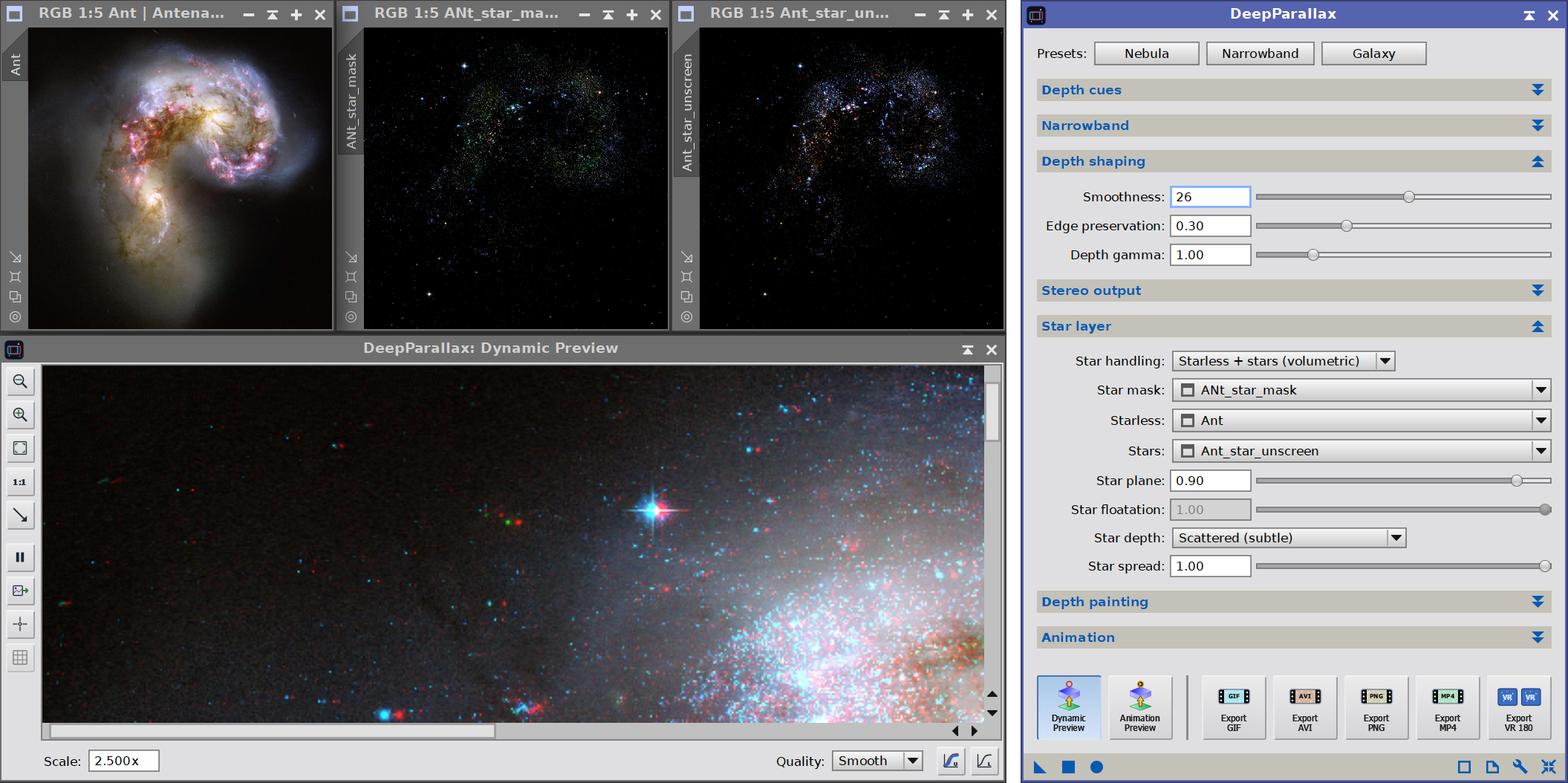
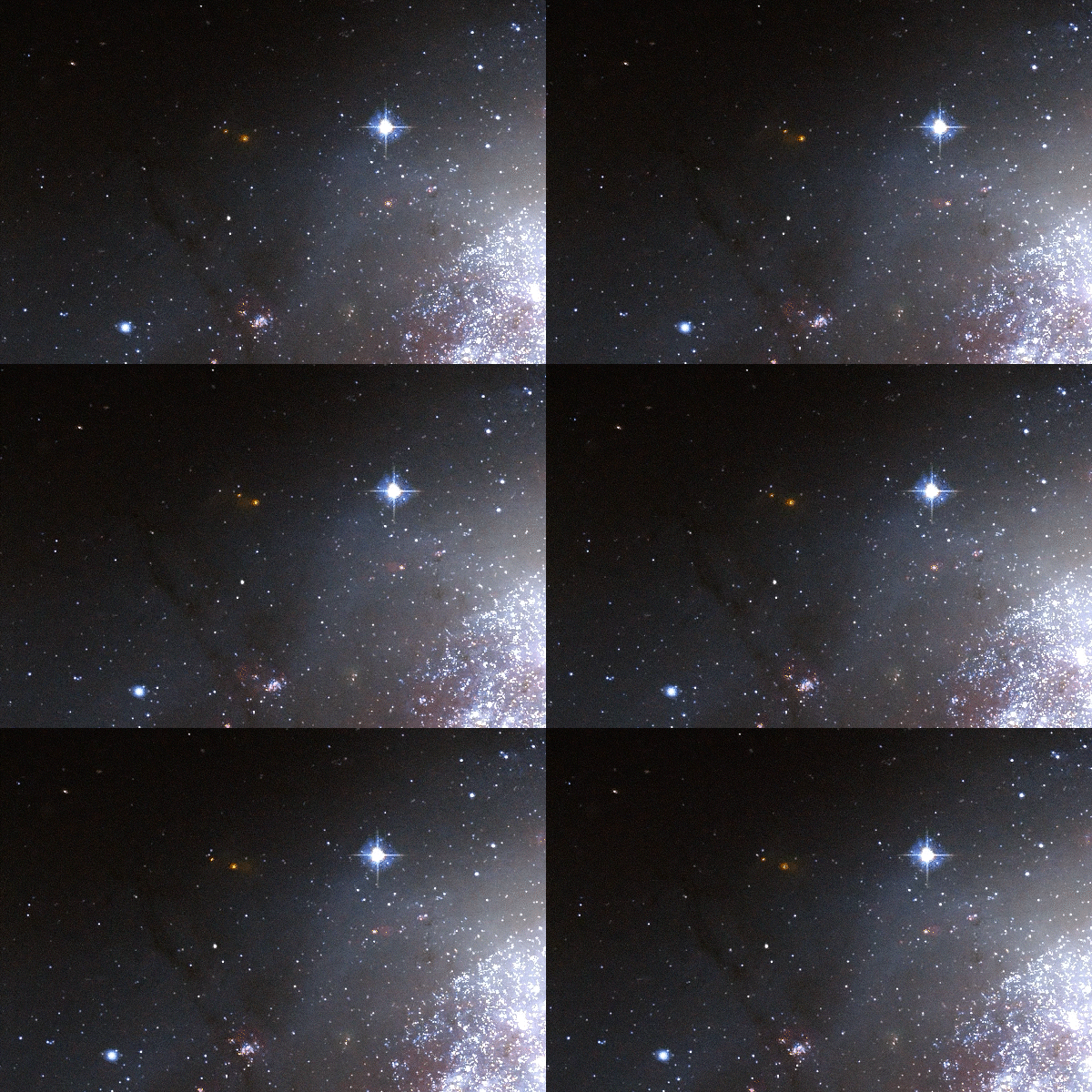
In AI Star separation mode the depth is built from the starless layer while the stars are composited back at their own depths. As the viewpoint changes, the near stars parallax more than the far ones, giving a stronger impression of a 3D space rather than a flat pane. With the right masks, stars with spikes parallax nicely, leaving no trace.
Producing the inputs with StarNet2. The built-in AI model already separates the stars for you, so this route is for when you specifically prefer StarNet2's separation, or want the intermediate images as real views. StarNet2 generates all three images we need in a single run. We enable both its Create star mask and Unscreen stars options, run it on the source, and then feed the three results straight into the Star layer fields:
| StarNet2 output | DeepParallax field | Role |
|---|---|---|
| Starless image | Starless | Source of the (star-free) depth map. |
| Unscreen stars image | Stars | The star light composited back, each star at its own depth. |
| Create star mask image | Star mask | Locates the individual stars for depth assignment (optional but recommended). |
The Unscreen stars option matters: it gives a properly unscreened stars-only image, which composites back cleanly over the starless scene. The star mask is optional here (without it the stars are detected from the stars image directly), but providing StarNet2's mask gives the most reliable per-star detection. The same mapping applies to StarXTerminator's starless and stars outputs.
Running StarNet2 from DeepParallax. We do not have to run StarNet2 separately and assign the views by hand. A small Run StarNet2 button appears in the Star layer group whenever AI Star separation mode is using the StarNet2 engine (or you are supplying your own layers) and StarNet2 is installed. Clicking it runs StarNet2 on the active image with the options DeepParallax needs (create the star mask, unscreen the stars, no 2x upsampling, on stretched data), then fills the Starless, Stars, and Star mask fields with the three results automatically. When only the built-in AI is present the button is hidden, since no external run is needed.
A note on realism: the Flat, Brightness, and Scattered models place stars by eye, not by measurement: there is no real distance information in a star's brightness, so these read convincingly as space but are not astrometry. For genuinely measured positions, the Real depth (Star catalog) model below uses each star's real parallax distance.
Real star distances: the Real depth model. The three models above place stars by eye, but DeepParallax can also place them at their real, measured distances. Setting Star depth to Real depth (Star catalog) cross-matches every detected star against the Gaia catalog, looks up each matched star's parallax, converts it to a distance, and positions the star in depth accordingly. The near stars really are nearer and the far stars really are farther: the volume is no longer an artistic guess, it is astrometry. This is a DeepParallax Pro feature (see 2.2 Licensing); during the trial it is available to everyone.
Preconditions. Two things are required for the Real depth model to work:
- The source image must be plate-solved (carry a valid astrometric solution), so DeepParallax can map each detected star to sky coordinates. If the image does not come with one, solve it first with either our effective, and free AstroResolver process, or PixInsight's built-in script ImageSolver. ImageSolver will require scale size and other parameters, whereas AstroResolver does not need the image scale and only ask for a named object that appears in the image (for example, "M45" or "Pleiades")
- A local Gaia database must be installed and configured in PixInsight's Gaia process. DeepParallax uses whatever Gaia databases we have configured there, with no file path of its own: the same databases that SPCC uses. Both Gaia DR3 and the spectrophotometric DR3/SP variant work.
To install the database, download the Gaia data files from PixInsight's Software Distribution page at https://pixinsight.com/dist/index.html, then open the Gaia process (in Process Explorer, under StarDatabases) and add the downloaded files to its database list. Once the Gaia process is configured, every tool that uses Gaia, including DeepParallax, can read it.
What is matched, and what is not. Typically only a fraction of the detected stars find a usable catalog match: faint stars fall below Gaia's reliable parallax range, and the very brightest stars (Gaia saturates around magnitude 3 to 4) have no usable Gaia parallax of their own. For those brightest stars DeepParallax carries an embedded Hipparcos bright-star catalog, so naked-eye stars such as Alnitak still receive a real, measured distance instead of being dropped. The Unmatched stars control decides what happens to the rest.
Detecting stars on bright structure. A large, saturated star sitting on bright nebulosity (Alnitak right against the Flame Nebula is the textbook case) is detected as a big blob whose center of brightness can be pulled well off the true stellar position. DeepParallax matches a star to a catalog source that lands within tolerance of the blob center or anywhere inside the blob's detected extent, so these prominent stars get matched to their real distance instead of slipping through as unmatched.
The Real depth model adds its own controls to the Star layer group:
- Unmatched stars: what to do with detected stars that did not match the catalog. Scattered gives them a synthetic random depth, Brightness a synthetic brightness-based depth, and Omit (the default) does not paint them at all, so only catalog-matched stars appear, each at its real depth. Omit keeps a safeguard: a very bright unmatched star is still painted (with a synthetic depth) rather than vanishing, so a prominent star is never silently dropped. Matched stars always get their real distance regardless of this setting.
- Depth scale: how catalog distances map onto the star layer's depth band.
- Relative (scene): the nearest matched star in the field is pinned to the front of the band and the farthest to the back, so the whole Star spread is always used. Punchy and always reads as 3D, but a given star's depth then depends on what else is in the frame and on how we crop it.
- Absolute (true scale): distances map onto a fixed true-distance scale, so a star keeps the same depth regardless of its neighbors or the crop. Physically faithful, but because most stars in a typical field are bunched in distance it is usually subtler: pair it with Depth exaggeration.
- Depth exaggeration: amplifies each matched star's separation from the middle of the band, and works differently in the two scales. In Relative mode the band is already full, so raising exaggeration behaves much like raising Star spread: it pushes the nearest and farthest stars harder against the front and back. In Absolute mode the true spread of a typical field is physically small, so exaggeration is the main control for strengthening the effect: it multiplies that small real spread into something we can see, without changing where each star sits relative to the others.
- Gaia file (opt.): an optional fallback, normally left empty since DeepParallax uses the configured Gaia process. Set it only to point at a specific Gaia
.xpsdfile when the Gaia process is not configured.
The Real depth controls:
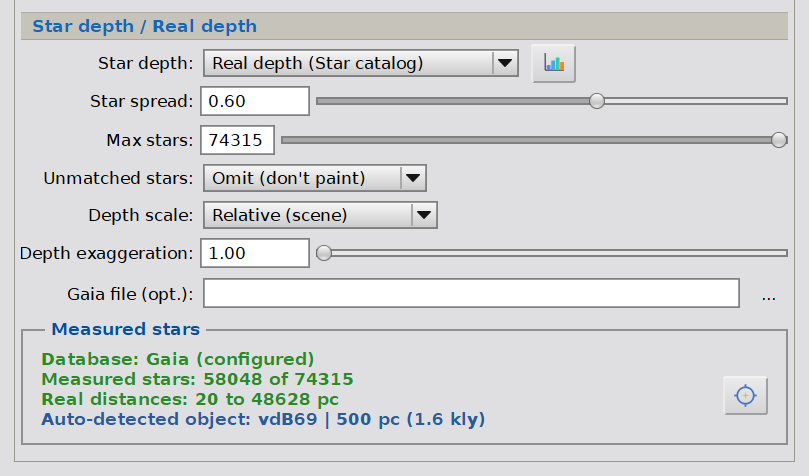
In Real depth mode the Star layer group adds the Unmatched stars, Depth scale, and Depth exaggeration controls, and the Measured stars panel that reports the match. The panel carries the Update Measured stars button (crosshair icon); the Distance distribution histogram button (bar-chart icon) sits next to the Star depth selector, since it now works in every star-depth mode.
The Measured stars panel. When Real depth mode is active, a Measured stars panel appears in the Star layer group and reports what happened on the last star scan: how many stars matched out of how many were detected, how many embedded bright stars fell within the frame, and the near-to-far distance range, in parsecs, of the matched stars. When the imaged object was auto-identified from the plate solve, a final bold line also names it and its catalogued distance (this line is shown only for an auto-detected object, never for one we typed into the Object box by hand - that case appears only in the Structure depth section). If the catalog could not be used (no astrometric solution, no Gaia database configured, or too few matches), the panel says so and DeepParallax falls back to the Scattered model so we still get star depth, except arbitrary. One button sits in the top-right corner of the panel; the histogram button now lives next to the Star depth selector at the top of the Star layer group:
Update Measured stars (crosshair+star icon) runs the star detection and catalog cross-match immediately, exactly as when we open the Dynamic Preview window - useful when we just want to see the match statistics or prepare the overlay.
Star distance distribution histogram (bar-chart icon) opens a histogram of how the stars are spread across depth. It sits next to the Star depth selector and works in any AI Star separation depth mode, not only after a Real depth match. With a real-distance match it plots the matched stars on a log-scale parsec axis, each bar shaded by the average catalog magnitude of the stars it holds (lighter = brighter, darker = fainter, with a small legend), so we can see at a glance whether the near or far bins hold the bright stars; the axis defaults to parsecs and a Show in light years button toggles the units (the bars do not move - only the tick labels and the min/max in the title change). Without astrometry (the parametric Flat, Brightness, or Scattered models) it instead plots each star's assigned relative distance on a linear axis from 0 (near) to 1 (far), labelled distances not real, so we can still see how the chosen model laid the stars out across the plane.
The histogram window. It is a free-floating, non-modal window (like the Dynamic Preview), so it stays open beside the rest of the interface and updates live as we work. Up to three reference markers overlay the bars, each toggled by a checkbox in the Show on chart frame at the bottom:
- Object (gold): the selected catalogued object at its real distance - a guide.
- Depth map (cyan): where the structure currently sits (see 3.5 Structure depth).
- Convergence plane (dashed): the zero-parallax depth - the pivot of the parallax motion. Stars nearer than this line sway one way in the animation, farther stars the other; it is why a lone foreground star can drift opposite to the crowd.
The convergence and structure lines are draggable: drag the convergence line and release to set Convergence by hand (this turns Auto convergence off); drag the structure line to place the structure at that distance (this engages Place structure at depth at full Fit, so it overrides a selected object). A marker that falls beyond the matched stars is pinned at the edge and labelled behind all stars / in front of all stars instead of a number; clicking that pinned label or its arrow brings the marker back to the middle of the chart (setting Convergence or the structure distance to that mid value - for convergence this turns Auto convergence off), a quick way to recover a marker that has run off scale. Update chart re-measures from the current parameters - handy with the Dynamic Preview closed, where parameter changes do not refresh the chart on their own. In a no-astrometry chart (relative distances) the gold Object marker is omitted - there is no catalogued distance to anchor it - but the cyan structure and dashed convergence lines still appear and stay draggable, now setting a relative depth rather than a real distance. On these relative-depth charts a Full 0-1 range checkbox switches the horizontal axis between zooming to the range that actually contains stars (the default) and spanning the whole 0 (near) to 1 (far) depth range, so the stars can be read in the context of the entire span.
Inspecting the matches. The Dynamic Preview's bottom toolbar gains a Real depth stars overlay toggle while Real depth mode is active. Turned on, it shows the reconstructed source with a small ring around every detected star: green for stars matched via the Gaia catalog, cyan for the brightest stars matched via the embedded Hipparcos catalog (naked-eye stars that saturate Gaia), and amber for unmatched ones. It is the quickest way to confirm that the prominent stars in our field are getting real distances before we commit.The Real depth stars overlay:
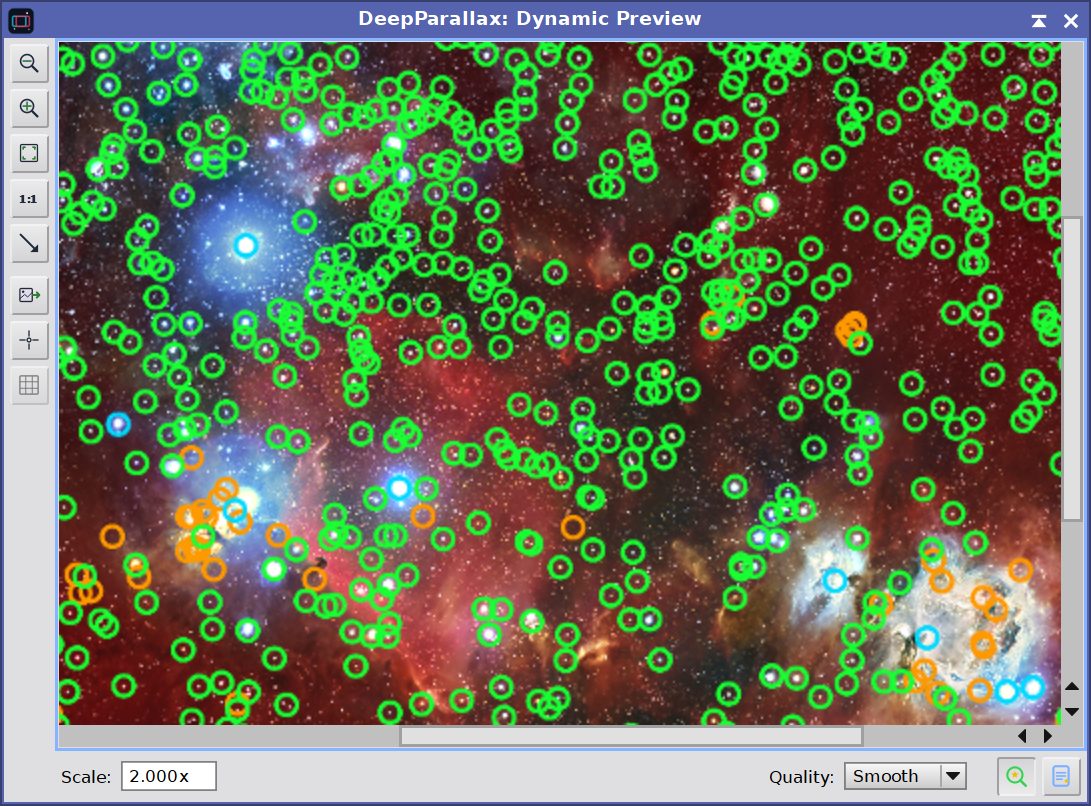
Green rings: Gaia-matched (real distance). Cyan rings: Hipparcos-matched (naked-eye bright stars not in Gaia, also at real distances). Amber rings: unmatched stars handled by the Unmatched stars setting.
A short pause is normal. Switching Star depth to Real depth, or changing the Starless, Stars, or Star mask views while in this mode, triggers a one-time catalog query and cross-match, which takes a moment as DeepParallax reads the pertinent star information. After that, adjusting the mapping (Depth scale, Depth exaggeration, Unmatched stars, Star plane, Star spread) re-maps the already-matched stars instantly, with no new query.
One caching caveat. DeepParallax decides that a fresh query is needed from the input views and the detected stars if we re-plate-solve the same image in place, or reconfigure the Gaia process databases mid-session. In those cases, it cannot tell that the field changed and may reuse the previous match. To force a fresh query, click the Update Measured stars button in the Measured stars panel, switch the active view, or toggle Real depth off and back.
Switching to a different active image clears the previous match and any auto-detected object on the spot, so the Measured stars panel and the Structure depth section never show distances or an object measured on another image. If the new image has no astrometric solution, clicking Update Measured stars reports that and leaves both cleared.
Real distances, compressed scale. The distances are real, but the mapping to a viewable depth band is a deliberate compression. Stellar distances span an enormous range, so DeepParallax works in the logarithm of distance and fits that onto the Star spread band: the ordering and the log-spacing are physical, the absolute scale is ours to set. The example below shows three stars in a field, in Relative scale with Star plane 0.90 and Star spread 0.25:
| Star | Real distance | log10(distance) | Relative position (0 = nearest in field) | Star-layer depth |
|---|---|---|---|---|
| Alnitak | 250 pc | 2.40 | 0.00 | 1.00 (front) |
| A mid-field star | 400 pc | 2.60 | 0.26 | 0.96 |
| A distant giant | 1500 pc | 3.18 | 1.00 | 0.78 (back) |
A six-fold spread in real distance becomes a calm, fully-used depth band, log-ranked, with the nearest star at the front and the farthest at the back. In Absolute scale the same three stars would occupy only the slice of the band their true distances fall on, which is exactly where Depth exaggeration earns its place.
Applying in this mode: AI Star separation is self-contained, so there is usually no separate image to drag the instance onto: with the built-in AI the layers are produced in memory from the active image, and when you supply your own (or use StarNet2) the Starless and Stars views hold everything DeepParallax needs. Either way we can use the Apply Global button (the circle at the bottom of the process window) to run the process directly. The source is the active image (built-in AI) or the starless view (when one is assigned), and the output windows are named after it. In the plain Star mask and Off modes the source is whatever image we drag the instance onto, so Apply Global is disabled there.
Synthetic stars: a starfield generated from Gaia. The Synthetic stars mode is for the case where the starless structure is good but the stars are not (bloated, clipped, walking-color, or simply ugly): instead of compositing the image's own stars back, DeepParallax throws them away and generates the whole starfield from the Gaia catalog. We feed only the Starless view (the Stars and Star-mask fields are unused and disabled). Every synthetic star carries its real Gaia color and its real distance, so the depth is the same genuine astrometry the Real depth model uses; only the rendering is synthetic. It is a DeepParallax Pro feature (free during the trial) and, like Real depth, it requires the image to be plate-solved and a Gaia database configured (see Preconditions above).
Because the stars come from the catalog, the depth is always Real depth: the Star depth selector is locked there, and its sub-controls (Depth scale, Depth exaggeration, Star plane, Star spread) shape the synthetic starfield's depth exactly as they do a real match. The Structure depth section (see 3.5) and the Star distance distribution histogram also work here, since real distances are available. Three controls are specific to this mode:
- Limiting mag: the faintest Gaia magnitude to include. DeepParallax reads the field once and calibrates this control to the star density: it sets the default to roughly 25,000 stars and the slider maximum to roughly 50,000 (rounded to a whole magnitude). The rendered starfield is in any case hard-capped at the 50,000 brightest, so a dense wide field never renders a runaway count. Lower it for a sparser, cleaner field; raise it for more (fainter) stars. Changing it re-filters the already-read catalog instantly - no new query.
- Star brightness: overall brightness of the synthetic stars (they carry no image levels of their own). Raise it to make faint stars visible or the field brighter; lower it to keep the starfield subtle over the nebula.
- Star size: the core size of the stars, in working pixels, at the reference brightness. Brighter stars still render larger (their cores grow with brightness), and the brightest, named stars are drawn larger still, with a soft colored glow.
The brightest stars. Gaia saturates above magnitude 3 to 4 and has no usable data for the most prominent stars, so for those DeepParallax uses its embedded Hipparcos bright-star catalog (the same one Real depth falls back to). These naked-eye stars are rendered larger, with their real Johnson B-V color and a soft glow, so a field like Orion shows Betelgeuse warm-red and Rigel blue as we would expect. A star with no measured distance in either catalog is still drawn (at the background of the volume) rather than dropped, so the field is never missing its prominent members.
Producing the starless. Synthetic mode works over a starless image you supply in the Starless field. If you do not have one yet, make it with any star-removal tool, or run AI Star separation mode once and use the star-free result as the starless here. As in AI Star separation mode, Apply Global is available (the starless view supplies everything), and the interactive Flyby backdrop shows the starless image.
The Stars tab is where we keep stars from spiking the depth, or give them volume - or rebuild them entirely.
3.3 Depth tab: Image depth
This group decides what the algorithm sees as depth in our image. There is no actual depth information in a single 2D frame, so DeepParallax estimates it from visual cues: how bright a region is, how much local detail it carries, in Narrowband (see 3.4) which emission lines dominate it, and in general, the depth of specific color ranges. We weight these cues against each other to get the depth assignment we want.
Depth from luminance and structure:
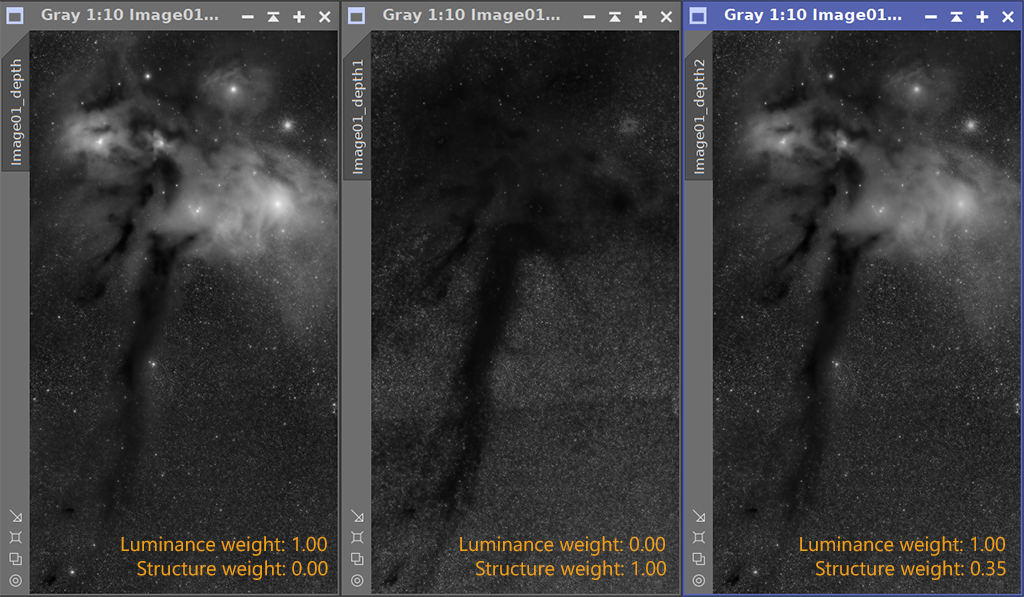
Luminance and Structure cues, weighted against each other, two of the several components that drive the depth map.
- Luminance weight: how much the brightness of a region pulls it toward the foreground (or, with Invert depth on, the background). This is the simplest and usually most useful cue: bright features (nebula cores, galaxy bulges, illuminated areas) read as closer, dim sky reads as further. Higher values make brightness the dominant cue; lower values let the other cues lead.
- Structure weight: how much local contrast pulls a region toward the foreground. Detailed regions (filaments, dust lanes, knots, fine texture) get pushed forward; smooth regions sit back. The cue is normalized by a high percentile of its own values, so a handful of bright stars no longer flatten the rest of the relief; raise this to bring fine structure forward.
- Structure scale: the pixel scale at which the structure cue is measured (Gaussian sigma in pixels). Small values respond to fine filament detail; larger values respond to broad regional contrast. Match it roughly to the dominant scale of the features we want to emphasize.
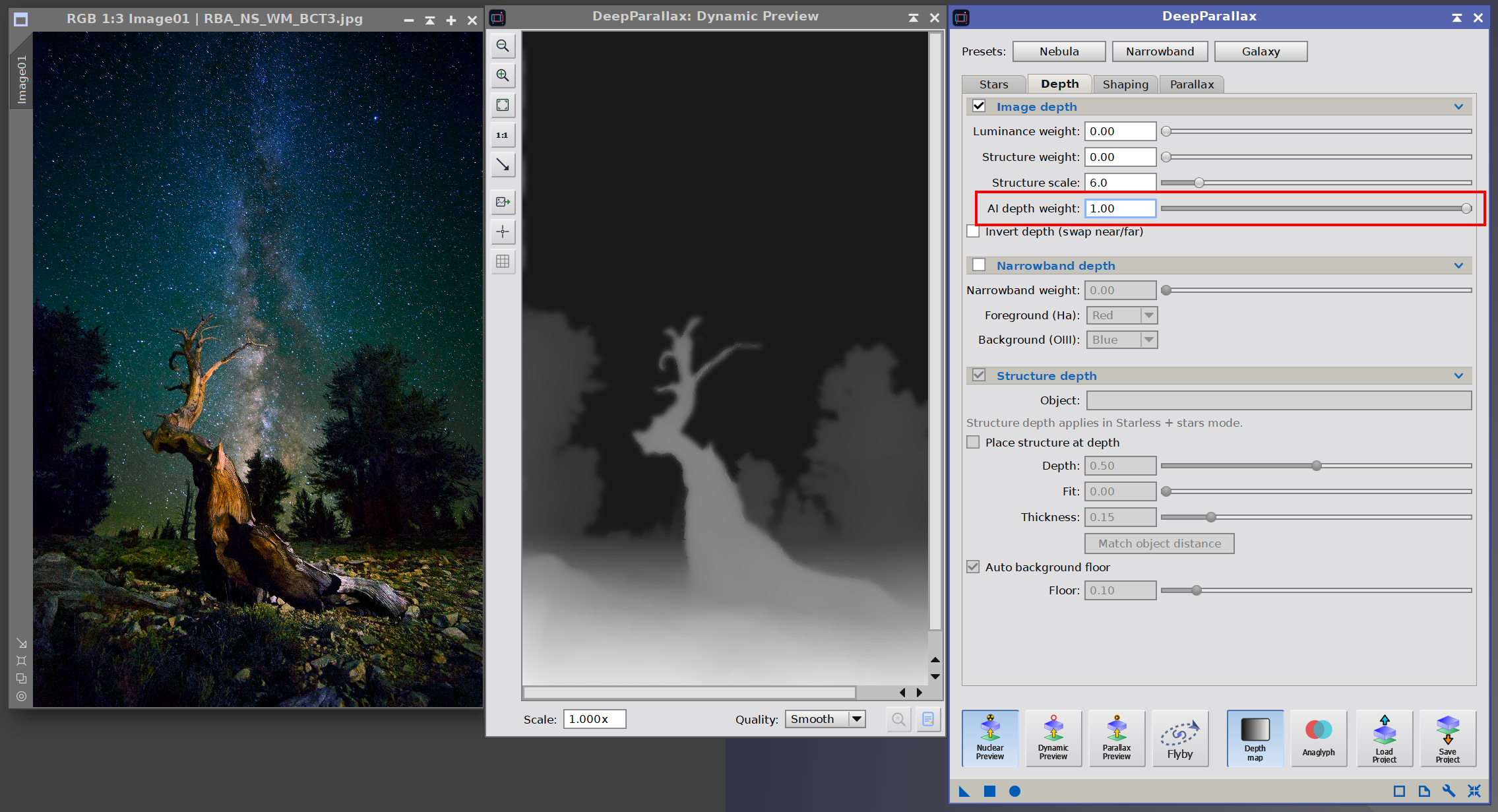
- AI depth weight: the weight of a learned, AI-driven depth cue that infers a full depth map straight from the image content. It is not meant for deep-sky targets: it is built for nightscapes and ordinary daytime photographs - a landscape foreground under the sky, or any scene with clear near-to-far structure - where it reads foreground-to-background depth convincingly on its own, something the brightness and contrast cues cannot do for a terrestrial scene. It needs nothing extra to install: DeepParallax comes with the model, utilizing the GPU when one is available, or the CPU otherwise. 0 turns it off; any higher value blends it with the Luminance, Structure and Narrowband cues, so it can lead the depth map or merely nudge it. For deep-sky work, leave it at 0.
- Invert depth: swaps near and far. When the brightest region should recede rather than come forward (some galaxy cores, certain backlit subjects), tick this and the whole depth map is mirrored before the stereo pass.
3.4 Depth tab: Narrowband depth
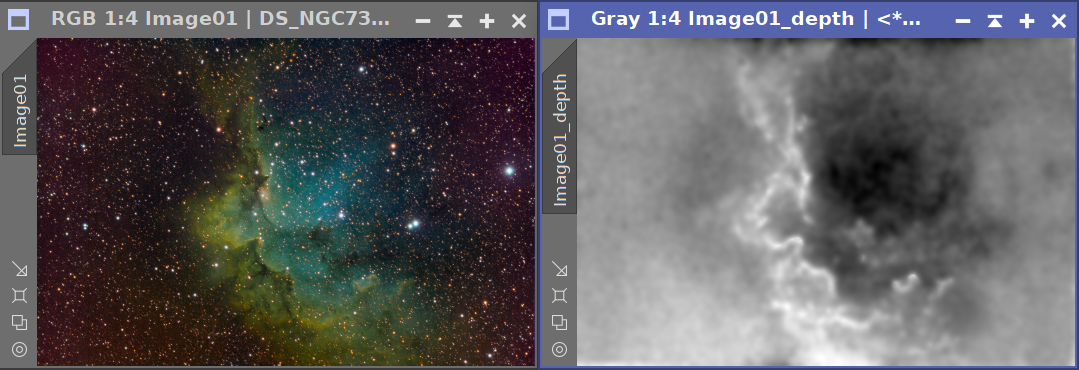
This optional group adds a depth cue specific to narrowband astroimages. In palettes such as HOO or SHO, channel balance carries information that the luminance and structure cues alone cannot reach: Ha-dominant regions (typically denser, hotter ionization fronts) read closer; OIII-dominant regions (often more diffuse, cooler ionized gas) read farther away. With this cue active we get depth assignments that follow the physics of the target, not just its brightness.
- Narrowband weight: how much the channel balance pulls a region toward the foreground or background. Higher values let the Ha/OIII ratio dominate over Luminance and Structure; 0 turns the cue off, which is the right choice for broadband images. For a narrowband target a value of 0.3 to 0.6 typically gives a balanced result.
- Foreground (Ha): the channel that, where it dominates, reads as closer. For HOO and HOS palettes this is Red; for SHO it is Green.
- Background (OIII): the channel that, where it dominates, reads as farther away. For HOO, HOS, and SHO this is Blue.
This cue is off (weight 0) by default since broadband targets do not need it; raise the weight for narrowband work. The cue is mathematically a per-pixel ratio of the chosen near and far channels, so it is robust to the absolute level of those channels and reads the relative balance instead.

3.5 Depth tab: Structure depth
In the AI Star separation and Synthetic stars modes the stars can carry their real Gaia distances, but the nebula or galaxy structure has no physical tie to them: its depth is a relative shape, floating wherever the cues put it. The Structure depth group places that structure at a real distance among the stars, on the same ruler the stars use, so it sits correctly: foreground stars in front of it, background stars behind, a distant galaxy a flat backdrop with the whole star field ahead. A catalogued object, when identified, is an optional guide we can snap to - but it is not required: we can set the distance by hand, or by dragging the structure line on the histogram, with or without an object.
It does not discard any of the depth work: the cues, Color depth, and the External depth map still define the structure's internal relief (which arm or knot is nearer). The group only relocates that finished relief to a chosen distance and sets how much front-to-back depth it spans. The controls:
- Set structure distance: the master switch. On, the structure is placed at a distance (by the controls below, by Match, or by dragging the cyan line on the histogram). Off, placement is disabled and the structure depth comes purely from the cues, so it sits at its own natural position. It is auto-set when an object is identified - on for objects that fall within the matched-star distance range, off for far ones such as galaxies (whose relief reads better straight from the cues) - and we can override it freely.
- Object: an optional guide. Type a catalog id or name (for example M42, NGC 7000, or Orion) and press Enter; the box resolves it against an embedded catalog and shows the matched name and distance, drawn as the gold line on the histogram. If the image is plate-solved, running the Real-depth match (or opening the Dynamic Preview) auto-detects the dominant object and fills this box; a manual entry always wins. Clearing it just removes the guide - the structure can still be placed by hand.
- Match object distance: a one-click snap of the structure to the selected object's distance (it sets Fit to maximum). A starting point - Fit, Thickness, or a drag can fine-tune afterward. An object within the matched-star range lands among its own stars; one beyond the farthest matched star (a galaxy) is parked just behind the whole field.
- Place structure at depth: place the structure's level at the Depth target by hand, no catalog needed. This is the same mechanism dragging the cyan histogram line drives, so it takes precedence over a selected object (the object then stays a guide we can Match to).
- Depth: the target depth, on the 0-to-1 scale (1 = nearest/front, 0 = farthest/back).
- Fit: how strongly the structure is moved to that distance. 0 leaves the depth exactly as the cues produced it (no change); 1 anchors the whole relief at the chosen distance among the stars; intermediate values blend the two. At Fit = 1 the structure's bright bulk lands on the anchor, while the faint outskirts ramp up toward it from the background floor (below). The cue shape is preserved at any setting - only its center distance and spread change.
- Thickness: the physical depth span of the structure's relief around the anchor. Larger values give more front-to-back depth; smaller values flatten it toward a single plane. Most visible at higher Fit.
- Auto background floor / Floor: the deep-sky background must stay the farthest thing in the frame even as the structure is relocated forward. DeepParallax establishes a background floor: pixels at or below it keep their deep value, while everything above it ramps up toward the anchor (so dark-but-above-floor structure starts moving forward immediately, not only once it is bright). Auto background floor (on by default) derives the floor from the image; untick it to set the Floor slider by hand. While Auto is on, the value it chose is mirrored into the (disabled) Floor slider, so we can see it and start from it if we switch to manual.
How a distance becomes a depth. DeepParallax fits a depth-to-distance relationship from the matched stars (a log-linear regression of distance against each star's assigned depth) and uses it both ways: to read out where the structure currently sits, and to place it when we name a distance. A distance within the matched stars' actual range lands on that relationship, among the stars; a distance beyond the farthest matched star (a galaxy) is parked just behind the whole field; one nearer than the nearest star sits just in front. When there are too few matched stars to fit, placement falls back to the Absolute near/far bounds (Stars tab, see 3.2).
Measuring where the structure falls. A live readout sits just to the right of the Depth scale selector, reporting the structure's measured depth and, via that relationship, the distance it corresponds to - so we can dial Depth and Fit and watch the structure settle to a real distance. The star-distance histogram (the bar-chart button on the Measured stars panel, see 3.2) shows the same thing as a cyan line among the star bars, alongside the gold object guide; that line is draggable to set the structure distance directly. A structure pushed beyond the matched-star range reads behind all stars or in front of all stars rather than an over-extrapolated number.
The embedded catalog holds roughly 1,800 well-known deep-sky objects (Messier, Caldwell, and the brighter NGC/IC targets), with approximate distances suitable for placement; it is derived from the open Stellarium deep-sky catalog. Using real distances - the catalogued object guide and the matched-star ruler - is a Pro feature, free to use during the trial; placing the structure at a depth by hand needs no catalog. After the trial a Standard license disables the real-distance parts, exactly like the Real depth star model.
Star distance distribution:
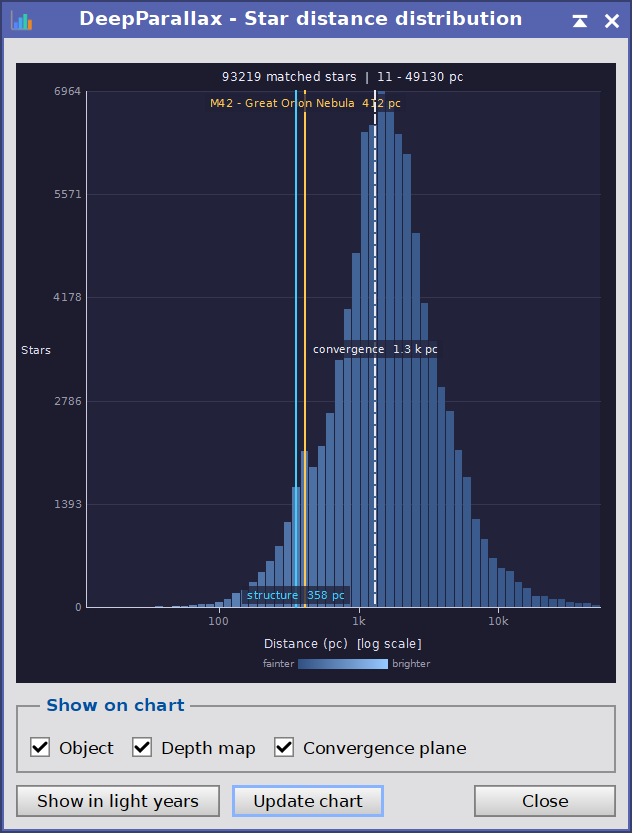
Distance distribution of over half million measured stars in a deep image of the Orion constellation. We can also see how far any object is (M42 in this case), and an approximate mean of the distance at which our depth model sits (only structure, no stars). Here, we see the structure sits about the same distance as the real object in the image - so real depth can be represented for both, stars and the object in the image.
3.6 Shaping tab: Depth shaping
The raw depth map produced by the cues is correct in spirit but rough on the surface: noisy in the dim sky, full of small variations that would translate into visible jitter in the stereo pass. This group cleans it up while keeping the edges that matter, and lets us redistribute the available depth where we want it.
- Smoothness: the spatial scale (in pixels) of an edge-aware smoothing pass applied to the depth map. Higher values remove more noise and reduce the cardboarding artifacts that show up on flat regions; 0 disables smoothing. A value between 8 and 15 suits most targets.
- Edge preservation: how strictly the smoothing pass preserves edges in the source. With this at 0 the smoothing is uniform (blurry across object boundaries); raise it toward 1 to keep the depth aligned with visible edges in the image. Values around 0.6 to 0.9 give a clean depth map without losing the relief on real structure.
- Depth gamma: a gamma curve applied to the normalized depth map. Above 1 pushes mid-depths back, increasing the relative separation between near and far while keeping the extremes; below 1 pulls them forward, compressing the back of the scene. A useful tuning knob when a depth map looks correct but too shallow or too aggressive.
These shape the depth built from the Luminance and Narrowband cues (the base layer). The Color depth and External depth map contributions carry their own Smoothness and Gamma controls (see 3.8 and 3.7), so each can be shaped, or left literal, independently. Like all other parameters in the depth pipeline, these are debounced and cached: dragging Smoothness up does not rebuild the depth on every tick.
3.7 Shaping tab: External depth map
Even the best cue-driven depth map gets some regions wrong. The External depth map section is the escape hatch: we import an external depth map and let it override the computed one, either partially or completely. This is how we hand-correct a specific region, how we use a depth map produced by another tool (for example an AI monocular depth estimator), and how we lock in a creative depth assignment that the cues cannot reach.
A typical hand-correction loop:
- Apply DeepParallax in Depth map mode to produce the
<view>_depthgrayscale image. - Open that image, paint corrections on it using any PixInsight tool (brighter areas read as closer, darker as farther).
- Back in DeepParallax, select the painted image in Depth map (the view selector in this group) and raise Blend.
- Depth map: the view that overrides the computed depth. Empty means no override.
- Blend mode: how the external map is combined with the computed depth before the Blend amount mixes it in. Normal replaces the computed depth (the default); Lighten keeps whichever is nearer (brighter) and Darken whichever is farther (darker); Add, Subtract and Screen combine the two arithmetically. Lighten and Darken are handy to bring a region only forward, or only back, from a painted map without disturbing the rest of the depth the way Normal would.
- Blend: how strongly that combined result replaces the computed depth. 0 ignores the external map entirely; 1 uses it fully; intermediate values blend the two linearly. Useful when we want to nudge a region toward an external opinion without losing the cue-driven detail elsewhere.
- Smoothness: an edge-aware smoothing pass applied to the imported map before it is blended in, in pixels of spatial scale; 0 (the default) leaves it untouched. Handy for a hand-painted map with hard brush edges, or a map produced (or convolved) by another tool, that we want to soften so it integrates with the rest of the depth. It reuses the global Edge preservation setting (see 3.6).
- Gamma: a gamma curve applied to the imported map before blending. 1 (the default) uses it as-is; above 1 pushes it back, below 1 pulls it forward. Lets us re-grade an external map without editing the source image.
The external map is sampled at the resolution of the source view; if its dimensions differ, it is rescaled on the fly. Leave the Depth map view empty unless we have an external map to import.
Below this group, the Depth Modelling group offers an alternative to painting corrections in a separate image: its Edit depth map button opens a dedicated editor where we reshape the depth by hand, region by region, with selection tools and depth effects. Its result composites after the external map (it has the final say), governed by its own Blend and blend-mode controls here, and a status line shows when a model is active. The editor is documented in full in 7 The Depth Modelling editor.
3.8 Shaping tab: Color depth
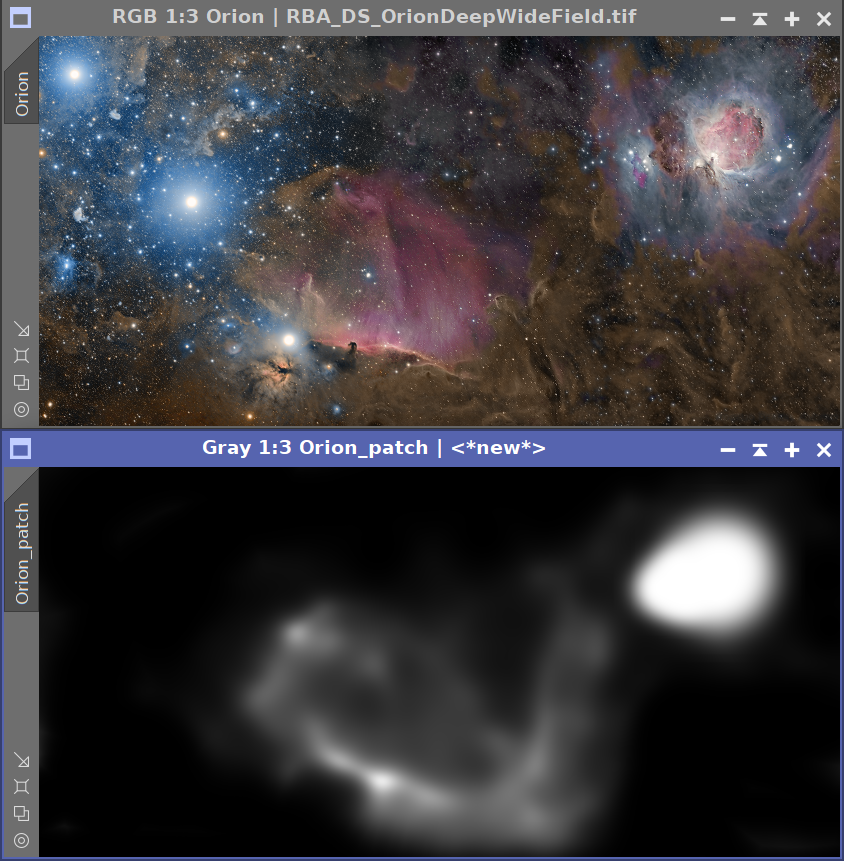
Color depth is a direct, hands-on cue: we pick one or more colors, and every pixel in the image whose color is close to a picked color is assigned a depth we choose. Where the Luminance, Structure, and Narrowband cues infer depth indirectly, Color depth lets us say outright this color sits here. It is particularly useful for modeling a scene by hand, for example pushing a specific emission color forward or settling a particular background tone to the back, in cases the other cues cannot isolate. Like every cue, its result is blended with the rest of the depth pipeline rather than replacing it.
The group holds an overall weight, then a list of color entries (up to ten):
- Color weight: the overall influence of the whole Color depth cue, from 0 (off) to 1. At 1 the matched pixels are set fully to their entry depth; lower values blend the assigned depth with whatever the rest of the pipeline produced. This is the master dial for the feature, analogous to the other cue weights.
- Edge fade: an edge-aware feathering pass applied only to the color-assigned depth, in pixels of spatial scale; 0 (the default) disables it. The color match already softens along a color gradient, but where a matched region meets a sharply different color the depth jumps abruptly in space - this feathers that spatial boundary, so a color-painted region blends into its surroundings instead of cutting out. Being edge-aware, it respects the image's luminance edges (it reuses the global Edge preservation setting, see 3.6, for how tightly it follows them). For a plain, uniform blur instead, use Smoothness below. This is independent of the global Depth shaping, which acts on the Luminance and Narrowband base only.
- Smoothness: a plain (non-edge-aware) Gaussian blur of the color-assigned depth, in pixels of spatial scale; 0 (the default) disables it. Unlike Edge fade, it ignores luminance edges and simply softens uniformly - useful to take the hard edges off a color region's depth without it clinging to image detail. Applied on top of whatever the color match (and Edge fade) produced, and, like Edge fade, only where the color cue had influence.
- Gamma: a gamma curve applied to the color-assigned depth. 1 (the default) leaves the picked depths exactly as entered; above 1 pushes them back, below 1 pulls them forward. Use it to redistribute several color entries together without re-editing each one.
- Color entries: each row is one color rule, with these columns:
- Enable (the checkbox): turns the individual entry on or off without deleting it.
- Color (the swatch): the color this entry matches. Click the swatch to open the color picker (a saturation/value square, a hue strip, and a hex field). The picker also has a From image button: click it and the dialog closes, then left-click (or drag) anywhere on the image to sample the color directly from the pixels, which is the easiest way to grab the exact tone of a feature. For the same thing in one step, each row carries a small eyedropper button just right of its swatch: click it (it stays sunken while picking is armed) and left-click or drag on the image to sample without opening the dialog at all - the swatch updates live as you drag, and rises again once you release.
- Range: how far a pixel's color may differ from the picked color and still be matched. 0 matches only near-exact colors; higher values include progressively more neighboring colors. The match falls off smoothly toward the edge of the range, so the assignment blends rather than producing a hard cutout.
- Depth: the depth (0 = far, 1 = near) assigned to pixels that match this entry.
- Remove (the red x): deletes the entry.
- Add color: appends another entry (up to ten). Entries apply in order, so a later row can override an earlier one where their colors overlap. A fresh instance starts with a ready-made ten-row "astro" palette (the Color depth cue itself stays off until you enable the section).
- Save colors / Load colors: save the whole set of color entries, together with the group's Color weight and shaping controls (Edge fade, Smoothness, Gamma), as a color depth profile - a small
.dpcolfile - and reload one later. Load colors applies the profile and enables the Color depth cue, so a palette built for one target can be reused on another without re-entering every rule.
Matching is done against the source colors that feed the depth (the starless layer in AI Star separation mode, so stars never interfere with a color rule), and the result is mixed in by the Color weight times how well each pixel matches. The cue costs almost nothing: it is a per-pixel color-distance test folded into the cached depth build, so the Dynamic Preview updates as we tune just like the other cues.
3.9 Parallax tab: Stereo output
Once we have a depth map, this group decides what kind of 3D output we produce from it and how strong the 3D effect should be. The stereo pass is fast and does not touch the depth map, so we can experiment with these settings freely: changing the output type or strength does not trigger a depth rebuild.
The Output combo selects what the process produces when we apply it (Apply Global, or dragging the instance onto an image). It is independent of the live preview: what the preview shows is set separately by the Depth map / Anaglyph buttons in the bottom toolbar (see 3.11), so we can preview an anaglyph while still producing, say, a side-by-side image on Apply. The four output options:
- Depth map: produces just the grayscale depth map (no stereo). This is the right mode to tune the depth cues and shaping in: depth is far easier to read as a grayscale image than as a 3D effect.
- Side-by-side (L|R): produces a single image with the left and right views packed horizontally. Suitable for stereoscopes, 3D displays, and the cross-eyed or parallel free-viewing techniques.
- Anaglyph (red/cyan): produces a single composite image meant to be viewed with red/cyan glasses.
- Two views (separate L/R): produces two separate image windows.
Parallax amount sets the maximum total horizontal disparity, in pixels: the overall strength of the 3D effect. Higher values give a stronger feeling of depth, but at the cost of more eye strain and more visible smearing in the disocclusion areas where the background was hidden behind the foreground in the original image. A value of 15 to 25 pixels is usually a good place to start; we raise it for shareable video animations where the effect needs to be obvious and lower it for comfortable still-image viewing.
Auto convergence (default on) places the screen plane, the depth at which there is no parallax, at the median depth of the scene, so most of the image sits comfortably at the screen and roughly half pops forward while the other half recedes. This is the right default for almost every scene. When it is on, the manual Convergence slider is disabled. When we want manual control, we untick it and:
- Convergence: the depth (between 0 and 1) that sits at the screen plane. Lower values push the whole scene forward (more pop-out, more strain); higher values push it back (more comfortable, less impressive). Useful values are around 0.4 to 0.6. In Real depth mode the convergence plane can also be set visually by dragging its line on the star-distance histogram (see 3.2), which unticks Auto convergence and places it at the dragged distance.
Max disparity caps the total separation that any pixel can have between the left and right views, regardless of how much the Parallax amount and depth would otherwise produce. This is the comfort dial: a deep scene with strong parallax can produce separations that are simply too wide to fuse, and this control caps the extremes without changing the overall feel. A value of 0 disables the clamp entirely (no cap on disparity).
Anaglyph color chooses how the red and cyan halves of the anaglyph are composited. The choice is visible immediately in the previews and in the anaglyph output:
- Color: full color, the most vivid choice. Saturated reds cause retinal rivalry under red/cyan glasses; some viewers find this distracting on emission nebulae.
- Half-color: the left eye's contribution is converted to luminance before it goes into the red channel, taming the red rivalry while keeping color in the cyan side.
- Grayscale: both eyes are converted to luminance. The flattest color, but also the least ghosting.
- Optimized (Dubois): the Dubois sRGB color matrix, which minimizes ghosting while keeping useful color. A solid compromise for color-rich subjects under colored glasses.
Swap eyes flips the left and right halves. Use this to switch between parallel and cross-eyed free-viewing techniques, or to correct a reversed-depth result.

3.10 Parallax tab: Parallax motion and export
The Parallax motion group produces a wigglegram: a small looping video that sweeps the viewpoint side to side. Because the eyes see successively different perspectives, the brain reconstructs depth from motion parallax alone, with no glasses, no stereoscope, no special display. Wigglegrams are the easiest 3D output to share: they play in any browser and on any social platform.
These controls live on the Parallax tab (below Stereo output): the Parallax motion group with the animation parameters, and the Export section with the Format and Output size selectors and a single Export button. The preview buttons, the two preview-mode buttons (Depth map / Anaglyph), the Flyby button, and the two project Load / Save buttons (see 3.14) sit in the small toolbar pinned at the bottom of the panel, shared by every tab.
Motion parameters. These sliders and toggle define the sweep itself:
- Frames: the number of viewpoint frames in one full sweep. More frames produce smoother motion at the cost of larger files; 12 to 20 is the common range.
- Frame rate: playback frames per second for the live preview and the exported video. 8 to 12 fps produces gentle moves; higher rates feel more like a smooth turntable.
- Amplitude: how far the viewpoint swings, expressed as a multiple of the Parallax amount. 1.0 corresponds to the full left/right eye separation set by Parallax amount; higher values exaggerate the motion (at the cost of more visible smearing on revealed background) and lower values produce a subtler wobble. A value between 1.5 and 3 typically gives the most pleasing movement.
- Path angle: the direction of the camera sweep, in degrees. 0° is the classic horizontal left/right sweep; 90° is a vertical up/down nod; 45° is a diagonal sweep. Useful for matching the motion to the dominant structure of the subject (a horizontally elongated nebula reads well with a vertical sweep, for instance, and vice versa).
- Circular: when ticked, the linear back-and-forth swing becomes a smooth circular orbit around the scene, with the Path angle setting the orientation of the orbit's major axis. Reads as a continuous turntable rather than a back-and-forth sweep and avoids the brief pause at the swing extremes; particularly effective on subjects with depth in more than one direction.
Previews. Two complementary preview options let us judge the result as we tune, both opened from the bottom toolbar:
- The floating preview window is opened by either resolution button - Nuclear Preview (the default, high-res) or Dynamic Preview (low-res and fast) - and shows the depth map (in Depth map mode) or the stereo result (in any other mode), updated as we adjust controls. The window has its own toolbar with zoom and standard display tools, and replaces PixInsight's native Real-Time Preview for this module: we get the same live feedback in a richer, more flexible window.
- The Parallax Preview button (next to Dynamic Preview) loops the parallax motion in that same floating window. It opens the window if it is not already open, builds the parallax-motion frames at preview resolution, and plays them at the chosen Frame rate. While the animation is running we can keep adjusting parameters: the loop continues with the old values during the slider drag, and when we settle on a new value the loop seamlessly picks up with the new parameters.
Both preview buttons are toggles: they highlight with a soft blue tint when active, and they reset themselves when we close the floating window from its own close button. The Dynamic Preview window opens in Smooth interpolation quality, which suits the continuous-tone depth and stereo previews; we can switch it to Precise from the window's own toolbar at any time.
Exporting. Export lives in a compact Export section at the bottom of this tab - a Source image line, a Format selector, an Output size selector and a single Export button - rather than a row of per-format buttons:
- Source image: a read-only line naming the current source view and its pixel dimensions, so we can confirm what is about to be exported.
- Format: what to write - VR 180, MP4, GIF, AVI or PNG. When VR 180 is chosen a second combo appears beside it for the variant: MP4 (a short still-video), Lossless PNG or JPG.
- Output size: the size of the exported animation (see Choosing the output size below). It applies to the animation formats only; VR 180 always writes at the full source resolution, so this control is disabled while VR 180 is selected.
- Export button: writes the file. Its caption tracks the selection - Export VR-180 video, Export VR-180 JPG, Export MP4 video, Export GIF video, and so on - so it always names exactly what it will produce. Right-click it to open the ffmpeg setup dialog (needed for MP4; see Optional ffmpeg setup below).
The format, the VR variant and the output size are all remembered across sessions, so the section opens set to whatever we used last. Each format in turn:
- MP4: an H.264 video, small files and excellent quality, plays in every modern browser and in mobile and desktop video players. The right choice for sharing on YouTube, Facebook and similar platforms, and for embedding in web pages. Requires a local ffmpeg executable (see Optional ffmpeg setup below); until it is configured, selecting MP4 and pressing Export prompts for the ffmpeg path.
- GIF: a self-contained animated GIF, 256-color quantized, with a NETSCAPE2.0 forever-loop block. Small, plays and loops everywhere, the classic wigglegram format. Smooth gradients may show a little banding due to the 256-color limit.
- AVI: an uncompressed RIFF/AVI video, full color, no quality loss. Large (tens of megabytes for a short clip) but plays cleanly in desktop video players.
- PNG: an animated PNG (APNG), full color and lossless, that loops in modern browsers. Larger files than GIF; some older viewers will not animate it.
- VR 180: a stereoscopic side-by-side output at full source resolution, carrying the metadata VR players and headset viewers need to recognize it as 3D. The variant combo picks the container: JPG or Lossless PNG writes a side-by-side still with VR 180 XMP tags and the
_VR180_SBSfilename hint that dedicated VR media players auto-detect; MP4 (needs ffmpeg) writes a short video with full VR 180 spatial-media metadata (the Spherical/Stereo tags and the stereoscopic and spherical-video boxes) baked into the container, which is what YouTube and dedicated VR players need to recognize an upload as 3D (these platforms accept video for VR 180, not still images). Facebook and Google Photos may not reliably auto-detect VR 180.
Choosing the output size. The Output size combo sets the dimensions of the exported animation. We can keep the Original size or pick a standard preset (4K, 2K, Full HD, HD, SD, 360p, or a 1080 x 1920 phone-portrait frame). The export never upscales: a preset larger than the source simply produces the source size. The frame is scaled to fit the chosen size with its proportions preserved and centered, so any size whose shape differs from the image gets black bars on the axis that needs them (the original size, and any size with the same proportions, have none); MP4 dimensions are rounded to even numbers as that format requires. The choice is remembered for next time. Smaller sizes render and encode faster and produce smaller files; larger sizes, and higher frame counts, take longer. VR 180 ignores this control and always exports at the full source resolution.
During the trial. Every format is available - VR 180, MP4, GIF, AVI and PNG - but the exported animation is limited to 360p and carries a small "Made with DeepParallax" watermark. If we choose a larger Output size and press Export, a dialog offers to either proceed at 360p, open the registration dialog to enter a license key, or cancel (it includes a link to www.deepskycolors.com/pixinsight/deepparallax). Registering lifts the cap and removes the watermark, so exports then run at any size.
The GIF, AVI, and APNG encoders are self-contained in the module: no external dependencies, no tools to install. The MP4 export and the MP4 form of the VR 180 export use a local ffmpeg executable, configured once (see below).
Export progress. Once we confirm the size, a small progress dialog tracks the work with a graphical bar and a Cancel button, so a long export never leaves us wondering whether it is still running. An MP4 export reports each stage in turn: Rendering the frames, Preparing them for the encoder, and Encoding the video, each sweeping the bar from 0 to 100%. Cancel stops the export cleanly at any stage and writes no file. (The GIF, AVI, and APNG writers are a single fast step, so their bar fills in one go.) The frame rendering runs across all available CPU cores, so exports are markedly faster on multi-core machines; the work is otherwise dominated by the frame count, so a shorter clip or a smaller output size finishes sooner.
Making an Apple Spatial photo (Vision Pro). DeepParallax's stereo output is a side-by-side (left|right) pair, which is exactly the input Apple's spatial-photo converters expect. Producing a native Apple spatial photo (a .heic that Apple Photos and Vision Pro show in 3D) is a one-step conversion that currently runs on a Mac, because the tools that write the spatial metadata use Apple's frameworks:
- In DeepParallax, make a side-by-side image: use Export VR 180 (its JPEG form is a side-by-side left|right pair), or choose the Side by side output mode, apply, and save the result as a JPEG or PNG.
- Copy the file to a Mac (macOS Sonoma 14 or later).
- Convert it with a spatial-photo tool. The free command-line spatial tool (by Mike Swanson) does this, for example:
spatial make -i input.jpg -f sbs -o output.heic. Runspatial make --helpfor the options that tune viewing comfort (the stereo baseline and horizontal field of view). Graphical apps such as Spatialify do the same. - The resulting
.heicopens as a spatial photo in Apple Photos and on Apple Vision Pro.
A plain side-by-side image is not recognized as spatial on its own: the converter is what adds the metadata Vision Pro reads. Because DeepParallax's depth is synthetic, if the result feels too strong or too flat in the headset, redo the conversion with a smaller or larger baseline, or adjust Parallax amount in DeepParallax before exporting.
Optional ffmpeg setup. The Export MP4 button and the MP4 form of the Export VR 180 button call a local copy of the open-source ffmpeg utility. DeepParallax does not bundle ffmpeg, so the path to the executable is configured once and remembered across sessions.
- Download an ffmpeg build for your platform from https://www.ffmpeg.org/download.html. Any reasonably recent build with libx264 enabled (the standard pre-built distributions all do) will do.
- Extract or install it somewhere permanent: for example
C:\Tools\ffmpeg\bin\ffmpeg.exeon Windows,/usr/local/bin/ffmpegon Linux, or the path produced by a Homebrew install on macOS. - Right-click the Export MP4 or the Export VR 180 button to open the ffmpeg setup dialog. Browse to (or paste) the full path to the ffmpeg executable, click Test to confirm DeepParallax recognizes it (it runs
ffmpeg -versionand checks the output), then click Save.
The path is persisted in PixInsight's settings and re-read on every Launch of the process, so once it is set the MP4 outputs are simply available. Right-clicking either button at any time reopens the same dialog so we can change the path if ffmpeg moves. Without ffmpeg configured, GIF, AVI, APNG, and VR 180 (JPEG) all still work; only the MP4 outputs are unavailable.
The bottom toolbar:

The Nuclear Preview (default, high-res) and Dynamic Preview (low-res) resolution toggles, the Parallax Preview toggle, and the Flyby button, plus the two preview-mode buttons (Depth map, Anaglyph) that choose what the preview shows. At the right end of the toolbar sit the two project buttons (Load and Save, see 3.14). The formats themselves are chosen in the Export section of the Parallax tab.
3.11 The Dynamic Preview window
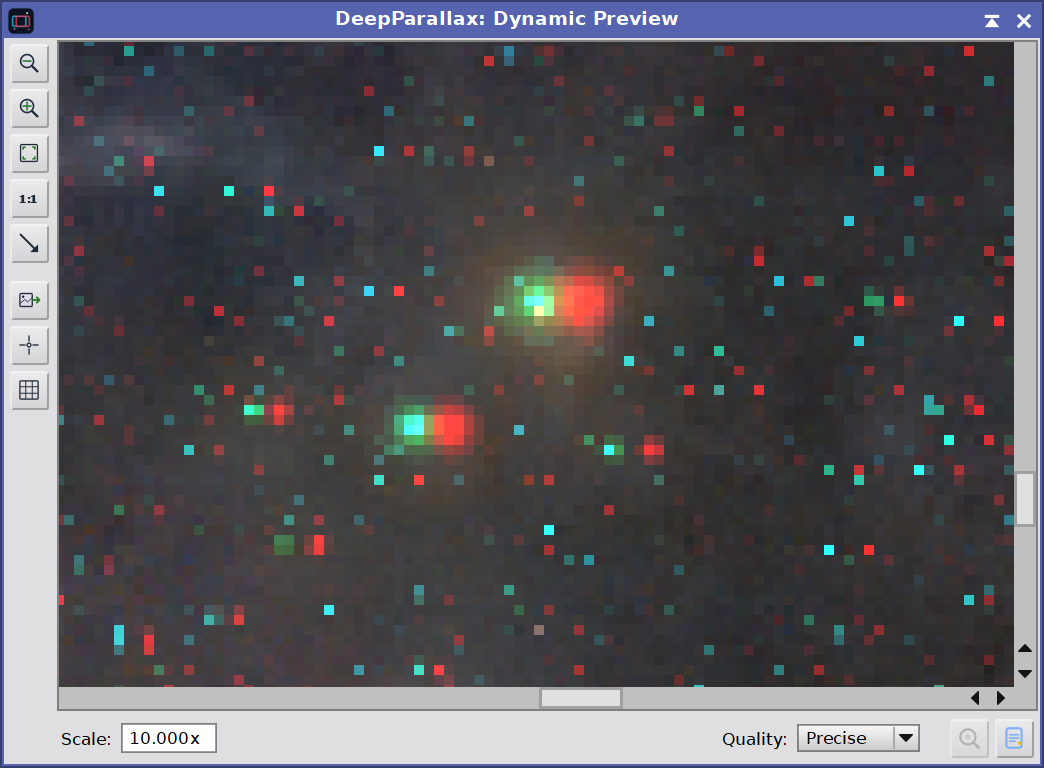
The bottom toolbar's preview buttons - Nuclear Preview (the default, high-res) and Dynamic Preview (low-res, fast) - open the Dynamic Preview, a real-time preview window shared across all Deep Sky Colors modules. It is our own live-preview engine, a replacement for PixInsight's built-in Real-Time Preview, rebuilt from the ground up to be far more capable. Where the native Real-Time Preview is a single fixed panel that can only show one rendition of the result, the Dynamic Preview is a true, freely resizable and movable window that adds its own zoom, pan, pixel readout, pixel grid, render-quality control and one-click extraction to a new image. Everything updates live as we work.
For DeepParallax, what the window shows is set by the two preview-mode buttons in the bottom toolbar - Depth map and Anaglyph - a pick-one pair (the active one sunken) that is always available: clicking either switches the live view, and if the preview window is not open yet it opens it (at the current resolution - Nuclear, the high-res default, unless Dynamic is the active mode). Depth map shows the live grayscale depth map; Anaglyph shows a live red/cyan anaglyph of the stereo result. This is purely a viewing choice and is independent of the Output combo on the Parallax tab (which sets only what Apply produces): there are only two preview buttons because side-by-side and two-views results are both previewed as an anaglyph (an in-place preview can only show renditions that share the source geometry). The preview refreshes after every parameter change (a short debounce collapses a burst of slider movements into one update), so we can judge the depth and the 3D effect as we tune. The companion Parallax Preview button loops the parallax-motion animation in this same window.
Nuclear and Dynamic: preview resolution. The preview can run at two resolutions, chosen by a pick-one pair of buttons (leftmost in the toolbar). Nuclear Preview is the default: a yellow-and-black radiation symbol that renders the floating window at a high resolution, up to roughly 4K, so the depth map and anaglyph are sharp. Dynamic Preview renders the same preview at a downsampled working size, so it rebuilds fast and stays responsive while we drag controls - the right choice when compute time or smooth live adjustments matter more than preview quality. The two are mutually exclusive: clicking one switches the preview to that resolution and unselects the other. The 3D effect is matched between the two modes, so only sharpness and speed change - and the final applied result and every video export always render at full quality regardless of which preview mode is active.
The toolbar is what we expect from a capable viewer:
- Zoom: buttons to zoom out, zoom in, fit to window, and 1:1, plus a Scale field to type an exact zoom. Pan with the middle mouse button, the scrollbars, or the arrow keys. We can also zoom in and out with the mouse wheel or the + and - keys.
- Pause: appears only while a Parallax Preview (parallax-motion) loop is playing, and pauses or resumes that animation, freezing it on the current frame. It is hidden for a static preview - there is nothing to pause - and during a flyby, where the Flyby Studio provides its own play, pause and stop.
- Readout: switches left-click from panning to reading the pixel value under the cursor, shown in the status bar with a color swatch.
- Grid: overlays a pixel grid at high zoom.
- Extract: creates a new image window from the current preview, when we want to keep a snapshot of it.
- Quality: Smooth (bilinear) for natural viewing, or Precise for crisp pixel boundaries when zoomed in. DeepParallax opens the preview in Smooth, which suits the continuous-tone depth and stereo renditions.
The Dynamic Preview is a normal floating window: we resize it, move it, and leave it open wherever it is convenient while we keep working on the image. Click the active preview button again (Dynamic or Nuclear), or close the window, to dismiss it; clicking once more brings it back where we left it. Closing the window also resets the preview toggles in the bottom toolbar.
3.12 Flyby
The Flyby takes the still 3D scene and moves a virtual camera through it: a guided tour that pans across the frame, zooms in and out, and dives into the depth, with the parallax motion riding on top of the whole move. Where the Parallax motion group produces a fixed back-and-forth wigglegram, the flyby is a director's tool that turns the scene into a cinematic move through the nebula or galaxy rather than a simple wobble. It is opened by the Flyby button to the right of the Parallax Preview button, which raises the Flyby Interactive Editor, a free-floating window that stays open alongside the process and the Dynamic Preview so we can compose, play, and keep tuning the scene without closing anything.
The heart of the Studio is its visual Interactive Editor. The image is shown as a live backdrop, and we build the camera path simply by clicking points on it: each click drops a waypoint, the path is drawn as we go, and the non-modal Point Properties window shows that point so the move into it, its dwell, zoom and per-leg parallax motion can be dialed in (click any point later to load it back into that window). We can drag points to reframe a shot, insert points into the middle of the path, zoom and pan the backdrop, and play the move from any point - all on the picture itself, with no syntax to remember. For most flybys this is the only tool needed.
Behind that visual path sits a plain-text flyby script, and the Studio's Script Editor exposes it directly. Anything drawn in the Interactive Editor can be expanded to a script for fine hand-tuning, scripts can be typed or pasted from scratch, and either form is validated, played live in the Dynamic Preview, and exported to video. The two editors, the complete toolbar, the on-image path editing and the view tools are covered in detail in section 5, The Flyby Interactive Editor; this overview just places the flyby in the workflow.
Stars in the flyby. The flyby honors the Star layer setting. In AI Star separation and Synthetic stars modes the stars are a separate volumetric layer: as the camera dives in, near stars expand away from the look-at point and far stars hold back, each moving at its own depth, so the starfield gains real parallax through the move. In the other star modes the stars are part of the single warped image and move with the structure around them. These two volumetric modes are the ones that make a dive look most three-dimensional, and it is worth a test pass before exporting.
Pro and Standard. Writing and playing flyby scripts, and previewing them live, are available to everyone, including during the trial. The Export button writes the flyby to MP4, GIF, AVI or animated PNG (chosen in the export dialog). MP4 needs a local ffmpeg executable (exactly like the Export MP4 button on the Parallax tab; see 3.10 for the one-time setup); GIF, AVI and animated PNG need no ffmpeg but are frame-limited, since the whole clip is held in memory. During the trial, every format (MP4, GIF, AVI, and animated PNG) exports at 360p with a watermark; registered users export any format at full resolution with no watermark.
3.13 Registration and licensing
The Preferences button (the wrench icon on the process interface bar) opens the DeepParallax license information dialog. This dialog reports the current license state:
- Licensed: shows the tier (DeepParallax Pro or DeepParallax Standard) and the email the module is licensed to.
- Trial: shows the number of trial days remaining and reminds us that all animation exports (GIF, AVI, APNG, and MP4) are capped at 360p and watermarked until the module is registered.
- Expired: prompts us to register to keep using the tool.
When the module is not yet licensed, the dialog shows a "Click here to register" link. Clicking it opens the registration dialog, where we enter our email and license key. The fields are validated as we type, and the Register button enables only once a valid email/key pair is entered. After a successful registration the info dialog refreshes in place to the "licensed to" state: no need to reopen it. The same registration dialog is also reachable straight from the trial's export dialog (when we ask for an animation larger than 360p) and from the project Load / Save buttons (a Pro feature), so we can upgrade at the moment we reach a limit without leaving our work.
3.14 Saving and loading projects
A DeepParallax session is more than a set of slider values: it is those settings plus the images they refer to (the source, in AI Star separation mode any starless, stars, star-mask and depth-map views you supplied, and in Synthetic stars mode the starless view), the flyby script, and the windows we have open. The two project buttons at the right end of the bottom toolbar capture all of that in a single file.
The project buttons:
Load (cyan up-arrow) and Save (orange down-arrow), can be found to the right end of the bottom toolbar.
- Save (the orange down-arrow) writes a single
.dpprojfile that bundles the complete process instance (every parameter), the flyby script, the Depth Modelling edits, and every image involved - each stored whole, with its FITS header and astrometric (WCS) solution intact - together with which of DeepParallax's own windows (the Flyby Studio, the star-distance histogram, the Depth Modelling editor) were open and where. The Depth Modelling edits are stored as the editable action list (each selection's region and parameters), not as a flattened image, so they reload fully editable (see 7 The Depth Modelling editor). - Load (the cyan up-arrow) reopens a
.dpproj: it recreates the image windows, rewires the settings to them, restores the flyby script and the Depth Modelling edits, and reopens the child windows at their saved positions - the whole session back as it was, on this machine or another.
Because the images travel inside the file, a project is self-contained: we can archive a finished piece, move it to another computer, or hand it to someone else, and it opens complete - no need to track down the original source frames. The last folder and file we used are remembered, so the dialog returns to them next time.
Saving and loading projects is a Pro feature. It is free to use throughout the trial, so trial projects we save now will still load once we register. After the trial a Standard license shows a short notice with an upgrade link instead; a Pro license keeps full access.
4 Building a 3D scene
[hide]
This section walks through three example sessions: a fast one to get a result in minutes, a thorough one that uses every control, and a thorough one that places stars at their real catalog distances.
4.1 A get-results-quick session (Real Depth)
This workflow uses DeepParallax's built-in AI star separation, so it needs no external tool. A get-results-quick session looks like this :
Open a fully edited/processed image with an astrometric solution. (Or add the astrometric solution with the free process AstroResolver). Non-linear images work best because every depth cue reads perceptual brightness. A linear image is mostly black and gives a flat, uninteresting depth map.
Pick a preset. Click Nebula, Narrowband, or Galaxy at the top of the panel depending on the target.
Give each star their own depth. In the Star layer section, select AI Star separation (volumetric). That is all: DeepParallax's built-in AI splits the stars from the scene on its own, in memory, with no extra images to prepare. If you would rather use StarNet2, or already have a starless + stars pair, see the four routes in Section 3.2 (with both the AI and StarNet2 installed, pick the engine in the selector that appears; to supply your own, assign the Starless and Stars views).
Real depth. Change Star depth to Real depth (Star catalog).
Done! Open the Dynamic or Parallax Preview. Or directly export a parallax-motion video, a stereo pair, or the anaglyph. Or, if you feel creative, create a Flyby scene, or load a flyby scene previously saved (or shared by a friend or coworker).
This could be the time to adjust parameters such as Star plane, Star spread, Max stars and many more, depending on whether we're after a parallax effect (Parallax motion, stereo pair, anaglyph) or a Flyby. As we adjust the parameters, after a (hopefully small) pause, we see the Parallax preview change in real time.
4.2 A thorough session (Flat or Star Mask modes)
A thorough session uses every control in turn. It places stars by eye, with a star mask or one of the artistic star-depth models; to give stars their real catalog distances instead, follow 4.3.
A thorough session looks like this:
Open a stretched image. A non-linear, well-stretched frame works best, because every depth cue reads perceptual brightness. A linear image is mostly black and gives a flat, uninteresting depth map.
Pick a preset. Click Nebula, Narrowband, or Galaxy at the top of the panel depending on the target. These set sensible Depth cue, Shaping, Stereo, and Star plane values to start from, and (in Narrowband's case) enable the channel-balance cue with Ha/OIII roles assigned to Red/Blue.
Work in Depth map mode first. Set Output = Depth map and turn on the Dynamic Preview. Depth is much easier to judge as a grayscale image than as a 3D effect, and every cue/shaping control changes the depth directly, so this is where we do the tuning.
Refine what is near, and what is far. Watch the depth map as we adjust Luminance weight, Structure weight, and Structure scale. For narrowband targets, use the Narrowband depth controls in the Depth tab and tune the channel weight and roles. Tick Invert depth if the brightest regions of our particular target should recede instead of coming forward. Use the Color depth section to give specific depth to any range of colors present in the image.
Shape the depth. Raise Smoothness until the dim background reads as cleanly continuous, raise Edge preservation until the depth follows the visible structure faithfully, and use Depth gamma to redistribute the depth range: values above 1 give more separation, values below 1 compress the back of the scene.
Tame the stars (astroimages). If the target has bright stars sitting on a soft nebula or galaxy, the depth map will show per-star spikes. Build a star mask with DeepStarMask (or any other tool), select it in the Star layer section, set a Star plane around 0.85 to 0.95, and raise Star floatation toward 1 for a single clean star plane.
Hand-correct anything wrong (optional). Apply DeepParallax in Depth map mode to get a paintable
<view>_depthimage, paint corrections on it (brighter = nearer), then bring that image back via the External depth map section and raise Blend.Switch to a stereo Output mode. Now we look at the 3D itself. Anaglyph is the most convenient for tuning if we have red/cyan glasses; Side-by-side is the most flexible for downstream use. With Auto convergence on, the scene opens centered; raise or lower Parallax amount until the strength is right. Set Max disparity to a moderate value (around 20 pixels of total separation) if a deep scene is hard to fuse, otherwise leave it at 0.
Set up the parallax motion. Open the Parallax Preview from the toolbar. Tune Frames (12 to 20), Frame rate (8 to 12 fps), and Amplitude (1.5 to 3) until the motion reads as a clear depth cue without too much smearing in the revealed-background areas. The Amplitude multiplies Parallax amount, so we raise the latter too for a stronger swing. If the subject's depth runs along a particular direction (a horizontally elongated nebula, a vertically inclined galaxy), set the Path angle across that direction; tick Circular for a continuous turntable-like motion instead of a back-and-forth swing.
Export. In the Export section, pick a Format - GIF for a small, universally compatible wigglegram, MP4 for an H.264 video suitable for YouTube, Facebook and embedding in web pages, AVI for an uncompressed video, PNG for a full-color animated PNG, or VR 180 for a stereoscopic still (or short video) for VR headset viewing - choose an Output size, and press Export. During the trial the animation is written at 360p with a watermark; registered users export at any size, watermark-free. The MP4 outputs require a local ffmpeg executable, configured once by right-clicking the Export button (see 3.10). The save dialog asks for a file name, and the encoder writes the file directly.
4.3 A thorough session with real star distances
This is a combination of workflows 4.1 and 4.2.
Before we start. The Real depth model needs two things in place (see 3.2 Stars tab for the details):
- The image must have an astrometric solution.
- A Gaia database must be installed and configured in PixInsight's Gaia process. If SPCC already works on our system, this is done.
Replicate steps 1 to 4 in section 4.1.
Tune the depth on the starless structure. Pick a preset, work in Depth map output mode, and refine the Depth cues and Depth shaping, just as in steps 2 to 5 of 4.2.
Check the star match. The Measured stars panel reports how many stars matched and the distance range. To see the overlay without opening the Dynamic Preview, click the Update Measured stars button in the panel first. Then open the Dynamic Preview and turn on the Real depth stars overlay toggle in its toolbar: green rings are Gaia-matched stars at a real distance, cyan rings are Hipparcos-matched stars (the naked-eye bright stars not included in Gaia, also at real distances), and amber rings are unmatched. If there are too many circled stars that it's hard to discern one from another, reduce the number of stars by adjusting Max stars. Confirm that the prominent stars are green or cyan.
Decide what happens to unmatched stars. Set Unmatched stars to taste: Omit (the default) paints only catalog-matched stars, keeping the very brightest unmatched ones through a safeguard; Scattered or Brightness instead give the unmatched stars a synthetic depth so the field stays full.
Dial in the depth. Choose a Depth scale: Relative fills the star band with whatever stars are present (punchy), Absolute places them on a fixed true-distance scale (faithful, usually subtler). Use Star spread for the band thickness and Depth exaggeration to strengthen the separation, which matters most in Absolute scale where the real spread is small.
Place the structure among the stars (optional). So far the stars carry real distances but the nebula or galaxy still floats wherever the cues placed it. Open the Structure depth group (Depth tab; see 3.5) and make sure Set structure distance is on (it is auto-enabled for an object within the star range). With the image plate-solved, the imaged target is usually auto-detected and shown as a guide - otherwise type its name or catalog id (for example M42 or NGC 7000). Click Match object distance to snap the structure to it, then use Fit and Thickness to taste - or drag the cyan line on the histogram to place the structure at any distance by hand. The histogram shows a gold line for the object guide and a cyan line for the structure, so we can see where each sits among the stars. Using real distances here is a Pro feature, free during the trial.
Finish as in 4.2. Hand-correct anything wrong, switch to a stereo Output mode, set up the parallax motion, and export. Everything downstream (stereo, animation, VR 180) is identical; only the star depths are different, because now they are measured.
Because the per-star depths are real, the parallax in the animation and in VR is physically faithful: the nearer stars genuinely drift more than the farther ones. The distance-to-depth mapping is still compressed into a viewable band (see the worked example in 3.2 Stars tab), but its ordering and proportions come from the catalog, not from an artistic guess.
Saving the recipe. The full parameter set is serialized into the process instance, so we can drag the instance to a process icon and re-apply the same DeepParallax recipe to other frames of the same target series, or use it as a starting point for related targets.
Quick starting points
The Presets buttons load these starting values; the table is here so we can see them at a glance and tweak from there:
| Nebula (broadband) | Nebula (narrowband) | Galaxy | |
|---|---|---|---|
| Luminance / Structure | 1.0 / 0.35 | 0.6 / 0.25 | 1.0 / 0.30 |
| Narrowband weight | 0 | 0.5 (Ha/OIII) | 0 |
| Smoothness / Edge preservation | 10 / 0.7 | 10 / 0.7 | 12 / 0.8 |
| Parallax amount | 20 | 20 | 16 |
| Star plane / Star floatation | 0.9 / 1.0 | 0.9 / 1.0 | 0.85 / 0.8 |
Convergence is automatic by default in all three presets; we untick Auto convergence only when we want to set it by hand. Max disparity is left at 0 unless a particular scene is hard to fuse.
5 The Flyby Interactive Editor
[hide]
The Flyby Interactive Editor is the window that opens from the Flyby button of the main interface (3.12). It offers two editors of the same flyby, side by side in one window:
The Interactive Editor - a visual canvas: the image is shown as a backdrop and we build the camera path by clicking points directly on it, then dragging and editing them.
The Script Editor - the plain-text flyby script (the same script described in 6 Flyby scripting).
A segmented toggle at the top-left switches between the two; the highlighted segment is the editor we are in, and the window title and the toolbar follow it. The Studio opens in the Interactive Editor by default. This section covers the Studio window and the visual editing; the flyby command language itself is documented in section 6.
The Flyby Interactive Editor:
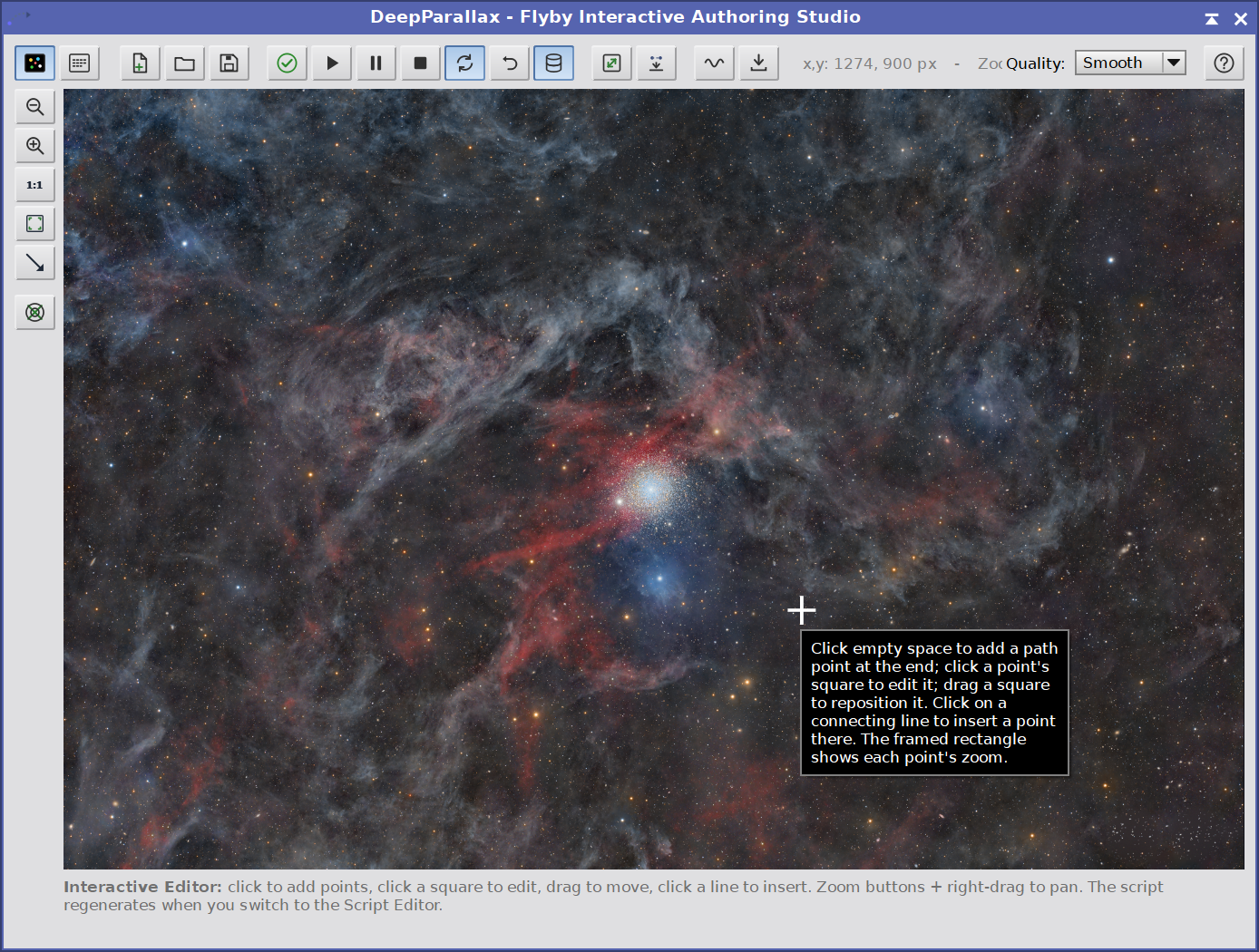
The top toolbar (editor toggle, file and playback controls, tools), the vertical view-tool strip on the left, the image backdrop with a camera path drawn on it, and the status line below.
5.1 Overview: the Interactive and Script editors
Both editors describe one and the same flyby; they are two views of it, not two separate documents. The Interactive Editor owns an ordered list of path points (keyframes). When we switch to the Script Editor, that path is written out as a script: a path_start line followed by a path_begin ... waypoint ... path_end block, together with any hand-written commands we placed around it. Switching back re-reads that block, so values we changed by hand in the script flow back into the visual path. Editing the path block is therefore round-trippable; the relationship is covered in 5.6.
The segmented toggle shows where we are and where a click takes us: the image icon is the Interactive Editor, the dotted-lines icon is the Script Editor. The active one is sunken. The window title reads DeepParallax - Flyby Interactive Editor in the Interactive Editor and DeepParallax - Flyby Script Editor in the Script Editor.
5.2 The top toolbar
The horizontal toolbar at the top is shared by both editors (the view tools that only make sense on the canvas live in the left strip instead - see 5.3).
| Control | What it does |
|---|---|
| Interactive | Script | The segmented editor toggle. Click the inactive segment to switch. |
| New | Clear the current path and script and start over. Asks for confirmation first. |
| Load / Save | Read or write a flyby script file (.dpsc); Save appends the .dpsc extension automatically, and Load offers .dpsc files first and falls back to all files. A file that contains a path block reopens in the Interactive Editor; a plain script opens in the Script Editor. The last path is remembered for the next Load/Save. |
| Validate | Compile-check the flyby and report the frame count and duration, or the first errors. A flyby with no motion reports "No flyby has been defined yet." |
| Play | Play the flyby in the Dynamic Preview (opening it if needed). With Cache on, the whole path is pre-rendered up front across all CPU cores (a brief progress bar), then plays back smoothly from the first loop; with Cache off, frames are rendered just in time, so a long path never blocks the interface but the first pass through a heavy path (a deep dive on a starless + stars image, for instance) can be a little choppy. Reports the specific reason if it cannot play (errors, empty flyby, or no image/preview). |
| Pause / Stop | Pause or resume playback; Stop returns to the start. |
| Loop | Repeat playback continuously when on; play once and stop when off. |
| Stay at the end | When off, the preview returns to its original view after a play; when on, it stays on the last frame. |
| Cache | Pre-render the entire flyby up front, across all CPU cores (a brief progress bar with a Cancel button), so playback is smooth from the first loop. Untick to render live, frame by frame, using less memory; a path too large to fit the memory budget falls back to live rendering automatically. While caching is on, changes to the live parallax-motion sliders take effect on the next play rather than mid-loop, and the cache affects the live preview only - Export always renders the whole path fresh. Right-click the button to set the memory limit: Automatic (up to 80% of the memory free at that moment) or a fixed 1 to 32 GB cap. Frames are stored 16-bit to keep the footprint modest, and the choice is remembered across sessions. |
| SCC | Script Coordinates Converter: rescale the script's coordinates for a different image size (see 5.7). |
| Convert to script | Expand the visual path into plain flyby commands (moveto / flyin / ...) and drop the editable path. Irreversible; see 5.6. |
| Parallax motion | Ride the parallax wobble on top of the flyby (the 3D depth cue); turn it off for a pure camera move. Off by default, and can be flipped during playback. |
| Export | Render the whole flyby to a video. A dialog picks the format (MP4 / GIF / AVI / animated PNG) and the output size, then a progress dialog with a Cancel button tracks the render and encode. The render runs across all CPU cores; MP4 additionally streams to disk in bounded chunks, so even a long 4K flyby renders fast and stays within memory. MP4 needs a local ffmpeg executable; GIF / AVI / animated PNG need no ffmpeg but are limited in total frames x megapixels (the whole clip is held in memory; over the limit, a notice asks you to shorten the flyby, use a smaller size, or pick MP4). During the trial, every format (MP4, GIF, AVI, and animated PNG) exports at 360p with a watermark; registered users export any format at full size with no watermark. |
| Readout | To the right of Export: a live readout of the cursor position in source pixels and the current zoom. Shown only in the Interactive Editor. |
| Quality | Backdrop rendering: Smooth (bilinear) or Precise (nearest-neighbour, crisp pixel edges when zoomed in). Affects only the on-screen backdrop, not the flyby. |
| ? (Help) | Open the flyby command reference. |

5.3 View controls and readout
A vertical strip on the left of the canvas holds the view tools; it is visible only in the Interactive Editor.
| Control | What it does |
|---|---|
| Zoom out / Zoom in | Magnify the backdrop, up to 32x. The mouse wheel zooms too, centred on the cursor. |
| 1:1 | Set the zoom so one source pixel maps to one screen pixel. |
| Fit | Fit the whole image into the canvas (resets zoom and pan). |
| Fit to preview | Resize the Studio window so the canvas matches the image exactly at the current zoom. |
| Center next point | Add the next path point at the exact image center, just as clicking the center would: on an empty path it drops the start point there; otherwise it appends a new point at the center (carrying the previous point's zoom and parallax motion) and loads it into the Point Properties window. A quick, pixel-accurate way to place a point dead-center. |
To pan when zoomed in, drag with the right mouse button (the left button is reserved for editing points). The backdrop is rendered once and only re-blitted on zoom and pan, so zooming stays fast at any magnification; very large images are downsampled to a memory cap, so an extreme zoom may look soft (switch Quality to Precise for crisp pixel edges). In AI Star separation mode the backdrop shows the starless and stars layers composited together, matching what the flyby will render; in Synthetic stars mode it shows the starless image alone (the stars are generated at render time); and with Starless only (3.2) engaged it likewise shows the starless image alone, so the canvas previews the same star-free framing the output will produce.
5.4 Building the camera path on the image
The path is an ordered list of points the camera visits. Each point is drawn as a numbered square; the points are joined by gold lines with a small arrowhead at the midpoint of each leg showing the direction of travel. The first point is the start and has a green outline; the rest are amber. The point currently open in the Point Properties window is filled amber with a black number (and framed by its own rectangle), so the selected point is easy to spot; dragging a point updates its coordinates live in the Point Properties window and on the readout.
Every point carries a framing rectangle that shows what the camera actually sees there - the true viewport, clamped to the image edges exactly as the render is. Its color encodes the zoom: cyan where the point sets or holds a zoom greater than 1, teal where it keeps the whole frame (no new zoom). When a point has a Roll to in effect the rectangle is drawn rotated to that angle, so the framed orientation is shown directly on the canvas. A point that dives (a Warp depth dolly) adds a concentric dashed inner rectangle marking the tighter region the dive lands on. Together these give a live, at-a-glance read of the framing, roll and dive of the whole path without rendering a frame.
All editing is done with the left mouse button on the canvas:
Add a point - click empty space on the image. The point is appended to the end of the path and its Point Properties dialog opens. The very first point you add becomes the start.
Insert a point - click on a connecting line between two points; the new point is inserted there, in order.
Edit a point - click its numbered square to load it into the Point Properties window.
Move a point - drag its square; the path and the framing rectangles update live as you drag.
Delete a point - Ctrl-click its square to remove it directly, or open it and use Delete in its dialog. If the start point is deleted, the next point becomes the new start.
Rotate or re-zoom a point on its rectangle - the selected point's framing rectangle carries small drag handles. Drag a corner (a rotate cursor appears) to spin the frame; on release its Roll to is set to the new angle. Drag a side handle to re-zoom along that edge; the point's Zoom is updated (and its action becomes a zooming one if it was not already). Both edits update the canvas live and commit when you let go, refreshing the Point Properties window if it is open on that point - a direct, visual way to set roll and zoom without typing numbers.
The Center next point tool (5.3) is the easy way to drop a point at the dead center of the frame: it adds the next point there (the start point on an empty path, or an appended point otherwise), exactly as clicking the center would. Remember that the right mouse button pans and the wheel zooms, so you can work closely on a crowded field.
A camera path on the backdrop:
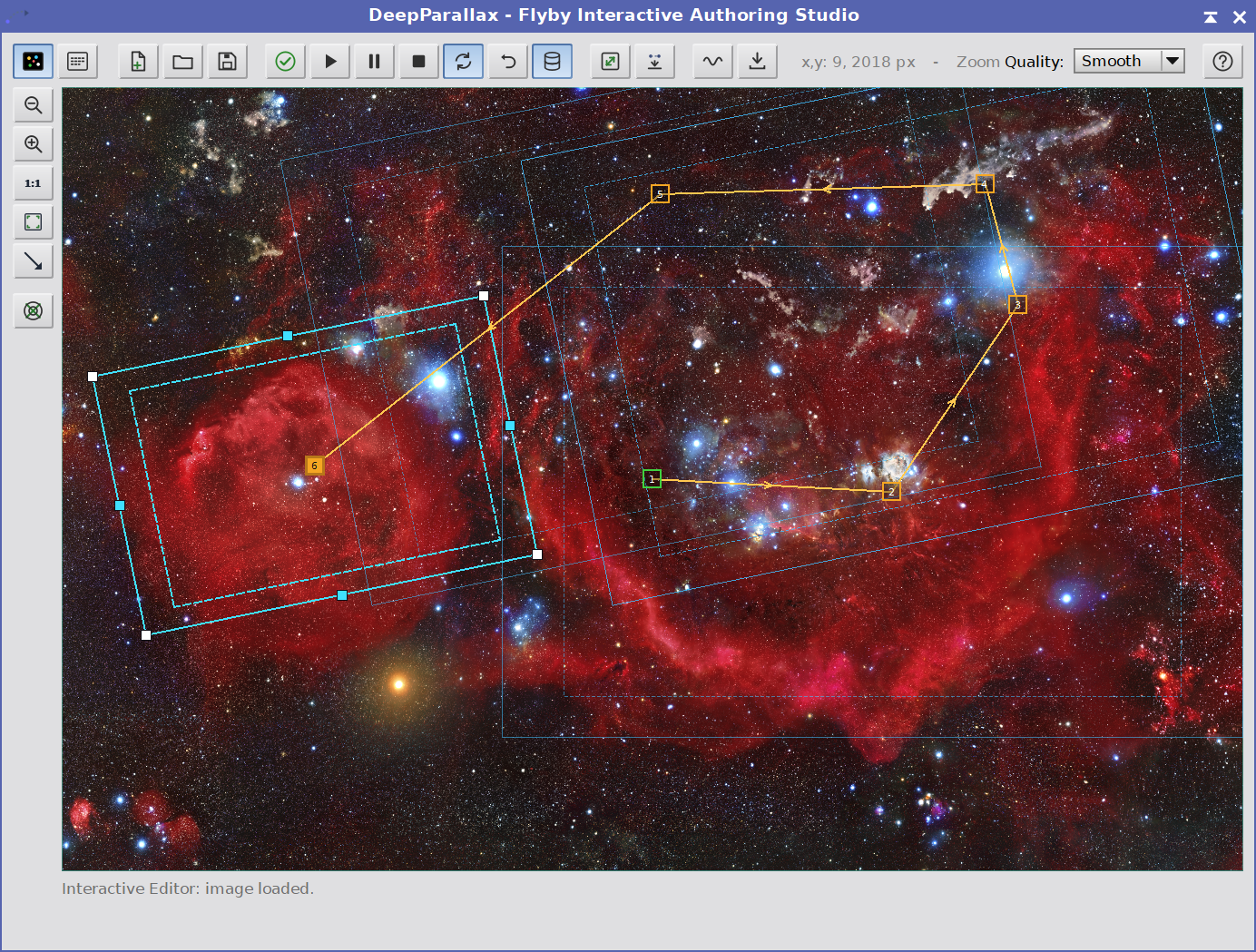
Numbered squares (green start, amber waypoints; the selected point filled amber with a black number), gold connecting lines with direction arrowheads, and each point's framing rectangle (cyan where it zooms, teal where it keeps the whole frame, rotated to show a Roll to). The selected point's rectangle carries the corner and side drag handles for rotating and re-zooming.
5.5 The Point Properties window
Point editing happens in the Point Properties window: a free-floating, non-modal panel (like the Dynamic Preview and the Studio itself) that opens the first time we add or click a point and then stays open as we work, so the rest of the Studio and the image remain fully usable alongside it. It always reflects the point we are currently editing: clicking a point's square on the canvas, adding a new point, or using the |< < > >| buttons next to its title loads that point's values into the window (and highlights it on the canvas). Edits are committed to the current point immediately, as we make them - there is no separate save step - so a value is never lost if we switch points, click elsewhere on the canvas, or close the window. The window remembers its on-screen position between opens, and it closes automatically when we close the Studio.
For a regular (non-start) point:
Arrive by - how the camera reaches this point:
flyin(pan + zoom + dive, the default),moveto(pan only),flyto(pan + dive),zoomto(zoom in place), orstay(hold in place). These map directly to the flyby commands of the same name (6.2).Frames - how many frames the move to this point takes.
Warp depth % - the dive (dolly) strength, for
flytoandflyin. (This is the former Away %; the script keyword is nowwarp, withawaystill accepted.)Zoom - the target zoom, for
flyinandzoomto.Ease - the motion rhythm (linear / in / out / inout).
Hold - frames to dwell on this point after arriving.
Roll to - an optional roll target, in degrees, that the view rotates to during the move (the roll rides the move).
During the move and On arrival - two optional groups of parallax-motion and timing overrides (Angle, Amp, Frame rate, FPS). Each is opt-in: tick the box to apply it as the leg begins (during the move) or when it arrives (on arrival). These drive the parallax motion from the script (6.3).
Between the two groups sit two small blue arrow buttons that copy one side's settings onto the other, so we do not have to re-enter them: > copies the During the move group onto On arrival, and < copies On arrival back onto During the move. They appear only when both groups are present (that is, not on the start point).
Each Angle row carries a small align-with-move toggle (an angle icon) at its right edge. Turned on, it locks the angle to the direction of the move and makes the value read-only: the During the move toggle aligns with the incoming move (previous point to here), and the On arrival toggle with the outgoing move (here to the next point), so the parallax oscillation runs along the camera's travel. The angle follows automatically if we later drag the points. The During the move toggle is hidden on the start point (nothing precedes it), and the On arrival toggle appears only when a next point exists. (The alignment lives in the Interactive editor; if the script is hand-edited in the Script Editor it bakes down to the plain angle it had.)
The start point uses a reduced version of the same window: it has no Arrive by/Frames/Warp depth and no On arrival group, since nothing precedes it. It sets the initial view (position, zoom, ease, roll) and the initial parallax motion / timing.
Four buttons at the bottom: Apply is optional (edits already commit as we make them); it re-commits the current point and refreshes the path on the canvas without closing the window, so we can keep refining the same point, click another, or simply carry on clicking to add more; Close hides the window (the path is left as-is); Delete removes the current point (the window then shows a neighboring point, or closes if the path is now empty); Play from here commits the point and plays the flyby starting at it (handy for previewing a single leg). Because the window is non-modal there is no Cancel: adding a point drops it on the path immediately with its carried-over defaults, so to discard one use Delete.
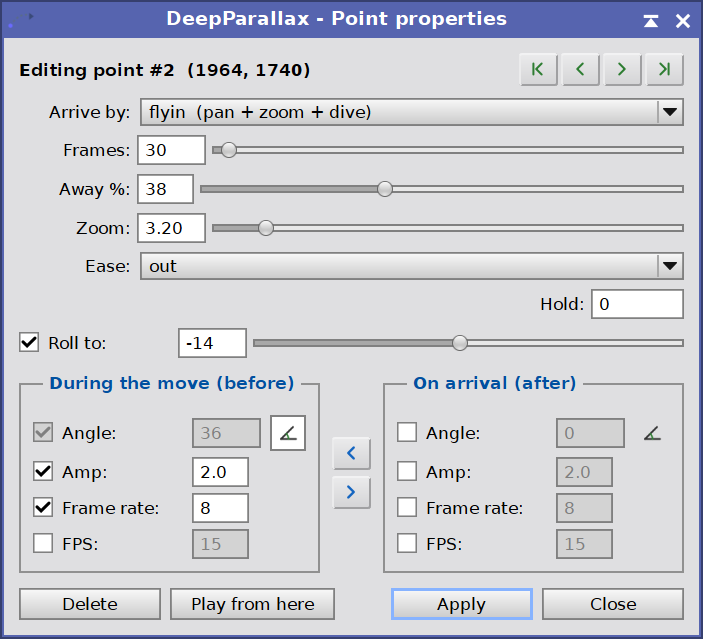
5.6 Round-trip with the Script Editor
Switching to the Script Editor writes the visual path out as text: a path_start line, then a path_begin ... waypoint ... path_end block, with any commands we had typed above or below that block preserved in place. The block is ordinary, readable flyby script - the engine simply expands it when the flyby runs.
Switching back to the Interactive Editor re-reads the block, so edits we made to its values by hand appear in the visual path. If the script has no path block (a hand-written script), the Interactive Editor starts a fresh path and keeps the existing commands as trailing code, after asking us to confirm. A malformed block is reported and we stay in the Script Editor to fix it.
The Convert to script toolbar button bakes the path block into plain primitive commands (moveto, flyin, ...) and removes the editable path. This is one-way: after converting, the flyby is a hand-editable script with no visual path to return to. Use it when we want to fine-tune the script in ways the visual editor cannot express. The flyby language is documented in full in section 6.
5.7 Script Coordinates Converter (SCC)
A flyby script places the camera at pixel coordinates of a particular image size. The SCC button rescales those coordinates so the same flyby fits a different image size - for example a script authored on a downsized working copy, applied to the full-resolution master.
The dialog asks for two sizes, each with a view picker that fills the width and height from the chosen view: the script's size (the size the coordinates were written for; defaults to the source image) and the new size (defaults to the active image window). On OK, every literal x,y coordinate in the script - in moveto, flyto, flyin, the path_start and waypoint lines, and the pan deltas - is multiplied by the width and height ratios and rounded to whole pixels.
Only pure numbers are rescaled. Coordinates written as expressions or with variables ($centerx, $w*0.34, 2000*0.34) are left untouched, and in a mixed pair only the plain-number side is scaled. This is deliberate: variable-based coordinates such as $w and $centerx already resolve against whatever image the flyby runs on, so a script written with them needs no conversion at all (see 6.4). The result is written back into the Script Editor.
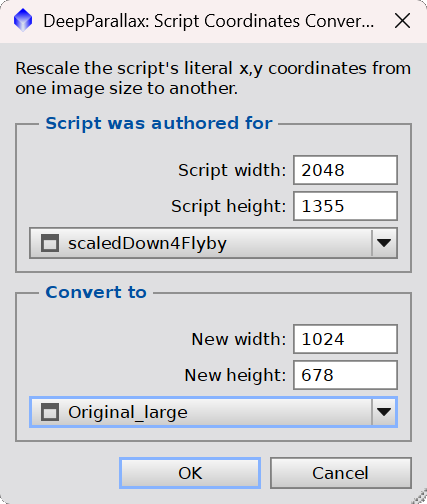
6 Flyby scripting
[hide]
A flyby script describes a camera move through the 3D scene as a list of plain-text commands, one per line. It is deliberately small and readable: we write where the camera should go and how long each move takes, and DeepParallax compiles the script into a sequence of frames that it plays in the Dynamic Preview and exports as a video. The Interactive and Script editors that produce and edit this script are described in section 5, The Flyby Interactive Editor; this section is the language itself.
The format is forgiving. Each line is one command followed by its arguments. Anything after a # is a comment and is ignored. Commas and colons are treated as plain separators, so moveto: 1200, 800, 60 and moveto 1200 800 60 mean the same thing. Command names are case-insensitive. Blank lines are fine.
The script is resolution-independent. Positions are given in the coordinates of the full-resolution source image and zoom is expressed in image widths, not pixels, so the very same script produces the same motion when it plays at the reduced preview resolution and when it is exported at full resolution. We never have to rewrite a script for a different output size.
6.1 The camera model
The virtual camera has three properties that the commands change:
- Center (the look-at point): a position in source-image pixels, given as x then y, with (0,0) at the top-left corner. This is where the camera is pointed, the center of what we see. The camera starts centered on the image.
- Zoom: expressed as image widths shown. Zoom 1 fits the whole image width in the view; zoom 2 shows half the width, so the subject is twice as large; and so on, from 0.05 to 32. The camera starts at zoom 1.
- Dolly: how far the camera has dived into the depth, set by the
flytocommand and cleared byreset. It starts at zero. - Roll: rotation of the framing about the look-at point, in degrees, set by
roll/rotateand cleared byreset. It rotates only the view, not the depth computation, and starts at zero.
For each output frame the camera defines a viewport: a rectangle of (image width / zoom) by (image height / zoom) centered on the look-at point, clamped so it never runs off the edge of the image. The renderer crops that rectangle from the depth-warped scene and scales it to the output size. Because the viewport is defined in source coordinates, the crop is identical at preview and export resolution.
Pan, zoom, and the dolly. A plain zoom (the zoom and zoomto commands) magnifies the flat frame: it makes the subject bigger but does not change the relationships between near and far structure. The dolly is what makes a flyby feel like real motion through space. It is a depth-dependent move: near structure expands outward from the look-at point faster than far structure, while the convergence plane stays put, exactly as when we physically walk toward a scene, so it reveals parallax that a plain zoom never can (at the cost of some softening on the background, or artifacts, as we push in). Two commands apply the dolly: flyto dives toward a point while panning but leaves the framing untouched, and flyin adds a simultaneous zoom on top, tightening the framing as it dives, which is the complete "move through the scene" gesture. In both, away is the dive strength as a percentage: it scales how far the foreground is pushed outward from the look-at point, near structure moving faster than far. away 0 means no dive; larger values reveal more parallax but stretch and soften the background more, so they are best judged live in the preview.
Easing and timing. The animated commands interpolate over a number of frames; the ease command sets the shape of that interpolation - the rhythm of the motion across its frames. It applies to every animated command that follows (moveto, zoomto, flyto, flyin, rotate) until changed:
- inout (the default): starts slowly, speeds up through the middle, and slows to a soft stop. The most natural for a camera move - it eases away from rest and settles gently at the destination.
- in: starts slow and accelerates, finishing at full speed. Good for departing from a held pose, or as the first half of a move continued by an out segment.
- out: starts at full speed and decelerates to a soft stop. Good for arriving at a destination, or continuing a move that began with in.
- linear: constant speed throughout, with an abrupt start and stop. Mechanical, but the right choice for continuous loops or for chaining several moves that should flow through their joins without visibly slowing at each one.
The setfps command sets the playback frame rate, which together with the frame counts determines the duration. A move of 60 frames at 30 fps lasts two seconds.
6.2 Command reference
Commands fall into three groups: instant commands that adjust the camera or a setting without producing a frame, frame-emitting commands that produce the actual animation, and the loop construct. An instant command takes effect immediately and its new state is used by the next frame-emitting command.
Instant commands (adjust the camera or a setting; emit no frame):
| Command | What it does |
|---|---|
zoom: <f> | Set the zoom to an absolute value (image widths shown, 0.05 to 32). |
zoomd: <f> | Change the zoom by a delta (positive magnifies, negative widens). |
panl|panr|pant|panb: <n> | Pan left, right, up, or down by n scaled pixels. The amount is divided by the current zoom, so the on-screen distance is consistent at any magnification. |
pan: <dx> <dy> | Pan by a generic delta, in scaled pixels. |
reset (or home) | Jump back to the start view: image centered, zoom 1, dolly and roll cleared. |
roll: <deg> | Set the field-of-view roll to an absolute angle, in degrees. The framing rotates about the look-at point; the depth, parallax and dolly are computed unrotated, so only the view spins. |
ease: <mode> | Set the motion rhythm for the animated commands that follow: inout (the default: slow start, faster middle, soft stop), in (slow start, accelerating), out (full speed start, decelerating to a stop), or linear (constant speed, abrupt start and stop). See 6.1 for when to use each. |
setfps: <n> | Set the playback frame rate from this point on (1 to 240). |
sway: <degrees> | Set the parallax-motion sweep direction from here on, overriding the Path angle control (see 6.3). |
amp: <value> | Set the parallax-motion amplitude from here on, overriding the Amplitude control. 0 is no wobble; a negative value reverts to the control (see 6.3). |
period: <frames> | Set the parallax-motion cycle length in frames from here on, overriding the Frames control. More frames is a slower wobble; a value below 2 reverts to the control (see 6.3). |
motion: <amp> <period> <sway> | Set the parallax-motion amplitude, period and sway in a single line: a shorthand for the three commands above. The trailing arguments are optional, so motion: 1 2 3 sets all three, motion: 1 2 leaves sway unchanged, and motion: 1 leaves both period and sway unchanged. Each value follows the same clamping and revert-to-control rules as its individual command (see 6.3). |
Frame-emitting commands (produce the animation):
| Command | What it does |
|---|---|
moveto: <x> <y> <steps> [<rollTo>] | Pan the look-at point to source coordinates (x,y) over the given number of frames, keeping the current zoom. The optional rollTo is an absolute roll target in degrees (like roll): the field-of-view roll eases from its current value to rollTo over the same frames, so the roll rides the move. Omit it and the roll is left unchanged. |
zoomto: <value> <steps> [<rollTo>] | Change the zoom to value over the given number of frames, with even (geometric) interpolation. The optional rollTo rides the move (an absolute roll target in degrees; see moveto). |
rotate: <deg> <steps> | Roll the field of view by deg degrees (relative to the current roll) over the given number of frames, eased. The scene spins about the look-at point while the depth keeps computing underneath; a positive angle rolls one way, a negative the other. Best used while zoomed in a little, so the rotating frame stays inside the image (edge pixels are repeated where it would otherwise run off). To roll while panning, zooming or diving, use the move command's optional rollTo argument (an absolute target) rather than a separate rotate. |
flyto: <x> <y> <steps> <warp> [<rollTo>] | Pan to (x,y) over the given number of frames while diving into the scene with a warp depth (a percentage): foreground nearer than the convergence plane is pushed radially outward from the look-at point, the closer it is the faster it slides, while the convergence plane and background hold still, which reveals genuine parallax (see 6.1), not a flat zoom. The framing (zoom) is left unchanged. warp 0 is a pure pan; small values (up to ~30) are typical. For a dive and a zoom together in one move, use flyin. The optional rollTo rides the move (an absolute roll target in degrees; see moveto). warp is the current name for what earlier versions called away; the old away keyword is still accepted. |
flyin: <x> <y> <steps> <zoom> <warp> [<rollTo>] | The fly-in: over the given number of frames, eased together, pan to (x,y), magnify the framing to zoom, and dive into the scene with a warp depth (the radial push on the foreground; see the flyto row and 6.1). It is a zoomto and a flyto running at once, so the framing tightens while near structure slides outward faster than far (see 6.1): the single-statement way to get the classic "zoom in, with parallax" move that otherwise needs a hand-built repeat loop to ramp the zoom and the dolly in step. The optional rollTo rides the move (an absolute roll target in degrees; see moveto). As with flyto, warp is the former away, which is still accepted. |
hold: <frames> | Dwell on the current view for the given number of frames. |
update | Emit a single frame at the current view, committing any pending instant changes. Useful as a hard cut. |
Loop:
| Command | What it does |
|---|---|
repeat: <n> ... end | Repeat the enclosed lines n times. One level only; loops do not nest. |
A script that contains no frame-emitting command produces no animation, only a final camera state; that is occasionally useful with update to build a sequence of cuts. The 3.12 Flyby editor's Validate button reports the resulting frame count and duration, which is the quickest way to confirm a script does what we intend before playing it.
6.3 Driving the parallax motion from the script
The editor's Parallax motion toggle sets the baseline wobble for the flyby. With it on, any stretch of the path that does not specify its own amplitude inherits the live Parallax motion settings - the same Amplitude, Frames and Path angle as the wigglegram, read live, so dragging those sliders while a flyby plays changes the wobble at once, and toggling it takes effect mid-flight. With it off, the baseline is no wobble, so the camera glides cleanly except where the script asks for motion. Either way, a per-point amplitude set in the script (the amp: command below, or a point's amplitude in the Interactive editor) always wins over the baseline, so explicit wobble plays whether the toggle is on or off. The frame rate is taken from the script (the setfps value in effect, or the Frame rate control as the default).
Three commands let the script override the wobble per segment, so the motion can be choreographed along the path rather than fixed for the whole run:
- Direction, with
sway: <degrees>: the sweep direction, like the Path angle control. 0 is a horizontal wobble, 90 is vertical, 45 is diagonal. - Amplitude, with
amp: <value>: how far the wobble swings, in the same units as the Amplitude control (a multiple of Parallax amount), clamped to a maximum of 20. Settingamp: 0stops the wobble; a negative value hands control back to the baseline set by the Parallax motion toggle (the Amplitude slider when it is on, no wobble when it is off). - Speed, with
period: <frames>: the number of frames in one full wobble cycle. The wobble's rate in time is the frame rate divided by the period, so at 30 fps a period of 30 gives one cycle per second and a period of 10 gives three. A larger period is a slower, lazier wobble; a value below 2 reverts to the Frames control.
Each override stays in effect until changed (a reset does not clear them), so a common pattern is to calm the wobble during a dive and bring it back to life at the destination. Because amplitude scales with Parallax amount, raising that control strengthens both the still stereo and the flyby wobble together. Amplitude alone tops out at 20, so when the motion still feels weak it is Parallax amount - the master strength - that we raise, not amp. And since the wobble only displaces a pixel by its depth relative to the convergence plane, a flat depth map has little to swing: more depth separation also makes the motion read.
6.4 Variables and text output
For scripts that compute their own coordinates rather than hard-coding pixel positions, the language has simple variables and arithmetic. A variable name starts with $ and is assigned with =:
$cx = $w / 2
$cy = $h / 2
moveto: $cx $cy 60
Names are case-insensitive and may use letters, digits, and underscores, with the first character a letter or an underscore. A value, once assigned, persists for the rest of the script, so a variable changed inside a repeat block carries over from one pass to the next and could act as a counter, for example.
Anywhere a command expects a number we can write a full expression instead: a bare number, a $variable, or a combination of them with + - * / and parentheses. The one rule is that an expression used as a command argument must contain no spaces, because spaces are what separate one argument from the next: inside a command write $w/2 or ($w+200)/2, not $w / 2. In an assignment, where everything after the equal = sign is a single expression, spaces are fine.
A set of predefined variables expose the image and the live camera, so a script can adapt itself to whatever image it runs on. They are read-only: these names are reserved and cannot be assigned.
| Variable | Value |
|---|---|
$w, $width | Source image width, in pixels. |
$h, $height | Source image height, in pixels. |
$centerx, $centery | The image center: $w/2 and $h/2. |
$curx, $cury | The current look-at point, that is, the view center reached so far in the script. |
$zoom | The current zoom. |
$vw, $vh | The visible viewport size in source pixels: $w/$zoom and $h/$zoom. |
Two commands print to the Process Console, which is handy for checking a script's math while we build it:
| Command | What it does |
|---|---|
write: <text> | Print text to the console. The text is taken verbatim: no quotes and no escape sequences, and a # on a write line is printed rather than treated as a comment. As a special case, when the whole argument is a single $variable or space-free expression, its numeric value is printed instead. |
writeln: <text> | The same, followed by a newline. |
Variable assignments and the write / writeln commands run when the script is compiled (on Validate, Play, or Export), not frame by frame, so their output appears once, under a compiling script note in the console, rather than during playback. For example:
$cx = $w / 2
writeln: look-at x:
writeln: $cx
prints the label and then the computed value of $cx when the script compiles.
6.5 Example scripts
Six example scripts. The first two are written for a 2048 by 2032 image (adjust the coordinates to our own frame); the rest use variables so the same script fits any image. The first is a gentle guided tour with no dive: it settles on the whole image, drifts to one region while zooming in, crosses to another, then pulls back out.
# A gentle guided tour of a 2048 x 2032 image
setfps: 30
zoom: 1                 # start on the whole frame
hold: 20                # let it settle
moveto: 1450 700 60     # drift to an upper-right feature
zoomto: 2.5 50          # ease in to 2.5x
hold: 25                # dwell
moveto: 760 1300 70     # cross to a lower-left feature
hold: 20
zoomto: 1 60            # pull back out to the full frame
This second script dives into a bright knot using flyto, and choreographs the parallax motion along the way: a slow, gentle wobble during the move in, then a livelier one once we arrive, before clearing the dolly and easing back out.
# A dive into a bright knot, with the parallax motion choreographed
setfps: 30
sway: 0                 # horizontal wobble
zoom: 1
hold: 15
motion: 0.5 40          # gentle, slowed wobble while moving in
flyto: 1578 2220 70 40  # dive 40% toward the knot at (1578,2220)
motion: 3 12            # livelier wobble at the destination
hold: 40                # dwell, wobbling
reset                   # clear the dolly (back to a flat view)
zoomto: 1 50            # ease back to the full frame
Next script is resolution-independent: every position is worked out from the image size with $w and $h, so the same script fits any image without editing a single coordinate. It zooms in and visits the four quadrants, then eases back out.
# A resolution-independent tour: every position is derived from the
# image size with $w and $h, so this same script fits any image with
# no coordinates to change. It opens on the whole frame, zooms in, and
# visits the four quadrants before easing back out.
setfps: 30
zoom: 1                     # whole frame
hold: 20
zoomto: 2 40                # zoom in to 2x
moveto: $w/4 $h/4 55        # upper-left quadrant
hold: 18
moveto: 3*$w/4 $h/4 55      # upper-right quadrant
hold: 18
moveto: 3*$w/4 3*$h/4 55    # lower-right quadrant
hold: 18
moveto: $w/4 3*$h/4 55      # lower-left quadrant
hold: 18
moveto: $centerx $centery 50   # recenter
zoomto: 1 50                # pull back to the whole frame
This following script defines three points of interest as variables at the top, then makes a tour with no parallax motion that approaches each one in turn. Naming the coordinates once, up front, keeps the path easy to read and to retarget: change the three pairs of numbers and the whole tour follows.
# A tour with no parallax motion, of three points of interest (POIs).
#
# Set these to the pixel coordinates of the three features you want
# the camera to visit. Frame each feature in the Dynamic Preview and
# read off its coordinates, or use the Capture view button to fill them
# in. The values below are placeholders for a 2048 x 2032 image:
# replace them with your own.
$POI1_x = 560
$POI1_y = 520
$POI2_x = 1480
$POI2_y = 720
$POI3_x = 1040
$POI3_y = 1560

setfps: 30
amp: 0                      # no parallax wobble on this tour
zoom: 1                     # establishing shot of the whole frame
hold: 20
zoomto: 2 40                # zoom in...
moveto: $POI1_x $POI1_y 50  # ...and settle on POI 1
zoomto: 3 30
hold: 25
zoomto: 2 30                # pull back and cross to POI 2
moveto: $POI2_x $POI2_y 50
zoomto: 3 30
hold: 25
zoomto: 2 30                # pull back and cross to POI 3
moveto: $POI3_x $POI3_y 50
zoomto: 3 30
hold: 25
moveto: $centerx $centery 50   # recenter...
zoomto: 1 50                # ...and ease back to the whole frame
The fifth script is a fuller piece of choreography, all resolution-independent: a fast dive to the centre, a curving fly-out to the upper-left that pauses for a short parallax-motion burst (twice left-right, then once up-down), a half-second pause, then a jump across to the lower-right for a rising series of dollied pans, and finally a long fly-out that returns to the starting frame. The zoom level governs how far toward a corner the camera can travel, so the off-centre moves settle part-way rather than reaching the very edge.
# A choreographed move, resolution-independent ($w, $h).
setfps: 30
ease: inout
amp: 0                      # no wobble to begin
zoom: 1
hold: 12                    # establishing frame

flyin: $centerx $centery 24 2.4 50    # fast dive in to the centre

# fly out toward the upper-left in two legs (a gentle curve); the zoom limits
# how far into the corner we get, so the move settles part-way there
flyto: $w*0.34 $centery 22 35         # leg 1: swing left
flyin: 0 0 28 1.8 20                  # leg 2: rise toward the top-left, easing out

# parallax motion: twice left-right, then once up-down
motion: 2.5 18 0            # horizontal wobble
hold: 36                    # two left-right cycles (2 x 18 frames)
sway: 90                    # vertical
period: 22
hold: 22                    # one up-down cycle
amp: 0                      # wobble off

hold: 15                    # pause half a second (15 frames at 30 fps)

flyin: $centerx $centery 26 1.25 8    # ease out a little more, back toward centre

flyin: $w*0.80 $h*0.80 26 2.3 50      # immediately fly in again, lower-right

# at that zoom, climb with a couple of dollied pans (flyto keeps the zoom)
flyto: $w*0.80 $h*0.52 34 50
flyto: $w*0.80 $h*0.30 34 50

flyin: $centerx $centery 40 1 0       # fly out all the way back to the start
The sixth is the classic cinematic shot: a slow fly-in that eases deep into a chosen point with a faint angled wobble riding on top, a dwell at depth, then a long fly-out that pulls back to reveal the whole frame. It is the most direct showcase of flyin and of the dolly's parallax.
# Choreographer's pick: a slow cinematic fly-in, a dwell, and a long reveal.
$poi_x = $w * 0.40
$poi_y = $h * 0.45
setfps: 30
ease: inout
zoom: 1
amp: 0
hold: 14                    # open on the whole frame, still

# slow dive in: zoom to 2.8x and dive 60%, with a gentle 25-degree wobble
motion: 0.8 110 25
flyin: $poi_x $poi_y 150 2.8 60

hold: 40                    # arrive and dwell, the wobble doing the parallax

amp: 0.4                    # wind the wobble down
flyin: $centerx $centery 110 1 0      # long, eased fly-out to the full frame
amp: 0
hold: 16
To turn any of these scripts into a video, we set the Star layer to AI Star separation for the most three-dimensional result, validate the script, and use the editor's Export button. To compose a path of our own, frame a shot in the Dynamic Preview and click Capture view to drop the matching moveto and zoomto lines into the script, then refine the timings by hand.
7 The Depth Modelling editor
[hide]
The Depth Modelling editor is a window for reshaping the depth map by hand, region by region, when a cue-driven depth needs a local correction the sliders cannot reach: a galaxy core that should recede, a dust lane that should come forward, a corner that should sit flat. It opens from the Depth Modelling group in the Shaping tab (the Edit depth map button), loads the current computed depth at a working resolution, and lets us paint edits onto it. The result becomes an internal depth model that composites after the External depth map, so the editor has the final say over the depth that feeds the stereo and animation.
Two controls in the Shaping tab govern how that model is applied: a blend amount (0 leaves the computed depth untouched, 1 uses the edited model fully) and a blend mode (Normal, Lighten, Darken, Add, Subtract, Screen), and a status line shows whether a model is currently active. As everywhere in DeepParallax, the depth map reads near = bright, far = dark.
7.1 Overview
The editor is non-destructive. Every edit is a selection (an action): a region of the image together with the feather and the effect that shape it. Actions form an ordered list, and the depth shown is the base depth with every action applied in turn. Because nothing is baked destructively, any action stays editable and removable at any time. There is no undo stack: instead we navigate the list, the way we step through the points of a flyby, and delete the entries we do not want (see 7.3).
The window has, from top to bottom: the toolbar (7.2); an adjustment row (Feather, Grow/shrink, and the wand Tolerance); an effect row (the effect and its parameters, 7.4); the depth canvas, where the selected region is tinted cyan; and, at the bottom, Reset from cues, Update, and Close.
Update commits the current result as the internal depth model, so the Dynamic Preview and the export reflect it.
Reset from cues re-bakes the base depth from the current DeepParallax settings and discards every action: a clean slate.
Close hides the window but keeps the session (the base depth and the whole action list) in memory, so reopening the editor resumes exactly where we left off.
The edits are saved with the project. A .dpproj stores the action list itself (each selection's region and parameters), not just a flattened image, so a reloaded project reopens fully editable: we can still navigate, re-tune and delete the selections. The editor's open state and window position are remembered too. As with the other DeepParallax windows, the parameter sliders update the preview on mouse-release rather than on every tick.
7.2 The toolbar
The toolbar groups the shape tools, the selection navigation, the zoom controls, and a selection-overlay toggle, left to right.
| Control | What it does |
|---|---|
| Lasso | Freehand region: drag to trace an outline. |
| Rect / Ellipse | Drag from one corner to the opposite corner to define a rectangular or elliptical region. |
| Polygon | Click to place straight-edged vertices; close by clicking the first point or double-clicking. |
| Wand | Magic wand: click a pixel to select a contiguous region of similar depth. The Tolerance control sets how close in depth a pixel must be to the seed to be included. |
| Move | Move, rotate or resize the current selection: drag inside the box to move it, a corner or edge handle to resize, the top handle to rotate. |
| Ruler | Measure the depth along a line (see 7.5). Measurement only; it does not change the depth. |
| |< < > >| | Step to the first, previous, next or last selection. The counter between them shows the current selection and the total. |
| Delete | Remove the current selection (its region and effect). |
| Zoom out / Fit / Zoom in | Zoom the canvas. The mouse wheel zooms at the cursor, and a middle-button or right-button drag pans. |
| Show selection overlay (the eye) | Toggle the cyan tint that marks the current selection on the canvas. Turn it off to judge the effect on the bare depth, on to see the region it covers. View only: it changes neither the depth nor the action list. |
| Clear all | Remove every selection, restoring the base depth. |
7.3 Selections and the action list
Drawing a shape with any of the tools creates a new selection and makes it the current one, inheriting the feather and effect settings then in the controls. Each selection carries its own Feather (a soft edge, in pixels) and Grow/shrink (expand or contract the region), which we can change at any time: the region re-derives and the depth recomputes. The wand additionally uses Tolerance at the moment it is drawn.
The navigation buttons walk the list. Selecting an entry loads its parameters back into the controls and highlights its region on the canvas, so any earlier selection can be revisited and re-tuned; Delete drops the current one and Clear all empties the list. To reshape a region's geometry, switch to the Move tool: it transforms the current selection (translate, rotate, resize) and the depth follows live. This list-and-navigate model replaces a conventional undo history: because every selection persists and stays editable, we correct a mistake by stepping to it and adjusting or deleting it, rather than unwinding a stack.
7.4 Region effects
Each selection applies one effect to the depth within its region, weighted by the region's coverage (so a feathered edge blends the effect in gradually). Choosing an effect relabels the parameter fields to suit it (most effects use one row of controls; Histogram uses two); changes apply live on mouse-release.
| Effect | What it does |
|---|---|
| Offset | Raise (nearer) or lower (farther) the depth inside the region by a fixed amount. |
| Blur | Smooth the depth inside the region; the radius sets how soft. |
| Spherize | Dome the region so its center pushes toward the viewer (Bulge out) or away (Pinch in), falling off to its rim: useful for giving a nebula or galaxy a rounded volume. |
| Bump dark | Invert every pixel whose depth is below a Threshold, bumping the dark background forward so it does not sink behind bright structure. Target depth sets how far: 1 is a full invert (the darkest pixel reaches full depth); lower values bring the inverted highlights down, 0 landing them at 50%. |
| Flatten | Blend the region's depth toward a single value (a Target) or toward the region's own mean, calming a noisy or uneven patch. |
| Gradient | Impose a near-to-far ramp across the region in one of four directions (left/right, top/bottom), for a wall or floor that should recede evenly. |
| Histogram | A levels-style transfer of the region's depth, over two rows of controls. The first row is the input mapping: Shadows and Highlights (the input black and white points) plus Midtones (a gamma balance - below 0.5 pushes the mid depths forward, above 0.5 back). The second row, Low and High, is the output range the result is rescaled into. All five run 0 to 1; the defaults (0 / 0.5 / 1 and 0 / 1) are an identity, so the effect does nothing until adjusted. Use it to stretch, compress, or re-center a region's depth contrast. |
Because a selection is a region plus an effect, several selections can carry different effects and stack in order: a Spherize on a galaxy, a Bump dark on the sky around it, a gentle Offset to bring a foreground dust lane forward, each independent and each still editable.
7.5 The ruler
The Ruler tool reads the depth profile along a line, so we can check how the depth ramps across a feature before or after editing it. Click a start point, then an end point, to draw the line; the editor samples the depth along it (averaging a narrow band a few pixels wide so there are no gaps), and a cross-section window opens: the horizontal axis is the distance along the line, and the vertical axis is depth from 0 (far) at the bottom to 1 (near) at the top. A brighter, nearer stretch rides high in the plot; a darker, farther stretch dips toward the bottom. A header line reports the line length and the minimum, maximum and mean depth along it. The line stays drawn on the canvas while we study the graph, and clears when the window is closed. The ruler measures only; it never alters the depth.
8 Usage tips and tricks
[hide]
Tune depth on grayscale, judge stereo in stereo. Stay in Depth map output mode while setting Depth cues and Depth shaping. The grayscale depth is much easier to read than a 3D effect, and we will spot wrong assignments (a brighter star reading as foreground, a galaxy core that should recede, a noisy sky) much faster.
Stretched images give the best depth. All cues read perceptual brightness. If we feed in a linear image the depth map is almost flat (most pixels are near zero) and no amount of tuning will recover relief. Stretch the image first; for narrowband, prefer a linked or permanent stretch so the Ha/OIII ratio is preserved.
A dark preview is telling us something. The Dynamic Preview shows the image exactly as it is, with no auto-stretch applied, because DeepParallax is meant to work on already-processed data. If the preview opens dark or muddy, the input is still linear: stretch it first (see the tip above) and both the preview and the depth will come to life.
Stereo controls are cache hits. Parallax amount, Convergence, Max disparity, Anaglyph color, Swap eyes, and all the Animation parameters re-render quickly because they reuse the cached depth map. Move them freely; only Depth cues, Narrowband/Color depth, Depth shaping, Star layer, and the External depth map trigger a depth rebuild.
Use the star layer instead of fighting the stars. Bright stars are point sources at infinity but read as foreground to the cues, producing depth spikes. A star mask plus Star floatation around 1 floats them onto a clean plane that reads correctly in both still stereo and animation. Even better, use the AI Star separation mode, so each star can be assigned its own depth, and they rarely leave any trails.
Auto convergence first, then Max disparity if needed. Auto convergence opens every scene centered on its median depth, which is comfortable for almost any subject. Reach for Max disparity only when a particular deep scene is hard to fuse.
Anaglyph color modes matter on emission nebulae. Saturated reds cause noticeable red/cyan rivalry under colored glasses, especially on Ha-dominant nebulae. Switching from Color to Half-color or Optimized (Dubois) often makes the same scene fuse cleanly.
Strong parallax-motion amplitude reveals background. The hole-fill stretches the background flat across the disocclusion area, which is fine at moderate settings but reads as a soft smear at very strong Amplitude or Parallax amount. If the parallax motion has visible smearing, lower Amplitude before raising it.
Pick the right export format for the destination. GIF is small and plays everywhere but is 256-color quantized: the default for casual sharing. AVI is full-color and lossless but very large: the choice for archival or color-critical output. APNG is a lossless middle path that browsers loop natively but older viewers do not. MP4 (needs ffmpeg configured) is the best choice for YouTube, Facebook, mobile, and web embedding: small files, modern H.264 quality, plays everywhere; it is available during the trial too, at 360p with a watermark, and at any size without one once registered. For VR headset viewing, the Export VR 180 button writes a side-by-side stereoscopic still: a JPEG by default that works in dedicated VR media players, and an MP4 form (with ffmpeg configured) carrying the VR 180 metadata that YouTube and dedicated VR players recognize. Facebook and Google Photos may not reliably auto-detect VR 180.
Compose small, export large. The output-size dialog that precedes every animation and flyby export lets us render a quick HD or SD version while we iterate, then switch back to full size for the final take. Smaller frames render and encode noticeably faster, and the progress dialog's Cancel button lets us bail out of a wrong take without waiting for it to finish. The last size we picked is offered again next time.
Path angle and Circular open new motions. The classic horizontal sweep is a great default, but a vertical (90°) sweep reads beautifully on horizontally elongated nebulae, and a 45° diagonal sweep often gives the strongest depth cue for galaxies. Ticking Circular turns any path angle into a smooth orbit that avoids the brief pause at the swing extremes: particularly effective when sharing on social media, where the eye latches onto the continuous motion.
For a flyby, dolly gently and let the parallax motion do the work. A real dive (
flyto) is far more convincing than a flat zoom, but a hard dive softens the uncovered background. Keep the warp depth moderate, calm the wobble during the move withampandperiod, and bring it back at the destination. Set the Star layer to AI Star separation before exporting so the stars gain their own parallax through the move. See 6 Flyby scripting.Cache long flybys for smooth review. The first pass of a flyby renders frame by frame and can stutter, especially on a deep dive over a starless + stars image; with the Cache button on, the following loops replay smoothly from memory. For a long path, right-click Cache to raise the memory cap (or leave it on Automatic); a path too large to fit falls back to live rendering. Live playback is brisk either way, since the preview renders without an auto-stretch.
Write scripts that fit any image. Rather than hard-coding pixel positions in a flyby, derive them from the image with the predefined
$wand$h, or name the subjects once as variables ($core_x = 1200) and reuse them along the path. A script built this way runs unchanged on a different frame or a related target. Usewritelnto print a computed value to the console and check the math before committing to a long render, andamp: 0for a calm documentary tour with no parallax motion. See 6.4 Variables and text output.Author the path on a downscaled copy, then scale it up with SCC. The Interactive Editor is at its most fluid on a modest image. Once the depth settings are dialed in on the full-size frame, make a downscaled copy (around 1024 px on the long side), point DeepParallax at it, and build the camera path on that: clicking, dragging and playing back are all snappier, and the live preview keeps up. When the path feels right, use the SCC tool (Script Coordinates Converter, see 5.7) to rescale every coordinate from the small frame to the full-size one, then restore the large inputs in DeepParallax: re-point the starless, stars and mask views at their full-size versions, or, with Star handling set to off, simply set the large image as the active view. Now run or export the flyby at full resolution. The path was composed in seconds, and only the final render pays the full-size cost.
Lay out in the Interactive Editor, finish in the Script Editor. Blocking out a path is far quicker by eye: drop waypoints on the features themselves, drag them to reframe, and let the Point Properties window set the moves. When the shape is right and only numbers remain to be perfected (an exact frame count, a precise zoom, a hand-tuned ease), use Convert to script and edit the text directly. Keep in mind the conversion is one-way, so hold on to the editable path until you are sure you are done composing visually. See 5.6.
Preview only the leg you are tuning. Replaying a long flyby from the top to judge a single move wastes time. In the Interactive Editor, use Play from here on the waypoint you are working on to jump straight into that leg, adjust it, and play it again until it reads right; then play from the start for the final check.
Sweep a setting across the path with the dialog arrows. The Point Properties window has < and > buttons that step to the previous or next waypoint without closing it, so a consistent choice (the same ease, a steady zoom ramp, a matching dwell) can be applied point by point in a single pass. See 5.5.
Zoom in to place a waypoint precisely. To pin a point on a faint knot or a particular star, zoom the backdrop in (the mouse wheel, or the zoom and 1:1 buttons in the left strip) and pan to the spot before clicking. Switch Quality to Precise to see exact pixel edges while you aim, and watch the readout to the right of the toolbar, which reports the cursor position in source pixels so a known coordinate can be hit exactly.
Save instances as process icons. The full parameter set is serialized in the instance, so a working recipe can be dragged to a process icon and applied to other frames of the same target later, or used as a starting point on related targets.