1 Introduction
[hide]
Welcome to DynamicDraw, a PixInsight process module for drawing colored shapes directly onto an image. We trace shapes by hand — a freehand stroke, a straight line, a rectangle, an ellipse, a polygon, or a magic-wand flood fill — and DynamicDraw composites our chosen color onto the target view at the position and shape we drew. It is a painting tool, not a mask generator: the pixels we draw land on the image itself. Of course, we can paint on an image that will be used as a mask.
Every shape carries its own properties: color, opacity, a fill, an outline, or both (with adjustable thickness), and an optional softness that adds a soft edge without shrinking the shape. We pick colors with a full RGB color picker, or sample them straight from the image with the eyedropper. What we draw is rendered live on the image, exactly as it will be applied. There is no separate preview window.
Each shape is a discrete, undoable step. DynamicDraw keeps its own undo/redo history while we compose, and when we Execute the process, the result is painted onto the view as a single, standard PixInsight history step (so it can also be undone the usual way). The complete set of shapes is serialized into the process instance, so a composition can be saved to a process icon and re-applied later.
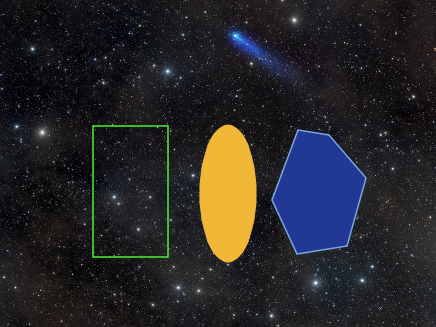
DynamicDraw is useful whenever we want to add graphical elements to an image: annotating or marking a region, blocking out an area with a flat color, sketching frames and guides, drawing arrows or callouts as line/shape combinations, or recoloring a region selected by tone with the magic-wand fill.
2 Setup and Installation
[hide]
The only official distribution of DynamicDraw is through DSC Hub, our free PixInsight process for installing and updating everything Deep Sky Colors makes. One address covers every one of our processes:
https://repo.deepskycolors.com/
Adding that repository to PixInsight installs DSC Hub, and PixInsight handles that installation itself, with our Developer and Repository certificates verified before it completes. We then open PROCESS > DeepSkyColors > DSCHub, select DynamicDraw in the list, and click Download and install.
DSC Hub checks every download against a catalog that is digitally signed, and refuses anything whose checksum does not match. PixInsight then verifies the module's own signature every time it loads it, so a module altered after we published it is refused.
Keep that repository in the list. DSC Hub tells us at startup when an update for DynamicDraw is waiting, and installs it in a couple of clicks. There is nothing else to add: the older per-module repositories are no longer needed, and DSC Hub offers to clear them away.
If you'd rather bypass DSC Hub and add one repository per process, DynamicDraw still has its own: https://repo.deepskycolors.com/DynamicDraw/ DSC Hub will offer to remove it. Do NOT use these individual repositories and DSC Hub at the same time. We would be asked to install the same modules twice, if we do.
2.1 Launching DynamicDraw
DynamicDraw is a dynamic process, so it operates on whichever view we point it at first, and then we work with DynamicDraw to compose our drawing, rather than adjusting parameters on the process dialog first and then selecting a target when we are ready to apply.
To launch it:
- Open the image we want to work on.
- In Process Explorer or via the PROCESS menu, locate DynamicDraw under either the DeepSkyColors or Painting categories.
- The DynamicDraw interface opens and PixInsight enters dynamic mode.
- Move the cursor over the target image and begin drawing. The first stroke selects that view as the target.
While in dynamic mode the cursor changes over a valid target view, and everything we draw is rendered live on top of the image. Nothing is permanently written to the image until we Execute the process.
2.2 Licensing
DynamicDraw runs on a trial-then-registered licensing model. During the trial period, the tool is fully functional with no feature restrictions. When the trial expires, DynamicDraw will display a notice at startup and will not open until a valid registration key is entered (see 3.9 Registration and licensing). No internet connection is needed: keys are validated offline.
3 The DynamicDraw Interface
[hide]
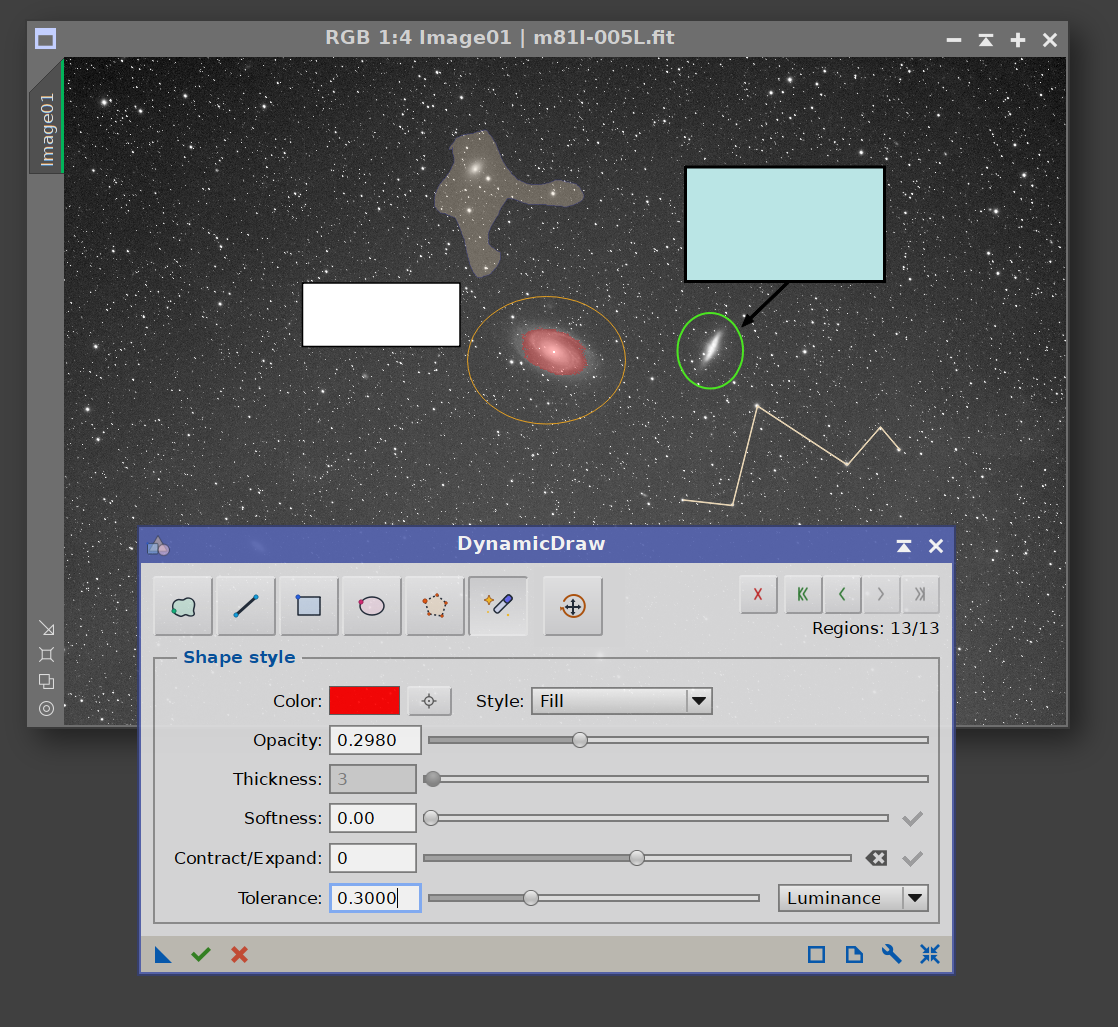
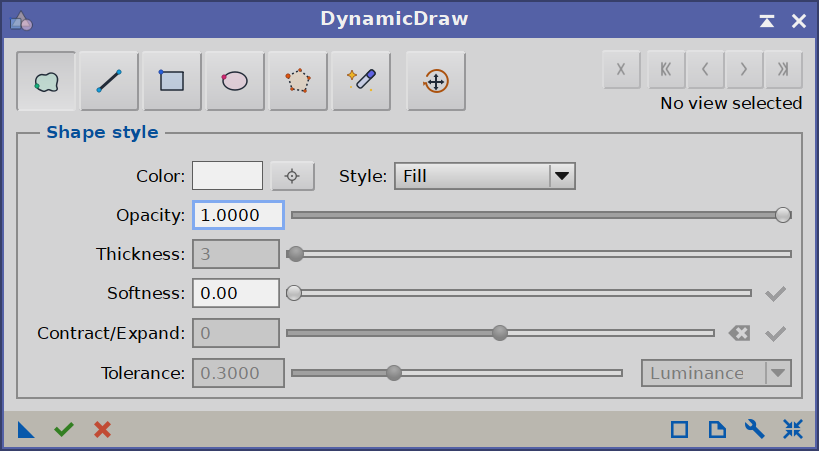
The DynamicDraw panel is organized top to bottom into: a tool toolbar (which also holds the history controls and a shape counter at its right end), a Shape style group containing the appearance controls (Style, Color, Opacity, Thickness, Softness) together with the Contract/Expand and Magic Wand (Tolerance) controls, and the classic PixInsight interface bar at the very bottom. The rest of the interaction happens directly on the image, where we draw and see the live result.
3.1 Toolbar

The toolbar at the top of the panel holds the drawing-mode tools, plus the history controls at its right end. The drawing-mode buttons are mutually exclusive. We pick one.
- Freehand: Drag to trace an arbitrary path. In Fill or Fill and outline style the path is closed into a region when we release the mouse; in Outline style it is drawn as an open, round-capped brush stroke of the chosen thickness, ending where we lift the mouse (no closing edge back to the start).
- Line: Drag from a start point to an end point to draw a straight stroke. Hold Shift to snap the line to the nearest 45°. A line is always stroked by its thickness; in plain Fill style it is drawn as a 1-pixel hairline.
- Rectangle: Drag from one corner to the opposite corner. Hold Shift while dragging to constrain it to a square.
- Ellipse: Drag to define a bounding rectangle; the ellipse is inscribed in it. Hold Shift to constrain to a circle.
- Polygon: Click to place straight-edged vertices one at a time; a rubber-band edge follows the cursor between clicks. Close the polygon by clicking on the first vertex, by double-clicking anywhere, or by pressing Enter. Backspace (or Delete) removes the last placed vertex, and Esc abandons the polygon.
- Magic Wand: A fill tool. Click a pixel to detect a contiguous area of similar pixels (a flood fill from the click point) and paint it with the current color. How similar a neighbor must be, and whether similarity is judged by luminance or by RGB, is set by the Magic Wand options. The wand is a single click — there is no drag.
One more button sits to the right of the drawing tools, set slightly apart. It is a toggle, not one of the mutually-exclusive drawing modes above:
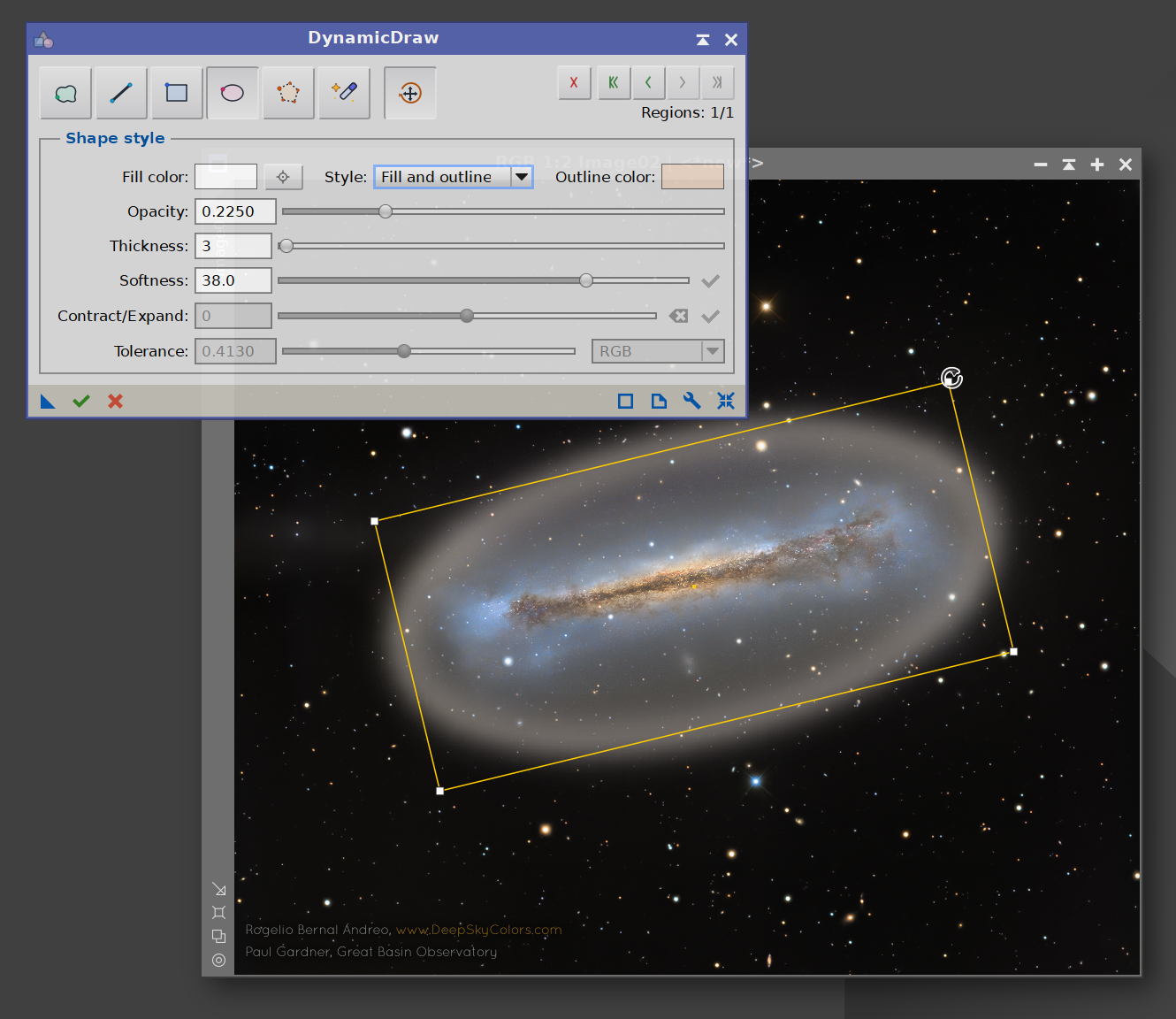
- Move / Rotate: An edit mode rather than a drawing tool. When active, drawing is suspended and a transform box appears on the shape we drew most recently, letting us drag it to a new position, rotate it by a corner handle, or resize it by a side handle. See Moving, rotating and resizing shapes.
Every shape we draw inherits the current Shape style — color, opacity, fill or outline, thickness and softness — captured at the moment we commit the shape. There is no add/subtract or invert: each action simply paints onto the image, in the order drawn, and later shapes composite over earlier ones according to their opacity.
3.2 Shape style
The Shape style group defines how the next shape will look. These attributes are captured per shape at the moment it is committed, so shapes with different colors, opacities and styles can coexist in the same drawing.
- Style: How the shape is painted:
- Fill: Paint the shape's interior with the color.
- Outline: Stroke only the shape's edge, to the Thickness below, with the color.
- Fill and outline: Paint the interior with the (fill) color and stroke the edge with a separate Outline color.
- Color: The draw color. Click the swatch to open the color picker. In Fill and outline mode this label changes to Fill color and a new Outline color swatch appears. On monochrome images the color is written as its luminance.
- Opacity: (0–1) How opaque the new shape is. 1 is fully opaque; lower values let the underlying image show through.
- Thickness: The outline width in pixels. It is enabled only when the Style is Outline or Fill and outline (in plain Fill mode it is disabled and ignored).
These style attributes are also editable after the fact, exactly like Softness. Each is stored per shape, so as we travel the history (see History bar) the controls update to show the current shape's color, opacity, thickness and style. A small Apply (checkmark) button sits at the end of the Opacity row and the Thickness row, and one more at the right of the Style row applies the color, style and outline color together. A button lights up whenever its control differs from the current shape's stored value, signalling a pending change; clicking it commits the new value to that shape in place. As with Softness, this is not a separate history step: undoing the shape removes the change along with it. The Thickness button, like the slider, applies only to shapes that carry an outline or stroke.
3.3 Color picker and eyedropper
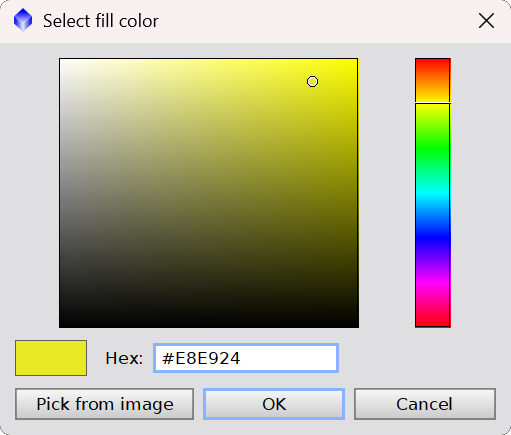
Clicking either color swatch opens the DynamicDraw color picker: a saturation/value square with a hue strip, a hexadecimal color field, and a Pick from image button. The dialog title tells us which color we are editing — Select fill color or Select outline color — depending on the swatch and the current Style.
The eyedropper button (in the Color row, labeled Pick color from image) lets us sample a color straight from the target view. We click the eyedropper to arm it — the cursor changes to a pipette — and then click anywhere on the image to set the current color from the pixel we clicked (a small average around the click point). The eyedropper fills whichever color is active: the fill color, or the outline color when we armed it from the outline swatch's Pick from image. Clicking the eyedropper again, or sampling once, disarms it.
3.4 Softness
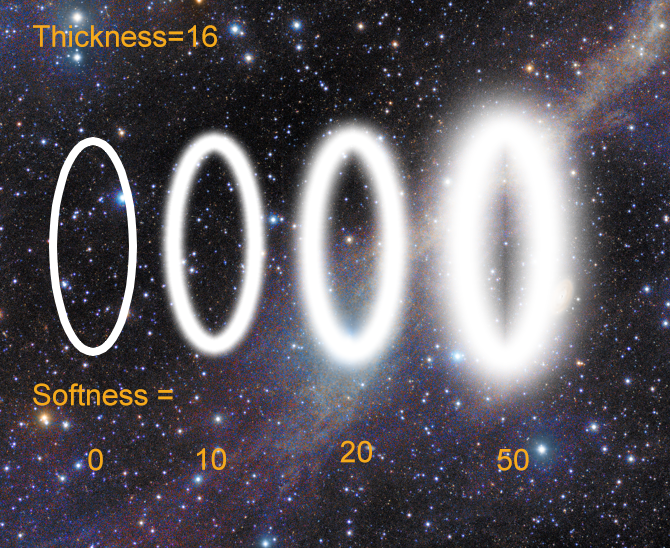
The Softness control sets a soft-edge radius (a Gaussian sigma, in pixels, up to 50) applied to new shapes as we create them. A softness of 0 produces a crisp, hard edge; larger values fade the shape's border into the image.
Softness adds the soft transition outward, beyond the shape's edge — it never shrinks or moves the geometry. A shape drawn at softness 8 covers exactly the same area as the same shape at softness 0, plus a feathered halo around it. This makes it safe to soften a shape without it creeping inward from where we drew it.
Softness is stored per shape: each shape remembers the value it was drawn with. As we move through the history (see History bar), the slider updates to show the softness of the current shape. To change the softness of a shape we have already drawn, we navigate the history to that shape, set the slider to the new value, and click the small Apply (checkmark) button at the end of the Softness row. The button lights up whenever the slider differs from the current shape's stored value, signalling a pending change; clicking it re-softens that shape in place. This is not a separate history step — undoing the shape removes the softness change along with it.
3.5 Contract / Expand
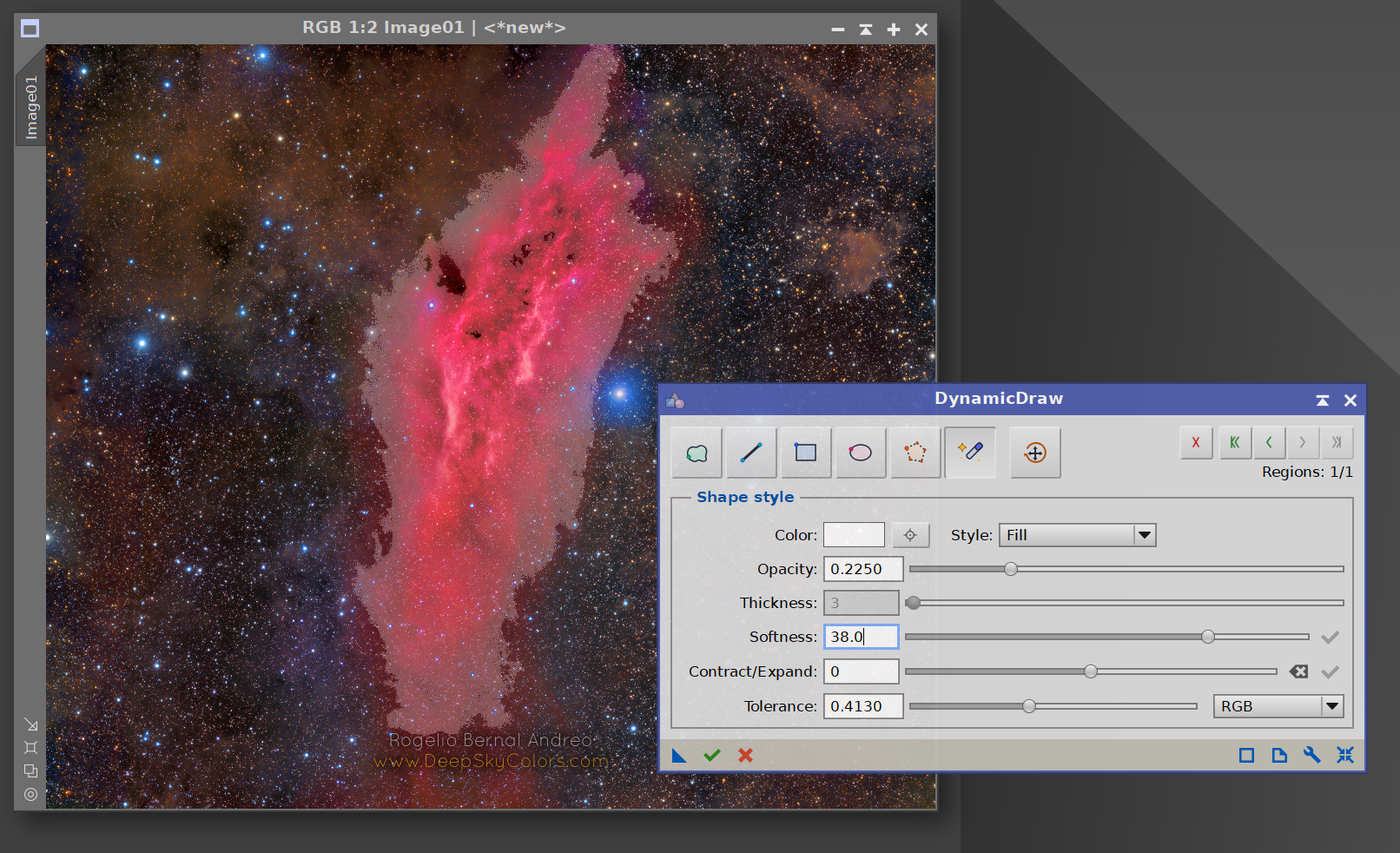
The Contract/Expand control resizes a region by a number of pixels. It applies to the Magic Wand fill only — for the drawn shapes (freehand, line, rectangle, ellipse, polygon) we simply draw them at the size we want, so the control is disabled in those modes.
- Negative values contract (erode) the detected region, pulling the filled edge inward.
- Positive values expand (dilate) the region, pushing the filled edge outward.
- Zero leaves the detected region unchanged.
Like Softness, Contract/Expand is stored per wand fill: the value applies to new wand fills as we make them, the slider tracks the current wand node as we travel the history, and an Apply (checkmark) button at the end of the row commits a new value to a wand fill we have already made (it lights up while a change is pending). The reset button next to it returns the displayed amount to 0. This is handy for tightening a wand fill just inside a tonal boundary, or growing it to safely cover a structure plus a margin.
3.6 Magic Wand options
These two controls govern the Magic Wand fill tool and are active only while the wand is the selected drawing mode:
- Tolerance: (0–1) How different from the clicked pixel a neighboring pixel may be and still join the region. A low tolerance grabs only pixels very close to the seed; raising it grows the region to span a wider range of tones or colors.
- Metric — how similarity is measured. Luminance compares brightness; RGB compares the individual color channels (the largest per-channel difference must stay within tolerance), which is more selective about color.
The wand grows a contiguous area. It spreads outward from the click point through connected matching pixels and stops at borders that exceed the tolerance, so it does not paint matching pixels elsewhere in the image. The detected region is then filled with the current color, honoring the current Style, opacity, softness and Contract/Expand, and is recorded as an ordinary shape in the history.
3.7 History bar
The History buttons —
We can jump to any state in our history, then edit that shape's style, opacity, thickness or softness (or a wand fill's contract/expand), or delete the shape from the sequence, leaving all other shapes untouched.
The right end of the toolbar holds a set of history controls with a shape counter beneath them. Every shape we draw is one step we can move through:
- Delete: Remove the current/last shape.
- Undo All: Jump back to the empty state.
- Undo: Step back one shape.
- Redo: Step forward one shape.
- Redo All: Jump forward to the most recent shape.
The information label reports the current state (the number of shapes drawn versus the total in the history). Keyboard shortcuts work while the cursor is over the image (dynamic mode):
-
Ctrl+Z Undo Ctrl+Shift+Z Undo All Ctrl+Y Redo Ctrl+Shift+Y Redo All Delete Delete
This in-interface history lets us compose freely before committing anything. Once we Execute, the whole composition is painted onto the image as a single PixInsight process-history step, which we can also undo the normal way.
3.8 Moving, rotating and resizing shapes
The Move / Rotate button on the toolbar (to the right of the Magic Wand) is an edit toggle rather than a drawing tool. While it is active, drawing is suspended and an oriented bounding box is shown around the current shape (the most recent one in the history).
- Move: Drag anywhere inside the box to slide the shape to a new position.
- Rotate: Drag one of the four corner handles to turn the shape about its centre. The box stays glued to the shape, so it keeps hugging it at any angle.
- Resize: Drag one of the four mid-side handles to stretch or shrink the shape along that one axis, with the opposite edge held in place. This works at any rotation: a handle pulls along the box's own (tilted) edge, not the screen axes.
The cursor shows what a drag will do: a four-way arrow over the body (move), a rotate cursor over a corner, and a double-headed arrow over a side handle (resize). To transform an earlier shape, step back through the history until it becomes the current shape, then grab its box. Magic-Wand fills cannot be moved, rotated or resized. Their geometry is tied to the image pixels they were grown from, so transforming a magic wand fill is not possible.
A move or rotation is applied to the current shape in place: it is part of that shape rather than a separate history step, and it is saved with the instance, so a repositioned or rotated shape survives Execute, save-to-icon and reload. Navigating the history (undo / redo / delete, by button or keyboard) automatically leaves Move/Rotate mode.
3.9 Registration and licensing
The Preferences button (the wrench icon on the process interface bar) opens the DynamicDraw license information dialog. This dialog reports the current license state:
- Licensed — shows the email the module is licensed to.
- Trial — shows the number of trial days remaining.
- Expired — prompts us to register to keep using the tool.
When the module is not yet licensed, the dialog shows a “Click here to register” link. Clicking it opens the registration dialog, where we enter our email and license key. The fields are validated as we type, and the Register button enables only once a valid email/key pair is entered. After a successful registration the info dialog refreshes in place to the “licensed to” state — no need to reopen it.
4 Drawing with DynamicDraw
[hide]
A typical drawing workflow:
Launch DynamicDraw and move the cursor over the target image. The first stroke locks that view as the target.
Choose a drawing mode (Freehand, Line, Rectangle, Ellipse, Polygon, or Magic Wand) from the toolbar. For the Magic Wand, set the Tolerance and metric first (see Magic Wand options).
Set the Shape style: pick a color (or sample one with the eyedropper), choose Fill / Outline / Fill and outline, and set Opacity, Thickness and Softness. Each shape keeps the style it was drawn with, so we can change these between shapes.
Draw the shape. It is composited onto the image immediately and appears live, exactly as it will be applied.
Add more shapes as needed. Later shapes draw over earlier ones according to their opacity.
Reposition, rotate or resize any shape with the Move / Rotate toggle (see Moving, rotating and resizing shapes): drag the box to move it, a corner to rotate it, a side handle to resize it.
Use the history controls (or Ctrl+Z / Ctrl+Y) to step back and forth as we refine the composition, and the per-shape Apply (checkmark) buttons (color/style, opacity, thickness, softness, or a wand fill's contract/expand) to tweak a shape after the fact.
When satisfied, Execute the process (apply it to the view). DynamicDraw paints the whole composition onto the active image as one undoable history step.
How the drawing is composited (overview). Shapes are processed in the order they were drawn. For each shape, DynamicDraw builds its coverage (the filled interior, or a centered outline band of the chosen thickness, or both), applies any outward softness, and blends the shape's color into the image using out = src·(1−a) + color·a, where a is the shape's coverage scaled by its opacity. On monochrome targets the color is reduced to its luminance. The result is written directly to the target view's pixels.
5 Usage tips and tricks
[hide]
Build complex graphics incrementally. Many small shapes, each with its own color and style, are often easier to control than one elaborate freehand trace.
Use Rectangle/Ellipse with Shift for clean squares and circles, and Line with Shift for perfectly horizontal, vertical or 45° strokes.
Reach for the Polygon tool for straight edges. When a boundary is better described by a few straight segments than by a shaky freehand trace, click the corners. And remember, Backspace can undo the last vertex before closing.
Let the Magic Wand do the tracing when a region is defined by tone or color. Start with a low Tolerance and raise it until the fill just covers what we want; switch the metric to RGB when color, not brightness, separates the area from its surroundings.
Set the style before drawing each shape. Because color, opacity, style, thickness and softness are stored per shape, we can freely mix, say, a soft translucent fill behind a crisp opaque outline.
Soften without shrinking. Softness adds its falloff outward, so raising it never pulls the shape in from where we drew it — draw at the size we want, then soften as much as we like.
Combine Fill and outline for callouts and frames: a translucent fill plus a contrasting outline color reads clearly over a busy image.
Sample colors from the image with the eyedropper to match an existing tone exactly — useful for blending a fill into the background or picking a star/nebula color.
Reposition instead of redrawing. Placed a shape slightly off, want it at an angle, or need it a touch larger? Turn on Move / Rotate and drag the box to move it, a corner to rotate it, or a side handle to resize it, with no need to draw it again. Step back in the history first to grab an earlier shape.
Use the keyboard while drawing: Ctrl+Z / Ctrl+Y (and the Shift variants for all-the-way) let us experiment without leaving the image.
Save our work as a process icon. Because the full set of shapes is serialized into the instance, we can drag the instance to a process icon and re-apply or tweak the exact same composition later.