
Assign Profile
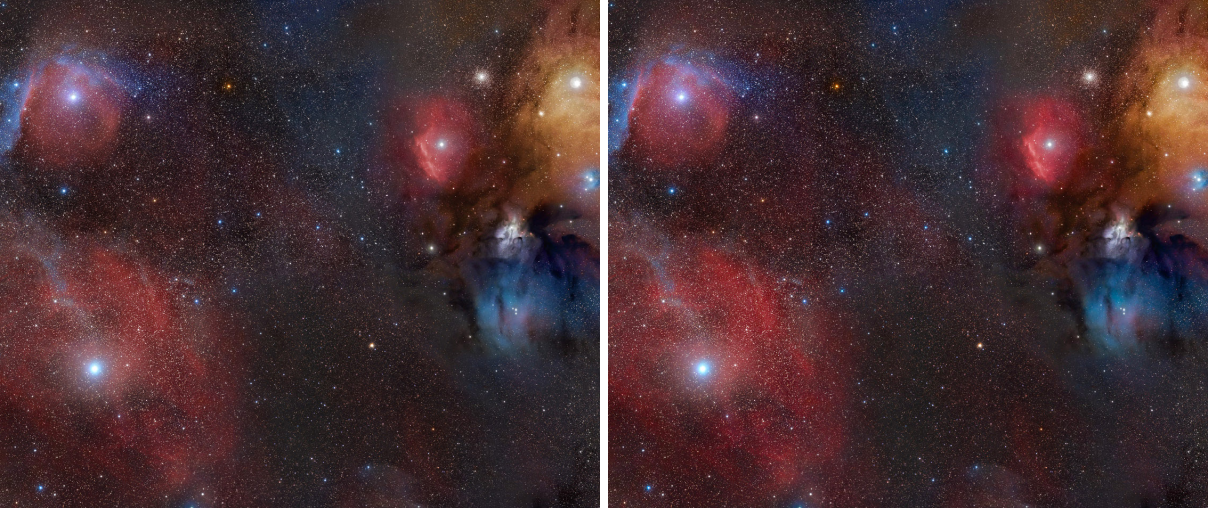
An image tagged with an ICC profile, the pixels unchanged
Assign Profile tags an image with an ICC profile, the default profile (sRGB), or none. The pixels do not change: what their numbers mean changes, and the display shows the image accordingly. We use it when a file arrives with the wrong profile, or none, and we know what it should be.
1Introduction
An image's profile is the ICC profile its metadata carries. XISF, TIFF, PNG and JPEG files keep one. An image without a profile is taken as sRGB, a gray image as gray with the sRGB curve. The Log names the profile when an image opens, and the status bar shows it, with "no profile (sRGB)" for an image without one.
The display takes the pixels as encoded in the image's profile and transforms them to the profile of the screen, so the colors on the screen follow the tag. Assigning another profile therefore changes how the image looks, not its numbers. If the numbers are right for the new profile, the image looks right; if they are not, Convert to Profile is the process that changes the numbers to keep the colors.
Assign Profile follows PixInsight's AssignICCProfile by its parameters, and a PixInsight icon of that process opens here.
2Quick Start
- Open the image and choose .
- Under Assign, choose The profile below and pick the Profile, or choose The default profile (sRGB).
- Click Apply. The status bar shows the new profile.
3Interface & Parameters
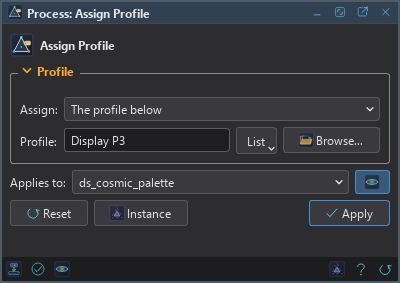
The panel has one section, Profile, then the image the process applies to, the buttons and the system bar along the bottom.
3.1Profile
Assign: What the image is tagged with:
- The profile below: the profile named under Profile.
- The default profile (sRGB): sRGB, or gray with the sRGB curve for a gray image: what an image without a profile is shown as. The default.
- No profile (shown as sRGB): the image is left untagged, and shown as sRGB.
Profile: With The profile below: a built-in profile, the name of a profile installed on the system, or a
profile file (.icc or .icm). It must be an RGB profile for a color image and a gray profile for a
gray one. The built-in profiles are sRGB IEC61966-2.1, sRGB (linear), Display P3, Adobe RGB (1998) compatible, Rec. 2020,
Rec. 2020 (linear), Gray (sRGB curve) and Gray (linear). "Adobe RGB (1998)" means the installed profile of that name when there
is one, else the compatible one.
3.2Apply and Instance
Applies to: The image the process works on, chosen in a list of the open images. It shows the image in front, and follows it as we bring other images to the front. Picking another image in the list makes the panel work on that one without bringing it to the front, and Follow Active, the small button that appears beside the list, makes the panel follow the image in front again.
Apply: Tags the image named in Applies to, in one history step that Undo takes back. The pixels are not changed.
Instance: Shows the process as the panel has it now, as text: a DSPX process
(.dsproc) or a PixInsight process icon (.xpsm), chosen under Format. Copy puts the text
on the clipboard; Save... saves it as a file and puts it on the Process Shelf.
Reset: Puts every setting back to its default.
The system bar along the bottom has the same commands as small icons: at the left, drag to apply and Apply; at the right, Instance, Help (this page) and Reset.
4Usage Tips and Tricks
A wide gamut file without a tag. A file from a camera or an editor that works in Adobe RGB or Display P3 may arrive untagged. Assigning the profile it was made in brings the colors back to what they were meant to be.
Assign is not convert. To move an image to another profile and keep how it looks, use Convert to Profile. Assign changes how the same numbers look.
Linear data. A linear image is shown through its screen stretch; the profile still says which primaries and white its numbers are in.
5Related Tools
Convert to Profile: converts the pixels to another profile, keeping the colors.
Convert Color: converts between gray and color.
Sample Format: changes the sample type of the image.