
Convert Color
A color image to gray, or a gray image to color
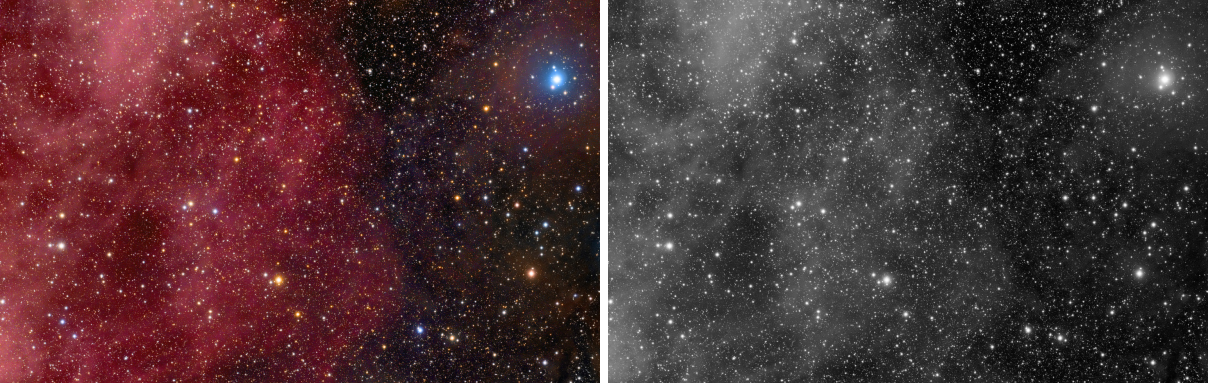
Convert Color turns a color image into a gray one, its lightness, or a gray image into a color one, with the gray in red, green and blue. We use it to make a monochrome version of a color image, and to give a gray image three channels so that it can be colored, combined or blended with color images.
1Introduction
A color image becomes gray through its CIE L*, the lightness as the eye perceives it, computed in sRGB with a D50 white, the working space our color processes share with PixInsight. Green weighs most in it, red less and blue least, so a blue nebula comes out darker than a red one of the same brightness on the screen, as it looks. The result has one channel.
A gray image becomes color by copying its channel into red, green and blue: the image looks the same, but it now has three channels, which a color process, a layer or a combination can use.
Alpha channels, the sample format, the FITS keywords, the properties and the astrometric solution are kept. The color profile follows the image: converting to gray removes an embedded RGB profile, since L* is already a perceptual gray; converting to color turns an embedded gray profile into the RGB profile with the same neutrals, so the image looks as it did.
Convert Color is our own engine, one process for two of PixInsight's: a PixInsight icon of ConvertToGrayscale opens as Convert Color to grayscale, one of ConvertToRGBColor as Convert Color to RGB, and the panel saves the one that matches its setting.
2Quick Start
- Open the image and choose .
- Choose Convert to: Grayscale for a color image, RGB color for a gray one. With the live preview (the eye) on, the result shows on the image at once.
- Click Apply.
3Interface & Parameters
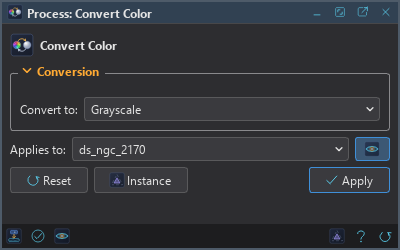
The panel has one section, Conversion, which folds away with the arrow beside its title. Under it are the image the process applies to with the live preview's eye, the buttons and the system bar along the bottom.
3.1Conversion
Convert to: What the image becomes:
- Grayscale: the default. One channel, the CIE L* of the colors. A gray image is refused: it is gray already.
- RGB color: three channels, each a copy of the gray. A color image is refused: it is in color already.
3.2Apply, Preview and Instance
Live preview (the eye): At the end of the Applies to row; Preview in the system bar is the same switch. On by default. The image shows the conversion over the part in view, with the banner "PREVIEW only, nothing applied"; the image itself does not change until Apply. Before, in the banner, or the backslash key held, shows the image as it is.
Applies to: The image Convert Color works on, chosen in a list of the open images. It shows the image in front, and follows it as we bring other images to the front. Picking another image in the list makes the panel work on that one, its live preview included, without bringing it to the front; the pick stays while we work on other images, and Follow Active, the small button that appears beside the list, makes the panel follow the image in front again. An image that a tool or a run is working on is listed, but cannot be picked.
Apply: Converts the image named in Applies to, in one history step that Undo takes back with the image as it was, its profile included. A mask does not apply: the old and the new pixels have a different number of channels, so they cannot be mixed. The selection and the image's mask stay.
Instance: Shows the process as the panel has it now, as text: the settings as a DSPX
process (.dsproc) or as a PixInsight process icon (.xpsm) of ConvertToGrayscale or
ConvertToRGBColor, chosen under Format. Copy puts the text on the clipboard; Save... saves it as a
file and puts it on the Process Shelf.
Reset: Puts the setting back to its default, Grayscale.
The system bar along the bottom of the panel has the same commands as small icons: at the left, drag to apply and Apply; at the right, Instance, Help (this page) and Reset. Drag to apply, the first icon, carries the process with its settings: dropped on an image's window, it converts that image, whatever image the panel works on; dropped on the Process Shelf, it is kept there as a row of its own. With , the bar alone has them.
4Lightness and the Two Modes
The gray is CIE L* in both of DSPX's modes, chosen with PixInsight compatibility mode in . They differ only for values outside the range from 0 to 1, which a floating point image can hold:
- PixInsight compatibility mode on: the lightness is computed from the samples as they are, exactly as PixInsight's ConvertToGrayscale computes it, sample for sample.
- Off: each sample is first brought into the range from 0 to 1, and the lightness is kept within it, so a negative or overexposed value never gives a gray below black or above white.
The mode is off by default. For an image whose values are all within the range, as nearly all are, the two give
the same gray; to RGB is the same in both modes. A conversion to gray records the mode it ran in: the Log says it, and
the step's details in the History panel end with it. A .dsproc keeps the mode it was made in; a PixInsight
icon always opens in PixInsight's way.
5Where It Can Be Used
Convert Color changes the image's format, so for now it cannot be a step of a process container, cannot be a process layer, and does not work on a layer: a layer's image is always in color. Siril scripts can run it.
6Usage Tips and Tricks
A monochrome version. For a gray rendering with a different weighting of the colors, mix the channels first with Pixel Math, or reduce the saturation to zero with Saturation, which keeps three channels.
Color a gray image. Convert a luminance or a narrowband master to RGB color before tinting it with Curves, or before blending it as a layer with color images.
A mask from a color image. Most masks are gray: convert a copy of the image to grayscale and work on it with Curves or Blur, or make the mask directly with Range Mask.
7Related Tools
Channel Extraction: any channel or color component as a gray image, the image itself unchanged.
Channel Combination: three gray images into one color image.
Sample Format: the other change of format, of the samples' type.