
Convert to Profile
The pixels converted to another ICC profile, the colors kept
Convert to Profile converts the pixels of an image from its ICC profile to another one, and tags the image with it. The colors stay the same; the numbers change to express them in the new profile. We use it to prepare an image for a destination, such as sRGB for the web, or to move an image into a wide gamut space.
1Introduction
The same color has different numbers in different profiles. A conversion computes the numbers a color needs in the target profile, so the image looks the same but is written in other terms. The source is the image's own profile, or sRGB when it has none. Colors the target cannot hold are brought into it by the rendering intent.
The conversion works in double precision, with Little CMS. Integer images are clipped to their range; floating point ones keep values outside the range where the profile's curves allow it: the sRGB curve does, a pure gamma curve takes negative values to 0. A color image takes RGB profiles only, a gray one gray profiles.
Convert to Profile follows PixInsight's ICCProfileTransformation by its parameters, and a PixInsight icon of that process opens here. Assign Profile is the process that changes the tag and not the pixels.
2Quick Start
- Open the image and choose .
- Leave To the default profile (sRGB) on, or turn it off and choose the Profile.
- Click Apply. The status bar shows the new profile.
3Interface & Parameters
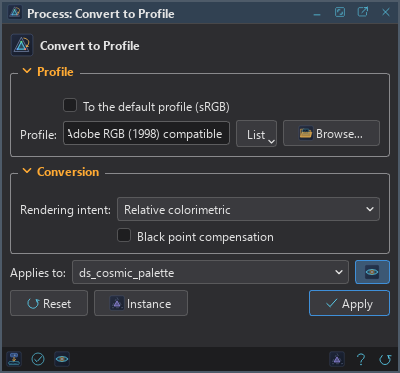
The panel has two sections, Profile and Conversion, then the image the process applies to, the buttons and the system bar along the bottom.
3.1Profile
To the default profile (sRGB): Converts to sRGB, or to gray with the sRGB curve for a gray image: the profile an image without one is shown as. On by default. Off, the conversion is to the profile below.
Profile: With the default profile off: a built-in profile, the name of a profile installed on the system,
or a profile file (.icc or .icm): RGB for a color image, gray for a gray one. The built-in profiles are
sRGB IEC61966-2.1, sRGB (linear), Display P3, Adobe RGB (1998) compatible, Rec. 2020, Rec. 2020 (linear), Gray (sRGB curve) and
Gray (linear).
3.2Conversion
Rendering intent: How colors the target cannot hold are brought into it: Perceptual, Saturation, Relative colorimetric (the default) or Absolute colorimetric. Matrix profiles, such as sRGB, Adobe RGB and Rec. 2020, know only the colorimetric intents: for them perceptual and saturation are relative colorimetric.
Black point compensation: Maps the darkest black of one profile to the other's. Off by default. It changes nothing between profiles whose black is zero, as the built-in ones.
3.3Apply and Instance
Applies to: The image the process works on, chosen in a list of the open images. It shows the image in front, and follows it as we bring other images to the front. Picking another image in the list makes the panel work on that one without bringing it to the front, and Follow Active, the small button that appears beside the list, makes the panel follow the image in front again.
Apply: Converts the image named in Applies to, in one history step that Undo takes back. The conversion is always in floating point.
Instance: Shows the process as the panel has it now, as text: a DSPX process
(.dsproc) or a PixInsight process icon (.xpsm), chosen under Format. Copy puts the text
on the clipboard; Save... saves it as a file and puts it on the Process Shelf.
Reset: Puts every setting back to its default.
The system bar along the bottom has the same commands as small icons: at the left, drag to apply and Apply; at the right, Instance, Help (this page) and Reset.
4Usage Tips and Tricks
For the web. Convert to sRGB before saving for the web, where profiles are often dropped. Saving as displayed can also convert to sRGB for 8-bit PNG and JPEG files.
Convert, then edit. To edit in a wide gamut space, convert to it first. The colors do not change, and the processes that follow work on the numbers of that space.
Relative colorimetric with black point compensation. It is the usual choice for photographic images, and the default intent. Compensation matters only for profiles whose black is not zero.
5Related Tools
Assign Profile: changes the tag, not the pixels.
Convert Color: converts between gray and color.
Sample Format: changes the sample type of the image.