
Blur
Convolution with a Gaussian, any bell, or a kernel of our own
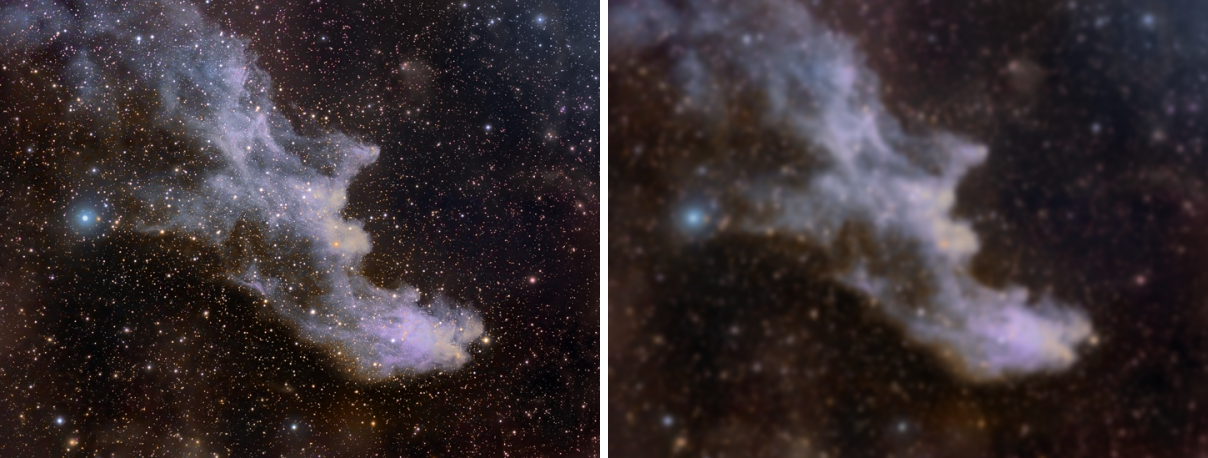
Blur convolves the image with a filter: a Gaussian, a bell of any other profile, round or elongated and turned, or a kernel we write as text. We use it to soften a mask, to smooth the large scale structures of an image, to make a blurred copy for an unsharp mask of our own, and, with a kernel of negative coefficients, to find edges.
1Introduction
A convolution replaces each pixel by a weighted mean of the pixels around it, the weights given by the filter. A Gaussian, the default, blurs evenly in every direction, by an amount set by its standard deviation in pixels. Its shape can be made sharper, with a narrow peak and wide wings, or flatter, with a steep edge; its aspect ratio makes it elongated, and its rotation turns it, which is how a trail or a motion blur is imitated.
The library filter mode takes a filter written as text, in the form PixInsight's filter library uses: a square kernel of coefficients, or a separable filter given by a row and a column. Six filters of our own are there to start from: two box filters, a binomial, a Gaussian, a sharpening kernel and a Laplacian for edges.
Every channel is convolved, alpha channels too, as in PixInsight; the image's borders are mirrored, so the edges do not darken; the result is normalized by the sum of the coefficients, so a blur keeps the image's brightness. A round Gaussian is computed exactly as PixInsight computes it; larger filters go through the Fourier transform, in tiles, on every core.
Blur is our own engine, with the parameters of PixInsight's Convolution: a PixInsight icon of Convolution opens here, and the panel saves one that PixInsight opens.
2Quick Start
- Open the image and choose . With the live preview (the eye) on, the blur shows on the image at once.
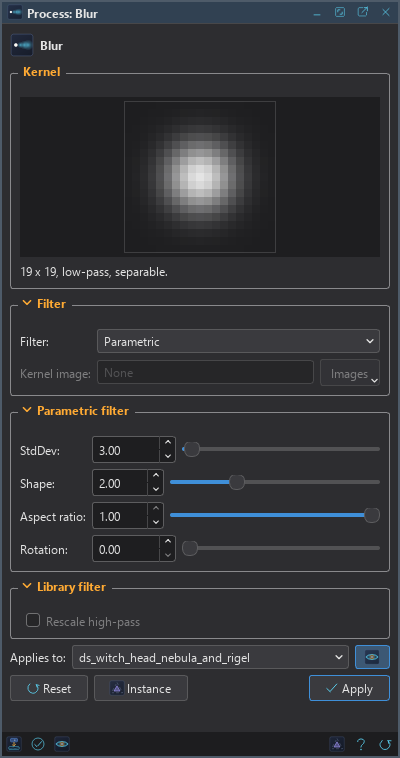
- Set StdDev, the size of the blur in pixels. The Kernel picture at the top shows the filter.
- Click Apply.
3Interface & Parameters
At the top of the panel the Kernel shows the filter the settings give and its size. Below it are three sections, Filter, Parametric filter and Library filter, each of which folds away with the arrow beside its title; in the Library filter mode, the Library filter source appears under the kernel. Under the sections are the image the process applies to with the live preview's eye, the buttons and the system bar along the bottom.
3.1The Kernel
A picture of the filter, made from the settings alone, so it follows every change: bright where the filter weighs most, negative coefficients in the plot's color for what is rejected. Under it, the filter's size and kind, low-pass or high-pass, and separable when it is; or, when there is no filter to use, why.
3.2Filter
Filter: Where the filter comes from:
- Parametric: the default. A bell, from the four settings of Parametric filter.
- Library filter: a kernel or a separable filter written as text, in Library filter source.
- Image: another open image as the kernel, chosen in Kernel image, as PixInsight's Convolution takes a view. This mode has no live preview: Apply shows its result.
Kernel image: In the Image mode, the open image that is the kernel: its first channel, centered on its middle pixel and normalized, at most 1025 pixels a side. A star cut out of an image, or a PSF image, blurs the image with that shape. With none chosen the run does not start, and the line above the buttons says why.
3.3Parametric filter
StdDev: The filter's standard deviation in pixels, along its major axis: how far the blur reaches. From 0.1 to 250; 2 by default.
Shape: The filter's profile, from 0.25 to 6: 2, the default, is a Gaussian; below 2, a sharper peak with wider wings; above 2, flatter, with a steeper edge.
Aspect ratio: The minor axis over the major one, from 0 to 1: 1, the default, is round; smaller values elongate the filter along its major axis.
Rotation: The major axis's angle in degrees, from 0 to 180, counterclockwise from the horizontal as the image is shown. It matters for an elongated filter only.
3.4Library filter source
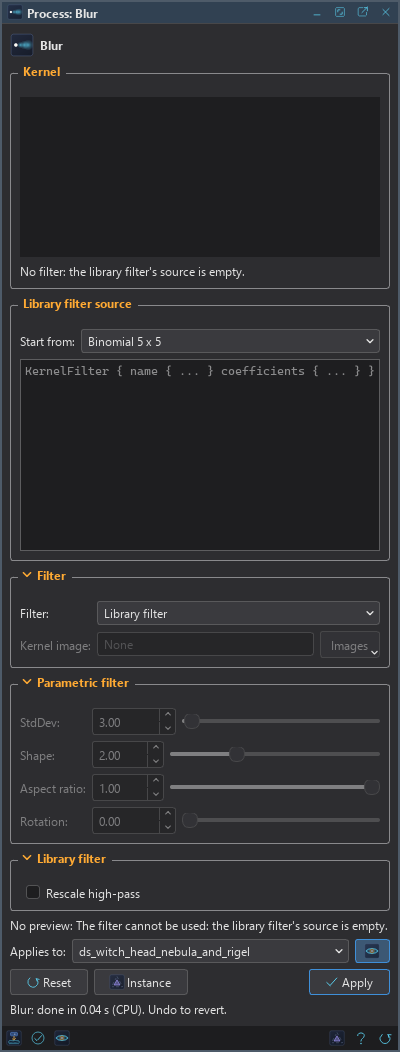
In the Library filter mode, Start from writes one of our six filters into the text, to use as it is or to change: Box 3 x 3, Box 5 x 5, Binomial 5 x 5, Gaussian 7 x 7, Sharpen 3 x 3 and Laplacian 3 x 3. The text below it is the filter:
Filter source: A filter in the form of PixInsight's filter library: KernelFilter { name {
... } coefficients { ... } }, an odd square of coefficients row by row, or SeparableFilter { name { ... }
row-vector { ... } col-vector { ... } }. A filter copied from PixInsight's library works as it is. When the text is
not a filter, the Kernel says why, and Apply does not run.
3.5Library filter
Rescale high-pass: Off by default. A filter with negative coefficients, for sharpening or edges, gives values outside the range from 0 to 1. Off, they are clipped; on, the result is rescaled into the range instead. It applies to a kernel image too.
3.6Apply, Preview and Instance
Live preview (the eye): At the end of the Applies to row; Preview in the system bar is the same switch. On by default. The image shows Blur applied to the part in view, as the settings change, with the banner "PREVIEW only, nothing applied"; the image itself does not change until Apply. Before, in the banner, or the backslash key held, shows the image as it is. At a reduced zoom the parametric filter's standard deviation is scaled with the view, so the preview looks as the result will; a library filter is a kernel of fixed pixels and keeps its size, which the banner says.
Applies to: The image Blur works on, chosen in a list of the open images. It shows the image in front, and follows it as we bring other images to the front. Picking another image in the list makes the panel work on that one, its live preview included, without bringing it to the front; the pick stays while we work on other images, and Follow Active, the small button that appears beside the list, makes the panel follow the image in front again. An image that a tool or a run is working on is listed, but cannot be picked.
Apply: Convolves the image named in Applies to, in one history step that Undo takes back, through the image's mask if it has one. The size, the sample format, the metadata and the astrometric solution stay as they are. The Log says the filter's size and kind.
Instance: Shows the process as the panel has it now, as text: the settings as a DSPX
process (.dsproc) or as a PixInsight process icon (.xpsm) of Convolution, chosen under
Format. Copy puts the text on the clipboard; Save... saves it as a file and puts it on the Process
Shelf.
Reset: Puts every setting back to its default.
The system bar along the bottom of the panel has the same commands as small icons: at the left, drag to apply and Apply; at the right, Instance, Help (this page) and Reset. Drag to apply, the first icon, carries the process with its settings: dropped on an image's window, it applies them to that image, whatever image the panel works on; dropped on the Process Shelf, it is kept there as a row of its own. With , the bar alone has them.
4The Filter in Detail
The parametric filter is exp(−rk / (k σk)), with σ the standard deviation, k the shape and r the distance from the center, measured on an ellipse of the given aspect ratio and rotation. It is sampled on an odd square large enough that what is left out weighs less than 1% of the peak, which is why a standard deviation of 3 pixels gives a 19 x 19 kernel. At a shape of 2 and an aspect ratio of 1 it is a round Gaussian, and is applied as two passes, along the rows and along the columns.
Kernels up to 15 x 15 are summed directly; larger ones through the Fourier transform. Both give the same result to the precision of the image.
5Usage Tips and Tricks
Soften a mask. A mask with hard edges shows its outline in the result. A blur of a few pixels on the mask makes the transition invisible.
Large scale structures. A blur of 20 to 50 pixels leaves only the large structures: subtracted from the image with Pixel Math, it leaves the small ones, a simple multiscale separation.
Edges. The Laplacian 3 x 3 with Rescale high-pass on shows the edges of an image: useful to find the structures a sharpening will act on.
Elongated stars. An elongated filter at the angle of a trail makes a motion blur, for tests of deconvolution or of a star mask.
GPU. In DSPX mode a Gaussian, a library filter or a kernel up to 15 by 15 runs on the graphics card when the image is a quarter of a megapixel or more and the filter is long (a standard deviation of about 4 or more; a smaller filter needs 8 megapixels). A Gaussian with a standard deviation of 30 on a 24 MP image runs several times faster than on the processor. These filters never run there on a Mac with Apple silicon or on a graphics chip built into the processor, where the processor is as fast. The result agrees with the processor's to a few millionths of the range.
A kernel larger than 15 by 15 (a Parametric filter of a standard deviation of about 2.5 or more, a large kernel image), a filter of more than 1023 taps and a Gaussian of more than 1023 taps (a standard deviation of about 170 or more) go through the card's own Fourier transform from 65,000 pixels (256 by 256) up (a quarter of a megapixel on a Mac with Apple silicon or a built-in chip, which they use as well). On a 24 MP color image a standard deviation of 60 runs about 7 times faster than on the processor (an RTX 4070 against 16 cores; 6 times on an M4), and a Gaussian of 190 about 26 times (3 times on an M4). The result agrees with the processor's to a few ten-millionths of the range. Choose CPU only in to keep Blur on the processor, and see The Processor and the GPU.
6Related Tools
Unsharp Mask: sharpens by taking away a Gaussian blur of the image.
Wavelets: separates the image into scales, to blur or lift each of them.
Range Mask: has a smoothness of its own for the masks it makes.
Pixel Math: combines the blurred image with the original.