
Exponential Transformation
A power function whose strength follows a smoothed mask of the image
Exponential Transformation brightens an image with a power function whose exponent changes from pixel to pixel according to a mask, the image itself or a smoothed copy of it. The mid-tones come up while the deepest shadows and the highlights stay, and with smoothing the dark detail inside bright regions comes up too, which compresses the dynamic range.
1Introduction
A plain power function raises every pixel to the same exponent. Exponential Transformation makes the exponent depend on a mask, which is the image itself or the image blurred. Where the mask is dark the exponent stays near 1 and the pixel hardly changes; where the mask is bright the exponent falls toward 0 and the pixel is carried toward white. With the mask the image itself that lifts the mid-tones the most; with the mask blurred it also lifts a dark pixel that sits inside a bright region, so the detail in the shadows of a bright nebula comes up. The lightness blend, on by default, then gives the brightest areas back as they were. The result suits a stretched image with a wide dynamic range, such as a bright nebula core with faint structure inside it.
Two functions are offered. Power of inverted pixels raises each pixel to a power that follows the mask. Screen of the mask inverted screens the pixel with the inverted mask, which brightens in a softer way. The Order sets how far either goes, and Smoothing blurs the mask so that the lift follows the large structures instead of single pixels. A lightness blend, Protect highlights, keeps the bright areas as they were.
Exponential Transformation is our own engine, with the parameters of PixInsight's ExponentialTransformation: a PixInsight icon of that process opens here, and the panel saves one that PixInsight opens.

2Quick Start
- Open the image, usually already stretched, and choose . With the live preview (the eye) on, the result shows on the image as we change the settings.
- Leave Function on Power of inverted pixels and raise Order until the mid-tones have the brightness we want.
- Raise Smoothing to a few pixels if the lift looks grainy or follows single stars.
- Click Apply.
3Interface & Parameters
The panel has one section, Function, then the image the process applies to with the live preview's eye, the buttons and the system bar along the bottom.
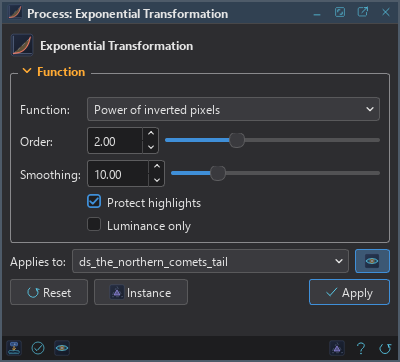
3.1Function
Function: The function applied to each pixel f, with m the mask value and order the Order:
- Power of inverted pixels: f raised to the power (1 − m) to the order. The default.
- Screen of the mask inverted: 1 − (1 − f) times (1 − m) to the order, a gentler lift.
Order: How far the function goes, from 0.1 to 6. 1 is the plain function; larger orders brighten more.
Smoothing: The mask is the image blurred by a Gaussian of this standard deviation, in pixels, from 0 to 50. At 0, the default, the mask is the pixel itself. The blur is scaled with the zoom in the live preview, so the preview matches what Apply gives.
Protect highlights: On by default. The result is blended with the original by each pixel's lightness (CIE L*; the value for a gray image), so the bright areas stay as they were and the lift is felt only in the shadows and mid-tones.
Luminance only: For a color image, applies the function to the luminance and scales the three channels by the ratio, so the colors keep their proportions. The mask is then the blur of the luminance. It is a setting of DSPX and is ignored with the PixInsight compatibility mode on, in .
3.2Apply, Preview and Instance
Live preview (the eye): At the end of the Applies to row; Preview in the system bar is the same switch. The image shows the process applied to the part in view, with the banner "PREVIEW only, nothing applied"; the image itself does not change until Apply. Before, in the banner, or the backslash key held, shows the image as it is.
Applies to: The image the process works on, chosen in a list of the open images. It shows the image in front, and follows it as we bring other images to the front. Picking another image in the list makes the panel work on that one without bringing it to the front, and Follow Active, the small button that appears beside the list, makes the panel follow the image in front again.
Apply: Changes the image named in Applies to, in one history step that Undo takes back, through the image's mask if it has one. Alpha channels are not touched.
Instance: Shows the process as the panel has it now, as text: a DSPX process
(.dsproc) or a PixInsight process icon (.xpsm), chosen under Format. Copy puts
the text on the clipboard; Save... saves it as a file and puts it on the Process Shelf.
Reset: Puts every setting back to its default.
The system bar along the bottom has the same commands as small icons: at the left, drag to apply and Apply; at the right, Instance, Help (this page) and Reset. Drag to apply carries the process with its settings to an image's window, or to the Process Shelf.
4What Exponential Transformation Does
For each channel, the mask m is the pixel value, or the image blurred by Smoothing. With e equal to (1 − m) to the Order, the pixel f becomes f to the power e with Power of inverted pixels, and 1 − (1 − f) times e with Screen of the mask inverted. Where m is near 0, e is near 1 and the pixel keeps nearly its value; as m grows, e falls and the pixel is carried toward white. Protect highlights then blends the result back toward the original in proportion to the pixel's lightness, so what was bright stays as it was.
5Usage Tips and Tricks
Smooth the mask for large structures. With Smoothing at 0 each pixel is lifted by its own value, which also lifts the noise. A few pixels of smoothing make the lift follow the structure of the nebula, and lift the dark detail inside its bright regions.
Keep Protect highlights on for stars. Without it the stars and the bright areas are carried toward white. Turn it off only to push the whole image.
Color images. Luminance only keeps the colors in their proportions when the lift is strong; without it each channel is lifted by its own mask, which shifts the color a little.
Several gentle passes. Two passes of Order 1.5 are usually better behaved than one of Order 3.
GPU. In DSPX mode a large image is processed on the graphics card, about 3 times faster than on the processor, and the live preview updates faster too. A small image stays on the processor, where it is quicker. Choose CPU only in to keep it on the processor, and see GPU Acceleration for what else runs on the card.
6Related Tools
Histogram: the usual first stretch of a linear image; Exponential Transformation comes after it.
Curves: a lift drawn by hand, point by point, when we know which tones to move.
Adaptive Stretch: a stretch whose curve is built from the image's own contrast.
Hyperbolic Stretch: a stretch with control over where the contrast is put.