
Channel Extraction
A color image's channels or components as gray images
Channel Extraction takes a color image apart into gray images: its red, green and blue channels, or the components of a color space, the CIE lightness and color components, the hue, the saturation and the value, and more. The image itself does not change. We use it to process the lightness or one channel alone, to inspect a channel, or to build masks.
1Introduction
Many operations are better done on one component of an image than on all three channels: noise reduction or sharpening on the lightness alone, so the colors are untouched; a mask from the saturation or from one channel; a look at the noise of each channel. Channel Extraction makes each component a gray image of its own, which every process can work on, and Channel Combination or LRGB Combination puts it back.
Six color spaces are offered: RGB, the channels themselves; CIE XYZ; CIE L*a*b*, the lightness and two color components; CIE L*c*h*, the lightness, the chroma and the hue; HSV, the hue, saturation and value; and HSI, the hue, saturation and intensity. Every component is scaled to the range from 0 to 1.
Channel Extraction is our own engine, with the parameters and channel names of PixInsight's ChannelExtraction: a PixInsight icon of ChannelExtraction opens here, and the panel saves one that PixInsight opens.
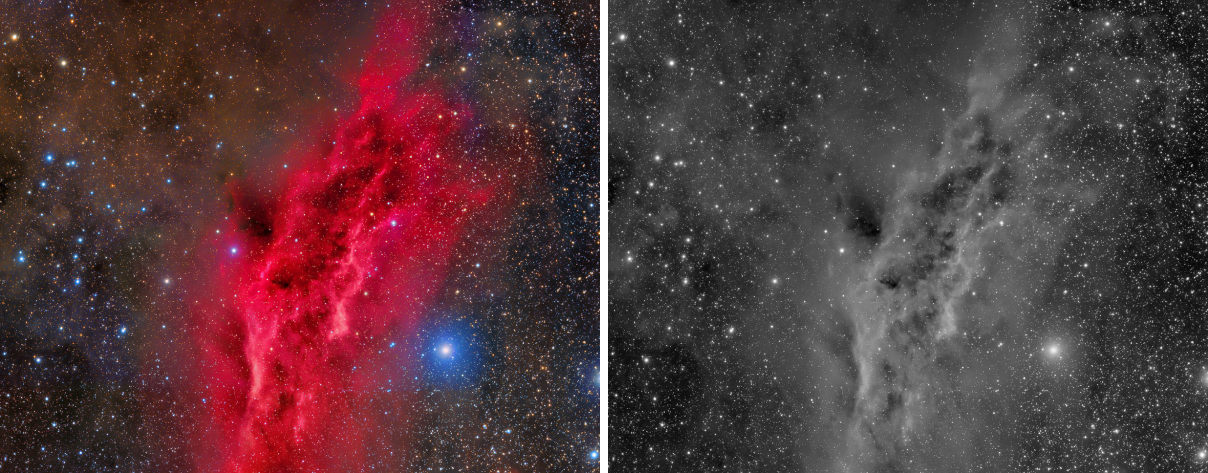
_L image Channel Extraction made of it in CIE L*a*b*: the structure without the color.2Quick Start
- Open the color image and choose .
- Choose the Color space: RGB for the channels, CIE L*a*b* for the lightness.
- In the Channels table, uncheck what we do not need.
- Click Apply. Each component arrives as a new gray image, named after the image and the component:
_R,_G,_B, or_L,_a,_b.
3Interface & Parameters
The panel has one section, Extraction, which folds away with the arrow beside its title. Under it are the image the process applies to, the buttons and the system bar along the bottom. Channel Extraction makes new images, so it has no live preview.
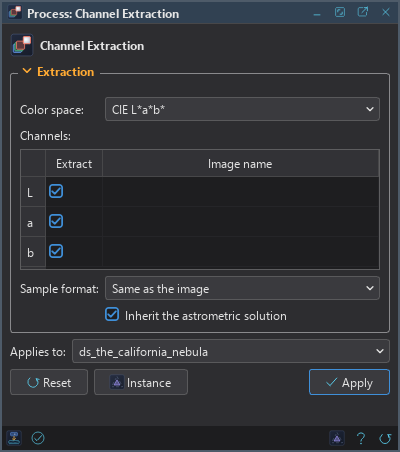
3.1Extraction
Color space: The channels, or the color space whose components are extracted:
- RGB: the default. R, G and B.
- CIE XYZ: X, Y and Z, the linear tristimulus values; Y is the luminance.
- CIE L*a*b*: L, the lightness; a, from green to red; b, from blue to yellow. In a and b, 0.5 is neutral.
- CIE L*c*h*: L, the lightness; c, the chroma; h, the hue angle.
- HSV: H, the hue; Sv, the saturation; V, the value, the largest of the three channels.
- HSI: H, the hue; Si, the saturation; I, the intensity, the mean of the largest and the smallest channel.
The CIE spaces are computed in sRGB with a D50 white, PixInsight's default.
Channels: A row for each component, named after it. Extract includes it; Image name
is the name of the new image. Empty, the image's name and the component's suffix: M31_R,
M31_L, M31_Sv...
Sample format: The new images' sample format: Same as the image, the default, or 8, 16 or 32-bit integer, 32 or 64-bit floating point.
Inherit the astrometric solution: On, the default, each new image keeps the image's astrometric solution, so a channel extracted from a plate solved image is plate solved too. Off, they have none.
3.2Apply and Instance
Applies to: The image Channel Extraction takes apart, chosen in a list of the open images. It shows the image in front, and follows it as we bring other images to the front. Picking another image in the list makes the panel work on that one without bringing it to the front; the pick stays while we work on other images, and Follow Active, the small button that appears beside the list, makes the panel follow the image in front again. An image that a tool or a run is working on is listed, but cannot be picked.
Apply: Makes a new gray image of each component extracted, each in its own tab, with the image's FITS keywords and properties. The image itself is only read: no history step. A gray image is refused, and so is a run with no component checked.
Instance: Shows the process as the panel has it now, as text: the settings as a DSPX
process (.dsproc) or as a PixInsight process icon (.xpsm) of ChannelExtraction, chosen under
Format. Copy puts the text on the clipboard; Save... saves it as a file and puts it on the Process
Shelf.
Reset: Puts every setting back to its default.
The system bar along the bottom of the panel has the same commands as small icons: at the left, drag to apply and Apply; at the right, Instance, Help (this page) and Reset. Drag to apply, the first icon, carries the process with its settings: dropped on an image's window, it extracts that image's components, whatever image the panel works on; dropped on the Process Shelf, it is kept there as a row of its own. With , the bar alone has them.
4Taking Apart and Putting Back
Extraction and combination are exact inverses: an image extracted in any color space and combined again in the same space comes back as it was, to the precision of its samples. That makes a common workflow safe:
- Extract the image in CIE L*a*b*, or extract only L.
- Process the
_Limage alone: sharpen it, reduce its noise, stretch it. - Put it back with Channel Combination, in CIE L*a*b* with only the L row used and Create a new image off, applied to the color image; or with LRGB Combination, with the processed image as L.
5Usage Tips and Tricks
Look at each channel. The R, G and B images show where the noise and the gradients of each channel are, which the color image hides.
Masks from components. The saturation of HSV is a ready mask of the colorful parts of an image; a channel can be the start of a range mask.
Keep the floating point. When the components will be processed and put back, Same as the image on a 32-bit image, or 32-bit floating point, avoids rounding them twice.
6Related Tools
Channel Combination: the reverse, gray images into a color image or its components.
LRGB Combination: a luminance image as the lightness of a color image.
Pixel Math: any channel or component of an image, inside an expression.
Extract Ha and OIII (Dual Band): a script for the image of a dual-band filter (L-Ultimate, L-eXtreme and the like) taken with a one-shot color camera. It makes the Ha image from the red channel and the OIII image from the green and blue channels, with the leak between them taken out if we ask, and it also works on a raw frame.
Range Mask: a mask from a range of brightness.