
Integer Resample
An image reduced or enlarged by a whole-number factor
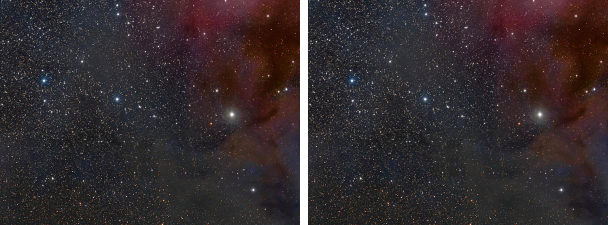
Integer Resample reduces an image by a whole-number factor, so that each block of n by n pixels becomes one, or enlarges it by repeating each pixel. It is a software binning: the blocks are averaged, or their median, maximum or minimum is taken, and no interpolation is involved. The astrometric solution and the pixel size follow.
1Introduction
Resampling by a fraction needs an interpolation: the new pixels are computed from the old ones, and the result is a little different from either. A whole-number factor does not need one. Reducing by 2 makes each 2 by 2 block of pixels one pixel, and enlarging by 2 repeats each pixel in a 2 by 2 block. The reduction by averaging is what binning does at the camera, done afterwards: it raises the signal to noise ratio of every new pixel, at the cost of the resolution.
The block can become its average, its median, its maximum or its minimum. The median is robust to a hot pixel or a cosmic ray in the block. The maximum and the minimum are for special work, such as a mask or an image of the extremes.
The astrometric solution is recomputed for the new size, and the pixel size is scaled. Integer Resample can also set the resolution of the image, the print size in its metadata. It follows PixInsight's IntegerResample by its parameters, and a PixInsight icon of that process opens here. In DSPX's own mode two settings of ours work on the reduction.
2Quick Start
- Open the image and choose .
- Set the Factor: a negative number reduces the image that many times, so −2 gives half the size; a positive number enlarges it that many times.
- When reducing, choose how a block becomes a pixel under Reduce by. Average is the binning.
- Click Apply.
3Interface & Parameters
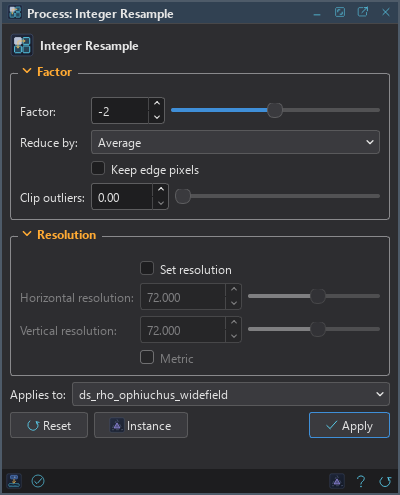
The panel has two sections, Factor and Resolution, then the image the process applies to, the buttons and the system bar along the bottom.
3.1Factor
Factor: Positive enlarges the image that many times; negative reduces it that many times, so −2 is half the size. From −256 to 256. −2 by default. A factor of 1 or −1 does nothing, and the run says so.
Reduce by: What a block of pixels becomes when the image is reduced:
- Average: the mean of the block. The default.
- Median: the block's median.
- Maximum: the block's highest value.
- Minimum: the block's lowest value.
Keep edge pixels: When the size is not a multiple of the factor, keeps the partial blocks at the right and bottom edges, each reduced over the pixels it has, instead of leaving them out. Off by default. The new size is then the old one divided by the factor, rounded up. It is a setting of DSPX and is ignored with the PixInsight compatibility mode on, in .
Clip outliers: With Average only: a block's pixels farther than this many sigmas from its median are left out of the average, such as hot pixels and cosmic rays. From 0 to 10. 0, the default, is off. It is a setting of DSPX and is ignored with the compatibility mode on.
3.2Resolution
Set resolution: Sets the image's resolution, the print size in its metadata, to the values below. Off by default.
Horizontal resolution: Pixels per inch, or per centimeter with Metric, from 1 to 10000. 72 by default.
Vertical resolution: Pixels per inch, or per centimeter with Metric, vertically. 72 by default.
Metric: The resolutions are per centimeter, not per inch. Off by default.
3.3Apply and Instance
Applies to: The image the process works on, chosen in a list of the open images. It shows the image in front, and follows it as we bring other images to the front. Picking another image in the list makes the panel work on that one without bringing it to the front, and Follow Active, the small button that appears beside the list, makes the panel follow the image in front again.
Apply: Resamples the image named in Applies to, in one history step that Undo takes back. A reduction is refused when the image is smaller than the factor.
Instance: Shows the process as the panel has it now, as text: a DSPX process
(.dsproc) or a PixInsight process icon (.xpsm), chosen under Format. Copy puts the text
on the clipboard; Save... saves it as a file and puts it on the Process Shelf.
Reset: Puts every setting back to its default.
The system bar along the bottom has the same commands as small icons: at the left, drag to apply and Apply; at the right, Instance, Help (this page) and Reset.
4Usage Tips and Tricks
Bin before the stretch. Binning a linear image averages its noise. Do it after calibration and before the stretch, on a master that is oversampled.
Clip outliers for stacks that kept a few hot pixels. A small Clip outliers value keeps a hot pixel from lifting the whole block.
Keep edge pixels for a clean size. When the image size is not a multiple of the factor, the edge pixels would be cut. Keep edge pixels gives them a pixel of their own, so no sky is lost.
5Related Tools
Resample: resizes to any size with an interpolation, when the factor is not a whole number.
Crop: crops the image.
Drizzle: enlarges while integrating, to recover resolution from undersampled frames.