
Resample
The image's size in pixels, by a factor, to a size or an area; the astrometric solution recomputed
Resample changes the image's size in pixels: by a fraction, to a size in pixels, centimeters or inches, or to an area, with an interpolation. The astrometric solution is recomputed and the pixel size in the metadata scaled, so the image's scale on the sky stays true. We use it to make a smaller copy to share and to bring two images to the same scale. A whole-number factor, such as a binning, is the job of Integer Resample.
1Introduction
Resample makes a new image of the size asked for and computes each new pixel from the old ones around it, with the interpolation chosen. The new pixels are placed where PixInsight's Resample places them, so the results of the two programs line up pixel for pixel. Reducing an image with the default, Automatic, uses a smoothing filter, so fine patterns do not alias into false detail; enlarging uses the bicubic spline.
Every resampling changes the pixels' size on the sky. The image's astrometric solution is recomputed for the new grid, and the pixel size kept in the metadata (the XPIXSZ and YPIXSZ keywords and their properties) is scaled with it, while the focal length stays, so the scale they give stays true.
Resample is our own engine, with the parameters of PixInsight's Resample: a PixInsight icon of that process opens here, and the panel saves one that PixInsight opens.
2Quick Start
- Open the image and choose .
- Type the new Width and Height as fractions of the image: 0.5 for half the size.
- Click Apply.
3Interface & Parameters
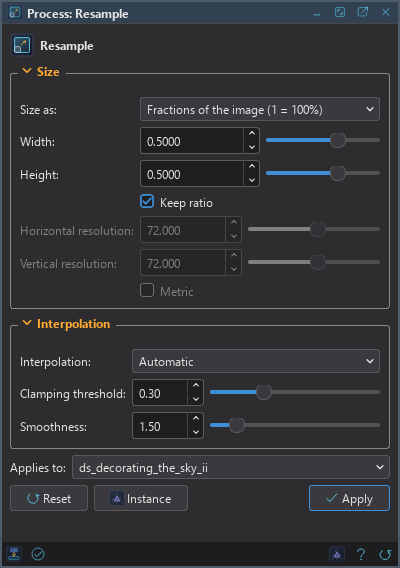
The panel has two sections, Size and Interpolation, each of which folds away with the arrow beside its title. Settings that do not apply to the way the size is given are grayed out. Under the sections are the image the process applies to, the buttons and the system bar along the bottom. Resample changes the image's size, so it has no live preview.
3.1Size
Size as: How the new size is given:
- Fractions of the image (1 = 100%): the default. Width and Height times the image's.
- Pixels: Width and Height in pixels.
- Centimeters, Inches: Width and Height at the resolution below, for a print.
- Area in pixels: the new image has Width times Height pixels in all, with the image's proportions.
Width: The new width, in the units of Size as. 1 by default.
Height: The new height, in the units of Size as. 1 by default.
Keep ratio: On by default. Changing the width changes the height in the image's proportion, and changing the height changes the width. Off, the two are independent. For an area the proportion is always kept. Run from a process icon or a script, the width decides and the height follows.
Horizontal resolution: For a size in centimeters or inches: pixels per inch, or per centimeter with Metric. 72 by default.
Vertical resolution: The same, vertically.
Metric: The resolutions are per centimeter, not per inch. Off by default.
3.2Interpolation
The interpolations are those of Crop and Rotate.
Interpolation: Nearest neighbor, Bilinear, Bicubic spline, Bicubic B-spline, Lanczos-3, Lanczos-4, the Mitchell-Netravali filter, the Catmull-Rom spline filter, the Cubic B-spline filter, or Automatic, the default: the Mitchell-Netravali filter for a reduction strong enough that its filter would be wider than 2 pixels, the bicubic spline otherwise, as PixInsight chooses. Lanczos is the sharpest for enlargements; the filters smooth what is reduced, so it does not alias.
Clamping threshold: The bicubic spline and Lanczos: where neighboring pixels differ by more than this, the interpolation is clamped so it does not ring around stars. From 0, clamped everywhere, to 1, never; 0.30 by default.
Smoothness: The cubic filters: how wide they are, times the reduction, from 1 to 5. Larger is smoother; 1.50 by default.
GPU. In DSPX mode the interpolation runs on the graphics card when it has much more to compute than to move: a rotation or an enlargement with Lanczos, a reduction with one of the cubic filters, and the bicubic spline or the B-spline on a large image. A 24 MP color image turned with Lanczos-3 or Lanczos-4 runs about 2.5 to 5 times faster than on the processor. Nearest neighbor, bilinear, the area average, a gentle reduction and any image under a quarter of a megapixel stay on the processor, which is as fast there. The result agrees with the processor's to a few millionths of the range (one step for an 8- or 16-bit image). Where a pixel's center falls exactly on the edge of the image or half way between two pixels, as in a rotation by exactly 90 degrees, the processor and the card can choose differently at that pixel. An image with a NaN or an infinity stays on the processor. Choose CPU only in to keep it there, and see The Processor and the GPU.
3.3Apply and Instance
Applies to: The image Resample works on, chosen in a list of the open images. It shows the image in front, and follows it as we bring other images to the front. Picking another image in the list makes the panel work on that one without bringing it to the front; the pick stays while we work on other images, and Follow Active, the small button that appears beside the list, makes the panel follow the image in front again. An image that a tool or a run is working on is listed, but cannot be picked.
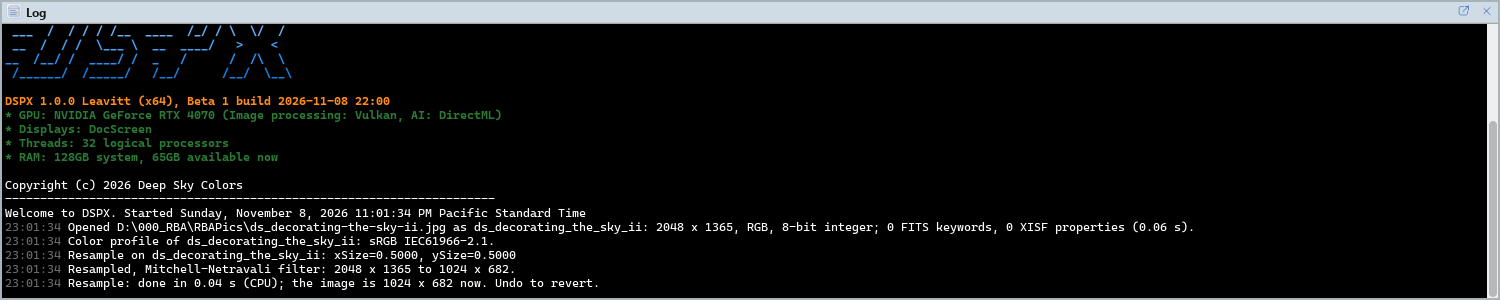
Apply: Resamples the image named in Applies to, in one history step that Undo takes back with the image whole, its solution included. A size of 100% changes nothing and records nothing. The Log gives the interpolation, the new size and how the solution was carried.
Instance: Shows the process as the panel has it now, as text: the settings as a DSPX
process (.dsproc) or as a PixInsight process icon (.xpsm) of Resample, chosen
under Format. Copy puts the text on the clipboard; Save... saves it as a file and puts it on the
Process Shelf.
Reset: Puts every setting back to its default.
The system bar along the bottom of the panel has the same commands as small icons: at the left, drag to apply and Apply; at the right, Instance, Help (this page) and Reset. Drag to apply, the first icon, carries the process with its settings: dropped on an image's window, it resamples that image, whatever image the panel works on; dropped on the Process Shelf, it is kept there as a row of its own. With , the bar alone has them.
4The Astrometric Solution, Masks and Layers
As with Crop, the solution of a plate solved image is recomputed from itself for the new grid, following the same mapping the pixels follow: its linear part composed with the resampling, its distortion model made again from its control points moved to the new grid. The pixel size in the metadata is scaled by the size of a new pixel in old ones, as PixInsight's Resample does. Undo brings the old solution back with the pixels.
- The image's mask is detached, since its pixels no longer match, and a selection is cleared; Undo brings both back.
- A resampling applies to the whole image, never through a mask.
- A layered image, or one layer alone, cannot be resampled yet, and Resample cannot be a process layer.
- A process container may hold a Resample: the steps after it work on the new image.
5Usage Tips and Tricks
Binning an oversampled image. When the stars are many pixels wide, a reduction by 2 with Integer Resample gains signal to noise and loses no detail, and is exact: no interpolation.
Two images to the same scale. Resample one of them in Pixels to the other's size, or by the ratio of their plate scales, which the Log of each plate solve gives.
A copy to share. Resample a copy, not the master: a reduction cannot be undone by enlarging again.
Drizzle instead of enlarging. To gain real resolution from dithered frames, use drizzle in pre-processing; an enlargement only interpolates.
6Related Tools
Integer Resample: a reduction or an enlargement by a whole number, with no interpolation.
Crop tool: its resample gauge sets a new size with the mouse.
Crop: cuts the image instead of scaling it.
Rotate: turns or flips the image.