
Noise Generator
Random noise added to an image, of four kinds
Noise Generator adds random noise to an image: uniform, normal (Gaussian), Poisson or impulsional. We use it to test a noise reduction on noise of a known size, to make a synthetic image, or to hide banding and posterization in a smooth gradient with a little grain.
1Introduction
Each sample of the image gets noise of its own, independent of its neighbors. The noise is described in the image's range, 0 to 1, whatever the sample type, and the result is truncated to that range. The four kinds differ in how the noise is drawn:
- Uniform noise is equally likely anywhere within the Amount, centered on zero.
- Normal noise is a bell curve, with the Amount as its standard deviation.
- Poisson noise follows the signal, as the shot noise of light does: a brighter pixel gets more noise, and black stays black.
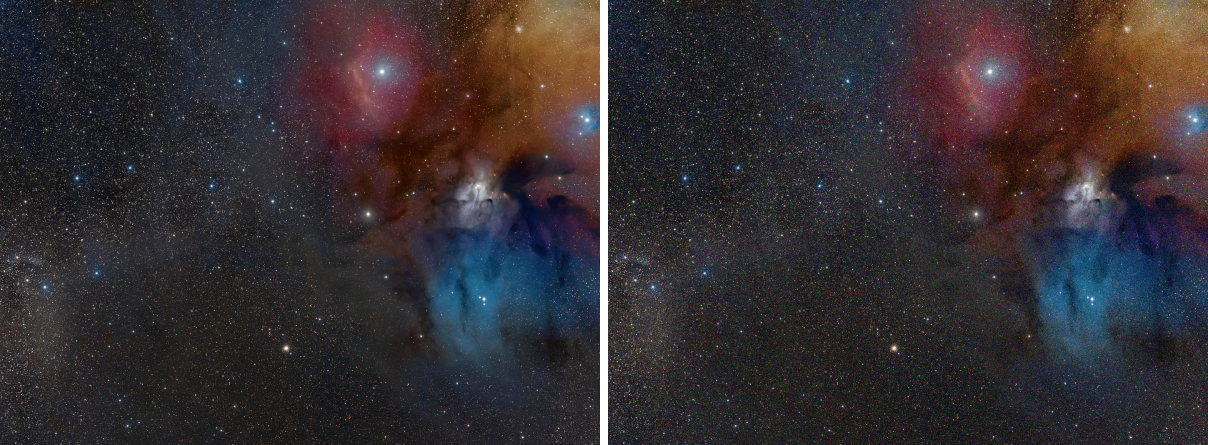
- Impulsional noise pushes a share of the pixels up or down by the Amount and leaves all the others exactly as they were, the salt and pepper of a failing sensor.
Alpha channels are not touched. Noise Generator is our own engine, with the parameters of PixInsight's NoiseGenerator: a PixInsight icon of that process opens here, and the panel saves one that PixInsight opens.
2Quick Start
- Open the image and choose . The live preview (the eye) shows the noise on the part in view.
- Choose the Distribution and set the Amount.
- To get the same noise again, type a Seed other than 0.
- Click Apply.
3Interface & Parameters
The panel has one section, Noise, then the image the process applies to with the live preview's eye, the buttons and the system bar along the bottom.
3.1Noise
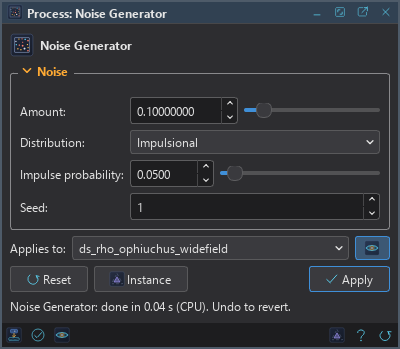
Amount: The size of the noise, in the image's range of 0 to 1: the width of the uniform noise, the standard deviation of the normal noise, the scale of the Poisson noise, the height of the impulses. 0.1 by default.
Distribution: The kind of noise:
- Uniform: equal chance across the Amount. The default.
- Normal: a bell curve.
- Poisson: brighter pixels get more noise, as light does.
- Impulsional: a few pixels pushed up or down by the Amount.
Impulse probability: With Impulsional: the share of the pixels that get an impulse, from 0 to 1, 0.05 by default. Half of them go up and half go down.
Seed: A number that makes the noise the same at every run, on any machine and with any number of threads. 0, the default, gives a different noise each time. It is a setting of DSPX and is ignored with the PixInsight compatibility mode on, in , where the noise is always new.
3.2Apply, Preview and Instance
Live preview (the eye): At the end of the Applies to row; Preview in the system bar is the same switch. The preview shows the part in view with the banner "PREVIEW only, nothing applied"; without a seed the noise is new at every recompute. The image does not change until Apply. Before, in the banner, or the backslash key held, shows the image as it is.
Applies to: The image the process works on, chosen in a list of the open images. It shows the image in front, and follows it as we bring other images to the front. Picking another image in the list makes the panel work on that one without bringing it to the front, and Follow Active, the small button that appears beside the list, makes the panel follow the image in front again.
Apply: Adds the noise to the image named in Applies to, in one history step that Undo takes back, through the image's mask if it has one.
Instance: Shows the process as the panel has it now, as text: a DSPX process
(.dsproc) or a PixInsight process icon (.xpsm), chosen under Format. Copy puts
the text on the clipboard; Save... saves it as a file and puts it on the Process Shelf.
Reset: Puts every setting back to its default.
The system bar along the bottom has the same commands as small icons: at the left, drag to apply and Apply; at the right, Instance, Help (this page) and Reset.
4How the Noise Is Drawn
For a sample v between 0 and 1: Uniform adds the Amount times a number drawn between −0.5 and 0.5. Normal adds a normal deviate whose standard deviation is the Amount. Poisson draws a Poisson deviate with mean v times 65535 divided by the Amount, and divides it by 65535 over the Amount, so the noise follows the signal. Impulsional adds the Amount or minus the Amount, by a coin, to the share of samples given by Impulse probability. The result is cut to the range 0 to 1.
With a seed, each band of 16 rows has a generator of its own, derived from the seed, so the noise is the same whatever the number of threads.
5Usage Tips and Tricks
Test a noise reduction. Add normal noise of a known Amount to a clean image with a seed, then run Noise Reduction and compare with the clean image.
Dither a smooth gradient. A very small Amount of uniform noise breaks the bands that appear in a gradient stretched hard.
Poisson for a linear image. Its noise follows the signal like the noise of a real exposure, so it is the right kind for a linear test image.
6Related Tools
Noise Reduction: removes noise; the pair of this process for tests.
Canon Banding Reduction: removes the row and column pattern noise of a sensor.
Pixel Math: random numbers in an expression, for noise of a shape of our own.