
Spot Healing
Paint over a flaw and the background around it fills it
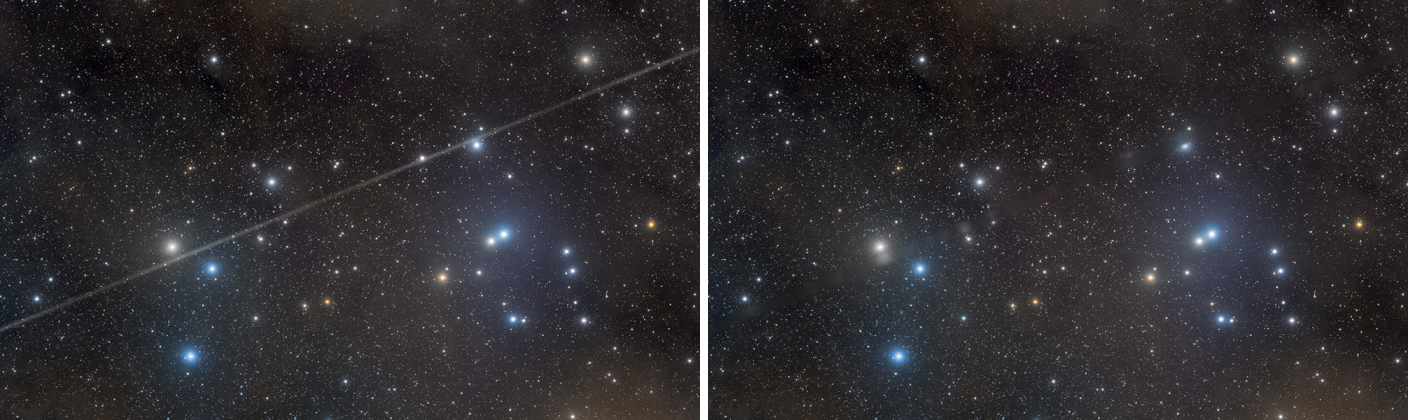
Spot Healing removes a flaw by painting over it. Under the brush the image is rebuilt from the sky around it: the background, its gradient, its grain and, when we ask for them, its stars. We use it for satellite and plane trails, dust motes, hot pixels, residual stars and other small intrusions, without choosing a source as the Clone Stamp needs.
1Introduction
For each dab of a stroke, Spot Healing looks at a ring of pixels just outside the brush. It rejects what stands out of that ring (stars, other flaws) by sigma clipping, fits a smooth surface to what is left (a quadratic that follows the local gradient and curvature) and fills the brush with it, so the patch matches a sloped background rather than showing as a flat disk. It then puts back noise matched to the grain around the brush and, if asked, copies real stars from the ring into the patch at the density of the field around it. With Directional on, the fill is taken across the stroke, from its two clean sides, which keeps what crosses a trail.
Each correction shows as we paint. Every stroke can be undone and redone on its own while the session is open, and Apply makes them one history step of the image.
2Quick Start
- Open the image and click Spot Healing on the toolbar. The Tool panel shows Spot Healing.
- Set the Size a little larger than the flaw, and a Softness: a soft edge usually blends best. A circle the size of the brush follows the pointer over the image.
- Paint over the flaw: each drag is a stroke, healed as we paint. For a trail, turn Directional (trail) on and paint along it.
- Ctrl+Z takes the last stroke back, Ctrl+Y brings it back.
- Click Apply. The strokes become one history step of the image.
3Interface & Parameters
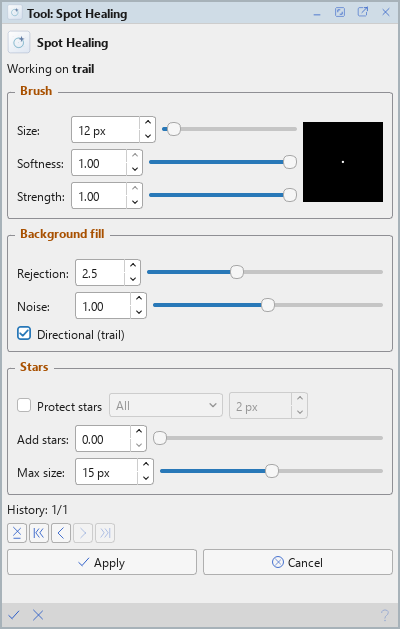
The Tool panel shows the tool's name and icon on its first row, with a hint, then the brush, the background fill, the stars, the strokes, and Apply and Cancel. The bar along the bottom of the panel has Apply (a check mark) and Cancel (a cross) on the left, and Help on the right.
3.1The Brush
The square beside the values shows the brush's profile: its size and softness, and its strength as brightness.
Size: The brush's radius, in pixels of the image, from 1 to 255. Ctrl and the mouse wheel over the image change it. A brush a little larger than the flaw lets the ring around it land on clean background.
Softness: How the brush's edge fades, from 0 (a hard edge) to 1 (very soft). A soft edge blends the patch gradually into its surroundings.
Strength: How strongly the rebuilt background replaces the pixels under the brush, from 0.01 to 1. At 1 they are replaced; below, the background is blended with them, for a partial correction. Below 1, every dab of a stroke reads the image as it was when the stroke began, and the dabs are one pixel apart; at 1 they are a third of the size apart.
3.2Background Fill
Rejection: The sigma-clip threshold, from 1 to 5, of the background estimate in the ring around the brush. Lower values reject bright neighbors more, which helps when a bright star sits next to the flaw; higher values keep more of the ring.
Noise: How much noise is put back into the fill, as a fraction of the noise measured around the brush, from 0 to 2. At 1 the patch matches the grain around it; at 0 it is smooth.
Directional (trail): For long, thin features such as satellite and plane trails: the fill is taken across the stroke, blending its two clean sides, instead of from the whole ring. A gradient or a nebula edge that crosses the trail is kept. We paint along the trail. Off for compact spots.
3.3Stars
Protect stars: Keeps the real stars found under the brush instead of healing them away: only compact stars, not single hot pixels. Beside it, All keeps every star it can protect; Bigger than and Smaller than keep only the stars above or below a diameter in pixels, set beside them.
Add stars: Stars copied from the ring into the patch, as a multiple of the star density around the brush, from 0 to 3. At 0 none are added; at 1 the patch has as many stars as the field around it. The stars are real ones from the immediate surroundings, so their shapes, sizes and colors fit. Where no star is found nearby, nothing is added.
Max size: The largest star diameter, in pixels, that may be copied in, from 5 to 25; at 25 there is no limit. It chooses which stars may be copied, not how many.
3.4The Strokes
A line says how many strokes the session has, and the bar under it moves through them:
Delete (the cross): drops the last stroke for good (Delete over the image).
Undo all, Undo, Redo, Redo all: back to the image as the session began, one stroke back, one stroke forward, all of them again (Ctrl+Shift+Z, Ctrl+Z, Ctrl+Y, Ctrl+Shift+Y). A stroke redone comes back as it was painted.
3.5Apply and Cancel
Apply: Ends the session with its strokes in the image: one history step, holding only the parts of the image the strokes changed. then takes all of them back at once.
Cancel: Ends the session with the image as it was when it began: every stroke is gone, to the last bit.
4Healing
4.1The Session
The first stroke on an image starts Spot Healing's session on it. While the session is open the tool holds the image and its mask: they cannot be closed, processed, saved or undone from the History panel, and DSPX says so. A chip over the image's corner names the tool. Over that image, Ctrl+Z and Ctrl+Y are the tool's, one stroke at a time. The right mouse button still drags the view.
4.2The Mask
Where the image's mask is black, nothing is healed; where it is gray, the correction is blended in proportion. Changing the mask during the session (inverting it, for one) heals the session's strokes again under the new mask.
4.3Repeatable Strokes
The noise, the scatter of a directional fill and the places of the copied stars are drawn at random, from generators that start afresh with each session: the same strokes at the same places on the same image give the same pixels.
5Usage Tips and Tricks
Size the brush just larger than the flaw. The fill is best when the brush covers the flaw and the ring around it lands on clean sky.
Keep the edge soft. A high softness hides the patch's boundary; a hard edge shows on a smooth sky.
For trails, Directional and along. A narrow brush dragged along the trail with Directional on removes it and keeps whatever crosses it.
Add stars only over a star field. On a plain background added stars look wrong; over a populated field a patch with no stars reads as a hole.
Lower Rejection next to bright stars. When a bright neighbor brightens the fill, a stricter rejection keeps it out of the estimate.
Several small strokes. They give finer corrections than one large dab, and each can be undone on its own.
A mask to protect detail. A mask over the area to heal keeps the correction from touching what is next to it.
6Related Tools
Clone Stamp: copies pixels from a source we choose, for full control over what fills an area.
Paintbrush: paints, blends, blurs and smudges with a brush, with the same session and undo.
Cosmetic Correction: finds and corrects hot and cold pixels across whole frames, before integration.