StarNet2
Star removal with StarNet2, run from DSPX
StarNet2 removes the stars from an image with a neural network of its author, Mikita Misiura. It is a separate program that we run for us: DSPX sends the image to it and brings the starless result back. The star mask and the star layer can be made as new images. StarNet2 is not part of DSPX; we install it ourselves or ask DSPX to download it.
1Introduction
StarNet2 is a program of its own, available from its author's website, under its own terms. Its neural network works on the image in tiles. This process takes the image of the panel, hands it to the StarNet2 program set in , waits for it, and replaces the image with the starless result. The result goes through the image's mask and selection and makes one history step, like the result of any other process.
DSPX ships nothing of StarNet2. The program either is one we installed, or is the copy that Get StarNet2... downloads from StarNet's own server after asking us; in both cases it is a separate program, and its terms are StarNet's. Our own star removal, which needs no outside program, is Deep Star Removal.
2Quick Start
- Open . If StarNet2 is installed, Find looks for it in the usual places and Browse... chooses it. If not, Get StarNet2... shows what it will download and from where, and downloads it only when we say yes. Check asks the program what it is.
- Open the image and choose .
- For a linear image, turn on Linear data.
- Click Apply. The Log shows what StarNet2 says while it works.
3Interface & Parameters
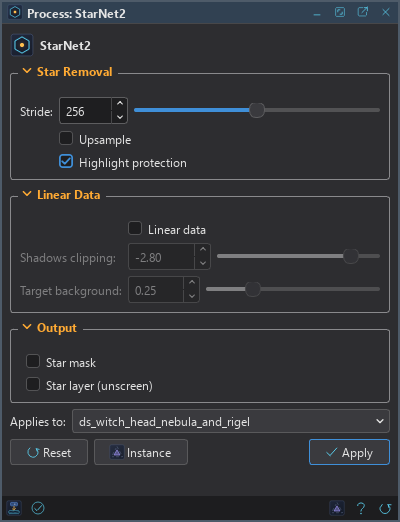
The panel has three sections, Star Removal, Linear Data and Output, then the image the process applies to, the buttons and the system bar. There is no live preview: StarNet2 takes a while, so the process runs when we click Apply.
3.1Star Removal
Stride: The step between the tiles StarNet2 works on, an even number from 2 to 512. 256 by default. A smaller stride overlaps the tiles more: it is slower, and it can hide seams.
Upsample: Works on the image enlarged twice and gives the original size back. For tight stars and difficult structures. It is slower and needs more memory.
Highlight protection: On by default. StarNet2 protects the highlights of the starless image. Turn it off only to compare.
3.2Linear Data
Linear data: The image is linear, not stretched. StarNet2 brightens it with a temporary stretch for its neural network, removes the stars, and reverses the stretch. Negative values of a calibrated image are kept.
Shadows clipping: Where the shadows are clipped for the temporary stretch, in deviations from the median. A negative number, -2.8 by default. Used only while Linear data is on.
Target background: The background level of the temporary stretch, between 0 and 1. 0.25 by default. Used only while Linear data is on.
3.3Output
Star mask: Also makes the stars StarNet2 removed, the difference between the image and the starless result, as a new image.
Star layer (unscreen): Also makes StarNet2's unscreen star layer as a new image. Putting it back over the starless image with a screen blend gives the stars again.
3.4Apply, Reset and the Preview
Apply writes the image to a temporary file, runs StarNet2 on it, reads the result and replaces the image with it, in one history step that Undo takes back, through the image's mask if it has one. The panel shows the progress StarNet2 reports, and the Cancel button stops StarNet2 and everything it started. The image keeps its size, its channels and its sample type; integer images get the result clipped to their range, so nothing wraps around. Alpha channels and the image's metadata, astrometric solution included, are not touched. StarNet2 takes values from 0 to 1 and refuses anything that is not a number, so DSPX limits the samples to that range before it writes the file, and the Log says how many it had to change.
4How We Run StarNet2
We want to be exact about what DSPX does on this computer.
- The program. DSPX runs the one program named in , or, when that is empty, the first StarNet2 it finds in the usual install places. It only looks for the file, and runs nothing while looking. It runs as a separate program with an argument list, never through a shell.
- The command. The arguments are those of StarNet2's own command line:
--input,--output,--maskand--unscreenwhen asked for,--stride,--upsample,--linearwith--shadows-clippingand--target-background,--disable-highlights-protection, and--machine-progress, with which StarNet2 reports its progress. The first line DSPX writes to the Log is this command. - The files. DSPX makes a private temporary folder, writes the image there as a 32-bit floating point FITS file, lets StarNet2 write its results beside it, reads them, and removes the folder when the run ends, whether it succeeded, failed or was canceled. Nothing else is written to disk.
- The network. A run makes no connection. Get StarNet2... and Check for Update in Preferences contact StarNet's server, only when we click them, as StarNet2 describes.
5When Something Goes Wrong
- StarNet2 was not found. Use Get StarNet2... in Preferences, or install it and set its path.
- StarNet2 stopped with an exit code. The message ends with StarNet2's last words. The Log has the rest. An image smaller than the minimum is the usual cause.
- The checked program does not have an option. A StarNet2 that has no star layer or linear mode cannot run it. Update it, then press Check.
- StarNet2 wrote no image, or one of another size. The image is left as it was.
6Usage Tips and Tricks
Compare with Undo. Apply, look, undo and apply again with Upsample or another stride. The History panel keeps each step.
Only part of the image. A selection or a mask limits the result to its area, as for every process; StarNet2 still works on the whole image, so the run takes as long.
Putting the stars back. Make the star layer, process the starless image, then put the stars back with Star Recombination: Screen for the unscreen star layer, Add for the star image (the difference). A screen blend in PixelMath does the same by hand.
7Related Tools
Deep Star Removal: our own star removal, with no outside program.
Star Recombination: puts the stars back into the starless image.
Deep Star Mask: a mask of the stars.