
Text
Text on an image, as a layer of its own or burned into the pixels
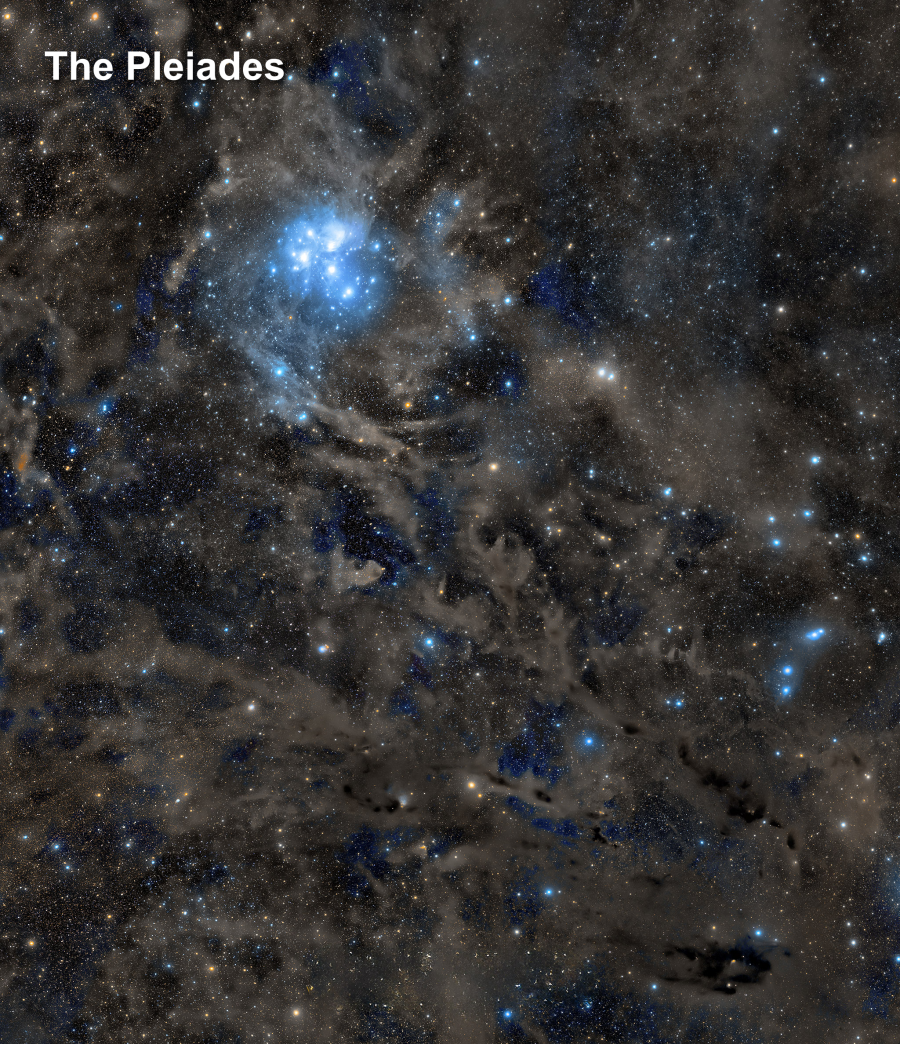
Text puts text on an image: a label for a star, a title, a caption, a signature. As a tool, we click on the image and type; as a process, we give the text, its style and its position, and it runs without a click, from a saved process, an icon or a workflow. In DSPX each text is a layer of its own, kept live so it can be edited later.
1Introduction
Text has two faces that share one style. The Text tool, in the Tools menu and at the end of the toolbar, is for typing on the image: a click starts a text at that place, with a blinking caret, and the text is shown as it is typed, in the style of the tool's panel. The Text process, in the Process menu under Image, has the same settings and a position, and runs as any process does.
In DSPX's own mode, a text becomes a text layer, above the active layer, in one history step; a plain image becomes a layered one in the same step. The layer keeps its text and its style, so it can be edited again with the tool, moved with a drag, restyled from the panel, and blended like any layer from the Layers panel. With the PixInsight compatibility mode on, in , the process burns the text into the pixels through the image's mask, as PixInsight's Annotation does, and no layer is made.
The process is the same as PixInsight's Annotation under another name: an Annotation instance, whether in a process icon, a container or a workflow step, opens here as Text with its parameters translated, and a Text step is saved as Annotation when the compatibility mode is on.
2Quick Start
2.1With the Tool
- Open the image and click Text on the toolbar. The Tool panel shows the style of the text.
- Choose the Font, the Size and the Color.
- Click on the image where the text should start, and type. Enter starts a new line.
- Press Esc, click elsewhere, or click Done. The text becomes a layer above the active one.
2.2With the Process
- Open the image and choose .
- Type the Text, choose the style and set the position with X and Y.
- Click Apply.
3Interface & Parameters
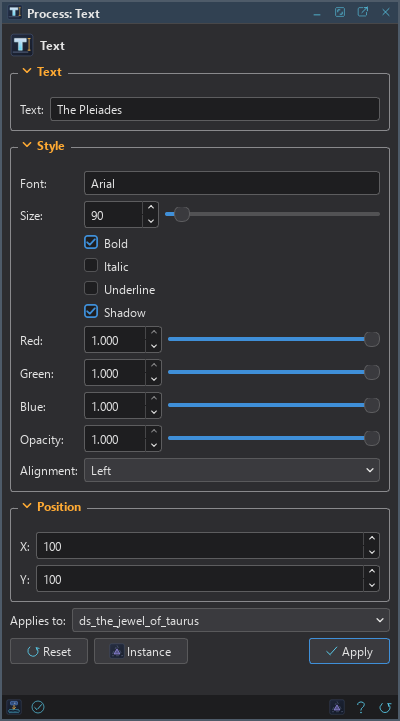
The process panel has three sections, Text, Style and Position, each of which folds away with the arrow beside its title, then the image the process applies to, the buttons and the system bar along the bottom. The Tool panel has the style, always shown, and below it Text and position, closed until it is opened.
3.1Text
Text: The text to put on the image, as a line or several.
3.2Style
Font: The font's family, from the fonts of this computer.
Size: The font's size, in pixels of the image, from 1 to 2000. 48 by default.
Bold: Bold text. Off by default.
Italic: Italic text. Off by default.
Underline: Underlined text. Off by default.
Shadow: A soft dark shadow under the text: offset down and to the right by 6 percent of the size, at least a pixel, blurred by 5 percent of it, at 60 percent of the strength, times the text's opacity. Off by default.
Red: The red part of the text's color, from 0 to 1, in the image's own values. 1 by default.
Green: The green part of the text's color. 1 by default.
Blue: The blue part of the text's color. 1 by default.
Opacity: How much of the text and its shadow shows, from 0 to 1. 1 by default.
Alignment: The lines within the text block: Left (the default), Center or Right.
3.3Position
X: The text block's left edge, in pixels of the image.
Y: The text block's top edge, in pixels of the image.
3.4Apply and Instance
Applies to: The image the text is put on, chosen in a list of the open images. It shows the image in front, and follows it as we bring other images to the front. Picking another image in the list makes the panel work on that one without bringing it to the front, and Follow Active, the small button that appears beside the list, makes the panel follow the image in front again.
Apply: Puts the text on the image named in Applies to, in one history step that Undo takes back. In DSPX's mode it is a text layer; with the PixInsight compatibility mode on, it is burned into the pixels, through the image's mask. The process runs on an image, not on one of its layers.
Instance: Shows the process as the panel has it now, as text: a DSPX process
(.dsproc) or a PixInsight process icon (.xpsm), chosen under Format. An icon made in DSPX's
mode is of the class Text, which PixInsight does not have: for an Annotation icon, make it in the compatibility mode.
Copy puts the text on the clipboard; Save... saves it as a file and puts it on the Process Shelf.
Reset: Puts every setting back to its default.
The system bar along the bottom has the same commands as small icons: at the left, drag to apply and Apply; at the right, Instance, Help (this page) and Reset.
4The Text Tool
4.1Typing and Editing
A click on the image starts a text there. The arrows, Home, End, Backspace and Delete move and delete. Esc, a click elsewhere, another tool, closing the program, or the panel's Done end the text, and make a new text layer above the active one. A text of spaces alone is dropped: no layer, no history step.
With the tool active, a click on the text of a text layer edits it: the layer becomes the active one, the caret goes where we clicked, and the typing changes the layer live. The whole typing is one history step. A drag on a text moves it, in one step. A text edited to nothing deletes its layer. Selecting a range of text, pasting and input methods for composed characters are not supported.
4.2The Panel
The Tool panel shows the style, always: the font, the B, I and U buttons for bold, italic and underline, Shadow, the color, the size in pixels, the opacity and the alignment of the lines (left, center or right). Below, Text and position, closed until it is opened, has the text and the X and Y of the block's top left corner, in pixels of the canvas.
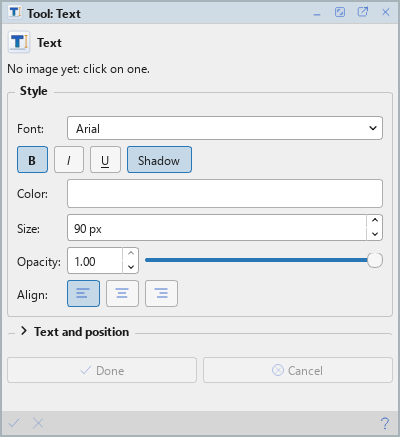
The panel edits the text being typed, else the active text layer. A burst of changes of one kind, such as a drag on a slider, is one history step. With neither, the panel sets the style the next text starts with, and text typed in the panel starts a text at X and Y.
4.3Color and Linear Data
The color is a value of the image: red, green and blue from 0 to 1, as the color dialog gives them. It is written into the layer as it is, with no transform, as the other tools' colors are. On a linear image, a mid-gray text is as dark as any pixel of 0.5, and a white text is 1.0. The layers are 32-bit floating point whatever the image was, so the text is drawn at that format.
5Text Layers
A text layer is an image layer that remembers its text: its pixels are the text rasterized, and its mask holds the transparency. Because the mask is the transparency, a text layer has no mask of its own to add, remove or invert, is never scaled, and has no pixels for processes, tools or scripts to work on. turns it into pixels, and so does flattening.
Saved in a project or an XISF file, the text travels with the layer. A program that does not know text layers shows the text as an ordinary image layer with a mask. When DSPX opens a file whose text and pixels disagree, the one that reproduces the stored pixels wins, and the Log says so; when neither does, the layer stays an image layer.
6Usage Tips and Tricks
Shadow on a busy background. A white text on bright nebulosity is hard to read. The shadow gives it an edge without a change of color.
Several lines, one block. Type the lines with Enter and use the alignment to center a title or set a caption to the right.
The process for a series. To sign many images alike, save the process with the text, style and position, and apply it from the Process Shelf, or put it in a workflow.
Leader lines. Annotation's leader line is not supported: the text is put without it, and the Log says so.
7Related Tools
Draw: draws shapes and lines on the image, to go with the text.
Paintbrush: paints on the image with a brush.
Finding Chart: a chart with the names of the objects around an image.