
Arcsinh Stretch
A stretch that keeps the color of every pixel
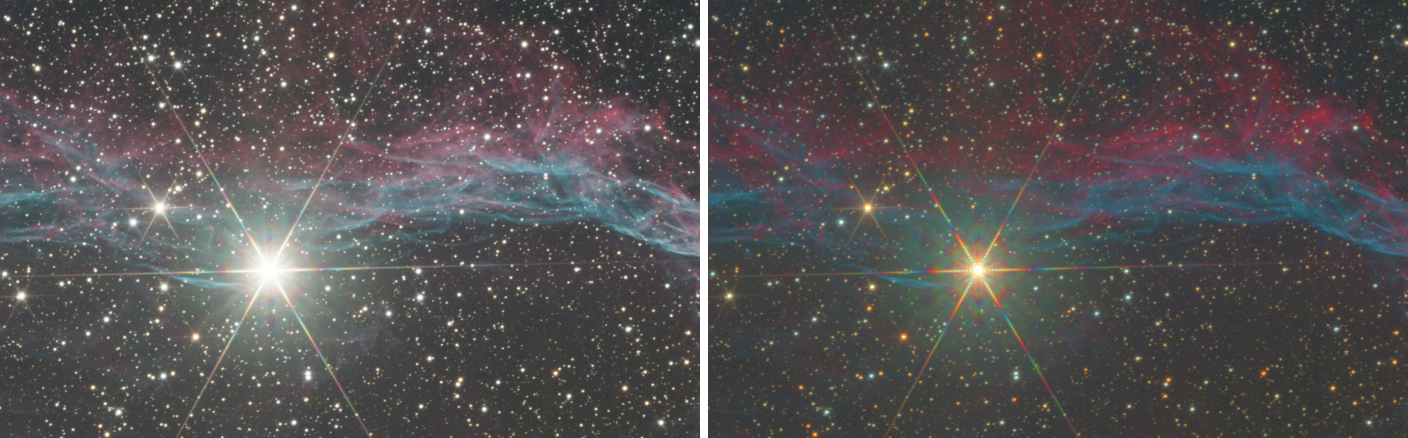
Arcsinh Stretch brings a linear image to a visible brightness by the inverse hyperbolic sine of its luminance, multiplying the three channels of each pixel by the same factor. Each pixel keeps the ratio between its channels, so the color of the stars survives the stretch, from the faintest to the brightest that are not saturated.
1Introduction
A stretch that works on each channel by itself, as a screen stretch or a histogram transformation does, changes the ratio between the channels wherever it bends: the bright cores of stars, which are strongly compressed, go toward white whatever their color. The arcsinh stretch, introduced for astronomical images by Lupton and his colleagues in 2004, computes one factor per pixel from its luminance and multiplies the three channels by it. The ratio between red, green and blue does not change, so a blue star stays blue and a red one red.
The curve itself is the inverse hyperbolic sine: linear for faint values, where it multiplies the data by the stretch factor, and logarithmic for bright ones. That makes it gentle on bright structure and generous with faint nebulosity, and it suits images with a large range of brightness.
Arcsinh Stretch is our own engine, written from the published description of the method and of PixInsight's ArcsinhStretch process, with the same parameters: a PixInsight icon of ArcsinhStretch opens here, and the panel saves one that PixInsight opens.
2Quick Start
- Open the linear color image, its background neutral and its colors calibrated.
- Choose . With the live preview (the eye) on, the image shows the stretch, without its screen stretch.
- Raise Stretch factor until the faint nebulosity shows: values in the hundreds are common for linear data.
- Raise Black point until the background is dark, keeping it just below the background's level.
- Click Apply. The screen stretch is turned off, and the image is shown as it now is.
3Interface & Parameters
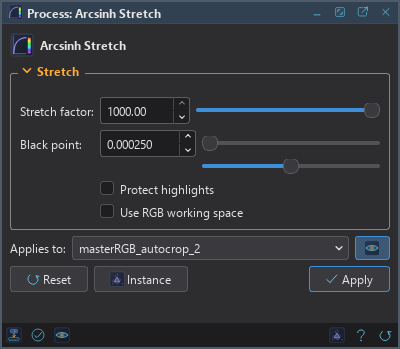
The panel has one section, Stretch, which folds away with the arrow beside its title. Under it are the image the process applies to with the live preview's eye, the buttons and the system bar along the bottom.
3.1Stretch
Stretch factor: What the faintest data is multiplied by, from 1 to 1000; 1, the default, changes nothing. The background's noise is multiplied as much, and a second run multiplies again, so we stretch once, as far as needed.
Black point: A level taken away first, the rest scaled back to the full range, from 0 to 0.2. Set just below the background, it makes the background dark without clipping it. After a strong stretch a small change of it shows a lot, so it has six decimals.
Protect highlights: Scales the whole result down so that no sample saturates: a pixel whose brightest channel would pass 1 keeps its color instead of turning white. The image comes out darker. Off by default.
Use RGB working space: Weighs the channels for the luminance as the image's RGB working space does, which gives green more weight. Off, the default, the three channels count the same. The Log names the weights used.
3.2Apply, Preview and Instance
Live preview (the eye): At the end of the Applies to row; Preview in the system bar is the same switch. On by default. The image shows Arcsinh Stretch applied to the part in view, as the settings change, with the banner "PREVIEW only, nothing applied"; the image itself does not change until Apply. An image shown through a screen stretch is previewed without it, since the stretch is what we are previewing. Before, in the banner, or the backslash key held, shows the image as it is. At 1:1 the preview is exactly what Apply gives there; with Protect highlights the brightest sample is found once on the whole image, so that remains true. At a reduced zoom the preview is computed on the reduced view and is very close.
Applies to: The image Arcsinh Stretch works on, chosen in a list of the open images. It shows the image in front, and follows it as we bring other images to the front. Picking another image in the list makes the panel work on that one, its live preview included, without bringing it to the front; the pick stays while we work on other images, and Follow Active, the small button that appears beside the list, makes the panel follow the image in front again. An image that a tool or a run is working on is listed, but cannot be picked.
Apply: Stretches the image named in Applies to, in one history step that Undo takes back, through the image's mask if it has one, and writes the softening it used to the Log. When the live preview showed the image without its screen stretch, Apply turns that stretch off. The size, the sample format and the metadata stay as they are. A gray image is stretched too, by its one channel.
Instance: Shows the process as the panel has it now, as text: the settings as a DSPX
process (.dsproc) or as a PixInsight process icon (.xpsm) of ArcsinhStretch, chosen under
Format. Copy puts the text on the clipboard; Save... saves it as a file and puts it on the Process
Shelf.
Reset: Puts every setting back to its default.
The system bar along the bottom of the panel has the same commands as small icons: at the left, drag to apply and Apply; at the right, Instance, Help (this page) and Reset. Drag to apply, the first icon, carries the process with its settings: dropped on an image's window, it applies them to that image, whatever image the panel works on; dropped on the Process Shelf, it is kept there as a row of its own. With , the bar alone has them.
4What Arcsinh Stretch Does
For each pixel, the black point is taken away from every channel and the rest scaled back to the full range, never below 0. The luminance L is the mean of the three channels, or their weighted sum with Use RGB working space. Every channel is then multiplied by
asinh(L/β) / (L · asinh(1/β))
where the softening β is chosen so that the faintest values are multiplied by the stretch factor exactly; the Log gives it. Since the three channels share the factor, their ratio, the pixel's color, is kept. A pixel whose brightest channel would pass 1 is clipped there, unless Protect highlights scales the whole image down by the amount the brightest sample needs.
5Usage Tips and Tricks
Calibrate the color first. The stretch keeps whatever color the data has, a cast included. Background Neutralization and Color Calibration go before it.
The black point decides the background. The Log of Background Neutralization, or the screen stretch's shadows point, tells where the background is; the black point goes just under it.
Finish with a curve. The arcsinh stretch keeps contrast low in the bright parts. A light Curves or Histogram afterward sets the final contrast.
One stretch, not two. A second run multiplies the background's noise again; it is better to undo and apply one stronger stretch.
GPU. In DSPX mode part of the work runs on the graphics card when the image is large. We give no figure. A small image stays on the processor, where it is quicker. Choose CPU only in to keep it on the processor, and see GPU Acceleration for what else runs on the card.
6Related Tools
Masked Stretch: a stretch that keeps the stars small and the background at a level we choose.
Hyperbolic Stretch: a stretch whose contrast we place where we want it.
Histogram: the classic stretch, and the way to put a screen stretch into the pixels.
Saturation: more or less color for each hue, after the stretch.