
Canvas Size
The canvas of the image set to a width and a height, larger, smaller or one of each, with the image kept at an anchor
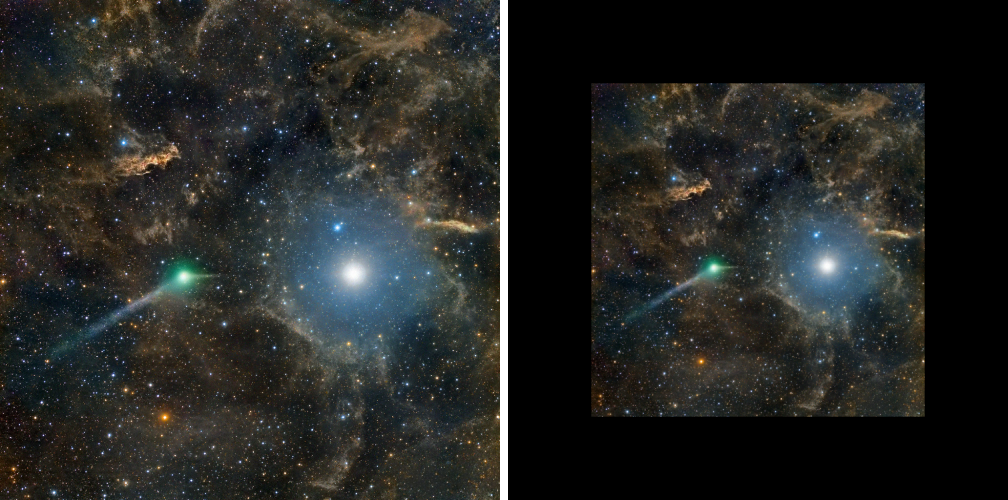
Canvas Size sets the canvas of the image to a width and a height. A larger canvas adds filled pixels around the image, a smaller one takes pixels away, and a canvas larger in one direction and smaller in the other does both. An anchor chooses where the image sits on the new canvas. The pixels that stay are not changed, and the astrometric solution is recomputed for the new grid. We use it to make room for a title or a border, to bring images to one size before combining them, and to trim an image to an exact size.
1Introduction
Canvas Size is a way to give Crop's margins. Given the new size and the anchor, it works out how many pixels to add or take away at the left, top, right and bottom, and runs the same operation as Crop with those margins. The result is identical to the equivalent Crop, in the pixels, the alpha channel, the metadata, the history and the Log.
Pixels are not resampled. Each pixel of the image keeps its value and moves by a whole number of pixels, so the pixel size on the sky does not change. The astrometric solution of a plate solved image is recomputed for the new grid, following the same shift the pixels follow.
2Quick Start
- Open the image and choose .
- Set Size in to Pixels, and type the new Width and Height.
- Choose the Anchor: where the image sits on the canvas.
- Click Apply.
3Interface & Parameters
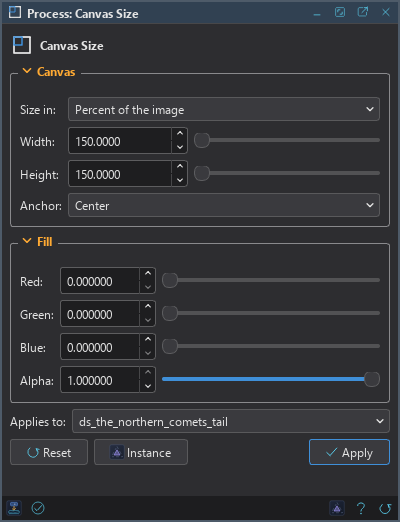
The panel has the section Canvas, with the size and the anchor, and the section Canvas color. Under them are the image the process applies to, the buttons and the system bar along the bottom. Canvas Size changes the image's size, so it has no live preview.
3.1Canvas
Size in: The units of Width and Height: Pixels, or Percent of the image, the default, where 100 keeps the size. Changing the units in the panel converts the two values for the image shown.
Width: The width of the canvas, in the units of Size in. 100 by default, which is the image's own width in percent.
Height: The height of the canvas, in the units of Size in. 100 by default.
Anchor: Where the image sits on the new canvas: top left, top, top right, left, center, right, bottom left, bottom or bottom right. Center is the default. With the anchor at an edge, that edge of the image stays at that edge of the canvas, and the canvas grows or shrinks away from it. With Center, the image stays in the middle; when the difference in size is odd, the extra pixel goes to the right or the bottom if the canvas grows, and the extra pixel is taken from the right or the bottom if it shrinks.
3.2Canvas color
The color of the pixels added to a larger canvas. The panel opens with the canvas color DSPX shares with Crop, Rotate and Layers, and an edit here changes it there too (see Crop: Canvas color).
Red: The red of the added pixels, from 0 to 1. A gray image takes red. 0 by default.
Green: The green of the added pixels, from 0 to 1. 0 by default.
Blue: The blue of the added pixels, from 0 to 1. 0 by default.
Alpha: The value of the added pixels in an alpha channel, from 0 to 1. 1, opaque, by default.
3.3Apply and Instance
Applies to: The image Canvas Size works on, chosen in a list of the open images. It shows the image in front, and follows it as we bring other images to the front.
Apply: Sets the canvas of the image named in Applies to, in one history step that Undo takes back with the image whole, its solution included. A canvas the size of the image changes nothing and records nothing. The Log gives the margins added or taken away, and how the solution was carried.
Instance: Shows the process as the panel has it now, as text, as a DSPX process
(.dsproc). Copy puts the text on the clipboard; Save... saves it as a file and puts it on the
Process Shelf. PixInsight has no process of this name, so there is no PixInsight icon of it; its Crop with margins gives
the same result.
Reset: Puts every setting back to its default.
The system bar along the bottom of the panel has the same commands as small icons: at the left, drag to apply and Apply; at the right, Instance, Help (this page) and Reset.
4The Astrometric Solution, Masks and Layers
As with Crop, the solution of a plate solved image is recomputed for the new grid. Undo brings the old solution back with the pixels.
- The image's mask is detached, since its pixels no longer match, and a selection is cleared; Undo brings both back.
- The change applies to the whole image, never through a mask.
- A process container may hold a Canvas Size: the steps after it work on the new image. A script runs it by its
id,
CanvasSize.
5Usage Tips and Tricks
Room for a title. Anchor the image at the bottom and add pixels to the height: the new rows are at the top, filled with the color chosen, ready for Text.
Images to one size. Give the same width and height in pixels to several images, with the anchor that suits each, before combining them.
A size from the center. To trim an image to an exact size around its middle, give that size with the anchor at Center.
6Related Tools
Crop: the margins given one by one, and a rectangle turned by any angle.
Resample: a new size in pixels, with the pixels scaled to it.
Rotate: turns or flips the image.