
Rotate
Turn the image by any angle or by quarter turns, or flip it; the astrometric solution recomputed
Rotate turns the whole image by any angle, keeping all of it in a larger image, or by quarter turns, or flips it horizontally or vertically. The image's astrometric solution is recomputed for the new image. We use it to put north up, to match the orientation of two images, and to turn a framing that reads better the other way.
1Introduction
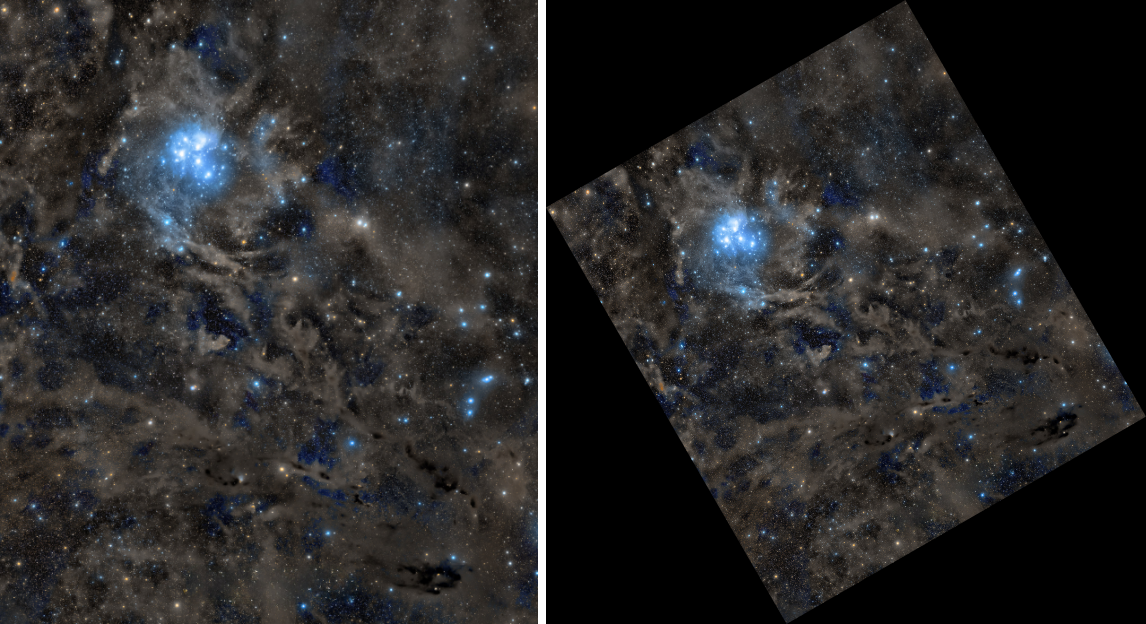
Quarter turns and flips only move pixels: nothing is interpolated, and the image keeps every value exactly. A turn by any other angle makes a new image large enough to hold the whole of the old one, its sides the rounded bounding box of the turned image, and computes each new pixel from the old ones around it with the interpolation chosen. The corners the old image does not reach take the canvas color.
The angle is counted as PixInsight's Rotation counts it: positive turns the image counterclockwise on the screen. Every rotation moves the pixels, and the image's astrometric solution moves with them, recomputed exactly for the new grid; the Log says how.
Rotate is our own engine, one process for two of PixInsight's: a PixInsight icon of Rotation or FastRotation opens here, and the panel saves a turn by an angle as Rotation and a quarter turn or a flip as FastRotation.
2Quick Start
- Open the image and choose .
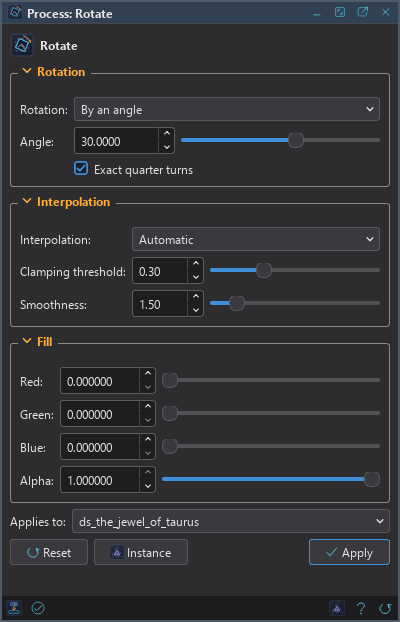
- Choose the Rotation: a quarter turn or a flip, or By an angle and type the Angle in degrees.
- Click Apply.
3Interface & Parameters
The panel has three sections, Rotation, Interpolation and Canvas color, each of which folds away with the arrow beside its title. Settings that do not apply to the rotation chosen are grayed out. Under the sections are the image the process applies to, the buttons and the system bar along the bottom. Rotate changes the image's geometry, so it has no live preview.
3.1Rotation
Rotation: What is done to the image:
- By an angle: the default. A turn by the angle below, interpolated, unless the angle is a quarter turn.
- 90 degrees clockwise, 90 degrees counterclockwise, 180 degrees: quarter turns, exact.
- Flip horizontally, Flip vertically: mirror images, left to right or top to bottom, exact.
Angle: Degrees, from −180 to 180; positive turns the image counterclockwise on the screen, as PixInsight's Rotation does. 0, the default, changes nothing and records nothing.
Exact quarter turns: On by default. An angle of 90, −90 or 180 degrees moves the pixels exactly instead of interpolating them.
3.2Interpolation
For a turn by an angle only: how each new pixel's value is computed from the old pixels around it, as in Crop and Resample.
Interpolation: Nearest neighbor, Bilinear, Bicubic spline, Bicubic B-spline, Lanczos-3, Lanczos-4, the Mitchell-Netravali filter, the Catmull-Rom spline filter, the Cubic B-spline filter, or Automatic, the default, which chooses as PixInsight does: for a rotation, the bicubic spline. Lanczos is the sharpest.
Clamping threshold: The bicubic spline and Lanczos: where neighboring pixels differ by more than this, the interpolation is clamped so it does not ring around stars. From 0, clamped everywhere, to 1, never; 0.30 by default.
Smoothness: The cubic filters: how wide they are, from 1 to 5. Larger is smoother; 1.50 by default.
GPU. In DSPX mode the interpolation runs on the graphics card when it has much more to compute than to move: a rotation with Lanczos, a reduction with one of the cubic filters, and the bicubic spline or the B-spline on a large image. A 24 MP color image turned with Lanczos-3 or Lanczos-4 runs about 2.5 to 5 times faster than on the processor. Nearest neighbor, bilinear, the area average, a gentle reduction and any image under a quarter of a megapixel stay on the processor, which is as fast there. The result agrees with the processor's to a few millionths of the range (one step for an 8- or 16-bit image). Where a pixel's center falls exactly on the edge of the image or half way between two pixels, as in a rotation by exactly 90 degrees, the processor and the card can choose differently at that pixel. An image with a NaN or an infinity stays on the processor. Choose CPU only in to keep it there, and see The Processor and the GPU.
3.3Canvas color
What fills the corners of the new image the old one does not reach, from 0 to 1; a gray image takes Red. The panel opens with the canvas color DSPX shares with Canvas Size, Crop and Layers, and an edit here changes it there too (see Crop: Canvas color).
Red: The fill of the red channel, or of a gray image. 0 by default.
Green: The fill of the green channel. 0 by default.
Blue: The fill of the blue channel. 0 by default.
Alpha: The fill of the alpha channels, 1 opaque. 1 by default.
3.4Apply and Instance
Applies to: The image Rotate works on, chosen in a list of the open images. It shows the image in front, and follows it as we bring other images to the front. Picking another image in the list makes the panel work on that one without bringing it to the front; the pick stays while we work on other images, and Follow Active, the small button that appears beside the list, makes the panel follow the image in front again. An image that a tool or a run is working on is listed, but cannot be picked.
Apply: Turns or flips the image named in Applies to, in one history step that Undo takes back with the image whole, its solution included. The Log gives the new size and how the solution was carried.
Instance: Shows the process as the panel has it now, as text: the settings as a DSPX
process (.dsproc) or as a PixInsight process icon (.xpsm) of Rotation or FastRotation, chosen
under Format. Copy puts the text on the clipboard; Save... saves it as a file and puts it on the
Process Shelf.
Reset: Puts every setting back to its default.
The system bar along the bottom of the panel has the same commands as small icons: at the left, drag to apply and Apply; at the right, Instance, Help (this page) and Reset. Drag to apply, the first icon, carries the process with its settings: dropped on an image's window, it turns that image, whatever image the panel works on; dropped on the Process Shelf, it is kept there as a row of its own. With , the bar alone has them.
4The Astrometric Solution, Masks and Layers
As with Crop, the solution of a plate solved image is recomputed from itself for the new grid: its linear part composed with the rotation, its distortion model made again from its control points moved to the new grid. A flip or a quarter turn carries it exactly. Undo brings the old solution back with the pixels.
- The image's mask is detached, since its pixels no longer match, and a selection is cleared; Undo brings both back.
- A rotation applies to the whole image, never through a mask.
- A layered image, or one layer alone, cannot be rotated yet, and Rotate cannot be a process layer.
- A process container may hold a Rotate: the steps after it work on the turned image.
5Usage Tips and Tricks
Prefer quarter turns. A turn by 90 or 180 degrees, or a flip, loses nothing. Turn by an arbitrary angle only when the framing needs it, and preferably once, at the end.
Turn and crop in one step. To straighten an image and take away the corners at the same time, use a turned rectangle in Crop or the Crop tool: one interpolation instead of two, and no fill.
Sharp stars. Lanczos-3 keeps stars sharpest; keep the clamping threshold so they do not ring.
6Related Tools
Crop tool: flips and quarter turns with a click, on its Orientation page.
Crop: a rectangle turned by any angle.
Resample: changes the image's size in pixels.