
Scripts and Python
Siril's Python scripts, run on our images
DSPX runs Python scripts written for Siril on its own images. The scripts are not processes: they have a menu, a panel and a Preferences page of their own. A script works on a copy of the image in front, shows what it writes while it runs, writes its messages to the Log, and ends as one history step. The program can set up a Python of its own after telling us what it will download, can download Siril's public scripts repository, and approves every script that comes from outside our own folders by its fingerprint before it first runs. This chapter explains how to set up Python, where scripts come from, how to run them, and how approval works.
DSPX is not affiliated with or endorsed by the Siril project. "Siril scripts" says what the scripts are. A script runs with our rights on this computer, and its author, not Deep Sky Colors, wrote it.
11.1Setting Up Python
What a script needs from its Python depends on the script. A script written for DSPX, one that does not import sirilpy, needs
Python 3.9 or newer with numpy. A script written for Siril, one that imports sirilpy, needs that library too:
sirilpy 1.0.25, the one that Siril 1.4.4 gives its scripts. DSPX speaks that library's protocol and says it is Siril 1.4.4 when a script
asks. The program reads which one a script needs from the modules the script imports before it runs it. The program uses the first of these that
applies:
- an interpreter or environment named by the environment variable
DSW_PYTHON(for development and tests); - another Python that we chose in ;
- DSPX's own Python, once set up.
Whichever it is, it must run and import numpy, and import sirilpy 1.0.25 as well to run Siril's scripts. The
two are separate: Python and numpy ready means that scripts written for DSPX run; Siril's scripts ready means that sirilpy is there too. An
environment that has sirilpy is both. The Scripts page says which Python is in use, its version, numpy's and
sirilpy's, and why one of the two is not ready. A script that needs more than the Python has is refused with the same words, and
the words say what is missing.
DSPX also carries a sirilpy module of its own, written by Deep Sky Colors, that answers a Siril script's calls with the same names,
values and errors. When it is turned on (for now by the environment variable DSW_OWN_SIRILPY=1, for development and tests), DSPX writes it
beside its other helper modules and puts it in front of any other sirilpy for the scripts it runs, so that the script needs no downloaded library.
What a script can do is what this chapter describes; sequences and Siril's dialogs stay unavailable.
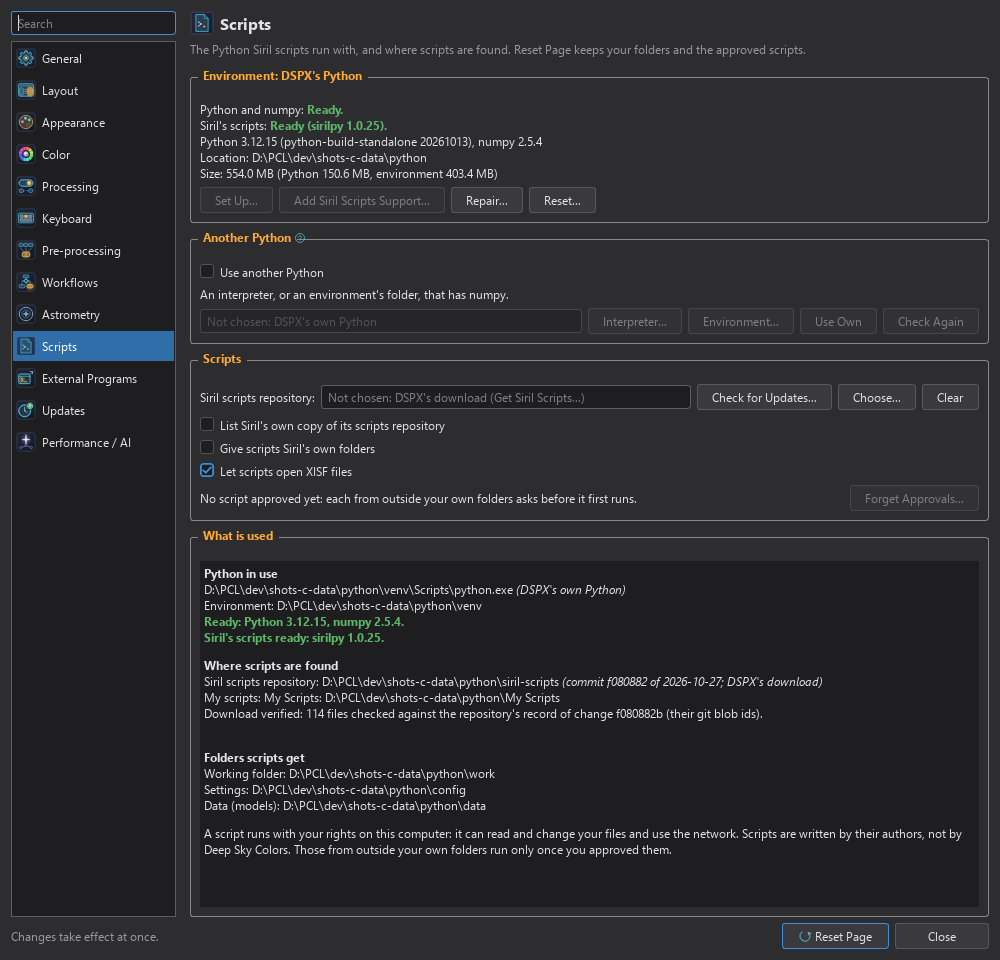
11.1.1DSPX's Own Python
The first time we run a script with no Python chosen or set up, the program opens the Set Up Python for Scripts dialog.
It says what will be downloaded, from where, and where it goes, and does nothing unless we click Download and Set Up. The
check box Also set up what Siril's scripts need (sirilpy) is off for a script written for DSPX, so that only Python and
numpy come, and on for a script written for Siril. Clicking Set Up... on the Scripts page sets up Python and numpy alone. A
Siril script that finds sirilpy missing in DSPX's own Python offers to add it, and so does
Add Siril Scripts Support... on the page.
The setup takes up to four steps, the last two only when Siril's scripts are included:
- The interpreter. A CPython 3.12 build for this system, a file of 25 to 67 MB depending on the system. Its size and SHA-256 are checked against values written in the program before anything of it is unpacked; a file that differs by one byte is refused and deleted. The program unpacks it itself, refuses any name that would climb out of its folder, and puts it in place only once it is complete.
- The environment. A virtual environment made by that interpreter.
- numpy, from the Python package index, installed only if its file matches the SHA-256 written in the program: nothing whose hash differs is installed. It is all a script written for DSPX needs.
- The libraries sirilpy needs, from the same index, each installed only if its file matches the SHA-256 written in the program for it. About 21 MB on Windows with numpy.
- sirilpy 1.0.25 from Siril's source repository at the commit of Siril 1.4.4. Its 36 files are checked against their digest before they are installed, with no dependencies and no further downloads.
On a typical computer the setup takes under a minute. The interpreter takes about 150 MB on disk and the environment about 100 MB, with
Siril's scripts included; without them it is less. The setup runs as
a job of its own with its lines in the Log and a progress dialog with Cancel, and only one runs at a time. From the command line,
DSPX --setup-scripts sets up everything, Siril's scripts included (DSPX's Options).
An environment made before the two were separate keeps working: it has sirilpy, so it is ready for both kinds of script.
11.1.2The Buttons of the Environment
Set Up...: Downloads and sets up whatever Python and numpy are missing. When this version of the program pins a newer Python than the one on disk, the page says so and Set Up replaces the interpreter; the environment stays.
Add Siril Scripts Support...: Says what is downloaded and from where, and after we agree adds sirilpy and its
pinned libraries to the environment. It is available when Python and numpy are ready and sirilpy is not.
Repair...: Asks, then removes the environment, with every package that scripts installed, and makes it again from the interpreter. A check box
decides whether Siril's scripts are included; it starts on when the environment has sirilpy now. The
packages scripts need install themselves again when the scripts next run.
Reset...: Lists what goes, asks, and then removes the interpreter, the environment, an unfinished download and the requirements file. The downloaded scripts, the approvals and what scripts keep stay.
Check Again: Runs the Python again and asks it for its version, numpy's and sirilpy's.
The status lines show whether Python and numpy are ready and whether Siril's scripts are available. Python's and numpy's versions,
the location, the size of the interpreter and of the environment, and why Siril's scripts are not available go to the Log when the page first reads the
status and whenever it changes.
11.1.3Another Python
The box Use another Python is unticked by default, and the controls under it are off: DSPX's own Python is used. Tick it to
use another: Interpreter... chooses a Python interpreter that has numpy installed (and sirilpy, for Siril's scripts),
and Environment... chooses the folder of a virtual environment that has them (a folder with pyvenv.cfg). While one is
chosen and the box is ticked, DSPX's own is not in use, and the page says so. Ticked with nothing chosen, DSPX's own is used as well. Unticking the box
returns to DSPX's Python and keeps the choice, which is used again when the box is ticked. Use Own forgets the choice. A
computer that already had a Python chosen before this box existed finds it ticked.
A script's own ensure_installed call can still install packages into the environment it runs in, as under Siril. The approval sheet
tells us what a script installs before it first runs.
11.1.4Siril's Folders
When Siril is installed on this computer, the program asks once (the first time the Scripts panel is shown or a script first runs, Yes by default) whether to let scripts share the folders Siril keeps for its settings and downloads, so that a model a script downloaded under Siril is found here, and the other way round, and whether to list Siril's own copy of its scripts repository as a source. The questions are two check boxes on the Scripts page: Give scripts Siril's own folders and List Siril's own copy of its scripts repository. Without them, scripts get folders of their own: a working folder, a settings folder and a data folder for models. The page shows where they are. DSPX itself never writes to Siril's folders; scripts that run with our rights may.
11.2Siril's Scripts Repository
The repository of Siril's scripts is a public collection of Python scripts by many authors, mostly under the GPL. Deep Sky Colors does not review them. DSPX can download it, check it, and keep it up to date.
11.2.1Where Scripts Are Found
Each place scripts come from is a source in the Scripts panel:
- Siril scripts repository: a copy of the repository on this computer, taken from the folder chosen in Preferences under Siril scripts repository:, else from the copy DSPX downloaded. The panel shows the commit it was downloaded at.
- Siril's own copy: the one Siril keeps, when it has one and we agreed to list it. It is read only.
- My scripts: the folders we add in the panel with Add Folder..., remembered. Adding a folder asks first: its scripts then run without asking, now and whenever they change, because adding the folder is our consent.
The Scripts page lists these under Where scripts are found, says what is used, and "Nowhere yet" with what to do when there is no source. Choose... picks another copy of the repository, Clear forgets the choice. What Is Used..., at the bottom of the page, opens a window with the Python, the packages, the Siril support and the scripts' folders DSPX uses now.
11.2.2Getting the Repository
(or Get Siril Scripts... on the Scripts page) asks first. It says what the repository is, that Deep Sky Colors does not review it, that each script asks for approval before it first runs and again when it changes, what will be downloaded, from where and where it goes. Nothing is downloaded until we agree.
The download works with the repository's own record. The repository publishes no releases or checksums, so the program asks the server for the id of the latest change, downloads the archive of exactly that change, and checks every file of it against the repository's record of that change (the file list with each file's git blob id) before it keeps anything. A file that differs, or one the repository does not have, refuses the download. The new copy replaces the old one only once it is complete, and records the change, its date and what was verified; the page shows that note ("Download verified"). This proves that the files are those of that change as the server records it. It does not say what they do: that is why each script is approved by us.
The download runs in the scripts' Python with the libraries sirilpy needs, so Siril's scripts support comes first: when it is
missing, Get Siril Scripts... offers to set it up. The archive is about 2.5 MB.
11.2.3Keeping It Up to Date
(or Check for Updates... on the page) asks the server for the latest
change again. If it is the one we have, nothing is downloaded. If it is another, the new copy is compared with the old one script by script, and the
result is shown ("2 updated, 1 new, 1 removed"). The approvals of the old versions of changed and removed scripts are forgotten, so changed scripts ask
again before they run. From the command line, DSPX --get-scripts does the download (DSPX's
Options).
11.2.4Our Own Script Folders
opens the first of our own folders in the file manager, or the program's scripts data folder when
there is none. In the panel, Remove Folder takes the selected folder of our own off the list; its files stay. Refresh
reads the folders again, so a script put in a folder afterwards is listed. A folder of our own can be added at any time with Add Folder....
Each folder we add is a group, My scripts: folder, right after DSPX Scripts and before the repositories, and the panel
selects it at once. The group is there when the folder has no scripts, with a line that says so (the scripts are the .py files in the folder
and in the folders under it), and when the folder is not there any more (a drive that is off, a folder moved), with a line that says that; Remove
Folder takes it off the list. A script we run with is not in a folder of our own: it is listed under
, not in the panel.
11.3Running a Script
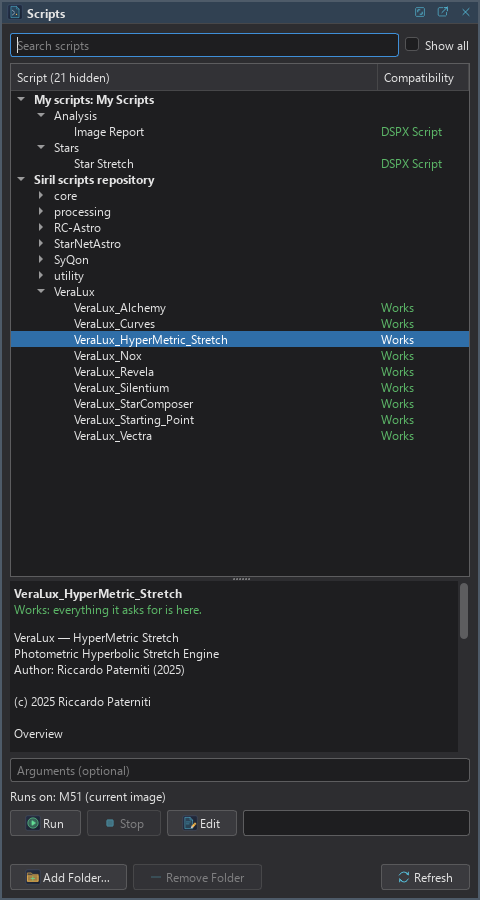
(Ctrl+Alt+S) shows the Scripts panel, a panel tabbed with Process and Tool. The Scripts menu sits between Process and Window.
11.3.1The Scripts Menu
| Command | What it does |
|---|---|
| Scripts... | Shows the Scripts panel. |
| Script Editor... | Opens the Script Editor, a window of its own to write and run scripts (The Script Editor). |
| Recent Scripts | The last eight scripts run, each with the arguments it had; one click runs it again on the image in front, with the parameter values it had and without opening its parameter window (The Parameter Window). |
| DSPX Scripts | The scripts that come with DSPX (DSPX Scripts): choosing one runs it on the image in front. Its Copy to My Scripts list copies one to our own scripts folder. |
| Run Script File... | Runs any .py file on the image in front, after asking for arguments. |
| Run Without Image... | Runs a script with no image: what it loads or makes becomes a new image. |
| Run on Files... | Runs a script once for each of several image files, in its command-line mode. |
| Stop Script | Stops the running script, as the panel's Stop does. |
| Get Siril Scripts..., Check for Updates of Siril Scripts... | Download the repository, or its newer version. |
| Python Environment... | Opens Edit > Preferences > Scripts. |
| Open Scripts Folder | Opens our own scripts folder. |
| Clear Script Overlay | Removes what a script drew over the image in front. |
11.3.2The Scripts Panel
Search scripts: Finds scripts by name, description or author.
Show all: Scripts marked Needs sequences, Siril only, Not supported, Needs a newer Siril or Needs a newer DSPX are hidden until we ask. The title of the list says how many are hidden, "Script (12 hidden)".
The tree: The sources (DSPX Scripts, our own folders, the repositories), their folders and their scripts, each script with its compatibility mark. A script that has a header is listed by the name it gives itself; any other by its file's name. A tooltip or the details say what the mark means.
The description: What the selected script says of itself: the description in its header or, without a header, its heading without the license and the change log. For a script with a header the details also show its author, version, license, how many parameters it declares, and where it runs ("Runs on an image", "Runs with no image", "Runs on a list of files that it takes itself"). They add a note when the script asks for newer script functions than this DSPX has, when it was made for older ones only, when its header has keys DSPX does not know (they are ignored), and, when the header could not be read, the line where reading stopped. A script whose header could not be read is still listed and still runs, but nothing of its header is used. A header is the script's own statement: it is shown as written, never verified, and it grants and limits nothing.
Arguments (optional): Arguments for the script, as on a command line. With arguments a script runs in its command-line mode, without its window if it has one. The arguments a script last ran with come back when it is chosen.
Runs on: "Runs on: M31 (current image)" or "Runs on: no image". A script that takes open images by name and needs none in front can be run either way.
Run: Runs the selected script on the image in front. A double click on the script does the same.
Stop: Stops the script and everything it started. Nothing it did is kept.
Edit: Opens the selected script in the Script Editor (The Script Editor); the same entry is in the script's context menu. A script of the group DSPX Scripts opens read only.
Inspect Code: In a script's context menu. Shows what a quick look at its code finds, and its source, without running it (Found in the Code).
Add Folder..., Remove Folder, Refresh: Manage our own folders.
Copy to My Scripts: Shown while a script of the group DSPX Scripts is selected, and in that script's context menu. It copies the script to our own scripts folder (DSPX Scripts).
The panel also has a progress bar, which shows the script's own progress, and a status line.
11.3.3DSPX Scripts
DSPX comes with a few scripts of its own, written by Deep Sky Colors, in a folder next to the program. The panel lists them as its first group, DSPX Scripts, and has the same group: choosing a script there runs it on the image in front. A script that has parameters opens its parameter window first (The Parameter Window). Each script is one history step, writes what it did to the Log, and says so in a message, without changing the image, when the image does not fit (no color, nothing to crop, no star).
The scripts are grouped by category in the panel and in the menu: Analysis, Color, Creative, Narrowband, Stars and Utilities. A script's header names its category (The Header); the groups are made as the scripts are read, and a script that names none is listed under Odds and Ends, last.
| Script | What it does | Parameters |
|---|---|---|
| Image Report | Writes the median, the MAD (median absolute deviation), the mean, the smallest and largest value, the percentage of clipped samples and the noise estimate of each channel to the Log. It does not change the image. | None. |
| Edit Keywords | Shows the header's cards in the Log, then sets the keywords we typed, deletes one, and can add a HISTORY line saying what changed. The FITS Header process edits the whole table; this is the short way for the common cases. | OBJECT, FILTER, TELESCOP, INSTRUME and OBSERVER (an empty field leaves the keyword alone); one keyword of our own with a value and a comment (a whole or decimal number is stored as a number, anything else as text of up to 68 plain ASCII characters); a keyword to delete (not HISTORY or COMMENT); Add a HISTORY line. A keyword that is refused, such as a bad name, is reported in the Log and the others go on. |
| Linear Fit Channels | Scales and shifts the other two channels of a color image to match a reference channel, by a straight-line fit (least squares of the reference on the channel) over the pixels where both channels lie strictly between the two rejection limits, so black borders, hot pixels and saturated stars do not drive it. The Log has each channel's gain, offset and number of pixels used. The Linear Fit process matches an image to another image instead. | Reference channel (Red, Green, Blue, or Brightest by median, the default); Low rejection limit (0 to 0.5, default 0) and High rejection limit (0.5 to 1, default 0.92); Clip to 0..1 (on). A mono image is refused. |
| Auto Crop Borders | Finds the dark or empty borders that stacking and registration leave at the edges and crops them away. A pixel is empty when all its channels are at or below the threshold, or are NaN. A row or column is border when no more than the tolerance of it is non-empty. The crop changes the size, so the plate solution and the selection are dropped; the Log line says so. The Crop process crops by margins we type; this script finds them. | Empty at or below (0 to 0.1, default 0.0001); Tolerance (0 to 0.5, default 0.01); Margin (0 to 1000 pixels, default 0) trimmed inside the rectangle; Report only (the rectangle goes to the Log, nothing changes). An image with no borders, or one that would be empty, is left alone. |
| Channel Mixer | Makes each output channel of a color image from a weighted sum of the red, green and blue channels. The Log has the matrix used. PixelMath can do the same with expressions. To pull the Ha and OIII images out of a dual-band image instead, see Extract Ha and OIII (Dual Band). | Preset: Custom matrix, Identity, Swap red and blue, Swap red and green, Swap green and blue, Gray from RGB (weights 0.2126, 0.7152 and 0.0722 on all three outputs), Bicolor: blue copies green (red = Ha, green = OIII), Bicolor: green copies blue (red = Ha, blue = OIII), Synthetic green: mean of red and blue. The nine matrix numbers (-10 to 10) are used only with Custom matrix and dimmed otherwise. Normalize each row to sum 1; Clip to 0..1 (on). The identity matrix, a mono image and a row that adds up to zero when normalizing are refused. |
| Cinematic Stars | A showpiece, written to be read. Finds the brightest stars (peaks that stand out of the local background by a number of noise sigmas) and paints diffraction spikes and a soft halo around them in each star's own color, with a screen blend, so nothing clips harshly. Pixels far from the stars are not touched. The Log says how many stars were found, how many got spikes and the brightest few with their positions. On a 24 MP color image with 25 stars it takes about 5 seconds. Works on mono and color images; an image without stars is left alone. | Detection threshold in sigma (3 to 200, default 15); Most stars (1 to 500, default 25); Least brightness, the peak above the background (0 to 1, default 0.3); Pattern: 4 spikes (cross), 6 spikes (hexagonal), 8 spikes or Webb (6 + 2: six long spikes 60 degrees apart and two short horizontal ones; the default); Rotation (-90 to 90 degrees); Spike length as a percentage of the shorter side (default 10, fainter stars get shorter spikes); Spike strength (default 1); Tint the spikes, and with it on Warmth (-1 cool to 1 warm); Halo strength (default 0.8) and Halo size (default 1). |
| Warp Speed | A showpiece, written to be read. The hyperspace jump: the stars streak outward from a center point while the nebula and the background stay as they are. It separates the highlights (what stands above the background by more than a soft threshold), drags them away from the center along their rays, and blends the streaks back with a screen blend. A 24 MP color image with some 1500 stars above the threshold takes about 6 seconds at Fast, 11 at Balanced and 22 at Fine; a threshold so low that large areas of nebula count as highlights takes longer, and the script then takes coarser steps and says so in the Log. Works on mono and color images (the tint needs color); an image without highlights is left alone. | Center X and Center Y (0 to 1 of the image, default 0.5); Streak length as a fraction of the star's distance from the center (default 0.5); Streak strength (default 1); Highlight threshold (default 0.2); Quality: Fast (half the resolution, a preview), Balanced or Fine (the shortest steps); Hyperspace tint, from the star's own color (0) to blue-white (1, default 0.4); Keep the original stars (off: the cores are taken out and become the heads of the streaks). |
| Gravitational Lens | A showpiece, written to be read; the physics is in its comments. Bends the image around a point as if a black hole sat there, by the point-mass lens equation: every pixel of the result reads the original at the place the lens equation names, so the sky is stretched into an Einstein ring and shows up flipped inside it. Adds a glowing ring, a black event horizon with a soft edge, and, if we like, the brightening a lens gives. Near the ring each pixel averages 2 x 2 samples. A 24 MP color image takes about 17 seconds. Works on mono and color images. | Center X and Center Y (0 to 1, default 0.5); Einstein radius as a fraction of the shorter side (default 0.2); Event horizon size as a fraction of the Einstein radius (0 for none, default 0.3); Ring glow (default 0.6); Magnify (on), and with it on its strength (0 to 1, default 0.5). |
| Little Planet | A showpiece, written to be read; the map is in its comments. The tiny planet: wraps the picture around a small sphere by the stereographic projection, so the bottom of the picture becomes the center of a round planet, its horizon a circle and its top the sky around it. Every pixel of the result reads the picture where the map says, with the picture's width as a full turn around the planet. The classical input is a 360 degree panorama, which is 2:1; any other picture works as a creative effect, and the Log notes it when the picture is far from 2:1 (a note, not an error). Near the center the picture is averaged first, so the squeezed rows do not turn into noise. The result no longer matches the sky: the Log and a HISTORY line say so, and with Square, which changes the size, the plate solution is removed. A 24 MP color image takes 7 to 16 seconds. Works on mono and color images. | Center X (the column that points up, 0 to 1, default 0.5) and Center Y (the row that becomes the center of the planet, 0 top to 1 bottom, default 1); Rotation (-180 to 180 degrees); Planet size (the radius of the horizon circle as a fraction of half the shorter side, default 0.5); Field of view (the degrees around the planet that the picture's width covers, 30 to 360, default 360; less repeats the picture in whole turns); Horizon: Wrap the edges (they meet, right for a panorama) or Mirror the edges (the picture is followed by its reflection: no seam for any picture; the default); Edge softening (0 to 0.4 of the picture, default 0.1: the cross-fade over the seam with Wrap, and the fade at the picture's far edge with a black background); Output: Same size as the image or Square from the shorter side; Background, the sky outside the picture: its own edge, mirrored, or black. |
| Field Inspector | A measuring tool, written to be read; it does not change the image. Finds the stars with a small star finder of its own, measures the FWHM, ellipticity and direction of each one by its second moments, and gathers them on a grid of cells across the field. The Log gives the median FWHM (in arcseconds too when the image is plate solved), the median ellipticity and how much the FWHM varies from cell to cell, then a short diagnosis: tilt (which side or corner is softer, and by how much), field curvature (the corners against the center), the pattern of the elongation (radial or tangential around the center points to the optics, such as the spacing of a corrector or field flattener; one direction everywhere points to tracking or guiding) and the worst corner. The maps open as new images: the FWHM map and the ellipticity map, colored from dark blue (best) to red (worst) with the value written in each cell in a sans-serif typeface, and the orientation map, a line in each cell along the stars' long axis. A cell with too few stars is gray. Linear and stretched images both work; on a stretched image the FWHM values are larger, so compare the cells with each other. Large images are binned 2 x 2 to find the stars, which are then measured at full resolution. Opening the maps needs a license; the diagnosis in the Log does not. Works on mono and color images; an image without stars is left alone with a message. | Grid, the cells per side (3 to 9, default 5); Fewest stars in a cell (1 to 50, default 3); Detection threshold in sigma (3 to 100, default 10); Most stars, the brightest measured (100 to 20000, default 3000); FWHM map (on), Ellipticity map (on) and Orientation map (off); Map width in pixels (200 to 2000, default 600; the height follows the image's shape). |
| Extract Ha and OIII (Dual Band) | Makes a Ha image and an OIII image from the image of a dual-band filter (Optolong L-Ultimate, L-eXtreme, NBZ and the like), or an SII image and an OIII image from an SII and OIII filter, taken with a one-shot
color camera. Ha (or SII) is the red channel; OIII is the mean of the green and blue channels, or one of them, or a weighted mix. It also works on a raw frame that is not debayered, which it
cuts into the four positions of the Bayer cell with no interpolation. The new images are named after the image, _Ha (or _SII) and _OIII; the image itself is not changed. The Log
has what the script found, the median and the noise of each channel and of the results, and a warning when the image looks stretched or does not look like dual-band data.
The model is explained below. Channel Mixer has Bicolor presets for the same colors, but it mixes a color image in place. Opening the new images needs a license. |
Filter's red line (Ha, the default, or SII); Bayer pattern (From the header, the default, or RGGB, BGGR, GRBG, GBRG; used only for a raw frame); OIII from (Green and blue equally, the default; Green and blue, weighted; Green only; Blue only), with Share of green (0 to 1, default 0.5) for the weighted choice; Red line leak into OIII and OIII leak into red line (0 to 0.5, default 0, subtracted as described below); Match backgrounds (off); Also make a quick color image (off; HOO, or SOO for SII); Clip to 0..1 (on). A one-channel image with no BAYERPAT keyword and no pattern chosen is not guessed at, and a pattern that is not a 2 x 2 Bayer cell (X-Trans) is refused: nothing is made and a box says why. |
| Narrowband Normalization | Makes the Ha, OIII and SII images of a narrowband set comparable before they are combined into a palette. It measures the background level and the signal strength of each channel on the nebula, with the stars left out, and matches the other channels to a reference channel (Ha by default) by a straight line, so an SHO, HSO or HOO combination comes out balanced without hand-made PixelMath. The Log has the levels found, how well each channel agrees with the reference, the gain applied to each channel and how uncertain it is. The method is explained below. The channels are open images picked by name in the window; no image needs to be in front. The results are new images, or the picked images replaced (one history step on each). Opening new images and replacing images need a license. | An Ha image and an OIII image (required) and an SII image (optional), picked from the open images (the first image with Ha, OIII or SII in its name is chosen at first); Reference channel (Ha, OIII or SII); Background (Match the reference's, the default, or Keep each channel's own); a Strength for each channel (0 to 1, default 1; 0 leaves the channel as it is); Background percentile (0.5 to 30, default 5) and Signal percentile (80 to 99.9, default 98); Protect highlights (on); Also make a color image (No, SHO, HOO or HSO); Output (New images, the default, or Replace the picked images). Channels of different sizes, a color image picked as a channel, fewer than two channels, a reference that is not in the set, a channel with no measurable signal and a channel that shares almost nothing with the reference are refused with a message. Data that looks stretched is warned about and used. |
| Star Stretch | The star workflow in one run: takes the stars out (Deep Star Removal or StarNet2), stretches the stars on their own (Hyperbolic Stretch or Arcsinh Stretch), can give them
their catalog colors, and puts them back on a starless image. The image can be linear or already stretched. It makes three new images, _Starless, _Stars and
_Combined, or replaces the image with the combined one. How it works is explained below. Opening new images needs a license. |
Star removal (Deep Star Removal, the default, or StarNet2); The image is already stretched (off); Stretch the stars with (Hyperbolic Stretch, the default, or Arcsinh Stretch); Stretch amount (0 to 8, default 2.5); Protect bright star cores (on); Give the stars their catalog colors (off); Starless image (The one made here, or An image file) with its file; Stretch the starless image too (off) with its own amount (0 to 8, default 5); Blend (Screen, the default, Add or Lighten); Stars strength (0 to 1, default 1); Result (New images, or Replace this image with the combined one). |
The group is read only, since DSPX never writes there. To read a script, change it or build on it, select it and click Copy to My Scripts (the panel's button and the script's context menu, or ). The copy goes into the first of our own script folders. When there is none, DSPX makes a folder called My Scripts in its scripts data folder and adds it, after asking, as it does for any folder we add. When a different file of that name is already in the folder, DSPX asks before it replaces it and the answer proposed is No; a file is never replaced without our saying so. The copy is ours: it is listed under our folder and runs without asking, as everything in our own folders does.
Extract Ha and OIII (Dual Band)
A dual-band filter lets only two lines of light through: Ha at 656.3 nm and OIII at 500.7 nm (or, in an SII and OIII filter, SII at 672.4 nm and OIII; choose Filter's red line SII, and everything below holds with SII where it says Ha, the results being named _SII and the quick image _SOO). On a one-shot color sensor the red pixels are the ones that see Ha: the green
and blue filters of the sensor stop it. The OIII line is the other way round: the red filter stops it, and both the green and the blue pixels pass 500 nm. So the two lines are
already in different channels of the image, and the script only has to take them out:
Ha   = red
OIII = share * green + (1 - share) * blue        (share 0.5 is the mean of the two)
Taking both green and blue for OIII adds the signal of both and averages their noise, so it has the best signal to noise. Blue only has the least Ha in it, since the blue filter is the best wall against 656 nm; green only is brighter but takes in a little more Ha. Choose Weighted for anything in between. The filters of a sensor are not perfect walls, so a small part of each line reaches the other channels. Two optional terms take it out to first order, from the channels as they are:
Ha   = red - (OIII leak into red line) * OIII
OIII = OIII - (red line leak into OIII) * red
Both are 0 unless we set them, and a few percent is already a lot. The picture alone does not give the right number, so raise one slowly while looking at a part of the sky where only one line is bright: when a nebula that shines in Ha only starts to show a dark negative copy of itself in OIII, the number is too large. A subtraction can push the faint background below 0; Clip to 0..1 keeps those values or cuts them. Match backgrounds adds a constant to the image with the lower median, so both images have the same median; nothing is subtracted, so no data is lost.
There are two kinds of input.
- A stacked color image (three channels), which is what DSPX makes when it debayers and stacks. The formulas above are applied at the full size. The debayer has interpolated each color, so the three channels are not independent samples of the sensor, and the green and blue noise are partly the same.
- A raw frame that is not debayered (one channel, with the Bayer pattern in the header, or chosen in the parameters). The four positions of the 2 x 2 cell are cut apart as Split CFA does, with no interpolation: red, two greens and blue, each half the size. Ha is the red position. The green is the mean of the two green positions, and OIII is made from it and the blue position by the same formula. Every value in the results is a sample the sensor recorded, so this is the cleaner way, at half the resolution. The header's BAYERPAT, XBAYROFF and YBAYROFF are read as Split CFA reads them. A stack of raw frames keeps the cell only when it was made on the mosaic without sub-pixel shifts, so use a frame or a stack made that way for this route.
The script runs on linear data. Before it makes anything, it writes to the Log what it found (a color image or a raw frame, and the pattern) and the median and the noise estimate of the channels it uses. It warns, and goes on, when the median of the brightest channel is high (the image looks stretched), when the three channels are the same (a gray image), or when the green and blue channels have almost no independent noise (a copy of one channel, or a broadband image). It does not tell a dual-band image from a broadband one by its colors, so the warnings are a help and not a guarantee.
The new images have the keywords of the image, less the Bayer pattern, and a HISTORY line that says what each one is. The option Also make a quick HOO color image adds a third
image, _HOO, with red = Ha and green and blue = OIII, for a first look. It is not a processed result: the lines are not stretched or color balanced.
The color workflow Dual-band color (HOO) does that. A raw frame gives images of half the size, and none of the new images carries the plate solution.
Narrowband Normalization
The three narrowband filters do not record the same amount of light: a typical set has a different sky level in each channel and a nebula that is several times brighter in Ha than in OIII. Combined as they are, the palette is tinted and one color dominates. The script makes the channels comparable first, in the linear data, and it does so in five steps.
- Where to measure. Pixels that are exactly 0 or not a number are borders and are never used. The image is cut into blocks of 8 x 8 pixels and each block is replaced by its median, which ignores a star or a hot pixel inside it and averages the noise down. Blocks that stand out from the blocks around them (stars and their halos), blocks that are saturated and blocks that are unusable in any channel are left out of every channel, so all channels are measured on the same sky.
- A gradient. A plane is fitted to the dim blocks of each channel (the dimmest 30 percent of the clean blocks, refitted so that nebula blocks do not pull it). Only when the plane changes by more than 15 times the noise of the block medians across the frame is it taken out of the block medians before the background and signal are read; a weaker tilt is left alone, because on a nebula that fills the frame the plane would follow the nebula. The plane is used for measuring only: it is never subtracted from the result, and the Log says, per channel, that a gradient was measured and how large it was. Remove gradients from the channels before this script when they matter for the picture.
- What is measured. The background of a channel is a low percentile of its block medians (the dark sky between the nebulosity; 5 by default; keep it low, see below). Its signal level is a high percentile (98 by default), the signal is that level minus the background: how bright the nebula gets above the sky. A channel whose signal is not clearly above the noise of the block medians is refused.
- The match. The reference channel stays as it is. Every other channel becomes
out = (x - background) * gain + target background
gain = 1 + strength * (reference signal / signal - 1)
target background = background + strength * (reference background - background)
so with strength 1 the channel has the reference's background and the reference's signal, with strength 0 it is not touched (bit for bit) and in between it is a mix. Keep each channel's own background leaves the background where it was and scales the signal only. - Highlights. A channel with a weak signal needs a large gain, and its brightest pixels could pass 1. With Protect highlights on, a channel that does pass 1 has its values above 0.85 rolled off smoothly toward 1, so nothing is clipped; the background and the signal level are far below that and are not touched. Off leaves the values as they come.
What the script assumes. The data is linear. The nebula has the same shape in every channel: the gain comes from the bright nebula of each channel, so it is only right when the same parts are bright in both. And the script equalizes the level of the bright nebula; it does not calibrate line strengths, so Ha and OIII at equal level are not equally strong in the sky. The script checks the second assumption: for each channel except the reference it reports the correlation of its block medians with the reference's, 1 for the same shape. Below 0.85 the Log warns that the gain may be off by 10 to 40 percent; below 0.5 the warning is strong (the gain is probably off by more than that); below 0.4 the channel shares almost nothing with the reference (a nearly empty channel, or another object) and the script refuses, with nothing changed. Set the strength of such a channel to 0 to leave it out of the check and keep it as it is. The Log also gives the gain each channel would get with the signal read at the 95th and at the 99.5th percentile next to the chosen one: the spread is a measure of how much to trust it (about 6 percent in a real Ha, OIII and SII set, 8 to 17 percent when the channels show different shapes).
The Background percentile is best left at its default. Raising it is not recommended for an image that is nebula everywhere: the dark-sky estimate then picks nebula, and when the channels show different shapes a higher value makes the match worse (in a test with different shapes the background error grew from 11 to 147 units of 0.0001 as the percentile went from 5 to 20).
The match is a statement about the bright nebula of each channel, not about every pixel: Ha and OIII show different structures, so equal signal levels do not make the two images alike, only comparable in strength. Use a strength below 1 for a channel that should stay weaker in the picture, for instance a faint SII. The set must be registered and be the same size; the data should be linear, as it comes from pre-processing, and the script warns when a channel's median is above 0.2 (it looks stretched). Border pixels (0) stay 0. An alpha channel is not seen by a script: it is kept when an image is replaced, and the new images have none. Each channel must be a mono image; to use a color image, split it into its channels first.
Pick the channels in the window: a list of the open images for Ha, OIII and SII (SII may stay on None for a two-channel set). The first open image with Ha, OIII or SII in its name is chosen at first, so a set
named for its filters needs no clicking (an OIII image named O3 is picked by hand). The results are new images named after the picked ones, _norm, or, with Replace the picked images, each matched channel written into its own
image as one history step on that image, which Undo takes back; the reference is not changed. Also make a color image adds the linear SHO (red SII, green Ha, blue OIII), HOO (red Ha, green and blue OIII) or HSO (red Ha, green SII, blue OIII)
combination of the matched channels for a first look, always as a new image; stretch it afterwards. SHO and HSO need SII; without it the Log says so and the other results are still made.
Star Stretch
The usual way to treat the stars separately has four steps that we repeat by hand on every image: remove the stars, stretch the stars-only image, optionally give the stars better colors, and put them back on the starless image. Star Stretch does the four in one run. It is a script and not a process because it chains several of our processes (a star-removal engine, a stretch, Catalog Star Color) and does the arithmetic between them; a process that did the same would have to carry the code of all of them.
- Star removal. Deep Star Removal, the default, needs its AI files; StarNet2 needs the program set up in . Either is run with its own defaults, told whether the image is linear or stretched. When the chosen one cannot run (no AI files, no StarNet2) a box says what is missing and nothing is changed. A script cannot read the star image that an engine can make, so the stars are computed from the two images the script does see. For linear data, where light adds, the stars are the original minus the starless image. For stretched data they are the screen blend undone, 1 − (1 − original)/(1 − starless), which is what Deep Star Removal's own Screen star image holds: with the Screen blend and a strength of 1 the original comes back exactly. If the engine took out almost nothing, the script says that no stars were found and stops, with nothing changed.
- Stretch the stars. The stars-only image is stretched with Hyperbolic Stretch (symmetry point 0, local intensity 0) or Arcsinh Stretch. One number, Stretch amount, sets the strength as ln(D + 1): Hyperbolic Stretch takes it as its stretch factor, Arcsinh Stretch multiplies the faintest data by e to that power (at most 1000). 0 changes nothing, 2.5 is a moderate stretch and 5 a strong one. Protect bright star cores makes the Hyperbolic stretch linear above 80 percent, or scales the Arcsinh result so nothing passes 1, so the centers of the bright stars do not flatten to white. The image is already stretched skips this step: the stars are taken out as they are.
- Recolor (off by default). Runs Catalog Star Color on the stretched stars. It is meant for narrowband data (SHO, HOO), whose stars have false colors. It needs a plate solution on the image: without one the step is skipped and the Log says so. The script never solves the image and never downloads a catalog; solve it first with Plate Solve. A gray image is not recolored.
- Put the stars back. The stars, multiplied by Stars strength (0 to 1), are blended onto the starless image with Screen (the default; it never clips), Add (it can clip bright stars) or Lighten (the brighter of the two). Strength 0 gives the starless image.
Which starless image. The usual order is to stretch the starless image ourselves, with all the care it needs, and put the stars back on it. Open it, choose An open image under Starless image and pick it in the list that appears (Starless image; the first open image with starless in its name is chosen at first). It must have the same size and the same number of channels as the image, or the script refuses with a message that names it and changes nothing; it is taken as stretched, and it is only read: the script never changes it. With The one made here the starless image is the one the engine made, which is still linear when the image was. The stars are stretched and the starless image is not, so the combined image will look wrong; the Log says so. Stretch the starless image too is the one-click way out: it stretches the starless image with the same process as the stars, with Starless stretch amount, and takes the symmetry point (Hyperbolic) or the black point (Arcsinh) from the starless image's own background. It is a quick result, not a replacement for a careful stretch.
The result. New images (the default) opens _Starless (stretched, if the script stretched it), _Stars (stretched and recolored, if asked) and _Combined, named after the
image, with its keywords and a HISTORY line, and leaves the image exactly as it was, with no history step. When the starless image is one you picked, _Starless is not made. The new images
have no plate solution and no alpha channel. Replace this image with the combined one changes the image in one undoable step, keeping its alpha channel and plate solution. The working
samples are 32-bit floating point whatever the image stores, so a 16-bit image does not lose the faint light of the stars, and the new images or the replaced image are stored as the image was. Opening the new images, running the processes and replacing the image need a license: without one nothing is changed and the script says so. Stop
throws everything away.
The Log says which engine ran, how the stars image was made, how many pixels carry star light, each stretch with its numbers, whether the recolor ran or why it was skipped, and the blend and the strength. It warns, and goes on, when the image's median says the opposite of the "already stretched" switch: a median below 0.02 for an image said to be stretched, or above 0.15 for one said to be linear.
Why They Are Not Asked About
A script that comes with DSPX runs without the approval sheet (Approving Scripts). The build records the SHA-256 fingerprint of each of them in a list kept beside them, and a script is let through only when it is in that folder and its bytes are exactly the recorded ones. A script that was changed by a single byte, a file of the same name anywhere else, a file added to that folder, or a list that is missing: each is asked about like any other script, and the sheet says that the file is not as DSPX shipped it. The list protects against a script that differs from the one we shipped. It is kept beside the scripts, so it does not protect against someone who can change everything in that folder, and it says nothing about other scripts.
11.3.4The Compatibility Marks
A mark is a reading of a script's source, not a promise. It says how much of what the script does can run here:
- Works: everything it asks for is available.
- Works on single images: its mode for Siril sequences does not run, since DSPX has no sequences.
- Partial: some of what it does needs something that is not available yet.
- Not supported: it works through Siril commands that DSPX does not have.
- Needs sequences: it works on Siril sequences only. Every script of the repository's pre-processing folder is marked so.
- Siril only: it serves Siril itself.
- Needs a newer Siril: it stops unless it gets a newer
sirilpythan 1.0.25 or a newer Siril than 1.4.4. - DSPX Script: it was written for DSPX's own script functions (it uses the
dspxmodule or has a DSPX header) and runs in DSPX only. A script that uses bothdspxandsirilpyis marked by what it asks ofsirilpy, and its details say that it also uses DSPX's own functions. - Needs a newer DSPX: its header asks for newer script functions than this DSPX has. It is not run, and the Log says which version it asks for.
11.3.5Running a Script on an Image
- Select the image to work on, and the script in the panel. Type arguments if the script takes them.
- Click Run. If the script needs approval, the approval sheet comes first (Approving Scripts).
- Watch the Log and the progress bar. The view shows what the script writes, blended through the image's mask, with the note "PREVIEW only, nothing applied: the script is running" over it. The image's own pixels stay as they were.
- Answer any box that the script waits on. A modal box is put to us with the script's name as title; the other boxes are shown without stopping the script and also go to the Log.
- When the script ends, what it left of the image is blended through the mask and committed as one history step, Script: and its name.
While a script runs, its image is busy: it cannot be closed, undone, saved over or processed. Other images stay usable, and processes may run on them. One script runs at a time. A script that opens its own window (with PyQt6 or tkinter) shows it beside the DSPX window, and runs until the window is closed.
The Working Copy and the Result
The script works on a copy of the image, its metadata, its mask (the first channel) and the rectangle of its selection. The history step records the
script's name and arguments, its last undo_save_state label and the first digits of its fingerprint. Keywords the script set and the selection it set
(as a rectangle) are part of the step. A size or a sample format that the script changed is part of the step too: a 16-bit image that a script writes as
floating point becomes 32-bit floating point, as in Siril. If nothing changed, nothing is recorded. A script that fails after changing the image keeps the
change, and the Log says so. Stop throws everything away.
An image a script loaded or made after starting becomes a new image. What the script had done to the document before that is the document's result, and the last image it worked on becomes a new document, named after its file, or "new". A run without an image gives a new document for whatever it loaded or made last.
The Log, Messages and Boxes
What a script prints or logs goes to the Log, its error stream as warnings, and Siril's red messages as errors. Scripts can ask for message boxes. A modal one, including a confirmation, waits for us. The others do not stop the script and are in the Log too.
Drawing on the Image
A script can draw polygons and mark points over the image in front. They are drawn over the view and never into the pixels, in the script's own colors over a shadow line in the theme's overlay colors, so they read on any image. They change as the script draws, stay after the run, and go with a stopped run. removes them, and so does the next run on the image. The overlay is shown only for the image a script was started on, not for one of its layers.
A script can also ask us to draw a polygon: the image's window comes to the front with the note "asks for a polygon: press and drag around the area, release to close it. Esc cancels." The left button draws it; the space bar and the middle button still pan. A click alone is no polygon.
What a Script Can Ask For
DSPX answers every request of sirilpy 1.0.25, either doing what Siril does or saying why not. Scripts can read and write the image's pixels, its
size, statistics, FITS header, keywords, history, ICC profile and file name; get and set the selection; measure stars (findstar,
get_image_stars, get_selection_star) with the program's own star detector and PSF fit; read and use the plate solution
(pix2radec, radec2pix) and plate solve the image with platesolve (Plate Solving); show
plots in a window of their own, which can be saved as PNG, SVG, a data file or the clipboard; apply display settings (zoom, pan and the screen stretch) to
the view of the image they started on; undo and redo inside the run, with ten states kept (at most 2 GiB together); and use many of Siril's commands, such as
load, save, savetif, savepng, savejpg, new, crop, rotate by quarter
turns, mirrorx, mirrory, autostretch and pm.
A crop, mirror or rotation removes the plate solution, which would no longer fit; the Log says so and platesolve can solve again.
What DSPX does not have, a script cannot use: Siril's sequences, Siril's own dialogs (open_dialog reports that it did not open), screen transfer
functions other than linear and automatic, rotation by an angle that is not a quarter turn, and Siril processing commands DSPX has no counterpart of. A
request or command that is not supported fails as an error the script can catch and is named once in the Log. Such scripts are marked accordingly.
DSPX's Processes From a Script
A script can run DSPX's own processes through the dspx module, which the program puts on every script's Python path:
import dspx
dspx.processes()                       # the processes: id, name, category, version
dspx.settings("DeepMorphology")        # a process's settings: id, type, label, default, range, choices
dspx.run("DeepMorphology", operator="Erosion", amount=0.35)
dspx.run_source("var P = new DeepMorphology; P.amount = 0.35;")
A process runs on the image the script works on, as part of the run's one history step, so undo goes back past it. A process source is read in
the strict grammar of a stored process, never run as code. A setting the process does not have, a process DSPX does not have, a process that works on files
(such as Calibration or Integration), and a process that needs a plate solution on an image without one are refused with the reason, as an error the script
can catch. Images a process makes (a star mask, for example) become new documents when the script ends. run and run_source return a
RunResult, which is the text "image" or "read" (with the number of new images) as before and also has changed and new_images; see
Writing Your Own Scripts for the rest of the dspx module.
Opening XISF Files From a Script
With Let scripts open XISF files on in Preferences > Scripts (the default), a script that reads files itself with astropy opens an
.xisf file through DSPX, and the script's file dialogs list *.xisf beside FITS files. The hook checks astropy first and stays off if astropy
is not as it expects.
11.3.6The Parameter Window
A script can declare parameters in its header (Describing a Script to DSPX). When it does, running it with Run or a double click in the panel, from , with or with first opens its parameter window. The script's name is its title and its description is under it. Each parameter has a control, built as the panel of a process builds them: a check box for yes or no, a box for a whole number or for a number with decimals (within the range the script gave), a list for a choice, a list of the open images by name (Open Images as Parameters; the window says under it what keeps Run from working, such as an image not chosen), a text field, and a text field with Browse... for a folder or a file. Parameters that the script put in a group are in a section of that name, which opens and closes. A parameter that matters only while another has a certain value is dimmed otherwise, but the script still gets its value. A tip is the control's tooltip. A number typed outside its range is brought into it.
Run: Takes the values and runs the script.
Cancel: Runs nothing. The Log says the script was not run, and the values remembered stay as they were.
Reset to Defaults: Puts every value back to what the script suggests.
The texts in the window are the script's own, shown as written and not translated. The values we run with are remembered for that script file and its list of parameters, and the window opens with them the next time. If the author changes the list (a name or a kind of parameter), what was remembered is forgotten and the window opens at the defaults. Recent Scripts runs a script again with the values it last had and does not open the window. Run on Files does the same: it uses the remembered values, the same for every file, and its dialog has Parameters... when the script has parameters, to set them first. A script that declares no parameters, or whose header could not be read, gets no window and runs as before. Before the script starts DSPX checks every value once more (its type, its range, that a choice is one of the choices), and the script receives only values that are valid.
11.3.7Run Without Image
opens the Run a Script Without an Image dialog. A script that needs no image runs, and
what it loads (load) or makes (new) arrives as new images.
11.3.8Run on Files
runs one script once for each of several image files. Each file is loaded on its own, never as one of the window's documents, and the script runs in its command-line mode, without its window, with the same arguments for every file. The dialog says whether the script has a command-line mode of its own; a script without one is run all the same, with the dialog's warning, as many scripts have no window at all.
What the script leaves of each image is saved into the output folder as <file>_<script>.xisf (or .fits), with the images it made
beside it. A file that is already there is never written over: the name gets _2, _3 and so on. An image left as it was is not saved. A file
that fails is named in the Log and the next one runs. The script is approved once, before the first file. Stop stops the file that is
running and the rest. The progress shows in the status as "Run on Files: 3 of 12", and the end gives how many files were written, left as they were and
failed.
11.4Approving Scripts
A script is code. Without safe mode (Safe Mode) it runs with our rights: it can read and change our files and use the network. So DSPX checks every script before anything of it runs, in safe mode or not.
- A script from our own folders, the ones we added in the panel, runs without asking. We were asked when we added the folder.
- A script that comes with DSPX (DSPX Scripts) runs without asking as long as it is exactly as it was shipped.
- Any other script, whether from the repository copy, from Siril's copy, a changed file in DSPX's own scripts folder or a file on this computer, runs only when we have approved that very file by its SHA-256 fingerprint. The approval is asked before it first runs, and again whenever its bytes change.
Python runs the modules a script imports from its own folder (a helper.py or a helper package beside it) as part of the script. So
the approval covers them too: the sheet lists them, and a change to any of them asks again. When an approved script runs, Python loads only those files from
its folder, with the bytes we approved. A file of that folder with the name of a standard or installed module, such as json.py or
numpy.py, is never loaded from there: the real module is, and the Log says so. Python runs the bytes DSPX checked: a script that changes
between the check and the start does not run.
11.4.1The Approval Sheet
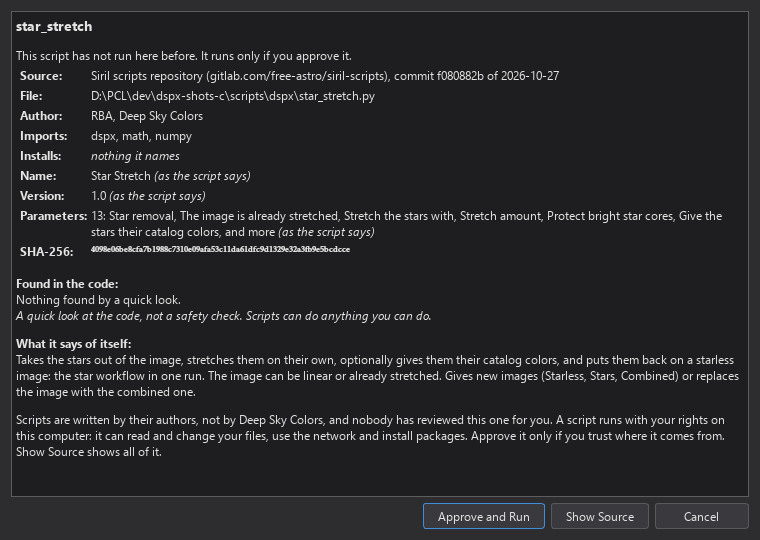
The Approve Script sheet shows:
- the script's name, and whether it is new or has changed since we approved it (with the date);
- its source (the repository with the change it was downloaded at, Siril's copy, or a file on this computer) and its path;
- its author and license lines;
- what its header says of it, as the script says it: its name, its version and its parameters (the sheet marks them "as the script says", since nothing in a header is checked), or, when the header could not be read, the line where reading stopped;
- the modules it imports, with a note when it also imports by name while it runs;
- the files of its folder it imports, when it has any, which the approval covers too (one with the name of a standard module is marked "not loaded");
- what it installs (what it asks
ensure_installedfor and the dependencies of its PEP 723 block) and what its header says it needs, such as network access, which DSPX shows but does not enforce; - its SHA-256;
- what a quick look at its code found (Found in the Code);
- what it says of itself.
The sheet states that scripts are written by their authors, not by Deep Sky Colors, that nobody has reviewed the script for us, and that it runs with our rights. Show Source shows the code, the files it imports included (and Hide Source hides it). Approve and Run stores the fingerprint with the path and the date; Cancel, the default, runs nothing and the Log says that the script was not approved.
11.4.2Found in the Code
Before the sheet opens, DSPX reads the script's code with Python's own parser, without running any of it, and lists what it does that matters before we run somebody else's code: one line for each kind, with the line numbers where it is found. Pointing at a line number shows that line of code, and clicking it shows the source at that line.
| Line | What the code does there |
|---|---|
| Runs, stops or installs programs | subprocess, os.system, os.popen, os.exec..., os.spawn..., os.fork, os.kill, pty, asyncio's subprocess calls, pip, ensure_installed and the other package installers of sirilpy |
| Runs code built while it runs | eval, exec, compile, __import__, importlib.import_module, runpy, code, types.FunctionType, import hooks |
| Uses the network | socket, urllib.request, http.client, requests, httpx, aiohttp, ftplib, smtplib, xmlrpc, websockets, astroquery, sirilpy's download_with_progress |
| Reads passwords, keys or other private data | keyring, browser cookies, keystrokes or the screen, an environment variable named for a password, key or token, the whole environment, a path to a key store such as .ssh or .aws |
| Deletes, overwrites or links files | shutil.rmtree, shutil.move, shutil.copy..., os.remove, os.unlink, os.rmdir, os.rename, os.replace, os.symlink, a path's unlink, write_text or symlink_to, open to write or append, a tar archive extracted without a filter |
| Changes startup or system settings | writes to the Windows registry, a path to a place that starts programs (the Run key, the Startup folder, LaunchAgents, autostart, cron, shell profiles), schtasks, launchctl, systemctl |
| Loads native code | ctypes, cffi, win32api, win32com |
| Loads data that can run code | pickle, marshal, shelve, numpy.load with allow_pickle=True, yaml.load without a safe loader |
| Decodes data and runs it as code | exec, eval or an import of what base64, zlib or codecs decoded, or of text built from character codes |
| Looks up names while it runs | getattr on a module with a name made at run time, setattr on a module, globals()[...], vars()[...], sys.settrace, sys._getframe |
| Opens web pages or other files | webbrowser, os.startfile, Qt's QDesktopServices.openUrl |
Names given another name on import (import subprocess as sp, from os import system) are followed; words in comments and strings
are not code and are not listed, except a path or command in a string that names a key store or a place that starts programs. When nothing is found, the sheet says "Nothing found by a quick look." A file that is not valid Python is listed as "Cannot be
read as Python", with Python's reason. When Python is not set up yet, only the import lines are looked at, and the sheet says so. A script larger than 2 MB is
not looked at.
This is a quick look at the code, not a safety check, and the sheet always says so. A script can do anything we can do: code that wants to hide what it does can, and a line in the list is not wrong in itself (many good scripts write files). Nothing is decided on it; read the source when in doubt.
To look at a script without running it, right-click it in the Scripts panel and choose Inspect Code: the same list, and the source, read only. Nothing is approved or run.
11.4.3Forgetting Approvals
Forget Approvals... on the Scripts page forgets every approved fingerprint, of scripts and of blueprints, so each asks again before it next runs. The page says how many script versions and how many blueprint versions are approved. The approvals of the old versions of scripts that an update changed or removed are forgotten by the update itself. Blueprints use the same approval store (Picking and Editing Workflows).
11.4.4What the Program Downloads for Scripts
Every connection made for scripts starts with a click of ours: Download and Set Up, Download and Add, Repair, Get Siril Scripts... or Check for Updates.... The program connects to:
| To | For | Checked against |
|---|---|---|
| The release page of the Python builds (GitHub) | The interpreter archive | Its size and SHA-256, written in the program |
| The Python package index | numpy, and for Siril's scripts the libraries sirilpy needs | The SHA-256 of every file, written in the program |
| Siril's source repository (GitLab) | The source of sirilpy 1.0.25 | The digest of its 36 files, written in the program |
| The scripts repository (GitLab) | The id of the latest change, the list of its files, and the archive of the change | Each file against the repository's record |
A script in safe mode connects to nothing unless Deep Sky Colors gave it the network (Permissions From Deep Sky Colors). With safe mode off, what a script connects to is its own business. The approval sheet says what a script installs. Models that scripts download are theirs, not the program's. See also the other connections the program makes (Network Connections).
11.5Safe Mode
Safe mode runs each script in a sandbox: it can read its own files and the images DSPX gives it, but not our other files, the internet or other programs. The operating system enforces it, so a script that misbehaves, by mistake or on purpose, reaches only what it needs. The approval stays as it is: safe mode is a second line, not a replacement for it.
11.5.1What Safe Mode Protects
- Our files. A script reads only its own folder, the images DSPX gives it and the files and folders we pick in a dialog. It cannot read or change our documents, photos, other projects or other programs' data. It overwrites only what we pick for it: a file we pick in a Save dialog, and what is in a folder we pick. Next to the image it may add new files, never change those already there.
- Our privacy. A script has no internet unless Deep Sky Colors has allowed it for that script, or we allowed it when safe mode asked. It cannot send our files or passwords anywhere, nor download something else and run it.
- Our computer. A script cannot start other programs, install anything itself or change system settings, and it cannot reach other programs' windows. What it asks DSPX for (a package, the clipboard, a web page, a folder shown) DSPX asks us about first, then does, and the Log says so.
- Our Python. A package a script asks for is installed only when we allow it, by pip running in safe mode too, and only into a folder of that script's own (Packages). The Python that the scripts shipped with DSPX and scripts with safe mode off use is never changed by a script in safe mode.
- One script from another. Each run has folders, a connection and shared memory that no other run can reach, and a script's packages and settings are its own.
- Our choice of files. DSPX shows the Open and Save dialogs, and the script gets only the file or folder we pick, for that run.
- Permissions only from Deep Sky Colors. They are given per script, and a changed script loses them.
Safe mode works on Windows, macOS and Linux. On macOS it uses the system's own sandbox (Safe Mode on macOS); on Linux, Landlock (Linux 5.13 and later) or, without it, bubblewrap when it is installed (Safe Mode on Linux).
11.5.2What It Does Not Do
Safe mode limits what a script can reach; it does not make a harmful script harmless or a poor script good. A script still works on the images we give it and can give a poor result. Safe mode is not antivirus. It does not protect against a script that knows a flaw of the operating system itself, nor against a Python we chose under Another Python: the interpreter is trusted, the script is not. A package we allow is installed as its author published it on PyPI: it can't run anything while it is installed, but its code runs, in safe mode, when the script that asked for it imports it. With safe mode off, scripts run with our rights, as any program we start. DSPX asks before turning it off, and says so while it is off.
11.5.3What a Script in Safe Mode Can Do
A script in safe mode:
- reads its own folder, its Python (DSPX's own, or the one we chose) and the folders scripts get for their settings and models;
- reads the fonts, the system's own and those installed for our user only, but cannot change them;
- writes in a working folder of its own for the run. When the run ends, DSPX copies what the script left there to the results folder
(Where Results Go), and the Log names the files. A name that is already there gets
_2,_3and so on; - reads and writes the files and folders we pick in its dialogs, for that run (Files the Script Asks For);
- adds new files next to the image it runs on (in the folder of the image's file), and uses them; what was there before stays out of its reach;
- gets the images as always, through DSPX;
- has no network and starts no other programs;
- shows its own windows (tkinter, Qt), but not other programs' windows;
- copies and pastes text through DSPX, opens a web page (http or https) through DSPX in our browser, and asks DSPX to show a folder in File Explorer (the Finder on macOS). DSPX asks us first, except for a folder we gave the run; the Log names each page and folder;
- keeps its Qt settings (
QSettings) in a file of its own in the settings folder, instead of the Windows registry or macOS's preferences, which it cannot write. They are kept from run to run for that version of the script: a changed script starts with none. Settings an earlier DSPX kept by the script's name go to the first version of it that runs.
A script's messages and questions show its text as it wrote it, with no formatting, and its name in the window's title.
When safe mode refuses something, the Log says what, in plain words, and the script gets an error it can report. When it refuses several files of one folder the same way, the Log says it for the first one and counts the rest in one more line. Before it refuses a file, a program or the internet, it can ask us first (When Safe Mode Blocks Something).
11.5.4Where Results Go
When a run ends, DSPX copies what the script made to the folder set in Results go to, in the Safe mode group of the Scripts page of Edit > Preferences: the scripts' working folder (the default), Next to the image (the folder of the image's file; for an image with no file, the working folder), or a folder we choose. DSPX makes the copy itself and never replaces a file, so the script never gets that folder, and any folder can be chosen. The Log names where the files went. Run on Files uses the same setting.
Each run also gets its own empty folder for its temporary files, made in DSPX's own folder unless Temporary files, under Advanced, names another. The default is fine for most of us; a folder on another drive helps when scripts write large files. The script gets that run's folder only, never the folder above it. A drive's root, a system folder, our home folder itself, DSPX's own folder and a folder that holds scripts can't be used.
11.5.5Files the Script Asks For
A script's Open and Save dialogs (tkinter's, and Qt's QFileDialog, its functions and a dialog the script shows itself) are DSPX's own.
The script gets the path we pick, and DSPX opens that place to it for that run only:
- Open: the script reads the file where it is, and only that file: the files beside it stay out of its reach. A program we pick is a file to read, not one to start: starting programs requires DSC authorization.
- Save: the script writes that file itself.
- A folder: the script reads and writes in it, as a stacking script does in a session folder.
A drive's root, our home folder and its own folders (Documents, Desktop and the like: pick a folder inside them), a system folder, the folders
where programs keep their own files, DSPX's folders, the Python's and a folder of scripts are never opened to a script for writing. When we pick one, the Log says why and the script finds the dialog
canceled. A place counts as where it leads: My Documents or Start Menu in our home folder is the folder it points to, and the
Log names that folder. A path the script types itself, instead of asking with a dialog, is asked about (When Safe Mode
Blocks Something). Scripts need no change for this.
11.5.6Packages
A script in safe mode cannot install packages itself; DSPX installs them for it, once we allow it (When Safe
Mode Blocks Something). What it asks ensure_installed for, and the dependencies of its PEP 723 block, are asked about before the run, and
only what is missing. What a script asks for while it runs (sirilpy's ensure_installed and its PyTorch, ONNX Runtime and JAX helpers, or a pip
command) is asked about when it asks. What is there already, in the script's folder or in the Python, is not installed again: no question, no
download.
The question comes first and names what the script asked for: "VeraLux_Revela wants to install opencv-python". Nothing reaches PyPI before we answer. Once we allow it, pip works out in safe mode, installing nothing, everything the package needs; what the Python or the script's folder already has in a version that fits is left out. The Log names each package and version downloaded.
To see the exact versions first, we pick Review Packages First. DSPX asks PyPI what the packages are and what they need, then asks again with the exact versions: "VeraLux_Revela wants to install opencv-python 5.0.0.93". When more than one package would be downloaded, the question says "VeraLux_Revela wants to install these packages:" and lists every one in a table with its version and why it is there: "Requested" (the script asked for it) or "Needed by" with the package that needs it. That answer decides, as the first one would. When nothing is left to download, DSPX does not ask again, and the Log says so. Then:
- pip runs in safe mode too. It has the internet, reads its Python and writes only safe mode's folder for packages: nothing else of our computer.
- Only ready-made packages (wheels), from PyPI. pip never builds a package from its source, since a build runs the package's own code. A package with no wheel for this Python and this computer is not installed, and the Log says so. Packages are named, never a web address, a file or another index.
- The script's own folder. Packages go to a folder of that script's own in DSPX's data folder, one for each Python version, and stay there for its later runs. Only that script finds them, in safe mode, before the Python's own packages, so a version it asked for is the one it gets. Other scripts, the scripts shipped with DSPX, scripts with safe mode off and the Python's setup and repair never see them. A changed script gets a new folder, and its packages are installed again when it asks. A package there can't run anything when Python starts.
- Checked before it is installed. A package that brings a module of Python itself, or one that another package already provides (a
package that would also put its own
numpyin place of numpy's, for instance), is refused whole, and the Log says why.
Packages that an earlier version of DSPX installed for all scripts in safe mode go to the scripts that ask for them: each gets its copy the first time it runs, without a question. The others stay where they were, unused.
The Log says what was asked, our answer, what pip did and how it went. Safe mode does not ask the graphics card's driver what it has (that would start a program), so PyTorch comes from PyPI: on Windows, the build for the processor. For a build for the graphics card, install it with safe mode off.
11.5.7Permissions From Deep Sky Colors
Some scripts need more: a model to download, a program to run. Deep Sky Colors gives a script those permissions in a signed list that comes with DSPX: the network, other programs (they run in safe mode too), installing packages without asking (pip still runs in safe mode), writing the folder of models or of settings, or working in the scripts' working folder itself. The list names each script by its fingerprint, the same one the approval uses, so a changed file loses what it had. A script's author who needs a permission asks Deep Sky Colors. A list whose signature does not verify is not used, and the Log says so.
11.5.8When Safe Mode Blocks Something
When a script tries to reach a file, a folder, a program or the internet that safe mode blocks, or asks for packages, DSPX can ask us first. On the Scripts page of Edit > Preferences, in the Safe mode group, When safe mode blocks something is Ask me (the default) or Block it without asking. Blocked without asking, it stays blocked and the Log says so. Nothing is ever allowed without asking.
The question names the script and exactly what it wants: "Star Remover wants to read D:\Astro\Flats", "... wants to write D:\Astro\M31", "... wants to start GraXpert.exe", "... wants to use the internet (any site), starting with huggingface.co", "... wants to install onnxruntime, tqdm", "... wants to open this web page:" with the whole address below it, "... wants to read the clipboard", "... wants to put text on the clipboard", "... wants to show D:\Astro in File Explorer". Its last line names the script's file. For a file, the question is about its folder; in one of our home's own folders (Documents, Desktop), about the file alone. A path is asked about as the place it leads to; a path a script types through a link (a junction or a symbolic link) is refused. Next to the image a script may only add files; when it tries to replace, change or delete a file that was there before the run, the question is about that file: "Star Remover wants to replace D:\Astro\M31\M31_starless.fits (made before this run)." Allowed, the script replaces the real file, under the name it chose. The script waits for our answer:
- Allow Once (the default): for this run only. A folder or file is opened to the script for the run, as a folder picked in a dialog is. A program starts, confined in safe mode as the script is: only the program's file is opened to it, and its folder too when its files are there, which the question says.
- Always for This Version: for this run and the next ones, while the script stays as it is. A changed script asks again. For a file next to the image, it is kept for that folder: the script may replace the files it finds there in its next runs. For packages, it is kept for those packages: the script may install them again without asking. A web page has no Always: the address can carry what the script read, so each page is asked about.
- Review Packages First (packages only): DSPX looks up the exact versions and what they need, then asks again (Packages).
- Deny: refused, and not asked again during the run.
The internet cannot be added to a script that is running (on macOS and Linux, a program neither: Safe Mode on macOS, Safe Mode on Linux). Its question offers Allow and Restart the Script: DSPX stops the run and starts the script again with the internet, so any work done so far is redone. The Log records every answer.
What we allowed always is listed under Allowed by you on the same page (the script, what, and when), and Remove takes an entry off: the script asks again the next time.
Never asked:
- what Deep Sky Colors' list already gives the script;
- the places never opened to a script: a drive's root, our home folder itself, the system folders, the folders where programs keep their own files, DSPX's own folders, the Python's and the folders of scripts. They are refused, and the Log says why;
- what is not a program (safe mode starts
.exe,.com,.batand.cmdfiles), a program in the Windows folder, and one the script itself could have written; an address that is not a host name. They are refused, and the Log says why; - what a script's own compiled code opens without Python (a library's native part): safe mode refuses it, and the Log says what it can (on macOS and Linux, when the script stops with that error, it is asked about with a restart: Safe Mode on Linux);
- runs with no one to ask: Run on Files and
DSPX --run-script. What we allowed always still applies to them; the rest stays blocked, packages included.
11.5.9What Runs Without It
The scripts that come with DSPX (DSPX Scripts), exactly as shipped, run without safe mode. Every other script runs in safe mode: those of our own folders, of the repository copy, any other file, and the runs of the Script Editor and of its debugger.
11.5.10What a Script May Need
Most scripts run in safe mode as they are. A script that does one of these needs a permission, our answer when safe mode asks, or safe mode off:
- reads or writes files by fixed paths outside its folder (instead of asking with a dialog, or next to the image), or reads what an earlier run left in the working folder;
- downloads a model or other data while it runs;
- starts another program, or works in several processes at once (Python's
multiprocessing, a process pool); - writes into its own folder.
11.5.11Turning It Off
On the Scripts page of Edit > Preferences, Run scripts in safe mode is on. Turning it off asks first. Scripts then run with our rights, as any program we start, and the Scripts panel and the Log of each run say so. Only that page turns it off: no script and no command-line option can.
11.5.12Safe Mode on Linux
On Linux, safe mode does what it does on Windows, with the same questions and answers. It uses Landlock, part of Linux since 5.13. Without
Landlock it uses bubblewrap (bwrap) when it is installed, and the Log says so. With neither, scripts run with our rights: the first line of
each run's Log says in red DSPX's Safe mode is NOT active on this computer, and the Scripts panel and the Scripts page of
Edit > Preferences say it too. Installing bubblewrap from the distribution's packages, or a newer Linux, turns safe mode on.
Some things work differently, because a sandbox on Linux cannot be widened while the script runs:
- A file or folder we allow, and what we pick in a dialog, DSPX opens itself and hands to the script, which goes on without noticing. New files next to the image are made the same way.
- A program and the internet are allowed by starting the script again: the question offers Allow and Restart the Script, and any work done so far is redone.
- When a library's compiled part opens a file itself and safe mode refuses it, so that the script stops with that error, DSPX asks the same way, with Allow and Restart the Script.
- A script can find out whether a file exists, and its size and date, anywhere we can; it still can't read it.
- The script's windows (tkinter, Qt) open on our screen. On X11, unlike Wayland, a program's windows can see what we type in other windows.
11.5.13Safe Mode on macOS
On macOS, safe mode does what it does on Windows and Linux, with the same questions and answers. It uses the system's own sandbox, the one macOS's own programs run in: DSPX writes for each run what the script may reach, and the system applies it to the script's Python before the script starts. If the system ever refuses to apply it, scripts run with our rights: the first line of each run's Log says in red DSPX's Safe mode is NOT active on this computer, and the Scripts panel and the Scripts page of Edit > Preferences say it too.
As on Linux, the sandbox cannot be widened while the script runs:
- A file or folder we allow, and what we pick in a dialog, DSPX opens itself and hands to the script, which goes on without noticing. New files next to the image are made the same way.
- A program and the internet are allowed by starting the script again: the question offers Allow and Restart the Script, and any work done so far is redone.
- When a library's compiled part opens a file itself and safe mode refuses it, so that the script stops with that error, DSPX asks the same way, with Allow and Restart the Script.
- A script can find out whether a file exists, and its size and date, anywhere we can; it still can't read it.
Our Library folder (~/Library: settings, caches, mail, keychains, other programs' data) is never opened to a
script, except the fonts we installed for our user only (~/Library/Fonts), which it reads. Neither are the keychain, the clipboard (except
through DSPX), other programs' services nor the privacy settings.
11.6Writing Your Own Scripts
A script is a plain .py file that imports dspx, the DSPX Python Library (DPL), also called the DSPX Python API. It gets the image as a numpy array, reads and writes the header, converts pixel
positions to sky positions, runs our processes, and tells you what it is doing in the Log and the progress bar. It runs in DSPX only: the dspx
library is ours, and Siril does not have it. Put the file in a folder added in the Scripts panel (Our Own Script Folders),
and it runs as any script does, on a working copy of the image in front, as one history step.
These functions are experimental. dspx.api_status says "experimental" and dspx.api_version is the pair
(0, 1). A name in this chapter stays, or is deprecated with a Python DeprecationWarning that names its replacement, for at least one
version, unless the release notes call it experimental and changeable. The array and coordinate conventions below change only in a named, documented step of the
version number. What is not promised: the wording of Log lines and of error messages (test the class of an error, never its text), the speed of a call, the
text a process run returns beyond the facts a RunResult carries, and anything whose name starts with an underscore.
11.6.1Your First Script
import numpy as np
import dspx

img = dspx.image()            # the image the script was started on
data = img.pixels()           # float32, (channels, height, width), 0.0 to 1.0
img.write(np.clip(data * 1.2, 0.0, 1.0))
dspx.log("Brightened by 20 percent.")
Run it from the Scripts panel. The image in the view shows the result while the script runs, marked "PREVIEW only", and when the script ends the document gets one history step, "Script: <the script's name>", that Undo takes back. Stop throws away everything the script did.
11.6.2The Script Editor
The Script Editor is a window of its own, with its own menus and toolbar, to write, change and run Python scripts without leaving DSPX. It colors the Python as we type, finds and replaces, keeps the file as it was (its encoding and its line endings), and runs the script through the same steps as the Scripts menu, with what the script says shown at the bottom of the window. It also debugs: a script can be stopped on a line and looked at (Debugging).
opens it. So does Edit in the Scripts panel, beside Run and Stop, or
Edit in Script Editor in a script's context menu: the script opens in a tab. Inside the window,
looks for .py and .txt files (and, by choice, any file), and files dropped on the window open too. There is one window and a tab for each file;
a file that is open already is brought to the front.
Files
A file is read as UTF-8. One that begins with the byte order mark keeps it, and keeps its line endings, LF or CRLF (or a lone CR): the editor shows lines with LF only
inside, and writes the file's own ending back. A file with a mix of endings is written with the one it has most of, and the status bar says so when the file opens. A
file that is not valid UTF-8 is shown as Windows-1252 (a first or second line such as # -*- coding: latin-1 -*- asks for it) and saved the same way; if the
text then has a character that Windows-1252 cannot hold, Save offers to write the file as UTF-8. A file that holds binary data (NUL bytes at its start) is not opened,
and one over 8 MB asks first (over 64 MB it is not opened). A text over 2 MB is not colored. The editor never adds or removes the newline at the end of a file.
Save writes to a temporary file next to the script and replaces the script with it, so a save that fails leaves the old file as it was. A file that we cannot write, and a script of the group DSPX Scripts, opens read only with a bar over the text that says so; makes a copy that we can change. A tab with changes that are not saved shows a star; closing it, the window or the program asks first (Save, Don't Save, Cancel). When the window is activated, it looks at the files on disk: a file that someone else changed is read again, if we have not changed it in the editor; if we have, a bar asks Reload or Keep Mine. A file removed from disk stays in its tab, and Save writes it again. reads the file again on request.
Recovery After a Crash
While a script in the editor has changes that are not saved, the editor keeps a copy of it, about every 30 seconds and a few seconds after we stop typing, and only when the text changed since the last copy. The copy holds the text exactly as it is in the editor, how the file is written (its encoding, byte order mark and line ending), where the caret was, and when and from which file it was made. It is written in the background, so typing is never held up, and all at once, so a copy that was being written when the program or the computer stopped is never mistaken for a whole one. A script that is too big (over about 4 million characters) is not copied, and the Log says so once; save it to be safe. A copy is deleted when the script is saved, when its tab is closed and its changes given up, and when the program ends normally, so after a normal end nothing is left.
If the program ended some other way, the next time the Script Editor is opened (and from at any time) a window lists what was left: the name, the folder, when the copy was last kept and how many lines it has, with Recover and Discard for each script, Recover All, Discard All, and Decide Later, which keeps what was not decided for the next time. A recovered script opens in a tab with its changes marked as not saved. If the file on disk is as it was when the copy was made, the tab is that file and Save writes it. If the file changed on disk since then, is gone, is already open in another tab, or the script was a new one, the text opens as a separate unsaved script ("stretch.py (recovered)"), the entry says so, and the file on disk is never replaced unless we save over it with Save As. At most 40 copies and 64 MB are kept from earlier runs; the oldest go first.
The copies are our own script text, in our own profile, as an editor keeps its recovery files: in the folder script-editor/recovery under DSPX's local data folder (a
Beta version has a folder of its own, so two versions never touch each other's copies), one folder for each run of the program. A run that is still going is never touched by another.
They are not sent anywhere. Deleting that folder deletes them all.
Writing
The gutter has the line numbers ( hides them) and, to their left, a column for marks: after a script fails, the line
where its error ended is marked, and the mark goes with our next change. The current line, and the bracket that matches the one at the caret, are lightly marked.
Tab inserts spaces up to the next level (or a tab, in a file that uses tabs), and with several lines selected indents them; Shift+Tab
takes a level off. The editor finds how a file is indented when it opens it (tabs, or 2, 4 or 8 spaces); a new script uses 4 spaces. Enter keeps the
indentation of the line, adds a level after a colon or an open bracket, and takes one off after return, pass, break,
continue and raise. Home goes to the first character of the line, and again to its start. Backspace in the blanks that begin a line goes back a level.
comments the lines selected with # at the indentation they share, or removes the comments when all of
them are; Comment Lines, Uncomment Lines, Indent and Unindent are there too, and each is one step of Undo. goes to a line.
wraps long lines; Ctrl with the mouse wheel, or Zoom In and Zoom Out, change the size of the text. The window keeps its place
and size, the recent files, and these choices for the next time.
Colors
The editor's text and background are those of the Log. The colors of the Python come from the theme and nothing else: the status colors and the Log's own, mixed where a meaning needs a color of its own, and each brought to at least the contrast the theme asks for on the Log's background (4.5 to 1, or 7 to 1 in a high-contrast theme). Any theme, ours or our own, is readable, and a theme switch recolors the open window at once.
| What | Color |
|---|---|
| Names, operators | The Log's text. |
Keywords (def, if, for...) | The Notes color, bold. |
Built-in names (print, len, ValueError...) | The Notes color, mixed with the text. |
True, False, None; numbers | The Warning color (bold for the three words). |
| Strings | The Success color. |
Escapes (\n) and the fields of an f-string | Success mixed with Warning. |
| Comments | The dim text color, in italics. |
| Decorators | Notes mixed with Error, in italics. |
The name after def or class | The Log's text, bold. |
dspx and its functions | Notes mixed with Success, bold. |
self, cls | Notes mixed with the text, in italics. |
| A string that never ends, a character that is not Python | The Error color, with a wavy underline. |
Find and Replace
(Ctrl+F) opens a bar under the text, and (Ctrl+H)
adds a second row. Every match is marked as we type, and the bar says how many there are and which one the caret is on. Enter finds the next,
Shift+Enter the previous, and Esc closes the bar. Aa matches the case, ab whole words only, and
.* reads the text as a regular expression, in which a replacement may use \1 to \9 for the groups. Replace All is one step of Undo.
Running
(F5) saves the script, and then runs the file on disk: the file we see is the file that runs, with the same name in the Log and in a traceback. A new script asks for its name first, in our scripts folder. The run is the Scripts menu's own run: the same check of the license, the same approval sheet, the same parameter window for a script that declares parameters, the same working copy, and one history step at the end; a script that says in its header that it runs with no image runs without one, any other on the image in front. (Ctrl+F5) runs it with none. The Arguments field in the toolbar is the panel's: with arguments the script runs in its command-line mode. (Shift+F5) stops it. One script runs at a time, so Run is off while another runs, from here or from the Scripts menu.
A script in one of our own script folders runs without a question. A file anywhere else is asked about by its fingerprint, as in the Scripts menu (Approving Scripts), and again after every change, since a change is a new fingerprint: the status bar says so while such a file is in front. Keeping the script in a folder added in the Scripts panel is the way not to be asked. The scripts of DSPX Scripts run as shipped.
The output at the bottom of the window () shows the run: what the script prints, what it logs, its warnings, and, if it fails, its
traceback. It is cleared when a run starts, and keeps the last 5000 lines. Normal lines are in the Log's text color, warnings and the error stream in the Warning color, errors and
the traceback in the Error color, "Done in 0.4 s." in the Success color; a run that ends says how it ended. A double click on a line of a traceback that names a file and a line,
File "...", line 7, goes to that line in the editor, and the line where the error ended is marked in the gutter. The same lines are in the Log, as for any script.
empties the pane.
The keys of the window are in Keyboard Shortcuts, and the Keyboard page of the Preferences lists them as Script Editor: File, Edit, View, Run, Debug and Help.
Debugging
The menu runs the script under a debugger, so that it can be stopped on a line and looked at. It is the same run as Run in every way that matters: the file is saved first, the license is checked, a file outside our script folders is asked about by its fingerprint, the parameter window and the run modes are the same, and the script works on a working copy and ends as one history step. The debugger does not run anything the Run command would not: what runs is checked, before it starts, to be the very bytes that were approved. A run that does not use the debugger does not pay for it: nothing of it is loaded.
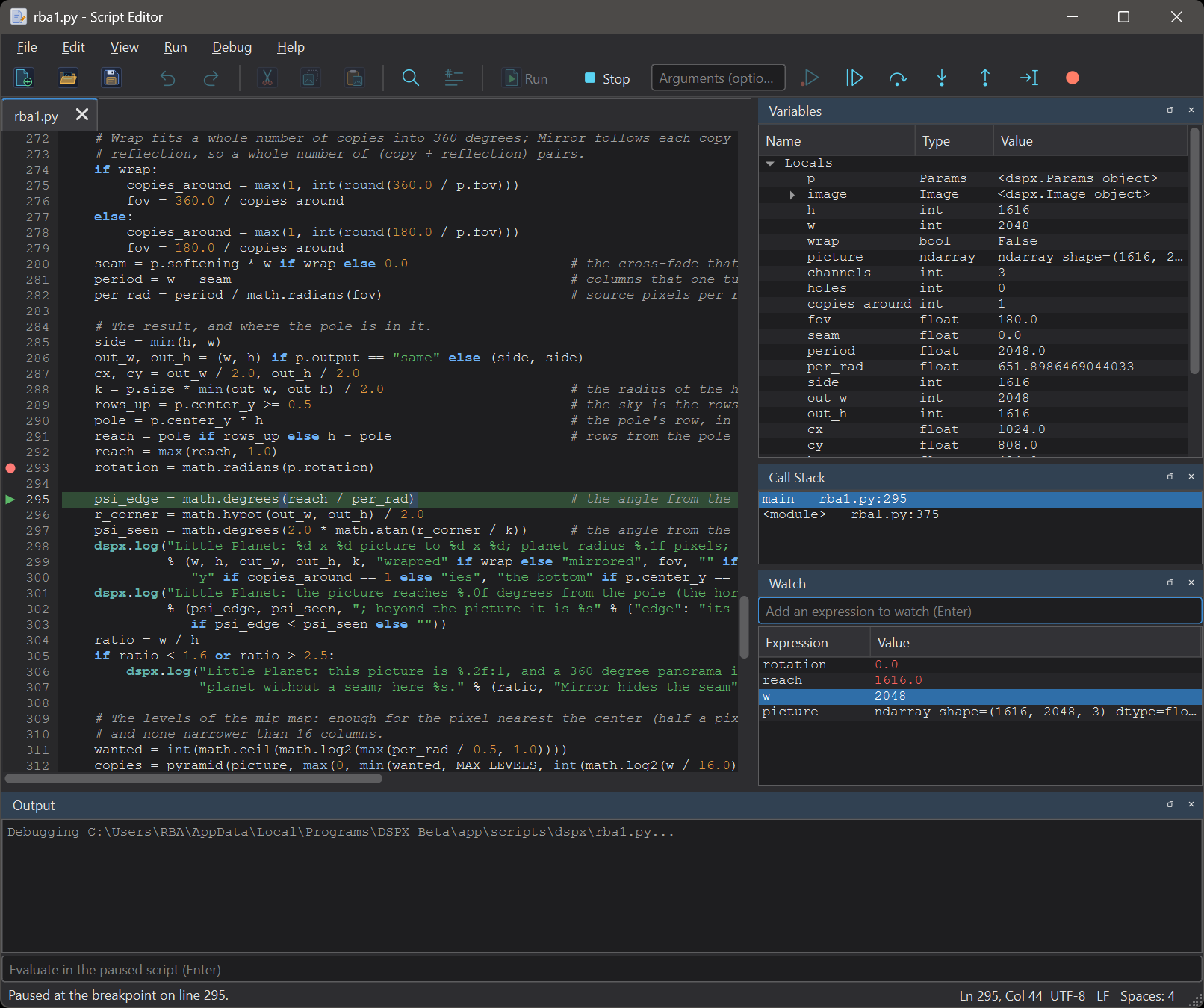
Breakpoints. A click in the first column of the gutter, or F9 on the caret's line, sets a breakpoint, a red disc; the same removes it; removes them all. They are kept for each file between sessions, and move with their line while we edit. A breakpoint set on a line that has no code (a blank line, a comment) moves to the next line that does. (F6) runs the script and stops at the first breakpoint it reaches; with none it runs to the end. (F11), when nothing runs, starts and stops on the script's first line. While the script is stopped on a line that is the cause of an error that nothing handles, the debugger stops there, before the script ends: we can look at the variables, and Continue lets it fail as it would have.
Stopped. The line the script is stopped on is marked in the gutter with an arrow and shaded, and the editor goes to it (to another file's tab if the script is there and the file is open or can be). The text of the script cannot be changed meanwhile, so the lines of the breakpoints and of the stops are the lines we see. The panels of show where it is: Variables lists the locals of the frame (a function's globals are in a group of their own that is closed), each with its type and a short value; a list, a tuple, a set, a dict and an object open to show what is in them; a value that changed since the last stop is in the warning color. A numpy array, such as an image, is shown by its shape and its type of sample, never dumped, and a class's own text for itself and its length are never asked for, since they might do something. Call Stack lists the frames, the innermost first; choosing one moves the marked line there and shows its variables. Watch keeps expressions, each evaluated in the chosen frame at every stop; a watch that cannot be evaluated there says why in its row (Delete removes the one selected).
Stepping. (F10) runs the line, whatever it calls, and stops on the next. (F11) stops inside the function the line calls. (Shift+F11) runs to the end of the function and stops where it was called from. (Ctrl+F10) runs on and stops at the caret's line. (F8) runs on. (Shift+F5) ends the run, stopped or not, and the Python process with it; nothing the script did is kept, as for any stopped script. Library code is not stepped through: only the script's own file, and the files that have breakpoints, are.
Evaluating. The line under the output (enabled while the script is stopped) evaluates an expression or runs a statement in the chosen frame: a + b answers with its value and type,
total = 100 runs and the Variables are read again, an error is the answer in the error color, and the script stays stopped. Up and Down bring back earlier lines. What is typed runs in the script's own process, as typed: it can
change variables, and it can call dspx (served by DSPX as any call of the script is, under the same license). Assigning to a variable of a function works for variables the function already has (on
Python 3.12 and earlier DSPX copies them back into the frame, on 3.13 and later Python does it itself); a new name made inside a function does not stay in it. A watch or an expression that never ends can be stopped with Stop.
While it is stopped, the script holds the program's one run: the image it works on stays in use, its live view stays as it was, and DSPX goes on working: the script's own calls (a thread that logs, a call typed in the line) are served, the other images can be worked on, and Stop always works. Closing the editor window while a script is stopped asks, then ends the run; closing the program ends it too. The debugger cannot be started by a script, and its requests are answered only in a run that was started as a debug run, with that run's own key.
Limits. The debugger follows the script's main thread; other threads of the script run on without it. A breakpoint added while the script runs freely (when it was told to continue and has no breakpoint left) takes
effect after its next stop. A script that exits with an error before it reaches its first line has nothing to stop on. It does not debug code that is run by a string (exec), and it has no conditional breakpoints yet.
11.6.3The Image as an Array
dspx.image() returns the target image: the working copy of the document the script was started on, or the image a run without an image has
made or loaded. It raises NoImageError when there is none, and dspx.has_image() says whether there is one. The returned
Image is a handle: asking again gives an equal handle, and it sees every later change.
Image.pixels() gives the samples as a numpy array:
- Type and range:
float32, nominally0.0to1.0whatever the document stores. A 16-bit image is divided by 65535. A floating point document may hold values outside the range, and they are passed through unclipped. - Shape: always three-dimensional,
(channels, height, width), even for one channel (shape(1, height, width)). Channels are 1 or 3.layout="hwc"gives(height, width, channels)instead, which is what many imaging libraries expect. - Order: C-contiguous, rows top-down: row 0 is the top of the image as you see it, column 0 the left. A plane
a[0]is a two-dimensional contiguous array. - Copies: every array is your own writable copy. Changing it changes nothing in DSPX until you write it.
- Regions:
img.pixels(region)takes aRegion(x, y, width, height)or a tuple of four whole numbers: the top-left corner and the size in pixels, inside the image. A region that is not inside is aValueError; it is never clipped.
The properties of an image, all read when asked: width, height, channels, shape (the shape of
pixels()), sample_type ("uint16" or "float32": what the document stores), name, path (the file the
document came from, or None), solved (whether the image has a plate solution), selection (a Region or None)
and wcs (below).
Positions. Wherever a position is a number, it is continuous, with the origin at the top-left corner of the image, x to the right and y down. The center of
the pixel with array index a[c, iy, ix] is at (ix + 0.5, iy + 0.5). A position from a star list is therefore not an array index: use
int(x).
11.6.4Writing the Image
Image.write(pixels, region=None, *, sample_type=None, layout="chw") replaces the samples.
- Floats only. The array is
float32orfloat64. An integer array is refused with aTypeErrorthat says how to fix it: divide a 16-bit array by 65535 or an 8-bit one by 255. This avoids an image that turns black or white because 255 was taken for 65535. - Whole image. Without a region the array replaces the image and may have any size and 1 or 3 channels (a crop, a resample). The array is read channels
first unless
layout="hwc"says otherwise; the shape is never guessed. A change of width, height or channels removes the plate solution, which would no longer fit (the Log says so), and the selection. - A region. With a region the array must have exactly the region's size and the image's channels. Nothing outside the region changes.
- Sample type. The document keeps its own: a 16-bit image gets the values clipped to 0 to 1 and rounded, a floating point image gets them as they are.
sample_type="float32"turns a 16-bit image into a floating point one,"uint16"the other way (the values are clipped, and the Log says so). It is a change of format and part of the run's one history step. - NaN and infinity are refused (
ValueError) for a 16-bit image. A floating point image takes them, with a warning in the Log. - Alpha channels are not visible to scripts. They are kept when the size and channels do not change.
The document's mask is not applied to each write. When the script ends, DSPX blends the result through the mask of the image the script was started on, once, as
a process does at the end of its run. A process run from a script with dspx.run is not masked on its own; this differs from running it from the
Process panel.
After a process has run (dspx.run) or after a write, arrays you read before are those of the image as it was: read the image again.
11.6.5Statistics and the Selection
Image.stats(region=None) returns one Stats per channel, a named tuple (mean, median, sigma, mad, min, max, bgnoise) of floats in the
same 0 to 1 units as the pixels. sigma is the standard deviation and mad the median absolute deviation, unscaled. bgnoise is the noise of the
image, the figure the Statistics process reports (its MRS estimate); for a region it is nan.
Image.selection is the bounding rectangle of the document's selection as a Region, or None. Image.set_selection(region) sets
the selection to one rectangle, or clears it with None; the selection is part of the run's history step.
11.6.6Files and Images of the Script's Own
dspx.load(path, hdu=None) reads an image file (XISF, FITS, TIFF, PNG, JPEG or a camera raw file) and returns an Image of the script's own: it lives in
the script's memory, has no window, is never the target and is outside undo. dspx.new(width, height, channels=1, *, fill=0.0, sample_type="float32")
makes one, filled with one value. pixels, write, stats and the header calls work on such an image as on the target; the selection, the
plate solution and undo are the target's alone. The file's other metadata come with a loaded image and go out with Image.save: its XISF properties, resolution and ICC profile. Image.icc_profile is the profile as bytes (or None); assign bytes or None to an image of the script's own. Image.copy_metadata(source) takes from source (the target or another such image) its FITS keywords and XISF properties but the plate solution, its resolution and, when the channels match, its ICC profile; a tile made with dspx.new starts with none of them. A FITS file whose header says
ROWORDER = 'BOTTOM-UP' is read with its first row on top (its header then says TOP-DOWN). A FITS file can hold several images (HDUs): load(path) reads the
primary HDU's image, or the first image extension when the primary HDU has no data; load(path, hdu=...) reads another, named by its index
(0 is the primary HDU) or its EXTNAME, such as hdu="SOO" (compared without regard to case; "SCI,2" adds the EXTVER). The keywords of the
primary HDU come with an extension's image. ValueError says when the file has no such HDU or it holds no image. load raises FileNotFoundError, or
OSError with the reason; opening needs no license. A script may hold up to 64 such images, 4 GiB together; one is let go when the last reference to it goes.
Image.save(path, *, bits=None, overwrite=False) writes an image, the target or one of the script's own, in the format the extension names (XISF, FITS, TIFF,
PNG or JPEG) and returns the path. A file that exists is never replaced unless overwrite=True (FileExistsError). bits is None
(16-bit integers for a uint16 image, else 32-bit float), 8, 16 or 32; the format's limits apply. FITS is written top row first, with ROWORDER = 'TOP-DOWN'. Saving needs the license
(LicenseError without one). Saving the target writes a file and changes nothing in the document.
dspx.add_image(image, name=None) hands a copy of an image of the script's own to DSPX: it opens as a new image when the script ends, named name
(made unique; by default the image's own name). The copy is the image as it is at the call, with its header and other metadata; the script keeps the image and may change it
or hand it over again. A run may hand over up to 64 images, 4 GiB together. The image the script was started on cannot be handed over (ValueError), and a new
image needs the license (LicenseError without one). Stop discards the new images with the rest of the run. dspx.has("documents") tells whether this
DSPX has it.
made = dspx.new(400, 300, 3)
made.write(heat_map)                         # a (3, 300, 400) float array the script computed
dspx.add_image(made, "M31_FWHM_map")         # opens when the script ends
dspx.text(string, size=16, *, font=None, bold=False, italic=False) draws text with the same font engine as the Text tool and returns a dspx.TextMask:
mask, a float32 array of shape (height, width) with the coverage of the letters (0 outside, 1 inside, and the values between along their edges, so the edges are smooth),
and x and y, where the mask's top-left pixel lies from the text's origin, the left end of the first line's baseline (y grows downward, so it is
usually negative). size is the height of the font in pixels, 1 to 500. font is the name of a font family, or None for a sans-serif: Arial where the
system has it, otherwise Helvetica, Liberation Sans, Arimo or DejaVu Sans. A new line character starts a new line, and any Unicode text the font has glyphs for works, such as the degree sign,
mu and the plus-minus sign. The same text, size and font give the same mask on the same computer. A blank text gives an empty mask. To put the text on an image in any color, blend
through the mask. The call needs no image and no license; a size outside 1 to 500, or a text over 4000 bytes or 100 lines, is a ValueError.
dspx.has("text") tells whether this DSPX has it.
t = dspx.text("1.23 \u00b5m", 24)                     # a TextMask
h, w = t.mask.shape
area = block[:, top:top + h, left:left + w]          # block: a (3, height, width) float array
area[:] = area * (1 - t.mask) + 1.0 * t.mask # white letters11.6.7Undo Inside a Script
dspx.checkpoint(label) marks the image's state, and dspx.undo() and dspx.redo() move between the last ten states (at most 2 GiB together).
dspx.clear_undo() forgets them. They act inside the run, never add a history step to the document, and raise Error when there is nothing to go back
to. Image.write does not make a checkpoint by itself: call dspx.checkpoint() first when you want to be able to undo a write. Each
dspx.run makes one before the process runs. The document's history step lists the label of the last checkpoint.
11.6.8The Header
Image.header() returns a Header, a snapshot of the FITS keywords at that moment. It is a read-only mapping from keyword to value with these
differences from a dictionary: the keyword may be in any case; keys() and items() are in file order; cards is the list of every
Card(name, value, comment), repeated and commentary cards included (a HISTORY or COMMENT card has the value None and its text in
comment); history and comments are the lists of those texts; and str(header) is the header as 80-column cards, one per line,
ending with END. A value is a bool, int, float or str by its FITS form. The cards that describe the file's layout
(SIMPLE, BITPIX, NAXIS and the like) are never in it.
Image.set_keyword(name, value, comment=None)replaces the keyword in place, removing other cards of the same name, or adds it at the end. The name has 1 to 8 characters ofA-Z 0-9 - _after it is made upper case; others, including long names, are aValueError. The value is abool,int, finitefloatorstrof printable ASCII up to 68 characters.Image.delete_keyword(name)removes every card of that name. Nothing happens when there is none.Image.add_history(text)adds a HISTORY card; a long text becomes several cards.
These change the working copy at once and are part of the run's history step. XISF properties are not in the header.
11.6.9The Plate Solution
Image.wcs is the image's plate solution as it is when asked, or None when the image has none (Image.solved says which). The
Wcs has pixel_to_sky(x, y), which returns (ra, dec), and sky_to_pixel(ra, dec), which returns (x, y).
Give them numbers or numpy arrays of one shape and they return floats or arrays. A position the solution cannot map, such as one on the far side of the sky, comes back as
nan. Angles are decimal degrees, right ascension 0 to 360 and declination -90 to 90. center is the (ra, dec) of the image center,
scale the arcseconds per pixel there, and width and height the size of the grid the solution was read for.
The solution includes our distortion model where the image has one, so it is more accurate than a linear solution built from the header. The calls use the image's solution at the time of the call. A conversion to another library's solution objects, and writing a solution, are not in this version.
wcs = dspx.image().wcs
if wcs is None:
    raise dspx.NoSolutionError("Plate solve the image first.")
ra, dec = wcs.pixel_to_sky(100.5, 200.5) # the center of the pixel at array index [200, 100]11.6.10Describing a Script to DSPX
A script describes itself in a block of comments at the top of the file, in the standard form for Python script metadata (PEP 723): a line
# /// script, lines that each start with #, and a line # ///. DSPX reads the block without running anything. Its table
[tool.dspx] is DSPX's, and each [[tool.dspx.parameters]] after it declares one parameter:
# /// script
# requires-python = ">=3.9"
#
# [tool.dspx]
# name = "Flatten Background"
# description = "Fits and subtracts a plane from the image."
# author = "Jane Doe"
# category = "Background"
# version = "1.2.0"
# api = ">=0.1"
# runs-on = "image"
#
# [[tool.dspx.parameters]]
# id = "border"
# label = "Border width (pixels)"
# type = "integer"
# default = 32
# min = 4
# max = 512
# tip = "Pixels at each edge used to measure the background."
#
# [[tool.dspx.parameters]]
# id = "keep_level"
# label = "Keep the background level"
# type = "boolean"
# default = true
# ///
The keys of [tool.dspx] are name (up to 60 characters; the file's name when missing), description (up to 600),
author, category (up to 40 characters: the group the script is listed under; there is no fixed list, a group exists once a script names it, and a script of DSPX Scripts that names none goes to Odds and Ends), version, license, url, api (the script functions it needs, such as ">=0.1"; a DSPX with older
ones does not run it) and runs-on ("image", "none" or "files"). The panel lists the script by its name and shows the rest. The header
grants nothing and limits nothing: it is how the script introduces itself. A header DSPX cannot read is reported in the panel, with the line, and the script still runs, but
nothing of the header is used. Only a small subset of TOML is read: strings in double quotes, whole numbers, decimals, true and false, and arrays of those.
A parameter has these keys. The kinds are in the table below.
id: The name the script reads it by: a Python name, used once in the script, and not get or as_dict. A parameter called keys, items or values is read by item only,
dspx.params["values"], since the attribute is the method.
label, tip, group: The text before the control, its tooltip, and the section it is in. Parameters of one group are together; the groups are in the order they first appear.
type: One of the kinds below.
default: The value it starts with; needed for every kind except text, folder, file and image, which start empty (an image parameter's default is described under Open Images as Parameters).
min, max, precision: The range of a whole or decimal number, and the decimals shown for a decimal number.
choices: For a choice, a list of "id" or "id:Label". The script gets the id.
relevant-when: "other_id=value" (or "other_id=true"): the control is dimmed unless the other parameter has that value.
filter: For a file, the kind of file the Browse dialog lists, such as "FITS files (*.fits *.fit)".
optional, allow-same: For an image, whether it may stay empty and whether it may be the same open image as another image parameter (Open Images as Parameters).
type | The control | What the script gets |
|---|---|---|
boolean | A check box | A bool |
integer | A box for a whole number, within min and max | An int |
real | A box for a number with decimals, within min and max | A float |
choice | A list of the choices | The chosen id, a str |
text | A text field | A str |
folder | A text field and Browse... for a folder | The path, a str |
file | A text field and Browse... for an existing file to read | The path, a str |
save-file | A text field and Browse... for a file to write | The path, a str |
image-file | A text field and Browse... for an image file | The path, a str |
image | A list of the open images, by name | An Image of the one chosen, or None when an optional one was left empty |
A script can declare up to 64 parameters. A default outside the range, or not among the choices, a missing id and an unknown type make the header
unreadable. A choice has no number, only the id the header gives it. There is no kind for a grid of numbers or for a list.
11.6.11The Script's Own Parameters
When the script runs, dspx.params holds the values of its parameters: what was set in the parameter window (The Parameter
Window), or the remembered values or the defaults when the script was run without the window (from Recent Scripts or Run on Files). DSPX has checked them: a number is within its
range and a choice is one of the choices.
import dspx

border = dspx.params.border                  # by attribute
keep = dspx.params["keep_level"]             # by item
gain = dspx.params.get("gain", 1.0)          # with a default, as a dictionary does
for name in dspx.params:                     # the names, in the order the header declares them
    dspx.log("%s = %r" % (name, dspx.params[name]))
values = dspx.params.as_dict()               # a plain dictionary (a copy)
The values are bool, int, float or str by the declared kind. A name the header did not declare raises AttributeError (or
KeyError by item), never None, and the values cannot be assigned. A script with no header, or one whose header could not be read, has an empty
params, and so has a script that imports dspx outside DSPX. The value of a dimmed parameter (see relevant-when) is still given.
dspx.has("params") tells whether this DSPX has them.
11.6.12Open Images as Parameters
A script that works on images other than the one in front declares a parameter of the kind image. In the parameter window it is a list of the open images by
name, and the script gets the one chosen as an Image, the same class as dspx.image(). A script that declares runs-on = "none" and takes open images
this way needs no image in front: its Run button works with none, the run has no target, and the images chosen are what it works on.
# /// script
# [tool.dspx]
# name = "Subtract Continuum"
# runs-on = "none"
#
# [[tool.dspx.parameters]]
# id = "line"
# label = "Narrowband image"
# type = "image"
# default = "*Ha*"
#
# [[tool.dspx.parameters]]
# id = "continuum"
# label = "Continuum image"
# type = "image"
# optional = true
# ///
import dspx

line = dspx.params.line
continuum = dspx.params.continuum            # None when the list was left empty
if continuum is not None:
    line.write(line.pixels() - continuum.stats()[0].median)
default: Nothing (the list starts empty), "@front" (the image in front), or a name pattern such as "*Ha*", in which * stands for any run of characters and ? for one, capitals do not matter, and a name without them must match whole. The first open image that matches is chosen.
optional: true lets the parameter stay empty; the script then gets None. Without it Run waits until an image is chosen.
allow-same: true lets the parameter hold the image another image parameter holds. Two parameters on one image are refused unless both say so; the window tells which two.
The list is made when the window opens. A layered image is listed by its target, as the process panels' lists do, and an image that a tool, a process or another script holds is listed dimmed, with who holds it in its tooltip, and cannot be chosen. The window remembers the name of each image chosen, not the image: an image that is not open the next time is ignored and the default is used. Recent Scripts runs a script again with the names remembered.
An image chosen is read and written as the target is: pixels, stats, header, wcs, write, set_keyword, set_selection
and the rest. It is held while the script runs, so it cannot be closed or changed by anything else, and the script works on a copy. When the script ends, each image it changed gets a history step of its own,
"Script: Subtract Continuum", with the names it was given in the step's details; Undo takes it back. An image it only read gets none. Writing needs the license, as for the target. If one of the images is closed
meanwhile, a call on it raises NoImageError that says so, and the others go on. The image in front, when it is chosen, is the target: dspx.params.line == dspx.image(). The script's undo
(dspx.checkpoint, dspx.undo) and its processes (dspx.run) act on the target only.
does not take such scripts, since each file is a run of its own; run them from the Scripts panel. From the command line,
--param line=NAME gives the name of an open image of the run (synthetic, or the name of the --file) and --param line=PATH opens an image file as one and picks it
(The Command Line). dspx.has("image-params") tells whether this DSPX has all this.
11.6.13Log, Progress and Boxes
dspx.log(text, level="info")writes one line to the Log. The level is"info","warning"or"error". A trailing newline is dropped, and a text of several lines is one entry.dspx.progress(fraction=None, text="")sets the progress bar and its status text. The fraction is from 0 to 1 (a value outside is clamped), orNonefor "busy, unknown".dspx.progress_reset()clears both.dspx.message(text, kind="info", modal=False)shows a box; the kind is"info","warning"or"error". A modal box waits until it is closed, and Stop ends the wait.dspx.confirm(title, text, ok_label="OK")asks a yes or no question and returns the answer,Falsewhen the box is closed.
Calls may come from any Python thread; they are answered one at a time. A long call, such as a process, cannot be interrupted except with Stop.
11.6.14Running Our Processes
dspx.processes(), dspx.settings(process), dspx.run(process, **settings), dspx.run_source(source) and dspx.enum(name) are described under
"DSPX's Processes From a Script" in Running a Script on an Image. run and run_source return a RunResult, a str as before, with the facts as
attributes: changed, true when the process changed the image, and new_images, the number of images it made. A refused process raises
ProcessError.
11.6.15A Script From the History
The History panel's Export... (Exporting the History) writes the steps applied to an image as a script we can read, change and run on other images. It has the header of Describing a Script to DSPX (the name "History of" and the image's name, the author "Exported by DSPX", api = ">=0.1") and one call for each step that a process made, in order, with a comment before it:
import dspx

# 1. Blur
dspx.run("Blur", sigma=1.5, shape=3.0)

# 2. DynamicPaintbrush
# Not exported: a tool or an edit that is not a process; it cannot be repeated.

# 3. Invert
# Note: A selection was on the image; it is not reproduced.
dspx.run("Invert")
Only the settings that are not at their defaults are written, and a choice is written with dspx.enum; dspx.settings("Blur") lists what a process accepts. Each call is read back by the program as the script would run it before the script is written. A step whose settings do not read back the same through dspx.run is written as dspx.run_source with the process in PixInsight's ids, and one that cannot be written exactly is left out and listed. A step that is not a process, a tool's work, a layer operation and a script's run, is a comment. The script runs on the image in front, and stops at the first process that fails.
11.6.16What a Script Can Ask the Program
dspx.available() is true inside a script DSPX runs. dspx.capabilities() returns the optional features this version has as a frozenset of names (the first version has
"image", "header", "wcs", "processes", "params" and "progress"; this one adds "files",
"documents", "text" and "image-params"), and dspx.has(feature) tests one. dspx.require_api((0, 1)) raises
ApiVersionError when the script functions are older than the pair it names. A script that imports dspx outside DSPX does not fail on the import; its calls raise
NotAvailableError.
11.6.17Errors
Everything the module raises is a subclass of dspx.Error, itself a RuntimeError. A mistake in an argument is the standard ValueError or TypeError.
| Exception | When |
|---|---|
NotAvailableError | The script is not run by DSPX, or DSPX has gone. |
NoImageError | The call needs an image and the run has none, or an open image the script was given was closed while it ran. |
NoSolutionError | The call needs a plate solution and the image has none. |
ProcessError | A process was refused or failed. |
NotSupportedError | The name exists, but this version or this image cannot do it (an image of more than three channels, or numpy not installed). |
LicenseError | The license does not allow it: writing the image, saving a file and opening a new image need a license, reading does not. |
ApiVersionError | The script needs other script functions than this DSPX has. |
11.6.18The Names at a Glance
Everything public is in dspx.__all__; a name that is not there may change at any time.
dspx.api_version, dspx.api_status: The version of the script functions, (0, 1), and "experimental".
dspx.available(), dspx.capabilities(), dspx.has(feature), dspx.require_api(minimum): What this DSPX has.
dspx.params: The values of the script's own parameters, read by attribute, item or get(); as_dict() copies them.
dspx.has_image(), dspx.image(): Whether the run has an image, and the target Image.
dspx.load(), dspx.new(): An image of the script's own, from a file or made empty.
dspx.add_image(): A copy of an image of the script's own, opened as a new image when the script ends.
dspx.text(), TextMask: Text drawn by the program's font engine: an anti-aliased coverage mask and its place from the baseline.
dspx.log(), dspx.progress(), dspx.progress_reset(), dspx.message(), dspx.confirm(): The Log, the progress bar, boxes and questions.
dspx.checkpoint(), dspx.undo(), dspx.redo(), dspx.clear_undo(): The script's own undo.
dspx.run(), dspx.run_source(), dspx.enum(), dspx.processes(), dspx.settings(): Our processes, from a script.
Image: A handle on an image: pixels, write, stats, set_selection, header, set_keyword, delete_keyword, add_history, save, and the properties above.
Header, Card: The FITS keywords as a read-only mapping, and one card of it.
Region, Stats: A rectangle (x, y, width, height) and one channel's statistics, both named tuples.
Wcs: A plate solution with pixel_to_sky and sky_to_pixel.
RunResult: What a process run returns: a str with changed and new_images.
Error, NotAvailableError, NoImageError, NoSolutionError, ProcessError, NotSupportedError, LicenseError, ApiVersionError: The exceptions, in the table above.
11.6.19Writing Scripts with an AI Assistant
An AI assistant can write a script for us when it is given the facts it cannot guess. DSPX comes with a guide written for that, AI-SCRIPT-GUIDE.md, in the ai folder of the doc folder next to the program. It sets out how a script runs and stops, the conventions for pixels, coordinates and the header, how to look up a process and its settings (a reference of every process, made from the program itself, is beside it), what a script cannot do, and how to test a script before it is handed to anyone. To use it, give the assistant the file, or paste its text ahead of the request, and say what the script should do. The guide ends with a short paragraph made for pasting.
For a quick start, AI-CHEAT-SHEET.md in the same folder fits the essentials on one page: a complete small script, the rules that matter, how to test it, and how to write a script that runs in Safe mode without asking anything: input from the image, its parameters or a file dialog, results as new files next to the image or in a folder the user picks, and no network, installs or other programs unless they are really needed. Give an assistant the cheat sheet for a first script, and the full guide for anything larger.
Read what the assistant wrote before running it, as with any script: it runs with our rights, and the approval sheet shows what it imports and installs. The same folder holds a stand-in for the dspx module, with which an assistant can try a script's logic outside DSPX. It helps with testing and does not replace running the script once in DSPX.