
Color Mask
A mask from a range of hue, saturation and lightness
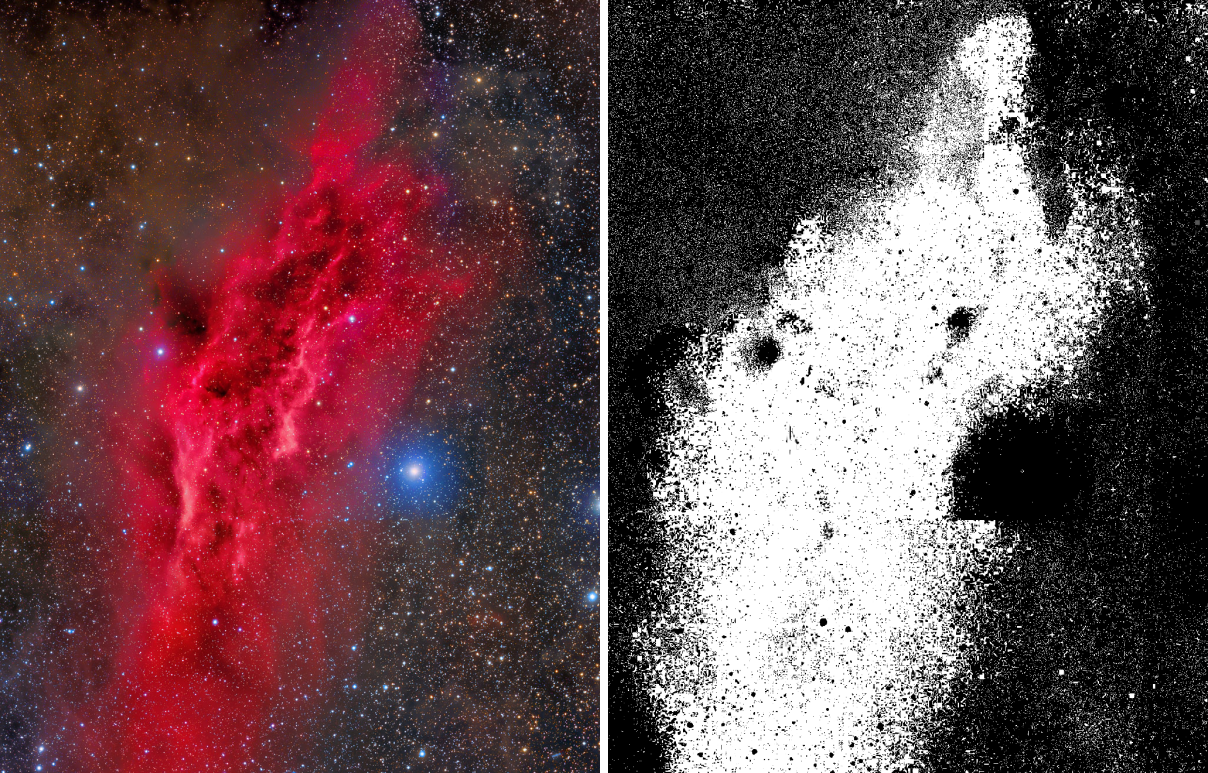
Color Mask makes a mask of the pixels of a color image that have a given color: a range of hue, of saturation and of lightness. It selects the red of the hydrogen emission, the blue of a reflection nebula or the yellow of the stars, so that a process can act on that color alone.
1Introduction
Many corrections in astrophotography are really about a color: reduce the green cast, give the blue nebula more saturation, calm down the orange stars. Color Mask turns a color into a mask. Every pixel is read as a hue, a saturation and a lightness, and gets a value from 0 to 1 that says how well it fits the ranges we set, so the mask has soft edges and follows the gradation of the color instead of cutting it.
The hue is a range of degrees around the color wheel, a center and a width. Saturation and lightness are ranges between a minimum and a maximum. How softly the mask falls off at the edges of each range is set once, by Fuzziness. A pixel with little color has no reliable hue and fades out of the hue range, so the gray sky does not enter the mask of a hue however close its hue happens to be.
The image is only read. The mask arrives as a new gray image, and can be attached to the image as its mask in one
action. Color Mask is our own design and has no equivalent in PixInsight, so it saves as a DSPX process
(.dsproc) only.
2Quick Start
- Open the color image and choose .
- Set Hue to the color to select, in degrees (0 is red, 120 green, 240 blue), or click From selection to take the hue of a part of the image selected with a tool. Set Width to say how wide the range is.
- Turn on the live preview (the eye) to see the mask over the image as the settings change.
- Click Apply. The mask arrives in a new tab, named after the image with
_color_maskat the end. - With the mask in front, choose , or turn on Set as the image's mask before Apply to do it at once.
3Interface & Parameters
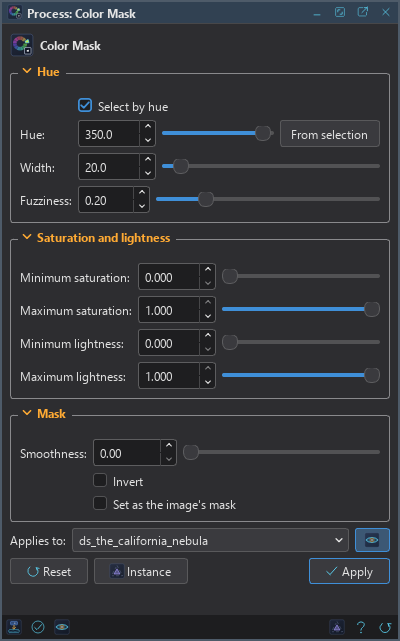
The panel has three sections, Hue, Saturation and lightness and Mask, each of which folds away with the arrow beside its title, then the image the process applies to with the live preview's eye, the buttons and the system bar along the bottom.
3.1Hue
Select by hue: On by default. Off, only the saturation and lightness ranges select, and the hue settings are not used.
Hue: The hue at the center of the range, in degrees: 0 red, 60 yellow, 120 green, 180 cyan, 240 blue, 300 magenta. 120 by default. The button From selection beside it takes the hue of the average color of the image's selection, or of the whole image when it has none.
Width: The width of the hue range, in degrees, from 1 to 360. 40 by default.
Fuzziness: How softly the mask falls off at the edges of each range, from 0, a hard edge, to 1, a fall over the whole half range. 0.5 by default. For the hue the soft part is that share of half the width; for the saturation and lightness, of half the range, at each end that is not the limit of the scale.
3.2Saturation and Lightness
Minimum saturation: Pixels less saturated than this are left out. From 0 to 1, 0 by default.
Maximum saturation: Pixels more saturated than this are left out. 1 by default.
Minimum lightness: Pixels darker than this are left out. From 0 to 1, 0 by default.
Maximum lightness: Pixels lighter than this are left out. 1 by default.
3.3Mask
Smoothness: The mask blurred by a Gaussian of this standard deviation, in pixels, from 0 to 100. 0, the default, does not blur. The blur is scaled with the zoom in the live preview.
Invert: The mask inverted, as the last step. Off by default.
Set as the image's mask: Also attaches the new mask to the image it was made from. Off by default.
3.4Apply, Preview and Instance
Live preview (the eye): At the end of the Applies to row; Preview in the system bar is the same switch. It shows the mask on the part in view, with the banner "PREVIEW only, nothing applied". Before, in the banner, or the backslash key held, shows the image as it is.
Applies to: The image the mask is made from, chosen in a list of the open images. It shows the image in front, and follows it as we bring other images to the front. Picking another image in the list makes the panel work on that one without bringing it to the front, and Follow Active, the small button that appears beside the list, makes the panel follow the image in front again.
Apply: Makes the mask of the image named in Applies to, as a new image. The image is only read: no history step, and its own mask plays no part.
Instance: Shows the process as the panel has it now, as text, a DSPX process
(.dsproc). Copy puts the text on the clipboard; Save... saves it as a file and puts it on the
Process Shelf.
Reset: Puts every setting back to its default.
The system bar along the bottom has the same commands as small icons: at the left, drag to apply and Apply; at the right, Instance, Help (this page) and Reset.
4How the Mask Is Made
The color of each pixel is read as hue, HSL saturation and HSL lightness. The hue membership is 1 within the half width less its soft part, and falls to 0 at the half width along a smooth S curve. A pixel with little chroma has no reliable hue: its hue membership ramps from 0 for a gray pixel to 1 at a chroma of 0.04. Saturation and lightness memberships are the same kind of ramp at the ends of their ranges. The mask is the product of the memberships, blurred by Smoothness and inverted if Invert is on.
5Usage Tips and Tricks
Pick the hue from the image. Select a part of the nebula with a tool, such as the Selection tool, and press From selection: the hue is the average color of what we selected.
Raise Minimum saturation to keep the sky out. A background with a faint cast has some hue. A minimum saturation cuts it away from the mask.
Combine ranges. A mask of the blue, multiplied by a mask of the bright pixels with Pixel Math, selects the bright blue only.
Smooth the edges. A small Smoothness, a few pixels, makes the mask follow the structure instead of the grain of the color noise.
6Related Tools
Range Mask: a mask from a range of brightness.
Saturation: changes the saturation hue by hue, without a mask.
SCNR: removes a color cast, such as the green of narrowband images.
Deep Star Mask: a mask of the stars, with a color mask option of its own.