
FITS Header
The image's FITS keywords, read and edited
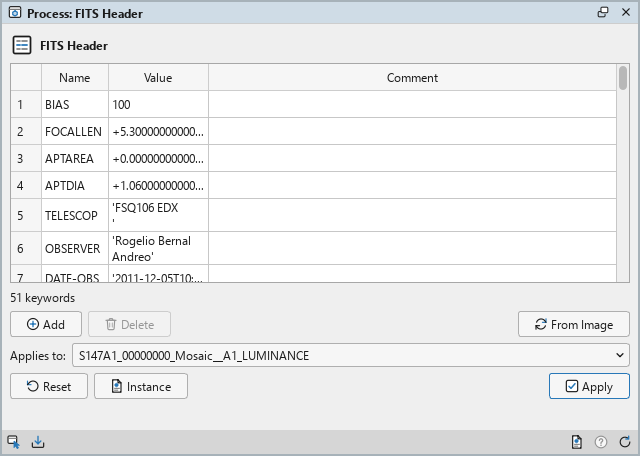
FITS Header shows the image's FITS keywords in a table, where we can change, add and delete them; Apply gives the image the table's keywords. We use it to read what the camera and the capture program recorded, the exposure, the filter, the date, and to fix or add what the processes after it rely on: a missing FILTER, a wrong OBJECT, an exposure time.
1Introduction
A FITS keyword, or card, is a name of up to eight characters, a value and a comment, the metadata a capture program writes with every frame. DSPX keeps an image's keywords as the FITS and XISF files it reads have them, and writes them back when the image is saved in either format. Several processes read them: RGB Combination places masters by their FILTER, Integration weighs frames by the noise estimates Calibration writes, and every master's dates come from its frames' DATE-OBS and EXPTIME.
The panel's table is the keywords of the image the panel applies to. As a cell is typed, the keyword is made a proper card: the name in capitals, a text value in single quotes. A row that cannot be a card is marked, and Apply does not start until it is fixed. Apply then replaces the image's keywords with the table's, in one history step; the pixels and the XISF properties, the astrometric solution's among them, stay as they are.
FITS Header is our own code, with the parameter of PixInsight's FITSHeader, the table of keywords: a PixInsight icon of FITSHeader opens here, and the panel saves one that PixInsight opens. It works the same way in both of DSPX's modes.
2Quick Start
- Open the image and choose . The table shows its keywords.
- Double-click a cell to change it; Add a keyword at the end, or select rows and Delete them.
- Click Apply. Save the image to keep the new keywords in its file.
3Interface & Parameters
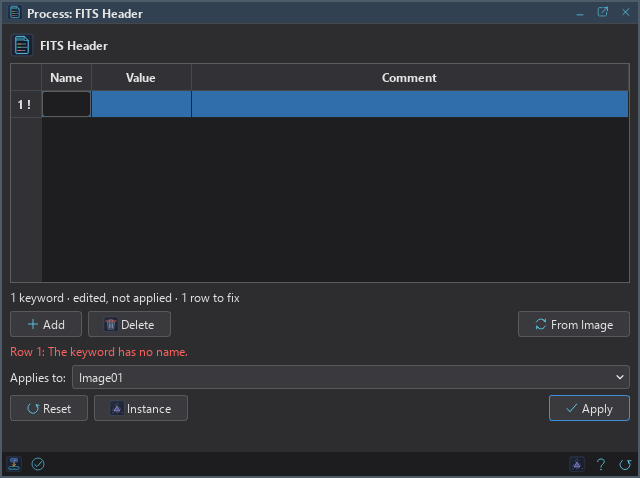
The panel has one section, Keywords: the table, the status line under it and its buttons. Under it are the image the process applies to, the buttons and the system bar along the bottom. FITS Header changes no pixel, so it has no live preview.
3.1Keywords
Keywords: The table of the keywords the image will have, one row each, in the order they will be written, with three columns:
- Name: up to eight capitals, digits, hyphens and underscores. What we type is trimmed and put in capitals.
- Value: a number,
TorF, a complex number in parentheses, or a text in single quotes. A text typed without quotes gets them, quotes inside it doubled; one typed in double quotes gets single ones. COMMENT and HISTORY have no value. - Comment: any text.
Some keywords are the program's own: the structure of the file (SIMPLE, BITPIX, NAXIS and its axes, EXTEND, BSCALE, BZERO, EXTNAME...) and those PixInsight reserves (PINSIGHT, COLORSPC, ALPHACHN, RESOUNIT, RESOLUTN, XRESOLTN, YRESOLTN, ICCPROFL, THUMBIMG). The file's structure is written anew whenever the image is saved, so a file's own is not listed; any of the others the image has are shown, and cannot be edited. The image always keeps its own, and typing one of their names in a row is refused.
Add: Adds a keyword at the end and starts editing its name.
Delete: Deletes the selected rows. Rows of the program's own keywords are not deleted.
From Image: Shows the image's keywords again, dropping the edits not applied.
The status line under the table counts the keywords, says "edited, not applied" while the table differs from the image, and counts the rows to fix. A marked row's tooltip says what is wrong with it.
3.2Apply and Instance
Applies to: The image whose keywords the table shows, chosen in a list of the open images. It shows the image in front, and follows it as we bring other images to the front. Picking another image in the list makes the panel show that one's keywords without bringing it to the front; the pick stays while we work on other images, and Follow Active, the small button that appears beside the list, makes the panel follow the image in front again. An image that a tool or a run is working on is listed, but cannot be picked.
Apply: Gives the image named in Applies to the table's keywords, in one history step that Undo takes back. The panel's line and the Log say how many keywords were added, changed and removed. A table that holds what the image has already changes nothing and records no step.
Instance: Shows the process as the panel has it now, as text: the table as a DSPX process
(.dsproc) or as a PixInsight process icon (.xpsm) of FITSHeader, chosen under Format.
Copy puts the text on the clipboard; Save... saves it as a file and puts it on the Process Shelf.
Reset: Loads the image's keywords again, as From Image does: the edits are dropped.
The system bar along the bottom of the panel has the same commands as small icons: at the left, drag to apply and Apply; at the right, Instance, Help (this page) and Reset. Drag to apply, the first icon, carries the process with its table: dropped on an image's window, it gives that image the table's keywords, whatever image the panel works on; dropped on the Process Shelf, it is kept there as a row of its own. With , the bar alone has them.
4Edits, the Image and the File
The table follows the panel's image. Another image chosen loads its keywords, dropping edits not applied. When the same image's keywords change, by an Apply, an undo or another process, the table shows them again, unless it has edits of its own, which it keeps.
A row is a card only when it can be written as one. Apply does not start while a row is not, and the panel names the first: a name that is empty, longer than eight characters or has other characters; one of the program's own keywords typed again; characters that are not plain ASCII; a value for COMMENT or HISTORY; a value that is not a number, a logical or a quoted text; a text without its closing quote; or a card longer than 80 characters, name, value and comment together. Longer HIERARCH names are not offered.
When the keywords change, the image's own reserved keywords come first, then the table's, in the table's order. The changes are counted name by name: the second HISTORY card against the image's second HISTORY card, so each one edited counts once. The keywords are written to the file only when the image is saved, in FITS or XISF; a long comment that does not fit a card may be shortened then, and the program says so.
5Usage Tips and Tricks
A filter for the combination. RGB Combination places masters by their FILTER keyword, and takes masters
that have none in the list's order. Add FILTER with Ha, OIII or SII
to each master and save it, and the order no longer matters.
One fix for many images. Save the edited table to the Process Shelf, or drag it from the system bar onto other images: each gets the same keywords. The table replaces every keyword, so this is for images that should have the same ones.
Read before processing. The table is a quick way to learn a frame's exposure, gain, temperature and binning before choosing its calibration masters.
6Related Tools
Statistics: the image's levels and noise, the numbers the keywords do not hold.
Calibration: writes each frame's noise and signal estimates as keywords.
RGB Combination: places masters by their FILTER keyword.