
Dynamic Astro Crop
The Crop tool: crop, resample, flip and turn, the astrometric solution kept
Dynamic Astro Crop is the process behind DSPX's Crop tool: we draw a rectangle on the image, turn it by any angle and crop the image to it; we resample the whole image to a new size with a gauge; or we flip it and turn it by quarter turns. Every one of these operations recomputes the image's astrometric solution for the new grid, so a plate solved image is still solved afterwards and every process that needs the solution keeps working.
1Introduction
Cropping, resizing and turning an image are among the first things we do to it, and the last things we want to think about. On a plate solved image they are not innocent: the solution says where every pixel points on the sky, and once the pixels move, a solution that stays as it was is simply wrong. Many programs drop it, and the image has to be solved again before Survey Overlay, Photometric Glow Subtraction or Catalog Star Color can use it.
The Crop tool carries the solution with the pixels. Each operation is a known mapping from the new image to the old one, and the same mapping that moves the pixels transforms the solution: its linear part, and its distortion model, whose control points are moved to the new grid and the model made again from them. A point of the image keeps its place on the sky to the last digit the solution can say. An image with no solution is cropped, resampled or turned just the same: there is simply nothing to carry.
The tool has three modes, which we choose in its panel:
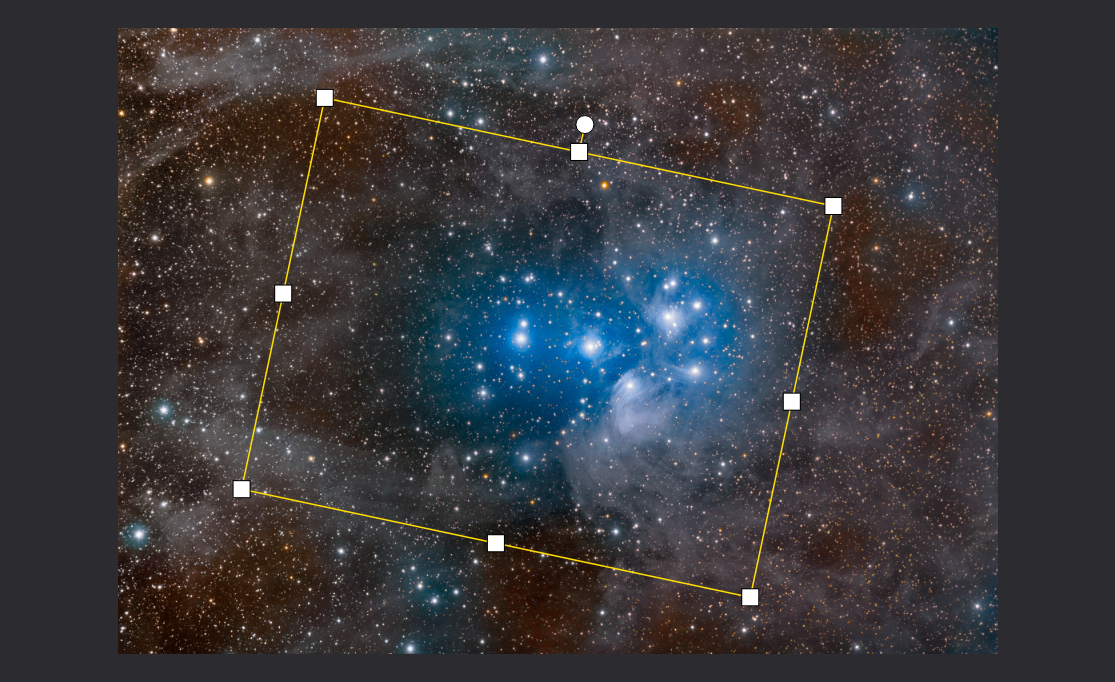
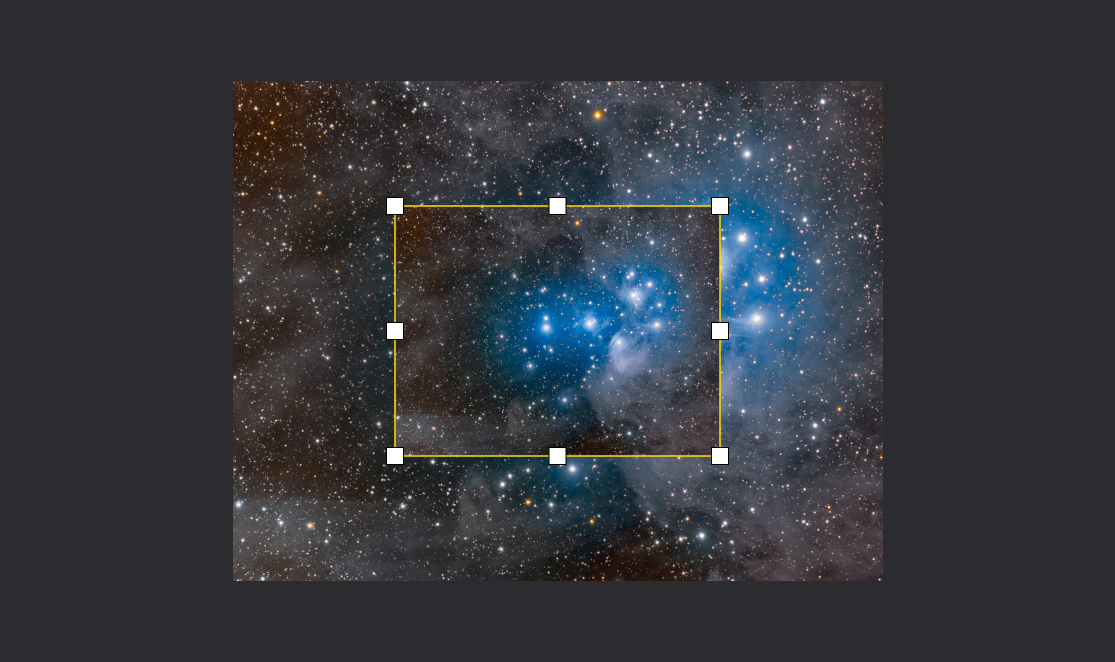
- Crop: a rectangle drawn on the image, moved, resized and turned with the mouse or typed in the panel. A rectangle that is not turned keeps the pixels exactly; a turned one makes an upright image whose pixels are interpolated.
- Resample gauge: a rectangle centered on the image, with the whole image drawn inside it, that sets the size to resample the image to.
- Orientation: five buttons that flip the image or turn it by 90 or 180 degrees, exactly, at once.
On the toolbar and in the menu the tool is called Crop. DSPX also has a Crop process, with Rotate and Resample, under : the same geometry, typed as settings instead of drawn, for margins, fractions of the image, centimeters or inches, any interpolation and any fill. They recompute the solution in the same way.
2Quick Start
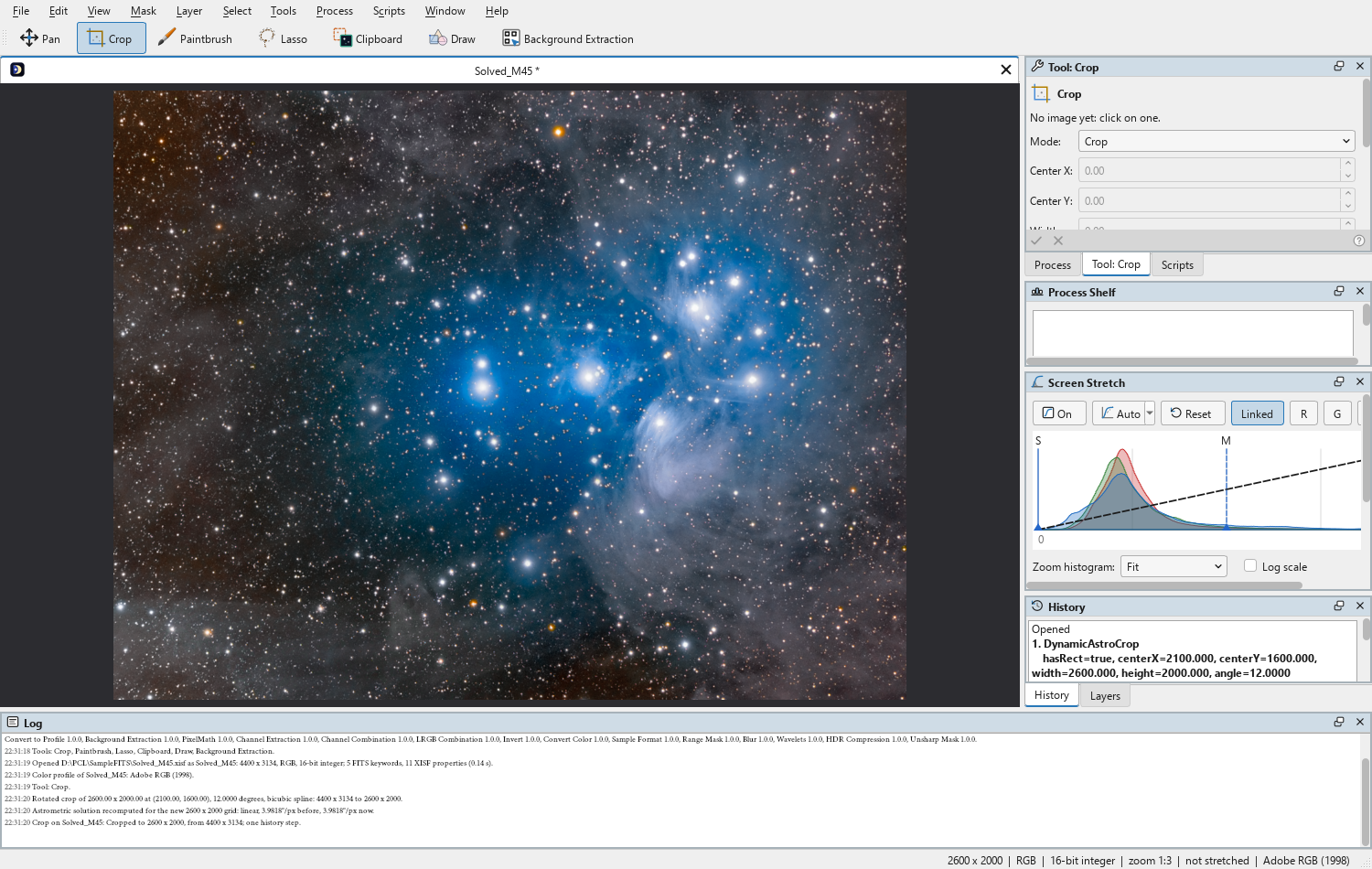
- Open the image and click Crop on the toolbar. The Tool panel shows the Crop tool, with Mode on Crop.
- Drag on the image to draw the rectangle. The tool starts its session on that image, and the panel says "Working on" with the image's name.
- Move the rectangle by dragging inside it, resize it by its handles, turn it by its round knob; or type its center, size and angle in the panel. The line under the settings says what Apply will make.
- Click Apply. The image is cropped in one history step, and the Log says that the astrometric solution was recomputed for the new grid.
3Interface & Parameters
The Tool panel shows the tool's name and icon on its first row; its tooltip says what the tool does and how to use it in the mode chosen. Under it, the image the session is on ("Working on M45", or "No image yet: click on one."), the mode and its settings, the line that says what Apply would make, then Apply and Cancel. The bar along the bottom of the panel has Apply (a check mark) and Cancel (a cross) on the left, and Help on the right.
Mode: What the tool does on the image:
- Crop: a rectangle to crop the image to, turned by any angle.
- Resample gauge: a centered rectangle that sets the size to resample the image to, with the whole image drawn inside it.
- Orientation: flips and quarter turns of the image in front.
3.1Crop
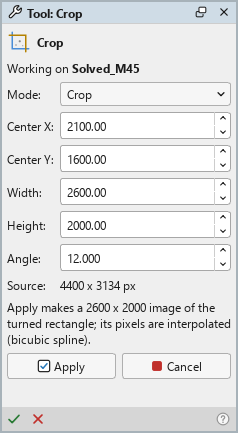
Center X: The horizontal center of the crop rectangle, in image pixels.
Center Y: The vertical center of the crop rectangle, in image pixels.
Width: The width of the crop rectangle, in image pixels (in Resample gauge mode, the gauge's width).
Height: The height of the crop rectangle, in image pixels (in Resample gauge mode, the gauge's height).
Angle: The rotation of the rectangle about its center, in degrees. A positive angle turns the rectangle clockwise on the screen, so its contents come out turned counterclockwise. An angle within 0.01 degrees of none counts as none.
The numbers and the rectangle on the image follow each other: dragging on the image changes the fields, and a number typed moves the rectangle. They are enabled once the tool is working on an image.
Source: The size of the image the tool is working on, in pixels.
Under the settings, one line says what Apply will make: "Apply keeps 2600 x 2000 pixels from (800, 600), exactly." for a rectangle that is not turned, "Apply makes a 2600 x 2000 image of the turned rectangle; its pixels are interpolated (bicubic spline)." for a turned one, or why Apply cannot run yet.
3.2Resample Gauge
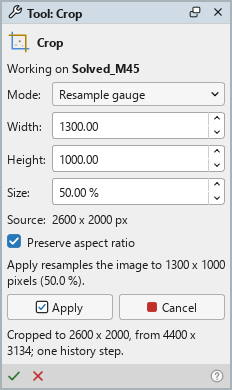
A click on the image shows the gauge: a rectangle always centered on the image, with the whole image drawn inside it, so it reads as the image at its new size. Dragging its handles resizes it about the center; it cannot be moved. Width and Height are the gauge's size, in pixels.
Size: The gauge's size as a percentage of the image's, from 1% to 1000%.
Preserve aspect ratio: On (the default), the gauge keeps the image's proportions while it is dragged or typed: a width typed sets the height, and the other way around. Off, width and height are set on their own, and the image is stretched to them.
3.3Orientation
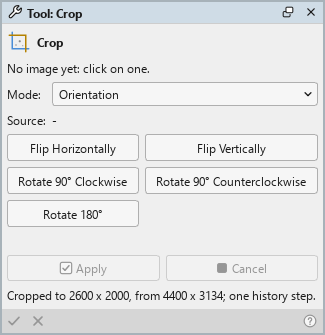
Each button flips or turns the image in front at once, as one history step, and moves the pixels exactly: nothing is interpolated, and the solution is transformed exactly too. (Ctrl+Z) puts it back.
Flip Horizontally: Mirrors the image left to right.
Flip Vertically: Mirrors the image top to bottom.
Rotate 90° Clockwise: Turns the image a quarter turn clockwise.
Rotate 90° Counterclockwise: Turns the image a quarter turn counterclockwise.
Rotate 180°: Turns the image half a turn.
3.4Apply and Cancel
Apply: Applies what the tool has drawn on its image: the crop rectangle, or the resample gauge. The result is one history step, and the tool's session on the image ends. Apply waits for the run to end, a few seconds on a large image. A rectangle that holds the whole image, or a gauge at the image's size, changes nothing and records nothing.
Cancel: Ends the session with the image as it was when it began: the rectangle or the gauge is gone, and nothing is recorded.
Under the buttons, a line says what happened last: "Cropped to 2600 x 2000, from 4400 x 3134; one history step."
4Working With the Tool
4.1Drawing and Shaping the Rectangle
In Crop mode a drag on the image draws a new rectangle. Once it is there:
- a drag inside it moves it;
- its eight square handles, at the corners and in the middle of each side, resize it; the pointer changes to say which way;
- the round knob above its top edge turns it about its center.
The middle mouse button pans the image while the tool is active, and so does the left one with the space bar held; the wheel zooms. A rectangle can reach outside the image: a crop that is not turned keeps only what is inside, and a turned one fills what falls outside with black.
4.2The Tool's Session
The first drag on an image starts the tool's session on it, and the tool holds that image until Apply or Cancel: while the session is open, the image cannot be closed, processed or undone from the History panel, and DSPX says so ("The Crop tool is working on it: apply or cancel it first."). The image's tab and the status line say that the Crop tool is on it. Bringing another image to the front leaves the session where it is.
Choosing another tool while a rectangle is drawn ends the session: with nothing to lose it is canceled; otherwise DSPX asks whether to apply it, discard it, or keep working.
The Orientation buttons have no session: they act at once on the image in front.
4.3What Each Operation Does to the Pixels
- A rectangle that is not turned keeps the pixels exactly: no interpolation, its edges rounded to whole pixels and kept inside the image.
- A turned rectangle becomes an upright image of the rectangle's size, rounded. Each new pixel is taken from the old image at the place its center falls, with a bicubic spline; where that place is outside the image, the pixel is black (and transparent, for an image with an alpha channel).
- The gauge resamples the whole image to its size: by averaging the pixels each new pixel covers when the image gets smaller both ways, with a bicubic spline otherwise.
- The orientations move the pixels exactly.
Every channel is transformed, alpha included. The image's mask is let go when its pixels move, since a mask of the old grid no longer fits. A selection moves with a crop that is not turned and is cleared by anything else; Undo brings it back.
GPU. In DSPX mode a turned rectangle of a large image is interpolated on the graphics card, and so is the gauge when it enlarges. The result agrees with the processor's to a few millionths of the range; a crop that is not turned, the orientations and a gauge that reduces by averaging stay on the processor. See The Processor and the GPU.
4.4The Astrometric Solution
When the image is plate solved, every Apply and every Orientation button recomputes its solution for the new grid, from the solution itself, not by solving again:
- the linear part is composed with the operation's mapping, so a point of the image keeps its place on the sky; the projection and its reference point stay as they are;
- the distortion model's control points are moved to the new grid, all of them, also those a crop leaves outside, and the model is made again from them: inside a crop it is the same model of the whole field;
- the solution keeps its creation time, its catalog and the program that made it; the pixel size in the metadata is scaled by a resampling, and the focal length stays, so the scale they give stays true.
The Log says it every time: "Astrometric solution recomputed for the new 2600 x 2000 grid: linear, 3.9818"/px before, 3.9818"/px now." A solution DSPX cannot read is dropped, and the Log says why. A distortion model written by PixInsight 1.9.4 or earlier cannot be read here: its linear part is carried, the model is not, and the Log says so; solving the image again with Plate Solve gives it a model.

4.5The Dynamic Astro Crop Process
What the tool applies is recorded as a Dynamic Astro Crop process: the History panel lists the step with its settings. The process is not in the Process menu, since the Crop tool is its interface, but its settings are those of DynamicAstroCrop's PixInsight module, so a DynamicAstroCrop icon saved in PixInsight opens here: on the Process Shelf, where its panel shows the settings below, applies them to the image it works on, and Instance shows its source to copy or save. It runs from ProcessContainers and workflows too.
Operation: What is applied: Crop (the rectangle), Resample (the target size), Flip horizontally, Flip vertically, Rotate 90 degrees clockwise, Rotate 90 degrees counterclockwise or Rotate 180 degrees.
Has a rectangle: Whether a crop rectangle was drawn. Without one, a crop does nothing.
For a crop, Center X, Center Y, Width, Height and Angle are the rectangle as the panel shows it, in image pixels and degrees, the angle as the tool draws it.
Target width: For a resampling, the new image's width, in pixels.
Target height: For a resampling, the new image's height, in pixels.
Applied to another image, a crop takes the same rectangle in that image's pixels, and a resampling the same target size. The fill of a turned crop is black and transparent, as in the PixInsight module; the Crop process, under , offers other fills and interpolations.
5Usage Tips and Tricks
Crop first, then solve, or solve first, then crop. Either works: a solved image stays solved through the Crop tool. Solving the whole frame first gives the distortion model the most stars to work with, and the crop keeps it whole.
Not turned is exact. When the framing allows it, an angle of 0 keeps every pixel as it was. A turned crop interpolates the image once; repeated turns soften it a little each time.
Type for precision. Draw the rectangle roughly, then type its center, size or angle: a crop of exactly 4000 x 3000 pixels, or an angle measured elsewhere, is a few keys away.
Flips and quarter turns cost nothing. They move the pixels and the solution exactly, so they can be used freely, and undone the same way.
Check the Log. The line after each Apply says what happened to the solution: recomputed, carried without its distortion model, or dropped, and why.
Repeat a framing. A DynamicAstroCrop icon on the Process Shelf applies the same rectangle, in pixels, to every image we drop it on: a whole set of images of the same size framed the same way.
6Related Tools
Crop, Rotate and Resample: the same geometry as processes, with margins, fractions, physical units, any interpolation and any fill, and the same care for the solution.
Plate Solve: gives the image the astrometric solution the Crop tool carries.
Survey Overlay, Photometric Glow Subtraction and Catalog Star Color: processes that need the solution, and keep working on an image cropped with the tool.
The Selection tool: a selection drawn by hand, which a crop that is not turned moves with the pixels.