
Comet Alignment
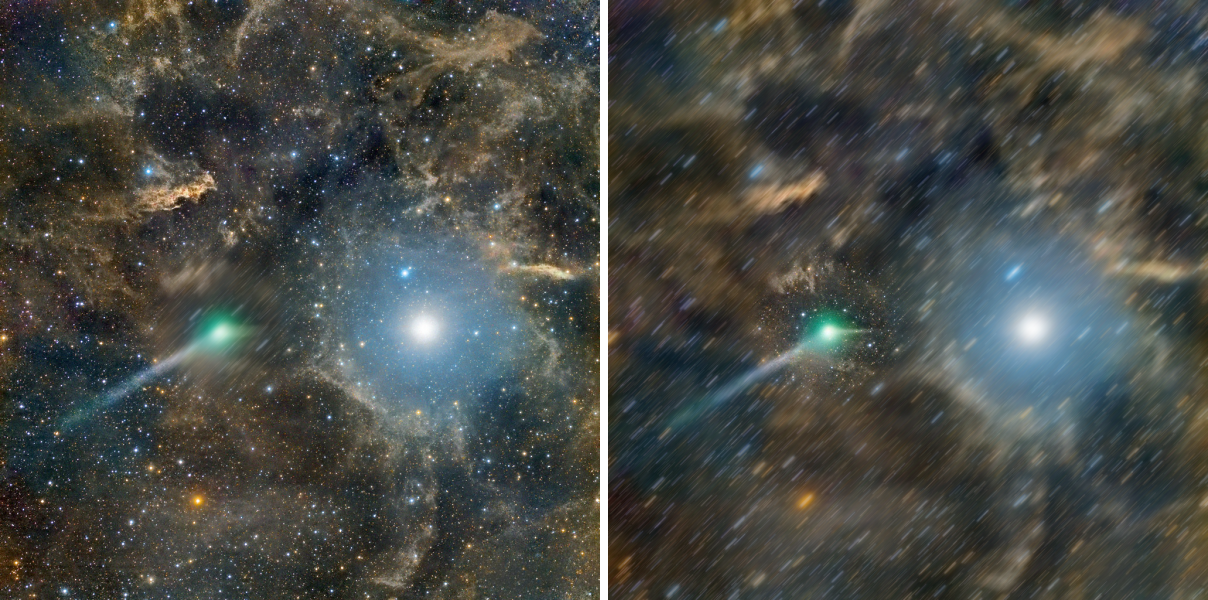
Frames shifted so the moving comet stays in one place
Comet Alignment shifts registered frames of a comet so that the comet stays at the same place in all of them. Stacked, the frames then give a sharp comet instead of a trail. The process can also take the stars out of the comet-aligned frames, or the comet out of the star-aligned ones, so that each can be stacked and processed on its own and the two joined again. It works on files and writes the shifted frames to files.
1Introduction
A comet moves against the stars. Frames registered on the stars give sharp stars and a smeared comet; frames shifted so that the comet is fixed give a sharp comet and star trails. To get both we make two stacks and combine them. Comet Alignment makes the first: for each frame it measures where the comet is, from two or more positions we mark and a refinement on the frame, and shifts the frame by the difference from the reference frame.
With an operand, an integration of the other kind, it also removes what we do not want from each frame before the stack. If the operand is a stack of comet-aligned frames, which holds the comet alone, it is moved to the comet of each frame and subtracted: the frames are left with the stars and no comet. If the operand is a stack of star-aligned frames, which holds the stars alone, it is subtracted before the shift: the frames are left comet-aligned and without the stars.
The frames can come with Registration's drizzle data. Comet Alignment then writes new drizzle data that carry the shift too, so Drizzle can integrate the comet-aligned frames at a higher resolution.
Comet Alignment follows PixInsight's CometAlignment by its parameters, and a PixInsight icon of that process opens here, with its frames. The results are 32-bit floating point XISF files with the frames' keywords.
2Quick Start
- Choose .
- Add the registered frames with Add Files.... They appear in time order with their times, read from the files.
- Select the first frame and click Mark on Image, then click on the comet in the image. The panel refines the click to the center of the comet and draws a crosshair. Do the same for the last frame. The panel says which frame is next.
- Click Run. The aligned frames are written next to the originals, with
_caat the end of their names. - Integrate the aligned frames with Integration.
3Interface & Parameters
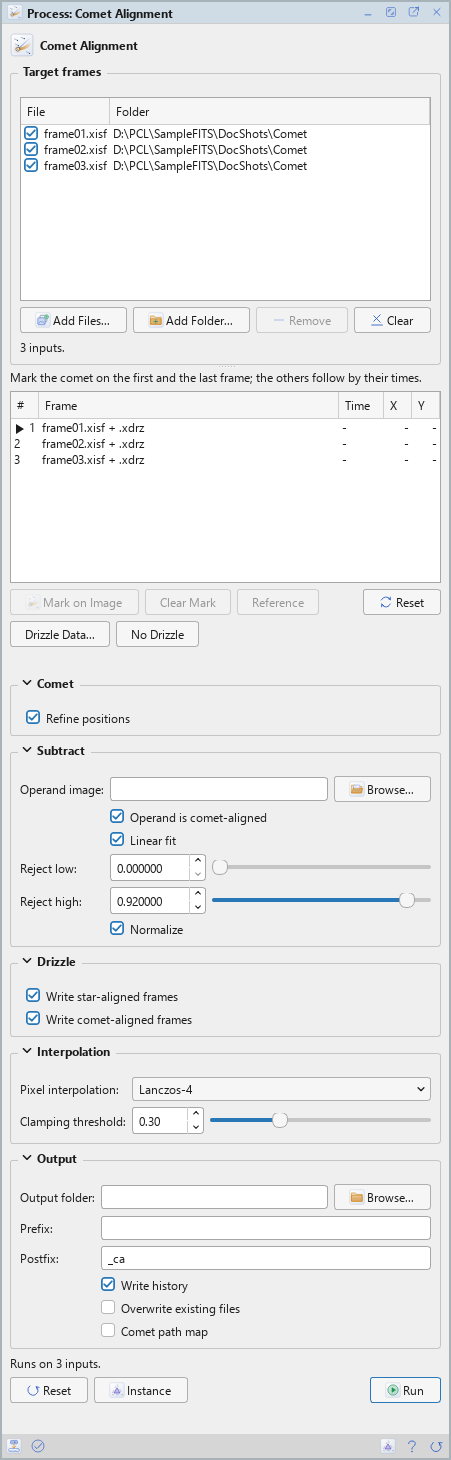
Comet Alignment is a process that works on files: its panel lists the frames at the top, under Target frames, and has five sections of settings, Comet, Subtract, Drizzle, Interpolation and Output, each of which folds away with the arrow beside its title. Under them are the buttons and the system bar along the bottom. It works on no open image, so it has no Applies to and no live preview.
3.1Target Frames
Target frames: The registered frames of the comet. The list is shown in time order, with each frame's time, the comet's position in it and whether it is marked: marked frames in bold, the reference with an arrow. Add Files... and Add Folder... add frames, Remove takes the selected rows away, Clear empties the list. The time of a frame is read from its file, from the start of the observation, else from DATE-OBS.
The buttons under the list place the comet:
Mark on Image: Opens the selected frame, or brings it to the front, and the next click on it is the comet. The click is refined to the center of the comet near it and shown as a crosshair. A double click on a row does the same, and Esc cancels the click. The first and the last frame are the ones to mark; any other frame can be marked too, and the line of the comet's motion bends there.
Clear Mark: Removes the mark of the selected frame.
Reference: Makes the selected frame the reference, the one whose comet position the others are aligned to.
Drizzle Data...: Gives Registration's drizzle data files to the frames of their names.
No Drizzle: Drops the drizzle data from the frames.
Under the list the panel shows the comet's motion in pixels per hour.
3.2Comet
Reference frame: The frame whose comet position the others are aligned to, as its number in the list, counted from 0. The Reference button sets it. 0 by default.
Refine positions: Finds the comet's center in each frame near its position, by a barycenter and then a fit of a profile. On by default. A color frame is searched on its intensity. When the fit fails, the position from the list is used, with a warning in the Log.
3.3Subtract
Operand image: An integration subtracted from each frame, chosen as a file. Empty, the default: the frames are only aligned.
Operand is comet-aligned: On by default: the operand is the comet, an integration of comet-aligned frames, moved to each frame's comet and subtracted, so the frames keep the stars and lose the comet. Off: the operand is a star-aligned integration, the stars alone, subtracted before the shift, so the aligned frames lose the stars.
Linear fit: Fits the operand to each frame before it is subtracted. On by default.
Reject low: Samples at or below this are left out of the fit, from 0 to 1. 0 by default.
Reject high: Samples at or above this are left out of the fit, from 0 to 1. 0.92 by default.
Normalize: Takes the operand's median off it before it is subtracted. On by default.
3.4Drizzle
These apply when frames have drizzle data and an operand is given.
Write star-aligned frames: Writes each subtracted frame star-aligned too, with its drizzle data,
with _r at the end of its name. On by default.
Write comet-aligned frames: Writes each subtracted frame comet-aligned too, with its drizzle data,
with _r and the postfix at the end of its name. On by default.
3.5Interpolation
Pixel interpolation: How the shifted pixels are interpolated: Nearest neighbor, Bilinear, Bicubic spline, Bicubic B-spline, Lanczos-3, Lanczos-4 (the default), Lanczos-5, Mitchell-Netravali filter, Catmull-Rom spline filter, Cubic B-spline filter or Auto (bicubic spline). The pixels outside the frame are 0, and the result is not clipped.
Clamping threshold: Damps the dark rings of the bicubic spline and the Lanczos interpolations around bright stars: lower clamps more. From 0 to 1, 0.3 by default; 1 does not clamp Lanczos.
3.6Output
Output folder: Where the aligned frames are written. Empty, the default: next to each frame.
Prefix: Text put before each output file's name. Empty by default.
Postfix: Text put after each output file's name. _ca by default.
Write history: Writes the comet's position, the shift and the interpolation in each frame's HISTORY keywords. On by default.
Overwrite existing files: Off by default: a file of the same name is kept, and the new one gets
_1, _2 and so on added to its name. On, it is replaced, but a frame, its drizzle data or the operand
is never written over.
Comet path map: Writes and opens an image of the comet's path, CA_CometPath.xisf: a cross
at each frame's position, with lines between them. Off by default.
3.7Run and Instance
Run: Aligns the frames that are enabled. The panel shows its progress and Cancel. A frame that fails is skipped with a warning, and the Log ends with how many succeeded, failed and were skipped. The run is refused, before anything is written, when there are no frames, the reference is not in the list, a file is missing, or an enabled frame has no position or time.
Instance: Shows the process as the panel has it now, as text: a DSPX process
(.dsproc), the frames included, or a PixInsight process icon (.xpsm), chosen under
Format. Copy puts the text on the clipboard; Save... saves it as a file and puts it on the Process
Shelf.
Reset: Puts every setting back to its default.
The system bar along the bottom has the same commands as small icons: at the left, drag and Run; at the right, Instance, Help (this page) and Reset.
4What a Run Does
- The comet's position in each frame is taken from the list; with Refine positions it is refined on the frame, by the barycenter of the structure around the brightest pixel within 8 pixels, and then by the better of a Gaussian and a Moffat profile fit.
- The shift is the frame's position less the reference's. The output pixel at (i, j) is the frame's interpolation at (i plus the shift in x, j plus the shift in y).
- With an operand, it is fitted to the frame, normalized, and subtracted, as the settings say.
- With drizzle data, the frame is read from the unregistered file, warped by the registration and the shift in one interpolation, and written with new drizzle data for Drizzle.
- The result is written as 32-bit floating point XISF, with the frame's keywords and properties and, with Write history, HISTORY lines.
4.1The Positions Between the Marks
A frame that is not marked gets a position on the straight line between the marks on either side of it, in time. With the PixInsight compatibility mode on, in , the time of a frame is its start. In DSPX's own mode the position is interpolated by the middle of the exposure, the start plus half the exposure time, and the motion continues beyond the first and the last marked frame. With equal exposures the two agree; with unequal ones the middle is the right instant for the position.
5Usage Tips and Tricks
Mark the first and the last, and one in the middle. The comet's motion is a line only in the short run. A mark in the middle bends the line where it should.
Register on the stars first. The frames must already be registered on the stars: Comet Alignment moves them by the comet's motion on top of that.
Two stacks, then combine. Stack the comet-aligned frames for the comet, stack the star-aligned frames for the stars, and combine the two with a mask or Pixel Math. With the operand, each stack is free of the other object.
Look at the path map. The Comet path map shows the marks and the line at a glance: a mark on the wrong object shows at once.
6Related Tools
Registration: registers the frames on the stars before the comet alignment, and writes the drizzle data.
Integration: stacks the aligned frames.
Drizzle: integrates frames with drizzle data at a higher resolution.
Star Trails Blending: blends frames into trails, another use of a series of frames.