
Debayer
One-shot color frames, a mosaic of colored pixels, into RGB frames
Debayer turns the frames of a one-shot color camera, where each pixel saw only red, green or blue through its filter, into RGB frames with all three colors at every pixel. It also measures each color's noise and star signal before the colors are interpolated, so the RGB frames carry the estimates Integration weighs them by. It works on files, each RGB frame written as a new file, or on one open image, a mosaic, which becomes a color image.
1Introduction
The sensor of a color astronomy camera, or of a DSLR, has a color filter array over its pixels, most often in the Bayer arrangement: in each square of four pixels, two see green, one red and one blue. A frame as the camera records it, a CFA frame, is a gray mosaic; debayering, or demosaicing, estimates the two colors each pixel did not see from its neighbors. Two methods are offered:
- VNG, variable number of gradients, the default: in the 5 by 5 pixels around each pixel it measures the gradients in eight directions, keeps those of little change, and takes the missing colors from them, so edges and stars stay sharp and colored fringes stay small. We wrote it from Chang, Cheung and Pang's published description (1999).
- Bilinear: each missing color is the mean of the nearest pixels of that color. Faster, softer.
Before the interpolation, with Evaluate noise and Evaluate signal on, each color's noise and PSF signal
are measured on its own CFA samples, as PixInsight's Debayer evaluates them, and written into the RGB frame as NOISE00
to NOISE02 and the PSF keywords: Integration then weighs each channel of each frame by
its own color. The RGB frame keeps the frame's keywords, but its CFA keywords and old estimates, and names the CFA
frame it came from in its PCL:CFASourceFilePath and PCL:CFASourcePattern properties, so
Registration can pass it on to Drizzle for CFA drizzle.
Debayer is DSC's pre-processing engine with the parameters of PixInsight's Debayer: a PixInsight icon of Debayer opens here with its frames, and the panel saves one that PixInsight opens. Camera raw files are read directly: each is decoded once, with LibRaw, into a cache of uncompressed frames.
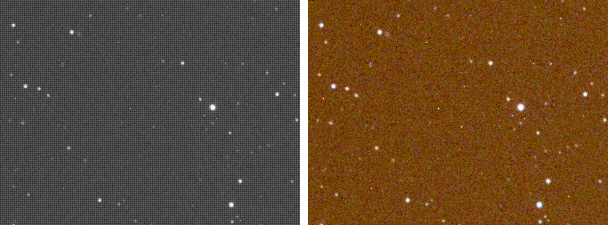
A mosaic that is open as an image, one channel with a Bayer pattern, can be debayered as it is, without saving it
first: the result is a new 32-bit color image named after it with _RGB at the end, or the image itself,
replaced in one step that Undo takes back. This mode does not measure the colors, so the color image carries no noise or
signal estimates, and it has no live preview. Its keywords are those of a debayered frame: no CFA keywords, no old
estimates, and a HISTORY line with the method and the pattern.
2Quick Start
On files:
- Choose .
- Add Files..., and choose the CFA frames, calibrated, or raw files from the camera.
- Leave Bayer pattern on Auto: each frame says its own. Choose one only when the frames do not.
- Click Run. The RGB frames are listed under the results, each named after its frame with
_dat the end.
On an open mosaic:
- Open the mosaic, and choose . With a one-channel image in front, Input starts on Open image.
- Leave Bayer pattern on Auto when the image has its pattern in its keywords; choose one when it has not.
- Click Apply. The color image opens as a new image.
3Interface & Parameters
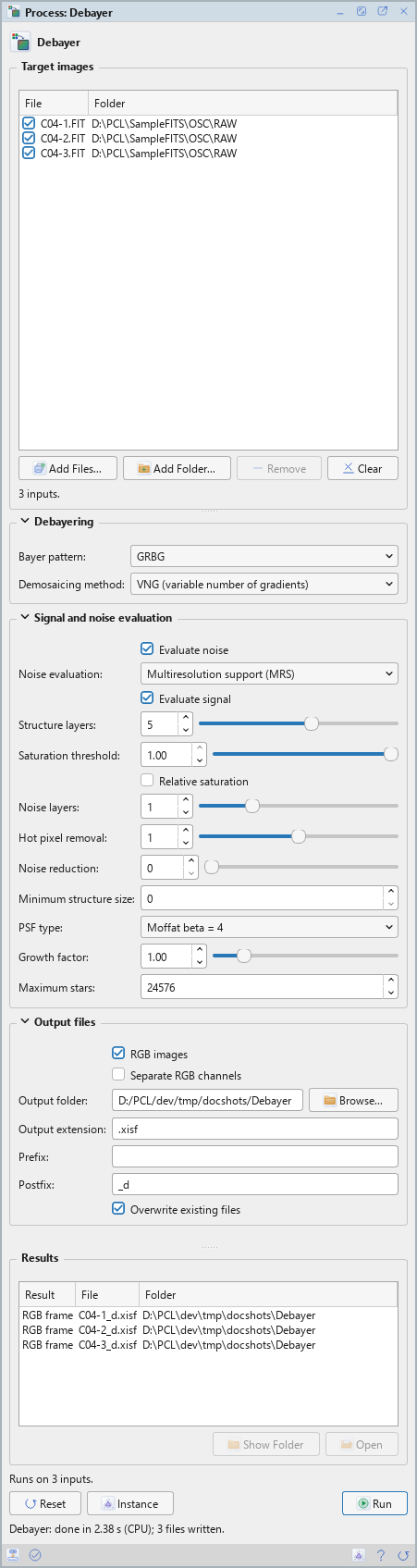
At the top of the panel, under Target images, Input chooses what Debayer works on. On Files the panel lists the frames below it and has three sections of settings, Debayering, Signal and noise evaluation and Output files, each of which folds away with the arrow beside its title. Under them are the results of the last run, the buttons and the system bar along the bottom. On Open image the list and the results are gone, the button says Apply, and the panel says which image it applies to, as the panels of the processes that work on an image do. Settings that do not apply are grayed out: on Open image, the evaluation and the output files.
3.1Target images
Input: Files, the CFA frames of the list below, or Open image, the image the panel applies to, which must be one channel of mosaic samples. When the panel opens, and at Reset, it takes Open image if the image in front is one channel, and Files if no image is open or the one in front is in color. A process file or a PixInsight icon without this setting runs on its files, as before.
Target images: The CFA frames to debayer: FITS, XISF or camera raw files, each of one channel. Each row shows a file and its folder, with a check box that keeps it in the run or leaves it out. Add Files... and Add Folder... add frames; Remove takes the selected rows away; Clear empties the list. The line under the list says how many frames there are.
3.2Debayering
Bayer pattern: The arrangement of the color filters, named by the first two rows of the square of four: Auto (the frame's), the default, takes it from each frame's XISF properties or its BAYERPAT keyword (a raw file's from the camera); or RGGB, BGGR, GBRG or GRBG for every frame. A frame with no pattern, with Auto, is a warning and is left out. X-Trans and other arrangements are not debayered.
Demosaicing method: VNG (variable number of gradients), the default, or Bilinear.
Create a new image: On Open image only. On, the default: the color image is a new image named
after the mosaic with _RGB. Off: the open image is replaced by the color image, in one history step.
On an open image, Debayer refuses, and says why, an image that is not one channel of samples, an image with no pattern in its keywords while Bayer pattern is on Auto (choose the pattern), an X-Trans or other pattern that is not Bayer, and an image too small to debayer. Nothing is made or changed then.
3.3Signal and noise evaluation
What is measured on each color's samples and written into the RGB frame.
Evaluate noise: On by default. Measure each color's noise and write it as NOISE00 to NOISE02 and the PCL:Noise properties.
Noise evaluation: How the noise is estimated: Multiresolution support (MRS), the default, Iterative k-sigma clipping, or the N* robust noise estimator.
Evaluate signal: On by default. Detect each color's stars and fit them to measure its PSF signal, written as the PSF keywords and PCL:Signal properties. The settings below are the star detector's and the fit's, as in Calibration.
Structure layers: The wavelet layers the star detector looks at, from 1 to 8; 5 by default.
Saturation threshold: Stars with a peak above this are saturated and left out, from 0.10 to 1; 1 by default.
Relative saturation: Off by default. The saturation threshold is relative to the frame's highest value.
Noise layers: The finest wavelet layers left out of star detection as noise, from 0 to 4; 1 by default.
Hot pixel removal: The radius of the median filter that keeps hot pixels from being taken for stars, from 0 to 2; 1 by default.
Noise reduction: The radius of a Gaussian filter applied before detection. 0, the default: none.
Minimum structure size: The smallest star detected, in pixels. 0, the default: automatic.
PSF type: The function fitted to the stars: Gaussian, a Moffat function of beta 1.5, 4, 6 or 8, the Variable shape Moffat, or Auto. Moffat beta = 4 by default.
Growth factor: The fitting regions are grown by this factor, from 0.5 to 4; 1 by default.
Maximum stars: The most stars fitted per color; 24576 by default.
3.4Output files
RGB images: On by default. Write each debayered frame as an RGB image.
Separate RGB channels: Off by default. Write each color of each frame as a monochrome image of
its own, its name ending in _R, _G and _B, each with its own color's estimates.
With both off, the run is refused: there would be nothing to write.
Output folder: Where the frames are written. Empty, the default: next to each frame. Browse... chooses a folder.
Output extension: .xisf, the default, or .fits. The frames are written
in 32-bit floating point.
Prefix: Text put before each frame's name. Empty by default.
Postfix: Text put after each frame's name: _d by default.
Overwrite existing files: Off by default: a file of the same name is kept, and the new one gets
a new name, with _1, _2... at the end. On, it is replaced.
3.5Run, Apply and Instance
Apply: On Open image. Debayers the image the panel applies to, as a new image or as the image itself, as Create a new image says. The Log gives the pattern, where it came from, and the method.
Run: Debayers the frames checked in the list. Raw files are decoded first, several at a time, or taken from the raw cache when they were decoded before; the Log says how many and how long it took. Then, for each frame, the Log gives its pattern, the method and, when measured, each color's noise and stars, and a summary at the end. A frame that cannot be debayered, with no pattern or more than one channel, is a warning and the others are written; a canceled run leaves none of its files.
Results: What the last run wrote, a frame a row, not opened: a double click, or Open, opens one as an image; Show Folder shows its folder.
Instance: Shows the process as the panel has it now, as text: the settings as a DSPX
process (.dsproc) or as a PixInsight process icon (.xpsm) of Debayer, chosen under
Format, the frames included. Copy puts the text on the clipboard; Save... saves it as a file and
puts it on the Process Shelf.
Reset: Puts every setting back to its default and empties the list. Input then takes Open image if the image in front is one channel, as when the panel opens.
The system bar along the bottom of the panel has the same commands as small icons: at the left, drag and Run; at the right, Instance, Help (this page) and Reset. Dropped on the Process Shelf, the first icon keeps the process there as a row of its own, with its frames. With , the bar alone has them.
4Debayer and PixInsight
The debayering is the same in either of DSPX's modes. The PixInsight compatibility mode, in , decides only how the colors are measured: on, step by step as PixInsight does it; off, with less work in most steps, for the same estimates. PixInsight's Debayer source is not published, so our VNG and bilinear methods follow the published descriptions: the colors are close to PixInsight's, not the same. The pixels within two of the frame's border, which VNG cannot reach, copy the nearest pixel inside, as PixInsight's documentation says of its methods.
PixInsight's SuperPixel method and its FBDD noise reduction are not offered: an icon that asks for SuperPixel opens with VNG, and the reading says so.
5Usage Tips and Tricks
Calibrate first. Debayer calibrated CFA frames: the bias, dark and flat belong to the mosaic, pixel by pixel, and the hot pixels are best corrected before they are spread into crosses (Cosmetic Correction with CFA on).
Or drizzle the mosaic. For CFA drizzle, register the debayered frames: Registration names each frame's CFA source in its drizzle data, and Drizzle then drizzles the raw samples into their own colors, with no interpolation at all.
Check the pattern once. A wrong pattern gives green and magenta stars and a checkered sky. If Auto finds none, or the colors are wrong, try the four patterns on one frame and keep the one with neutral stars.
6Related Tools
Calibration: calibrates the CFA frames, with the dark and flat per color.
Registration: aligns the RGB frames onto one reference.
Integration: weighs each channel of each frame by its color's estimates.
Channel Extraction: the channels of an open RGB image as separate images.