
Workflows and Blueprints
Decisions written down once, then run, guided or reused
A workflow is a chain of steps that measures an image, decides what to do and runs the processes, and a blueprint is the file that keeps one. DSPX runs blueprints on images and on files, walks us through a workflow one step at a time in the Guide panel, uses one to decide the settings of Easy mode in pre-processing, and lets us pick, duplicate and edit workflows. This chapter explains what workflows and blueprints are, how to run, guide and edit them, how DSPX decides which blueprints it may run, and how RC Astro's command-line tools join a workflow once they are allowed.
10.1Workflows and Blueprints
The two words mean different things in this documentation. A workflow is what we build: the order in which an image
is measured, questions are asked, decisions are taken and processes run, with the reasons for each choice. A blueprint is
the file that keeps a workflow, with the extension .awf. We build a workflow in the workflow editor, keep it as a
blueprint, and later run, guide or reuse the blueprint. The blueprint format is the one of Deep Sky Colors' AdaptiveWorkflow
module for PixInsight, so a blueprint made there opens here, and one made here opens there as long as it uses only what both
programs have.
10.1.1What a Step Can Be
A workflow is made of steps, drawn as a flowchart. The kinds of steps are:
- Process: runs one of DSPX's processes with stored settings.
- Measure: measures the image (its noise, background, gradient, the stars, the channels' balance, and more) and keeps the value for the steps that follow.
- Set: computes a value from other values with a formula.
- Branch: tests values and takes one route or the other.
- Ask: puts a question to the person who runs the workflow, with answers to choose from.
- Message: says something and waits for Continue.
- Call: runs a route, a named sequence of steps of its own.
- Loop and For each: repeat steps for a list of values, the groups of a night or the frames of a group.
- Decide: records a decision, the kind a set of rules makes for Easy mode.
- Images and files: work with the open images, with folders of image files, and with files written to disk.
A workflow has a main flow and any number of routes. The workflow editor and the flowchart show one sequence at a time.
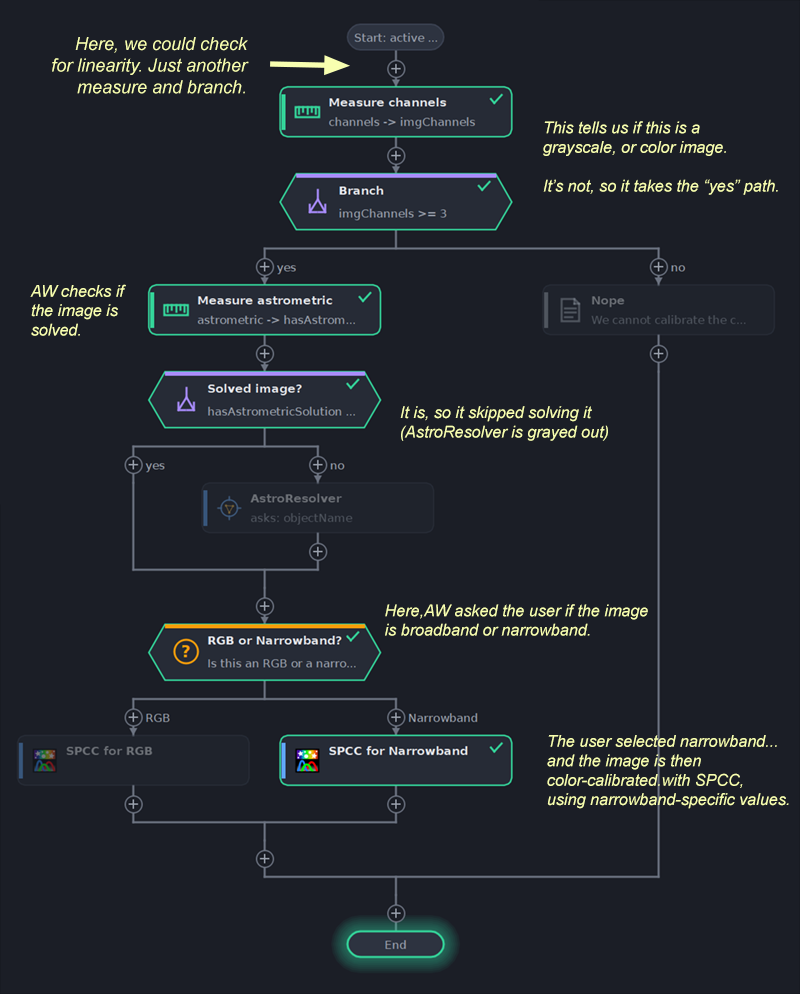
10.1.2The Three Kinds of Blueprint We Meet
- A workflow that runs on images: it measures an image, decides, and runs processes on it. This is the kind we run with Run Blueprint and the kind the Guide panel walks through. A workflow on image files runs on files instead.
- Rules for Easy mode: a set of rules that decides the settings of a pre-processing session, several nights of frames among them. It does not run on an image; the pre-processing window runs it. Easy Mode and Expert Mode says what Easy mode decides.
- DSPX's own built-in workflows: the rules of Easy mode and three workflows for post-processing, described under Guided Processing.
10.1.3What Is PixInsight Only
A blueprint is written for the processes of PixInsight by their names, and DSPX has the processes of the same names. A step that DSPX cannot carry out is marked PixInsight only: a process DSPX does not have (a sharpening, noise or gradient tool of another maker, for example) and every script step, because DSPX does not run PixInsight scripts. Such a step asks whether to skip it, and a run that never stops skips it. Where DSPX has a process that does the same job, it says so, as Guided Processing explains.
A process step stores its settings as the text of a stored process. DSPX reads that text as data, in the strict grammar of a stored process, and never runs it as code.
10.2Running a Blueprint
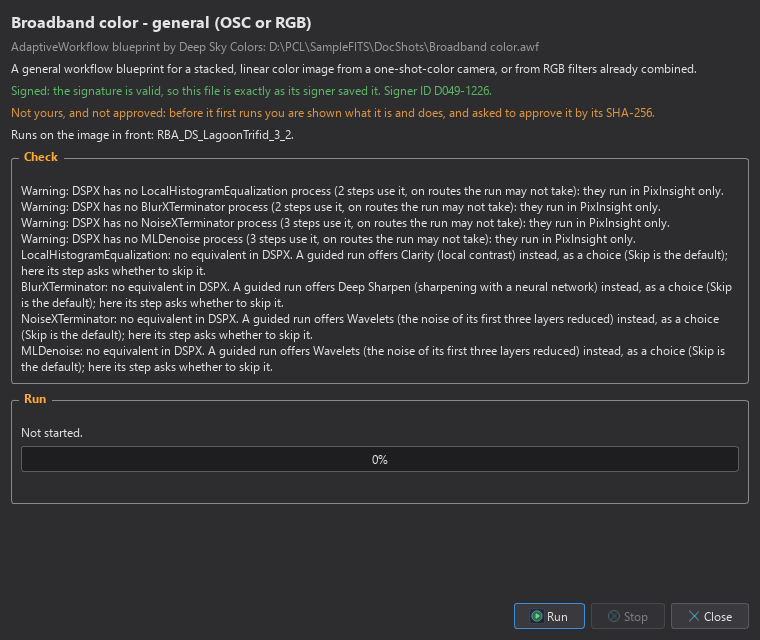
asks for an .awf file and opens it in the Run Blueprint
window. The window is not modal: we can keep working in the main window, and a run goes on in the background.
- Choose and pick the file. (From the Workflows window, the Run... button opens the same window for a listed workflow.)
- Read what the window says about the blueprint: its name, author, the blueprint it was based on, its description and its signature.
- Check what it runs on, then read the check.
- Click Run.
- Answer the questions that appear in place, and read how the run ended.
10.2.1The Signature
A blueprint may be signed by the person who saved it. The window says one of three things:
- Signed: the signature is valid, so the file is exactly as its signer saved it. The window shows the signer's identification.
- The signature is broken: the file was changed after it was signed, so nothing says who made it or what it does.
- Not signed: nothing says who made the blueprint, or that it is as they saved it.
A valid signature says who saved the file. It does not say that the file is safe to run, and DSPX asks for its own approval of any blueprint that is not ours (see Picking and Editing Workflows). DSPX itself signs no workflow.
10.2.2What It Runs On
The workflow itself says what it runs on, and the window shows it:
- The image in front. The target follows the window in front until the run starts. With no image open, the window says so and Run waits.
- The open images it asks for. The workflow names images it needs; the run asks which open image each one is.
- Image files. Choose Files... picks the files. A workflow may run on them one after the other, each saved beside the original with the suffix the workflow gives or in the folder it names, or on all of them together, which needs a work folder: Work Folder... chooses where the workflow keeps what it makes, its masters, calibrated frames and stacks.
10.2.3The Check
Before a run the window checks the blueprint and lists what it found. An error stops Run. The list also names the processes DSPX does not have, the scripts, the processes of RC Astro's command-line tool that the workflow uses, and the places where the workflow writes files. A run that needs no judgment from us is called stopless: it asks nothing and skips what is PixInsight only.
10.2.4The Run
While the workflow runs, the window shows the step in progress, the image of a set of files, and the progress of the process that is running. Each question appears in place:
- a step with values to confirm shows its fields;
- a question shows its answers as buttons;
- a step that is PixInsight only offers Skip;
- Stop the Run ends the run at once. A process that is running is canceled; the steps done before stay in the images' history.
Every process the workflow runs on an image is a step of that image's history, with the process's own name, and is undone as any other step (Undo, Redo and History). The run's log goes to the Log, which also says which workflow ran the step. For the whole run the images it works on are busy: they cannot be changed, closed or undone, and no other process runs on them until it ends. When the run ends the window reports how many steps went to the history, and Run Again starts another.
A workflow written for PixInsight's pre-processing runs here on DSPX's file processes: its masters, calibration, debayering, registration and stacks use the pre-processing processes. SubframeSelector and CosmeticCorrection's automatic detection are PixInsight only.
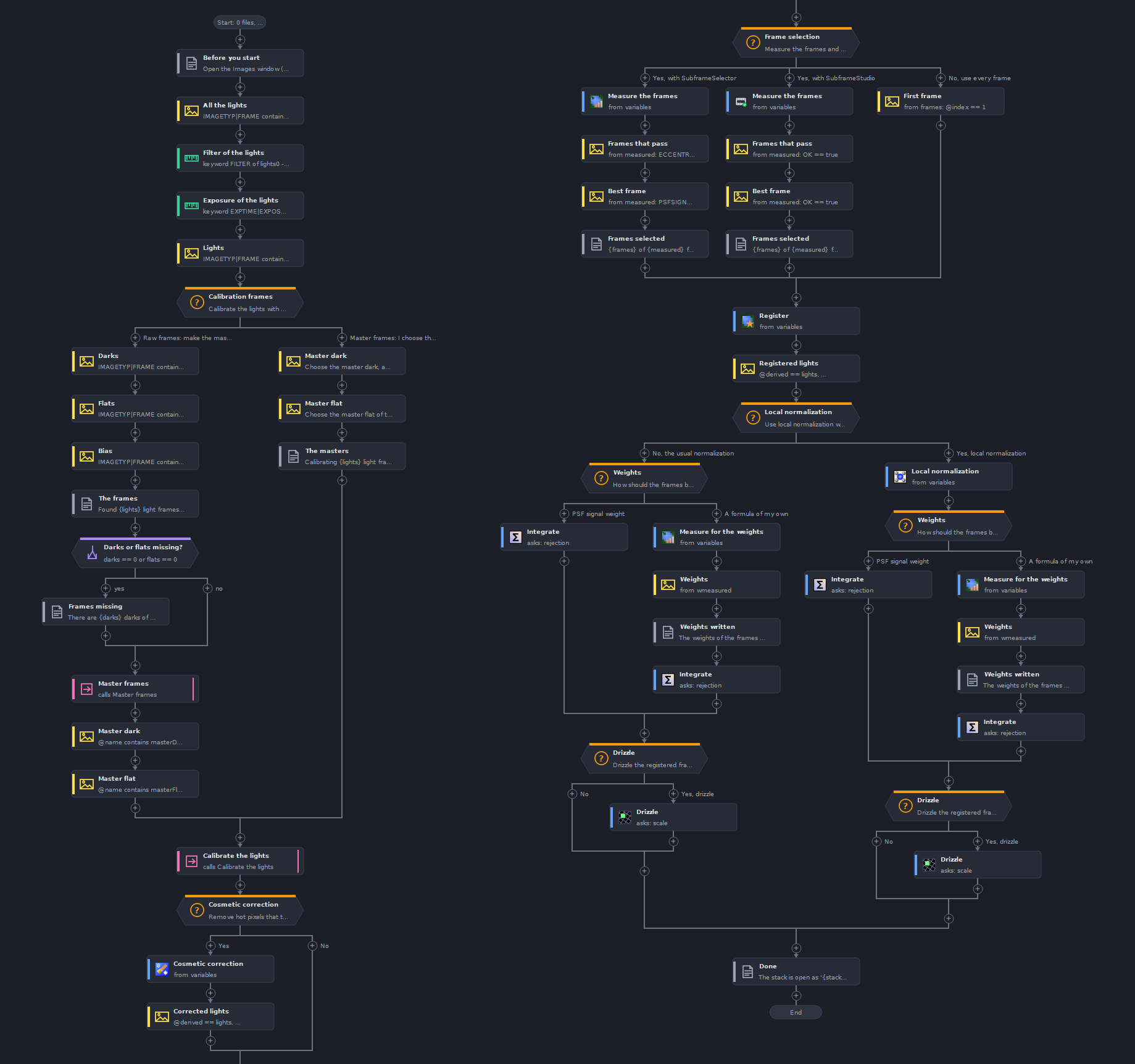
10.3Picking and Editing Workflows
opens the Workflows window. It lists every workflow DSPX knows: DSPX's built-in ones, the blueprints in our blueprints folder, and files we added from other folders. The same list opens from the pre-processing window, under , to pick the rules Easy mode decides with.
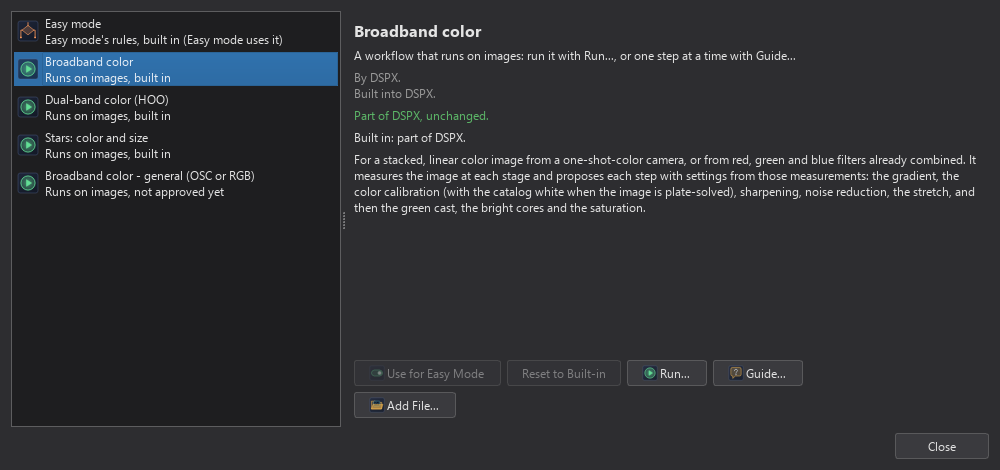
10.3.1The List
For each workflow the window shows its name, then, in a framed box, its kind (rules for Easy mode, or a workflow that runs on images), the author, the blueprint it was based on, its file, its signature as the Run Blueprint window words it, its standing and whether Easy mode decides with it. Its description follows under Workflow Description. The Guided Processing window shows a workflow the same way. The standing is one of:
- Built in: part of DSPX, unchanged.
- Yours: a file that DSPX itself wrote (by Duplicate, Save or Save As).
- Approved: somebody else's file, approved by us, with the date.
- Changed: asks again: approved before, but the file has changed since.
- Not approved yet: somebody else's file we have not approved.
10.3.2The Buttons
Add File...: Lists a blueprint file from another folder. The file stays where it is.
Run...: Opens the workflow in the Run Blueprint window.
Guide...: Runs the workflow on the image in front, one step at a time, in the Guide panel. It is offered for a workflow that runs on open images.
Use for Easy Mode: For rules only. Easy mode decides the settings of pre-processing with this workflow from now on.
Reset to Built-in: Easy mode decides with its own rules again.
Duplicate: Copies the workflow into our blueprints folder, byte for byte. A copy of a built-in workflow is ours.
New...: Starts an empty workflow in the workflow editor. Save puts it in our blueprints folder.
Edit...: Changes the workflow in the editor. The built-in rules are not edited: we duplicate them first.
Delete...: For our own blueprints only (standing Yours), never a built-in workflow or somebody else's file. After we confirm, the file goes to the Recycle Bin (the Trash on macOS and Linux). Where that is not possible, DSPX asks again before it deletes the file for good. Rules that Easy mode decides with are replaced by the built-in rules.
Duplicate, New... and Edit... appear only when editing is switched on in Preferences (see below). Delete... is always there.
10.3.3Approving Somebody Else's Blueprint
A blueprint can run processes on our images and write files, so DSPX runs only what we know:
- DSPX's built-in workflows run without asking.
- Our own workflows, the files DSPX itself wrote, run without asking. If another program changes such a file, it is no longer ours.
- Any other blueprint runs, or decides Easy mode's settings, only after we approve those exact bytes. DSPX keeps a fingerprint of the approved file (its SHA-256); a changed file has a different fingerprint and asks again.
The first time we use such a blueprint, an approval sheet appears. It shows the blueprint's name; whether it is new or has changed since we approved it; its source and file; the author and the blueprint it was based on; its signature, with the reminder that a valid signature says who saved it, not that it is safe; for Easy mode's rules, what they decide; for a workflow on images, each process it runs with the number of steps and what is PixInsight only; where it writes; the SHA-256; and its description. Process steps are read as stored settings, never run as code.
Approve and Use (for Easy mode's rules) or Approve and Run stores the fingerprint. Cancel is the default button and runs nothing. A blueprint that is not allowed is never loaded: for Easy mode, the built-in rules decide, and the Easy page says why. Scripts use the same approval store (Approving Scripts).
10.3.4Preferences > Workflows
has the groups for blueprints. RC Astro's tool is set on , under GraXpert (RC Astro's Tools).
Your blueprints: The folder where our blueprints live, with Open Folder to show it in the file manager. The folder is made when DSPX first writes there.
Edit workflows: Off by default. On, the Workflows window offers Duplicate, New and Edit, so we can copy Easy mode's rules or a workflow and change them: a threshold, a question, a route.
Your name, as a blueprint's author: The editor writes this name as the author of a workflow we change. Somebody else's workflow keeps its author until we change it; then we are its author and it says it is based on theirs.
Approved blueprints: Says how many blueprint versions, and how many script versions, are approved. Forget Approvals... forgets every approved fingerprint, workflows and scripts alike; each asks again before it next runs.
10.3.5The Workflow Editor
New... and Edit... open the workflow editor, the same editing logic as AdaptiveWorkflow's, in DSPX's window. The editor shows the workflow as a flowchart.
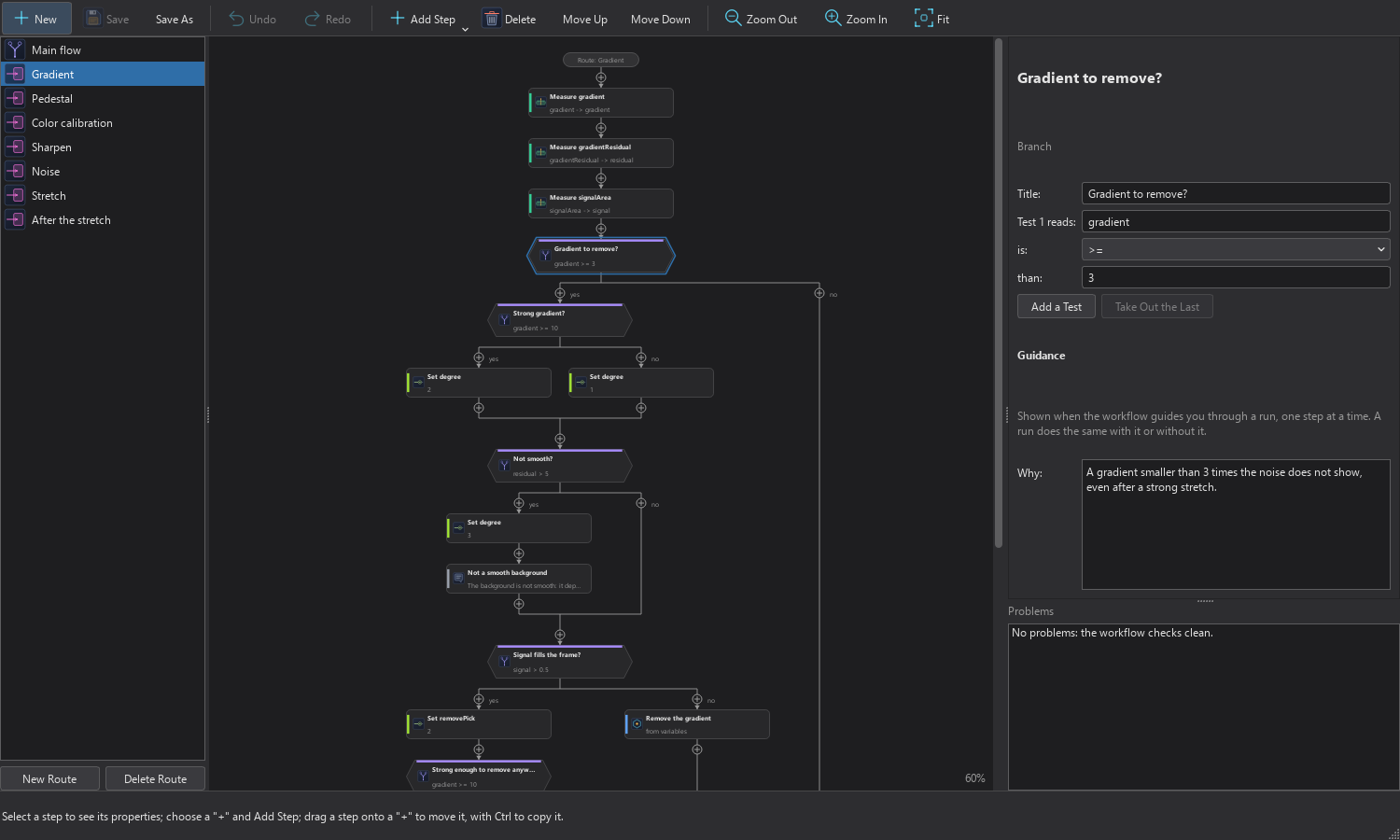
- Routes. The main flow and each route are listed; New Route adds one and Delete Route removes one with its steps.
- The chart. A click selects a step. The empty slots between steps are marked, and the one a new step would take is filled. Add Step adds a step there. Dragging a step onto a slot moves it, with Ctrl held it copies it, and the slots it may go to are marked. Delete Step, Move Up and Move Down do what they say. Fit and the zoom controls scale the chart.
- Properties. The right side shows the selected step by kind: a Branch's tests (a variable, an operator and a value, all or any, with Add a Test to add one); a Set's formula; a Measure's measurement or fact; a Decide's setting, value, list, rule and sentence; the question and answers of an Ask, with Add an Answer; a Message's text; the route a Call runs; a Loop's values; and a Process step's stored values, each checked as a value of its parameter. A stored process is refused unless it passes the grammar of a stored process. With nothing selected the panel shows the workflow's name, author and description.
- Guidance. The texts shown when a workflow guides us through a run: why a step is there, where to look ("Look at") and which answer is suggested. A run does the same with it or without it.
- Problems. After every edit the list names what is wrong, or says that the workflow checks clean. A click on a problem selects its step.
- Undo and Redo. Every edit can be undone, with a label that names it, such as "Undo Edit text". Typing in a field is one undo step.
Save and Save As... write the file whole. A workflow we edit is not signed: what we save is ours by its fingerprint. When the file is the one Easy mode uses, Easy mode decides with it at once; Use for Easy Mode saves the rules and then picks them. The first edit of somebody else's blueprint, or of a copy of a built-in one, makes the blueprint ours.
10.3.6A Blueprint From the History
The History panel's Export... (Exporting the History) writes the steps applied to an image as a blueprint. It is a straight line of Process steps, in the order of the History and named after the steps, each with the settings the step ran with. It has no decisions and no questions, and it is marked to run without stopping, so it runs on the image in front from the first step to the last. A step that is not a process, such as a tool's stroke or a layer operation, cannot be repeated and is left out; the window lists it.
The blueprint is ours: DSPX wrote it, so it runs without the approval sheet. It is saved unsigned, in our blueprints folder by default, and it is listed with the others. We can open it in the workflow editor to add a question or a decision, or to change a setting. A selection, a mask or a layer that a step ran with is not reproduced; the note of the step says so.
10.4Guided Processing
A guided run takes us through the processing of a stacked image one step at a time. For each step it says why the step is there and what it measured and decided, proposes the settings in the process's own panel with a preview on the image, and waits for us to apply, skip or go back. It runs an ordinary blueprint: nothing in the file says it is for guiding, so the same file also runs unattended with Run Blueprint.
| Run Blueprint | Guided Processing | |
|---|---|---|
| Process steps | Run with the stored settings. | Each stops first, with the reason, the measurements and the proposal previewed; we apply or skip. |
| Settings | Only what the workflow marks as asked. | Any setting; each change is logged. |
| Preview | None. | The process's own preview on the image. |
| Decisions | Taken silently, in the log. | Shown with their values; Change takes the other route. |
| The image | Busy for the whole run. | Held only while a step runs. |
| Going back | The history's Undo afterwards. | Back, the run and the image together. |
| Targets | Open images, files, sets of files. | Open images only. |
| The end | The log. | A summary and the path taken on the flowchart. |
10.4.1Starting a Guided Run
- opens the Guided Processing window. It lists the workflows that can be guided: those that run on open images (not Easy mode's rules, not a workflow on files, not one that never stops), the built-in ones first. Guide... starts on the image in front.
- Guide... beside Run... in the Workflows window does the same.
- In the pre-processing report, Process the Master, Guided... opens the light master (the one selected, or the first) and starts Guided Processing on it.
- The Guide panel, when no guided run is going on, says "No guided run." and offers Start Guided Processing....
A blueprint that is not ours is approved first, as for Run Blueprint. The built-in workflows and our own run without asking.
10.4.2The Built-in Workflows
DSPX has three built-in workflows for post-processing. Each reads the image's measurements, decides from them, and says why. They use only processes both programs have.
- Broadband color: for a stacked, linear OSC or RGB image. It checks that the image is linear and has no black borders (a crop is suggested when it has), removes a gradient when it measures one, takes off a pedestal when the sky sits too high, calibrates the color (it asks to plate-solve an unsolved image, and uses Spectrophotometric Color Calibration on a solved one, with Background Neutralization when the background is unbalanced), sharpens with Deep Sharpen when the stars allow it, reduces noise through a linear mask, stretches with Masked Stretch, and finishes with suggestions for a light noise pass, SCNR, HDR Compression and a little saturation.
- Dual-band color (HOO): for a stacked, linear OSC image shot with a dual-band filter. The same checks, gradient, pedestal, sharpening and noise reduction, then OIII made from the green and blue channels, Background Neutralization, and, if we agree, the stars taken apart with Deep Star Removal, the nebula stretched, the stars stretched with Arcsinh Stretch and screened back, then HDR Compression and saturation. Tip: to work on Ha and OIII as two images (a different noise reduction for each, say), the script Extract Ha and OIII (Dual Band) in makes them from this image.
- Stars: color and size: for a stretched color image. It counts the stars and measures their FWHM, builds a star mask with Deep Star Mask, raises the stars' saturation through it, and makes the stars smaller with Deep Morphology's erosion through it, with an amount that grows with the star density and the FWHM.
The thresholds that decide each choice are in the workflows. We can duplicate a built-in workflow and change them.
10.4.3The Guide Panel
The Guide panel is tabbed with Process, Tool and Scripts. It stays hidden until a run starts, and then takes most of the height of its column.
A linear image looks almost black on the screen, with only the stars showing. When a guided run starts on a linear image that has no screen stretch, the guide turns on the automatic screen stretch, so the first steps show, and the Log says so. While the run lasts, an image whose screen stretch is on is stretched again automatically after each step, each Back and each undo, so the screen always shows the new pixels. The screen stretch never changes the pixels. Once a stretch process has run in the run (Histogram Transformation, Hyperbolic, Arcsinh, Masked or Adaptive Stretch), however it was applied, the screen stretch turns off and the guide stops stretching the image, because the stretch is then in the pixels. Going Back to before that step turns it on again. The image's Screen stretch badge and its title say when a screen stretch is on (Seeing the Image).
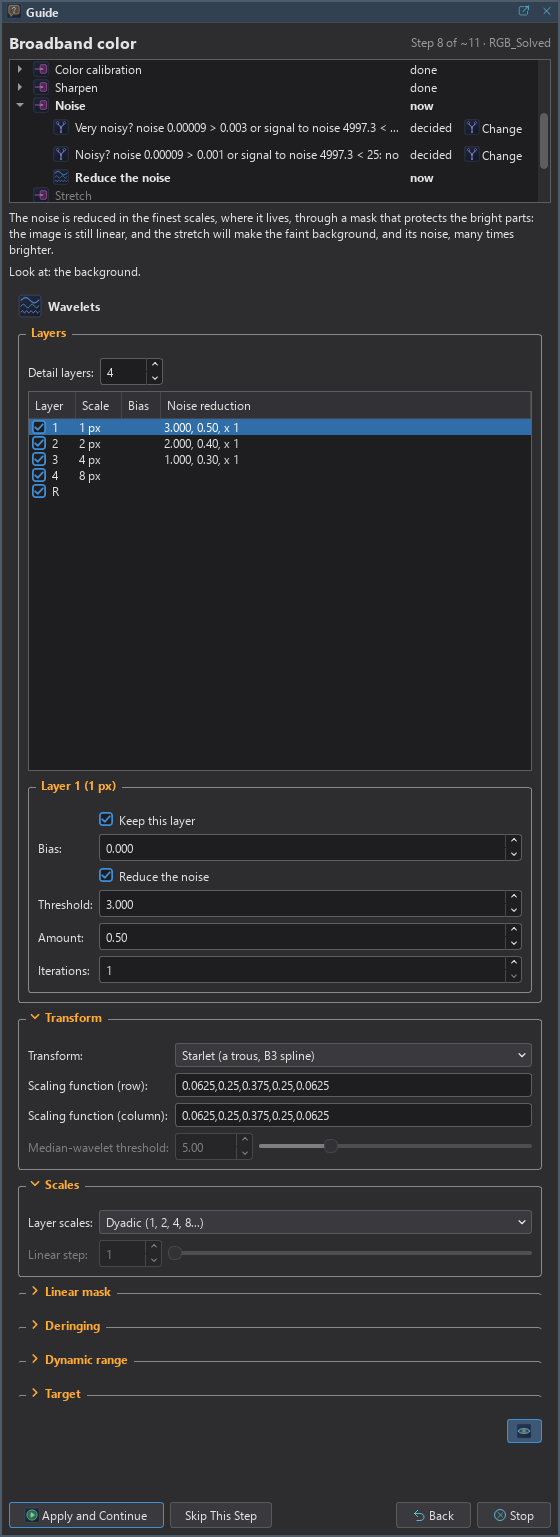
Header: The workflow's name, and "Step 3 of ~12" followed by the image. The step count is about: routes are known only as they are taken.
Steps list: The steps of the main flow, with their state: now, done, applied, adjusted, skipped, answered, decided, failed or not reached. Under a step that was reached, the list shows what ran inside it: processes, questions, decisions and messages. A decision shows its values and the route it took.
Card: Why the step is there, from the workflow's guidance with the measured values filled in, and where to look ("Look at: the stars."). The step's title appears only when the list does not show it.
A process step: The process's own panel, without Apply, Reset and Save, with the workflow's proposal. The preview works as for the Process panel (Previewing a Process). Each setting we change is listed below the panel, such as "Degree: 1 (proposed: 2)", with Back to the Proposal to put every setting back.
A question: Its text and its answers. The suggested answer is marked and chosen. Preview beside an answer whose route starts with a process shows that process's panel with the settings it would run with now; clicked again, or with its Live box unchecked, it takes the preview off the image.
A message: Its text and Continue.
10.4.4Applying, Skipping and Stopping
Apply and Continue: Runs the step with the settings shown, as one history step, and goes on. When the preview holds an unchanged snapshot of the whole image for those settings, the step takes it and does not compute it again. A snapshot never starts by itself, and nothing that uses the network starts by itself.
Skip This Step: Goes on without running the step.
Back: Returns to the question before the one the guide waits on, and the image's history goes back with it.
Stop: Ends the guided run. A process that is running is canceled; the steps done stay in the history.
At the end the panel shows a summary, for example "7 process steps: 5 applied (1 adjusted), 2 skipped.", and only the lines that apply: steps that took a preview, steps skipped because they are PixInsight only, equivalents that ran, similar processes we chose, and changes made outside the guide. Save the Log... writes the path taken to a text file, and Show the Path shows it on the flowchart. A run is not saved: closing it, Stop, the end or closing the image ends it. The Log panel keeps every line.
10.4.5Back and Change This Decision
Every decision taken since the last answer has a Change button on its row, reached with Tab and named Change This Decision for a screen reader, also in the row's right-click menu. It takes the decision's other route, and the image's history goes back to before the decision. Changed again, the decision returns to the workflow's own. The list then reads "chosen by you".
Both Back and Change need every step since that point to have changed only the run's images, through their history. When they cannot be used, the button is disabled and says why:
| Off when | It says |
|---|---|
| This is the first question | There is none before it. |
| A step since made a new image | Going back would not take the new image away. |
| A step since wrote a file | Going back would not undo the file. |
| An image of the run was changed outside the guide | Since then an image of the run was changed outside the guide. |
| The history no longer goes back that far | The history of the image has let that step go (the history's memory limit). |
| An image of the run was closed, or is in use | It is not open any more, or it is in use. |
A screen stretch the guide turned off comes back when the guide goes back to before the stretch. There is no Back at the end of a run: the history's Undo remains.
10.4.6Working on the Image While the Guide Waits
The run's images are held from an answer until the next question, and let go while the guide waits, so we may view, pan, zoom and preview them. Applying a process, Undo, Redo or another history step on an image the guide waits on asks first: the guide goes on from the image as it will be. Any change made meanwhile (with a tool, a script or the shelf) is noted, turns Back off and is named at the end. Closing the image asks, then ends the run. An answer given while something else holds the image is refused with the reason, and the card keeps our changes.
10.4.7PixInsight's Steps: Equivalents and Similar Processes
A step that names a process DSPX does not have runs as DSPX's equivalent where the meaning matches: the same purpose and the same kind of result, not the same algorithm. Unattended, the equivalent runs and the log says what ran instead.
| The workflow's step | DSPX does |
|---|---|
| ImageSolver script | Plate Solve with its defaults, using the catalogs and the all-sky index of Preferences > Astrometry. |
| PhotometricColorCalibration | Background Neutralization, then Color Calibration with the catalog white. |
| StarXTerminator | Deep Star Removal, with the star image, unscreen and linear settings carried over. |
A part the image cannot take stops the step before anything runs and says why, for example that the image must be solved first. In the guide the card tells what the step is, what DSPX does instead and what is not carried over, and shows the equivalent's panel and preview. An equivalent that is two processes is two proposals in a row: "Part 1 of 2" with Accept, Next and Skip This Part, then Part 2 (Previous Part goes back), whose Apply and Continue runs what was accepted, one history step each.
Some tools of other makers (BlurXTerminator, NoiseXTerminator, a local histogram equalization) have no equivalent. In a guided run only, DSPX may offer the nearest process: Deep Sharpen for BlurXTerminator, a Wavelets noise pass for the noise tools, Clarity for local histogram equalization. The card says the job is similar, not the same: Use Deep Sharpen proposes it, and only Apply and Continue runs it; Skip This Step is the default. Run Blueprint never substitutes a nearest process. A step with no equivalent and no similar process, such as MultiscaleGradientCorrection, is PixInsight only. Run Blueprint's check list says each case before Run.
10.5Show Details
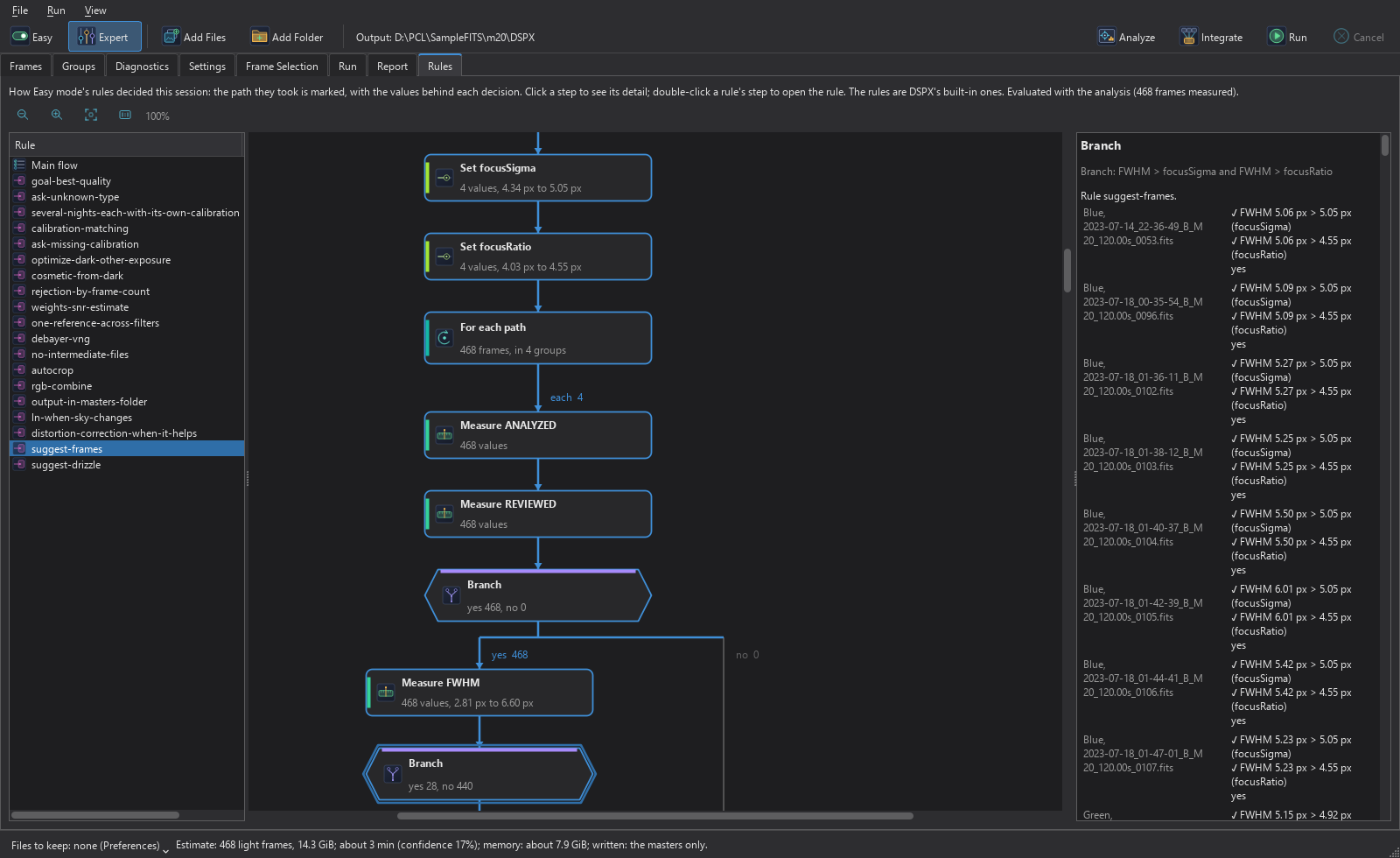
In the pre-processing window, Easy mode decides the settings of a night by rules, and Show Details on the Easy page shows how they decided. It switches the window to Expert mode and opens the Rules page, where the rules are drawn as the flowchart of their workflow with the path taken for this session and the values behind each branch. The page is read only: to change the rules we edit a copy (Picking and Editing Workflows).
10.5.1Several Nights in the Built-in Rules
The built-in rules of Easy mode handle a session of several nights. Their description says so: when each night has its own calibration frames (flats, darks, bias), each night's lights are calibrated with them, and the nights still integrate into one master. The rule that does it is several-nights-each-with-its-own-calibration, the third in the list of the Rules page. It reads the dates of the calibration frames and, when a kind of frame (the bias, the darks, the flats of one filter) was taken on more than one night, turns Separate by night on and says which nights it found, for example "Calibration frames were taken on several nights (2026-10-16, 2026-10-17)". Otherwise it turns the setting off and says there is nothing to separate. A choice we made ourselves is never changed. Several Nights describes what the setting does.
10.5.2The Page
- The rules (left). The main flow, then each rule with what it gave this session ("1 decision", "10 suggestions", "nothing to decide"), or "not reached" and dimmed. A rule's tooltip is its explanation.
- The chart (middle). One sequence at a time: the main flow or one rule. A step is a box with an icon, a title and a second line; a decision is a hexagon. The path taken is in the accent color, the steps reached are outlined, and what was not reached is faded. A step that stopped is in the error color.
- The step (right). What it is, its rule and the rule's explanation, then each pass with where it was, the group or the frame, and its values. A Branch lists every test with a check or a cross and where it went. A decision shows its whole explanation, and a question its answers, the default marked, and the frames it is about with their reasons. A Branch taken many times lists the rarer way first, up to 300 passes and then how many more.
The second line of a step reached says what it saw: "background spread 28% > 15%: yes", a Measure's value ("FWHM = 3.42 px"), what a Decide decided ("Drizzle: off"), or, for a For each, a sum of its passes ("468 frames, in 4 groups", "yes 28, no 440"). Values use the words and units of the measurements: pixels for FWHM, seconds for exposures, percent for spreads.
Zoom Out, Zoom In: Scale the chart. Ctrl and the wheel zoom about the pointer.
Fit: Fits the whole sequence in the window.
100%: Shows the chart at full size. The middle mouse button does the same.
Open the rule: Shows the rule of a Call step. A double click on the step does it too.
The page header says which rules these are, DSPX's built-in ones or our edited copy with its file name, whether they read an analysis, and, for a copy that stopped, where and why. In that case Easy mode decided with the built-in rules instead, and the chart ends at the step that stopped.
10.5.3Easy Mode's Rules in the Easy Page
When Easy mode decides with a copy and not the built-in rules, the Easy page says so, with Reset to Built-in. When the chosen rules are not used until approved, it says that, with Review... opening the approval sheet. A copy is checked before Easy mode uses it, and a copy that does not check, or that stops while deciding, gives way to the built-in rules.
10.6RC Astro's Tools
RC Astro's command-line program, when we have installed it, can be allowed in DSPX. Each product it offers then becomes a process of DSPX's: BlurXTerminator, NoiseXTerminator, StarXTerminator, and any product it reports later. They run from their panels, from blueprints and from guided runs, and a step that names one of them runs it. Nothing is listed until the program is found and allowed, and a person without it sees none of it.
DSPX never downloads, installs, updates or activates RC Astro's program, and never handles its license key. The program may connect to the internet by itself, to check its license, to download its AI models or to check for updates. DSPX makes no connection for it. Its results, and its failures, are RC Astro's.
10.6.1Allowing the Program
- Open and find the group RC Astro's command-line tool.
- Type the path of the program, click Browse..., or click Find, which looks where such programs are usually installed and on the PATH without running anything.
- Click Allow.... A sheet shows the program, its SHA-256, and what allowing means: its products become processes that run without asking again, from workflows too, until the program changes; the image goes to it as a temporary file; the program may use the network; the results are its own. Allow stores the approval; Cancel is the default.
- DSPX asks the program once which products it offers and lists them as processes.
The line under the path says the state: "Not set", "Not there.", "Not allowed yet: its processes are not listed.", "Changed since you allowed it: its processes are not listed.", or, when allowed, the date, the first digits of the SHA-256 and the products listed. The buttons change with the state: Allow... when the program is not allowed or has changed, List Processes when it is allowed and nothing is listed yet, and Forget to forget the approval. Each start lists the processes without running the program, while its file still has the allowed bytes. An update of the program changes its bytes: its processes are withdrawn until we allow it again, and every run checks the bytes again just before it starts the program.
10.6.2The Processes
Each panel is built from the description the program gives of its parameters: names, types, ranges, defaults, choices and
conditions, with the descriptions as tooltips. A new version of the program changes the panels without a change in DSPX. The
image goes to the program as a temporary file, its result is read back, checked for the same size and channels, and stored in the
image's sample format through the step's mask, as one history step. A product that makes a star image gives it as a new image
named after the target with _stars. The program's output lines go to the Log, and its progress to the progress bar.
When a run fails, the Log gives the program's last words and its exit code. When its license is missing, the Log shows its own line. A preview on a region is not available for these processes.
Process icons of these processes use PixInsight's names for the parameters, so a saved workflow or icon with a step of one of them opens in either program (PixInsight Process Icons).