
Appearance and Preferences
Themes, the Preferences window and its pages, shortcuts, icons and toolbars
DSPX's whole look comes from a theme, which we switch at once without restarting, and which we can change key by key in a theme editor. Everything else we set once and leave is in the Preferences window: thirteen pages, a search box, and a Reset Page button for each page. This chapter describes the themes, our own themes, every page of the Preferences, the keyboard shortcuts' page, and the icons and toolbars.
14.1Themes
The program's look, which means the colors of the windows and controls, the fonts, the shapes of the buttons and tabs, the colors of the image area, the plots and the tools' overlays, the wallpaper and the icons' colors, comes from one theme at a time. A theme is a small text file; twenty-four themes are built in. We choose one in , page Appearance, and it takes effect at once.
14.1.1The Built-In Themes
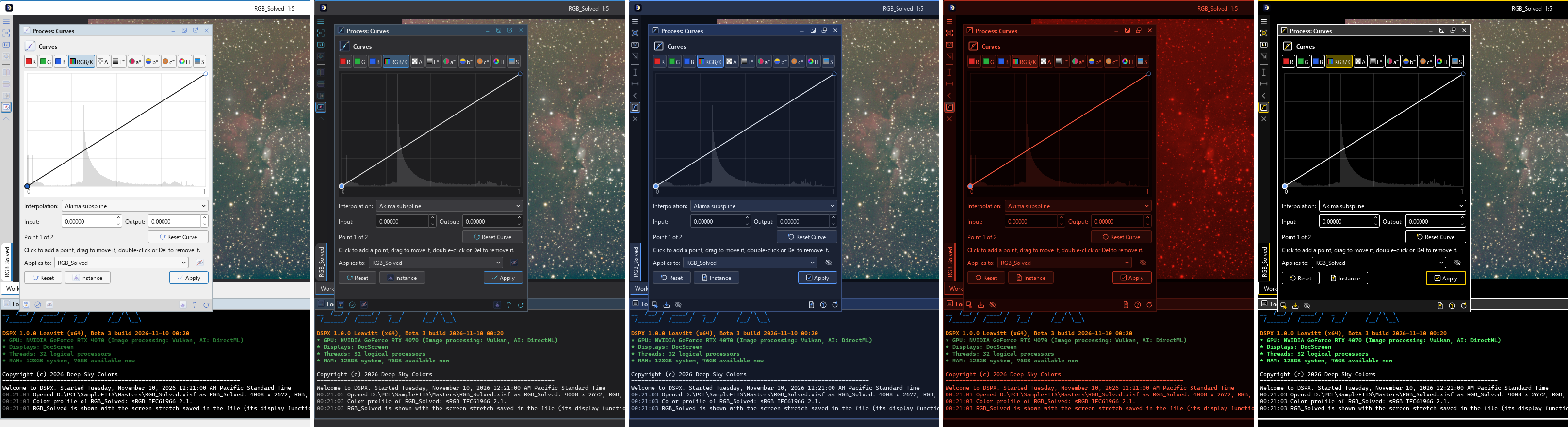
- DSPX Light: the default. Light panels, neutral grays, blue accents and a neutral dark image area, with the program's logo as a soft light wallpaper.
- DSPX Dark: dark gray panels and blue accents, with the program's logo as the wallpaper of the workspaces in black, blue, green and red in turn. It is the default dark theme.
- DSPX Deep Sky: deep blue panels and a faint field of stars behind the image windows.
- Night: only dim reds, for working at the telescope without losing dark adaptation, with the starfield behind the image windows. Images can be shown in red too (below).
- High Contrast: white on black, yellow selection and accents, white frames, and text at a contrast of 7 to 1.
- Fix Inside (Light): "The look and feel many of us learned with": light panels, with a wallpaper of its own. It is one of the five looks the Setup Assistant offers (The First Start).
- DSPX Granite: DSPX Dark with a stone and steel skin under each kind of window and control. It is there to show what skins do (Skins), and a good theme to copy when we make our own.
- Psycho'n (Dark): a dark theme with a deep teal-black ground, mint-teal accents and rounded cards, a nod to a newer studio app we admire. It is one of the five looks the Setup Assistant offers (The First Start).
- PhotonChop (Dark): a nod to the dark gray look of the best-known photo editor: flat neutral-gray panels with a darker tab strip, thin lines, square-ish controls with pill-shaped push buttons, a small triangle as the sliders' handle, light menus with a bright blue selection, and monochrome gray icons (the icons shown in a menu are drawn dark, for the light menu). It has no skin and no wallpaper. It goes with the PhotonChop layout, which brings two LaunchPads of its own (Layouts). It is one of the five looks the Setup Assistant offers (The First Start).
The Themes list in Preferences > Appearance shows DSPX Dark, DSPX Light, DSPX Deep Sky, Fix Inside (Light), PhotonChop (Dark), Syrup (Dark), Psycho'n (Dark), Night and Nebula first, then the other built-in themes by name, then our own. DSPX Light's Log has the black ground and white text of Fix Inside (Light)'s. In every built-in theme the image info bar sits at the bottom of the image window and the sliders' handles are 11 pixels wide; a theme of our own says its own (infoBarPosition and sliderHandleSize, The Theme File). DSPX Light has the style of DSPX Dark: bold group titles in a box frame (in a dark orange), round side tabs, the Process Explorer's entries browsed by category with plain names.
Fifteen more built-in themes are drawn after the themes of PI Theme Studio of the same names. Their colors, corners, surfaces, group frames and fonts follow those themes as closely as DSPX's theme keys allow, and so do their pictures: the "panels" skin of Theme Studio is the skin of the windows and dialogs, its "titlebars" skin is the skin of the title bars of windows and panels, and its wallpapers are the wallpapers of the workspaces. They are:
- Copper: warm brass and copper on dark brown, strongly raised, with a rust texture under the windows, a brushed copper skin on the title bars and four wallpapers.
- Forest: deep greens, bark browns and a muted red, with a bark skin on the title bars and four misty-hill wallpapers.
- Glassy Dark: dark, glossy controls with rounded corners, a glass skin under the windows and a glass skin on the title bars.
- Jupiter Storm: cream and rust cloud bands with the Great Red Spot as the accent, and three cloud-band wallpapers.
- Matrix: pure black and neon code-green in a monospaced font, with four wallpapers of falling code, a dark surface under the windows and green title bars.
- MegaGlass Dark and MegaGlass Light: glass everywhere, dark and light: glossy surfaces, rounded tabs and frames, blue accents, glass skins and four wallpapers each; MegaGlass Dark also has the starfield on its four wallpapers.
- Nebula: deep-space violet and teal, glossy and rounded, with a violet cloud skin on the title bars and four nebula wallpapers, each with the starfield.
- Sunset: a light theme of warm oranges and dusk reds, soft and round, with four sunset wallpapers.
- Terminal: phosphor green on black, monospaced and square, with four wallpapers of scan lines.
- Void Black: near-black everywhere, with the text always kept bright and one almost black wallpaper.
- Webb Infrared: deep matte black with brilliant gold, over a hexagon grid, in the windows, the title bars and four wallpapers.
- USA: red title bars on deep blue, with white and red accents, a quiet fleck of stars on the title bars and three wallpapers. It uses the colors only: there is no flag in it.
- Cupertino: a light and airy theme of soft grays and a blue accent with rounded corners, and three pastel wallpapers. The name is only a name; there is no logo or picture in it.
- Minimalist: flat neutral gray on white and no ornament, with a fine paper grain under the windows.
Syrup (Dark) is a dark theme in the look of the dark interface of a well-known free astro-imaging program: flat charcoal panels, thin dark frames, slightly lighter flat buttons, near-black inputs and plots, thin sliders with a round handle, small tabs with an underline, and one saturated blue for what is selected, checked or applied. Its panels, docked and floating, have rounded corners, 6 pixels at the top and at the bottom (Panel Corners). It has no skin and no wallpaper. Its colors were sampled from a screenshot, and each is one line of the theme, so a copy of it is easy to retune in the theme editor. The Syrup Top Bar goes well with it. It is one of the three looks the Setup Assistant and the Windows installer offer (The First Start).
Terminal and Void Black have no skins, as in Theme Studio. What a theme of Theme Studio does beyond the look of the program, such as the traffic-light window buttons of Cupertino or the drawn icons of Matrix, Terminal, Void Black and Webb Infrared, is not part of these themes: DSPX's icons follow the theme's colors (or, in those four, take its one ink color).
14.1.2Choosing a Theme
The Appearance page shows each theme as a sample in a list, with its author and description in the tooltip. A click on a theme uses it. The group Theme also has:
Follow the system's light or dark mode: When on, which is the default, DSPX shows the theme chosen for the system's current mode, and changes by itself when the system's mode changes. Light: and Dark: choose the theme for each mode (DSPX Light and DSPX Dark by default). With this on, choosing a theme from the list makes it the light or dark choice, according to its scheme.
Apply the theme's layout: Some themes come with a window layout of their own (Psycho'n (Dark), Syrup (Dark), Fix Inside (Light) and PhotonChop (Dark) do). When we choose such a theme, Always applies its layout, Never leaves the panels where they are, and Ask, the default, asks each time; the question has Remember this option, which makes our answer the setting here. During the first run of DSPX, a theme applies its layout without asking; this option decides from the next start on.
Open Themes Folder: Opens the folder our own themes are kept in, made when it is first opened.
Reload Themes: Reads the theme files again, for a file we changed or added by hand.
Edit Theme...: Opens the theme editor on the theme in use. A built-in theme never changes: a small dialog asks "Create a copy with a new name:", and the editor edits that copy.
New Theme from This...: Makes a new theme of ours, under a name we are asked for, starting from the theme in use.
Delete Theme...: Deletes the theme in use when it is one of ours, after we confirm. The file goes to the trash. If the theme was in use, the default theme takes its place. The built-in themes cannot be deleted.
14.1.3Themes and Layouts
A theme is how DSPX looks: its colors, fonts, icons, wallpaper and the shape of its controls. We choose it here, in Appearance.
A layout is where things are: which panels are open, where they are docked or floating, which toolbars show, whether the toolbar buttons show icons or icons and names, which launchpads are open and where, and how the image windows are arranged (tabs, tiled or cascaded). We choose one in , and Save Layout As keeps the arrangement we have under a name of our own.
The two are independent: any theme works with any layout. A theme can also name a layout it goes with; Psycho'n (Dark), Syrup (Dark), Fix Inside (Light) and PhotonChop (Dark) do. When we choose such a theme, Apply the theme's layout decides whether its layout is applied, left alone, or we are asked.
14.1.4The Night Color
A theme with a night color offers Show images in the theme's night color in the group Images. Each pixel's brightness is then shown in that color, so an image in Night is red like the rest of the window. Only what is on the screen changes: the pixels of the images, and anything saved, do not. The tools' overlays and the mask are drawn over it in the theme's overlay colors, which are reds in Night. The choice is kept for each theme, and Night has it on by default. A line beside the check box says "Only the display: the images do not change", or, for a theme with no night color, "This theme has no night color".
14.1.5Wallpapers
A theme can have a wallpaper: a picture behind the image windows, seen where no window covers the area, that is, with no image open or around tiled windows. It is part of the theme, and the theme editor's Wallpapers page sets it. A theme can name up to four pictures, which take turns on the workspaces: the workspace at place i of the workspace bar shows picture i modulo the number of pictures defined, so two pictures alternate and three go round, and dragging, adding or deleting workspaces keeps them going round. Each slot can also have the program's own starfield, drawn in the theme's colors over its picture or alone. It is a real piece of the sky, wide enough for a few constellations: the stars you can see with the naked eye are at their true places and the brightest are the largest, so you may spot the Big Dipper, Orion or the Southern Cross. There are no lines or names. Behind them lie fainter stars and, alone, a soft band of the Milky Way. It is another part of the sky at every start of the program, when another theme is chosen and when a slot's starfield is turned on; it stays the same until then. The star positions come from the Hipparcos catalog (ESA), built into the program: nothing is downloaded. A theme also sets how the picture fits (fill, fit, stretch, tile or center) and how strongly it shows.
14.1.6Colors That Keep Their Meaning
Red marks a frame that a rule left out and an error, the choices we made are blue, warnings are amber and success is green. A theme sets the lightness and saturation of these state colors only. DSPX puts their hue back, so no theme can make a rejected frame look like a kept one. Plot markers also differ by shape, not only by color.
14.1.7Flowchart Colors
A workflow's flowchart marks each kind of step by a color: in the workflow editor, in the path of a run and in the guide. The group Workflow flowcharts has Flowchart colors with two choices: AdaptiveWorkflow's, the default, uses the colors that PixInsight's AdaptiveWorkflow gives each kind of step (questions gold, measurements green, processes blue), moved a little toward black where one would not read on a light theme; Follow the theme makes them from the theme's own colors. Every open chart repaints at once.
14.1.8Panel Corners
A theme can round the outer corners of the panels, docked and floating: the two top corners, which are the corners of the title bar, the two bottom corners, or all four. Each pair has its own radius, from 0 (square) to 16 pixels. Of the built-in themes, Syrup (Dark) (6 pixels) and Psycho'n (Dark) (8 pixels) round them; the others keep square panels.
- Tabbed panels. A group of panels shown as tabs rounds the group's outer corners: the top of the panel in front and the bottom of the tab bar, not each tab.
- A minimized panel. The short bar a minimized panel leaves rounds all four corners, with the larger of the two radii.
- Floating panels. A floating panel, and a process or tool in its own window, rounds its corners with the same two radii, smooth over whatever is behind it: another window, an image, the desktop. A floating panel that shows only its title rounds all four corners with the larger radius. Its corners still resize the window.
- Nothing is hidden. The icons at the ends of a rounded title bar move a little toward the middle, and the content of a panel with rounded bottom corners ends a little higher, so no button is cut by a corner.
The corners of docked panels are drawn smooth over the window's background color. Over a window skin, the outermost pixel of each corner shows that color instead of the skin. On Linux without a desktop compositor, floating panels are rounded the same way as docked ones, with their corners drawn over the window's background color.
14.1.9Group Titles, Tabs and Panel Headers
A few more keys shape the small parts of the panels. Each default is the look the program always had, so no built-in theme changes.
- Group title position. outside puts the title of a group box or a section above its frame, frame on the frame's top line, and inside within the frame: the title sits a few pixels under the top line, at the left, and what the box holds starts right under it. A box and a section have the frame all round; a collapsed section is that frame with its title in it. With the line style the title is under the line. With the bar style the frame goes around the whole box and the bar is a rounded one inside it, a few pixels in from the line, with the title in it.
- Group box bar background (
groupBarBackground) is the color of the bar behind the title of a group box or a section when the bar style is on. Left out, it is the color of the frames (Group box frames,groupBorder), so a theme that does not set it looks as before. The title text on the bar (groupBarText) is moved until it reads on this color. - Group title font weight (
groupTitleWeight) and Group title font size (groupTitleSize) set how the titles of group boxes and sections are written. The size is in points, 5 or more; 0 is the size of the font. What is in the box keeps the size around it. - Tab padding (
tabPadding) is the space inside a tab around its text, from 0 to 10 pixels: that much above and below, and 6 more at the sides. The default is 4. - Panel header (
panelHeader) is the first row of a process's or tool's panel, which shows its icon and then its name. Hide takes that row away, and the panel starts with its content. It applies to docked and floating panels and to a process or tool in a window of its own. Panel header font size (the name, in points, 0 the font's size) and Panel header icon size (12 to 48 pixels, 24 by default) are available in the editor only while the header is shown.
14.1.10The Process Explorer
The Process Explorer follows the theme. The editor has a Process Explorer section on the Panels and title bars page, under the panels' keys. Every default is the look the panel had; the built-in themes show the entries without a box and with a 24 pixel icon (Psycho'n (Dark) keeps the box).
- Header font size and Header font weight write the headers: Processing, AI Tools and the title of a popup. The size is in points, 5 or more; 0 is the size of the panel header.
- Entries in group boxes draws each entry (a category, a process, an AI tool, a search result) in a group box. The box is framed as the group boxes of the theme are (Group box style, the corners and the border color). Off, there is no frame; the hover and the keyboard focus still show.
- Entry icon size is the icon's side in pixels, 12 to 42, 36 by default in a theme that does not set it (the built-in themes set 24). 0 takes the icon away and the text moves to the edge of the box.
- Entry name and Entry description (the line under the name) each have a font size, a font weight and a color. For the name, a size of 0 uses the size of the group titles, and the weight Like group titles uses their weight. A description with a size of 0 uses the size of the font.
- The entries of the panel and of the popups share these keys. A popup has none of its own, so a category and what is in it always look alike.
- Browse by chooses what the panel lists under Processing: Task (the program's own categories), Category (the categories of the Process menu) or Custom (the categories this theme defines). The panel changes at once, also while the theme editor is open.
Your Own Categories
With Browse by on Custom, the box Custom categories under the list holds the categories as lines of the theme file. It is empty at first; Insert Example puts two samples in it. A category has four lines, with its number in the middle:
| Line | What it is |
|---|---|
explorer.1.name=Stretch | The name on the box and over the popup. |
explorer.1.icon=Histogram | The icon: the id of a process (or process/Histogram), or the name of one of the
program's icons. Empty gives the icon of the process container. |
explorer.1.description=Brightness and contrast | The line under the name, in the box and under the popup's header. |
explorer.1.processes=Histogram, Curves, ArcsinhStretch | The processes in the popup, in this order, as ids separated by
commas. panel.layers is the Layers panel. |
explorer.label=My tasks | Optional, once: the words over the boxes. Without it they say Browse. |
The next category is explorer.2, and so on up to 99; the number sets the order. Here are two categories, as they are in a
theme file:
explorerBrowseBy=custom
explorer.label=My tasks
explorer.1.name=Stretch
explorer.1.icon=Histogram
explorer.1.description=Brightness and contrast
explorer.1.processes=Histogram, Curves, ArcsinhStretch, HyperbolicStretch
explorer.2.name=Stars
explorer.2.icon=DeepStarRemoval
explorer.2.description=Remove stars and make star masks
explorer.2.processes=DeepStarRemoval, StarNetStarRemoval, DeepStarMask
The ids are the ones of the processes in the Process menu's tooltips and in saved processes. The box is read a moment after we stop typing, and a line that is no setting is named under the box while the rest applies. A category with no name, a category with no process this program has, an id it does not have and an icon it does not have are left out or replaced by the default icon, and the Log says so once. When no category can be used at all, the panel lists the tasks. The names and lines are the theme's own words and are not translated.
14.1.11Skins
A skin is a seamless picture, a tile, laid under part of the program's look: the background of the windows and dialogs, the title bars of windows and of panels, the buttons, the bars of sections and group boxes, and the tabs. Each of these eight has its own skin, or all of them share one. A skin is laid over the color the theme gives that element, at a strength from 0 to 1, so the element keeps its state colors (a button is still lighter when the mouse is over it) and its text stays where the theme put it. The theme's own colors come first; a skin only adds a surface to them.
- Use skins. A check box in the group Images of the Appearance page. Off, no skin is painted whatever the theme says, and the theme looks as it does without them. A high-contrast theme never paints skins.
- In the list. A theme that has skins shows "(skins)" after its name.
- What a tile must be. A PNG or JPEG of 4 to 2048 pixels a side and at most 10 MB, with edges that meet: the left edge
continues into the right and the top into the bottom, or a seam shows where the tile repeats. On a screen at 150% or more,
a file with the same name and
@2xbefore the extension (steel@2x.png), of exactly twice the pixels, is used instead. - Where they live. A skin of our own theme is kept in a folder beside the theme file, named like the theme with
.skinsafter it (My Theme.skins), and the theme names it relative to the themes folder. A skin cannot name a file outside its theme's own folder. The built-in themes use the program's own tiles. - Credit. A theme can say what its images are owed, their author and license, in its
skinCreditkey. DSPX does not check the licenses of our own images; they are ours to use as we are entitled to.
The seamless textures that come with DSPX for DSPX Granite, and the rust texture of Copper, are from Poly Haven and ambientCG and are in the public domain. The other tiles of the built-in themes, and all their wallpapers, were made for DSPX (Third-Party Software).
14.2Our Own Themes
Our own themes are .dspxtheme files in the themes folder. They appear in the Appearance page's list, after the
built-in ones, and follow the same rules: a theme can be set for light mode or dark mode, edited, and copied. A theme is a small
text file, and we can write one by hand or make one in the theme editor.
14.2.1The Theme File
A theme file has one key per line, key=value. A line that starts with # is a comment, and so is the
rest of a line from a # with a blank before and after it (#202024 is a color, # note a comment).
Every key is optional: what a theme leaves out comes from the defaults of its scheme, light or
dark, and most defaults are expressions over a few colors, so changing window or accent moves
everything derived from them. A theme of five lines is complete.
# My theme
format=1
name=My Theme
author=Me
scheme=dark
window=#202024
accent=#4a9be0
hover=mix(@button, @accent, 0.2)
wallpaper=pictures/m31.jpg
wallpaperMode=fill
wallpaperOpacity=0.4
A color is written #rgb, #rrggbb, #rrggbbaa (alpha last, as in CSS),
rgb(r, g, b) or rgba(r, g, b, a) with a from 0 to 1, or an expression:
- @key: another color key of the theme.
- mix(A, B, t): A and B mixed,
tfrom 0 to 1. - alpha(A, a): A with the opacity
a. - lighter(A, points) and darker(A, points): A with its HSL lightness raised or lowered by the points.
- readable(A): black or white, whichever reads better on A.
- contrast(A, B, ratio): A moved toward black or white until it reaches that contrast on B.
Expressions nest. A value that cannot be used, such as a bad color, a word that is not among a choice's, or a loop of references, is reported and replaced by the default, and a number is brought into its range. Keys the program does not know are kept and written back, so a theme made for a newer version loads in an older one. A wallpaper is named relative to the theme's folder, or as the built-in starfield.
The keys a theme can set number about 180, in the groups of the editor's pages below. The editor lists each with its name as it is written in the file.
A theme does not carry processWindows, processSystemToolbar or hideClassicButtons:
whether each process and tool has a window of its own, the process system toolbar and Hide classic buttons belong to a
layout.
14.2.2The Theme Editor
The editor is opened by Edit Theme... and New Theme from This... on the Appearance page. It shows every key a theme can set, in its own window with Save and Cancel.
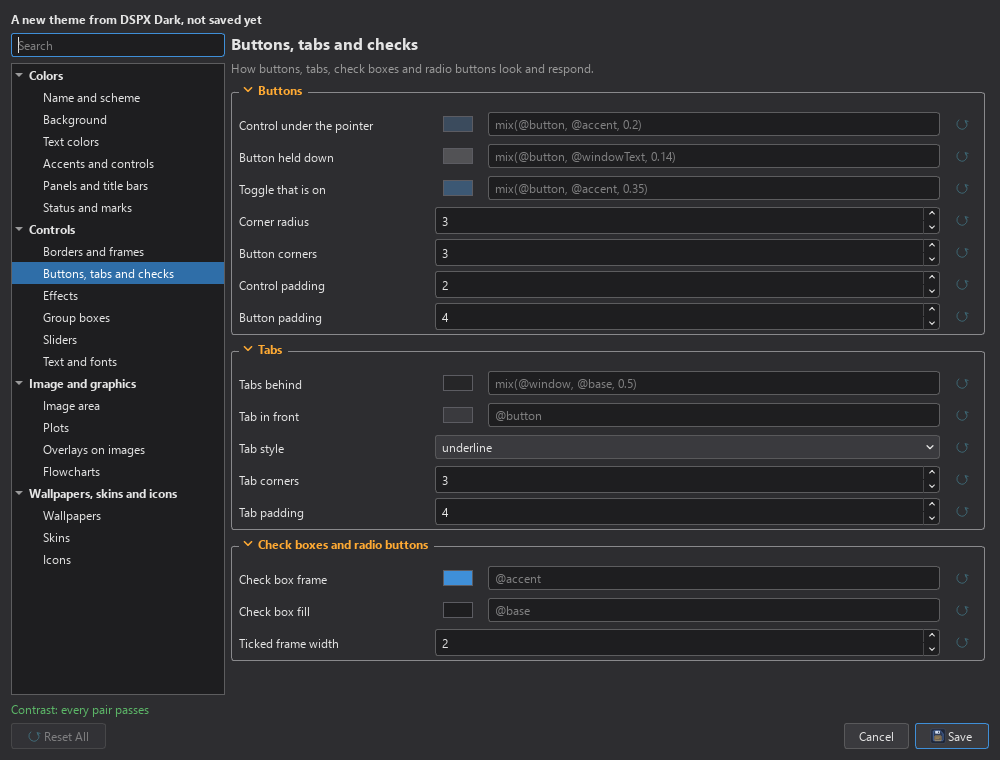
- Built-in themes never change. Editing one asks for a name, such as "My DSPX Dark", and edits a copy that has every value of the original. One of our own themes is edited in place.
- Saving. A new theme is saved as
<name>.dspxthemein the themes folder, then listed and used. A theme of that name is never replaced silently: Keep Both (the default, "My Theme 2"), Replace or Cancel. The file is written in the program's own order; the comments of a hand-written file are not kept. - Live. Every change applies to the whole program as it is made, a moment after the last change, so a color dragged in the picker does not restyle the program at every step. Cancel (also Esc or closing the window, which asks first when something changed) puts back exactly the theme that was in use. While the editor is open, the Appearance page's list and Follow the system wait.
- Pages. A search field and a list of pages are at the left, the page chosen at the right. The list has four groups that open and close, and a page shows its keys in collapsible boxes where it has clusters of them.
| Group | Pages |
|---|---|
| Colors | Name and scheme (name, author, description, version, category, scheme, contrast); Background (the surfaces); Text colors; Accents and controls (accent, focus, progress, separators, scroll bars, a drop's glow); Panels and title bars (their colors, where a process's title sits, the panels' corners, docked and floating, the panel header, and the Process Explorer); Status and marks (the Log's background, text color and text size; success, warning, error, information, the user's choices, marks of rules) |
| Controls | Borders and frames; Buttons, tabs and checks (hover, pressed, checked, corners, paddings, the tabs' style and padding, the check boxes and radio buttons); Effects (surface: flat, raised or glossy, and its strength); Group boxes (colors, frame, the title's position, weight and size); Sliders; Text and fonts (family, size, the titles' weights) |
| Image and graphics | Image area (the canvas, the banner, the workspace and the night color); Plots; Overlays on images (the tools' and the mask's colors); Flowcharts |
| Wallpapers, skins and icons | Wallpapers (four picture slots, their fitting and strength); Skins (see below); Icons (the icon colors and the Icon Manager) |
The editor does not offer the theme file's format (written by the program), nor the keys reserved for features that
do not exist yet; they are kept in the file as they were.
The Skins page has the check box Use the same image for all with one picture row under it, or, unchecked,
one row for each of the eight elements. Each row has a preview of the tile repeated, so a seam is seen at once,
Choose..., which opens in the themes folder, Clear and a strength slider. Choosing a
picture checks it against the limits above, and a picture that breaks one is refused with the reason and nothing is copied. A
good one is copied into the theme's .skins folder, so the theme keeps working when the original moves; a new picture
for the same element replaces the old one. The credit has a field of its own at the end of the page. The contrast line also checks the
skins: it takes the worst of the tile's pixels under the text, lets the few extreme ones go, and for a pair that fails says what
strength would pass ("a strength of 0.2 or less passes"). A skin under a window or dialog gives only a warning.
14.2.3Editing a Key
- A color is a swatch, which opens the color picker (with transparency) and follows the theme live, and a field that
takes any color value,
#rrggbb,@key,mix(),readable()and the rest. A color list is a field with its colors. A number is a spin box in the key's range; the two panel corner radii also have a (?) that tells what they round: the panels' outer corners, docked and floating (Panel Corners). A title size of 0 means the size of the font. A choice is a list of its words. The font family offers the system's font or one of the computer's fonts; font size 0 means the system's. A wallpaper is a field and a picture chooser that opens in the themes folder. - Each key has its label ("Panel title text", "Group box corners") and a tooltip that starts with its name in the file
(
dockTitleText), what@references use, then what it does and, when the theme leaves it out, its default. A key that differs from where the edit started is shown in bold with a reset button that puts back the base theme's value, and Reset All resets every key. - A value that cannot be used is refused: the field is framed in the error color with one line that says why, and the theme does not change.
- Search, above the list, finds keys by their label, name and description. The list keeps the pages with a match, opens their groups, and each page shows only the matching keys, marked with a frame. Cleared, everything shows again.
14.2.4Contrast
A line under the pages checks the contrast of the text colors on their surfaces on every change: "Contrast: every pair passes", or "Contrast: 5 pairs below the minimum" with a list of the failing pairs, each in its own two colors, such as "Text on buttons: 2.1:1, needs 4.5:1". A click on a pair brings the page of its text color to the front with the two keys marked. The check only warns; saving is never blocked.
14.3Preferences
(Ctrl+,) opens one window of pages. The list of pages is at the left, each with an icon; the page in front is at the right, under its title. A page's description is the tooltip of its entry in the list. Changes take effect at once, as the line at the bottom says, and there is no OK button: Close closes the window.
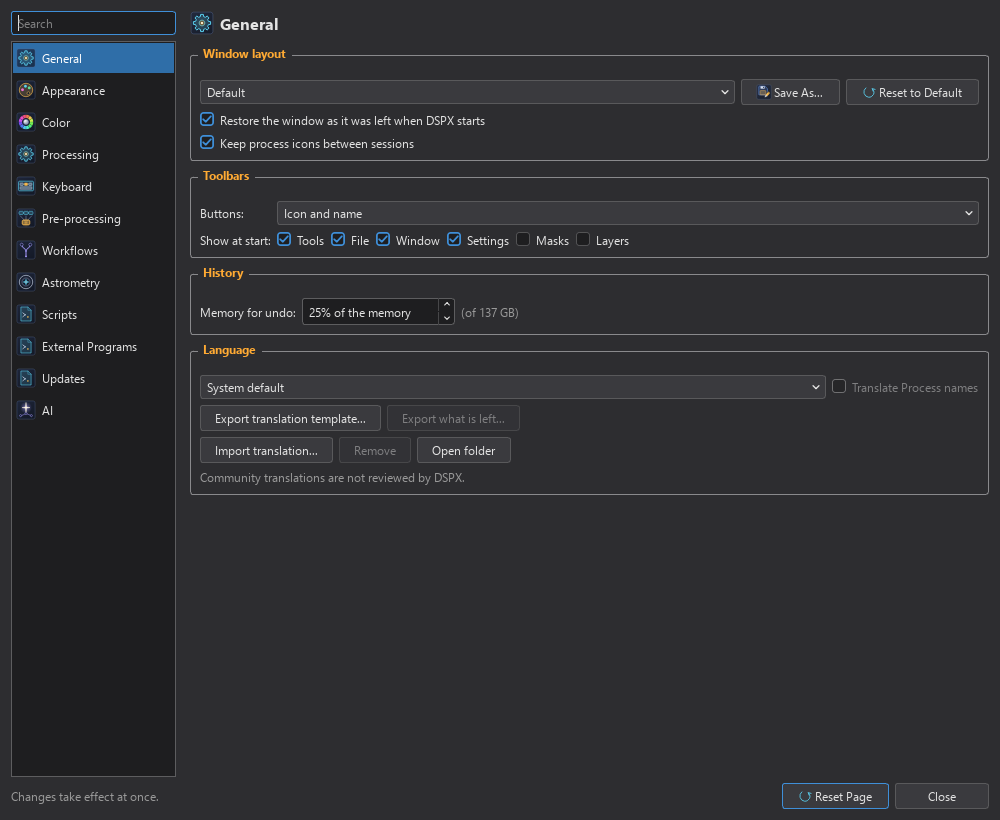
Search: Shows only the pages that have the words typed: their titles, their keywords and the words of every setting's tooltip and help, so a setting whose description moved into a tooltip is still found. A line says "No page has these words" when none does.
Reset Page: Puts the settings of the page in front back to their defaults, after asking "Put the settings of the page back to their defaults?". It affects that page only.
The pages, in the order of the list:
14.3.1General
The language, the files and where DSPX keeps things. The window's layout, the toolbars and the process and tool panels are on the Layout page.
Language: The language of the program: System default, which takes the first of the system's languages that DSPX has, or one of the languages listed. The language changes when DSPX starts again, so DSPX asks whether to restart now: Yes quits as does, with its questions about unsaved images and running processes, and starts DSPX again; No keeps the change for the next start, and a line under the list says so. A language added from a translation file is listed with its coverage and its translator, such as "Nederlands (community, 80%, by A. Name)". Translate Process names: Off, processes keep their English names in every language, and the tools and everything else are translated; on, the process names are translated too. Like the language, it applies from the next start, with the same question. Dimmed for US English (Localization).
Under the list are the buttons that add a language of our own (Translating DSPX into Your Language), and a line that says that community translations are not reviewed by DSPX:
FITS images: What opening a FITS file with several images does (FITS Files with Several Images): Each as an image (the default), As layers of one image, or Only the first.
Camera raw files: How a camera raw file opens by hand (Camera Raw Files): As the sensor's mosaic (the default; calibration, stacking and Split CFA need it) or As a color image (demosaiced).
FITS files without ROWORDER: How a FITS file with no ROWORDER card is read (Images and Files): As the PixInsight compatibility mode says (the default: top row first with the mode on, bottom row first with it off), Top row first (as PixInsight), or Bottom row first (FITS standard), as DS9, Siril and ASTAP read them. Choose top row first to use calibration masters made in PixInsight from such files (Calibration Frames and Masters). A ROWORDER card in the file always wins.
Recent processes: How many processes lists, from 3 to 40 (20 by default). A process counts when it is applied, not when it is opened. A shorter number trims the list at once.
Export translation template...: Asks for a folder and writes there the English texts of this version, a guide for the translator and a glossary, and lists the files written.
Export what is left...: For the community language chosen in the list: writes a file with only the texts that are not translated yet, and says how many. Off while a built-in language is chosen.
Import translation...: Asks for a translation file (.ts) or a language pack (.zip), checks it and adds the language to the list. A
report says how many texts were taken, and the texts that failed the checks, which show in English, are listed in its details. The language is used from the next start.
Remove: Removes the community language chosen in the list, after asking. Off while a built-in language is chosen: they cannot be removed.
Open folder: Shows the folder that holds the community languages.
Data folder: Where DSPX keeps its own files: launchpads (and the launchpads the LaunchPad Manager exports), themes,
icon sets, layouts we export, blueprints and filter curves, each in a folder of its own. The default is the program's data folder, a folder of its own for a Beta (the field shows where). Open shows it in the file manager. Move... asks
for another folder, copies everything there and uses it from then on; a file with the same name and other contents is kept both ways, the copy
named name 2, and nothing is replaced. The data folder changes only when every file was copied, and the old folder is left as it
was (a line under the field says so). A folder inside DSPX's installation, the data folder itself, a folder inside it, and one DSPX cannot
write to are refused. The blueprints and the file windows use the new folder at once; the LaunchPads, the themes and the filter curves from the next
start, so DSPX asks whether to restart now. StarNet, when DSPX installed it, stays where it is.
Where DSPX keeps things: A list of the places, each with Open: the data folder and its folders, the pre-processing cache, the star catalogs, the masters folder, the Python that runs scripts (with what scripts keep, and safe mode's packages, which stay there), and the recovery copies of autosave. DSPX keeps no log files: the Log is a panel, and each pre-processing run writes its log into its output folder.
The page's Reset Page puts back the system's language, FITS files as each image and two workspaces with their default names, moving the images of the others to the second; no image is closed.
14.3.2Layout
How DSPX starts, the window's layouts, the toolbars, and the process and tool panels. The window's own arrangement (the layouts) is described in Layouts.
Start with: What DSPX starts with. Where I left off, the default, puts the window back as it was left: the panels, toolbars and the window's size and place are saved when DSPX closes and put back at the next start, and a window that would be off every screen is brought back onto one. A layout in the list (the built-in ones, and ours, marked "(yours)") makes DSPX start with that layout instead, and the window is not put back as it was left. A DSPX that had Restore the window as it was left turned off starts with the Default layout, and one that had it on starts where it left off. Deleting the layout DSPX starts with goes back to Where I left off; renaming it keeps the choice.
Window layout: The list of layouts, built-in ones and ours (marked "(yours)"). Choosing one arranges the panels and toolbars of the workspace shown, as does. Save layout... saves the window as it is as a layout of ours. Export... and Import... save one of our layouts as a file and add a layout from a file (Layout Files). Reset to Default arranges the Default layout (Layouts).
Dock panels at the sides: On by default. Off, the left and right of the window are no places to dock: every panel is a floating window, and the Log alone can still dock at the top or the bottom. The panels docked at the sides float where they are; turned on again, they stay floating until we dock them. It belongs to the layout in use: it is saved with a layout we save, and each layout applied sets it (Docking and Floating).
Keep process icons between sessions: On by default. The process icons of every workspace are there again when DSPX starts, and quitting asks only when the open project's icons changed since it was saved. Off, they are gone at the next start, and quitting with process icons asks whether to save them.
Buttons: How the toolbars show their buttons: Icon and name (the default), Icon only or Name only. With Icon and name, Name: puts the name to the Right of the icon (the default) or Below it, the two centered. The Syrup Bottom Bar always shows icons only. The built-in LaunchPads (Tools, File, Window, Settings, Masks and Layers) show their buttons this way until one is given a look of its own in the LaunchPad editor. Both settings belong to the layout in use: a layout we save keeps them, each layout applied sets them (the built-in layouts show icon and name, the name to the right, except Syrup, Psycho'n, Fix Inside and PhotonChop, which show icons only). At the first start, the Syrup (Dark) look comes with icons only, and the Syrup (Dark), Psycho'n (Dark), Fix Inside (Light) and PhotonChop (Dark) looks open in the layout of the same name, whether chosen in the installer or in the Setup Assistant; a look chosen later offers its layout as Apply the theme's layout says (in the group Theme).
Show at start: A check box for each toolbar (Tools, File, Window, Settings, Search, Masks, Layers, Syrup Top Bar, Syrup Bottom Bar, Image Picker) that says whether it shows when DSPX starts. Masks, Layers, Syrup Top Bar and Syrup Bottom Bar are off at first; Search, the field that opens the command palette (The Command Palette), is on. It belongs to the layout in use as well: a layout we save keeps which toolbars show at start, applying it puts them back. A built-in layout leaves it as we set it, except Default, Syrup, Psycho'n, Fix Inside and PhotonChop, which carry their own. A built-in LaunchPad that floats as a window shows or not at start by its box too. The row LaunchPads has a box for each LaunchPad of ours: its Open at startup.
Process and Tool Panels
The group Process and tool panels has five options, described with the panels in The Workspace. They belong to the layout in use, as Buttons and Show at start do: a layout we save keeps them, and applying a layout puts them back. The built-in layouts carry their own: the system toolbar shown, the classic buttons shown, one shared Process window and Tool window, Auto-apply tools on and Close panels after Apply off, except Default, which gives each process and tool its own window, Syrup, which has no system toolbar and closes panels after Apply, Psycho'n, which has no system toolbar, PhotonChop, which has no system toolbar and closes panels after Apply, and Fix Inside, which hides the classic buttons and gives each process and tool its own window. Themes do not carry the first three (The Theme File).
Display process system toolbar: A thin bar along the bottom of the Process and Tool panels. For a process it has a handle to drag the process onto an image to apply it, Apply on its left, and Instance, Help and Reset on its right; and a Preview toggle for a process that has a preview. For a tool it has Apply and Cancel, and Help. Dropping the handle on an image applies the settings to that image whatever image the panel works on; dropped on the Process Shelf it keeps the process as a row, and dropped on the workspace it makes a process icon. Help opens the page of the process or tool in this documentation. While a process dragged over an image would be applied to it, the frame of the image window takes the theme's drop color, and a successful drop glows briefly.
Hide classic buttons: Hides the panels' own Reset, Instance and Apply buttons (a tool's Apply and Cancel), since the bar has them all. Only with the bar shown.
Each process and tool in its own window: Off, there is one Process window and one Tool window, and what we open takes the place of what was in them. On, every process and tool opens in a window of its own, docked or floating, and the others stay; opening one that has a window brings it to the front. The windows belong to workspaces (Process and Tool Windows in a Workspace). Switching the option applies at once.
Auto-apply tools: On by default. A tool with work that is not applied yet is applied for us when we start something else (another tool, a process, a script, quitting), and the Log says so; the Apply and Cancel buttons stay either way. Off, DSPX asks whether to apply or discard the work, or refuses and names the tool. Interactive Tools says what each does. The Fix Inside (Light) look, which has no layout of its own, starts with it off when chosen at the first start.
Close panels after Apply: Off by default. On, a process's or a tool's panel closes after we apply from it, as a dialog would, and the rest of the program stays usable. A process's panel closes when its run is done (Apply in place or to a new image, and a file process's Run); a tool's panel closes when its work is applied with its Apply, the system toolbar's, or an action of the tool that applies it. The panel stays after Preview, Reset, a cancel or a failure, and when a process is applied some other way (a process icon, the system toolbar's handle dropped on an image, a script, a blueprint) or a tool's work is applied by Auto-apply tools. Closing is what the panel's close button does; opening the process or the tool shows it again. The Syrup and PhotonChop layouts and looks start with it on; a layout we saved before the option existed turns it off.
The page's Reset Page puts back Where I left off, process icons kept, icon and name buttons, each toolbar's own Show at start, the system toolbar with the classic buttons shown, one shared Process and Tool window, Auto-apply tools on, and Close panels after Apply off. The layout in use stays as it is.
14.3.3Appearance
The themes, Follow the system, the night color, Use skins, the wallpaper override and the flowchart colors, all described under Themes. Reset Page puts back the default theme and Follow the system, and ends a wallpaper override.
14.3.4Color
The color management of the display. Color Management explains how images are shown and saved; this is the page where the monitor is described.
Color-manage the display: On, each image is shown in its colors, from its ICC profile to the monitor's. Off, the pixels go to the screen as they are.
Monitor profile: Where the monitor's profile comes from:
- Automatic (from the system): the profile the system has for the screen each window is on (sRGB where the system manages color itself, as with HDR or automatic color management).
- sRGB (the system manages color): for a screen that is sRGB, or whose colors the system or the graphics driver manage.
- A profile file: the one we choose with Choose..., an
.iccor.icmfile. A line under the field says when the file cannot be used.
Rendering intent: How colors the monitor cannot show are brought into its gamut: Relative colorimetric, Perceptual, Saturation or Absolute colorimetric. Matrix profiles, such as sRGB, Adobe RGB and most monitors', know only the colorimetric intents.
Black point compensation: Maps the image profile's black to the monitor's, so the shadows keep their detail on a monitor whose black is not zero.
The screens: Lists each screen with the profile it has. Read Again asks the system again, after a change in the system's settings.
The group Images says how an image is shown: in its ICC profile; an image without one is shown as sRGB (a gray image, as gray with the sRGB curve). While a screen stretch is on, a linear profile is shown with its primaries and the sRGB curve, since the stretch takes the place of its curve.
14.3.5Processing
One setting, which decides how all processes work, and a table of what it changes.
PixInsight compatibility mode: On, the processes work as PixInsight's do; off, which is the default, DSPX takes its own ways where they are better. A line under it says "On: as PixInsight does it" or "Off: DSPX's own ways where they are better". No panel has a method setting of its own. What the mode changes, and where the mode is kept, is in PixInsight Compatibility Mode.
Under the setting, beside a warning icon, the heading What changes in PixInsight compatibility mode opens onto a callout and a table. Hide compatibility table (at the end of the table) folds them away and leaves the heading and the icon, and Show compatibility table brings them back; the page remembers which we left from one session to the next. The callout says who does the work: with the mode on the processor (CPU) does all of it, so the results match PixInsight's sample for sample; with it off the graphics card (GPU) does the work where it pays, usually much faster, and its results agree with the processor's to within 0.003% of full scale in our tests, under two levels of a 16-bit image. The table has a row for each difference, with the mode on and with the mode off:
| What | Compatibility on | Compatibility off |
|---|---|---|
| Who does the work | The processor (CPU). | The graphics card (GPU) where it pays. |
| Background level (Background Neutralization, Color Calibration) | A mean of the background, as PixInsight does. | A robust background level instead of a mean. |
| Noise in calibration | Noise that falls below zero is cut at zero. | The noise is kept below zero. |
| Integration reference | Frames are normalized to the first frame in the list. | Frames are normalized to the best frame. |
| Drizzle output | Every pixel counts. | Pixels of tiny weight are left out of the output range. |
| FITS files without ROWORDER | Read as PixInsight does, top row first; a plate solution made by another program is moved to match the stars as shown. | Read as the FITS standard says, bottom row first, as DS9, Siril and ASTAP do; the solution fits as it is. |
| Pre-processing | PixInsight's steps. | DSPX's own, much faster steps. |
The page adds that the layers' composite, Statistics, Linear Fit and the color, stretch and intensity processes are the same in both modes, and that the multiscale processes are close to PixInsight's in either mode, not the same. It also says that every saved process, shelf entry, process layer, workflow, project and history step records the mode it was made in, and that opening one made in the other mode asks how to run it; PixInsight's icons count as made with the mode on. Reset Page turns the mode off.
14.3.6Keyboard
The shortcuts of every command: see Keyboard Preferences.
14.3.7Pre-processing
Where Easy mode puts the masters, what a session does with a file that is there already, and the files it keeps (Pre-processing).
Masters folder: By default, Easy mode puts each session's masters in a folder called DSPX in the
lights' folder (the deepest folder they all share). When that cannot be used (a network share, read-only media, a protected folder, lights
on several drives), they go into this folder, in a folder of their own named after the target (the frames' OBJECT keyword) or the session.
The default is DSPX/Masters in the program's data folder (the field shows where), never Pictures or Documents. Browse... chooses another, which then takes every session's masters; a folder that cannot be made or written to is
refused, and the line under the field says why. Reset puts back the default. A session's own folder can still be changed in its
window. A line under the field says when a folder cannot be used at a run and which folder the run uses instead; the session's window
and its Frame Selection page then read that folder.
When an output file already exists: What a session does when a file of the same name is there already (another session's of the same night, or this session's own, made with other settings):
- Keep both: writes the new file with _2, _3 and so on. The default.
- Ask: the run waits for our answer, keep both or replace, for that file or for every other one of the run.
- Replace: replaces it.
Every file kept or replaced is listed in the run's log and report. The command line cannot ask, and keeps both by default.
Files to keep: A session keeps the whole night in memory and writes only the masters. Each kind checked is written as well, in the session's output folder, in their own folders and with their own names. The kinds are Calibrated lights, Cosmetic-corrected lights, Debayered lights (OSC), Weights, Registered lights, Local normalization data (.xnml), Local normalization reference and Drizzle data (.xdrz). The files are written in the background while the run goes on, and the masters are the same with or without them. Before a run, the session's window shows the space they need and the drive's free space, and the run stops keeping files before the drive is full. A file of the same name that is there already follows the choice above, unless it is the very file the run would write, made from the same frames and settings: that one is reused. With none checked, a line says "Only the masters are written."
14.3.8Workflows
The blueprints folder, editing workflows and the approvals (Workflows and Blueprints).
Your blueprints: lists the built-in workflows, the workflows in
this folder and the files we add. Duplicate and the editor's Save put their files here. A file that DSPX saved is ours and runs without
asking, as long as nothing else changes it. The folder is Blueprints in the data folder (General; the field shows where), not
in Documents. Blueprints that an earlier version kept in Documents/DSPX/Blueprints are copied here at the first start; that folder
is left as it was. Open Folder shows the folder in the file manager.
Edit workflows: Shows Duplicate and Edit in , to copy Easy mode's rules or a workflow and change its flowchart: a threshold, a decision, a question. Our copy is checked before Easy mode uses it, and Reset to Built-in goes back to DSPX's rules. DSPX signs no workflow; a signature that AdaptiveWorkflow made is shown, and an edited workflow has none. Picking and running workflows need no switch.
Author: Our name, which the editor writes as the author of a workflow we change. A workflow someone else made keeps their name as the one ours is based on.
Approved blueprints: A line says how many blueprint versions, and scripts, were approved by their SHA-256; a changed file asks again. Forget Approvals... forgets every approved fingerprint, of workflows and of scripts: each that is not ours asks again before it next runs.
14.3.9Astrometry
The star catalogs that Plate Solve uses (Astrometry).
Use the online Gaia archive for missing stars: On, Plate Solve sends ESA's archive the center, radius and magnitude limit of the field it needs, over https, and nothing else. Every answer is kept in a cache on this computer, so a field is asked for once. Off, only the catalog files and what the cache holds are used. A (?) beside it says this.
Catalog files: The folder row always shows the folder in use as a path: "Default folder:" and the program's own
catalog folder until we choose another, "Folder:" and our choice after that. DSPX looks for its star catalog files (.dscstar) there and
Get Catalog Files... downloads into it. Choose Folder... picks another folder; Use Default Folder goes back to the program's
own, and is on only while we have chosen one. A chosen folder that is gone is shown with "This folder does not exist." A line above the row says
whether the star catalog is in that folder: "Star catalog: missing" (or "missing in this folder" for a chosen one), or its size, such as
"Star catalog: 3 files · G to 17.65 · 243 million stars". Another line says the state of the online cache, "Online cache: 12 fields"; Empty deletes the fields the cache keeps on this computer.
Get Catalog Files...: Opens the window that lists the star catalog files and downloads the ones the folder lacks from Deep Sky Colors' server. Opening it asks the server for the signed list of files, and nothing is downloaded until we click Download (Preferences > Astrometry). It is disabled when the catalog is already here. To download every file again, right-click the Star catalog line and choose Download Catalog Files Again...; the files here are replaced only when the new ones are complete.
All-sky search: The index files the blind search uses, a line for each set, Wide (fields of 1.5 degrees and up), Standard (0.2 to 4 degrees) and Fine (0.1 to 0.5 degrees), with its size and, in its tooltip, its bands and folder. A (?) lists the folders the search looks in, in order. Build Index Files... builds them on this computer from the catalog files; it shows its progress next to the button and in the Log.
14.3.10Scripts
The Python that Siril scripts run with, and where scripts are found (Scripts and Python). Reset Page keeps our folders and the approved scripts.
Environment: DSPX's Python: A report of the state of DSPX's own Python (not set up, ready, its size, a newer pinned Python available) and three buttons. Set Up... downloads the pinned Python after saying what, from where and how much, and makes the environment with sirilpy and its pinned dependencies. Repair... makes the environment again (the packages that scripts installed go with it). Reset... deletes DSPX's Python and its environment, after asking; scripts, approvals and models stay.
Use another Python: A box, unticked by default; while it is unticked the controls of the group are off and DSPX's own Python is used, and what was chosen is kept. Ticked, instead of DSPX's own: a Python interpreter or a virtual environment's folder that has the same
sirilpy that Siril 1.4.4 gives its scripts. It is used as it is. Interpreter... chooses an interpreter, Environment... a virtual
environment's folder (it holds pyvenv.cfg), Use Own forgets the choice, and Check Again runs the Python again and asks it
for its version and sirilpy's.
Siril scripts repository: Get Siril Scripts... (Check for Updates... once downloaded) downloads Siril's scripts repository. Choose... picks another copy of the repository on this computer, which is read and never written, and Clear forgets it.
List Siril's own copy of its scripts repository: The clone Siril keeps, read only, appears as a source of its own in the Scripts panel.
Give scripts Siril's own folders: Scripts keep their settings and what they download (models) in the folders they are given. With Siril's, a model that a script downloaded under Siril is found here, and the other way round; the scripts then write into Siril's folders.
Let scripts open XISF files: A script that reads files itself with astropy reads an .xisf through DSPX, and its
file dialogs list .xisf files beside FITS files. Nothing of the script, of astropy or of the Python environment is changed; the hook
checks astropy first and stays off if astropy is not as it expects.
Approved scripts: A line says how many script versions were approved by their SHA-256. Forget Approvals... forgets them, and the approved blueprints as well. A report under the buttons gives the Python in use, where scripts are found, and the folders scripts get. A script runs with our rights on this computer: it can read and change our files and use the network.
14.3.11External Programs
The programs that DSPX runs on our images: GraXpert (GraXpert), RC Astro's command-line tool (RC Astro's Tools) and StarNet2 (StarNet2). Reset Page forgets GraXpert's path, the GPU choice and what the last check found, RC Astro's path, and StarNet2's path and what its last check found (a copy of StarNet2 that DSPX downloaded stays until we use Remove Downloaded Copy).
GraXpert: The path of the program, with Browse... and Find (the usual install places and the PATH; nothing is run), a line that says what was found (its version and commands after Check), Check, Get GraXpert... (opens its download page in the browser) and Website.... GPU is Automatic, On or Off. A text under them says that GraXpert and its models are separate software under their own licenses and not part of DSPX.
StarNet2: Under the group of RC Astro's tool. The path of the program (starnet2.exe on Windows, starnet2 elsewhere), with Browse... and Find (the usual install places and the PATH; nothing is run), a line that says what was found and whether DSPX downloaded it, Check (runs the program to ask its version, build, backend and options), Get StarNet2..., Check for Update, Remove Downloaded Copy and Website.... A text under them says: "StarNet2 is made by someone else and is downloaded from its author's site (starnetastro.com). DSC does not make, check or endorse it. DSPX only checks that the download is complete and was not changed on the way. Use it at your own risk." Get StarNet2... asks before it downloads anything: the program comes straight from StarNet's site to this computer, over https, with its size and SHA-256 checked before it is unpacked into a folder of DSPX's own, and its license is shown for us to accept. A release that is not the one we accepted before is shown as different and needs a new Accept. Check for Update says whether a newer version exists and never downloads it. Both contact StarNet's site only when we click, and DSPX makes no other connection for StarNet2. Before each run, DSPX checks that the copy it downloaded was not changed; a StarNet2 we installed ourselves is run as it is. StarNet2 has the steps.
RC Astro's command-line tool: Under GraXpert's group. Once we allow RC Astro's own program, installed on this computer, each product it offers is a process in the Process menu, its panel made from the description of its settings that the program gives. Nothing is listed until we allow it. Its path and SHA-256 are remembered; allowed, it runs without asking again, from its panel, the shelf, a saved process or a workflow. A changed program is not listed until we allow it again. The image goes to it as a temporary file and comes back as one history step. The program may go online by itself, to check its license or get its models: its license is between us and RC Astro, and its results are RC Astro's. DSPX never downloads, installs, updates or activates it; the (?) of the group says so in a sentence. RC Astro's Tools has the steps.
- Browse... chooses the program; the field is empty ("Not set") until then.
- Find looks where it is usually installed and on the PATH. Nothing is run.
- List Processes (the first time) or Allow... shows what will run and asks which products it offers, and then allows it.
- Forget forgets that we allowed it: its processes are no longer listed.
A line under the field says the state: not set, not found, not allowed yet, changed since we allowed it, or allowed with its SHA-256 and the products listed.
14.3.12Updates
How DSPX looks for newer versions, and which list of versions it reads (Updates). Reset Page sets Check automatically and the channel the installed version belongs to: Release for a release, Beta for an Alpha, Beta or release candidate.
A version before the release carries the number the release will have, then its stage and the stage's own number: "1.0.0 Beta 1", later "1.0.0 Beta 2" or "1.0.0 RC 1", and at last "1.0.0". The update messages write it so.
Mode: Check automatically (the default), Ask before checking or Never check. DSPX asks the update server for one small signed file that lists the newest versions, at most once a day; nothing about us or our computer is sent, and nothing is downloaded or installed until we say so. A (?) beside it says this.
Channel: Release or Beta (includes Alpha and RC builds): which list of versions to read. A Beta build installs next to DSPX with its own settings, and Release versions are offered on both channels. A (?) beside it says this.
Under them, three lines give the version we have ("You have DSPX ... (build ...)"), when the last check was ("Last checked today at 09:14." or "Not checked yet."), and, when one is waiting, "DSPX ... is available. Choose Check Now to read what is new and install it." A build that cannot check says why on the page.
Check Now: Checks at once, whatever the mode says, and shows the answer: that DSPX is the newest version, that the update server could not be reached and nothing was changed, that the update information could not be verified and was not used, or the window with the notes of the new version.
14.3.13Performance / AI
What runs the work, the processor or the graphics card, for every process that can use the card (GPU Acceleration); the cache folder; and what the AI processes found (The AI Processes). Reset Page sets Processor to Automatic and puts back the default cache folder.
Processor: Automatic uses the best graphics card there is, for the AI processes and for each step of any other process that gains from it, and the processor for the rest; CPU only always uses the processor, which is slower, and the results can differ slightly from the graphics card's. A graphics card named in the list is used by every process that uses the card except the AI processes, which keep Automatic. Lines beside it say what the AI processes ran on last, or what they will use, and what the program found for the other processes. Test the GPU times a short convolution to find out whether a graphics chip built into the processor beats the processor (The Processor and the GPU).
Cache folder: Where pre-processing keeps what it can reuse, and where the undo steps go when they leave memory: the measurements of the frames and the registrations (frames), the decoded
raw files (raw) and the shared calibration masters (masters), each in a folder of its own. The field shows the folder in use, and a line under it says why: the
default, our choice, or that the environment variable DSW_CACHE_DIR is set on the computer, which decides, so that the choice here is kept but not used. Browse... chooses the
folder, which applies to the runs that start from then on, and Reset goes back to the default, the DSPX folder in the system's place for caches. A folder that cannot be made or written to is
refused. Another line gives the size of the cache (worked out in the background) and the free space of the drive, with a warning when the drive is short of room. Clear cache... asks first and
says how much it frees; it deletes only the files the caches made, in the three folders, and nothing else. Nothing is moved when the folder changes: the files of the old folder stay there until we
delete them. A short note says that a fast drive, or a RAM drive, makes pre-processing faster, and that the cache can always be rebuilt
(The Caches, Environment variables). The undo steps of the open images use this folder too, in an undo folder of their own, which Clear cache leaves alone and which is emptied when DSPX ends (Undo Steps in the Cache Folder).
AI models Info: The AI folders, and for each AI process: Model: Found or Not found; ONNX Runtime: Loaded, Not run during this session or Not found; what the network ran on; a problem if it cannot run; and the last run, with the process's name and what it ran on. The paths are in the tooltips: point at Found to see the model's file, at Not found to see where it was looked for. The (?) beside the title lists, one a line, what Automatic tries in order (on Windows CUDA, then DirectML, then the CPU). Check Now asks each AI process whether it can run; this loads ONNX Runtime, which otherwise happens when a network is first run.
The AI files come with the program, in its own folder. To take them from another folder first, start DSPX with
--ai-folder (Command Line).
For an NVIDIA graphics card, CUDA needs a CUDA build of ONNX Runtime and its cuDNN files together in the bin folder of an AI folder: the
program's own, or the one that DSW_AI_DIR or --ai-folder names. DSPX looks for ONNX Runtime only in the folders of the AI folders and the program;
it does not search the system's folders or the PATH. Without those files, DirectML or the processor is used. Do not put the files in the
folders of another program.
14.3.14Help Texts
The program keeps its windows short. A control's explanation is in its tooltip, which waits for the pointer and wraps at about 80 characters, and where a longer note belongs beside a setting, a small (?) button sits next to it. Its text shows as a tooltip on hover and, when the button is clicked or pressed with Space or Enter, below it, so the keyboard reaches it too. When a note holds a warning, its first paragraph is in bold, as in the (?) of Files to keep on the Pre-processing page. Messages that apply only sometimes are shown only when they apply, and the status lines give facts, such as "3 files, 243 M stars", not explanations of how the program works.
14.4Keyboard Preferences
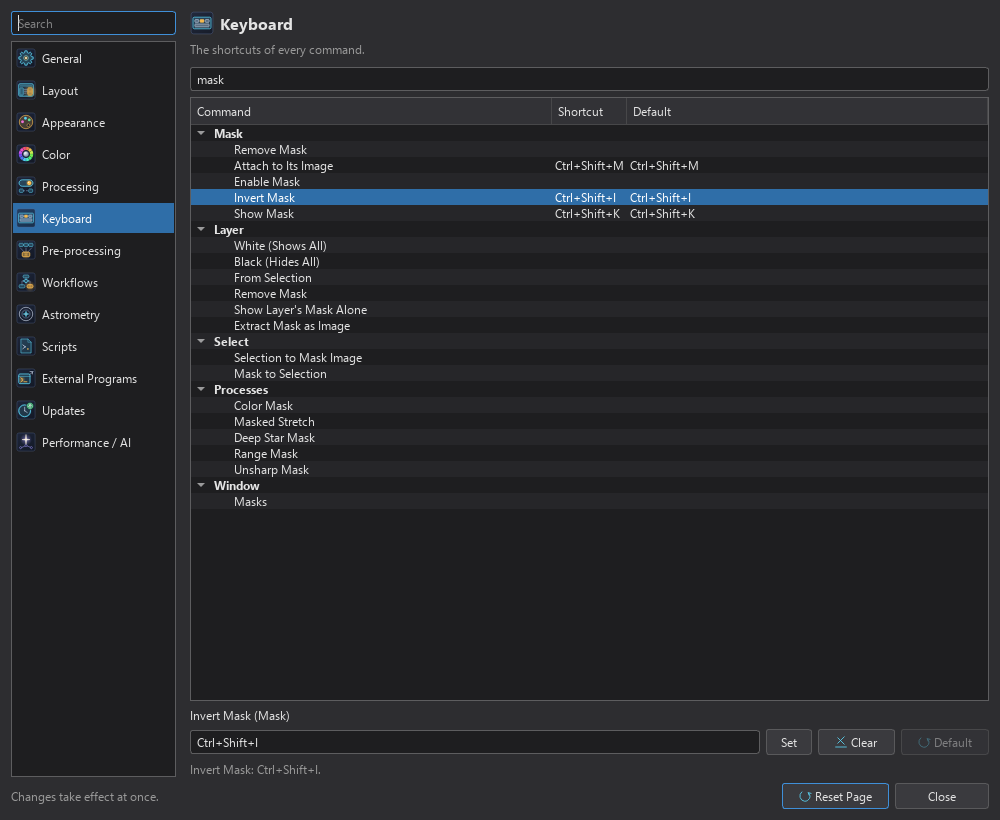
The Keyboard page lists every command of the program, grouped by the menu it is in, with its shortcut and its default. Every command can have a shortcut, including each process (category Processes) and the commands of the toolbars, panels and workspaces. The default shortcuts are in Keyboard Shortcuts.
14.4.1Changing a Shortcut
- In , choose the page Keyboard. Type in Search commands or keys to find the command by its name or by its key.
- Select the command. Its name and menu are shown above the key field.
- Click the key field ("Click here and press the keys of the new shortcut") and press the keys.
- Click Set. The line under the field confirms it: "Invert Mask: Ctrl+Shift+I".
The other buttons: Clear leaves the command with no shortcut, and Default puts the command's own default back. A shortcut that differs from the default is marked "Changed from the default" in its tooltip. The page's Reset Page puts every shortcut back.
14.4.2Conflicts and Limits
- A shortcut is one key with its modifiers, not a sequence of keys. A modifier alone is not a shortcut.
- When the key is the shortcut of another command, the line says so: "Ctrl+Shift+K is the shortcut of Show Mask (Mask). Reassign it to Select Mask?". Reassign gives the key to the selected command, and the command that had it loses it. Nothing changes until we click it.
- The keys Esc, Return, Enter, Delete, Backspace, Tab, Space and the arrows, alone or with Shift only, are kept for the tools, which use them on the image. With Ctrl or Alt added they can be used.
14.5Icons and Toolbars
Every command's icon and every toolbar button is drawn by the program. A theme shows them in one of three sets: adaptive icons, which the theme's colors recolor, flat icons, the same pictures without their plates, which the theme's colors recolor too, and painted icons, which have fixed colors.
14.5.1Icon Sets
The Icon set row of the theme editor (page Controls, Effects) chooses the set of the theme. Its values read adaptive, flat, painted-dark and painted-light. A theme file of earlier days that says classic is read as adaptive.
- Adaptive (adaptive, the default of a theme): the icons are SVG pictures whose colors come from the theme. Every theme recolors every icon completely, so a new theme or a new icon needs nothing more. The next section tells how.
- Flat (flat): the same icons without the plate, the box or disc behind the picture, so they sit straight on a toolbar or a panel, like the glyphs of a drawing program. They follow the theme's icon colors exactly as the adaptive ones do, and they work in a theme whose icon colors are all gray: no part of a flat icon is told apart by its hue alone, the accent parts are also a little heavier. A flat icon fills about the whole square of the icon; an icon not drawn flat yet is shown as an adaptive one.
- Painted (painted-dark and painted-light): the icons are drawn with fixed colors, for a dark or for a light ground, and shown exactly as drawn. The theme's colors do not change them; a disabled icon is only dimmed. We painted this set for DSPX Dark and DSPX Light, and the themes Fix Inside (Light), DSPX Granite and Syrup (Dark) use it. An icon not painted yet is shown as an adaptive one. A picture that a theme replaces in the Icon Manager is shown as the theme gives it, in either set.
14.5.2Icon Colors
The adaptive icons are SVG pictures with no colors of their own. Each color in a picture names one of seven roles, and the theme fills each role in:
- Background: the icon's own plate, such as the paper of a document.
- Main: the lines and shapes that make the icon.
- Secondary: lesser details, things behind, a half-tone fill.
- Accent: the one part that says what the icon does, such as the arrow of Save.
- Error, Warning and Success: red, amber and green, whose hue the theme cannot change.
The states are made from the theme and never drawn: a disabled icon turns gray, a selected row recolors the icon for the highlight, and a checked toggle keeps its accent readable on the checked color. So every theme recolors every icon completely, and a new icon follows every theme, present and future. The editor's page Icons has the seven colors under Icon colors.
The processes' adaptive icons are the same as in their PixInsight modules and keep those hues. The theme adapts only their lightness
and contrast, so Deep Star Removal looks like itself in every theme. They are used in the Process menu, on the shelf, in a process panel's
title, and for the tools that are modules (Crop, Paintbrush, Selection, Clipboard, Draw) in the Tools toolbar and menu. Pan, and the commands,
keep role icons. In Night the processes' icons take the night tint at the same luminance (the theme key ownIconTint, shown in the editor as Process icons in one color).
14.5.3The Icon Manager
The Icons page of the theme editor has a second box, Icon Manager, that lists every icon a theme can replace, one to a row: about 200 icons, of the interface, the processes and the tools. A row shows the icon as the theme draws it, its function and the places it is used ("Close the image: image toolbar"), a tag, and three buttons. Changed marks a replacement not saved yet and Custom one already saved in the theme. A search box above the table finds icons by their labels and file names.
- Replace: asks for an
.svgfile and puts it in the theme. It is drawn at once in the menus, toolbars and panels. Cancel and Reset All of the editor take it back as any other edit; nothing is in a file until Save. - Save as: writes the icon's SVG as stored, with its role colors, through the file dialog, to edit it outside and bring it back with Replace.
- Reset: puts back the icon as it was before any unsaved change in this editor. With nothing unsaved and a custom icon, it asks "Go back to the built-in icon?"; Yes removes the custom icon from the theme when saved.
A replacement must be an SVG of at most 256 KB, with no script and no link outside itself, that the program can draw. One that does not follow the seven roles is accepted, and says so under its label: "Doesn't follow the theme's icon colors". A replaced icon is one line in the theme file.
14.5.4The Toolbars
The toolbars are described in The Workspace. Their buttons show icons with names, icons only, or names only (Preferences, page Layout, Buttons); which toolbars show at start is the page's Show at start row. Tools, File, Window, Settings, Masks and Layers are built-in LaunchPads docked as toolbars: the LaunchPad editor changes their buttons and their look, and Reset to Default puts the program's own back (Built-in LaunchPads). shows or hides each toolbar and has Reset Toolbar Positions; a toolbar's grip at its left drags it to another place along the top of the window or out to float.