
Pre-processing
A night's frames calibrated, aligned and stacked into masters
Pre-processing turns the raw frames of a night into the master images we process afterwards: the calibration frames are stacked into masters, each light frame is calibrated with its masters, measured, aligned onto one reference and integrated into a light master for each filter. DSPX does all of it in one window, from a folder of frames to the masters, with a mode that decides almost everything by rules and a mode that shows every setting. The same steps are also processes of their own, for working on a list of files one step at a time.
9.1The Pre-processing Window
A pre-processing session is a document, like an image: it holds the list of frames, the choices made about them and the
settings of the run, and it is saved in a file with the extension .dspxpre. We open a session with
(Ctrl+Shift+N), which opens a window
of its own, or open a saved one with . Dropping a
.dspxpre file on the program does the same, and a session that is open already comes to the front instead of opening
twice. Several sessions can be open at once, each in its window. The title says the session's file and whether it changed;
and write it, and closing the window or the
program asks before the changes are lost. The window remembers its size, its page, the columns of its tables and its splitters.
The window does the work of the automatic rules (the grouping, the matching of the calibration frames, the integration of every filter), with PixInsight's ImageCalibration, StarAlignment and ImageIntegration behind it under the names of DSPX's own Calibration, Registration and Integration processes. Nothing is written between the steps: a session computes the whole night in memory and writes only the masters, unless we ask for the intermediate files (Sessions).
9.1.1The Toolbar and the Status Line
The toolbar holds the switch between the two views of the session, Easy and Expert (Easy Mode and Expert Mode), then Add Files... and Add Folder... (the folder with its subfolders), the output folder, and the three buttons that run the session: Analyze (Ctrl+Shift+A), Integrate (Ctrl+Shift+I) and Run (Ctrl+R), with Cancel (Esc). The same commands are in the window's own menu, with ; the menu goes to each page, and the menu adds, saves and closes. Easy mode has a button of its own in place of the three.
The status line is the estimate of the run: the light frames and how many bytes they are, the calibration frames to integrate, the time with its confidence (The Time Estimate), the memory (the largest group's registered frames are kept in memory when they fit in three quarters of the free memory, and streamed when they do not, which the estimate says), and what will be written: the masters only, or about how much more with files to keep.
9.1.2The Pages
The window has eight pages, reached with the tabs, the menu, or Ctrl+1 to Ctrl+8 in this order:
| Page | What it is for |
|---|---|
| Frames | The files, by type, and what the session thinks each one is. |
| Groups | The calibration groups and the integration groups, and the masters matched to them. |
| Diagnostics | What the plan found wrong or doubtful, and what the last run found in the data. |
| Settings | Every setting the run reads, and who chose each value. |
| Frame Selection | The measures of every light, the rules that keep or leave out frames, and the plots. |
| Run | Running, the phases and their progress, and the log. |
| Report | The masters made, the frames left out and why, and the full report. |
| Rules | How Easy mode's rules decided, as a flowchart. |
While a run is going, the pages that change the session are disabled, so what runs is what we saw.
9.1.3Frames
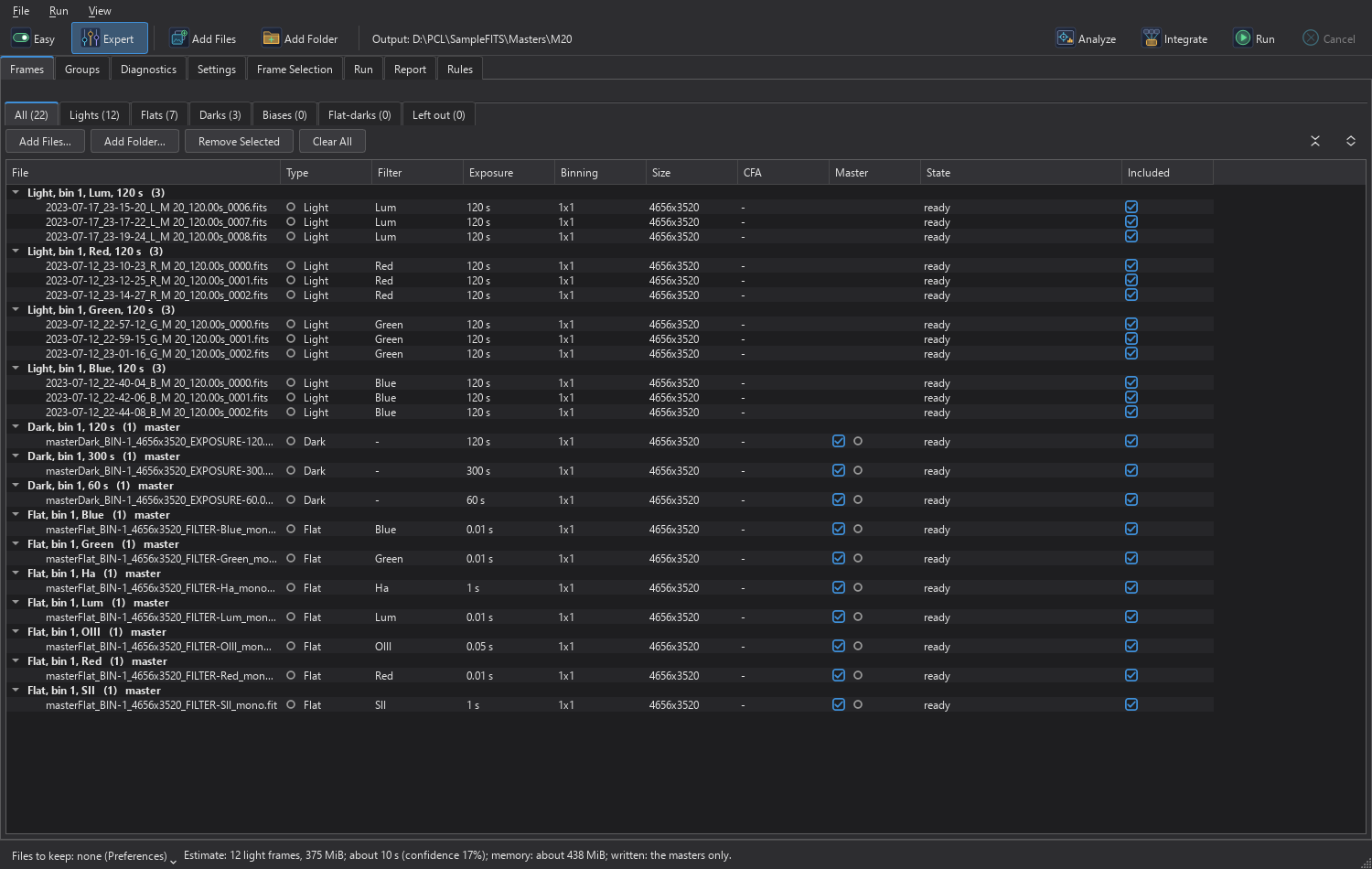
The page has the tabs All, Lights, Flats, Darks, Biases, Flat-darks and Left out, each with its count. Files are listed under the calibration group the plan puts them in, with its label and how many frames are in it ("3 frames to integrate, percentile" or "master"); the files that are excluded are listed under Excluded. The columns are File, Type, Filter, Exposure, Binning, Size, CFA, Master (a check box), State and Included (a check box).
Frames and folders can also be dropped on a list of frames. A file that is not a frame (FITS, XISF or camera raw) is refused with a line under the list, and a mixed drop adds the frames and says how many files it did not.
Add Files... and Add Folder... read the files' headers on a thread of their own, and a bar across the top of the window shows how far it is: it moves left and right while the folders are listed, then shows the files read over all of them and the percentage, with a Cancel button (the files read so far are added). A short reading shows no bar, and the same bar is there in Easy mode. When we add files from the tab of one type, the files that the rules read as another type are set to the type of the tab, as our choice. Remove Selected and Clear All take files out of the session (the files on disk are never touched). The right-click menu has Set Type, Type From the Files (the rules again), Set Filter, Master and Not a Master, Include and Exclude, Use as Registration Reference (for a light) and Remove from Session. The two small buttons at the right of the buttons above a tab's tree, Collapse all and Expand all, close or open every group of the tree and keep the selected file in view.
The filter of a frame comes from its header (FILTER, INSFLNAM, the XISF filter name), else from its path:
FILTER-<name> in a file or folder name, as in FILTER-Ha. When the files name no filter (a manual
filter drawer), Set Filter gives the selected lights and flats one of the session's filters, or a new
one with New Filter.... Lights then group by that filter and take the flats of the same filter. Darks
and biases have no filter. The choice is ours (the filled mark in the Filter column), the session file keeps it, and no
rule changes it. Automatic goes back to what the file gives.
Flat-darks are darks: there are four types of calibration frames, as the rules have them, and a dark group is shown as flat-darks when it calibrates flats and no light. The State column says, before a run, "ready", "excluded", or the rules' warning, and after a run what the frame did: "integrated, weight 0.974", "left out: no PSF signal weight (no stars measured)", "in a master (built)". The Left out tab lists what was not taken as a frame at all (a processed image, a text file, a file that cannot be read), with the reason. Nothing is left out silently.
9.1.4Groups
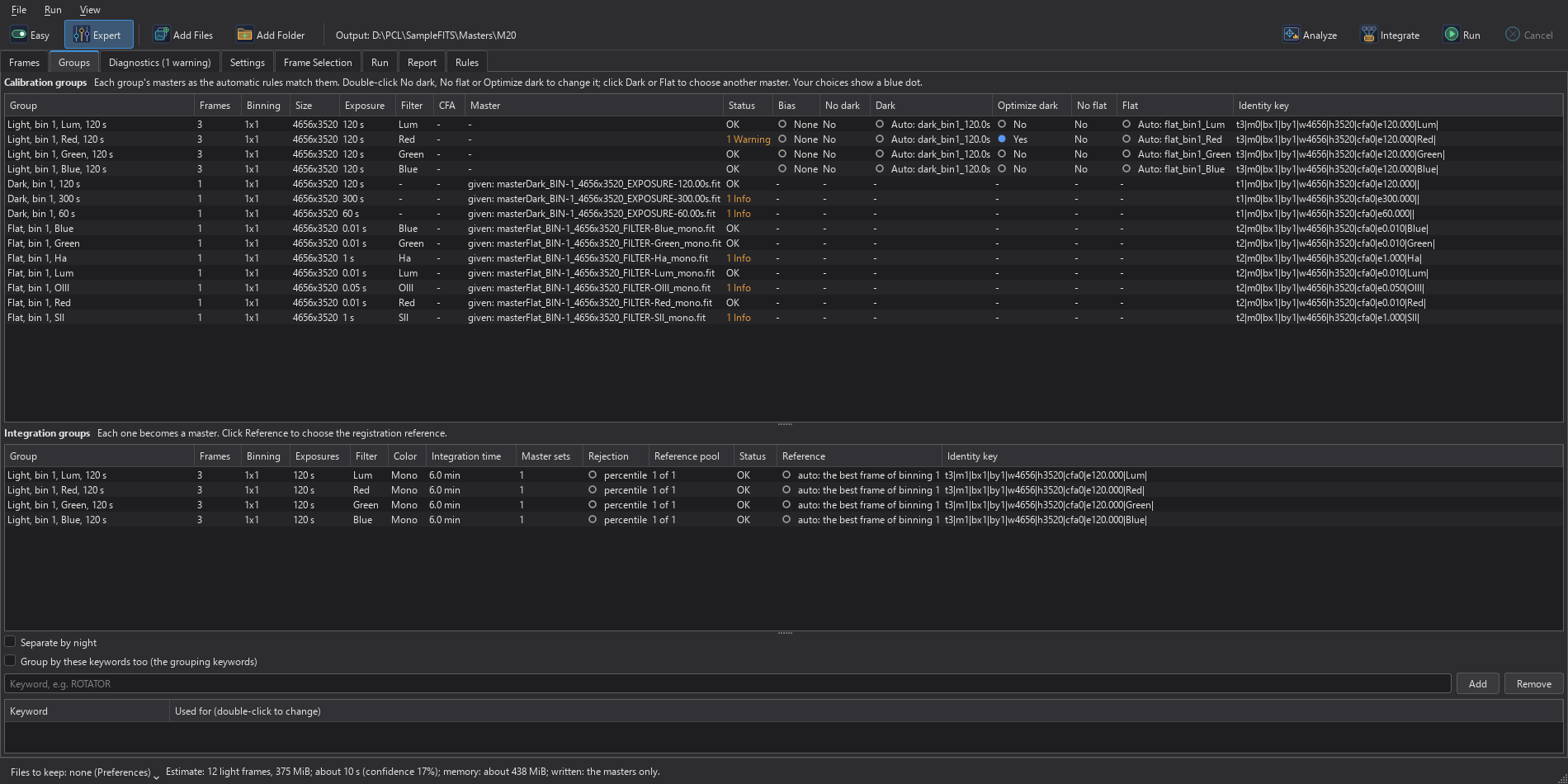
Two tables, as in PreProcessingStudio's Group Inspector. The calibration groups table has, for each group, the Frames, Binning, Size, Exposure, Filter and CFA, its Master (given, or "built from 5, winsorized", with the last run's status), its Status (the worst finding about it), and the masters it uses: Bias, Dark, Optimize dark and Flat, with the No dark and No flat check boxes and the group's Identity key. Double-clicking No dark, No flat or Optimize dark toggles it; clicking Dark or Flat (or right-clicking the row) offers Automatic (the rules), No Dark or No Flat, or any other group of that type. A choice of ours overrides the matcher. Optimization as the Session Says takes a group's own choice back.
The integration groups table has the Frames, Binning, Exposures, Filter, Color (mono, or RGB with the CFA pattern), the Integration time, the Master sets (the sets are in the tooltip), the Rejection, the Reference pool, the Status and the Reference. Clicking Reference offers Automatic or Choose a Frame...: the session's reference, or this group's own when the reference is per group.
Under the tables, a check box turns on the grouping keywords, FITS keywords that split the groups further. Add and Remove edit the list, and a double-click on a keyword cycles what it separates: calibration groups only, both kinds of group, integration groups only, or nothing. Every choice we make is kept under the group's identity key, so it survives adding and removing files; a choice whose group has gone becomes automatic again, with a finding in the Diagnostics.
9.1.5Diagnostics
The plan's findings, errors first, each with an icon, the group, the message and its code. The tab's title counts the errors, or the warnings when there are no errors. After them, the page lists what the last run found in the data, under "Found by the last run", each with its fix. A double-click goes to the group (on the Groups page) or to the file the message names (on the Frames page).
The most common finding of a run is a bias subtracted twice (Calibration Frames and Masters), which has a button of its own under the list.
9.1.6Settings
Every setting the run reads, in boxes: Engine, Calibration, Grouping, Registration, Integration, Frame selection, Local normalization, Drizzle, Autocrop and color, Astrometry and Output. The sections that follow explain what each one is for; the settings that belong to a step are described with the step. A setting that the chosen algorithm does not use is dimmed.
Each value that can be decided carries a mark that says who decided it, and we meet these marks everywhere in the window (Easy Mode and Expert Mode).
9.1.7Frame Selection
The page where we judge the frames of a night after they are measured; Judging the Frames in Light Frames describes it.
9.1.8Run
The page has Run, Analyze, Integrate and Cancel, the check box Open the masters when done, the status and the output folder. The phases are listed (Plan, Calibration masters, Pass 1, Registration, Integration, Report), each waiting, running with its progress ("pass 2: integration: 1830 of 3000 (61%)"), done with its time, canceled, or with nothing to do. Under them are a progress bar and the log of the run; Show the engines' messages adds the messages of the engines to it. Canceling stops at once: the masters finished before, and the caches, are kept, and the next run resumes from them. When a session has no output folder yet (it was not saved, none was chosen, and the lights' folder cannot take the masters), Run asks for one.
9.1.9Report
When a run ends, the Report page shows the status and the counts, then every product in a table: the light masters, the drizzled images, the cropped masters, the color images, the registered frames' folder and the calibration masters, each with its kind, group, status, frames and file. A double-click, or Open Selected, opens one as an image; Open the Light Masters opens them all and Show the Output Folder shows where they are. Process the Master, Guided... opens the light master (the one selected, or the first) in the Guide panel, to process it one step at a time with a workflow (Guided Processing). Below the table are the frames left out and why, with who left them out (we did, a rule, the analysis, or the integration), the frames we kept over a rule with what the rule said, and the full text of the report. A session opened from its file shows the report of its last run from its output folder.
A run that did not do everything ends ok with failures, and the report and the log say what failed. When the lights of one night or one set of masters cannot be calibrated (their master flat cannot be loaded, for example), no light group with those lights is integrated: a master made without them would look complete. The other groups are integrated, and the report names the set that failed. When a frame does not fit in memory even alone, the run stops and makes no master. Compressed frames (compressed XISF or tile-compressed FITS, for example) are decoded whole when opened, so a run that would have to hold more of them than the free memory allows stops with a message that says so and asks us to save the frames uncompressed. When the files to keep are written, a frame that does not fit alone is reported as failed and the run goes on.
After a run the light masters open as images in the program, unless Open the masters when done is off on the Run page. When autocrop made a cropped master, the cropped one opens instead of the uncropped, and the color images open too.
9.2Easy Mode and Expert Mode
The two modes are two views of the same session. Easy is for a night we want stacked without deciding anything: we drop a folder, answer the few questions the rules cannot answer for us, and press one button. Expert shows everything there is to see and change. We can switch at any moment with the switch in the toolbar; a new window opens in the mode we used last, and in Easy the first time.
9.2.1Easy Mode
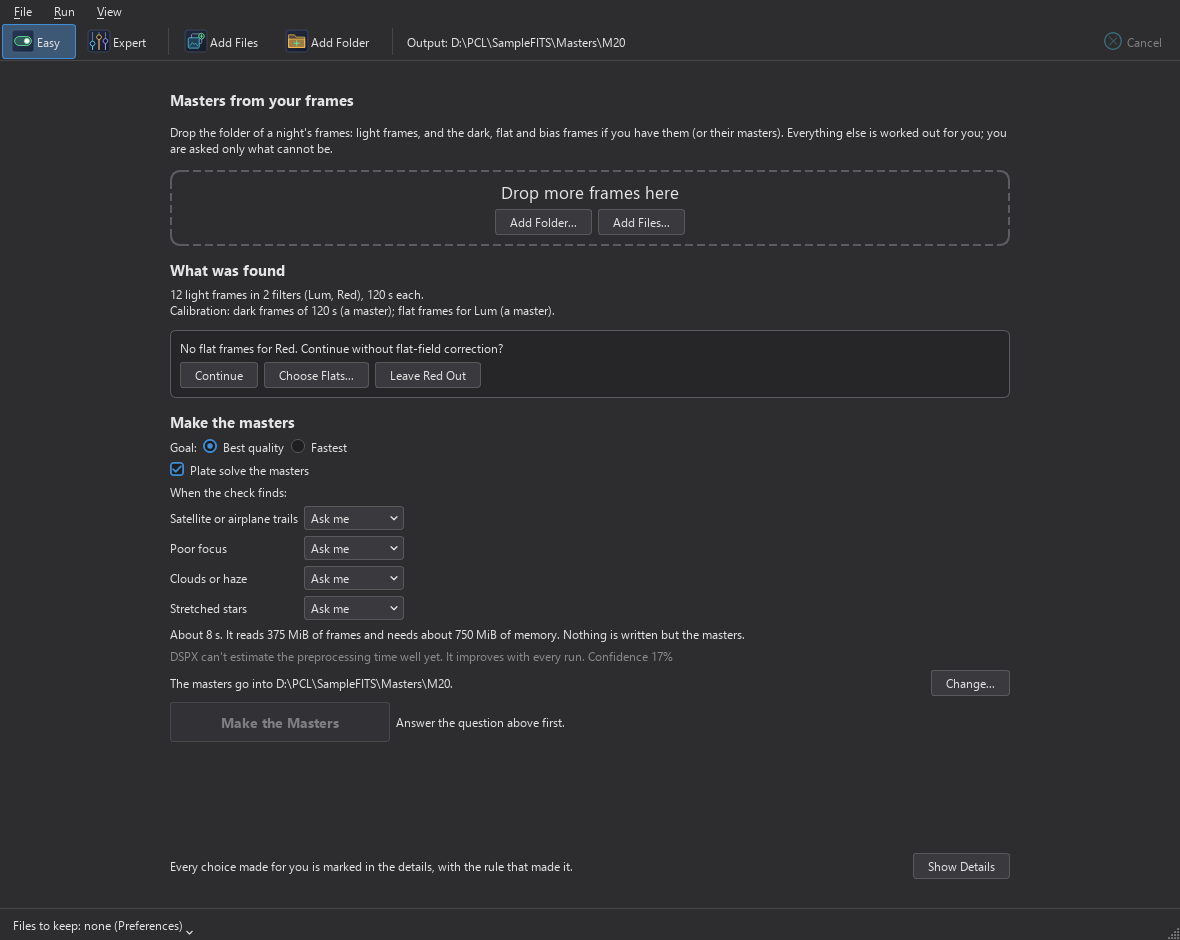
The Easy page starts with a heading and a line about what to drop. The drop area takes a folder or files dropped on it, or Add Folder... and Add Files...; it shrinks once there are frames. A file that is not a frame is refused with a line under the area. Then, in plain words, What was found: "468 light frames in 4 filters (Lum, Red, Green, Blue), 120 s each.", the calibration frames found, the calibration the lights do not need, and the files left out with their reasons (What a Dropped Folder May Hold).
When the rules cannot decide, the page asks, with a card for each question and a button for each answer. The run waits for the answers ("Answer the question above first."). The questions are of two kinds:
- Files that do not say what they are are not used silently: "Use them as light frames?" with Use as Light Frames and Leave Them Out.
- A light group with no dark, no flat, or neither is never run without asking: "No flat frames for SII. Continue without flat-field correction?" with Continue, Choose Flats... and Leave SII Out. When nobody is there to ask (on the command line), the default answer is Continue.
Then the Goal: Best quality, the default, does every step that improves the masters when the frames need it; Fastest skips local normalization, the distortion correction and drizzle. The rejection and the weights do not depend on the goal: in both, each frame counts by its SNR estimate, and a frame whose PSF signal weight is below 5% of the best frame's (very blurred stars, or haze) is left out of the stack. After the check, the summary says how many frames that leaves out. A box, Plate solve the masters, is under it (Sessions), and a small table, When the check finds, answers the suggestions below before the run: for satellite or airplane trails, poor focus, clouds or haze and stretched stars, Ask me (the default) shows each group as a card, Keep keeps every such frame and Leave out leaves them out, with no question. The estimate tells the time, the data read, the memory needed and that nothing is written but the masters, with a line under it for the confidence in the time (The Time Estimate), and the page says where the masters go, with Change... to choose another folder for this session.
9.2.2The Time Estimate
DSPX starts from timings measured on another computer, so the first estimates can be far off: the page says it cannot estimate the preprocessing time well yet and shows Confidence 10%. Every finished run teaches DSPX how fast this computer is: it keeps the time the run took, and the next estimate is scaled to match. The confidence rises with the number of runs and with how closely the estimates matched the real times. From about 30% the page says Preprocessing time estimates are improving; from 80% it shows only Preprocessing time estimate confidence and the percentage. It reaches 100% after ten runs, the last five of them within 10% of the estimate. Runs that were canceled, failed or took under five seconds are not counted. The times are kept in a small file on this computer, the last 200 runs; nothing is sent anywhere.
Make the Masters runs the session in two steps, with the progress in words: "Step 1 of 2: checking every frame: calibrating it and measuring its stars", "aligning the frames onto one reference frame", "evening out the sky from frame to frame", "stacking". Between the steps, the rules read the measures and may suggest. A suggestion is a card with the frames and why ("1 L frame has poor focus (stars much larger than in the other frames). Leave it out?") and the buttons Leave It Out, Keep It and Show (which goes to Frame Selection with those frames selected). When a kind is found in several groups, a card above them has Leave All Out and Keep All for all of them at once. A suggestion is never applied without our answer, or our standing answer in the table above. When the last one is answered, or at once when there is none, step 2 integrates, reusing the analysis. When it is done, the page says the time, the masters made and opened ("2 masters made and opened: L (7 of 8 frames), R (4 frames)."), the frames left out and by whom, and where the masters are, with Open the Folder. We can cancel at any moment; the next Make the Masters goes on from the caches.
Show Details, always at the bottom of the page, switches to Expert on the same session, at the Rules page.
9.2.3What a Dropped Folder May Hold
A folder may hold more than raw lights. Easy mode sorts every file and says, in What was found, what it did with each kind. Nothing is left out unsaid: the page names the files left out (the first three, and how many more) and why.
- Raw lights, darks, flats and bias frames are used as always. A master (its image type says so, or its name) is used as it is.
- Lights that are calibrated already, such as the
_c.xisfand_c_r.xisffiles that PixInsight's WeightedBatchPreprocessing writes, or the calibrated and registered files DSPX keeps, are recognized by their processing marks. When the folder holds no raw lights, they are the session's lights, and the page says so: "38 light frames already calibrated and registered by PixInsight: they are used as they are, not calibrated or registered again." Pre-processing starts from there: the lights are not calibrated, whatever darks, flats or bias frames or masters are in the folder (the page says how many files are not used, and asks no question about missing flats for these lights), and when every light is registered the registration is skipped too, so they go to pass 1's measurements (weights, trails), the rejection and the integration. Lights that are calibrated but not registered are registered as usual. The session file remembers which lights are calibrated and registered. - Lights that were only registered, corrected or debayered cannot be calibrated: they are left out, and the page says that DSPX needs raw lights, or lights that are calibrated and not debayered yet. Color lights that are debayered already are not used for the same reason.
- Raw lights and calibrated lights together are most likely the same frames before and after. The raw lights are used, the calibrated ones are left out, and the page says so. The button Use the calibrated lights instead switches to the calibrated ones: the raw lights are set aside (the summary says how many), and Use the raw lights instead brings them back. A group of lights that mixes both cannot run.
- A master light (an integration of an earlier run) is left out: it is a result, not a frame.
- Files that are not frames (a picture, a text file, a cull list) are left out with "not a FITS, XISF or camera raw file", and so are images with no frame type that are not acquired frames.
9.2.4The Rules
Each decision Easy mode makes is a rule, and the rules are data. A rule reads facts about the session (the groups and their matches, the choices we made, the measures when there are some) and decides settings, asks a question, or makes a suggestion. The rules are never applied over a value that we chose ourselves. The built-in rules are these:
| What is decided | How the rules decide |
|---|---|
| Frame type | The frame-type keyword (Light, Dark, Flat, Bias, Flat Dark, Master and so on), else the name or the folder (lights, darks, flat, bias, offset, darkflat), else a light frame, and we are asked once. |
| Masters | A file that says it is a master, or holds a stack's history, is used as a master. |
| Groups | Frames of the same camera settings, filter and exposure are processed together. |
| Several nights | When a kind of calibration frame (bias, darks, flats of a filter) was taken on more than one night, each night's lights are calibrated with the frames of their own night, and the nights still integrate into one master. The rule says which nights it found. See Several Nights. |
| Calibration | Flats by filter, darks by the nearest exposure, bias by size and binning. Darks more than 5 s from the lights' exposure, with a bias, are scaled to the lights. With a master dark, its hot pixels are replaced in every light. |
| Rejection | Up to 6 frames percentile clipping; 7 to 14 Winsorized sigma clipping; 15 or more generalized ESD. |
| Weights | Each frame counts by its SNR estimate: frames with less noise count more (in parity mode, as WBPP, by its PSF signal weight). |
| Reference | One registration reference for every filter, so that the masters of all filters line up. The reference is the best frame of the lowest binning. |
| Debayer | One-shot color cameras: VNG. |
| Files written | Nothing but the masters. |
| Autocrop and color | Each master is also saved cropped to the area the frames cover. Mono R, G and B light groups are also combined into one color image; L, Ha and the rest stay masters of their own. |
| Where the masters go | A folder called DSPX in the lights' folder. When that cannot be used, or when a masters folder is chosen in Preferences, the masters folder, in a folder named for the target, then for the night (Sessions). |
| Local normalization | On when a group of 5 analyzed frames or more has a background that varies by more than 15 percent, or a PSF signal weight that varies by more than 60 percent. Off with the goal Fastest. |
| Distortion correction | On when a group of 5 frames or more has a field distortion of more than half a pixel that the models reduce by 5 percent or more on stars they were not fitted to. |
| Poor focus | Suggested: a FWHM above the group's median by 3 sigma and by 20 percent. |
| Stretched stars | Suggested: an eccentricity above the median by 3 sigma and by 0.1, and above 0.55. |
| Clouds | Suggested: stars well below the median, or a PSF signal weight under half of it. |
| Trails | Suggested, with the count, the score and the length of each. Keep is the default with 10 frames or more, and when more than a third of the group has a trail; leaving out is the default with fewer. |
| Drizzle | Suggested, never forced, for 15 analyzed frames or more with stars under 2 px that were dithered. Never with the goal Fastest. |
A frame is in at most one suggestion. A suggestion about outliers (focus, stretched stars, clouds) that would flag more than a third of a group's frames is not made at all: a note says that is the group, not accidents.
9.2.5Expert Mode and Who Chose Each Value
In Expert, every value that can be decided carries a mark:
- A gray ring is a rule's choice. The tooltip names the rule and says what it does.
- A blue dot is ours. A value we have set is one that a rule never changes again.
- A gray dash is an engine default that nobody chose; the tooltip says whose default it is.
The same marks are on the Frames page (the type, the filter and the exposure read from the file names, master, included), in the Group Inspector (each match, override, rejection and reference) and on every setting. Changing a value makes it ours. Clicking a blue dot puts it back to automatic: the rule chooses again, or the engine's default applies. When we go back to Easy, the rules run again and keep what we set.
9.2.6The Rules Page
The last page is a flowchart of how the rules decided for this session. The path they took is marked, with the values behind each step; clicking a step shows how it went. Rules that read the measures wait for the analysis ("Evaluated before the analysis" or "Evaluated with the analysis"), and a step that the rules did not reach is marked "Not reached". The chart zooms with Ctrl and the wheel and has a button to fit it in the window. The page says whether the rules are DSPX's built-in ones or an edited copy of ours; and open the rules as a workflow we can copy and edit (Picking and Editing Workflows).
9.3Calibration Frames and Masters
Calibration frames record what the camera and the optics add to every exposure, so that it can be taken out of the lights. A bias (or offset) frame is the shortest exposure possible: the camera's read pattern. A dark has the exposure of the lights, with the shutter closed: the bias plus the dark current and the hot pixels. A flat is an evenly lit frame through the same optics and filter: the vignetting and the dust. A flat-dark is a dark with the flats' exposure, used to calibrate the flats. A master is the stack of many of them, which has far less noise than one.
9.3.1Giving the Session Its Calibration Frames
We can add either the raw frames, and let the session make the masters, or masters we made before. A file that says it is a master, or holds the history of a stack, is used as a master; Master and Not a Master in the frame's right-click menu say it otherwise. Masters are read, never built again. A session with no light frames makes every master it was given frames for, so we can use the window to make a library of masters.
Masters made by PixInsight from FITS files without ROWORDER. Many capture programs (ASIAIR among them) write FITS files with no ROWORDER card. PixInsight reads them top row first; DSPX, with the PixInsight compatibility mode off, reads them bottom row first, as the FITS standard says (Images and Files). A master that PixInsight made from such files is then upside down compared with the same raw frames read by DSPX. For a color (CFA) camera DSPX sees it: the master's CFA pattern is the frames' upside down (RGGB for GBRG, for example), the plan says so, and the master is turned over when it is loaded. For a monochrome camera nothing tells it apart: the master is used upside down, and its hot pixels and dust do not fall on the lights' own. With masters like these, give the session the raw calibration frames instead, or set FITS files without ROWORDER to Top row first (as PixInsight) in , under Files.
9.3.2How the Masters Are Made
A group of raw frames is integrated by the automatic rules. Bias and dark frames are stacked as they are, with no
normalization, a sigma clipping of 4 low and 3 high, and the result truncated. Flat frames are calibrated on the fly with the
bias and the dark or flat-dark that the matcher gives them, then stacked with multiplicative normalization and equalized fluxes.
The rejection is the plan's: by the number of frames, percentile clipping up to 6, Winsorized sigma clipping up to 14 (and for
every bias and dark master), generalized ESD for 15 or more. Bias and darks are made first, flats after. The masters are written in the output folder's calibration folder, with names that
say what they are (masterBias_bin1_11frames.xisf, masterDark_60s_bin1_17frames.xisf,
masterFlat_Red_bin1_15frames.xisf) and with IMAGETYP, FILTER, EXPTIME and the binning, so that a later session reads
them back as masters.
9.3.3Matching Masters to Lights
The matcher follows the automatic rules. Each light group gets the flat of its filter (with the same binning and size), the dark whose exposure is nearest to its own, and the bias of its binning and size. Darks are grouped when their exposures differ by less than the tolerance in the Grouping box (10 s), and lights by 2 s, in two ways: for the calibration groups, one master set each, and for the integration groups, which can be wider, so that exposures of several lengths integrate into one master, each calibrated with its own dark (raise the integration tolerance for that). A dark with the flats' exposure, within half a second, and a bias is shown as a flat-dark.
The Groups page shows every match, and every match can be overridden there. A group with no flat is integrated without one, with a warning, unless A light group with no flat in the Calibration box is set to Refuse the group.
9.3.4Several Nights
Frames of one filter, binning and size are one group whatever night they were taken on, so a session that holds the bias, darks and flats of two nights makes one master flat of both, and every light is calibrated with it. When each night has its own flats (the dust moved, the focus changed, the camera was turned), we want each night's lights calibrated with the flats of that night. The check box Separate by night on the Groups page, above the grouping keywords, does it:
- The bias, darks and flats of each night make a master of their own, and each night's lights are calibrated with the masters of their night. The nights still integrate into one light master: only the calibration is separate.
- Only what has its own frames on more than one night is separated. Darks taken on one night only, say, are one group for every night, as before, while the flats of both nights stay apart. A night that has no frames of a kind that other nights have goes without it, and the Groups page says so as it does for any light group with no flat.
- A night runs from noon to noon, as the folders of the masters do (Sessions): a frame taken at 02:00 belongs to the night that began the evening before. The time is the frame's DATE-OBS in the site's local time (from SITELONG, OBSGEO-L or LONG-OBS) or, without a longitude, in this computer's time zone; a file with no date uses its file time. Masters we give ourselves carry no night: they calibrate every night.
- Easy mode's rules handle several nights: the rule several-nights-each-with-its-own-calibration turns the box on by itself when a kind of calibration frame was taken on more than one night, and turns it off again when it was not (Separate by night is then an automatic setting, marked as such). It says which nights it found: "Calibration frames were taken on several nights (2026-10-16, 2026-10-17): each night's lights are calibrated with their own night's bias, darks and flats where that night has some." The rule is the first one after the question about files that do not say what they are, on the Rules page (Show Details; Show Details). A choice made on the Groups page is ours: Easy mode does not change it.
The same setting is in the session's settings, under Grouping. It takes the place of a grouping keyword made for the date: the keywords cannot do it, because every frame's DATE-OBS differs.
9.3.5Optimizing the Dark
When a group's darks do not have the lights' exposure, the master dark can be scaled to each light's dark current (Optimize darks, which needs a master bias). The choice is the session's, for every group, and each group can say otherwise on the Groups page. In Easy mode, the rule optimizes the dark when it is more than 5 s from the lights' exposure and a bias exists; with no bias the dark is used as it is, and a note says so.
9.3.6A Bias Subtracted Twice
The classic mistake with the calibration options: a master dark that already has the bias subtracted (made by hand with ImageCalibration, say), used in a set that also has a bias. The bias then comes off the dark twice, and the lights keep theirs. After a set's masters are loaded, the run looks at the data: the dark less the bias has a median below minus half the bias' median, or the dark's own history says a master bias was subtracted from it. Then the run warns, naming both masters and the evidence, and the Diagnostics page lists the warning under "Found by the last run". The run changes nothing by itself.
The fix is the button Mark the Master Dark as Bias-Subtracted and Run Again, under the list. It marks the dark in the session as ours: the dark is used as calibrated already, with no bias subtracted from it, while the lights and flats still have the bias subtracted once. Only what depends on it is run again: the lights' pass 1, registration and masters; every calibration master and every other set comes from the caches. The mark is shown as a note of its own in the Diagnostics ("Marked by you"), in the report and in the session file. Remove the Mark takes it back.
The other half of the mistake, lights or darks that were calibrated already and calibrated again, cannot happen: the session leaves processed frames out ("an already processed light frame ..."), and only a master can carry a calibration history.
Cosmetic correction and the overscan are settings of the Calibration box: Hot pixels from the master dark replaces the dark's hot pixels in every light, with its Hot pixel threshold (sigma). The hot pixels are found in the master dark with its large-scale structure taken away: each pixel is compared with the median of the pixels of its color around it, so amp glow or a gradient in a long dark does not hide the warm pixels in its darker parts. The threshold is counted as WBPP's automatic cosmetic correction counts its High sigma, above the median of the high-passed dark, with the same default of 10. Overscan correction takes the CCD's overscan regions into account, with the image rectangle and four regions in the Regions... dialog; Output pedestal (DN) adds a pedestal to the calibrated lights, so that dark pixels are not clipped at zero. Auto, the default as in WBPP, gives a light a pedestal only when more than 0.01% of its pixels would be at or below zero, just large enough to lift them, each light its own; the run report gives each master set's pedestals and the share of pixels that would have been below zero. A value gives every light that pedestal, and 0 none: with a dark sky background (narrowband, long exposures) the pixels below zero are then clipped, the noise reads too low and the integration rejects far more samples, so the report warns when more than 0.1% of the pixels are clipped. The pedestal stays in each calibrated frame (its PEDESTAL keyword); the integration's normalization matches the frames' backgrounds, pedestals and all. In the compatibility mode the master keeps the level of its normalization reference, as in PixInsight. In DSPX's mode a light is measured without its pedestal (its background, stars, noise and weight, and what Easy mode decides from them), the master has the level and scale the lights give without pedestals, and the pixels the cosmetic correction replaces do not count for the automatic pedestal. Two processes help with calibration frames: Superbias makes a low-noise model of a master bias, and Defect Map replaces defective pixels from what their good neighbors say.
9.4Light Frames
The light frames are the pictures of the target. Each one goes through the same steps: it is calibrated with its group's masters, measured, registered onto a reference, and integrated with the others of its filter into a light master. In a session these steps are two passes over the frames: pass 1 (calibration and measurement) and pass 2 (warping and integration), with the registration between them. On a discrete graphics card, registering the frames of a large set and, on a processor with few cores, integrating them run faster (GPU Acceleration).
9.4.1Pass 1: Calibration and Measurement
Each light is calibrated as ImageCalibration does it: the bias and the dark (optimized if the group says so) are subtracted, the flat divides, and the output pedestal and the cosmetic correction apply. Where the master flat is at or below Flat min (0.005 of its mean by default, as WBPP: overscan, dead pixels, no light), the calibrated light is 0, and the integration leaves those pixels out. It is then measured: the noise, the stars, their shape and brightness, and the PSF signal weight and the other estimates that weight the integration. The record of each frame is cached, so a frame is never measured again unless the file, the masters or the settings change. The registration works from the stars that pass 1 found, without reading the frames again.
9.4.2Registration
Registration aligns every light onto a reference. By default there is one reference for the whole session, so that every light of every filter is registered onto it and the masters of all filters line up with each other; this is what lets mono red, green and blue masters become a color image. The reference is the best frame, the one with the highest PSF signal weight among the frames with good stars, taken among the frames of the lowest binning. We can choose it ourselves: Use as Registration Reference on the Frames page, or Choose a Frame... on the Groups page. In the Registration box the Reference setting offers one for every filter (the default), one for each group, one for each value of a keyword, or a frame of ours. Register the lights turns the registration off, for frames that are aligned already.
Distortion correction corrects what a single transform per light leaves of the field's distortion, with surface splines fitted to the stars' residuals, used by the warp and by the drizzle. It is for wide fields, and for frames turned by a meridian flip or far apart. Maximum spline points is the most points the splines are made of. Easy mode turns it on only when the analysis measured a distortion that the models really reduce. The Registration page describes the process of the same name.
9.4.3Pass 2: Integration
Each light is calibrated again on the fly, warped onto the reference's geometry with its transform, and integrated. The whole night is computed without intermediate files. The defaults of the Integration box are those of the rules' light integration:
Rejection: The algorithm that rejects the outlying pixels of each stack: Automatic (by frame count), percentile clipping, sigma clipping, Winsorized sigma clipping, averaged sigma clipping, linear fit clipping, generalized extreme studentized deviate (ESD) clipping, or robust Chauvenet rejection. Automatic is percentile clipping for up to 6 frames, Winsorized sigma clipping for 7 to 14 (and for bias and dark masters), and generalized ESD for 15 or more. The parameters of each (Sigma low, Sigma high, Percentile low, Percentile high, Winsorization cutoff, Linear fit low, Linear fit high, ESD significance and RCR limit) are dimmed unless the chosen algorithm uses them.
Weights: How much each frame counts in the master. Automatic is the default: the SNR estimate (frames with less noise count more), and in parity mode the PSF signal weight, as WBPP. The others are the PSF signal weight, the PSF SNR, the SNR estimate, the exposure time, a FITS keyword (Weight keyword), an expression (Weighting expression) and equal weights. With the PSF signal weight, a frame with no stars measured is left out, named in the report. Minimum weight (0.05 by default) leaves out the frames that would count for less.
Weight overshoot protection: On by default, as WBPP. A frame whose weight is above its group's upper quartile divided by the Protection threshold (0.1: ten times it) gets the group's median weight and is never a reference; the log and the report name it. Other weights never change. Reject abnormally weighted frames leaves it out instead.
The PSF signal weight fits a model star to each star the analysis measured. It multiplies the fitted stars' total light by their mean brightness per pixel, which is higher for small, sharp stars. It then divides by the frame's noise and by its sky level. Light spread over larger stars, or dimmed by haze, gives a lower weight. A frame of blurred stars counts for little, even when its sky is as quiet as any other frame's. The SNR estimate compares the frame's whole signal with its noise and does not look at the stars: a blurred frame with low noise keeps a high weight.
Minimum weight by: What the minimum weight is compared with, always as a fraction of the best frame's value. The weights (the default) uses the weights chosen above. With SNR estimate weights, even a blurred frame stays well above 0.05 of the best frame, so the minimum leaves out no frame. PSF signal weight compares each frame's PSF signal weight with the best frame's, whatever the weights are. Frames of blurred stars, or frames taken through haze, then fall below the minimum and are left out. WBPP leaves out such frames by its PSF signal weights. Easy mode sets PSF signal weight and a minimum of 0.05 for both goals; in parity mode the minimum is on the weights, as WBPP.
Debayer: The method for one-shot color frames, VNG by default (next section).
Besides the weights, the integration normalizes the frames to each other (additive normalization with scaling), normalizes
them again for the rejection (scale), and rejects the zeros that the warp leaves where a frame does not cover the reference. The
master is a 32-bit floating point image, written as masterLight_<filter>_<exposures>_bin<b>_<n>frames.xisf,
where n is the number of frames integrated. Mixed exposures read 120s+300s. The report names every frame left out and
why: a frame that pass 1 or the registration could not do, a frame we disabled, a frame with no PSF signal weight. Nothing is
dropped silently.
The Engine setting Mode chooses between Fast, the default, in which DSPX's own faster steps are used where they give the same result within the noise, and Parity with PixInsight, in which every step is done as PixInsight does it, for comparisons. The Integration page describes the process of the same name and every setting of its panel.
Samples at or below zero. Some tools reject every sample that is at or below zero once the pedestal is taken off. On a dark sky, narrowband above all, that can be several percent of the background's samples: the low half of the sky's noise. The master then measures less noisy, but it gets there by throwing information away, and its sky comes out slightly brighter than it is. DSPX keeps those samples. Parity mode rejects them, because it repeats every step of the tool it is compared with.
9.4.4Judging the Frames
Not every frame deserves to be stacked. The Frame Selection page is the page where we decide, with the measures in front of us. It works on the analysis, the result of Analyze: the table of measures that pass 1 and the registration made. Every change of a rule updates the selection at once, from the table kept, and nothing is measured again.
Analyze runs the first half of the session: the calibration masters, pass 1, the registration and the table. Integrate runs the second half with the selection and the weights the session holds at that moment; pass 1 and the registration are skipped while the analysis is current (the report says so), and if there is no analysis it analyzes first. Run does both. Before any analysis, the page says there is none, which files it looks for in the output folder, and what Analyze now does. When the table is empty, the line above it says why: no analysis yet, an analysis file that cannot be read, an analysis that was not kept (pass 1 failed for a set of masters), or an analysis whose frames are no longer enabled lights of the session.
When the output folder cannot be created or written to at the start of a run (for example a folder protected by Windows' Controlled folder access), the run writes into the program's own data folder instead. The window's Output line and the Easy page show that folder and say why, and Frame Selection, the report and Open the Folder read there. The session remembers it, also when saved, until the next run.
9.4.5The Summary and the Table
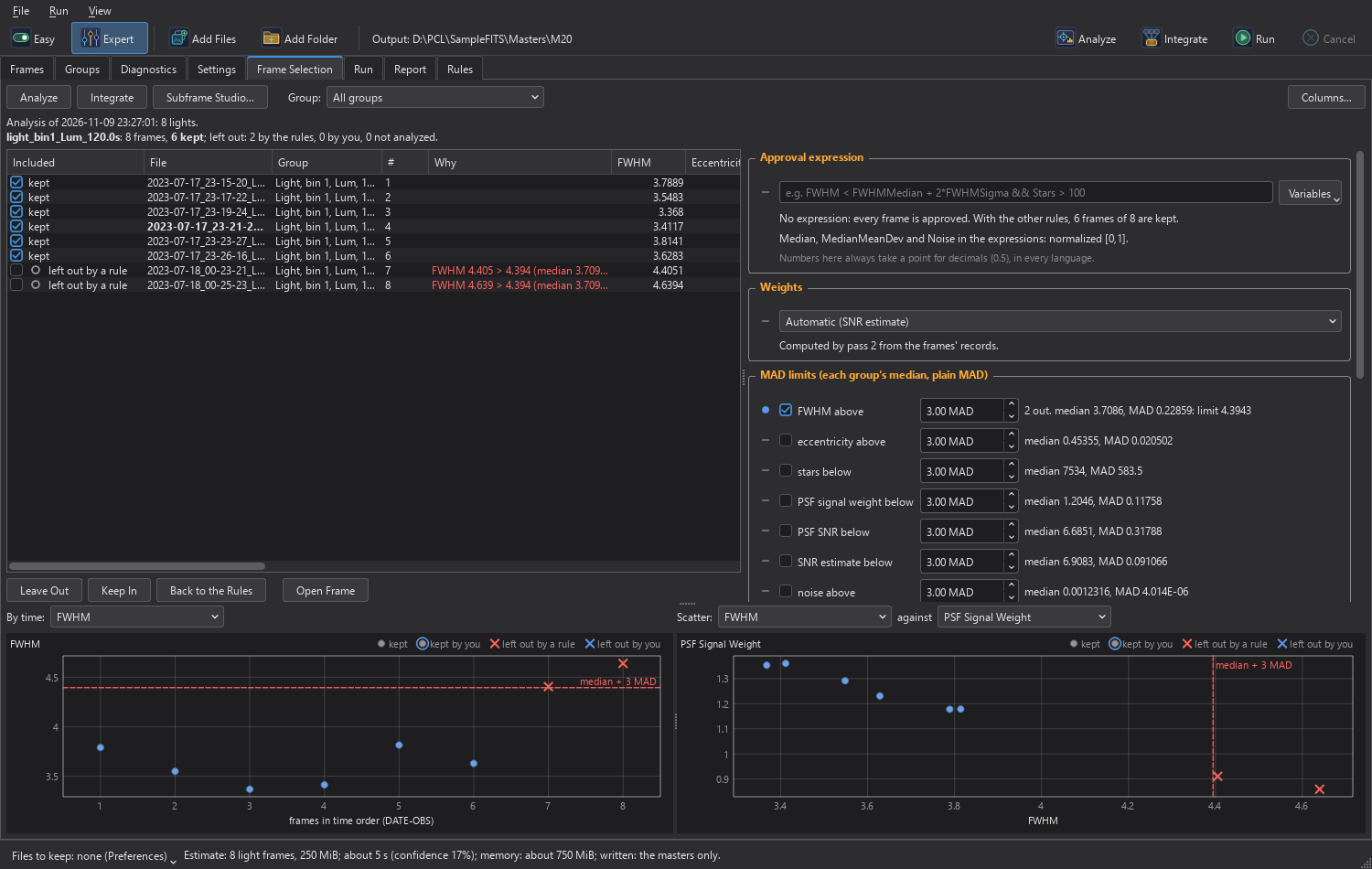
At the top, the summary: the analysis' date and lights, and for each group the frames, how many are kept, left out by the rules, left out by us, not analyzed, and kept by us over a rule. An approval or weighting expression that does not work (its group would not be integrated) is shown in red, and so are the lights the analysis does not have (Analyze now measures them).
The table has a row for each light, sortable on every column (numbers as numbers). Included is a check box with the verdict: "kept", "kept by you, over a rule", "left out by a rule", "left out by you", or "not analyzed", with the same marks as elsewhere (a gray ring for a rule, a blue dot for us); the reasons are in the tooltip. Then File (the registration reference in bold), Group, # (its index in the group), Date (DATE-OBS) and Why, followed by the measures: pass 1's (FWHM, eccentricity, stars, PSF fits, PSF signal weight, PSF SNR, SNR estimate, noise, noise ratio, median, MAD, MStar, NStar, star residual, and the PSF flux family), the trails (Trail Score, Trails and Trail Length), the registration's (the rms and the largest residual, the inliers, the matched stars, the shift, rotation and scale), the header's (altitude, azimuth, air mass and exposure), the value of the approval expression and the frame's own weight. Which columns are shown is chosen with Columns... or a right click on the header, and kept with their order and widths. The group filter (All groups, or one) narrows the table, the summary, the plots and the rules' figures.
A row can be out of date. The analysis belongs to the lights as they were measured and to the settings it was made with. A light whose file changed on disk, which was added after the analysis, or whose group, filter, exposure or binning changed, keeps its place but not its numbers: it is "not analyzed" and no rule judges it on another frame's numbers, until Analyze now measures it again. A choice we made by hand stays across any analysis.
9.4.6Choosing by Hand
With one or several rows selected, Leave Out leaves the frames out, Keep In keeps
them whatever the rules say, and Back to the Rules takes our choice back so that the rules decide again.
They are also in the right-click menu and in the Included check box. Our choices beat the rules both ways. A double-click on
a row, or Open Frame, opens the frame as an image of the program, calibrated with its group's masters for a
look. Nothing is built or written; the image is named <name>_calibrated, its history names its masters, and the page says
which ones made it. A frame whose group has no masters yet, or whose masters are not made, opens raw as
<name>_raw, and the page says why. It is shown as it is, with no stretch, until Auto Stretch
is applied (Screen Stretch).
9.4.7Frame Selection Rules
The rules are on the page, each with its mark, and each change is ours and takes effect at once:
- Approval expression: a rule written with the measures as variables, as in SubframeSelector. It is checked as we type
("With this expression (and the other rules), 7 of 8 frames are kept", or the reason it does not work), and Enter
applies it. Variables inserts any of the variables and their Median, Sigma, Min and Max. For example,
FWHM <= FWHMMediankeeps the frames with a FWHM no larger than the median. - Weights: the weighting mode, and the keyword or expression, with how many measured frames get a weight above zero.
- MAD limits: one row for each measure, on its bad side, with a check box and a factor k. Each row shows the group's median and MAD, and when on, the limit and how many frames it leaves out.
- The group's thresholds: rows for FWHM, eccentricity, PSF signal weight, median, stars and a custom formula, for the group chosen in the filter: on or off, below or above, and the threshold. From Selected takes the selected frame's value; a row switched on for the first time keeps every frame until the threshold is moved. Apply to All Groups copies the rows to every group, each with its own figures, and Accept All removes them.
The expression units follow SubframeSelector: Expression units in the Frame selection box is Normalized by default (an expression written there with its defaults works here unchanged), or data numbers or electrons, which enable Camera resolution and, for electrons, Camera gain (e-/DN).
9.4.8The Plots
Two plots show the analysis. The first is the chosen measure against the frames in time order. The second is a scatter plot of two measures, FWHM against PSF signal weight by default. A point is a frame, in the color of its group: a dot is kept, a dot in a blue ring is kept by us over a rule, a red cross is left out by a rule, a blue cross is left out by us, a gray cross is not analyzed. The MAD limits are dashed lines and the group's thresholds solid ones, in view even beyond every frame. Clicking a point selects the frame's row (Ctrl or Shift adds it); the selected rows are ringed in both plots, and the tooltip names the frame, its verdict and its values.
The Report lists the frames left out by who left them out and why, and the frames we kept over a rule with what the rule said. The session takes the run's state lines, so a saved session names its analysis. For a larger look at the frames, with a blink and a filmstrip, Subframe Studio shows the same measures and hands its choices back.
9.4.9One-Shot Color and Camera Raw Files
A one-shot color camera records a mosaic: each pixel sees one color through a filter array (a Bayer pattern such as RGGB), and the full color image is made by interpolating the missing colors, which is called debayering. The session handles these frames directly. They are calibrated as mosaics, since the calibration frames are mosaics too, and debayered inside the integration, frame by frame, as part of pass 2, so no color file is written. The master is an RGB image. CFA pattern in the Calibration box is From the files by default (the BAYERPAT keyword, the XISF CFA description or the raw file's mosaic); a pattern chosen there makes every one-channel frame a CFA frame of that pattern. Debayer in the Integration box chooses the method, VNG by default. A group of one-shot color frames shows as RGB, with its pattern, in the Groups page; flats of the other kind than the lights are a finding, and the group is skipped. The Debayer page describes the process of the same name, and Merge CFA and Split CFA work with the mosaic channels.
Camera raw files are read like any other frame: lights, biases, darks and flats, with nothing to set. The formats are those of the common camera makers: Canon (CR2, CR3 and CRW), Nikon (NEF and NRW), Sony (ARW, SRF and SR2), Fujifilm (RAF), Olympus (ORF), Panasonic (RW2), Pentax (PEF), DNG, and the rest of the cameras the raw reader knows. A file that is none of these, and neither FITS nor XISF, is refused with that reason. What is read is the mosaic as the camera recorded it: no interpolation, no white balance, no color conversion and no black point correction. Only the visible area is kept, the same for every frame of a camera, so that lights and calibration frames line up; the masked margins are cropped. The samples keep the camera's values (a 14-bit camera's data lie in the lower quarter of the range), and a frame shot in portrait stays as the sensor read it.
Because the black level is not subtracted from lights or from calibration frames, a master bias (or master dark) made from the same camera's raw files carries it, and calibration takes it out. A session that has raw lights needs raw calibration frames from the same camera. Files that are not a CFA mosaic (sRAW and mRAW, linear or full-color DNG, Foveon) are refused with the reason. X-Trans sensors are read but cannot be debayered; their frames can only be integrated as mosaics. The date in a raw file is the camera's clock, taken as local time, which matters for the night's folder (Sessions).
The program also opens a raw file as an image with : the image is the mosaic, one gray 16-bit channel with its pattern and the camera's keywords. It can only be read: asks where to write it, as XISF.
9.5Local Normalization and Drizzle
Two steps improve the masters of long, difficult sessions. Both are off by default in Expert and decided by rules in Easy.
9.5.1Local Normalization
The sky changes during a night: a rising Moon, a glow from the horizon, thin clouds. Integration normalizes the frames to each other with one number per frame, which cannot follow a gradient that changes from one end of the frame to the other. Local normalization matches every light's background and gradients to the reference's pixel by pixel, before the rejection, so that the rejection takes out the real outliers and not the frames of a different sky. In the Local normalization box, Local normalization turns it on and Scale (px) (1024 by default) sets the size of the structures it follows. In Easy it is turned on when the background or the stars' signal varies enough between the frames of a group (The Rules). It costs time in the integration. The Local Normalization page describes the process.
The reference that every light is matched to is not a single frame. It is the integration of the best frames of the group, by PSF signal weight: a third of the frames, at least 3 and at most Reference frames (20 by default), as WBPP makes it. A single frame would put its own noise and gradients into every frame's correction. Frames the analysis flagged are never part of the reference, even when they are integrated: frames with a satellite or airplane trail, frames kept over a selection rule, and frames Easy suggests leaving out (poor focus, stretched stars, clouds), even when the suggestion was declined. The report gives, for each group, how many frames made the reference and how many flagged frames were kept out of it. Making the reference costs a few seconds per group.
9.5.2Drizzle
Drizzle integrates the frames onto a finer grid than the one they were recorded on, dropping each pixel as a smaller
drop onto it, which recovers resolution when the stars are undersampled (their FWHM is under about two pixels) and the frames were
dithered between exposures. It needs many frames: it is worth it with 15 or more, dithered. In the Drizzle box, Drizzle turns
it on, Scale sets the size of the grid (2 by default) and Drop shrink (0.9) the size of the drops. A drizzled image
is written next to each master, with _drizzle2x in its name for scale 2. Easy mode suggests drizzle when the frames
justify it, and never forces it. The Drizzle page describes the process of the same name.
9.6Autocrop and RGB Combination
What a session makes from its light masters, once they are integrated.
9.6.1Autocrop
The edges of a stack are poor: dithering and rotation mean that fewer frames cover them. Autocrop crops every master of one
reference to the same rectangle, so that they stay aligned. The cropped master is written next to the uncropped one, which is
kept, with _autocrop in its name (and the drizzled image's rectangle times the scale). In the Autocrop and color box,
Autocrop is on by default; Area chooses the method:
- Exact coverage: counts how many of a master's frames cover each pixel. A pixel is usable when every master has at least Minimum coverage of its frames there (0.75 by default, a quarter of the frames lost; 1 means every frame), and the rectangle is the largest rectangle of usable pixels.
- Low rejection map: from each master's rejection map, for comparisons.
- Automatic: exact coverage, or the low rejection map in parity mode.
The report gives the rectangle and its share of the area. A cropped file holds the cropped master first (what the program
opens) and a second image, the crop mask, which is the size of the uncropped master and marks the outline of the crop rectangle. The
rectangle is also written in a DSCCROP keyword, and the astrometric solution is recomputed for the cropped grid. The
Autocrop page describes the process of the same name.
9.6.2RGB Combination
Combine R, G and B puts mono red, green and blue masters of one reference into the three channels of one color image,
and nothing more: no color calibration, no background neutralization, no luminance. L stays a master of its own. A pool must have
exactly one mono master for each of the red, green and blue filters, recognized by the filters' names (R, Red; G, Green; B, Blue
and the usual variants); two masters for one channel are not combined, and the report says why. The cropped masters are used
when autocrop is on, and the drizzled images too when all three have one. The image is written as masterRGB_autocrop.xisf
(masterRGB.xisf uncropped), with the red master's keywords and a history naming each channel's master.
Narrowband palette does the same for Ha, OIII and SII masters: SHO (SII, Ha, OIII) as masterSHO, or
HOO (Ha, OIII, OIII) as masterHOO. Easy turns on the RGB combination when there are R, G and B lights. The
RGB Combination page describes the process of the same name.
9.7Sessions
A session keeps the files it is made of, the choices we made and where the masters go. This section collects what happens to the files, so that a night can be run again, continued after a cancel, or shared with another session of the same night.
9.7.1Saving and Opening Sessions
The session file is .dspxpre. It keeps the list of frames and their headers, our choices (types, masters, overrides,
inclusions, review lines by hand), the settings that are ours, the output folder, the rules' decisions and, after a run, the state of
the analysis and of the run. It does not keep pixels. Opening a session reads it back, and its last report is shown from its output
folder. A saved session names its analysis, and a session whose frames have changed since is read as one whose rows are stale
(Light Frames).
9.7.2Where the Masters Go
By default the masters go into a folder called DSPX in the lights' folder; when the lights are in several folders, in the
deepest folder they all share. That folder is made at the first run, not before. When it cannot be used (the lights share no folder, as on
two drives; a network share; read-only media; a protected folder, or a file called DSPX in the way), the masters go into the
program's own masters folder, DSPX/Masters in the program's data folder (Preferences shows where), never Pictures or
Documents, which Windows' Controlled folder access protects. Another masters folder can be chosen in
, Masters folder, with Browse... and
Reset; once chosen, it takes every session's masters. In the masters folder, Easy mode puts each session's
masters in a folder of their own, named after the target (the most frequent OBJECT keyword of the lights), else the session's
name, else the frames' folder (past names such as lights and the filters' names), else Session; characters a
file system does not take become underscores. Inside it, a folder for each night, YYYY-MM-DD, named for the night of the session's
first light, in the astronomers' way: the date of the evening it began, from local noon to noon. A light's time is its DATE-OBS made
local, else its DATE-LOC, else the file's own date; local means the site's mean solar time when the light says its longitude
(SITELONG, OBSGEO-L or LONG-OBS, four minutes per degree), so a remote observatory's nights are its own whatever the computer's time zone,
and otherwise the computer's time zone. A session of several nights is named after the first, and the explanation says so. A folder we
choose ourselves in the window is used as it is (Easy: Change...; Expert: Output folder in the Output box); with no
folder chosen and a saved session, the masters go next to the session file, and with an unsaved one into DSPX in the lights'
folder. A folder a run already used is kept.
Every folder we choose (in the window, on the Easy page, in Preferences, or when Run asks) is checked first: it is made, and a small file is written in it and deleted. A folder that fails is refused with a short reason, and the folder before is kept. Every run makes the same check before pass 1, so a folder that stopped taking files is said at once, not after the analysis.
Two sessions of the same night of one target go into the same folder and share its masters: a master whose key (the frames, the
transforms, the masters and the settings it was made from) is already in the folder is reused, whichever session made it.
Reuse is by that key, never by name. A master of other frames never replaces one of the same name; the new one gets _2.
9.7.3Output Files That Are There Already
A session never overwrites silently. When a file of the name it wants to write is there already, and it is not the very file the run reuses, one setting decides, at , When an output file already exists:
- Keep both (the default): the file there stays, and the new one gets the next free name,
_2,_3and so on, before the extension. - Ask: the run waits and asks, with the file, whose it is (this session's own, from an earlier run, or another session's) and the name Keep Both would give; Keep Both (the default button, and Esc) or Replace, and Do the same for every other file of this run. Canceling answers Keep Both.
- Replace: the file there is replaced.
Every file kept or replaced is said in the log, on the Run page, and in the report. The choice covers the light masters and their drizzled images, the copies of the calibration masters, the cropped masters, the color images and the reports. A session's own master, rebuilt with other settings, follows the same setting, so going back to earlier settings reuses the earlier master.
9.7.4Files to Keep
A session writes only the masters. , Files to keep, writes the per-frame files of the pre-processing, in the output folder, without changing the computation or the masters: Calibrated lights, Cosmetic-corrected lights, Debayered lights (OSC), Weights (a CSV file), Registered lights, Local normalization data (.xnml), Local normalization reference and Drizzle data (.xdrz). All are off by default; each tooltip says the folder and the name. The files are written in the background while the run goes on.
The window's status line says "Files to keep: none (Preferences)" or what is kept, with the disk space they need against the free space; clicking it changes the choice for this window's runs (Use Preferences' Choice goes back). When the files do not fit, the window asks before the run (Run Anyway, with Cancel as the default), and a run stops keeping files before the drive is full (the masters are still written). A file the folder knows was written by this folder for the same light from the same inputs, unchanged, is reused; any other follows the existing-files setting. The drizzle data take the form PixInsight's DrizzleIntegration reads when the PixInsight compatibility mode is on (PixInsight Compatibility Mode), and DSPX's own form otherwise.
9.7.5The Caches
A run is saved in caches: each calibration master and light master under a key made of its frames, the settings and the versions, each frame's measurement, each registration, and the analysis. A run again of an unchanged session reads everything from the caches and integrates nothing. A changed light setting rebuilds the light masters and reuses the calibration masters. Canceling keeps what was done. The caches check the files they point at: a master that was replaced or touched is not reused. Calibration masters are shared among the sessions of the same user. Each frame's measurement and each registration also carry the version of DSPX that made them: after an update, the first run of a session measures and registers its frames again, once, and the light masters are made again.
The caches live in one cache folder, each in a folder of its own: frames (each frame's measurement and each registration),
raw (the decoded raw files) and masters (the shared calibration masters). The default is the DSPX folder in the
system's place for caches; the page shows it. , Cache folder, shows the folder in use with Browse... and Reset, the size
of the cache and the free space of its drive (worked out in the background), a warning when the drive has less free space than the cache uses
or under 5 GB, and Clear cache.... Clear cache asks first and says how much it frees; it deletes only the files the caches
made in those three folders, and nothing else in the folder, so a folder we also keep other things in is safe. A folder is refused when it cannot be
made or written to.
A fast drive makes pre-processing faster, and so does a RAM drive. The cache can always be rebuilt, so losing it only costs time. It can
grow to the size of our data. A new folder applies to the runs that start from then on; DSPX never moves the files of the folder used before, which
stay there until we delete them. If the environment variable DSW_CACHE_DIR is set on the computer
(Environment variables), it decides and the page says so; the choice is kept for when the
variable is gone. The output folder is another place, and a fast drive helps there too: the masters and the registered frames are written there.
9.7.6Plate Solving the Masters
Plate solve the masters in the Astrometry box (on by default; in Easy a box under the goal) solves the registration reference first, from its file, read only: nothing is written into one of our frames. Its center and scale become the hints of every file of its pool. Then every master, drizzled image, cropped master and color image is solved and rewritten with its astrometric solution, as Plate Solve writes it. A file that fails to solve with the hints is searched once with the all-sky search, narrowed by the known scale; one that still does not solve is a warning and is kept as it was. The star catalogs are those of (Catalog Files). A rerun solves nothing again. The report lists each file's solution: its center, scale, rotation, stars matched, the rms and the time.
9.7.7Masters Keep the Date
Every master, and every product made from masters, says when it was observed: DATE-OBS (the start of the first exposure,
in UTC), DATE-END (the end of the last), DATE-AVG (the mean of the frames' mid-times weighted by their exposures) and
the XISF properties of the observation's start and end. A raw frame's date comes from the camera's clock. A frame without a date is left out
of the range, and the history and the Log say how many. The astrometric processes use this date to put catalog stars where they were at
the time (Astrometry).
9.7.8The Report and the Log
Next to the masters, a session writes its report as text and as JSON, and a log with every line printed, timed. The report gives the status, the settings and who chose them, each calibration master (given, built or reused, its frames, rejection and rejected samples), each pool's reference and registration, each light group with its masters, rejection, normalization, weights and rejected samples, every frame with its set, weight, rejected samples and why it was left out, the diagnostics, the files that were there already, the plate solutions and the time of each phase. The files of two sessions of one night carry the session's tag, so they do not mix.
Noise at equal signal. For each light master the report and the Log give its median and MAD on the autocropped area, the noise of its sky (stars and nebulae left out), its signal (the 99th percentile minus the median of the master's 8x8-pixel medians) and the noise at equal signal: the sky's noise divided by the signal. The MAD and the noise change with the frame the master was normalized to; the noise at equal signal does not, so it compares two masters of the same frames made with other settings or another program: the lower one is less noisy.
The command-line tool dsw_session runs and examines the same sessions without the window (The dsw
Tools).
9.8The Pre-processing Processes
Each step of a session is also a process of its own, so that we can work on a list of files one step at a time, with the settings of PixInsight's processes of the same names, which means that their process icons open here (PixInsight Process Icons). They are in , in the order a night is processed, and opens the window described above.
| Process | What it does | PixInsight's process |
|---|---|---|
| Calibration | Frees light frames of the bias, the dark current and the uneven illumination; writes calibrated frames. | ImageCalibration |
| Cosmetic Correction | Replaces hot and cold pixels of calibrated frames. | CosmeticCorrection |
| Debayer | One-shot color frames into RGB frames. | Debayer |
| Registration | Aligns frames onto a reference by their stars; writes registered frames and drizzle data. | StarAlignment |
| Local Normalization | Matches each frame's background and scale to the reference's; writes normalization data. | LocalNormalization |
| Integration | Stacks aligned frames into one master, with weights, normalization and rejection. | ImageIntegration |
| Drizzle | Integrates registered frames onto a finer grid, from their drizzle data. | DrizzleIntegration |
| Autocrop | Crops registered masters to the one rectangle they all cover well. | (none) |
| RGB Combination | Three mono masters into one color image, by their filters. | (none) |
A night through the processes, each step's files feeding the next: Calibration (calibrated frames, with their estimates in their keywords), Cosmetic Correction, Debayer for one-shot color, Registration (registered frames and drizzle data), Local Normalization (normalization data), Integration (weighted by the estimates the frames carry) or Drizzle (from the drizzle data), Autocrop and RGB Combination. The pre-processing window does the same in one run, with nothing written in between.
Four processes work on files for situations beyond a normal night: HDR Composition combines linear exposures of one field into an image of a wider range, Comet Alignment shifts frames so that a moving comet stays in one place, Star Trails Blending blends many frames of one field into an image of the stars' trails, and Mosaic puts the panes of a mosaic together from their astrometric solutions alone (it is in the menu). Superbias makes a low-noise bias model from a master bias, and Defect Map replaces defective pixels from what their good neighbors say.
9.8.1Processes on a List of Files
A file process reads a list of files and writes its results to files; it does not run on the image in front. Its panel has, above the settings, the input list: a row for each file, with its name and folder, and a check box to leave it out without removing it. The buttons are Add Files..., Add Folder... (the folder's FITS, XISF and camera raw files, not its subfolders), Add Images... (for Integration, the open images chosen in a small list), Remove and Clear, and a count ("3 of 5 inputs enabled"). A file listed already is not added again, and an open image that is closed leaves the list. An open image that is its file as it is (saved, not changed since) is read from its file; any other is written as it is to a temporary file for the run, removed when it ends.
The settings are generated as for any process, with a Browse... button beside a folder or a file. The output folder, when empty, is the first input's folder. The panel has Run in place of Apply, enabled when enough inputs are enabled ("Runs on 3 inputs.", or "it needs at least 3"); the image in front plays no part. The run goes on a thread of its own, with progress and Cancel. A canceled or failed run leaves none of its results. Afterwards, the panel lists the results: what each file is, its name and folder. A double-click, or Open, opens an image result; files that are not images (drizzle data, normalization data, reports) are listed and not opened, and Show Folder shows where they are. The files that the process marks open as images when the run is done (a master and its rejection maps, when Integration's Open the result when done is on); calibrated frames are listed, not opened.
One process runs at a time, of either kind: an image process does not start while a file process runs, and the other way round. Closing the program asks before it cancels a run. A saved process keeps its files, as PixInsight's icons of these processes do, and the process shelf applies a file process without any image open (Saved Processes and the Process Shelf).
9.9Subframe Studio
The Frame Selection page judges the frames with a table and two plots. Subframe Studio is the window for judging them by eye as well: it measures a set of frames, shows them one after another (the blink) or side by side (the filmstrip), and keeps or leaves out each with a key press or a rule. Its page describes every control. Here is how it fits in the work of a night.
9.9.1From a Session
On the Frame Selection page, Subframe Studio... opens the window with the frames of the session's analysis, our choices by hand, the approval expression and the weights. The measures are the session's, so no frame is measured again. We look at the frames, keep and leave out, adjust the approval expression and the weights, and click Use in Session. The window hands back only what we changed in it: the frames whose choice by hand differs from the session's when the window opened, the approval expression and the weights when they differ. A choice the session made meanwhile is not written over, and a frame whose file changed while the window was open is not handed back (a message says how many), because it was judged on another picture. The session says "Subframe Studio: the selection was applied.", and Undo Studio on the Frame Selection page takes the whole change back in one step.
A frame whose analysis is stale when the window opens shows "Changed after its analysis", and the window's note offers to run the analysis in the session again.
9.9.2On Its Own
Subframe Studio also opens from with no session, on any set of FITS, XISF or camera raw files: Add Frames... measures them at once. It can write the selection as a CSV table or the kept files as a list, which can be used elsewhere.