
Getting Started
What DSPX is, what it needs, and a first session from opening an image to saving it
DSPX is a modern astrophotography processing workspace: pre-processing, plate solving, layers and over 200 processes, tools and scripts in one window, for Windows, macOS and Linux. This chapter says what DSPX is and what it needs, how it is installed and started, how a license shows in it, and takes us through a first session: opening an image, stretching it on screen, applying a process, undoing it and saving the result. It ends with guides for readers who come from PixInsight, Photoshop, Siril or SyQon Studio, and a guide to this documentation.
1.1What DSPX Is
DSPX is a modern astrophotography processing workspace, built from the ground up to get the best results out of our data, fast. It has more than 200 processes, tools and scripts, and an interface that adapts to what we know: easy for those who are starting, and open to the last detail for the most demanding astrophotographers.
It begins where the telescope stops. Drop a night's folder of frames on the pre-processing window and DSPX sorts the lights, darks, flats and bias frames, matches them, judges every frame, then aligns and stacks the ones worth keeping, saying in plain words what it decided and why. The result opens in the workspace, ready to be processed: stretches, color calibration, deconvolution, noise reduction, star removal, star masks, sharpening, geometry, PixelMath and the rest of the processes, the interactive tools that we use with the pointer, layers with blend modes, masks and selections, a history of every image, and plate solving against star catalogs. Python scripts, among them scripts written for Siril, and guided workflows that take one decision at a time are part of it too.
The graphics card is used everywhere, not only by the AI processes: whenever it can do the work faster, it does. Deconvolution, sharpening, noise reduction, stretching, layers, the live previews of processes that are slow by nature and the heaviest steps of pre-processing run on it. Where a multi-threaded processor is faster, DSPX uses that, by itself (GPU Acceleration).
For those who know other astro-processing programs, DSPX looks and works as expected: process windows, process icons, masks, history, the processes used a hundred times before. Underneath, it is new, written from scratch. It reads and writes XISF, FITS, layered TIFF and the popular image formats, reads Photoshop files (PSD), and an image can go back and forth between DSPX and PixInsight (Coming From PixInsight).
1.2System Requirements
DSPX runs on Windows, macOS and Linux, with the same features on all three. The minimum for each:
- Windows: Windows 10 version 21H2 (build 19044) or later, or Windows 11, 64-bit, on an Intel or AMD processor with the AVX2 and FMA instructions.
- macOS: macOS 13 (Ventura) or later, on an Apple silicon or an Intel Mac.
- Linux: glibc 2.35 or newer (Ubuntu 22.04, Debian 12 or Fedora 36 and later), a 64-bit x86 processor with the AVX2 and FMA instructions, and a desktop with X11 or Wayland.
| Part | What DSPX needs |
|---|---|
| Processor | On Windows and Linux, one with the AVX2 and FMA instructions: most Intel processors since 2013 and AMD processors since 2015. On macOS, any Mac. |
| Memory | As much as the images need. A process holds about three copies of the image it works on, and the AI processes several more; the newest undo steps stay in memory, the older ones go to the cache folder, which needs free room on its drive. 16 GB is a comfortable minimum. |
| Graphics card | Optional, and recommended: with one, the heaviest work is much faster. Which cards, and how much each process gains, is in GPU Acceleration. Without a card everything runs on the processor, more slowly, and the program works the same. |
| Disk | Room for the program, for the caches of pre-processing, and for the files we choose to download: the star catalogs are about 2.2 GB (Catalog Files), and Python for the scripts is downloaded when we ask. |
| Network | Not needed to process; used only for the connections listed under Network Connections. |
A computer without AVX2 and FMA cannot run DSPX on Windows or Linux. The program says so and stops, with a message instead of a crash: The Program Does Not Start.
1.3Installing and Updating
On Windows, an installer puts DSPX in a folder of our own account and needs no administrator rights. It adds a Start menu entry and, when we tick them, a desktop shortcut and the "Open with" entries for XISF and FITS files. On macOS and Linux we put the application, or the folder, where we want it and start it from there. Next to the program are this documentation (), the license texts of the libraries DSPX is made with (Credits and Licenses), and the files of the AI processes (The AI Processes).
A new version is installed by its installer, or by replacing the folder (Updates says how DSPX learns that one exists). Images, saved processes and settings are not in that folder: the settings, the window's arrangement and the shortcuts we changed are kept between sessions, and a new version reads them. A process's panel starts at its defaults each time; its settings are kept by saving the process (Saved Processes and the Process Shelf).
1.3.1Reinstalling and uninstalling
Before it installs, the Windows installer looks for DSPX and DSPX Beta on this computer. When it finds one, the Existing installations page lists each with its name, version and folder. Each has a box, Uninstall, unchecked at first. With nothing checked, the installer installs over the same name in the same folder, and next to the other name. When we check one, the Your data page lists the data DSPX keeps for that name, each kind with its size and an unchecked box: our themes and LaunchPads, preferences, layouts and shortcuts, scripts, downloaded catalogs and caches. The Ready to Install page sums it all up before anything happens. If an uninstall fails, for example because DSPX is running, the installer says so and goes back or, when we choose, installs anyway.
The license information is never removed or listed, and neither are the images, projects and blueprints we saved, or anything in a folder we chose. Uninstalling from Windows Settings keeps our data too, unless we say otherwise in the questions it asks.
A silent install shows no page and installs as before. Two switches, given with /VERYSILENT or /SILENT, make it do more:
| Switch | Does |
|---|---|
/UNINSTALLOLD=none|release|beta|all | Uninstalls the DSPX installation, the DSPX Beta installation, or both, before installing. The default is
none. If one cannot be uninstalled (it is running), the setup stops. |
/REMOVEDATA=1 | Also removes the data of the names that /UNINSTALLOLD uninstalls. On its own it removes nothing. |
1.3.2The first start
The first time DSPX starts, the Setup Assistant asks what is worth deciding once. Every step has its answer selected, so pressing Next all the way through is a sensible setup, and each step says where its answer can be changed later. The steps:
- Language (macOS and Linux). The system's language is selected when DSPX has it.
- Look. DSPX Dark (selected), Fix Inside (Light), PhotonChop (Dark), Syrup (Dark) or Psycho'n (Dark), with a picture of each; a click on the picture shows it at full size. A theme can bring its own window layout, which is applied at this first start.
- Updates. Check automatically (selected), Ask before checking or Never check (Updates).
- Cache folder. Where pre-processing keeps what it can reuse; it writes tens of gigabytes there. The setting is in .
- Star catalogs. About 2.3 GB, from Deep Sky Colors' server. Download now... opens the Get Catalog Files window (Catalog Files); nothing downloads unless we ask.
- Scripts. The Python that scripts need is DSPX's own, about 250 MB. Set up now... asks for approval, with every detail, before anything downloads (Scripts and Python).
- License. Start Free Trial, Enter License... or Buy a License (Your License). It comes last so that a trial does not start before the setup is done.
Every step can be skipped, and so can the whole window: closing it, or pressing Esc, skips the steps that are left, and a skipped step takes
its default. On Windows the installer asks the language itself, so the Setup Assistant starts at Look. The Setup Assistant appears once, on a
profile that has no settings yet, and can be opened again at any time with ; a language
changed there applies from the next start, and DSPX asks whether to restart now. The language and the look can also be changed in
and (on a Mac, Preferences is in the DSPX menu), where
every other theme and the option to follow the system's light or dark mode are. DSPX --first-run-dialog opens it before the program starts
(Command Line).
1.3.3Beta versions
A Beta version (an Alpha, Beta or release candidate build) is named DSPX Beta. It installs next to DSPX and does not touch it: it has its own settings, themes, LaunchPads, blueprints, license record, catalogs, caches and Python, so a Beta can be tried and removed without changing the release. Its first start shows the Setup Assistant.
1.3.4Updates
DSPX can tell us when a newer version exists. It asks Deep Sky Colors' update server for one small signed file that lists the newest versions, and sends nothing about us or our computer. A file that is out of date or does not verify is ignored. The Updates step of the Setup Assistant sets how DSPX looks:
- Check automatically: at most once a day, a few seconds after the window has opened, quietly: it never interrupts a process.
- Ask before checking: the same, but DSPX asks "Check for updates now?" first, and only when no process is running.
- Never check: DSPX does not look by itself.
The choice, and whether to read the Release list or the Beta (includes Alpha and RC builds) list, can be changed in (Updates). A new version is announced by a quiet line in the status bar and the Log and a mark on , which also checks at once. The check opens What's new in DSPX with the release notes and the size of the download, and two buttons, Install and Later. Nothing is downloaded until we click Install, and nothing is used unless its size and SHA-256 match the signed file.
On Windows, and on Linux (the tarball or the AppImage), an update usually comes in place: DSPX downloads only the files that changed, checks each one against the signed list of
the new version's files, and offers Quit and Update. DSPX closes as usual; then a small program beside it, DSPXUpdater, replaces the files inside DSPX's own folder, with
no administrator rights, and starts the new version. The files it replaced are kept next to the program folder (update-backup; the downloads wait in
update-staging) until the next update, and until then offers Go back to the version before. If anything fails
during the swap, or the new version does not start, the version before is put back and DSPX says so at its next start. On Windows, while the files
are being replaced, DSPXUpdater leaves a one-time entry in our account's startup list (RunOnce): if the computer goes off in the middle, it puts the version before back
at our next sign-in, and the entry is removed as soon as the files are in place. If putting it back fails as well, DSPX asks us to run the DSPX installer. An AppImage is replaced whole, and the previous one stays beside it
with .previous added to its name. When an update needs the installer (it changes the installation itself, for example), the window says why in one line, and DSPX offers
Quit and Install on Windows; on macOS it says where the verified disk image is. The uninstaller removes the program folder with both of those folders.
A new major version needs its own license; when ours does not cover it, the window says so and offers Buy a License, and our version keeps working.
1.3.5Network Connections
DSPX makes a network connection only in the cases below, and each uses https. It downloads nothing without our asking, except the small signed file of the update check when Check automatically is on.
| When | To | For |
|---|---|---|
| We start the trial, enter a license, deactivate this computer or click Validate Now; once a day while a license or the trial is active | Deep Sky Colors' license server | The license, the signed list of withdrawn licenses, and the trial's check (What is sent). |
| The update check: by itself at most once a day (unless we chose otherwise), and when we choose Check for Updates... | Deep Sky Colors' update server | The signed list of versions (Updates); the changed files or the installer only after we click Install. |
| We click Download in Get Catalog Files... (Preferences > Astrometry) | Deep Sky Colors' server | The star catalog files (Catalog Files). |
| Plate Solve and the other astrometric processes run, with the online catalog on | ESA's Gaia archive; a name service for an object name the built-in list lacks | The stars of a field, and the position of a name (Network Connections). |
| Survey Overlay runs | CDS's image service | A survey cutout. |
| We click Download and Set Up, Get Siril Scripts... or Check for Updates... on the Scripts page | The sources of Python and of Siril's scripts | The interpreter, its libraries and the scripts (Scripts and Python). |
A script, once approved, does what it was written to do, including the use of the network; GraXpert and RC Astro's program are separate programs that may connect to the internet by themselves, and DSPX makes no connection for them. The buttons that open a web page (Buy a License, Get GraXpert..., Website...) open it in the web browser; the browser, not DSPX, makes that connection. On a computer that is offline everything else works, including the AI processes, because their files are delivered with the program; Plate Solve then needs the star catalogs, downloaded once while online.
1.4Your License
DSPX has one license: perpetual, for one person, valid on up to three computers (any mix of Windows, Linux and macOS). It covers every update of the current major version at no cost: a license for DSPX 1.x keeps working with every 1.x version, and a later major version is a separate purchase.
1.4.1The free trial
The first time DSPX starts without a license, it offers Start Free Trial, Enter License... and Buy a License, on the last step of the Setup Assistant (The first start) or, when that was skipped, in a window of its own. The trial lasts 30 days and has every feature. Starting it needs one contact with the license server; after that DSPX works offline, and nothing interrupts the work. and the About box say how many days are left. Starting the trial again on the same computer, after a reinstall, gives back the same trial with the same end date: the license server counts the 30 days, not the computer's clock.
When the trial ends, a window says so, with Buy a License, Enter License... and Quit; if it ends while DSPX is open, the window appears at the next quiet moment, never in the middle of a process. Without a license, opening images keeps working, and so do the previews of a process: the live preview shows what a process would do, and only Apply asks. Processing, exporting and saving ask for a license, with a License required window. Nothing is lost: images and projects on the disk are untouched, and the work continues once a license is entered. A computer clock that ran ahead can end a trial early: set the clock right, then choose Validate Now in that window or in . If the trial still shows as ended, choose it again the next day.
1.4.2Buying and entering a license
Buy a License opens the DSPX page on Deep Sky Colors' web site. After the purchase an e-mail brings a purchase code: twenty letters and digits in four groups of five. DSPX checks it as it is entered, so a typing mistake is reported at once. Enter License... (in the first window, in the trial-over window and in ) asks for the code and contacts the license server once; the window then says DSPX is licensed to and the name on the purchase. From then on DSPX works without any connection. If the window reports a problem it says what to do; for anything it cannot settle, write to rba@deepskycolors.com.
1.4.3Three computers, and moving a license
A license can be active on three computers at the same time; if a fourth is tried, the window lists the computers that hold it. frees this computer's place (it needs a connection), and the license can then be entered elsewhere. Each user account of a computer that enters the license, and a Beta installed beside the release, holds a place of its own. Reinstalling DSPX takes the same place, and changing a graphics card, memory or a disk changes nothing. Reinstalling Windows or Linux gives the computer a new identity: deactivate it first, or the new system takes another place. Reinstalling macOS keeps the same place. A computer that no longer works cannot deactivate itself: write to the address above and the place is freed.
Rarely, the license file on a computer cannot be read (a damaged disk, a restored backup, a copy from another computer or user account). DSPX says so, changes no result and keeps the file; Enter License... with the purchase code restores the license on the same place. When DSPX cannot confirm a license it can read, or that license needs to be checked again, processing, exporting and saving wait, and offers Validate Now, which renews the license on this computer. If the window says the license was moved to another installation or computer, enter the purchase code to use it here again. A license that was refunded or reversed appears on the signed list of withdrawn licenses, and the window then says that it is no longer valid; DSPX never deletes anything because of it.
1.4.4What is sent
DSPX contacts the license server only when we start the trial, enter a license, deactivate or choose Validate Now, and once a day: while a license is active, to download the signed list of withdrawn licenses (that request sends only the product name), and during the trial, to check the trial as Validate Now does. Each of the other contacts sends the product name and version, the purchase code (when entering a license) or the identifier of the license, two public keys made on the computer, a one-way hash of the computer's identifier (when entering a license, of that identifier and this user account's installation), the operating system family and processor, and the time. Nothing else is sent: no name, no folder or file names, no image data, no list of installed software, no use of the program. The answer is signed, and DSPX checks the signature before it keeps anything.
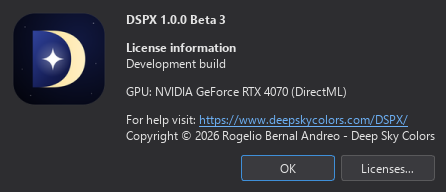
The license line of reads License: and the name on the license, Trial: and the days left, or Not licensed.
1.5A First Session
This session takes a stacked, linear image of a deep sky object from the disk to a saved result. Any XISF, FITS or TIFF file of a stacked image will do; DSPX's own pre-processing makes such images from a night's frames.
1.5.1Open the image
- Choose (Ctrl+O), pick the file and click open. Several files can be chosen at once, and files dropped on the window open too. Each opens in a window of its own.
- A linear image looks nearly black. That is how the data are, not a fault: the screen shows the numbers as they are until we ask for a stretch.
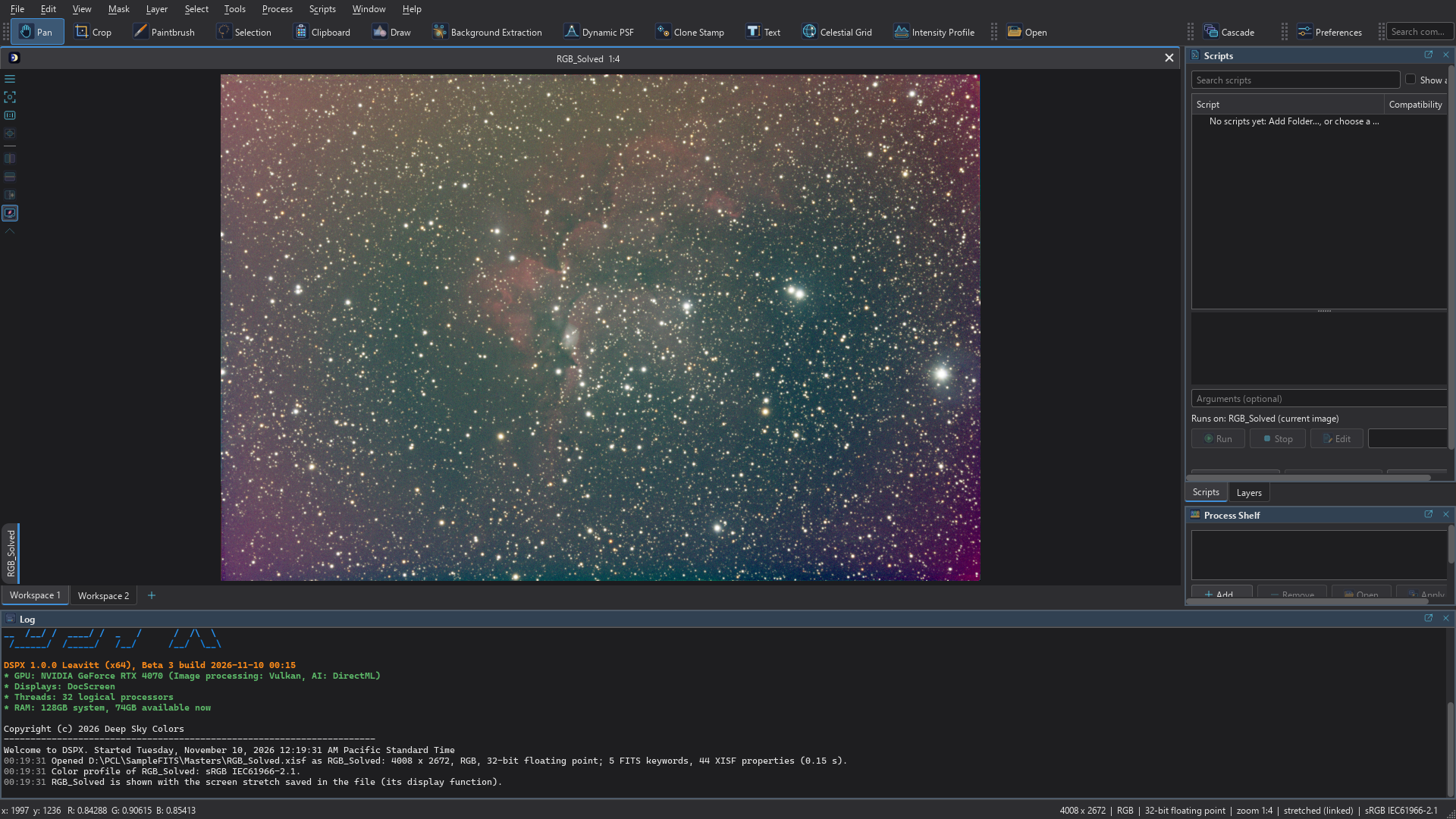
- Choose (Ctrl+A). The image now shows through a screen stretch: the brightness is raised for the eye, and the data underneath do not change. The Screen Stretch panel shows the stretch and lets us adjust it; Ctrl+L () turns it on and off (Screen Stretch).
- The wheel zooms about the pointer, dragging moves the image, (Ctrl+0) shows all of it, and the status line gives the pixel under the pointer with its sample values.
1.5.2Apply a process
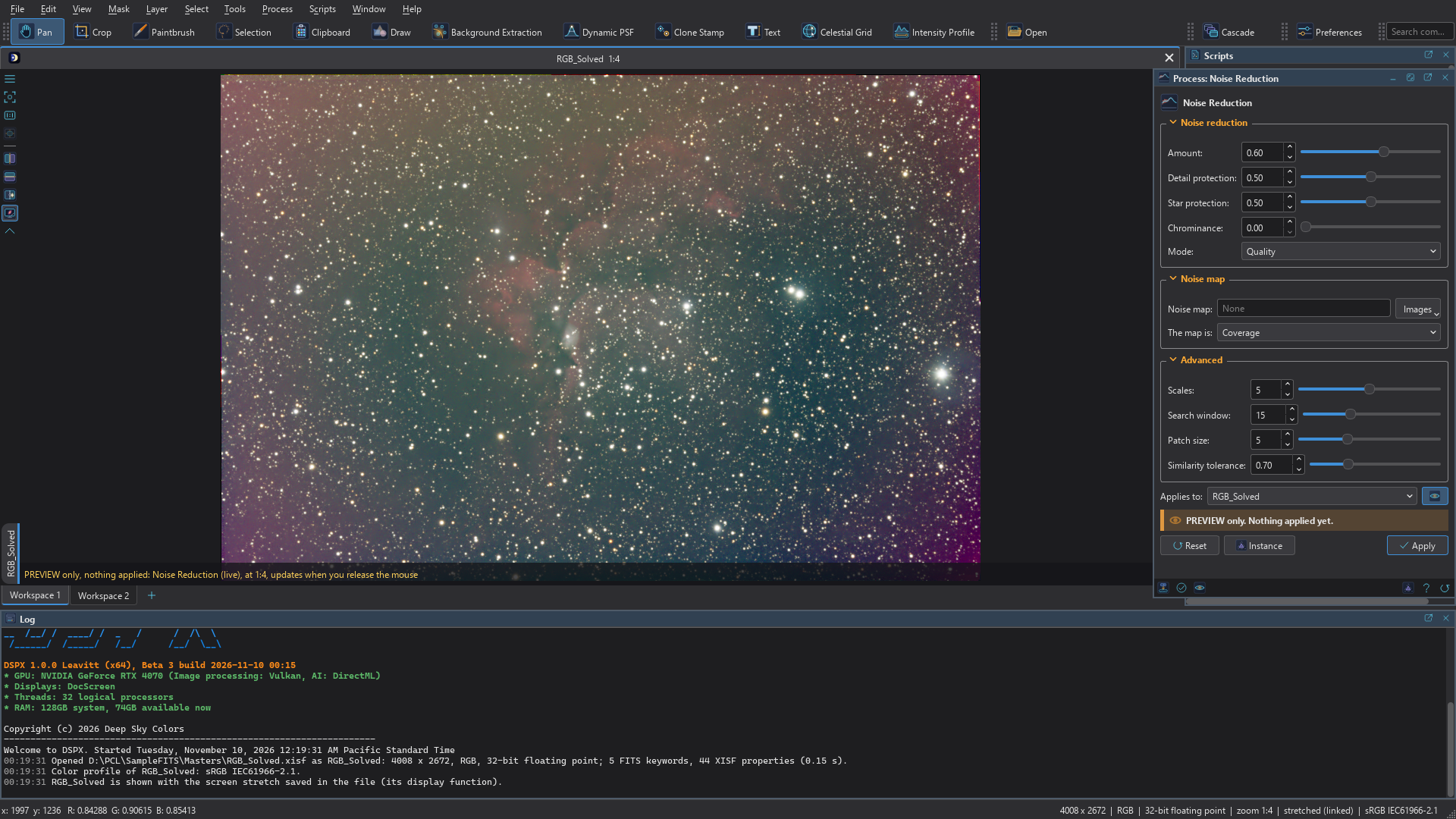
- Choose . The process opens in its panel. Every process does, and all panels work the same way (The Process Panel).
- Leave the settings as they are for a first try. Every setting has a tooltip that says what it does; the Help button at the bottom opens the process's page in this documentation.
- Turn on the Live preview to see the result on the part of the image in view before applying (Previewing a Process).
- Click Apply. A progress bar shows while the process runs, Cancel stops it, and the Log says what ran and how it ended (The Log).
1.5.3Undo, compare and save
- The change is one step of the image's history. (Ctrl+Z) takes it back and (Ctrl+Y) puts it back. The History panel lists the steps, and a click on a row goes to that state (Undo, Redo and History).
- Choose (Ctrl+Shift+S), give a name and a format. XISF keeps everything the image has; the other formats keep less, and the dialog that follows says what each keeps (Saving Images).
- A stretched copy for sharing: save as TIFF, PNG or JPEG and leave Save as displayed (with the screen stretch) on. The file then has the image as the screen shows it, and the image in DSPX keeps its own data.
Closing an image with changes that are not saved asks whether to save them. To keep the whole session, with every image, its history and its windows, we save a project (Projects).
1.5.4Where to go from here
- To remove stars, make masks or sharpen, open the process from the menu; to work on the image with the pointer, choose a tool from the Tools toolbar (Interactive Tools).
- To stack a night of frames: (Pre-processing).
- To be guided through the processing one decision at a time: (Guided Processing).
1.6Coming From PixInsight
Readers who know PixInsight will find their way around DSPX quickly. The process windows, the icons, the files and the names of the processes are the ones they know. On top of them DSPX adds what PixInsight does not have: layers, selections and painting tools, the graphics card at work everywhere, and pre-processing that decides most things by itself. The Fix Inside theme and layout is the closest place to start.
Start with Fix Inside. The Fix Inside (Light) theme has light panels and a wallpaper of its own. Its layout docks the panels on the left only, cascades the image windows, shows the toolbars with icons only, and opens each process and tool in a window of its own, with the system bar and without the panel's own buttons. At the first start, we choose Fix Inside (Light) in the Setup Assistant's Look step, and its layout comes with it. Later, we choose it in the Themes list of , which by default asks whether to apply its layout too, or we apply the layout alone, with any theme, from (Themes and Layouts).
What is familiar:
- The system bar. Along the bottom of every process and tool window runs a thin bar of small icons, as on PixInsight's process windows: the handle to drag the process, Apply and the preview on the left, Instance, Help and Reset on the right (The System Bar).
- Drag and drop to apply. The system bar's handle dropped on an image applies the process to that image; dropped on the workspace it
becomes a process icon, and on the Process Shelf a row. A process icon dragged onto an image applies it, and so does an
.xpsmfile dropped from the file manager (Drag and Drop). - Process and tool windows of their own. With Fix Inside, every process and tool opens in a window of its own, which floats where we put it or docks, and the others stay open. Opening a process again brings its window to the front (One Window per Process and Tool).
- Process icons and workspaces. Process icons lie on the workspace behind the images, named
Curves1,Blur2and so on, and a double click opens one. Workspaces have their tabs at the bottom of the image area, image windows cascade, tile or become tabs, and lists the processes (Process Icons on the Workspace, Workspaces). - Previews and the screen stretch. A process shows its result on the image before Apply, with Before and Split to compare (Previewing a Process). The screen stretch is PixInsight's screen transfer function, and (Ctrl+A) computes it with PixInsight's default settings (Screen Stretch).
- Files and icons. XISF and FITS images open and save with their keywords, properties, astrometric solution and screen stretch, so an image
can go back and forth between the two programs. DSPX opens
.xpsmprocess icons and process containers, saves a process as a PixInsight icon, and exports an image's history as a process container (Images and Files, PixInsight Process Icons). - Names and parameters. A process has the name and the parameters of the PixInsight process it mirrors; the names that differ are in PixInsight's Processes and DSPX's.
- Pre-processing. The rules that group the frames, match the calibration frames and choose the integration settings follow PixInsight's WeightedBatchPreprocessing, so a night is treated the same way (Pre-processing).
- Compatibility mode. The setting PixInsight compatibility mode, in , makes the processes compute as PixInsight's do, so that a result can be compared with one made there (PixInsight Compatibility Mode). It is off by default, and it is best left off: read the warning below.
What is different, and what we gain:
- DSPX's own ways. With the compatibility mode off, a few processes take DSPX's own way where it is better: a robust background level in Background Neutralization and Color Calibration, the best frame as the reference of Integration, and the graphics card wherever it is faster (GPU Acceleration).
- Layers, selections and painting. Layered images with blend modes, layer masks and process layers; selections drawn with the Selection tool; and tools such as Paintbrush, Clone Stamp and Spot Healing (Layers, Selections, Interactive Tools).
- Pre-processing in one window. We drop a folder of frames on the Pre-processing window, and Easy mode sorts them, matches them, asks only what the rules cannot decide, and computes the night in memory, writing only the masters (Easy Mode and Expert Mode).
- History. An image's history can be exported as a Python script or a blueprint to repeat on another image, and the older undo steps move to the cache folder instead of filling the memory (Undo, Redo and History).
- Scripts. DSPX does not run PixInsight's JavaScript scripts or load its modules; it runs Python scripts, including those written for Siril (Scripts and Python).
- Processes. A process that DSPX does not mirror is not available, and an icon of one is not opened (Process Reference). What PixInsight's process console shows is written to DSPX's Log.
- FITS files. A FITS file without a ROWORDER card is read bottom row first, as the FITS standard says, so it can open upside down compared with PixInsight. FITS files without ROWORDER, in , reads such files top row first, as PixInsight does, without the compatibility mode (Metadata).
1.7Coming From Photoshop
Readers who know Photoshop will recognize a good part of DSPX: layers with the same blend modes, masks, selections, brushes, and panels that behave like dialogs. What changes is the data. An astronomical image starts linear and nearly black, and much of the work is done before it is stretched. The PhotonChop theme and layout is the closest place to start.
Start with PhotonChop. The PhotonChop (Dark) theme has flat neutral-gray panels and monochrome icons. Its layout puts the tools in a column on the left (the PhotonPad), the options of the tool in use in a row along the top (Tool Adjustments), and the Layers panel on the right with the History under it, and it tiles the image windows. It also turns on Close panels after Apply. At the first start, we choose PhotonChop (Dark) in the Setup Assistant's Look step, and its layout comes with it. Later, we choose it in the Themes list of , or apply the layout alone from (The Built-In Layouts).
What is familiar:
- Tools and their options. The tools sit in a column at the left, and the options of the tool in use run along the top: the size, softness and opacity of a brush change there, next to the image, and the tool's panel follows (Interactive Tools).
- Brushes and retouching. Paintbrush paints, blends, blurs and smudges; Eraser, Clone Stamp, Spot Healing, Text and Crop do what their names say.
- Layers. The Layers panel and the menu, Photoshop's blend modes from Normal and Multiply to Soft Light and
Luminosity, opacity, layer masks and clipping. Photoshop files,
.psdand.psb, open with their layers (Layers, Photoshop Files). - Selections. The Selection tool draws freehand shapes, rectangles, ellipses, polygons and magic wand regions, each with a feather. The menu inverts and clears the selection (Ctrl+D), and a selection limits what a process changes (Selections).
- Panels that close like dialogs. A process such as Curves or Saturation opens in a panel and shows its result on the image while we move its settings. With Close panels after Apply on, as PhotonChop sets it, the panel closes when Apply is done, as a dialog would, and the rest of the program stays usable while it is open (Layout).
- Undo and History. Ctrl+Z undoes, Ctrl+Shift+Z redoes, and a click on a row of the History panel goes back to that state.
What is different:
- Linear data and the screen stretch. A stacked image is linear: its values follow the light that reached the camera, and on the screen it looks nearly black. The screen stretch (, Ctrl+A) brightens what the screen shows without changing a pixel, and a Screen stretch badge on the image says so. The image itself is stretched only when a process does it, such as Hyperbolic Stretch, Arcsinh Stretch, Histogram or Curves. Some processes, Deep Sharpen among them, are made for the linear image, before that stretch (Screen Stretch).
- Processes made for the sky. The menu has plate solving, color calibration from the stars' spectra, background extraction, star removal, star masks, deconvolution and noise reduction for astronomical images, each with a page in this documentation (Process Reference).
- Tools work in sessions. A tool's strokes stay the tool's until Apply, which makes them one history step; Cancel drops them all. Starting something else applies the tool's work for us, and while a tool works on an image nothing else can change it (Tool Sessions).
- History. A step is a whole process run, tool session or script run. Older steps move to the cache folder instead of being dropped, and a project keeps every image's history from one session to the next. The steps can be exported as a script or a blueprint to repeat them on another image (Undo, Redo and History, Projects).
- Two kinds of mask. A layer's mask says where the layer shows. An image's mask, attached with , says where a process acts, as a selection does (Masks and Selections).
- Process layers instead of adjustment layers. The adjustment layers of a Photoshop file are not read. puts a process with its settings in the stack, and it runs again whenever the layers below it change (Process Layers).
- Files. DSPX reads Photoshop files but never writes them: a layered image is saved as XISF with its layers. To share a picture, we save it as TIFF, PNG or JPEG with Save as displayed (with the screen stretch) on (Saving Images).
1.8Coming From Siril
Readers who know Siril will find menus laid out the way they are used to, and the Python scripts they already have. The menus open DSPX's own processes and tools, the scripts written for Siril run on DSPX's images, and a night of frames is stacked in one window. The Syrup theme and layout is the closest place to start.
Start with Syrup. The Syrup (Dark) theme has flat charcoal panels, small underlined tabs and one saturated blue for what is selected. Its layout puts the Tools bar on the left and the Log, Layers, Scripts, History and Screen Stretch in one column on the right, shows the image windows as tabs, and adds the Syrup Top Bar and the Syrup Bottom Bar. It also turns on Close panels after Apply. At the first start, we choose Syrup (Dark) in the Setup Assistant's Look step, and its layout comes with it. Later, we choose it in the Themes list of , or apply the layout alone from (The Built-In Layouts).
What is familiar:
- The menus. The Syrup Top Bar has Open, Undo and Redo, then Image Processing, Tools and Scripts, each a menu that opens with one click. Image Processing holds the processes by group: stretching, color calibration, filters, stars, geometry, channels and composition. Tools holds plate solving, the finding chart, statistics, Dynamic PSF, color profiles and the FITS header. The entries are DSPX's processes, for example Hyperbolic Stretch for the generalized hyperbolic stretch, Arcsinh Stretch, Spectrophotometric Color Calibration and StarNet2 (The Toolbars).
- The display bar. The Syrup Bottom Bar, under the images, has the display range sliders with Min/Max and User; the display curves Linear, Logarithm, Square root, Squared, Asinh, Auto-stretch and Histogram equalization; the negative and false color views; the zoom; and the rotations and flips. The range and the curves change only what the screen shows (The Syrup Bottom Bar).
- Panels that behave like dialogs. A process opens in a panel with its settings and Apply. With Close panels after Apply on, as Syrup sets it, the panel closes when the run is done, as a dialog would (Layout).
- Siril's Python scripts. Scripts that import
sirilpyrun in DSPX on the image in front: DSPX speaks the protocol ofsirilpy1.0.25, the one Siril 1.4.4 gives its scripts. DSPX can download Siril's public scripts repository and keep it up to date, or list Siril's own copy. opens the Scripts panel, where a mark beside each script says how much of it can run here (The Compatibility Marks). - FITS files. A FITS file without a ROWORDER card is read bottom row first, as the FITS standard says and as Siril reads it, so images come up the same way (Metadata).
What is different:
- Safe mode. Each script runs in a sandbox: it reads only its own files and the images DSPX gives it, it cannot start other programs, and it has no internet unless that is allowed. A script from outside our own folders is also approved by its fingerprint before it first runs (Safe Mode, Approving Scripts).
- Python. The scripts need a Python with
numpyandsirilpy. DSPX sets up a Python of its own, about 250 MB, after saying what it will download, from the Setup Assistant or (Setting Up Python). - No sequences. DSPX has no Siril sequences. A script that works only on sequences is marked Needs sequences and does not run; so is every script of the repository's pre-processing folder. A script that works through Siril commands DSPX does not have is marked Not supported.
- Pre-processing in one window. Instead of a sequence and a script, opens a window. We drop a folder of lights, darks, flats and biases on it, and Easy mode sorts them, matches the calibration frames, judges every frame, aligns and stacks them, and asks only what the rules cannot decide. Nothing is written between the steps, only the masters. Expert mode shows every setting, and Subframe Studio judges the frames by eye (Pre-processing).
- A script is one step. A script works on a copy of the image and ends as one history step, named Script: and the script's name; one Undo takes it all back (Running a Script).
- Processes, layers and history. The processes are in the menu with the names of PixInsight's, each with a preview and a page in this documentation. Images can have layers and masks, every image has its own History panel, and a project keeps the whole session (Processes, Layers).
1.9Coming From SyQon Studio
SyQon Studio (syqon.eu) is a free astrophotography processing suite and desktop application, in public beta, for macOS and Windows. It covers calibration, stacking, subframe inspection and post-processing in a native 32-bit environment, with non-destructive layers, masks and a change history. Its Neural Suite runs local AI models: DeepPrism V2 for noise and walking-noise reduction, Parallax for optical blur restoration and deconvolution, and Axiom V3 for star separation and star masks. It links to other programs through a command line and integrations with PixInsight and Siril. Readers who know it will find the same kinds of work in DSPX, under other names. The Psycho'n theme and layout is the closest place to start.
Start with Psycho'n. The Psycho'n (Dark) theme has a deep teal-black ground, mint-teal accents and rounded panels. Its layout puts the Process Explorer, which lists the processes, on the left, and the Process and Tool panels on the right, tabbed with the Layers, Log and Scripts panels; it shows the image windows as tabs and comes with a LaunchPad of its own. At the first start, we choose Psycho'n (Dark) in the Setup Assistant's Look step, and its layout comes with it. Later, we choose it in the Themes list of , or apply the layout alone from (The Built-In Layouts).
Where things are:
- Layers and masks. Layered images have blend modes, opacity, layer masks and clipping. A process layer keeps a process and its settings in the stack and runs it again whenever the layers below it change, without touching them. An image's own mask, or a selection, limits where a process acts (Layers, Masks and Selections).
- History. Every image has its own history: each process run, tool session or script run is one step, the History panel lists them, and a click on a row goes back to that state. A project keeps the histories from one session to the next (Undo, Redo and History).
- AI processes. Three of DSPX's processes run a trained neural network on this computer. Deep Star Removal removes the stars and can give a star image with the light it took out. Deep Star Mask makes star masks, with an AI detection of the stars. Deep Sharpen is a deconvolution: it measures the blur of the image from its own stars, and a network takes that blur back. The models ship with the program, and nothing is downloaded (The AI Processes).
- Noise reduction. Noise Reduction and Multiscale TGV Denoise reduce the noise without a neural network. GraXpert Denoise runs the AI model of GraXpert, a separate program we install ourselves (GraXpert).
- Calibration, stacking and subframes. calibrates, aligns and stacks a night of frames in one window, and Subframe Studio shows the frames one after another or side by side, to keep or leave out each one (Pre-processing, Subframe Studio).
What is different:
- The names. DSPX's processes take the names and the parameters of PixInsight's. The Process Explorer and Process Reference list them, and the command palette (Ctrl+K) finds any command by its name (The Command Palette).
- One panel for every process. Every process opens in a panel of the same kind: the image it applies to at the top, the settings in sections, a preview on the image, and Apply (The Process Panel).
- Scripts. DSPX runs Python scripts, its own and those written for Siril (Scripts and Python).
- The graphics card. Not only the AI processes use it: deconvolution, noise reduction, stretching, layers and the heaviest steps of pre-processing run on it whenever it is faster (GPU Acceleration).
1.10Finding Your Way Around the Documentation
The documentation is a set of pages that open in the browser. opens the first page, the contents; the Help button of any process or tool panel opens that process's page directly.
- Chapters. The chapters explain how the program works. Each has its own contents, a short description, and links to the previous and the next chapter.
- Process pages. Every process and tool has a page of its own, with the description, a quick start and every setting of its panel. Process Reference lists them by category.
- Search, index and glossary. The search box on the first page and at the top of every chapter finds sections and process pages by their words, offline. The Index lists the terms A to Z, and the Glossary explains the words that have a particular meaning in DSPX, such as workspace, workflow, blueprint, selection and session.
1.10.1Conventions
- A path through the menus is written . The name of a button, a setting or a window is written in bold: Apply.
- Keys are written Ctrl+Z. On macOS, Ctrl is the Cmd key. All the default shortcuts are in Keyboard Shortcuts.
- A file name or something we type is written in this type:
.dsproc. Pictures show the program in its default theme and layout unless the caption says otherwise.