
Images and Files
Opening and saving images, sample formats, metadata, and what each file format keeps
DSPX opens and saves XISF, FITS, TIFF, PNG and JPEG files, and reads Photoshop files and camera raw files. This chapter says how files are opened and saved, what the Save Options dialog offers, how the samples of an image are stored and converted, what metadata an image carries and what each file format keeps of it, how images that processes make are named, and, in a table at the end, what every format can hold.
3.1Opening Images
Choose (Ctrl+O) to pick one or several files in the file dialog, or drop files on the window. Each image opens in a window of its own, named after its file, and the Log says what was opened: the size, the channels, the sample type, how many FITS keywords and XISF properties the file has, and how long it took.
The dialog's file type list offers Images (every format DSPX reads), each format on its own, and
Saved processes (.dsproc and .xpsm files). All files shows every file; whichever way a file is chosen, the program looks at what is inside it first and at its name second, and a file that is not an
image goes where it belongs.
| File | What opening it does |
|---|---|
An image: .xisf, .fits .fit .fts .fz, .tif .tiff, .png,
.jpg .jpeg .jpe .jfif | A new image window. |
| A FITS file with several images | By default one image window for each image of the file, named after the file and the
image's EXTNAME, as file_SOO (below). |
| A layered XISF file | One window that shows the composite of its layers (Layers). |
A Photoshop file, .psd .psb | One window of its layers, or a new image window when the file has none (below). |
| A camera raw file | A new image window with the sensor's mosaic (see below). |
A saved process, .dsproc, or a PixInsight process icon, .xpsm | The process goes on the Process Shelf (Saved Processes and the Process Shelf). |
A pre-processing session, .dspxpre | The session's window (Sessions). |
A project, .dspx | The whole saved session (Projects). |
The image's name is the file's name without its extension. A name is made of letters, digits and underscores and starts with a
letter or an underscore, so characters that are not allowed become underscores (spaces at either end are dropped), and a name that another image already has gets
_1, _2 and so on after it.
3.1.1FITS Files with Several Images
A FITS file is a sequence of HDUs: a primary HDU, which may hold an image, and extensions, which may hold more images, tables or
tile-compressed images. Some cameras use the extensions for a second image: DwarfLab's Draco stacks keep one image in the primary HDU and the
other in an image extension named SOO. Other files have no data in the primary HDU, and the image is in the first
extension. DSPX reads every HDU that holds an image (an IMAGE extension of two or three axes; any of the supported sample types, each
in its own), whatever their sizes. A file with one image opens as always, and one whose image is in an extension is no different from any other.
For a file with several images, FITS images on the General page of chooses:
- Each as an image (the default): one image window for each, named after the file and the HDU's
EXTNAME,
file_SOO(file_primaryfor the primary HDU,file_HDU_3for an extension with no EXTNAME). They are different things (two channels, two filters, exposures), so each is a plain image that every process works on, with its own type and size. - As layers of one image: one layered image whose layers are the HDUs, named the same way, from the bottom up in the file's order (Layers). Only the first layer shows; turn the others on in the Layers panel, or make one an image with Extract Layer as Image. Layers are 32-bit floating point RGB (a gray image is repeated), and they may differ in size: each keeps its own size at the top left of a canvas as large as the largest.
- Only the first: the first image, as DSPX did before; the Log says what was left.
Each image keeps the keywords of its own HDU. The keywords of the primary HDU apply to the whole file, so an extension's image has them too (where its own header gives the same keyword, its own is the one kept). Tables are not read; the Log says which HDUs were left.
Saving. and Save As write one image in each FITS file. An image of a file with several images (or its layers) is never saved over that file, which would lose the others: Save asks for another file, and Save As to the same name is refused with a message. To keep the images together, use : it writes the images opened from that file that are still open as one new FITS file, the first in the primary HDU and the others as image extensions, each with its own keywords (an extension does not repeat the primary header's), its own sample type and size, and its EXTNAME, as they are now, with the changes made here. The command is dimmed unless the active image has such siblings open. The images then have the new file as their file (saved, not changed), and the command offers that file again: it may be written once more, but only with all of its images (one closed since would be lost, so DSPX asks for another name); it is never offered the file the images were first opened from. A single image of the set is still not saved over it. Layers opened from such a file are not written as a multi-image FITS file: they are saved as XISF, which keeps every layer. A project that holds such an image keeps its pixels in the project, not as a reference to the FITS file.
does the same for any open images, whatever their sizes and sample types. A list of the open images (the active image's siblings first and checked) lets us check the ones to write, move them up and down (the first becomes the primary HDU) and edit each EXTNAME, which starts as the window's name; then Save... asks for the file's name. A layered image is not listed. Neither command writes over a file that another open image came from, unless that image is among those written.
3.1.2Screen stretch and color on opening
Nothing is computed on opening. An XISF file that was saved with a screen stretch (its display function) opens with that stretch on the screen, and the Log says so; any other file opens without a stretch, and is ours to ask for (Screen Stretch). The Log also says what color profile the image has, or that it has none and is shown as sRGB (Color Management).
3.1.3Camera raw files
DSPX opens the raw files of the cameras that LibRaw reads: Canon CR2, CR3 and CRW, Nikon NEF, Sony ARW, Adobe DNG, Fujifilm RAF,
Olympus ORF, Panasonic RW2, Pentax PEF and the rest of that family. The file opens as the sensor's mosaic, one 16-bit channel with the
color filter pattern in its BAYERPAT keyword, not as a color picture. To make a color image the mosaic goes through
Debayer, or, more usually, the raw frames go straight into a pre-processing session, which reads them, calibrates
them and debayers them on the way (Pre-processing).
If a single raw file should open as a color image, set Camera raw files on the General page of to As a color image (demosaiced). A file opened by hand then comes in as red, green and blue, demosaiced as Debayer does with its default method (VNG), without the black level subtracted, and the Log says so; a file with no Bayer pattern (an X-Trans camera, for example) opens as the mosaic, with a warning. Pre-processing and Debayer always read the mosaic.
DSPX never writes a raw file. of one asks for another format, and offers XISF.
3.1.4Photoshop files
DSPX reads Photoshop files, .psd and .psb (Photoshop's format for large documents), in RGB or grayscale, with 8,
16 or 32-bit channels. A file with layers opens with its layers, as a layered image, the same way as a layered TIFF file (see TIFF under
What cannot be opened): adjustment layers are ignored, groups are flattened into their layers, text
layers are the picture Photoshop stored for them, a layer's transparency becomes its mask, and the Log says what was skipped. A grayscale
layer shows its one channel as gray. A file with no layers (a flattened file) opens as a plain image, in the file's own sample type. A
file whose layers DSPX cannot read opens as the composite picture Photoshop stored with them, and the Log says why. A file saved
with Maximize Compatibility off has no composite picture (Photoshop stores a blank one): it opens blank, with a note in the Log.
Only the color channels are read: a file's other channels (saved selections, spot colors) are left out, with a note in the Log. CMYK, Lab, indexed, bitmap, duotone and multichannel files are refused, with a message that names the color mode.
DSPX never writes a Photoshop file. Save As does not offer the format: a layered image read from one is saved as XISF with its layers, a plain image in any format DSPX writes.
3.1.5What cannot be opened
A file that cannot be read produces a message and a line in the Log that say why. Among the causes:
- FITS: Several images in a file open as described above. Tile-compressed images (an
image kept in a table, usually in a
.fzfile) are read when compressed with RICE_1, GZIP_1, GZIP_2 or NOCOMPRESS, as integers or floating point (quantized, with the standard's dithering); HCOMPRESS_1 and PLIO_1 images, and files gzipped as a whole (.fits.gz), are refused with a message that says which. 64-bit integer samples are read as double precision numbers, which is exact up to 9 million billion; the Log says so. An image of more than three axes opens its first plane set (the first value of each axis after the third), and the Log says so. Tables are not read. - XISF: color spaces other than gray and RGB, complex samples, 64-bit integer samples and distributed XISF are refused. A file of several images opens its first image, except a layered file, which opens as a window of layers.
- TIFF: the first page of a file is read. Files that are not gray or RGB (palette, bilevel, YCbCr, CMYK, Lab) are converted to 8-bit gray or RGB, with a note in the Log. Files in the old compressions no astronomy program writes (old-style JPEG, LogLuv, PixarLog, NeXT, ThunderScan) are not read. A layered TIFF file (from Photoshop, for one) opens with its layers, as a layered image. Adjustment layers are ignored, text layers are approximate (the picture the program that saved the file stored for them), and some layer types are skipped; the Log says how many layers were not opened. A layer with transparency (an alpha channel) keeps its colors and gets a mask made from the alpha, named Alpha of and the layer's name; if the layer already has a mask, the two are multiplied, as in Photoshop. The layers below then show through the cut-out, and the Log says how many layers got such a mask. DSPX saves layers only in XISF: a layered image opened from a TIFF file is saved as XISF with Save As. A layered file DSPX cannot follow to its end opens as its single picture.
- JPEG: 12-bit and JPEG 2000 files are not read.
3.2Saving Images
(Ctrl+S) writes the image to its own file when its format can hold its samples. For an image that has no file yet, or whose file's format cannot hold what the image now is (a processed floating point image opened from a PNG, a camera raw file), Save asks where and how, as (Ctrl+Shift+S) always does.
Save never writes over a file that holds more than DSPX read from it, because the rest would be lost: an XISF file of several
images (a master with its crop mask, for one), a TIFF file of several pages or one converted on reading (CMYK, Lab, palette), a FITS
file with other images or tables, a tile-compressed .fz file (DSPX writes FITS uncompressed), or a layered TIFF file whose
layers could not be read. A Photoshop file is never written. Save says so and asks for another file. Save As, Layer > Export Flattened and the FITS commands refuse
such a file with a message, and also the file of a layered image's layers when what they would write is one image.
Before it writes over the image's file, Save checks three more things:
- Nothing changed. An image with no unsaved changes, whose file is as it was, is not written again. The status bar says so.
- The file changed on disk. When another program (or another DSPX window) changed, moved or deleted the file since DSPX read or saved it, Save asks: Overwrite, Save As... or Cancel.
- The file would lose data. When writing the image over its file would lose something the file holds, Save opens Save As instead, with a message that says what would be lost (Show Details lists it). This covers a camera JPEG's Exif and GPS data, a TIFF's orientation tag and camera or XMP tags, a FITS file's scaled samples, and an XISF property (a plate solution, for one) or a long keyword added to an image whose file is FITS, TIFF, PNG or JPEG. A JPEG saved in place keeps the quality it had, an XISF or TIFF file keeps its compression, and signed integers in a FITS or TIFF file stay signed.
Opening a file that is already open brings its window to the front instead of opening a second copy. To work on two copies, use .
Every file DSPX saves is written whole or not at all: it is written under a temporary name in the same folder, put on the disk, and only then given its name. If DSPX stops while saving, the old file is still there as it was. A temporary file left by such a stop is removed the next time the file is opened or saved. When the file cannot be written, the message says why, and nothing was changed: for example, another program has the file open, the file is read-only, the disk is full, or the path is too long.
Save As asks for a name and a format, with the formats DSPX writes in the list: XISF, FITS, TIFF, PNG and JPEG. A name without a known extension takes the chosen format's. A layered image offers XISF with its layers, which LayerBlender reads (Layers), and XISF, flattened: the composite only. An image that is held by a tool, a process or a script cannot be saved until that ends; the message says what holds it.
Save As of an image read from a file proposes the file's own name in its own folder, with the extension of a format that writes it:
XISF for a camera raw file, a Photoshop file and a layered image read from a TIFF file, .fits for a .fits.fz file. An image
of a FITS file of several images is proposed under its own name beside that file, and an image with no file under its name as XISF, in
the folder of images. The name can be changed in the window. Save As still asks before it replaces a file. When Save As completes the
name after the window closed (it adds the extension, or we take a cleaned name) and a file of that name is there, the rule of
for existing files decides: keep both (the default: the new file is
name 2), ask, or replace.
3.2.1Where file windows open
Every window that opens or saves a file, or chooses a folder, opens in the folder last used for the same kind of file, and remembers the folder when we accept it. , Save As and the other image windows share one folder; Open Project and Save Project As share another; the Script Editor, Run a Script and the folders of scripts share theirs. Saved processes, process icons, blueprints, pre-processing sessions, frames, output folders, launchpads, pictures, curves, ICC profiles, exported tables and graphs, translations and the programs of Preferences each have their own. A window for a setting (a folder or a program in Preferences, a process's file) opens where the setting points, and a pre-processing session's windows open in the session's folder. When the remembered folder is gone, the window opens where it opened before, else in Documents (Pictures for images and frames).
3.2.2The Save Options dialog
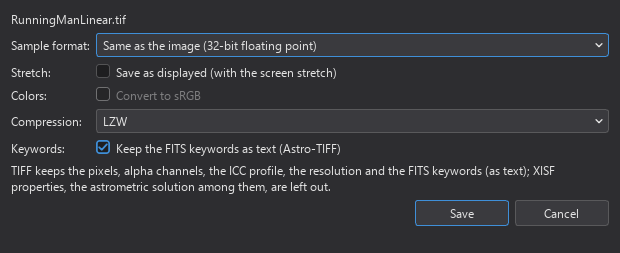
After the name, Save Options asks for what the chosen format needs. XISF and FITS have only the sample format; the others add their own settings.
Sample format: The type the samples are written in. Same as the image keeps the image's own type; the list adds every other type the format can write: 8, 16 and 32-bit integer, and 32 and 64-bit floating point. PNG writes 8 or 16 bits and JPEG 8. A format that cannot hold the image's type writes the closest one it can, with a note in the Log. Floating point samples that go to integers are limited to the range 0 to 1 (not a number becomes 0), and the Log says so when any sample was outside it.
Stretch: Save as displayed (with the screen stretch), for TIFF, PNG and JPEG. The file has the image as the screen shows it, through its screen stretch; unchecked, it has the data as they are. A linear image saved in 8 bits without the stretch looks nearly black and loses its faint levels, so the box starts checked for PNG and JPEG when the image is shown stretched (and PNG is then 8-bit; unchecked, 16-bit), and unchecked for TIFF. The box is off, and the data are saved as they are, when the image is shown without a stretch. The overlay of a mask is not part of the picture; alpha channels are kept.
Colors: Convert to sRGB, available when saving as displayed. The colors are converted from the image's profile to sRGB, as the screen shows them, and sRGB is written with them: for the web and for programs that ignore profiles. Unchecked, the file keeps the image's own profile. It is checked by default for 8-bit PNG and JPEG (Color Management).
Compression: TIFF only: None, LZW or Deflate (ZIP). All are lossless. LZW is read by every program that reads TIFF; Deflate makes smaller files of 16-bit and floating point images.
Keywords: Keep the FITS keywords as text (Astro-TIFF), TIFF only. The keywords are written as a FITS header in the TIFF description, which DSPX, Siril and other astronomy programs read back. It is available when the image has keywords. A TIFF written this way does not hold the image's own description text (the Log says so).
Quality: JPEG only, from 1 to 100. Higher keeps more detail and makes larger files; from 90 up the colors keep their full resolution.
Under the settings the dialog says what the chosen format keeps and what it leaves out, and warns when a choice loses information: linear data in 8 bits, or alpha channels that the format cannot hold.
3.2.3What a saved file is
A file written as displayed, or in another sample type than the image has, is a copy: the image keeps its own samples, its own file and its changed mark, and the Log says so. A file in the image's own type becomes the image's file, and the image is no longer marked as changed. When the format left something out (the notes in the Log say what), the image stays marked as changed, because the file does not hold all of it. When we close an image that has changes, DSPX asks whether to save them; changes held in an open project do not ask (Projects).
3.2.4Autosave and Recovery
DSPX keeps a copy of every image that has unsaved changes, so that the work is not lost if the program stops unexpectedly. Every 5 minutes, each image that changed since its last copy is copied in the background. The copies go to DSPX's own data folder, never next to the image files. An image that a process, a tool or a script is working on is copied in the next round. When the disk has too little free space, the round is skipped and the Log says so once.
A copy is deleted when its image is saved or closed, and all copies are deleted when DSPX quits normally. The history of an image is not in its copy.
If DSPX stopped unexpectedly, the next start lists the images that had unsaved changes, with the time of each copy:
- Restore All opens them all.
- Choose... opens the ones we tick. The others are offered again at the next start.
- Discard deletes the copies, after a question. They cannot be recovered after that.
Closing the list keeps the copies for the next start. A restored image opens with its own name, marked as not saved, and its file is the one it came from: Save writes there, with the checks above. When two copies of DSPX run at once, each keeps its own recovery copies, and one never touches the other's.
Autosave is set in : Autosave unsaved images every N min, on by default, every 5 minutes.
The Log records every save: the file, the format, the sample type, whether it was as displayed, and the time it took. XISF files record the program and its version in the file. The notes that follow say what a format left out.
3.3Sample Formats and Channels
An image is made of samples, one per pixel and channel, stored in one of five types: 8-bit integer, 16-bit integer, 32-bit integer, 32-bit floating point and 64-bit floating point. DSPX keeps the image in the type it was opened in, and its processes compute in floating point and give the image back in the type it had. In every type, the data mean the same thing: a sample is a value from 0 (black) to 1 (white), and an integer type scales it, 0 to 65535 for a 16-bit image. A floating point image may hold values outside 0 to 1, and DSPX does not rescale or clip them on opening: the samples are kept, the Log says so, and the screen shows what is inside the range.
The channels are gray (one) or RGB (three), and any number of alpha channels on top of them. Alpha channels are kept and saved where the format allows, but they are not shown on the screen. They are handled with Create Alpha Channels and Extract Alpha Channels. Other color spaces than gray and RGB are not image types: the components of CIE XYZ, L*a*b*, L*c*h*, HSV and HSI are channels of gray images, made with Channel Extraction and put back with Channel Combination.
To convert:
- Sample Format changes the type of the image in place, as one step of its history.
- Convert Color turns an RGB image into gray, or a gray image into RGB.
- Saving to another sample type, in Save Options, makes a copy in that type and leaves the image as it is.
The Log says what an image is when it is opened: for example 4008 x 2672, RGB, 32-bit floating point.
3.4Metadata
An image carries more than its pixels. DSPX keeps it with the image, shows or edits what is meant to be edited, and writes it to the formats that can hold it.
- FITS keywords
- Every card of a FITS header, in order, as a name, a value and a comment. The cards that the file's structure needs (the size, the
type, the scale) are made again when the image is saved. FITS Header shows the keywords of the image in a
table and edits them: change a value, add or delete a keyword. Camera and observatory programs write the exposure, the filter, the
date, the temperature and the like here, and the pre-processing engine reads them to sort frames. One of them says how the rows are
stored:
ROWORDER = 'BOTTOM-UP'means the first row in the file is the bottom row, so DSPX reads the file turned over and the first row of the image is the top one (a color filter pattern inBAYERPATfollows).'TOP-DOWN'is read as stored. A file with no ROWORDER follows the PixInsight compatibility mode (Preferences, Processing). With the mode on it is read as stored, top row first, as PixInsight does, and a plate solution another program wrote into it (ASTAP, Astrometry.net) is carried to the rows as shown, so the sky follows the stars. With the mode off, DSPX's default, it is read as the FITS standard says (DS9, Siril and ASTAP do the same): the first row in the file is the bottom row, exactly as if the file said'BOTTOM-UP', and the solution, the color filter pattern and the rest follow. FITS files without ROWORDER in , under Files, can fix it either way for every file, whatever the mode: Top row first (as PixInsight) or Bottom row first (FITS standard). A card in the file always wins over both. A FITS file DSPX saves always saysROWORDER = 'TOP-DOWN', because that is how it stores the rows. Calibration masters that PixInsight made from files without ROWORDER are upside down for DSPX with the mode off: see the warning in Calibration Frames and Masters. - XISF properties
- Named, typed values that XISF can store with an image. Processes write theirs: Spectrophotometric Color Calibration, for example, records the white balance factors it found. Properties travel through XISF and are not stored by the other formats.
- The astrometric solution
- Where the image points: its center, scale, rotation and projection, written by Plate Solve in the form PixInsight writes it, and read by the processes that need the sky (Astrometry). It is stored in the image's XISF properties, so XISF keeps it; FITS, TIFF, PNG and JPEG do not.
- The display function
- The screen stretch an XISF file was saved with. DSPX writes the stretch of the image into its XISF files, so the next program that opens it shows the image the same way.
- The ICC profile and the resolution
- The color profile that says what the colors mean, and the pixels per inch. XISF, TIFF, PNG and JPEG keep them; FITS cannot.
- HISTORY
- Processes that record what they did, such as Integration and Registration, do it in HISTORY keywords of the image they make. Our history panel (Undo, Redo and History) is not saved in a file; a project keeps it.
New images that a process makes carry the keywords and the properties of the image they were made from, so the sky coordinates and the exposure follow the data. Statistics measures the image, channel by channel, without changing it.
When an image is saved in a format that cannot hold part of its metadata, the Log says what was left out. Keep a copy in XISF when the solution, the properties or the stretch matter.
3.5New Images and Names
Many processes and tools make images instead of, or besides, changing one: the star image of Deep Star
Removal, the mask of Deep Star Mask, the filament mask of Filament
Sharpen, a survey image, a channel, and any process that is told to send its result to a new image instead of over the target. Each
arrives in a window of its own, in 32-bit floating point, named after the image it was made from with a suffix: M31_stars,
M31_starless, M31_sharp. A run that only makes new images leaves its target untouched: it adds no step to its
history, and its mask plays no part (Processes That Make New Images).
(F2) renames the image in front. A name starts with a letter or an underscore and has
only letters, digits and underscores, and no two open images have the same name; processes such as Pixel Math refer to images by these names. Renaming does not rename the file: the next
does that. If the file name typed in Save As has a doubled dot or no name before the extension (..xisf), DSPX says so and offers the cleaned name; it can be used, or the name kept as typed.
(Ctrl+W) closes the image in front, after asking whether to save changes. An image that is in use by a tool, a process or a script is not closed until that ends (the message says by what). closes every image; each changed image asks to be saved first.
and work as the Clipboard tool does
(Clipboard): Copy takes the selected part of the image in front, and Paste puts an image block on it. With no image in front,
Paste makes a new image called Clipboard. (Ctrl+Shift+V)
makes that new image whether or not an image is open, instead of placing a block on the one in front. In a text field, Copy and Paste work on text as always.
3.6File Formats at a Glance
| Format | Extensions | Sample types written | Alpha | ICC profile | FITS keywords | XISF properties |
|---|---|---|---|---|---|---|
| XISF | .xisf | All five | Any number | Kept | Kept | Kept |
| FITS | .fits .fit .fts | All five | Any number, as planes | Left out | Kept | Left out |
| TIFF | .tif .tiff | All five | Any number | Kept | Kept as text (Astro-TIFF) | Left out |
| PNG | .png | 8 and 16-bit integer | One | Kept | Left out | Left out |
| JPEG | .jpg .jpeg .jpe .jfif | 8-bit integer | None | Kept | Left out | Left out |
| Camera raw | CR2, CR3, NEF, ARW, DNG, RAF, ORF, RW2 and others | Read only |
3.6.1Compression, text and resolution
- XISF reads blocks compressed with zlib, lz4 and zstd, with or without byte shuffling, and keeps the resolution. A file written from the program is not compressed.
- FITS is not compressed. It keeps its keywords exactly, including COMMENT and HISTORY cards. Every image of a file is read, and
one is written in each file, in its primary HDU. It is written top row first, with
ROWORDER = 'TOP-DOWN'. - TIFF is written with no compression, LZW or Deflate, and keeps the resolution. Besides the keywords it carries the texts Description, Author, Copyright and Title, and the software and date. It is read in 8, 16 and 32-bit integer and 32 and 64-bit floating point, in strips or tiles, either byte order, and BigTIFF.
- PNG is always deflate-compressed, and carries the texts Title, Author, Description, Copyright and Comment. Palette images, transparency and interlacing are read.
- JPEG is lossy at the quality chosen. Baseline and progressive files in gray, YCbCr and RGB are read, and CMYK is converted to RGB without color management. It carries a comment.
The texts travel through XISF as properties and come back out of it, so a description set in one format survives a trip through another that holds it. What PixInsight, Siril, DeepSkyStacker and Photoshop write opens in DSPX, and what DSPX writes opens in them.
For work in progress, XISF is the format that loses nothing. For a picture to share, TIFF or PNG saved as displayed in 16 bits keeps the tones; JPEG is for the web, where size matters more than the last gradations.
3.7DSPX's Own Files
Besides images, DSPX keeps your work in files of its own. Their extensions begin with .ds.
| Extension | Name | What it holds |
|---|---|---|
.dspx | Project | The whole session: every image, its history, masks, layers, windows, workspaces and the Process Shelf. A folder with the
same name and .data added, Orion.dspx.data, sits beside it and holds the images. Keep the two together
(Projects). |
.dsproc | Saved process | One process with the values of all its settings, as text (Saved Processes and the Process Shelf). |
.dspxpre | Pre-processing session | A night's frames, the choices made about them and the settings of a run. Each run also leaves a copy in its output folder (Sessions). |
.dspxhist | History file | One image's history steps, selection and kept layers. It lives in a project's data folder and opens with the project. |
.dspxtheme | Theme | The colors and look of the whole program. A folder named after the theme and ending in .skins may sit beside it
(Appearance and Preferences). |
.dspxpad | LaunchPad | A LaunchPad's buttons and look. The LaunchPad Manager's Import file and Export use it. |
.dspxpadtheme | LaunchPad theme | The look of a LaunchPad without its buttons: the LaunchPad editor's Load theme and Save theme. |
.dspxicons | Icon set | The icons of a theme as text, for the Icon Manager's Load Icons and Save Icons. |
The data files have their own extensions: the star catalog files (.dscstar), the all-sky index files
(.dscquad, which AstroResolver in PixInsight builds and reads too) and the Gaia spectra file (.dscspec).
Files of other programs keep their own extensions too: PixInsight process icons (.xpsm) and drizzle data
(.xdrz), AdaptiveWorkflow blueprints (.awf), Photometric Glow Subtraction PSFs (.pgspsf)
and PI LaunchPad files (.pilp, read only). The files DSPX keeps for itself while it works, such as caches and files being
saved, need nothing from you.
At installation on Windows we can choose to open projects, saved processes and pre-processing sessions with a double-click. On macOS DSPX is the default program for these three types. On Linux the package registers nothing with the desktop: we give a file to DSPX on the command line, drop it on the window, or use .