
Troubleshooting
When the program will not start, an AI file is missing, a run is slow or fails, or something is not as it was left
This chapter collects what can go wrong and what to do about it: the program that stops at start because the processor lacks the instructions it needs, an AI process that cannot find its model or its runtime, runs that are slow or end with a message, and settings, windows or Python environments that are not as we left them. Each section quotes the messages the program gives, so that a message can be found here by its words.
18.1The Program Does Not Start
On Windows and Linux, DSPX needs a processor with the AVX2 and FMA instructions (System Requirements). When the processor does not have them, or the operating system does not save the registers they use, the program says so and stops, before anything else of it runs:
DSPX needs a processor with the AVX2 and FMA instructions (most Intel processors since 2013 and AMD processors since 2015). This computer's processor does not have them, so DSPX cannot run on it.
On Windows the message is in a box titled DSPX, and Enter closes it. On Linux it is written to the terminal the program was started from; the command-line tools write it there too (Command Line). The program ends with status 1. The message is in English in every language, because it must be given before anything that translates can run.
There is nothing to set to get around it: the engines of the processes are built for these instructions. A computer that is older than the dates in the message needs another computer. On macOS nothing is checked: Apple silicon and Intel Macs both run DSPX.
If the program does not start for another reason, run it from a terminal with DSPX --version. It should print the version and
return at once. If it does, the program itself starts, and what stops the window is a setting or a folder: start it once with
DSW_DATA_DIR set to an empty folder, which gives it no settings to read
(Environment variables), and see
Settings and Folders.
18.2An AI File Is Missing
Three processes run a neural network: Deep Star Removal, the AI detection of Deep Star Mask and Deep Sharpen. Each needs two kinds of files:
- ONNX Runtime, the library that runs a network (
onnxruntime.dllon Windows,libonnxruntime.soon Linux,libonnxruntime.dylibon macOS); and - the model of each process, in
lib/<Process>.
They are delivered in the program's own folder. Deep Star Mask's parametric detection and the six classical sharpening methods (Deconvolution, Multiscale Sharpen, Texture Sharpen, Flow Sharpen, Clarity and Filament Sharpen) need no AI file at all, so they keep working when AI files are missing.
18.2.1When the model is missing
The process stops and the Log, and a message box, say what was missing and where it was looked for:
The AI model of <process> (<file>) was not found. It was looked for as <places>. Copy the file there, or reinstall the program.
When several places were looked at, it says Copy the file to one of those places. Each place is given with its origin: the
folder in the environment, the chosen AI folder (--ai-folder), or the program's own folder. When no folder at all is known, the
message says: There is no folder to look for it in: reinstall the program.
To fix it, put the model file in the place the message gives, reinstall the program, or start it with --ai-folder and a
folder that has the file (Command Line).
18.2.2When ONNX Runtime is missing
<Process> cannot run its AI model: <the reason>. The model file is in place (<path>): what is missing is ONNX Runtime, the library that runs it.
The message goes on to name the places where the library is looked for, and where the system finds libraries; and it says where to put one: Put an ONNX Runtime for this system in <folder>, or reinstall the program. The runtime that is delivered is the one for the system DSPX was built for; a runtime of another system, or a damaged file, gives this message too.
18.2.3The Performance / AI page of the Preferences
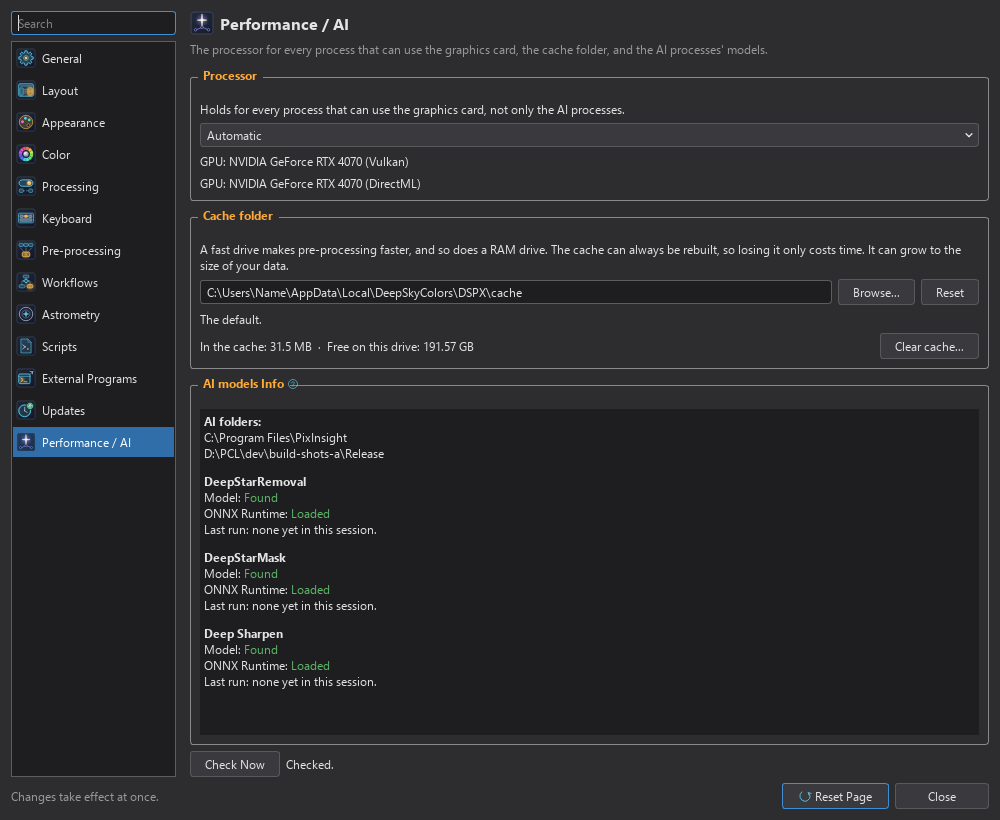
The Performance / AI page of shows what the program found. Its Processor choice holds for every process that can use the graphics card (GPU Acceleration), not only for the AI processes.
Processor: Automatic uses the graphics card when there is one the process can use, and the processor otherwise. CPU only always uses the processor: it is slower, and the results can differ slightly from the graphics card's. A label beside the list says what is used now, for example GPU: NVIDIA GeForce RTX 4070 (DirectML), in use, CPU only: the GPU is not used or CPU: no GPU the AI can use.
The page also has Test the GPU (GPU Acceleration) and the Cache folder, where pre-processing keeps what it can reuse and the undo steps go when they leave memory (Preferences).
AI models Info: The AI folders, and for each AI process whether the model was Found or Not found, whether ONNX Runtime is Loaded, Not run during this session or Not found, what the network last ran on (Ran on: the GPU, DirectML: ... or the CPU with the reason), a problem if it cannot run (Cannot run: ...), and the last run. Point at Found or Not found for the file, or the places it was looked for. Check Now asks each process whether it can run; this loads ONNX Runtime, which otherwise happens when a network is first used.
To take the AI files from another folder first, start DSPX with --ai-folder <folder>, a folder laid out like the
program's own: bin with ONNX Runtime in it, and lib/<Process> with each model. A model that folder does not have is
still taken from the program's own folder. (Not on a Mac: there the program uses the AI files inside its own bundle.)
An ONNX Runtime that has loaded stays loaded until DSPX is started again.
18.3Slow or Failing Runs
18.3.1Slow
- An AI process on the processor. The About box () has a line that says what the AI
processes run on. If it says CPU and the computer has a graphics card, see the Performance / AI page above: the Processor must be Automatic, and the
card must be one the delivered runtime can use (DirectML on Windows, Core ML on Apple silicon; CUDA needs a CUDA build of ONNX Runtime in an AI
folder's
bin). The Preferences page says why the processor was used. - A large image. A process holds about three copies of the image, and the AI processes several more in floating point. When memory runs short, the system starts to swap and everything slows. Close images that are not needed, or work on a smaller part with a preview or a selection.
- The live preview. It computes again with every change of a setting; turn it off while changing several settings (Previewing a Process).
- Pre-processing. The first run measures every frame; later runs read the results from the caches (Pre-processing). After an update of DSPX, the first run of each session measures every frame again.
18.3.2Memory
When there is not enough memory, a file is not opened or an operation cannot finish, and the message says so: There is not enough memory to read the image. and There is not enough memory. The undo steps do not compete with the processes for memory: only the newest ones are kept in memory, and the older ones are in the cache folder (Undo Steps in the Cache Folder). When the drive of the cache folder is nearly full, the oldest steps are dropped sooner; moving the cache folder to a drive with room () or closing images gives the room back.
18.3.3Stopping a run
A run shows a progress bar, and Cancel stops it. A process can stop at the points where its engine can be interrupted: a network between its tiles, for example, so the stop can take a moment. Only one process runs at a time. A canceled run leaves the image as it was.
18.3.4The image is in use
An image that something holds cannot be changed, closed or saved by anything else, and DSPX says what holds it: <Image> is in use by the Paintbrush tool. The message tells what to do:
| Held by | What the message says |
|---|---|
| A tool session | Apply or cancel it first. |
| A process or a blueprint | Wait for it to end, or cancel it. |
| A script | Wait for it to end, or stop it. |
| A guided run | Wait for its step to end, or stop the run. |
| Saving a project | Wait for the save to end, or cancel it. |
The message box may also offer a button that lets go, such as Close the Paintbrush. If the image is in another workspace, the message adds It is in <workspace>. (Workspaces).
18.4Reading the Log's Messages
The Log panel (The Log) is where the program says what it did. Every line has the time it was written; lines that begin Warning: say that something was done but not as asked or not completely, and lines that begin Error: say that something failed. The Log is always in English, whatever the language of the program. When something does not work as expected, the Log is the first place to look: the line next to the failure usually says why.
Messages we meet often:
| Message | What it means |
|---|---|
| Opened ... as ...: 4008 x 2672, RGB, 32-bit floating point; 52 FITS keywords, 3 XISF properties | A file was opened; the numbers are the size, channels, sample type and metadata (Opening Images). |
| ... could not be opened. | The file cannot be read; the reason follows (a format DSPX does not read, a damaged file, not enough memory). |
| Saved ... as ... (XISF, 32-bit floating point, ... s). | A file was written. If it says the file is a copy as displayed or in another sample type, the image keeps its own samples. |
| ... was not saved. | The image is held by a session or a run; the reason names what holds it. |
| Warning: ... (a note after a save) | The format left something out: alpha channels, keywords, the astrometric solution or an ICC profile (File Formats at a Glance). |
| ... is shown with the screen stretch saved in the file | The file was saved with a screen stretch, and DSPX uses it. |
| ... has no color profile: it is shown as sRGB | The file has none; the screen assumes sRGB (Color Management). |
| Closed ... | An image was closed. |
| The AI model of ... was not found | See An AI File Is Missing. |
| ... is in use by ... | See Slow or Failing Runs. |
A process, tool or script that runs writes a line when it starts, with the settings and the mask or selection it works through, and a line when it ends with its time. The process pages say what a process adds to the Log.
18.5Pre-processing Finds No Lights
An Easy session that says "No light frames: only calibration frames." for a folder we know holds lights has left the lights out; the lines under it name the files and the reason.
- "light frame(s) left out: ... processed by an earlier run, but not calibrated": the files were registered, cosmetically corrected or debayered, but never calibrated. Calibration needs the raw lights: drop the folder of the raw lights.
- "light frame(s) left out: ... the raw lights are used instead": the folder holds the raw lights and their calibrated copies. Press Use the calibrated lights instead on the Easy page to start from them.
- Lights calibrated and registered by PixInsight (
_c_rfiles) are used when the folder holds no raw lights: the page says "light frames already calibrated and registered by PixInsight: they are used as they are". Files that carry none of the marks PixInsight writes are taken for raw lights. - "file(s) left out: not a FITS, XISF or camera raw file": pictures (PSD, TIFF, JPEG) and text files are not frames.
- "an integrated light frame": a master light, the result of an earlier stack.
The Frames page of the Expert view lists every file left out with its reason (What a Dropped Folder May Hold).
18.6Settings and Folders
The program keeps the arrangement of its window, the shortcuts, the Preferences and some folders between sessions. When one of these is not as it was left, or not as we want it, this is where to look.
18.6.1The window is not as expected
- arranges the panels and toolbars as the Default layout says (Layouts).
- forgets the sizes and positions of the floating panels; each opens at its default size.
- puts the toolbars back.
- In , Start with set to the Default layout starts every session with it instead of where we left off. Keep process icons between sessions decides whether the process icons of the workspaces are there at the next start.
- A panel closed by mistake comes back from the menu, where each panel has an entry.
18.6.2A page of the Preferences
Each page of the Preferences has Reset Page, which puts its settings back to their defaults after asking. A change takes effect at once, except the language and Translate Process names, which change when DSPX starts again; DSPX offers to restart (Preferences). Shortcuts that do not work may be in conflict with another command; the Keyboard page shows conflicts (Keyboard Preferences).
18.6.3Python and scripts
The Scripts page of the Preferences shows the state of the Python that scripts run with: Ready, or Not ready with the reason, the versions of Python and sirilpy, where it is and how large it is. The buttons of the Environment box fix it:
- Set Up... downloads the pinned Python, after saying what, from where and how much, and makes the environment.
- Repair... asks, then removes the environment with every package scripts installed, and makes it again from the Python. Those packages install themselves again when scripts next need them. It is the answer to an environment that does not run.
- Reset... lists what goes, asks, then removes the Python, the environment and an unfinished download. The downloaded scripts, the approvals and what scripts keep stay.
- Check Again runs the chosen Python again and asks it for its versions.
A script that fails with "not enough space in shared memory" could not get room for an image, and the message says how many MB it needed.
On Linux it names /dev/shm, which is full or has a quota too small for the image. Close other programs or free memory and run the script again.
The program itself keeps running. A script that writes a great deal of output with few line breaks is cut into lines of a bounded
length, so it cannot use up the program's memory, and on Linux and macOS a program the script started ends when the script does.
More in Scripts and Python.
18.6.4Starting from nothing
To see how the program behaves without any setting of ours, start it with DSW_DATA_DIR set to an empty folder: the program then reads and
writes no settings, and puts what it makes in that folder.
18.6.5The documentation does not open
is unavailable, and the Help button of a panel says that there is no page yet, when the
doc folder is not next to the program. The folder is part of what is delivered: put it back beside the program
(Installing and Updating).